

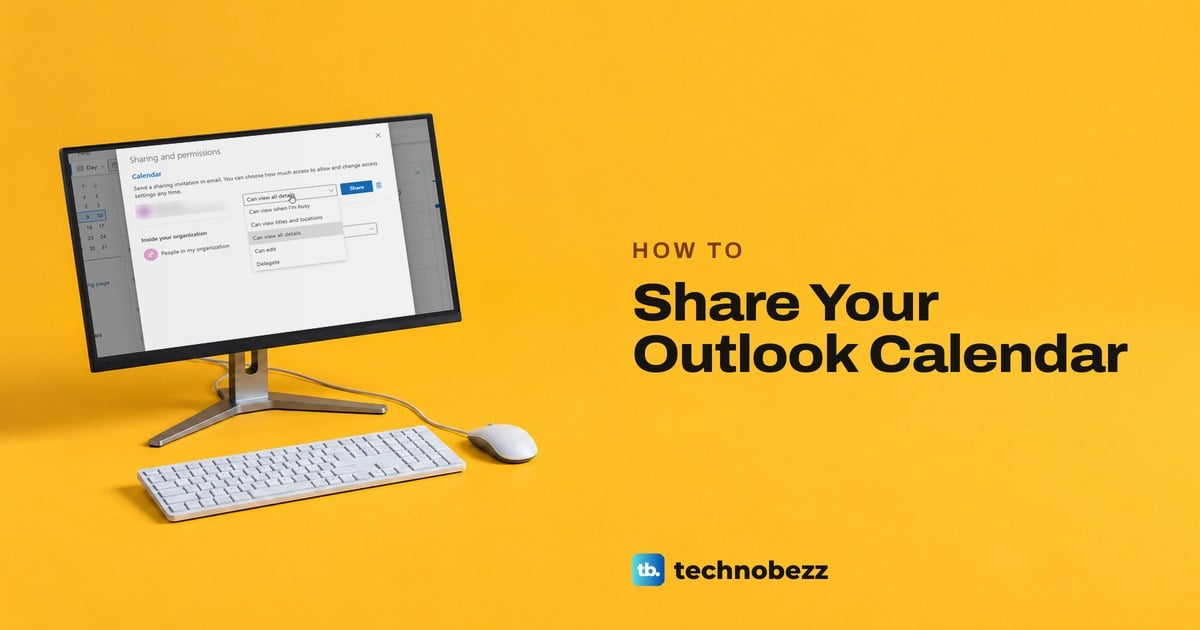
To share your Outlook calendar, open Calendar, select Share (called Share Calendar in classic Outlook), add the person and choose what they can do, such as Can view all details or Can edit, then select Share or OK. Outlook emails them an invitation, and once they select Accept, your calendar is added to their Outlook, although the new Outlook keeps it under Show all.
Classic Outlook hides that button on its Simplified Ribbon, and on our PC it sat under the ... (More commands) button as Add & Share > Share > Calendar. The colleague we added there got Can view all details by default, and the invitation reached their inbox within a minute.
The short version
- Classic Outlook: in Calendar, select ... > Share > Calendar (or Share Calendar on the Classic Ribbon), then Add, pick a level and select OK.
- Outlook on the web and the new Outlook: in Calendar, select Share, add one person at a time, pick a level and select Share.
- Check the level: a person you add starts at Can view all details, so lower it if that shows too much.
- Can edit and Delegate: only for people in your organization, and Delegate only on your main calendar.
- Gmail or anyone with a link: outside people get view levels only, and publishing makes a read-only link instead.
Which Outlook you have
The steps depend on which Outlook you have open, so check that first. Microsoft's test is the Settings gear, which the new Outlook has and classic Outlook does not. Our classic Outlook showed File, Home, Send / Receive, View and Help tabs, with a Try the new Outlook switch set to Off where the gear would be.
Outlook on the web has the gear too. If you were moved to the new Outlook and prefer the classic dialog, you can switch back to classic Outlook with the same switch. The table shows where sharing lives in each version and what you can hand out.
| Your Outlook | Where to share | Levels you can give | Edit and delegate |
|---|---|---|---|
| Classic Outlook for Windows | ... > Add & Share > Share > Calendar, or Home > Share Calendar on the Classic Ribbon | All five, from busy times only up to Delegate | Inside your organization only, plus File > Account Settings > Delegate Access |
| Outlook on the web (work or school) | Calendar > Share on the Home tab | The same five levels | Inside your organization only, and Delegate only on your main calendar |
| New Outlook for Windows | Calendar > Home > Share calendar | The same five levels | The same as Outlook on the web |
| Outlook.com (personal account) | Calendar > Share calendar at the top of the page | Can view all details and Can edit | No delegates |
| Outlook for Mac | The three dots next to the calendar > Sharing Permissions | Chosen per person in Calendar Properties | Both people need Exchange accounts |
| Outlook for iPhone | Calendar menu > the calendar's gear > Add people | View or edit access, as Microsoft describes it | Tap a person to change or remove their access |
Share your calendar in classic Outlook
Classic Outlook shares through a dialog called Calendar Properties, and the hard part is finding the button. With the Simplified Ribbon, which our classic Outlook used, the calendar's Home tab had no Share Calendar button. It was inside the ... (More commands) button at the right end, in a group called Add & Share.
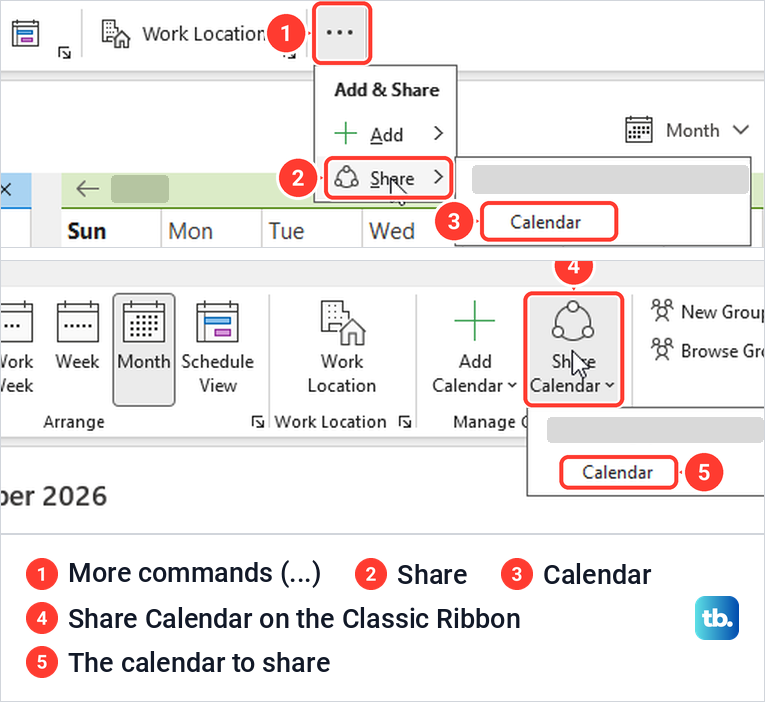
On the Classic Ribbon the same command is a Share Calendar button in the Manage Calendars group of the Home tab, which is where Microsoft's own steps put it. Either way, a short menu lists your account and the calendars in it.
- 1.Select Calendar in the bar on the left.
- 2.Select ... > Share > Calendar, or Share Calendar > Calendar on the Classic Ribbon. Calendar Properties opens on its Permissions tab.
- 3.Select Add, pick the person from your address book or type their address, and select OK.
- 4.With their name selected under Currently sharing with, choose a level under Permissions.
- 5.Select OK to save the change and send the invitation.
Outlook gave the colleague we added Can view all details by default, so change it before you select OK if that shows more than you want. The list for a person offered five levels, from the lowest, which shows only when you are busy, up to Can edit and Delegate. Microsoft's classic steps list only the three view levels, but all five were there on our PC.
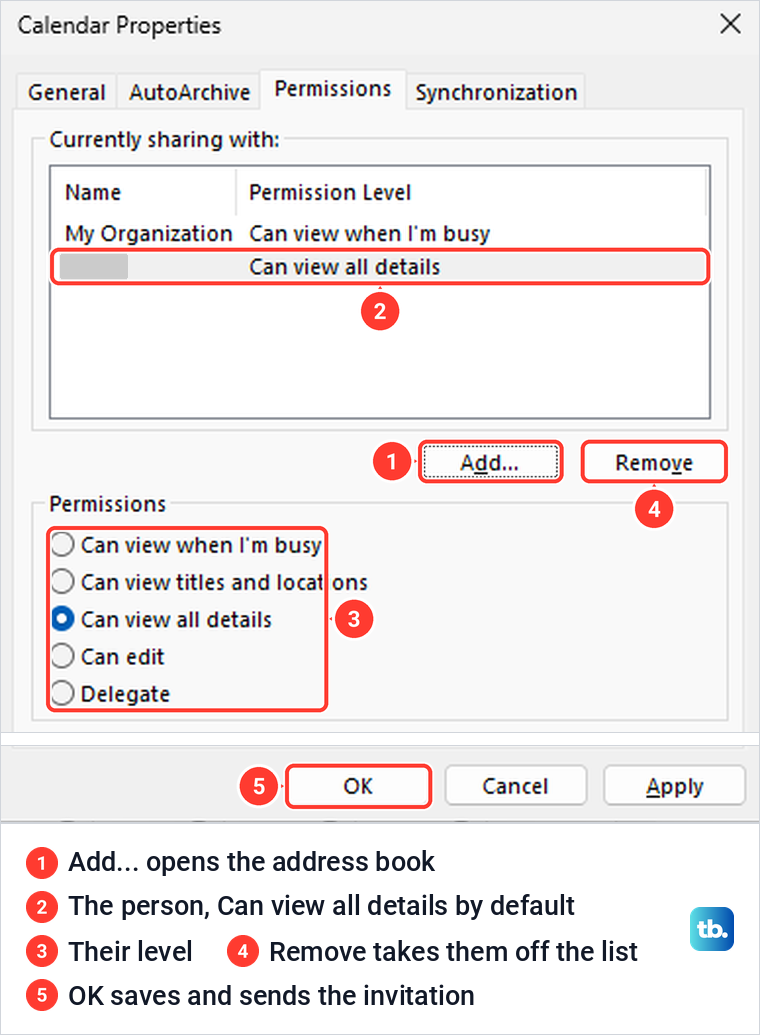
The first row, My Organization, works differently. It sets what everyone in your organization can see, and the dialog warns that changes to it will apply to all users in your organization. Ours was set to that busy-only level, which Microsoft says is the usual setting, and its list ran from None to Can edit with no Delegate.
OK closed the dialog with no message at all. If you would rather keep your main calendar to yourself, create a separate calendar to share and share only that one. Microsoft says any extra calendar folder you create can be shared on its own.
Share your calendar in Outlook on the web or the new Outlook
Outlook on the web has a plain button for it. Open Calendar and select Share on the Home tab, whose tooltip on our screen read Share a calendar with others. With only one calendar it went straight to a Sharing and permissions window, and Microsoft says you pick the calendar first if you have more than one.
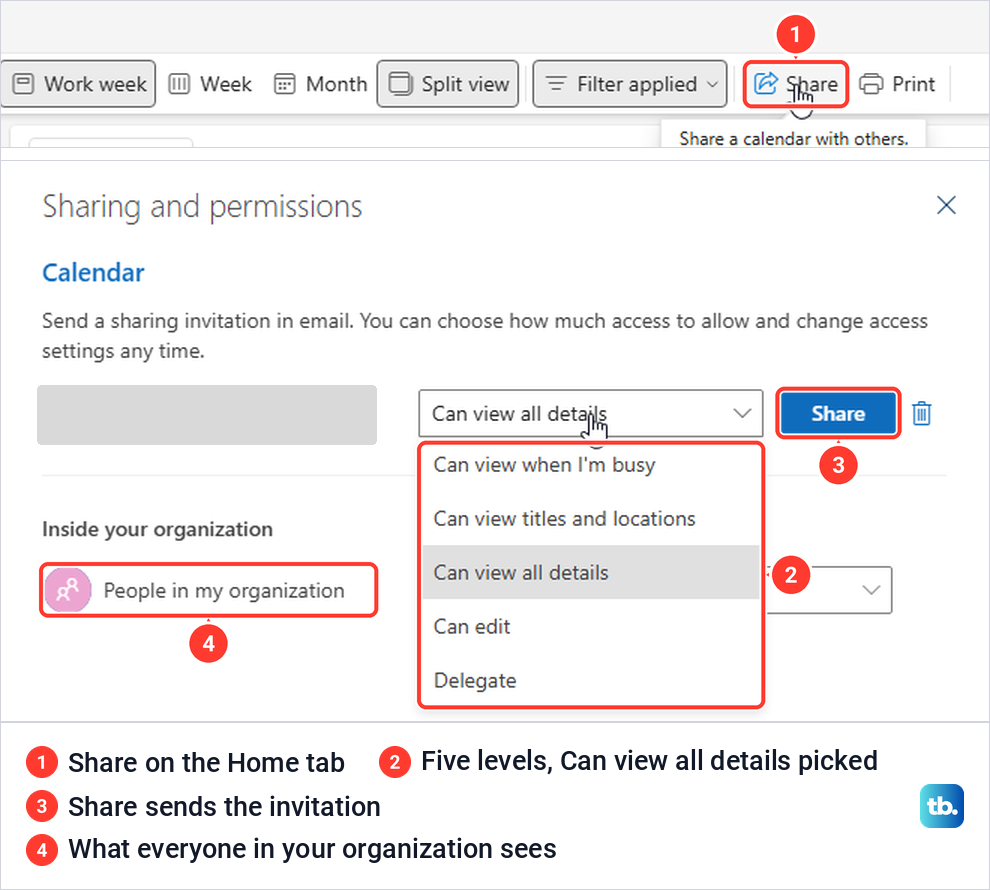
Type a name or address in the Enter an email address or contact name box and pick the person from the suggestions. The box then turned into that person's row, with a level list set to Can view all details and a Share button, so you add one person at a time, as Microsoft also says. Choose the level and select Share, and the window stays open with an empty box for the next person.
The list held the same five levels as classic Outlook. Below it, under Inside your organization, a People in my organization row set to the same busy-only level plays the part of classic Outlook's My Organization row.
In the new Outlook for Windows, Microsoft's steps are the same. Select Calendar, then Share calendar on the Home tab, type the person's name, choose the level from the list next to their name and select Share, just as on the web.
For a personal address, sign in to your Outlook.com account in a browser and select Share calendar at the top of the calendar page. Microsoft says a personal account can only give Can view all details or Can edit.
Which permission level to choose
Each level adds to the one before it. Microsoft says the lowest shows when you are busy without details such as the location, the next adds titles and locations, and Can view all details shows everything. Can edit lets the person change your calendar, and Delegate also lets them share it and handle your meeting requests.
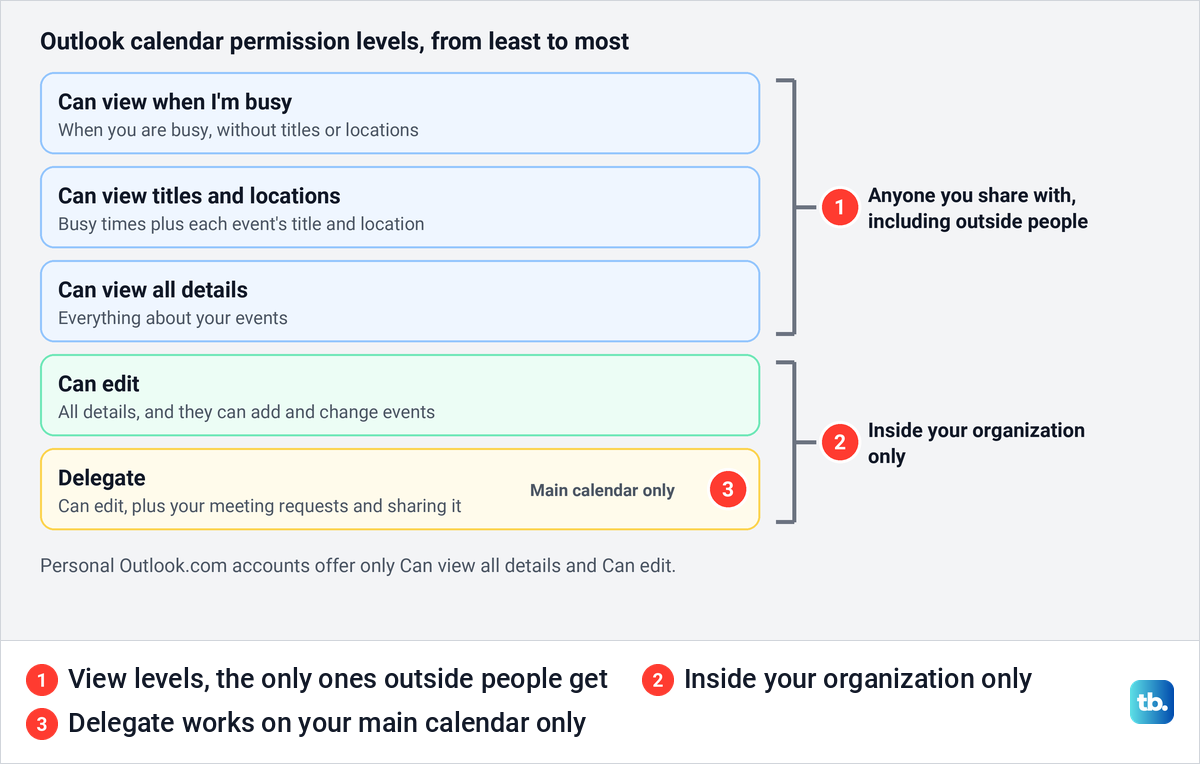
The invitation spells out the level, so the other person knows what they are getting. Ours read You'll be able to see all details of events on this calendar for Can view all details, and You'll be able to see event titles, times, and locations for Can view titles and locations.
For a coworker who books meetings with you, the busy-only level or Can view titles and locations is usually enough, and your organization may already show your busy times through its default row. An assistant who runs your diary needs Can edit or Delegate. If someone only needs to join one meeting, skip sharing and send them a meeting invitation, or set up a Microsoft Teams meeting if it happens online.
Two limits apply to every work or school account. Microsoft says you cannot give editor or delegate access to people outside your organization, and that delegates can only be added to your main calendar, while editors can be added to any calendar you created.
Give someone edit or delegate access
Can edit lets the person view and change your calendar, and Microsoft says a delegate can also schedule and respond to meetings on your behalf. In Outlook on the web, choosing Delegate in the sharing window added two boxes on our screen, Let delegate view private events and Let delegate manage categories, both unticked. Leave the first one unticked unless the person should read the details of appointments you marked private.
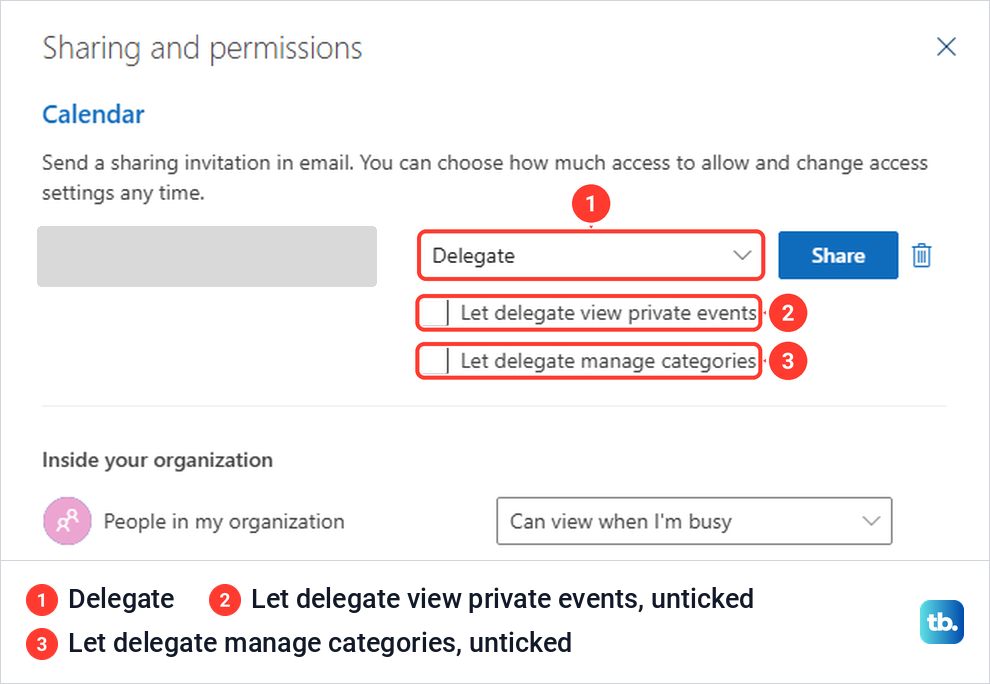
Once you have selected Share, Microsoft says Sharing and permissions shows an extra option for the delegate. Under Delegates, Send invitations and responses to decides who gets your meeting requests, with Delegate only, Delegate and send me a copy, or Both my delegate and me.
Classic Outlook keeps full delegate setup in its own place. Select File > Account Settings > Delegate Access, then Add, and pick the person. Microsoft says the delegate must be in your organization's address list, and that a missing Add button can mean Outlook has no active connection to Exchange.
The Delegate Permissions window gave the delegate Editor (can read, create, and modify items) on the Calendar by default, with Delegate receives copies of meeting-related messages sent to me ticked. Tasks was also set to Editor, Inbox, Contacts and Notes to None, and Delegate can see my private items was unticked. The window also noted that delegates can use the same permissions through Copilot if Copilot is enabled for their account.
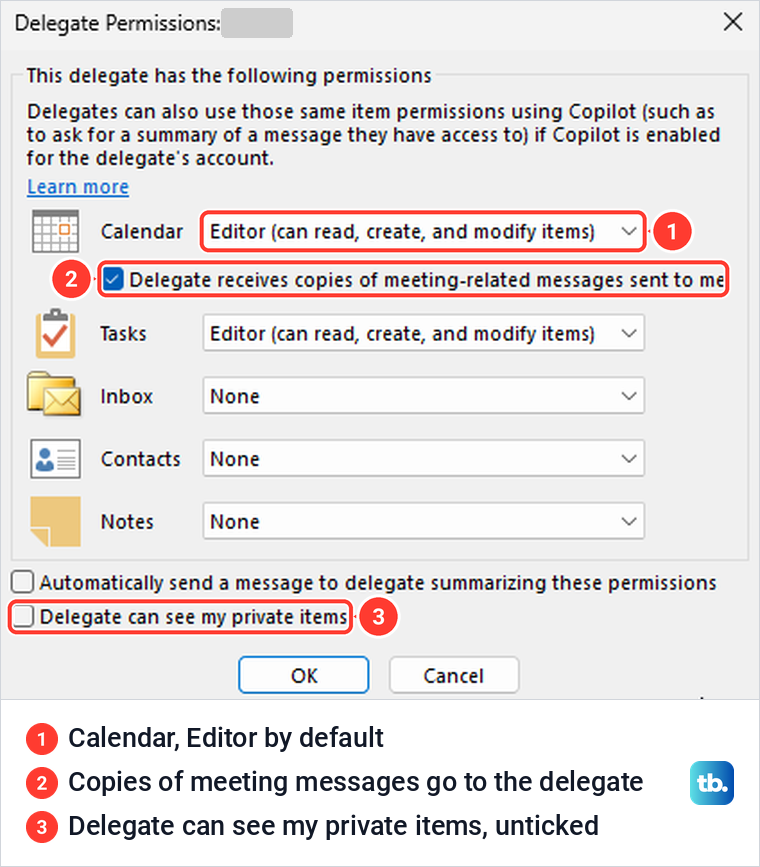
Change anything you need, select OK, then select OK again in the Delegates window to save. That window was set to send meeting requests to My delegates only, but send a copy of meeting requests and responses to me (recommended). Microsoft adds that messages a delegate sends for you show both names. If you only need people to know you are away, set up an out of office reply instead of adding a delegate.
Accept a shared calendar and find it
The person you share with gets an email with the subject You're invited to share this calendar. In classic Outlook it showed a single Accept command at the top of the message, a bar saying the sender had invited you to view their calendar, and a line naming the level. After one click on Accept, the command read Accepted with the date and time.
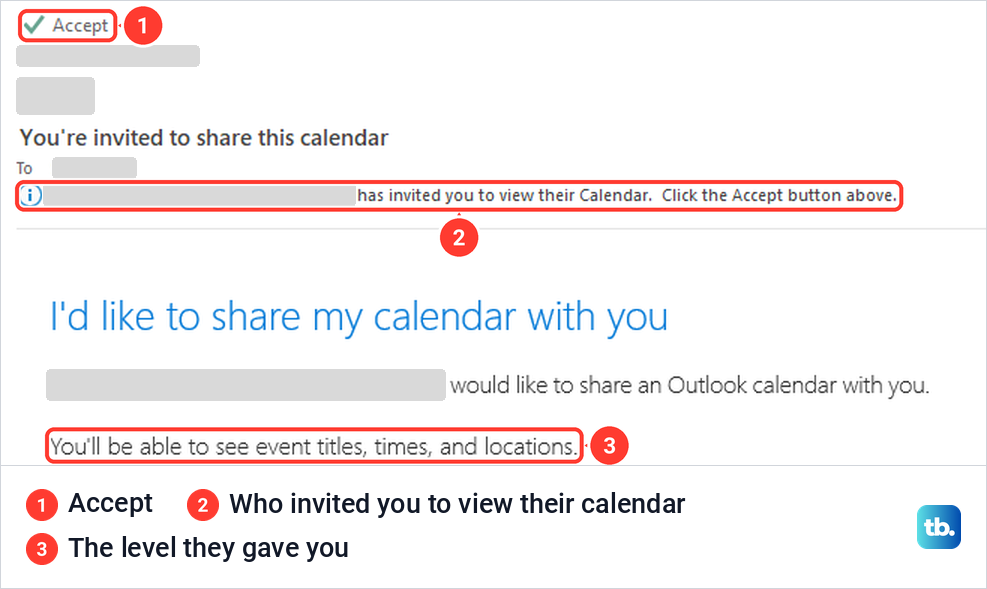
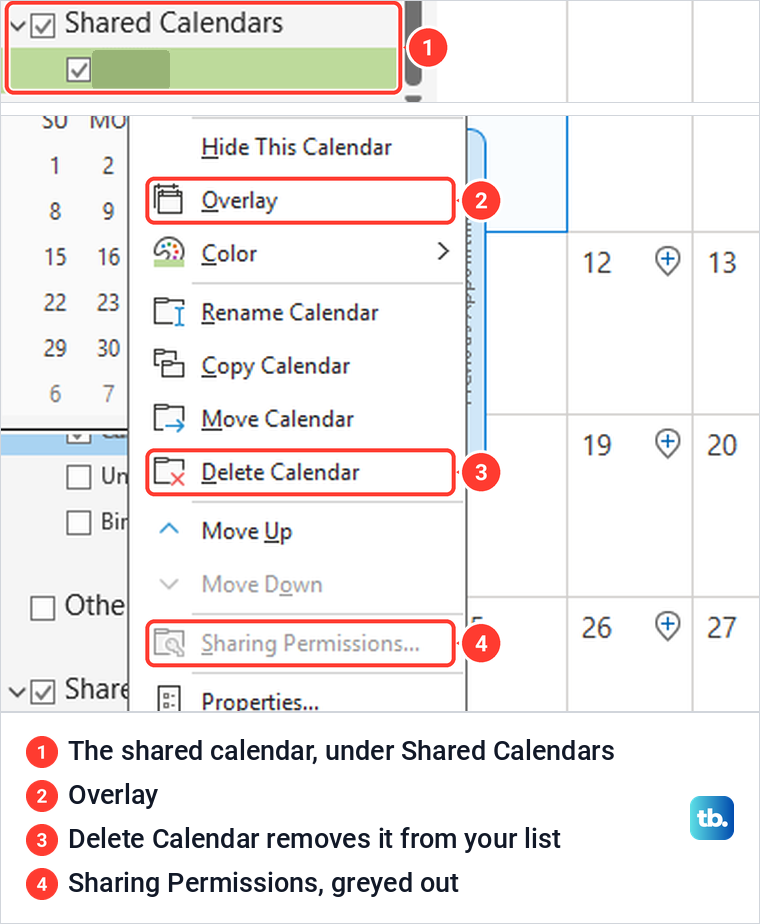
Microsoft says accepted calendars appear under Shared Calendars in classic Outlook's folder pane. Right-click it and choose Overlay to lay it over your own calendar instead of side by side. Sharing Permissions was greyed out in that menu, as Microsoft says you can't share calendars owned by other people.
Outlook on the web shows a blue Accept button at the bottom of the invitation. Ours turned into View calendar in place, and that opened Calendar in a new browser tab with the shared calendar under People's calendars and Split view switched on.
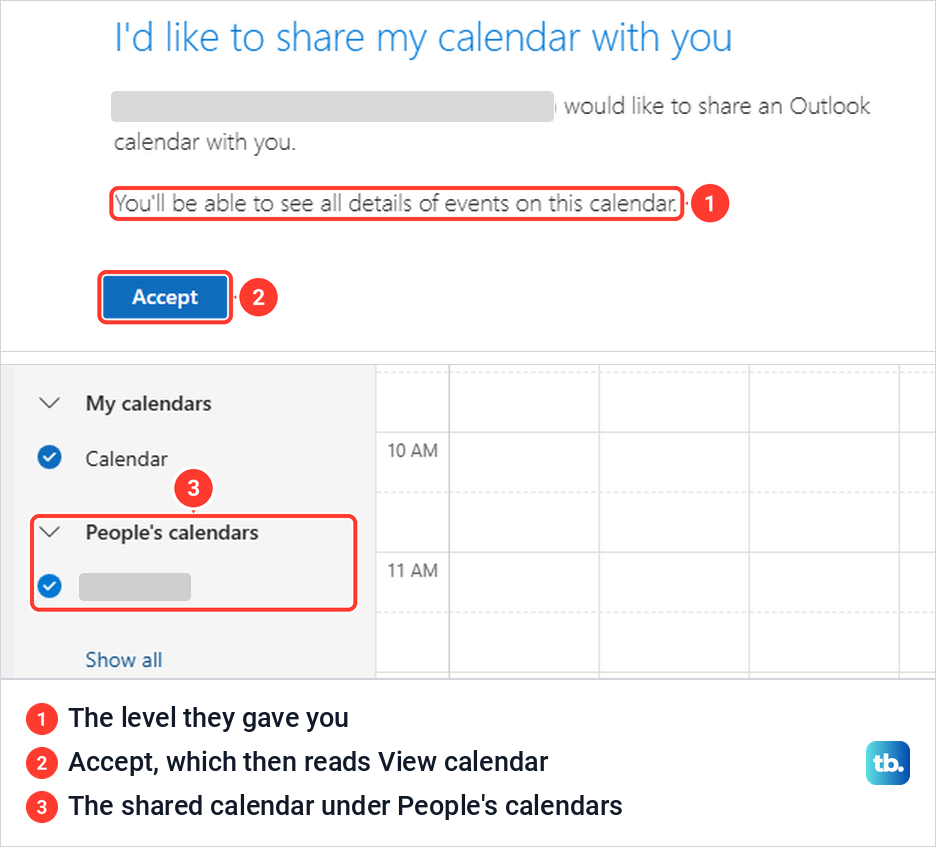
The new Outlook hides shared calendars at first. Microsoft says to select Show all in the calendar list, look under People's calendars and select Split view to see calendars side by side.
If nobody has shared with you and you only need to open a coworker's calendar, classic Outlook does it from ... > Add > Open Shared Calendar, or Add Calendar > Open Shared Calendar on the Classic Ribbon. When we did that for a colleague who had shared nothing, Outlook added their calendar under Shared Calendars at once, with no request for permission. That is the organization row at work, which Microsoft says usually shows free and busy time only.
Keep private appointments private
Marking an appointment Private hides its details from most people you share with. Microsoft says they see only the time of a private item, not the title, location or other details, and that a private recurring series also shows its recurrence pattern.
Delegates are the exception you control. In both the web sharing window and classic Outlook's Delegate Permissions, the box that lets a delegate see private items was unticked by default on our PC. Microsoft still warns not to rely on Private alone, and not to give Reviewer permission, the older name for Can view all details, to anyone who must never read your private items.
So for an appointment that has to stay secret, keep it off a shared calendar or give the person a lower level. The busy-only level shows only when you are busy, for every event.
Share with someone outside your organization or on Gmail
Sharing outside your organization works at the view levels only, and only if your organization allows it. Microsoft says calendar sharing may be limited to people in your organization depending on its settings, and outside people never get Can edit or Delegate.
How fast they see changes depends on where their account lives. Microsoft says sharing inside one Microsoft 365 organization syncs instantly, another Microsoft 365 organization syncs about every three hours, and an Outlook.com or Gmail address gets an Internet Calendar Subscription (ICS) link instead. Outlook.com refreshes that link about every three hours, while Gmail might take 24 to 48 hours.
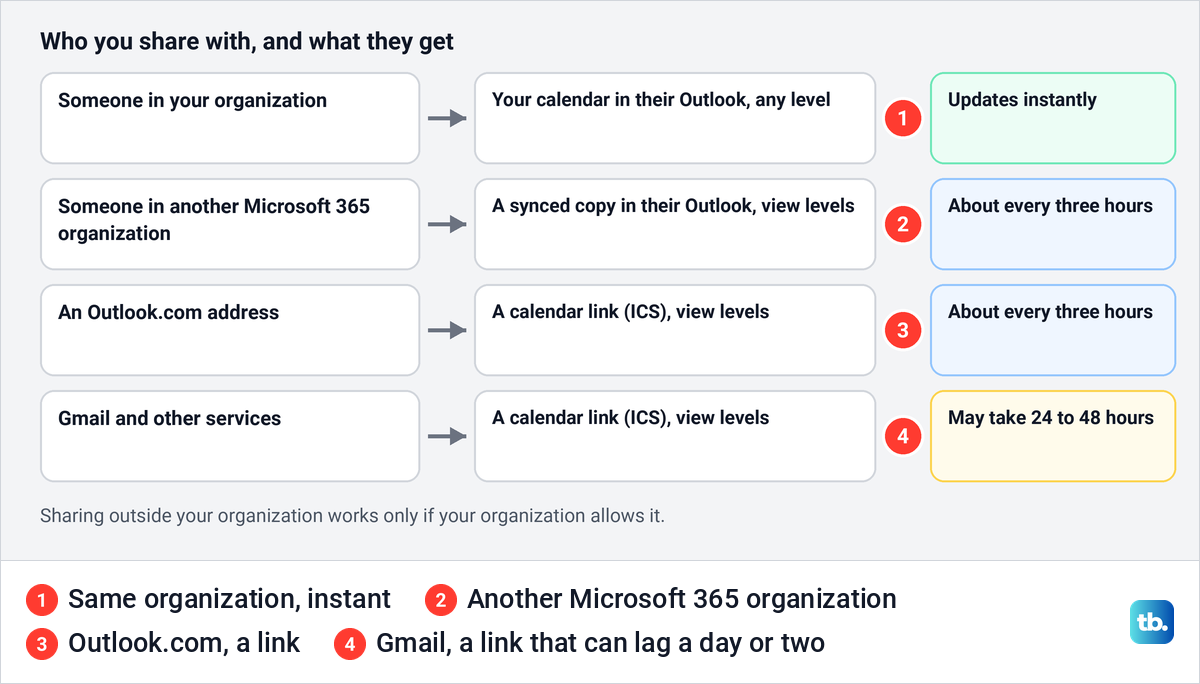
Microsoft also says a Gmail user can accept the invitation only with a Microsoft 365 or Outlook.com account. Otherwise, Microsoft says the share creates an Internet Calendar Subscription (ICS) link, and they add your calendar to their own calendar service with that link.
You cannot share with a Microsoft 365 group either. Microsoft says calendars can only be shared with individual people or security groups, and that classic Outlook says This calendar can't be shared when the address is a Microsoft 365 group. So share with each person in the group, or with a security group, which Microsoft says can receive a share.
Publish your calendar with a link
Publishing is different from sharing. Instead of inviting named people, it creates a link, and Microsoft says published calendars are viewable by anyone with the link and are read-only, so use it only for a schedule anyone may see.
In Outlook on the web, open Settings with the gear, type publish in Search settings and pick Publish a calendar. On our screen that opened Calendar > Shared calendars, a page with only two sections, Calendar updates and Publish a calendar. Sharing with named people is not on that page at all, only behind the Share button in Calendar.
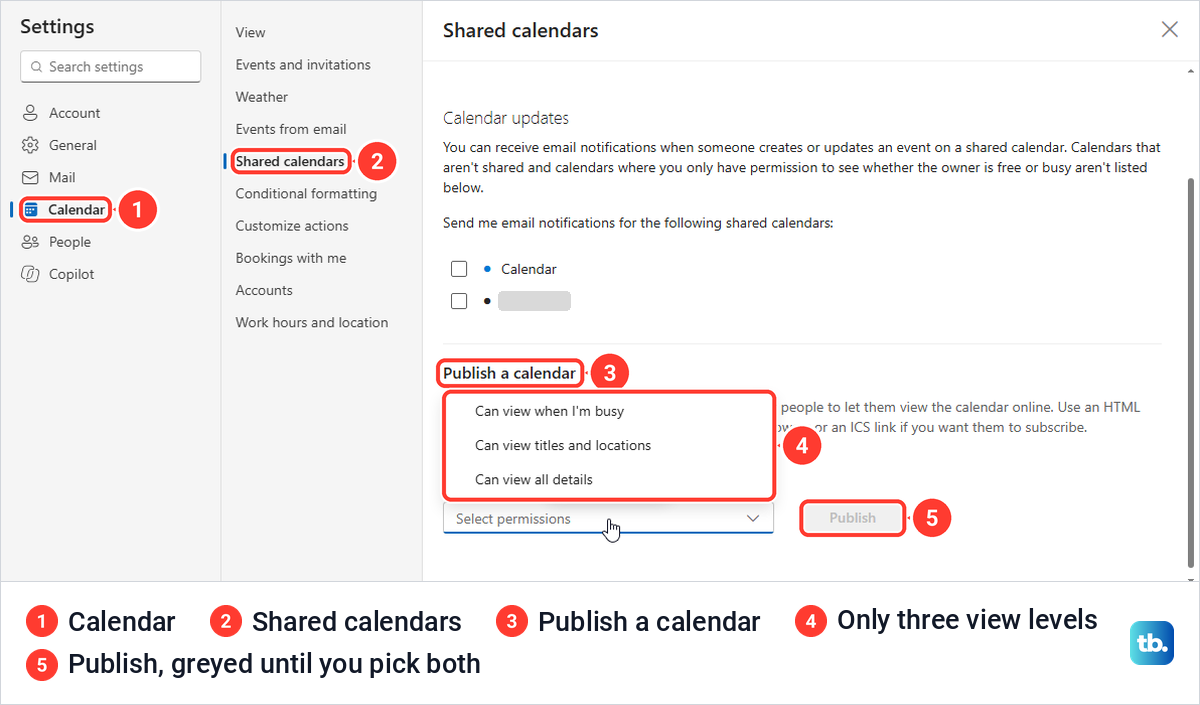
Choose the calendar and how much detail to show. The permissions list offered only the three view levels, up to Can view all details, with nothing picked, and Publish stayed greyed out until both choices were made. Microsoft says Publish then shows an HTML link, for viewing in a browser, and an ICS link, for subscribing in another calendar app.
When you are done, return to the same page and select Unpublish. If Publish a calendar is missing on a work or school account, Microsoft says this can happen when your organization's sharing policy does not allow anonymous publishing, which only an admin can change.
Classic Outlook had no Publish Online command on our PC, on either ribbon layout or in the calendar's right-click menu, and Microsoft's publishing page points to Outlook on the web. Both use the same mailbox, so publish from the web even if you work in classic Outlook.
Send a copy that never updates
For a one-off snapshot, classic Outlook can save the calendar as a file. With Calendar open, select File > Save Calendar, which saves in iCalendar Format, and use More Options to set the Date Range, Today by default, and the Detail, Availability only by default. Then attach the file to an email.
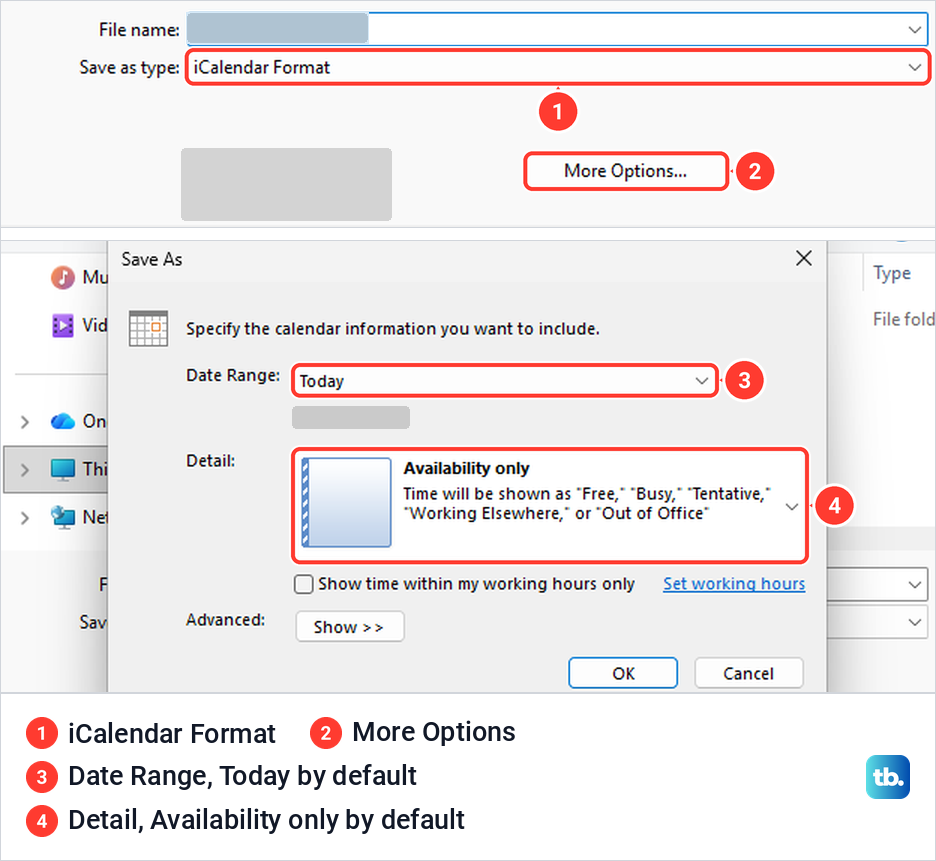
Some instructions mention an E-mail Calendar button on the Home tab, but our classic Outlook had none on either ribbon. Microsoft says an imported ICS file adds your events once, and the person gets no later updates.
Change or stop sharing your calendar
To change someone's level on the web, open the same Sharing and permissions window, or right-click the calendar and select Sharing and permissions, and pick a new level next to their name. In classic Outlook, reopen Calendar Properties, select the person and choose another level.
To stop sharing on the web, select the bin next to the person, whose tooltip reads Remove. On our screen it took them off your list at once with no confirmation, so check the row before you click. In classic Outlook, select the person in Calendar Properties, then Remove and OK, which asked nothing either.
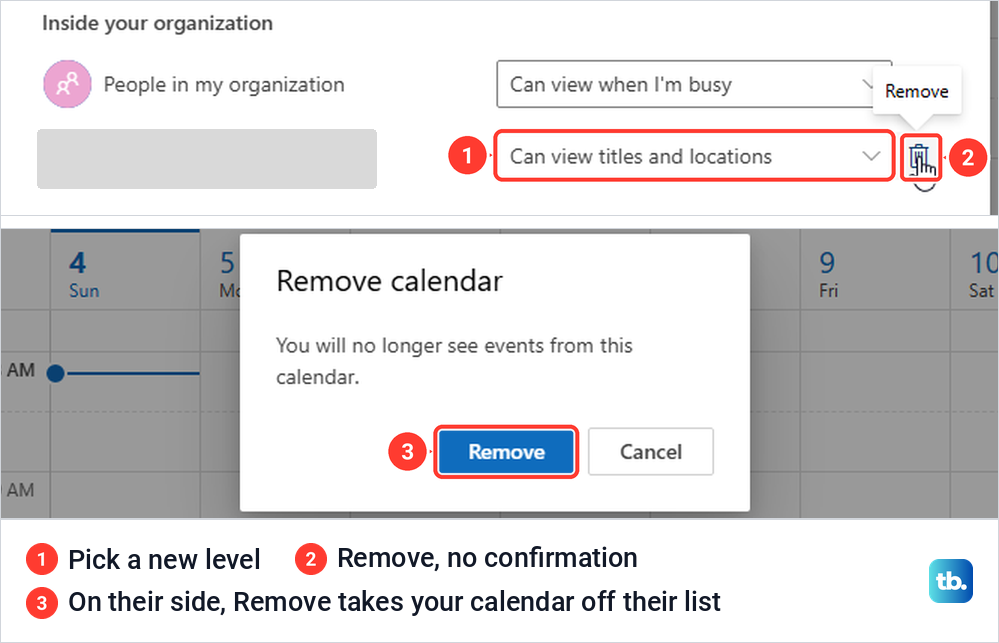
The other person does not lose your calendar at once. Microsoft says a removal is detected within a few hours, and that a level changed on the web, on a Mac or on a phone re-syncs immediately, while other apps can take a few hours.
What happens then depends on who they are. Microsoft says someone inside your organization drops to the organization row's level, or loses your calendar from their list if that row is set to None. Someone outside keeps their copy, which simply stops updating.
The other person can also remove a shared calendar from their list themselves. On the web, Remove asked to confirm with You will no longer see events from this calendar, and in classic Outlook, Delete Calendar asked whether to move it to the Deleted Items folder.
Share from Outlook on a Mac and on phones
In Outlook for Mac, Microsoft's steps are to select the Calendar button in the side bar, select the calendar, then the three dots next to it or Control-click, and choose Sharing Permissions. In Calendar Properties, select the + button, search for the person, select them, choose the level and select Add.
Microsoft says both of you need Microsoft Exchange accounts, and that the legacy Outlook for Mac uses Organize > Calendar Permissions instead. Microsoft says support for legacy Outlook for Mac ends in October 2026, so switch to the current app if you still use it. To remove someone on a Mac, select them in Calendar Properties, select the minus button and then Done.
In Outlook for iPhone, tap the calendar menu in the upper left, tap the gear icon for the calendar, tap Add people and choose who to add. Tap a person later to change their permissions or remove them, then tap the checkmark.
To open a calendar someone shared with you on a phone, Microsoft's steps are to open Calendar, tap the menu in the top left and then the + button. Tap Add Shared Calendar on an iPhone or Add a shared calendar on Android, and search for the person.
When calendar sharing does not work
If sharing is greyed out, Microsoft says your organization's admin has set a policy that prevents it. If classic Outlook says This calendar can't be shared, Microsoft lists three causes, an invalid address, a Microsoft 365 group, or someone outside your organization.
If no invitation arrives, first make sure other mail is coming in, and if it is not, see why Outlook is not receiving email. Microsoft says some Outlook apps may not send the invitation at all, and the fix is for the owner to share again from Outlook on the web. If the invitation has no Accept button, accept it in Outlook on the web instead.
No Accept button plus an attached .eml file points to your organization. Microsoft traces that to a disclaimer rule on calendar messages, which only an admin can change.
If you accepted but cannot see the calendar in the new Outlook, select Show all in the calendar list and look under People's calendars. In classic Outlook, check that shared calendar improvements are on under File > Account Settings > Account Settings, then your account, Change, More Settings and the Advanced tab.
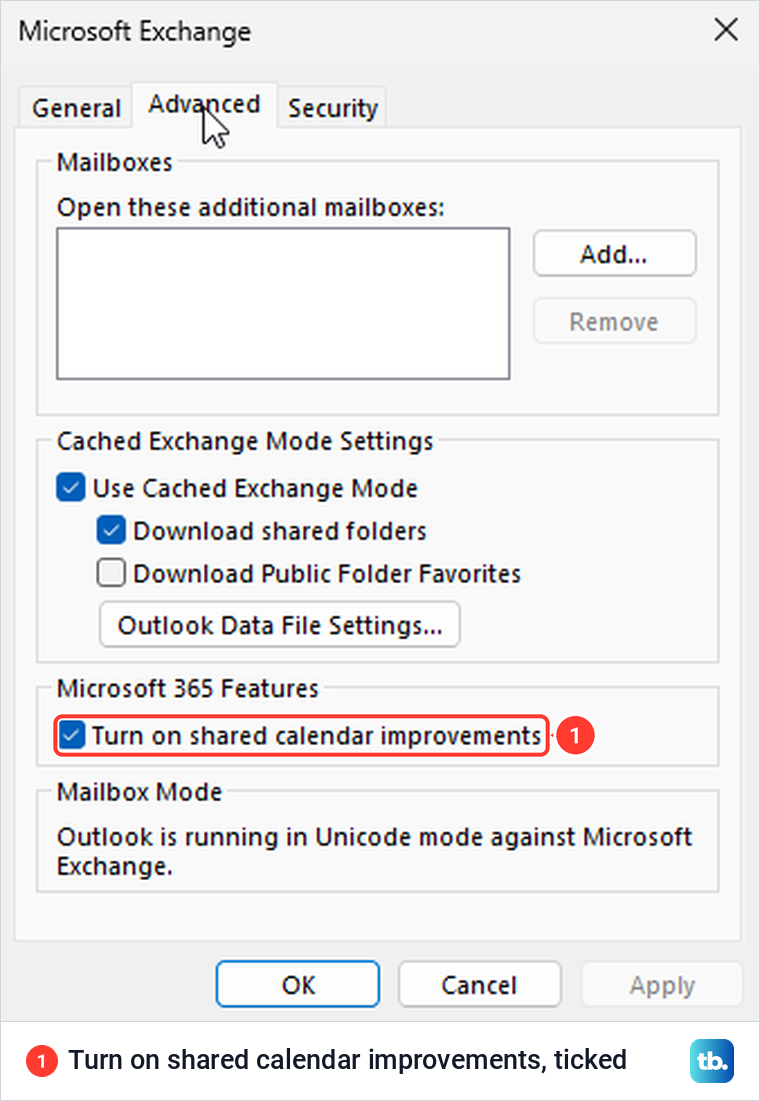
On our PC Turn on shared calendar improvements was already ticked, and Microsoft says the improvements are on by default in recent versions, so if shared calendars still misbehave, update Outlook on your PC first. If you tick it yourself, close and restart Outlook afterwards, as Microsoft instructs.
A shared calendar that stays empty can be removed and added again. Microsoft's fix is to right-click it, select Delete Calendar, restart Outlook and add it back with Open Shared Calendar, found as described above, not from the address list, then allow a few minutes, or a few hours for a very large calendar. If your own mail and folders are out of date too, the problem is wider, so follow the fixes for when Outlook is not syncing.
How we tested this guide
We tested this on Windows 11, version 25H2, with classic Outlook for Microsoft 365 and Outlook on the web, sharing a calendar each way and removing access.
Frequently Asked Questions
Can I share my Outlook calendar with someone who uses Gmail?
Yes, at a view level and if your organization allows it, but never with Can edit or Delegate. Microsoft says a Gmail user can accept with a Microsoft 365 or Outlook.com account, or add the calendar link the share creates, which Gmail might refresh only every 24 to 48 hours.
What level does Outlook give by default when I share?
On our PC, both classic Outlook and Outlook on the web set a newly added person to Can view all details. The organization row, which covers everyone else in your organization, was set to the busy-only level.
I accepted a shared calendar. Why can't I see it?
In the new Outlook, select Show all in the calendar list and look under People's calendars, which Microsoft says are hidden by default. If Accept did not work in a desktop app, accept the invitation in Outlook on the web, and ask the owner to share again if it still fails.
Will people see my private appointments?
Most people see only the time, and Microsoft says a private recurring series also shows its pattern. A delegate sees the details only if you tick the box for private items, which was unticked by default in both apps on our PC.
What is the difference between Can edit and Delegate?
Both can change your calendar. A delegate also receives your meeting requests and can answer them for you, and Microsoft says only your main calendar can have a delegate.
What is the difference between sharing and publishing a calendar?
Sharing invites named people, who see your calendar inside their own Outlook. Publishing creates a read-only link that anyone who has it can open, so use it only for a schedule you do not mind anyone seeing.