New mail just stopped arriving in Outlook. Your friends say they sent something, the inbox sits there unchanged, and you are not sure whether the problem is Outlook, your account, or your connection.
Most of the time the cause is small and quick to fix: a stray offline toggle, a filter hiding messages, a full mailbox, or a rule quietly moving mail elsewhere. The fixes below are ordered from the fastest and most common to the more involved ones, with the exact steps for Outlook on the web, new and classic Outlook for Windows, Outlook for Mac, and the mobile apps.
Work through them in order. You can usually stop as soon as mail starts flowing again.
Turn Off Work Offline and Reconnect
If Outlook is in offline mode, it stops talking to the mail server and your inbox never refreshes. This is the single most common reason classic Outlook quietly goes silent.
In classic Outlook for Windows, look at the status bar along the bottom for "Working Offline," "Disconnected," or "Trying to connect…". Then:
- 1.Select the Send / Receive tab on the ribbon.
- 2.In the Preferences group, click the Work Offline button to toggle back online.
- 3.Confirm it worked: the Work Offline button is shaded when offline and has a clear background when online, and the status bar should stop showing "Working Offline."
In new Outlook for Windows or Outlook on the web, offline access is on by default; resetting it can clear a stuck state. Go to Settings, then General > Offline, toggle "Enable offline email, calendar, and people" off and back on, and select Save.
In Outlook for Mac, open the Outlook menu and make sure Work Offline is unchecked.
One note for classic Outlook: if you do not see a Work Offline button at all on a Microsoft 365 or Exchange account, Cached Exchange Mode is probably disabled, and that is normal.
Confirm You Actually Have Internet
Outlook cannot receive anything without a working connection, and a half-connected network can look like an Outlook bug.
Open a web browser such as Edge or Chrome.
Go to a reliable site like microsoft.com or bing.com.
If the page will not load, fix the network first; Outlook cannot receive mail until the connection is healthy.
Check Junk, the Other Tab, and Filters
Very often the mail did arrive; it is just not where you expect. A filter, the Focused and Other split, or the Junk Email folder can route messages out of your main view.
In Outlook.com and Outlook on the web, open the Junk Email folder. If a wanted message is there, right-click it and choose Mark as not junk, or open it and select Mark as not spam.
Next, check the Other tab for messages routed away from Focused.
After that, restore the normal view with Filter > Sort > Date so nothing is hidden by a sort or filter.
Rescue anything important from Junk promptly. Mail is automatically removed from the Junk Email folder after 14 days and cannot be recovered after that.
Turn Off Focused Inbox
If messages keep landing in Other instead of Focused, switching Focused Inbox off puts everything back into one inbox. The steps differ by surface.
New Outlook for Windows: go to Settings > Mail > Layout, select the account, choose "Don't sort my messages" under Focused Inbox, and select Save.
Classic Outlook for Windows: select the View tab, then Show Focused Inbox to toggle it off.
Outlook on the web (new): select Settings at the top of the page, then the toggle next to Focused Inbox to turn it off. Outlook on the web (classic): Settings > Display settings > Focused Inbox, then "Don't sort messages" under "When email is received."
Outlook mobile (iOS and Android): tap the menu icon in the top-left (or your account avatar), select Settings, tap Mail under General, select Focused Inbox, and toggle it off.
Free Up Mailbox Storage
If your Microsoft cloud storage is full, you cannot send or receive email, and incoming messages can bounce back and become unrecoverable. Clearing space often restores delivery immediately.
Check your Microsoft cloud or mailbox storage.
Then right-click the Junk Email folder and select Empty folder.
Delete emails with large attachments, focusing on anything greater than 10 MB.
Finally, sign out and sign back in to refresh the storage reading, then check whether mail flows again.
There is a known bug where storage can wrongly show "0/0GB" or look full even after you buy more; the same delete-large-attachments, then sign out and back in routine is the workaround.
Review Inbox Rules and Forwarding
A single rule can move, delete, or redirect incoming mail before you ever see it, and forwarding can quietly send everything to another address.
In new Outlook for Windows or Outlook on the web, select Settings, then Mail > Rules. Review every rule for actions that move, delete, or redirect mail, and disable or delete any that divert the messages you are missing.
Remember that new Outlook supports only server-side rules.
In classic Outlook for Windows, select File > Manage Rules & Alerts, then uncheck or delete any rule that moves, deletes, or forwards wanted mail.
While you are in settings, verify that email forwarding is not enabled and silently sending incoming mail elsewhere, and that no rule is forwarding or redirecting messages. Disable forwarding to keep mail in your inbox.
Unblock the Sender
Messages from anyone on your Blocked Senders list go straight to Junk, so a wanted contact may simply be blocked.
In new Outlook, Outlook on the web, or Outlook.com, go to Settings > Mail > Junk email, find the Blocked Senders list, select the address or domain, and click the remove button. Note that new Outlook cannot manage blocked senders for third-party accounts such as Gmail, Yahoo, or iCloud.
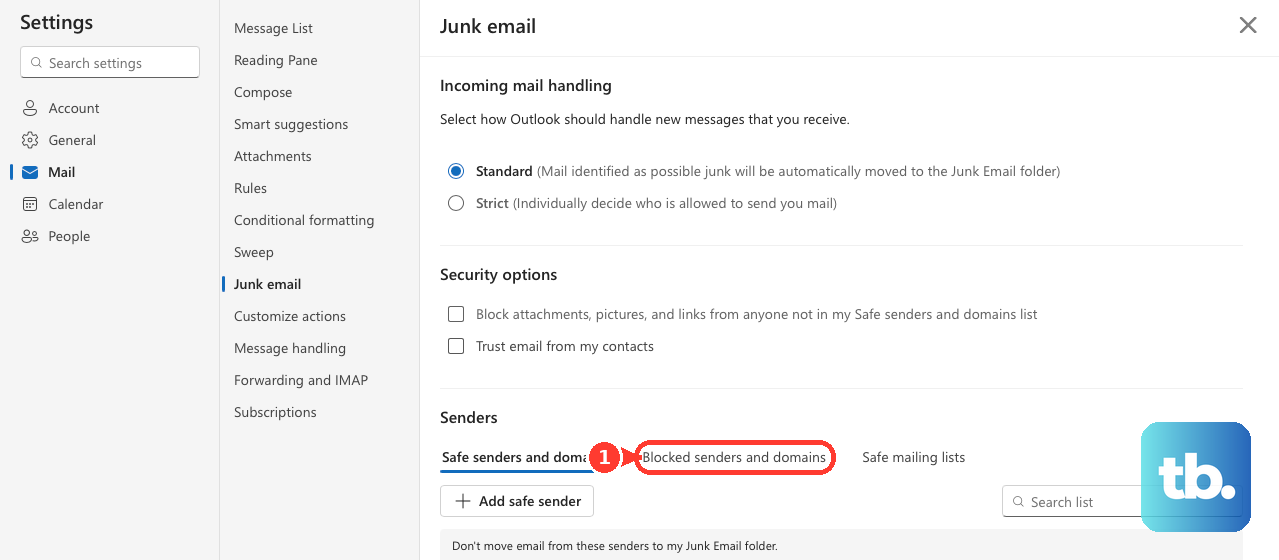
In classic Outlook for Windows: on the Home tab, in the Delete group, click Block, then Junk E-mail Options, open the Blocked Senders tab, select the address, and choose Remove.
Re-enter Your Password or Unblock the Account
If you recently changed your password, or the account was temporarily blocked for unusual sign-in activity, Outlook cannot authenticate and will not download mail.
In new Outlook for Windows, select the icon next to the affected account name, select Continue when the pop-up appears, and enter your new password. If your provider requires an app password, get that app password from your email provider and enter it instead.
For Outlook.com accounts, update the changed password so Outlook can sign in again. If the account was blocked, use Microsoft's unblock feature to restore it, or the Microsoft account sign-in helper to reset a forgotten password.
Force a Manual Sync
If everything looks correct but the inbox is stale, push a sync by hand.
New Outlook for Windows: select the View tab, then the Sync button, and watch the status message at the bottom of the message list.
Classic Outlook for Windows and Outlook for Mac: go to Send/Receive > Send/Receive All Folders (the F9 shortcut in classic Outlook for Windows).
Keep in mind that third-party accounts (Gmail, Yahoo, iCloud, generic POP or IMAP) do not have the same sync capability in new Outlook as Microsoft accounts do.
If You Are on Mobile: Enable Background Refresh and Notifications
If background download is off or you force-quit the app, mobile mail simply stops arriving in the background.
On iOS: open the Settings app, scroll to Outlook, and toggle Background App Refresh on. Then in Settings > Outlook > Notifications, toggle Allow Notifications on.
Both must be enabled, in iOS settings and inside the app, for background download and badge updates to work.
Do not force-quit Outlook, because that stops background email download.
In the app itself, tap Inbox > Settings > Notifications & Sounds > Mail to confirm notifications are on.
Keep Outlook updated from the App Store or Play Store.
If it still misbehaves, fully power the device off, wait a few seconds, restart, and resync.
Fix a Broken Device Partnership or Corrupted Cache
When sync breaks on one device only, a stale device partnership is often to blame.
To remove it: in Outlook.com or Outlook on the web, go to Settings > General > Mobile devices; in new Outlook, go to Settings > Accounts > Mobile devices.
Select the problem device, click the delete icon, and select Save.
Then power the phone off completely (a full power-off, not just a restart), wait several seconds, restart, and resync.
For a corrupted local cache, the approach depends on your app.
In Outlook for Mac, first confirm you are connected to the Exchange server, then right-click the Exchange folder, select Properties, and on the General tab choose Empty Cache so Outlook re-downloads from the server.
Be aware this deletes anything not yet synced, including contacts' mail certificates.
In classic Outlook for Windows with Cached Exchange Mode, select the Inbox and press Shift+F9 to force resynchronization; for changes made while Outlook was closed, right-click the folder > Properties > General > Clear Offline Items.
If older mail looks missing in classic Outlook, that is usually expected: the Cached Exchange Mode sync window only keeps a subset offline.
To widen it, go to File > Account Settings > Account Settings, double-click your Exchange account on the E-mail tab, drag the "Mail to keep offline" slider (named "Download email for the past" in later versions) to more months or All, click Next, then restart Outlook when prompted.
Rule Out Add-ins, Antivirus, and Browser Extensions
If nothing above worked, something outside the inbox may be interfering.
In classic Outlook for Windows, start Outlook in Safe Mode (press the Windows key, type outlook.exe /safe, and press Enter); if mail works there, a bad add-in is the cause.
Temporarily check antivirus or email-scanning software and scan for malware, since these can block Outlook's mail traffic.
If problems persist, repair the Office application, repair or recreate the Outlook profile, or run the Inbox Repair tool to fix a corrupted .pst file.
If you use Outlook.com in a desktop browser and messages will not load, disable extensions such as AdBlock or uBlock, or whitelist Outlook.com in the ad blocker, then reload the page.
On Safari, update to version 16 or later.
Frequently Asked Questions
Why did my emails arrive but land in the wrong place?
Incoming mail can be diverted by the Focused and Other split, a filter, the Junk Email folder, or an inbox rule. Check Junk and the Other tab first, then review your rules under Settings > Mail > Rules (new Outlook) or File > Manage Rules & Alerts (classic Outlook).
Outlook says my storage is full even though I have space. What now?
This is a known bug where storage can read "0/0GB" or appear full incorrectly. Delete emails with attachments larger than 10 MB, then sign out and back in to refresh the storage reading.
Why is older mail missing in classic Outlook for Windows?
Cached Exchange Mode only keeps a subset of mail offline, so older items can look gone even though they remain on the server. Drag the "Mail to keep offline" slider in your Exchange account settings to more months or to All, then restart Outlook.
I rescued a message from Junk too late and it disappeared. Can I get it back?
No. Mail is automatically removed from the Junk Email folder after 14 days and cannot be recovered after that, so move wanted messages out of Junk promptly.
Why won't my third-party Gmail or Yahoo account work like a Microsoft one in new Outlook?
Connected third-party accounts do not have the same sync capabilities in new Outlook, and new Outlook also cannot block or unblock senders for them. For those accounts, manage blocking and some sync behavior at the provider instead.
Why do new emails stop arriving on my phone in the background?
Force-quitting the app stops background email download. For background delivery and badge updates on iOS, both Background App Refresh and Notifications must be enabled, in iOS Settings and inside the app.