New Outlook can open in place of the desktop Outlook app you expected, especially on Windows PCs where both versions are present. The fix depends on one thing first: whether classic Outlook is still installed. Start with the quick switch-back controls, then use the install, reset, or Mac path that matches what you see.
Switch back from new Outlook on Windows
Use this when new Outlook opens on your PC and classic Outlook for Windows is already installed. Microsoft says the switch may not appear if classic Outlook is not installed.
Open new Outlook for Windows. Select the toggle at the top right of the Outlook window. Choose Switch back to classic Outlook. If Outlook asks for feedback, respond to the prompt and continue.
Launch Outlook again. The next launch opens Outlook (classic) instead of redirecting to new Outlook.

Use classic Outlook for one session only
Use this when you need the old desktop app once but do not want to change future launches. Open new Outlook for Windows, select the toggle at the top right of the Outlook window, then choose Use classic Outlook this time.
That opens classic Outlook only for the current session. Future launches still redirect to new Outlook. For a permanent return, use Switch back to classic Outlook instead.
Try the Help menu path
Use this alternate Microsoft path when the ribbon is easier to reach than the switch.
- 1.Open new Outlook for Windows.
- 2.Select the Help tab on the new Outlook ribbon.
- 3.Select Go to classic Outlook.
- 4.Let Outlook reopen in the classic desktop app.
Open the classic app from Windows Start
This fixes the case where both Outlook apps are installed and you need to launch the old one directly. Open the Windows Start Menu.
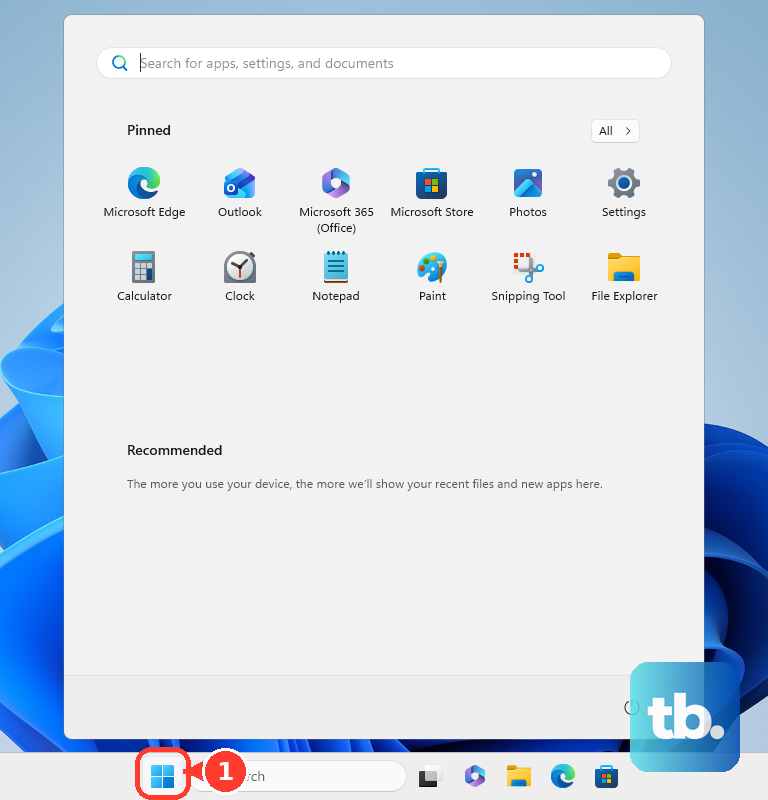
Search or browse for Outlook (classic). Select the Outlook icon that does not have a New tag. If classic Outlook still redirects to new Outlook, use Switch back to classic Outlook from inside new Outlook first. If the redirect continues, use the UseNewOutlook registry reset below.
Install classic Outlook when it is missing
Many newer Windows devices include new Outlook without classic Outlook. Microsoft provides an Install or reinstall classic Outlook on a Windows PC page for that situation.
On that page, go to Select a language and download classic Outlook, choose a language from the dropdown, then select Download. Follow the prompts to complete the installation.
You can also use Microsoft’s official Store listing, Outlook for Windows (classic) - Download and install on Windows. Select Get or install it from Microsoft Store, then follow the prompts.
If your license includes classic Outlook, go to m365.cloud.microsoft/apps and select Sign in. On a work or school account, open Install apps, then select Microsoft 365 apps. On a personal Microsoft account, open Install apps, then select Install.
Check the edition before you buy or reinstall. Office Home 2024 includes Word, Excel, PowerPoint, and OneNote but not Outlook. Office Home & Business 2024 includes Outlook.
Reset the switch when the toggle is missing or stuck
This fixes new Outlook repeatedly opening even though classic Outlook is installed. Open the Windows Start Menu. Type Registry Editor. Select Registry Editor.
Go to Computer\HKEY_CURRENT_USER\Software\Microsoft\Office\16.0\Outlook\Preferences. Double-click UseNewOutlook. Enter 0 in Value Data. Launch Outlook (classic) from the Windows Start Menu.
Stop classic Outlook from switching automatically again
The most common cause of repeat switching is that classic Outlook is still allowed to move you into new Outlook automatically. In classic Outlook for Windows, go to File, then Options, then General, then New Outlook options. Uncheck Automatically switch me to new Outlook. If New Outlook options is not visible, your account is not currently eligible for that automatic switch experience.
Remove new Outlook from Windows
Uninstalling new Outlook removes that app, but it does not install classic Outlook. Install Outlook (classic) first if it is missing.
From the Start menu, select new Outlook for Windows, expand the list option with the arrow, and choose Uninstall.
You can also use Windows settings. Select Start, then Settings, then Apps, then Installed apps; find new Outlook for Windows or Outlook, select More, then choose Uninstall.
Some apps cannot be uninstalled from Settings. Use the Start menu uninstall route when Settings does not remove it.
Revert on Outlook for Mac
This fixes Outlook for Mac when legacy Outlook is still available in your installed build. Launch Outlook for Mac. Click Help. Select Revert to Legacy Outlook.
For Exchange Online mailboxes, Microsoft support for legacy Outlook for Mac ends in October 2026.
For Exchange SE on-premises mailboxes, support runs to October 9, 2029, but only on qualifying licenses: Microsoft 365 business and enterprise plans and Office LTSC 2024. Through that date legacy Outlook for Mac receives security updates only, and technical support is best-effort.
Non-subscription builds, such as standalone Outlook for Mac 2024 and later or App Store downloads, are not supported.
Skip older Mac paths such as Outlook, then New Outlook, or a visible Legacy Outlook switch. The current switch-back path is Help, then Revert to Legacy Outlook.
When a work or school device blocks the switch
On managed devices, your organization can hide the switch back to classic Outlook, control migration prompts, prevent work or school mailbox access in new Outlook, or remove new Outlook from company-managed Windows devices.
If the switch is missing and the PC or Mac is managed by work or school, contact your IT admin. Work or school users who cannot install classic Outlook need their admin to handle the installation or policy setting.
Frequently Asked Questions
Why don't I see the switch back to classic Outlook?
The switch may be missing when classic Outlook is not installed. Install or reinstall classic Outlook first, then open new Outlook and try the switch again.
Does uninstalling new Outlook bring back old Outlook?
No. Uninstalling new Outlook removes that app only. Install classic Outlook separately if it is missing from your PC.
Can I switch back to old Outlook on the web?
No. There is no current Outlook.com, Microsoft account, Copilot, voice assistant, or hardware shortcut that switches the desktop app back to old Outlook.
Is legacy Outlook for Mac still supported?
For Exchange Online mailboxes, Microsoft support for legacy Outlook for Mac ends in October 2026. Exchange SE on-premises support runs to October 9, 2029, but only on qualifying licenses: Microsoft 365 business and enterprise plans and Office LTSC 2024. That period covers security updates only, with best-effort technical support. Non-subscription builds, such as standalone Outlook for Mac 2024 and later, are not supported.