You need one Outlook calendar that other people can see, edit, or use with the whole group. The right setup depends on whether you want to share your current calendar, keep a separate calendar, or give a team its own shared space. Start with the option that matches what you need, then use the exact Outlook path for your app.
1. Choose the Outlook calendar setup that fits
Share your current calendar when someone needs your availability, titles, locations, or full details. Create a blank calendar when you want a separate household, project, school, or planning calendar.
Use a Microsoft 365 Group calendar when members need to schedule, edit, and view shared events together. Use an Outlook.com family calendar when you manage a Microsoft family group.
Pick the calendar type before you start clicking around. It saves you from sharing more than you meant to.
Outlook supports calendar sharing for Microsoft 365, Outlook.com, and Exchange-backed calendars. Work and school accounts follow organization rules for outside sharing and permission levels.
2. Create a blank shared calendar first
Use this route when you want a shared calendar without exposing your main Calendar. Open Calendar in Outlook.com or Outlook on the web. Then select Add calendar and choose Create blank calendar.
Enter the calendar name. Choose a color, charm, or calendar group if you want one. Select Save.
Select Share calendar, or right-click the new calendar and choose Sharing and permissions. Now share that new calendar instead of your primary Calendar.
3. Share an existing calendar in new Outlook or web
Open Calendar and go to the Home tab. Select Share calendar, then choose the calendar if Outlook asks.
Enter the person's email address or contact name. Choose Can view when I'm busy, Can view titles and locations, or Can view all details. Select Share. If the calendar already exists, share it directly from the Calendar tab.
Can view when I'm busy is for availability only. Can view titles and locations shows event names and places. Can view all details gives the fullest view-only access.
4. Use classic Outlook for Windows
Classic Outlook uses the Calendar Properties window instead of the newer sharing panel. Open the Calendar folder and go to the Home tab. Select Share Calendar, then choose the calendar.
In Calendar Properties, select Add. Search for the person or type their email address in Add Users. Select OK, choose the permission level, and select OK.
Classic Outlook also has Calendar Groups, but that feature only groups calendars for viewing. It does not create one shared editable calendar.
5. Give edit or delegate access when needed
View-only sharing is enough for scheduling and visibility. Use edit access only when the other person needs to change calendar events.
For edit access in new Outlook or Outlook on the web, open Calendar, go to Home, select Share Calendar, then open Sharing and permissions. Enter the person's name or email address, open the permission drop-down next to the name, choose Can edit, and select Share.
Microsoft 365 work and school accounts grant editor access only to people inside the organization. Outlook.com accounts support view or edit permission.
For delegate access in a work or school account, use Calendar > Home > Share Calendar > Sharing and permissions. Enter the person, choose Delegate, set Let delegate view private events, or in new Outlook also Let delegate manage categories, if needed, select Share, then choose how Outlook handles Send invitations and responses to.
6. Share from Mac or iPhone
Mac and iPhone use different entry points, but both keep sharing controls inside the calendar menu.
On Outlook for Mac, both you and the person you share with must have Microsoft Exchange accounts. Open Calendar from the side bar, select the calendar, then choose the ... button next to it or control-click the calendar. Open Sharing Permissions, select +, enter the person's name in Search, choose a permission level, and select Add.
On Outlook for iOS, open the calendar menu in the upper left, tap the calendar gear icon, choose Add people, select the people, tap a person to edit permissions or remove access, then tap the checkmark.
On Outlook for Android, tap the calendar icon at the bottom of the screen, open the settings for the calendar you want to share, select Add People, enter the recipient, set their permissions if needed, and tap the checkmark.
7. Build a group or family calendar
A Microsoft 365 Group automatically includes a shared group calendar. Creating one in new Outlook requires a work or school account with a qualifying Microsoft 365 subscription, and your organization must have Groups turned on. In new Outlook, select Groups in the app bar, choose Go to Groups if Outlook shows it, select New Group, enter the Name, Description, and Privacy settings, select Create, add members, and select Add.
To use it, open Calendar, select the group under Groups, and create events there. Group members can schedule, edit, and see upcoming events in the group calendar.
For an Outlook.com family calendar, go to family.microsoft.com, sign in with the Microsoft account used for Outlook.com, select Add a family member, enter the email address or mobile phone number, choose Organizer or Member, select Next, and send the invite. Outlook.com creates the shared family calendar automatically. To add an event, use Calendar > New Event > Calendar > Your family > Save.
8. Publish or remove calendar access
Use publishing when you need an HTML link for browser viewing or an ICS link for subscription.
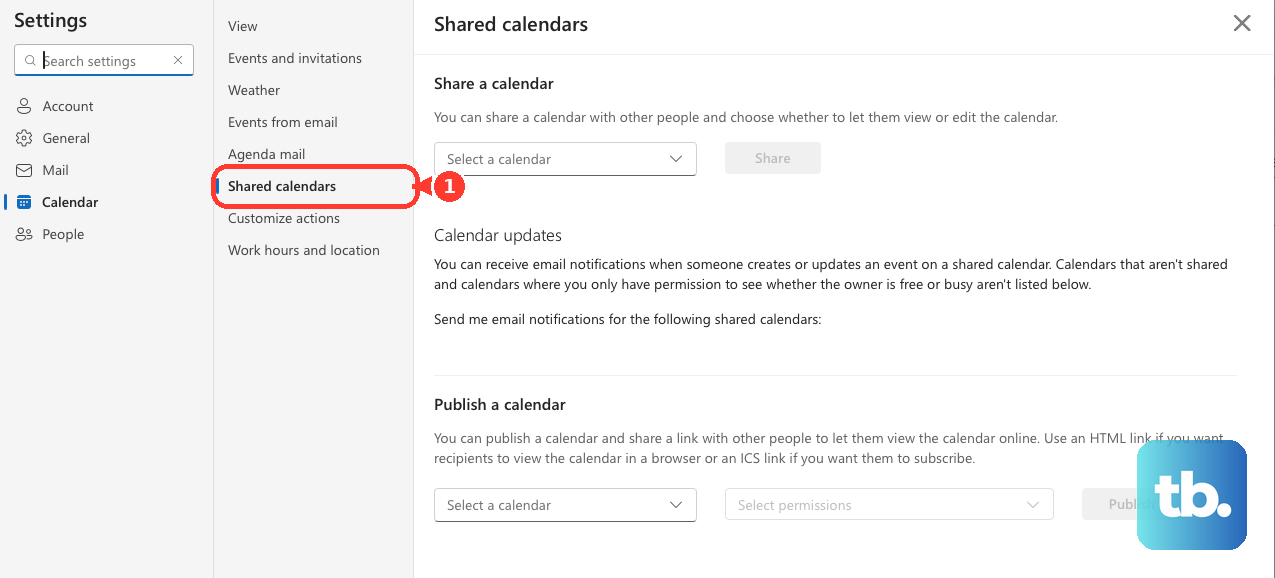
- 1.In new Outlook, Outlook on the web, or Outlook.com, go to Calendar > View > Calendar settings > Calendar > Shared calendars.
- 2.Under Publish a calendar, select the calendar and permissions.
- 3.Select Publish, then copy the HTML or ICS link.
To stop sharing in new Outlook or Outlook on the web, open Calendar, go to Home, select Share Calendar, and choose Remove next to the person. In classic Outlook, open Calendar, go to Folder > Calendar Properties > Permissions, select the user's name, choose Remove, and select OK. In Outlook for Mac, use Sharing Permissions, select the person, choose -, and select Done.
For a published calendar link, return to Publish a calendar and select Unpublish. Removing an external recipient stops future sync; it does not guarantee that Outlook removes the existing copy from that person's calendar list.
9. Check work account sharing rules
If outside sharing or publishing is blocked, the setting is controlled by the Microsoft 365 organization.
An admin can enable external calendar sharing from Microsoft 365 admin center > Show all > Settings > Org Settings > Services > Calendar. The admin chooses whether users can share calendars outside the organization and what information level is available.
For a team calendar owned by the organization, an admin can create a shared mailbox from Microsoft 365 admin center > Teams & Groups > Shared mailboxes > Add a shared mailbox. The shared mailbox includes a shared calendar that members open from Outlook calendar view.
Skip any older instructions for Publish to Office.com. Microsoft discontinued that feature on April 5, 2014, so current Outlook sharing uses calendar permissions, group calendars, family calendars, shared mailbox calendars, or HTML and ICS publishing.
Frequently Asked Questions
Can I create a shared Outlook calendar without sharing my personal calendar?
Yes. Use Calendar > Add calendar > Create blank calendar in Outlook.com or Outlook on the web, save it, then share that new calendar.
What permission should I choose for a shared Outlook calendar?
Use Can view when I'm busy for availability, Can view titles and locations for event names and places, Can view all details for full viewing, and Can edit only when the person needs to change events.
Can I make someone a delegate for any Outlook calendar?
No. Delegate access in new Outlook and Outlook on the web is for the primary Calendar on Microsoft 365 work or school accounts, and the delegate must be inside the organization.
How does someone open a calendar I shared with them?
They can open the sharing invitation email and select Accept. In new Outlook or Outlook on the web, they can also use Add calendar and add a person's calendar from the directory.