Your Windows Outlook has gone quiet. New messages aren't landing, the ones you send sit in the Outbox, or the whole inbox just looks frozen while your phone keeps pinging with mail.
Most sync failures come down to a handful of causes: a dropped connection, Outlook sitting in offline mode, a changed password, full storage, or a Windows power setting suspending the app. The fixes below are ordered quickest and most common first, so start at the top and stop as soon as mail flows again.
The steps differ between classic Outlook and new Outlook for Windows, so each fix names which app it applies to. Work through them in order.
Confirm Your Internet Connection First
Outlook can only sync if it can reach the mail server. Glance at the status bar at the bottom of the window: if it reads "Disconnected," "Working Offline," or "Trying to connect...," that is your culprit.
Open Microsoft Edge or Chrome and browse to www.microsoft.com or www.bing.com. If pages don't load, the problem is your network, not Outlook.
Reboot your router.
Rejoin your Wi-Fi network.
Update your network drivers if pages still fail.
Once the web loads normally, return to Outlook and check whether mail resumes.
Turn Off Work Offline (Classic Outlook)
Classic Outlook has an offline mode that stops all sending and receiving. When it is active, the status bar reads "Working Offline" and the button appears highlighted.
Open the Send / Receive tab on the ribbon.
In the Preferences group, click Work Offline to toggle back to online mode.
Click Send/Receive, or resend your message.
The shaded highlight on the button should disappear, and the status bar should no longer say "Working Offline."
Force a Manual Sync
Sometimes Outlook just needs a nudge to pull everything down.
In classic Outlook, go to the Send / Receive tab and click Send/Receive All Folders.
In new Outlook, open the View tab and click Sync; a status message appears at the bottom of the message list while it runs. Note an important limit: this Sync button works only for Microsoft accounts. Gmail, Yahoo, iCloud, and POP/IMAP accounts in new Outlook have no manual-sync button, so for those you will rely on the next fix instead.
Turn Off Offline Mode in New Outlook
This one is counterintuitive. In new Outlook for Windows, the offline-email setting can stop new mail from arriving automatically until you restart or sync by hand. Turning it off forces a live connection so mail flows in real time.
- 1.Click the Settings (gear) icon in the top-right.
- 2.Select General, then Offline.
- 3.Turn the "Enable offline email, calendar, and people" toggle OFF.
- 4.Click Save.
If you prefer to keep offline access on, you can instead tune it under the same Settings (gear) > General > Offline screen: choose your "Folders to save" (Default; Default and favorites; or Default, favorites, and recently used) and your "Days of email to save," then click Save.
Re-sign-in After a Password Change
If you recently changed your account password, Outlook is still trying the old one. In new Outlook, an alert icon appears next to the account name in the folder pane.
Select the alert icon next to the email account.
Click Continue when the sign-in prompt appears.
Follow the prompts and enter your new password.
If you have two-step verification turned on at your provider, the normal password will silently fail to sync. When you see "Please create an app password for Outlook on your email provider's site," generate an app password on your provider's site and paste that in place of your account password.
Check Your Storage, Junk Folder, and Sort Order
Sometimes mail isn't missing; it is hidden, or storage is blocking it. A full Microsoft cloud mailbox stops both sending and receiving, and messages sent to you (or by you) during a full state cannot be recovered, so clear space promptly.
Open Outlook.com in a browser to check several things at once:
Confirm your Microsoft cloud storage is not full.
Check the Junk Email folder; right-click any misclassified message and choose "Mark as not junk."
Check the "Other" tab for messages filtered away from Focused.
Click the Filter button, then Sort > Date to restore chronological order.
Verify email forwarding is off and no rule is hiding messages.
In classic Outlook, fix the sort order directly: click the sort header at the top of the email list, choose Date under "Arrange By," then Newest on Top under "Sort." To let a blocked contact through, go to the Home tab, click Junk > Junk E-Mail Options, open the Blocked Senders tab, select the sender, click Remove, then Apply and OK.
Clear Large Attachments Stuck in the Outbox
A single oversized message can jam the whole queue. New Outlook flags attachments over 20MB, and Outlook.com rejects messages with attachments over 25MB.
Open the Outbox folder.
Open the stuck message.
Delete attachments larger than 20MB, then attach a smaller file or share a link instead.
Resend the message.
Turn Off Metered Connection and Allow Background Activity
Two Windows settings can quietly throttle Outlook. A network flagged as "metered" pauses automatic background syncing.
For Wi-Fi: Settings > Network & Internet > Wi-Fi > [your network], and turn the "Metered connection" toggle off.
For Ethernet: Settings > Network & Internet > Ethernet > [your network], and turn the "Metered connection" toggle off.
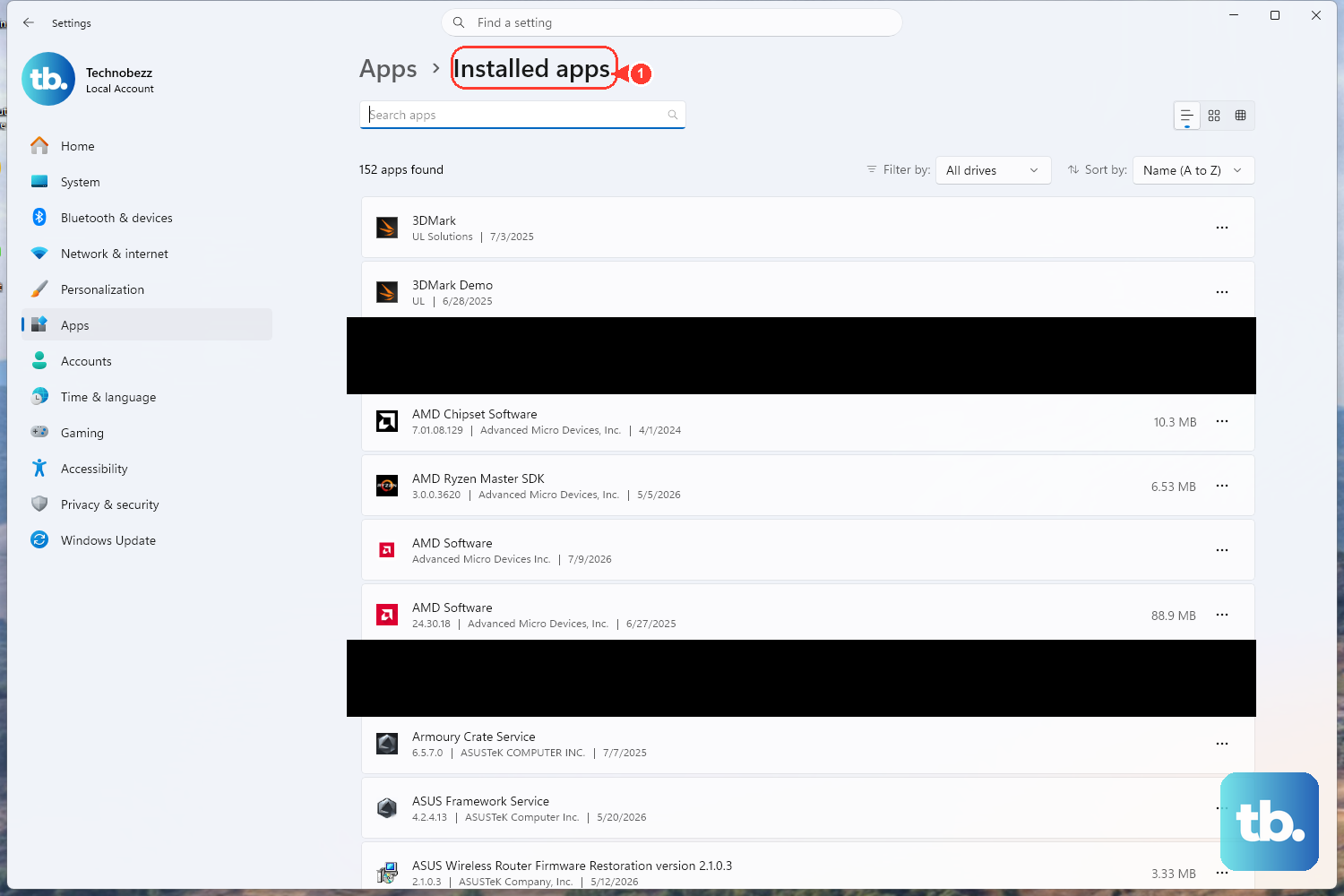
On Windows 11 24H2, power management can suspend the new Outlook process when it sits idle. Let it run in the background:
Go to Settings > Apps > Installed apps.
Find Outlook, click the three dots, and select Advanced options.
Under Background apps permissions, set it to "Always."
Optionally use the Terminate button once, then restart Outlook.
Repair the Account, Cache, and Installation (Classic Outlook)
If mail still won't move, work through these escalating repairs in classic Outlook, easiest first.
Repair the account: click File > Info > Account Settings > Account Settings, select the affected account, click Repair, and follow the prompts.
Update the app: click File > Office Account > Update Options > Update Now.
Clear the corrupted local cache. Do this only for server-backed accounts (Exchange/IMAP), since cached items re-download from the server:
Press Windows + R to open Run.
Type %localappdata%\Microsoft\Outlook\RoamCache and press Enter.
Select all files (Ctrl + A), right-click, and choose Delete.
Restart Outlook so the cache rebuilds.
Rule out a bad add-in: press the Windows key, type outlook.exe /safe, and press Enter. If Outlook syncs in safe mode, a faulty add-in is the cause, and you can create a fresh Outlook profile. For a corrupted .pst Personal Folders File, close Outlook and run the Inbox Repair tool (roughly 15 minutes). As a last resort, repair the installation: open Control Panel > Uninstall a Program, select your Microsoft Office / Microsoft 365 entry, click Change, try Quick Repair first, then Online Repair (around 30 minutes).
Remove a Stale Device or Fix Mobile Sync
An old "sync partnership" left on your mailbox can block syncing. Removing the device does not wipe it.
Outlook.com / Outlook on the web: Settings > General > Mobile devices, select the device, click the delete icon, then Save.
New Outlook (desktop): Settings > Accounts > Mobile devices, select the device, click the delete icon, then Save.
After removing it, power the phone off completely, wait a few seconds, restart it, and re-sync. If your calendars and contacts never sync no matter what you try, the account is likely set up as POP or IMAP, which only sync email; converting it to an Exchange ActiveSync account is the only fix. If none of the above helps and Outlook works fine on another device, check the Outlook.com / Microsoft 365 service status for a server-side outage before troubleshooting further.
Frequently Asked Questions
Why is there no Sync button for my Gmail or iCloud account in new Outlook?
The View > Sync button in new Outlook only works for Microsoft accounts. For Gmail, Yahoo, iCloud, and POP/IMAP accounts, there is no manual-sync button; turning off the "Enable offline email, calendar, and people" setting under Settings > General > Offline is the way to restore automatic syncing.
Why won't my calendar and contacts sync even though email works?
Your account was almost certainly set up as POP or IMAP. Those protocols only sync email, never calendar and contacts. Converting the account to Exchange ActiveSync is the only thing that fixes it.
I changed my password and Outlook still won't connect. What now?
Outlook is still using the old password. Re-sign-in when prompted and enter the new one. If your provider uses two-step verification, the normal password will fail silently; generate an app password on the provider's site and paste that instead.
Is clearing the RoamCache folder safe?
Yes, for server-backed accounts. Cached items simply re-download from the server after you restart Outlook. Only do it for Exchange or IMAP accounts, since local-only data would be lost.
Could a full mailbox really stop my email?
Yes. If your Microsoft cloud storage is full, you cannot send or receive. Worse, messages sent to you or by you while it is full cannot be recovered, so free up space as soon as you notice.
Does removing my phone from the mailbox erase it?
No. Removing a device or sync partnership from your Outlook mailbox does not wipe the phone. It simply clears the stale connection so the device can re-sync cleanly.