
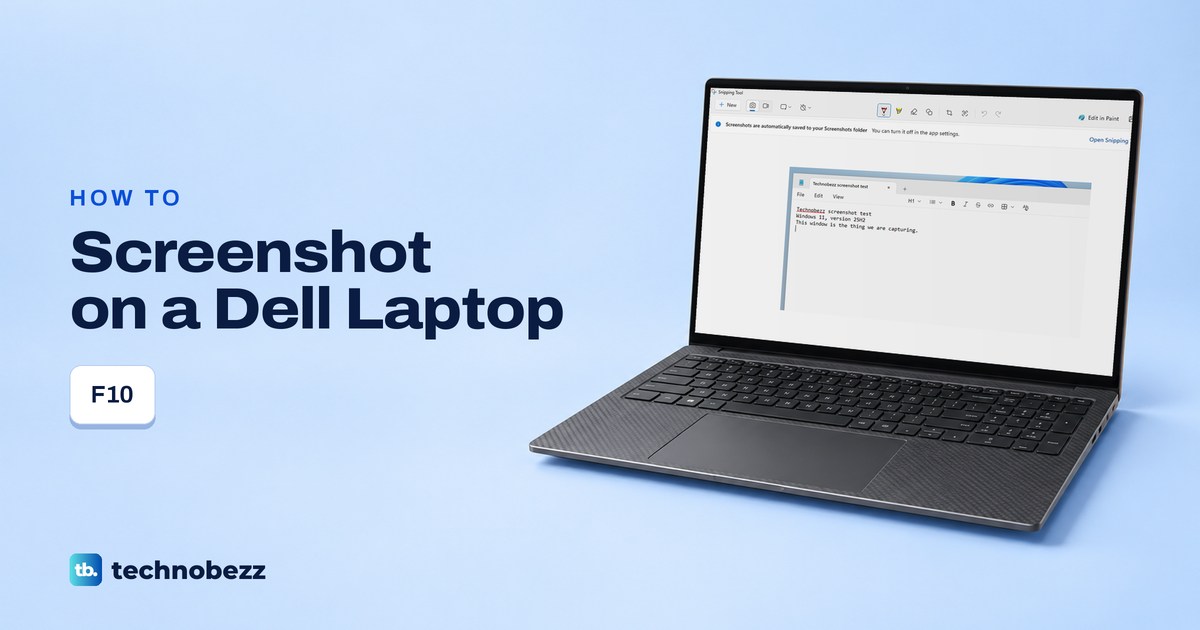
To take a screenshot on a Dell laptop running Windows, press Windows + Shift + S, pick Rectangle if it is not already selected, then drag across the part of the screen you want and let go. The picture is now on your clipboard, so press Ctrl + V to paste it into any app that takes images.
The short version
- Part of the screen: press Windows + Shift + S and drag.
- Find Print Screen: check F10, which Dell's manuals list as Print Screen on the Inspiron 16 5640 and Latitude 7450.
- F10 seems to do nothing: press Ctrl + V in Paint to see if it copied the screen silently, then try Fn + F10, except on the Latitude 3540 and 7450.
- The whole screen as a file: press Windows + PrtScr and look in Pictures > Screenshots, where it goes by default.
- One window: click it, press Alt + PrtScr, then paste.
The tricky part on a Dell is finding the key that sends Print Screen. After that, Windows decides what happens, and on our PC Print Screen opened the screen capture bar instead of silently copying the desktop.
Dell screenshot keys at a glance
| What to press | What you have | What happens |
|---|---|---|
| Windows + Shift + S | A Dell running Windows | The capture bar opens so you can select an area |
| F10, or Fn + F10 | A laptop with prt sc on F10 | Sends Print Screen, which opens the capture bar on Windows 11 by default |
| Windows + PrtScr | A key or combination that sends Print Screen | Saves the whole screen in Pictures > Screenshots by default |
| Alt + PrtScr | A key or combination that sends Print Screen | Copies the active window to the clipboard |
| Fn + Esc | A Dell whose manual gives Fn + Esc for Fn Lock | Switches the function row's mode, but takes no screenshot |
| F9, with Fn if the mode is reversed | A Dell external keyboard with Snipping Tool on F9 | Starts a snip, the same as Windows + Shift + S |
In this table, PrtScr means whatever sends Print Screen on your keyboard, such as F10 or Fn + F10. If your manual gives Fn + F10 for Print Screen, as the Inspiron 14 5440 manual does, keep holding Fn while you add Windows or Alt.
Find Print Screen on the F10 key
Skip the hunt for a separate key at the far right and look at the small print on F10. Dell's laptop keyboard drawing puts prt sc above F10, with home on F11 and end on F12.
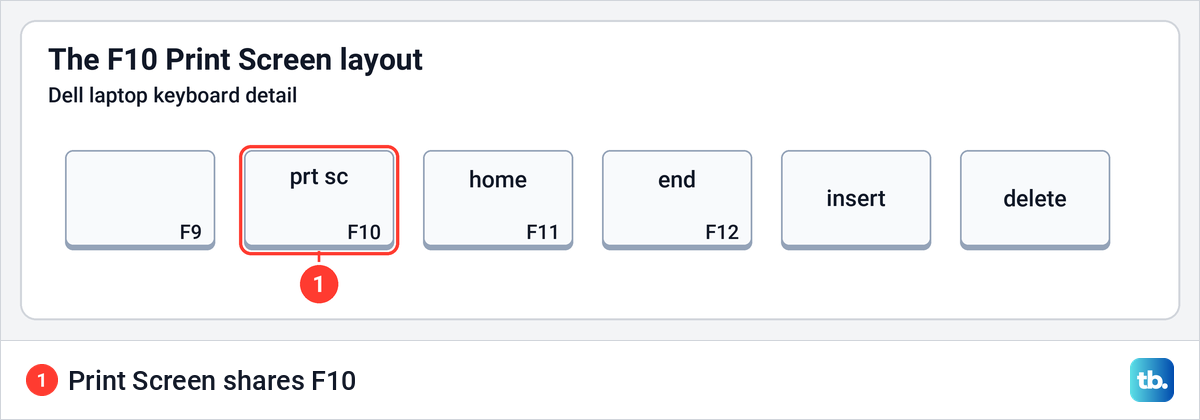
Dell's manuals put Print Screen on F10 for the Inspiron 15 3530, Inspiron 16 5640, Latitude 3540 and Latitude 7450. So do the manuals for the Dell 15 DC15250, Dell 14 Plus DB14250 and Dell Pro 14 PC14250. The older XPS 13 9310 and 9315 manuals tie Print Screen to F10 as well.
The model names matter, because not every Dell has the same keyboard. Some Alienware laptops and the XPS models with a touch row do things differently, and an external keyboard brings its own keys. Check what is printed on your keys before you try a shortcut.
Dell spells the label several ways, including PrtSc, PrtScn and PrtScr. They all mean Print Screen, and the Windows shortcuts are the same whichever one your key shows. If your Dell runs ChromeOS, follow our guide to taking a screenshot on a Chromebook instead.
F10 alone or Fn + F10
If F10 is marked prt sc, press F10 on its own first. If nothing seems to happen, open Paint and press Ctrl + V before you try Fn + F10 or touch Fn Lock. If the Print Screen switch in Settings is off, which the capture bar section below explains, the key copies the screen without showing anything, so it may already have worked.
The Inspiron 16 5640 manual lists Print screen as the primary function of F10. On that laptop the key takes the screenshot by itself, and Fn + F10 sends a plain F10 to the app you are using.
The Inspiron 14 5440 manual describes the opposite. Its top row sends plain function keys by default, and the screenshot shortcut is Fn + F10. That is why adding Fn fixes the problem on one Dell, while F10 alone is the right key on another.
On the Latitude 3540 and Latitude 7450, press F10 by itself and leave Fn out. Both manuals put Print Screen on F10 and list Fn + PrtScr as the switch that turns wireless off or on, so adding Fn there can switch your wireless off.
What Fn + Esc changes
On these Dell laptops, Fn + Esc switches the function row from one mode to the other. Press it once, then try the prt sc key again. If you liked it better before, press Fn + Esc again to switch back.
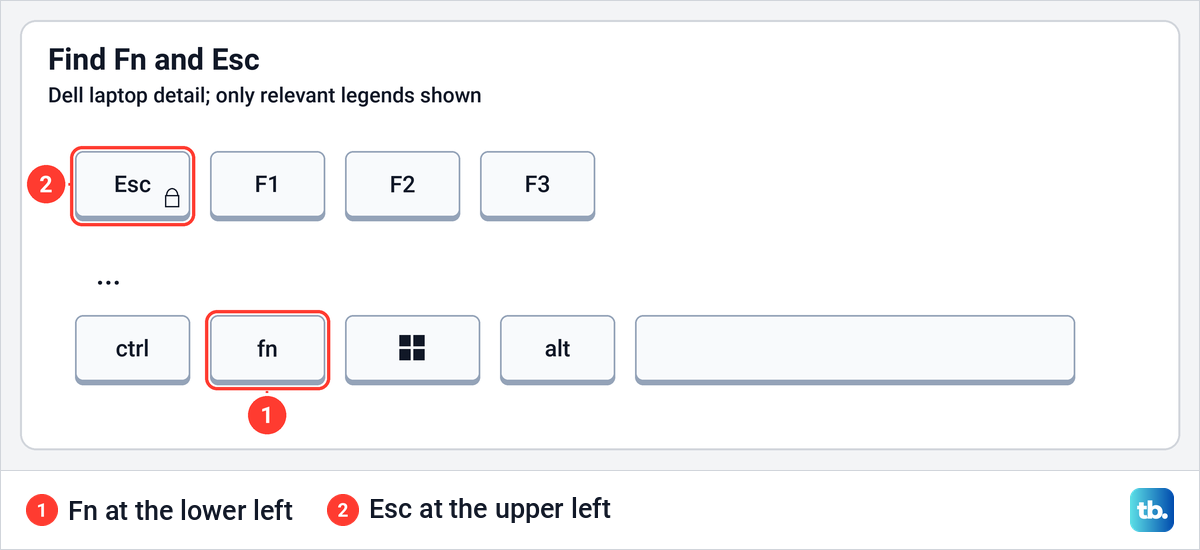
This flips the whole row, not just the screenshot key. Dell's Inspiron manuals show the same choice for keys such as volume and brightness, so pick the mode that suits how you use those too. Our guide on how to turn off Fn Lock explains the two modes in more detail.
Dell also puts this choice in the BIOS. It is called Function Key Behavior on models such as the Inspiron 14 5440 and Latitude 7450, while the XPS 13 9315 manual calls it Lock Mode, in the Keyboard menu. To change it, open BIOS or UEFI settings and look for the name your model's manual uses.
XPS laptops with a touch function row
The XPS 13 Plus 9320, XPS 13 9340 and XPS 14 9440 have a touch panel across the top of the keyboard. Dell's manuals say that holding Fn switches the panel between function keys and multimedia controls, and letting go switches it back.
Press Fn + Esc to lock the panel in one mode, and Dell says it stays that way after a restart. For a screenshot, though, you can leave the panel alone. Windows + Shift + S uses the main keys and opens the capture bar straight away.
Alienware keys and the Fn + Insert trap
The Alienware 16X Aurora manual shows a screen and scissors symbol on F10 for Print Screen. Dell's product picture of the Alienware x16 R2 shows something else, with PRT SCRN printed below HOME on the key right after F12. Check your own keys for the words or the symbol before you assume F10.
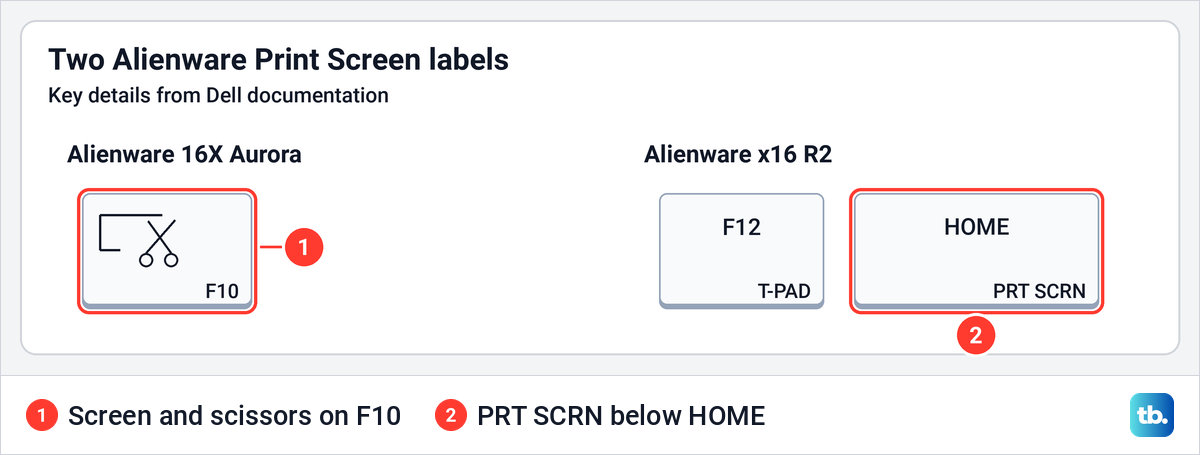
If you are not sure which key it is on your Alienware, press Windows + Shift + S instead. It works the same whether Print Screen sits on F10 or somewhere else.
Do not try Fn + Insert on every Dell. Dell's general support page suggests it for some keyboards without a separate Print Screen key, but the Latitude 3540 and Latitude 7450 manuals list Fn + Insert as Sleep. Both manuals put Print Screen on F10, so use the F10 key on those laptops.
Dell desktop and wireless keyboards
With an external keyboard, go by that keyboard's keys, even when it is connected to a Dell laptop. Dell's full size keyboard drawing shows prt sc as a key of its own, just right of F12 and above Insert, rather than sharing F10 as it does on the Dell laptops named above.
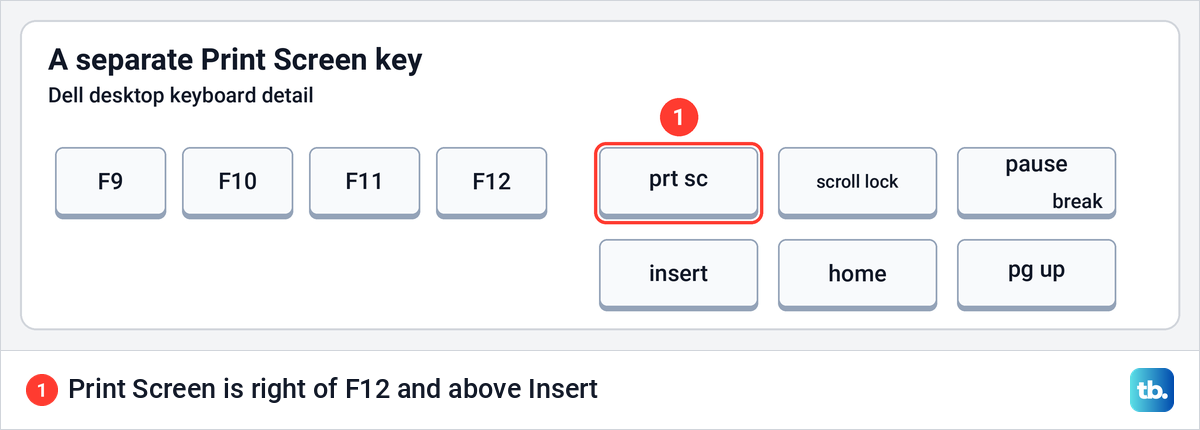
Dell's instructions for its external multimedia keyboards also show a Snipping Tool function on F9. They cover keyboards such as the KB500, KB700 and KB740, so check that your own F9 key carries it. If it does, press F9, or Fn + F9 if you have swapped the row so function keys come first.
The KM3322W keyboard is the exception, because Dell gives Fn + Insert as its Print Screen shortcut. That holds for this keyboard, not for every Dell laptop. If you switch between the laptop's keys and an external keyboard, Windows + Shift + S works the same on both.
Capture an area with Windows + Shift + S
Press Windows + Shift + S, and if Rectangle is not already selected, pick it from the Snipping area menu. Click at one corner of the area, hold the mouse button, drag to the opposite corner and let go. On our PC the snip was taken the moment we let go, and a notification said it had been copied and saved.
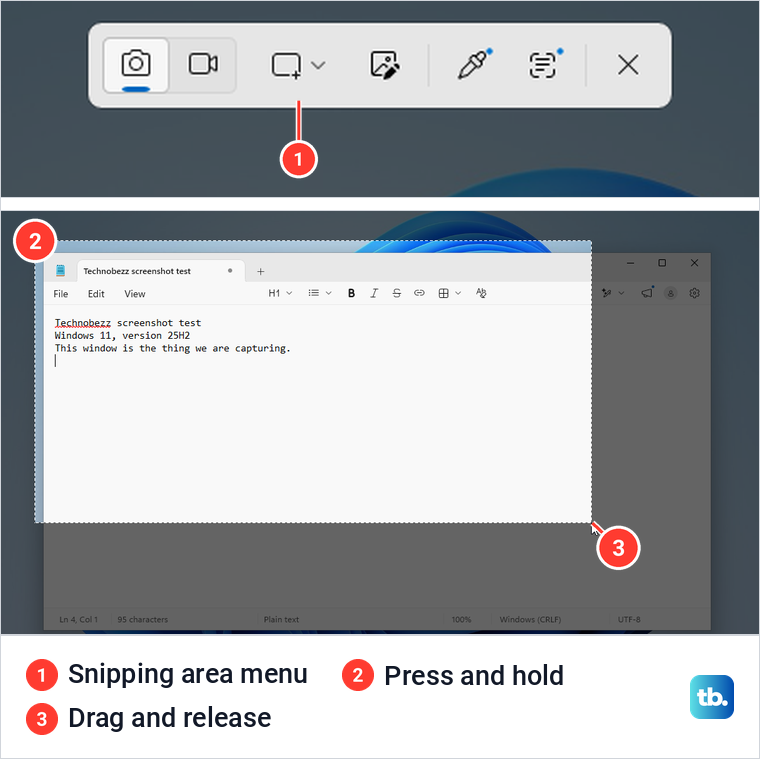
Now paste the screenshot with Ctrl + V into any app that takes pictures. On Windows 11, Snipping Tool also saves a copy in Pictures > Screenshots by default. The other capture shapes and the editing tools are in our full guide to taking a screenshot on Windows.
Why Print Screen opens a capture bar
On Windows 11, Print Screen opens the Snipping Tool capture bar by default. It did on our PC too, instead of copying the whole desktop straight away. So if F10 brings up the bar on your Dell, the key is working, and all that is left is to make your selection.
If you would rather have Print Screen copy the whole desktop, type print screen into the search box in Settings and open Use the Print screen key to open screen capture. Turn that switch off. On our PC the setting was under Accessibility > Keyboard.
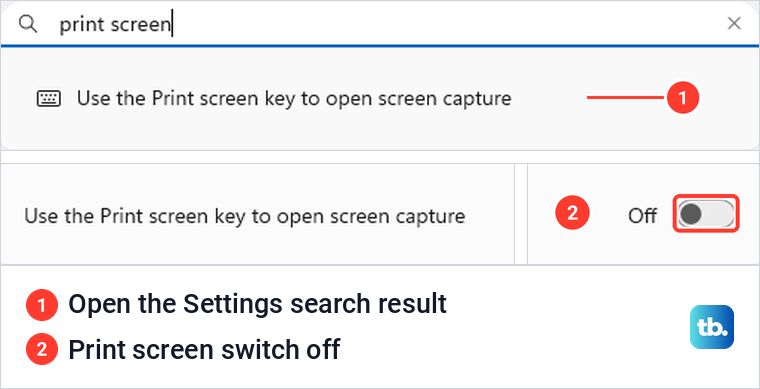
With the switch off, pressing Print Screen showed no capture bar and saved no file, but when we pasted into Paint, the whole desktop was there. So a key press that seems to do nothing may have worked. Press Ctrl + V in Paint to check before you decide the key is broken.
Save the whole screen or copy one window
To save the whole screen as a file straight away, press Windows + PrtScr. On our PC this saved a PNG in Pictures > Screenshots and put the picture on the clipboard as well, even with the capture bar setting turned on.
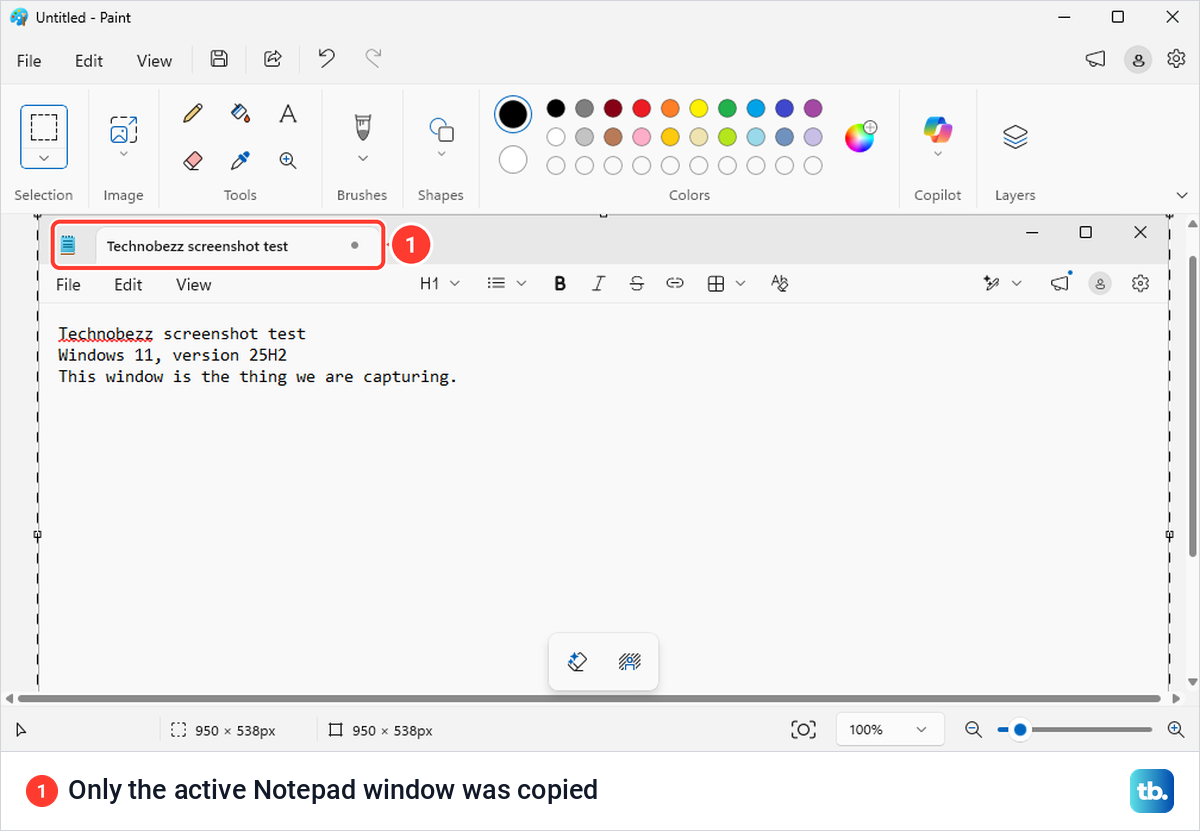
For one app only, click its window, press Alt + PrtScr and paste. When we did that with Notepad, Paint showed just the Notepad window, and no file appeared in the Screenshots folder.
Where your Dell screenshots go
Open File Explorer, select Pictures and open Screenshots, where saved screenshots go by default. Our Windows + Print Screen captures had numbered names such as Screenshot (1).png, while Snipping Tool named its files with the date and time.
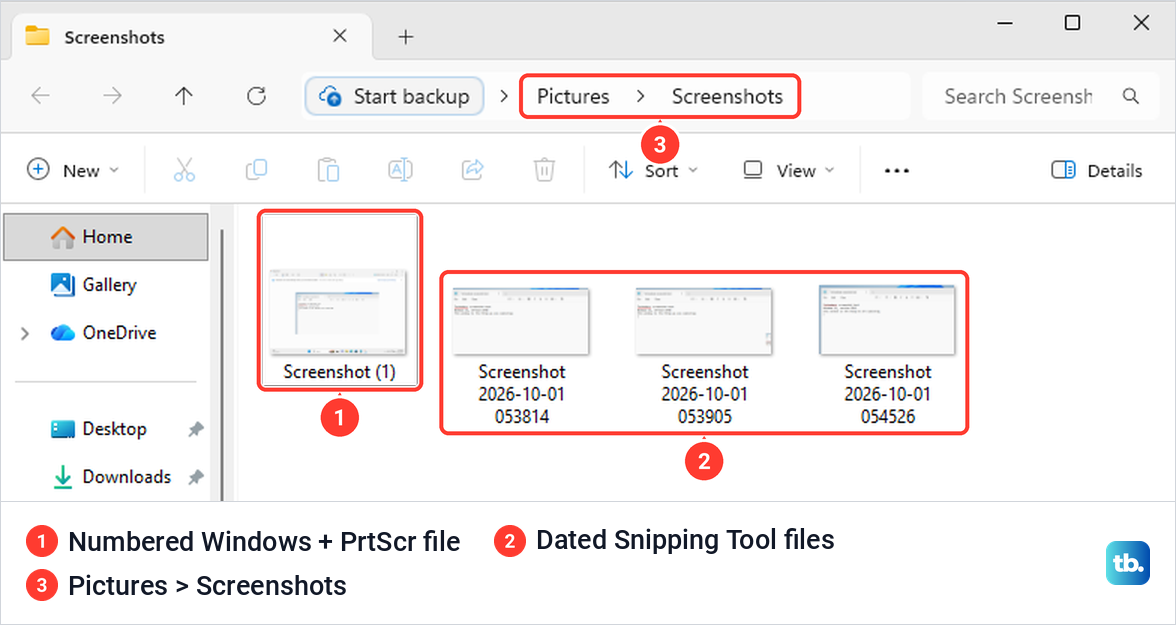
If a snip is not there, open Snipping Tool, select the three-dot menu, then Settings, and look under Screenshots are saved to. Open folder takes you straight to the current location. Also make sure Automatically save original screenshots is on, since that is the setting that saves snips as files.
If a screenshot was only copied and you have since copied something else, press Windows + V to check clipboard history in Windows 11. It holds screenshots only if it was already on, and turning it on now does not bring back earlier copies.
When the screenshot key does nothing
If F10 carries the Print Screen label, press it, then press Ctrl + V in Paint to check for a silent capture before you try Fn + F10, which the Latitude 3540 and 7450 do not need. If neither works, press Windows + Shift + S. If that opens the bar, go back to the Dell function mode and the Print Screen setting above.
You can also skip the physical key. Press Windows + Ctrl + O to open the On-Screen Keyboard and click its PrtScn key, which opened the capture bar on our PC.
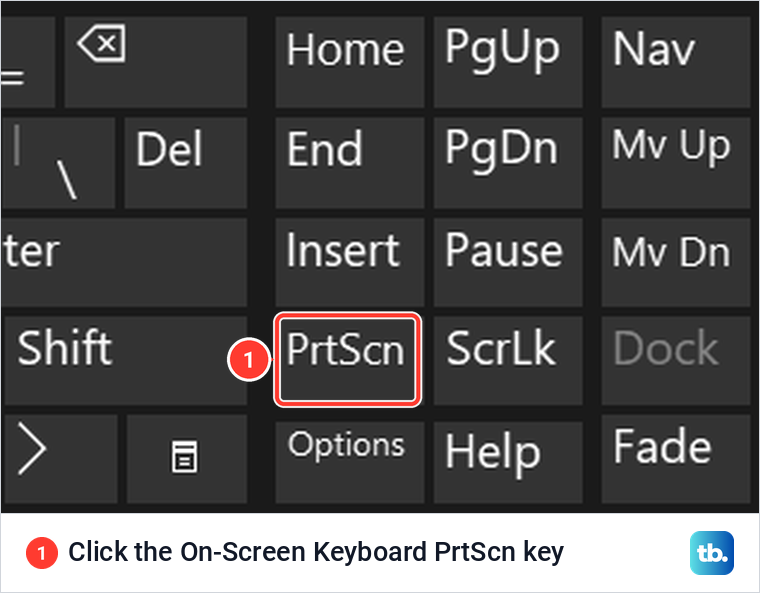
If Windows + Shift + S does nothing either, follow our fixes for Windows + Shift + S not working. If Snipping Tool will not open normally as well, see our guide to fixing Snipping Tool in Windows 11.
When you are using a Dell 2-in-1 by touch, open Start, open Snipping Tool and select New to get the capture controls. Dell's support page also lists Windows button + Volume Down for Windows tablets that have those buttons. If yours has different buttons, use the app.
How we tested this guide
We ran the Windows side of this guide on Windows 11, version 25H2, with the built-in Snipping Tool and a single display. That covered the capture bar, the Print Screen setting, Windows + Print Screen, Alt + Print Screen and the On-Screen Keyboard, and we checked the saved files and pasted clipboard captures into Paint. The Dell keyboard details follow Dell's support articles, model manuals and keyboard pictures.
Frequently Asked Questions
How do I take a screenshot on a Dell laptop without Print Screen?
Press Windows + Shift + S, choose Rectangle and drag across the area you want. This shortcut does not need a Print Screen key at all.
Where is the Print Screen key on a Dell laptop?
Dell's manuals list Print Screen on F10 for models such as the Inspiron 16 5640 and Latitude 7450, and Dell's laptop keyboard drawing shows prt sc printed on that key. Some layouts differ, and Dell's picture of the Alienware x16 R2 keyboard shows PRT SCRN below HOME instead.
Do I press F10 or Fn + F10 on a Dell?
If F10 carries the Print Screen label, press F10 first and check for a silent capture with Ctrl + V in Paint before you try Fn + F10. Dell's manuals show both setups, and which one you get depends on your Fn Lock mode. On the Latitude 3540 and Latitude 7450, press F10 alone, because their manuals list Fn + PrtScr as the wireless switch.
Where do screenshots go on a Dell laptop?
On Windows 11, snips and Windows + Print Screen captures go to Pictures > Screenshots by default. Alt + Print Screen only copies to the clipboard and saves no file.
Why does Print Screen open a capture bar?
That is the default on Windows 11. To make it copy the whole desktop instead, turn off Use the Print screen key to open screen capture in Settings.
Does Fn + Insert take a screenshot on a Dell?
Dell gives Fn + Insert as the Print Screen shortcut for the KM3322W keyboard. The Latitude 3540 and Latitude 7450 manuals list that combination as Sleep, so use F10 for Print Screen on those laptops.
How do I screenshot with a Dell desktop keyboard?
Press the separate prt sc key if your keyboard has one, or use Windows + Shift + S. On Dell's full size keyboard drawing, Print Screen sits just right of F12.