
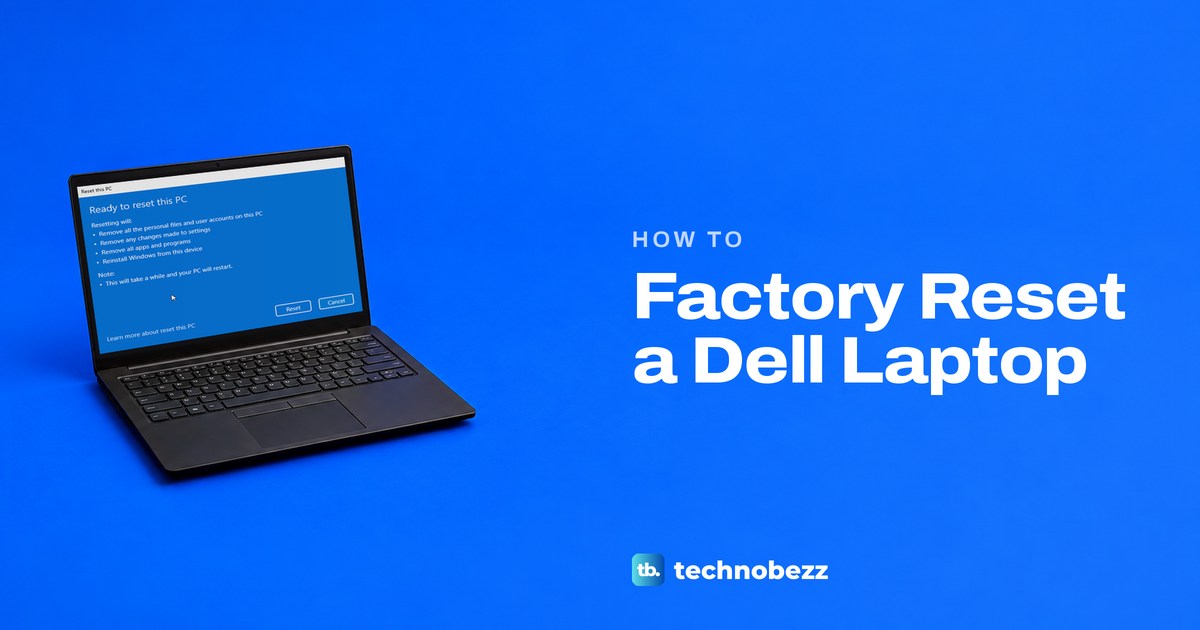
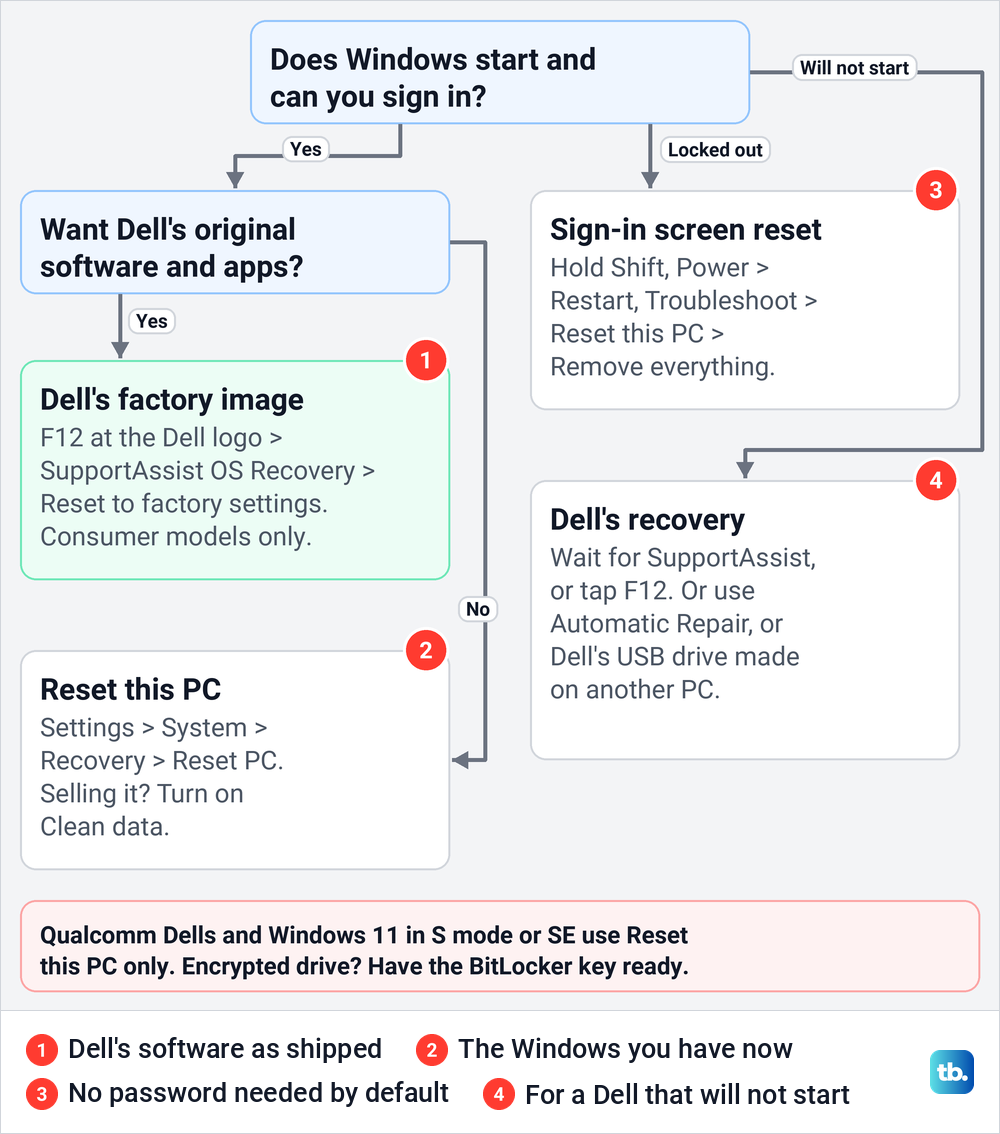
To factory reset a Dell laptop that still starts, open Settings > System > Recovery, select Reset PC and choose Remove everything to wipe it or Keep my files to start over without losing documents. To restore factory settings exactly as Dell shipped them, tap F12 at the Dell logo and choose SupportAssist OS Recovery, then Reset to factory settings. Dell keeps that factory image only on consumer models such as Alienware, Inspiron, Vostro and XPS.
Locked out? Restart from the sign-in screen with Shift held and choose Remove everything, which Microsoft says needs no administrator password by default. On an encrypted drive, Microsoft says you also need the BitLocker recovery key for that reset.
The short version
- Windows still works: Settings > System > Recovery > Reset PC, then Remove everything or Keep my files.
- Dell's original setup: tap F12 at the Dell logo, choose SupportAssist OS Recovery, then Reset to factory settings.
- Forgot the password: hold Shift while you restart from the sign-in screen and choose Remove everything.
- Selling it: turn on Clean data, or use Data Wipe in BIOS setup, then remove the laptop from your Microsoft account.
- Have your BitLocker key ready: the recovery screens ask for it on an encrypted Dell, and without it Microsoft says the only way back is a reset that removes your files.
Which Dell factory reset do you need
On a Dell, a factory reset can mean two different jobs. Windows' Reset this PC reinstalls the Windows you have now, with its updates, and Dell says plainly that this route is not a Dell factory image reset. Dell's own Reset to factory settings, inside SupportAssist OS Recovery, puts the operating system and software back the way they left Dell's factory.
| Your situation | What to do | What you end up with |
|---|---|---|
| Windows starts and you want a fresh start | Settings > System > Recovery > Reset PC | The Windows version you have now, reinstalled |
| You are selling or giving it away | Reset PC > Remove everything, with Clean data set to Yes | Files removed and the drive cleaned |
| You want it as Dell shipped it | F12 at the Dell logo > SupportAssist OS Recovery > Reset to factory settings | Dell's factory software and apps, everything else deleted |
| You forgot the password | Hold Shift, select Power > Restart on the sign-in screen, then Troubleshoot > Reset this PC > Remove everything | A wiped laptop that starts at Windows setup |
| Windows will not start or F12 shows no SupportAssist | Wait for SupportAssist OS Recovery, use Automatic Repair > Advanced options > Troubleshoot > Reset this PC, or make Dell's recovery USB on another PC | A reset started from outside Windows |
| You want every internal drive erased | F2 at the Dell logo > Security > Data Wipe in Next Boot | Empty drives and no Windows until you reinstall it |
Dell says SupportAssist OS Recovery does not support Dells with Qualcomm processors, or Windows 11 in S mode and SE, so those laptops use Reset this PC. If the laptop in front of you is not a Dell, our guide to factory resetting any laptop covers other brands, Macs and Chromebooks.
Back up your files and find your BitLocker key
Remove everything, Dell's Reset to factory settings and Data Wipe all delete your files on purpose. Copy what you want to keep to an external drive or cloud storage, then open a few of the copies to check them. To keep copies going, back up with File History, which needs an external drive or a network location: with none connected, ours reported No usable drives were found.
Next, check whether the drive is encrypted, because a reset from the recovery screens asks for the BitLocker recovery key on an encrypted PC. Dell says its computers leave the factory unencrypted, but that Windows treats Dell's default setting as approval to encrypt. Microsoft says Device Encryption turns on when you set up the PC with a Microsoft account or a work or school account.
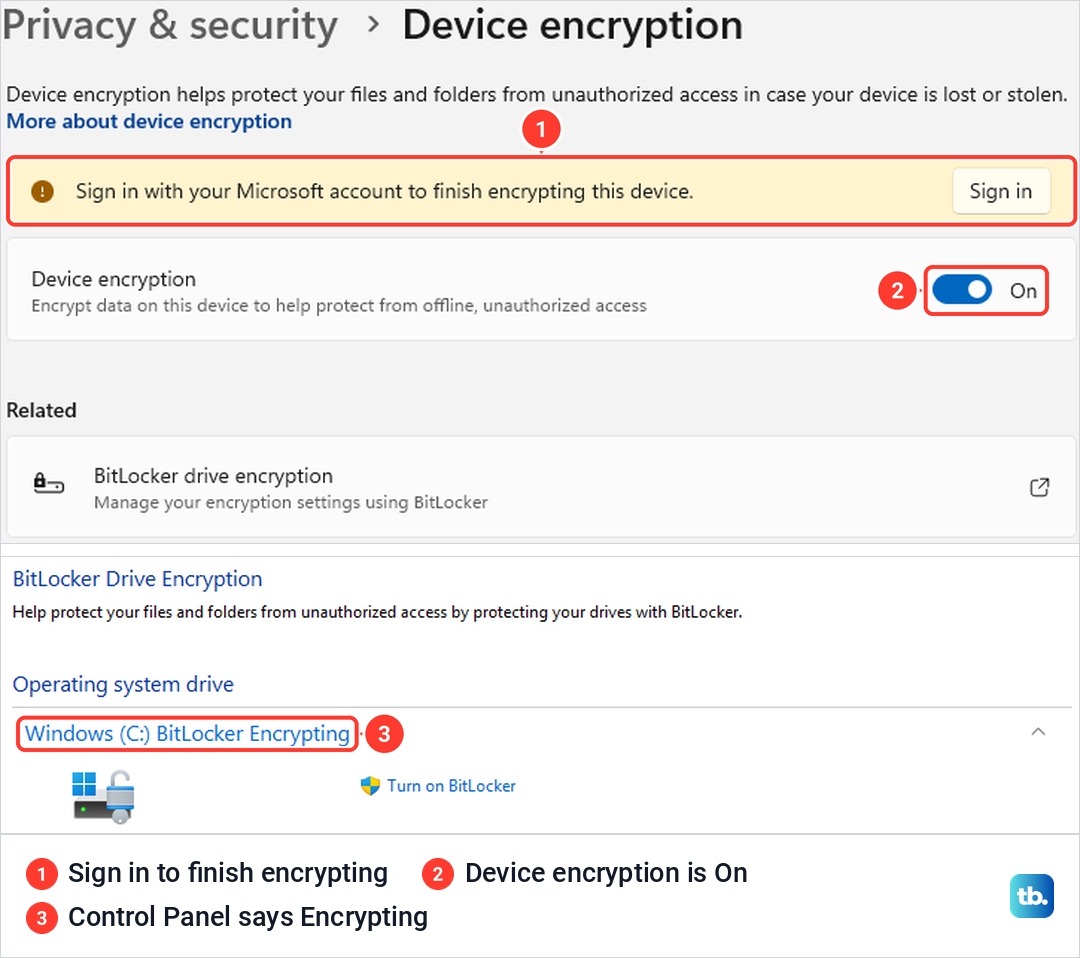
Look even if you never chose to encrypt anything. On our PC, Settings > Privacy & security > Device encryption showed the switch On under a banner that read Sign in with your Microsoft account to finish encrypting this device.
Typing BitLocker in Start found Manage BitLocker, whose Control Panel page listed Windows (C:) BitLocker Encrypting. Microsoft says BitLocker Drive Encryption is available on Windows Pro, Enterprise and Education, while Device Encryption also covers Windows Home, so on a Home laptop start with the Device encryption page.
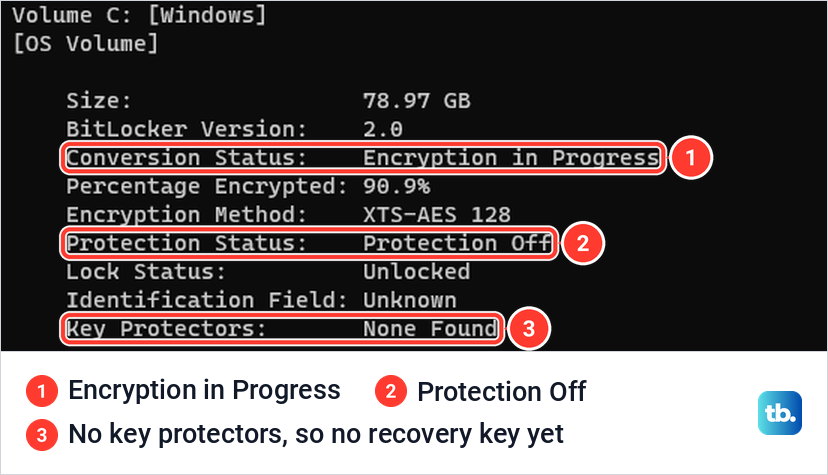
For the exact state, press Windows + X, open Terminal (Admin) and run the command below. Ours reported Encryption in Progress, Protection Off and Key Protectors None Found, so the drive was being encrypted while no recovery key existed yet.
manage-bde -status C:
If your drive is encrypted with a key, find that 48-digit key before you reset. Microsoft says to check aka.ms/myrecoverykey from another device, the Microsoft account of whoever set the laptop up, aka.ms/aadrecoverykey for a work or school account, a printout or a USB flash drive.
Neither Dell nor Microsoft can supply a lost key. Our guide to turning off BitLocker in Windows walks through the same Device encryption, Manage BitLocker and manage-bde screens, and unlocking a drive with the recovery key from your Microsoft account.
Factory reset a Dell laptop from Windows settings
Dell's own first step is to type Reset this PC in Start. When we typed reset this pc, the best match was Reset this PC, System settings, and Enter opened Settings > System > Recovery with the Reset PC button already selected. If you only want Windows repaired with your apps kept, use Fix problems using Windows Update on the same page instead, as our guide to reinstalling Windows 11 and keeping your apps explains.
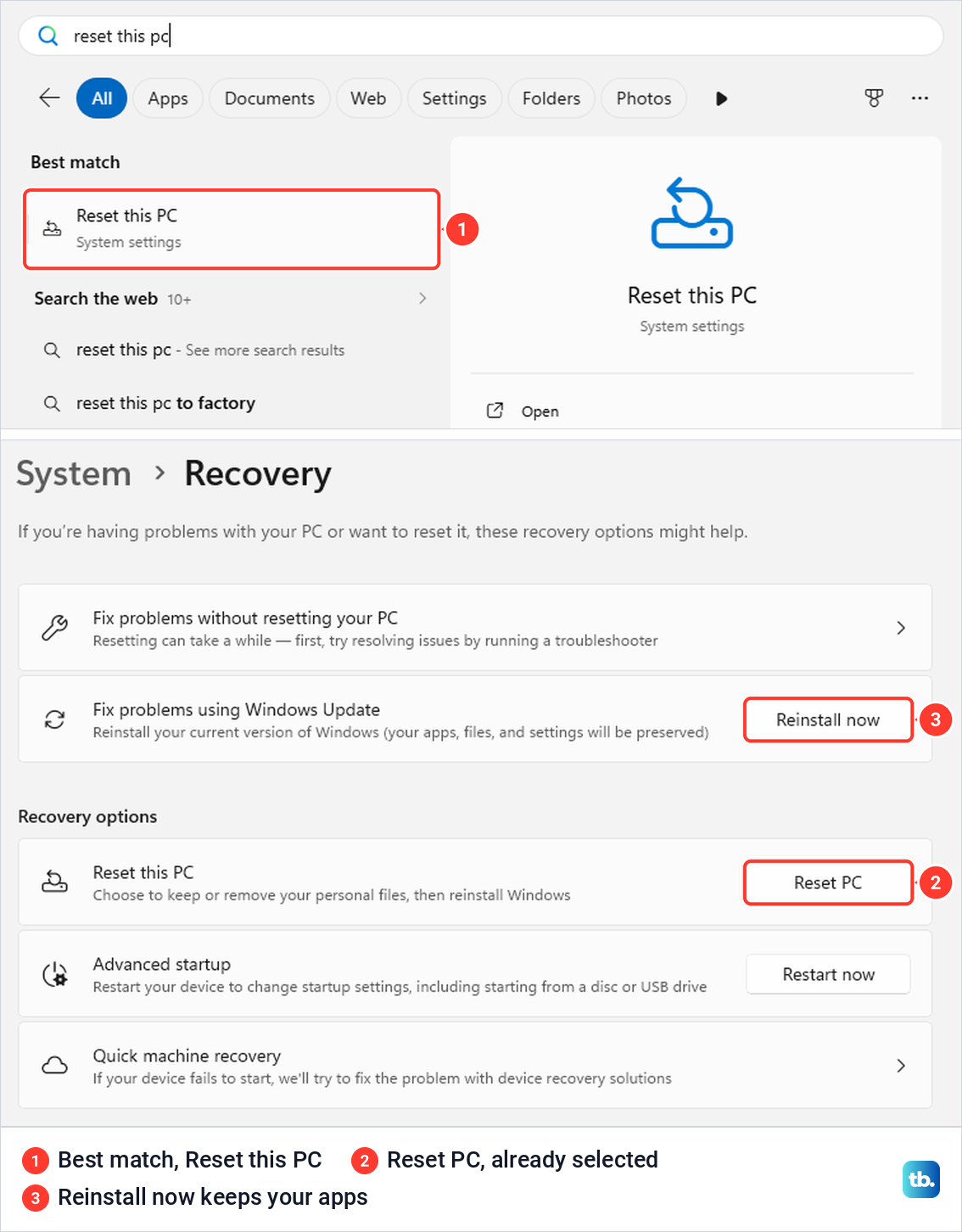
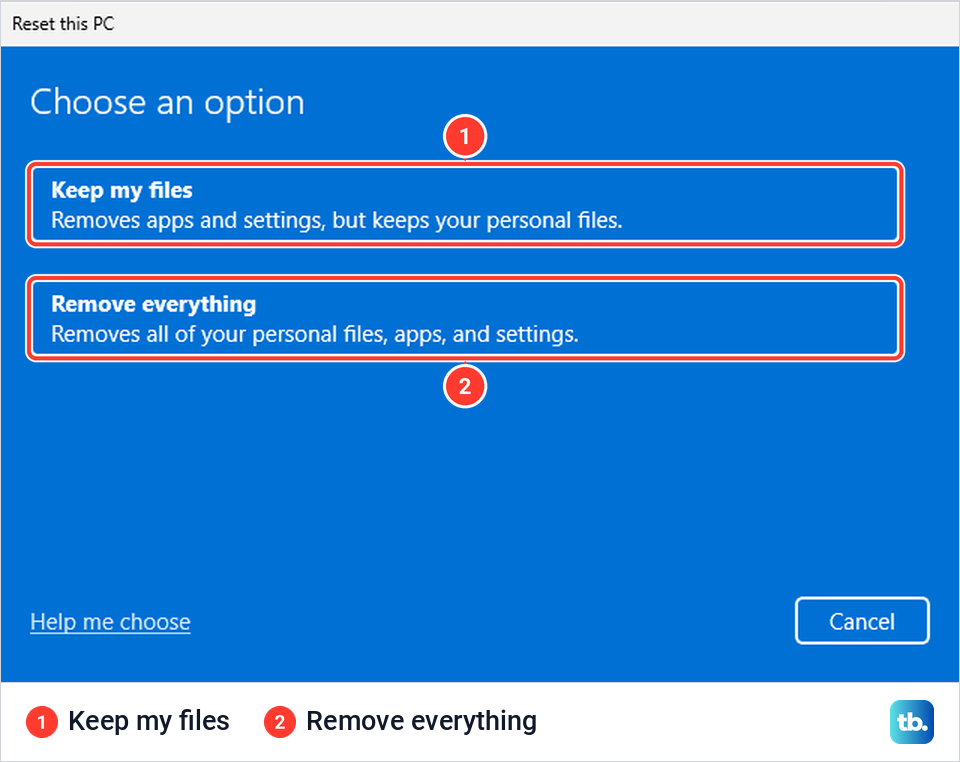
Select Reset PC. The first screen offers Keep my files, which removes apps and settings but keeps your personal files, and Remove everything, which removes all of your personal files, apps and settings. Dell's notes say Keep my files is easiest for a repair and Remove everything is for a laptop changing owners.
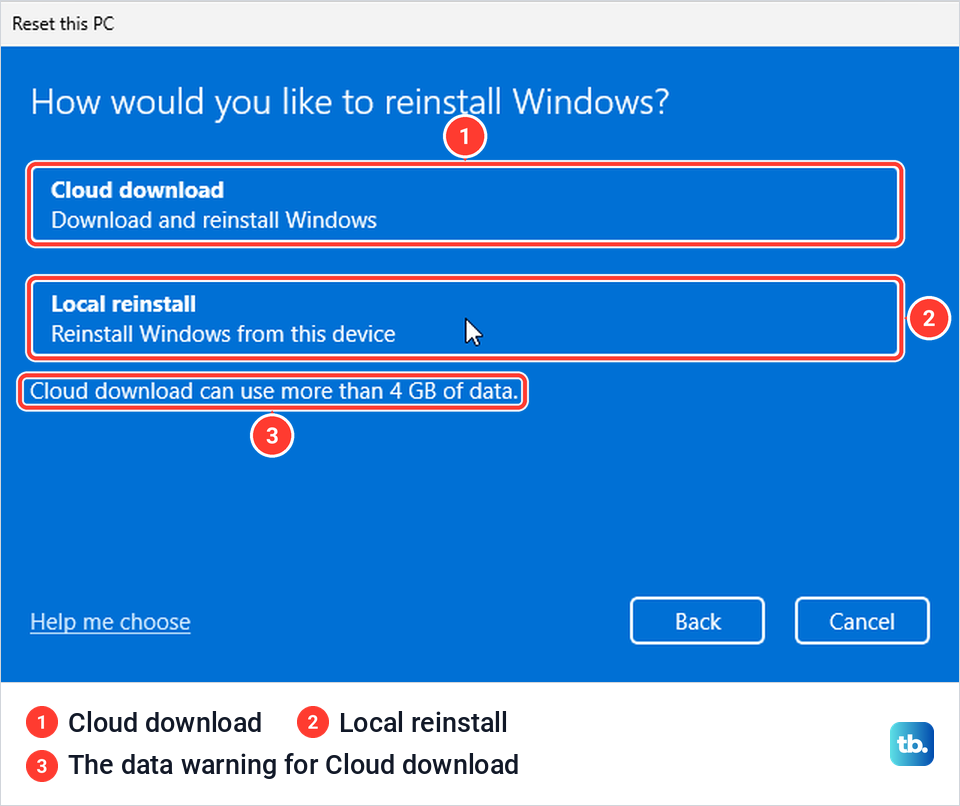
After either choice, a Getting things ready screen stayed up for between about one and three minutes on our PC, so leave it alone. Next comes How would you like to reinstall Windows? Cloud download fetches a fresh copy, and the screen warned that it can use more than 4 GB of data, while Local reinstall uses files already on the laptop, which Microsoft says is faster on a slow connection but may lack the latest updates.
The Additional settings screen lists your current settings, and Change settings opens the switches behind them. If your Dell shows Restore preinstalled apps under Keep my files, Microsoft says turning it on applies the PC maker's customizations. Dell's Windows 11 page says this route otherwise removes any apps that Dell installed, and that page still uses older labels such as Remove files and clean the drive, which is now the Clean data switch.
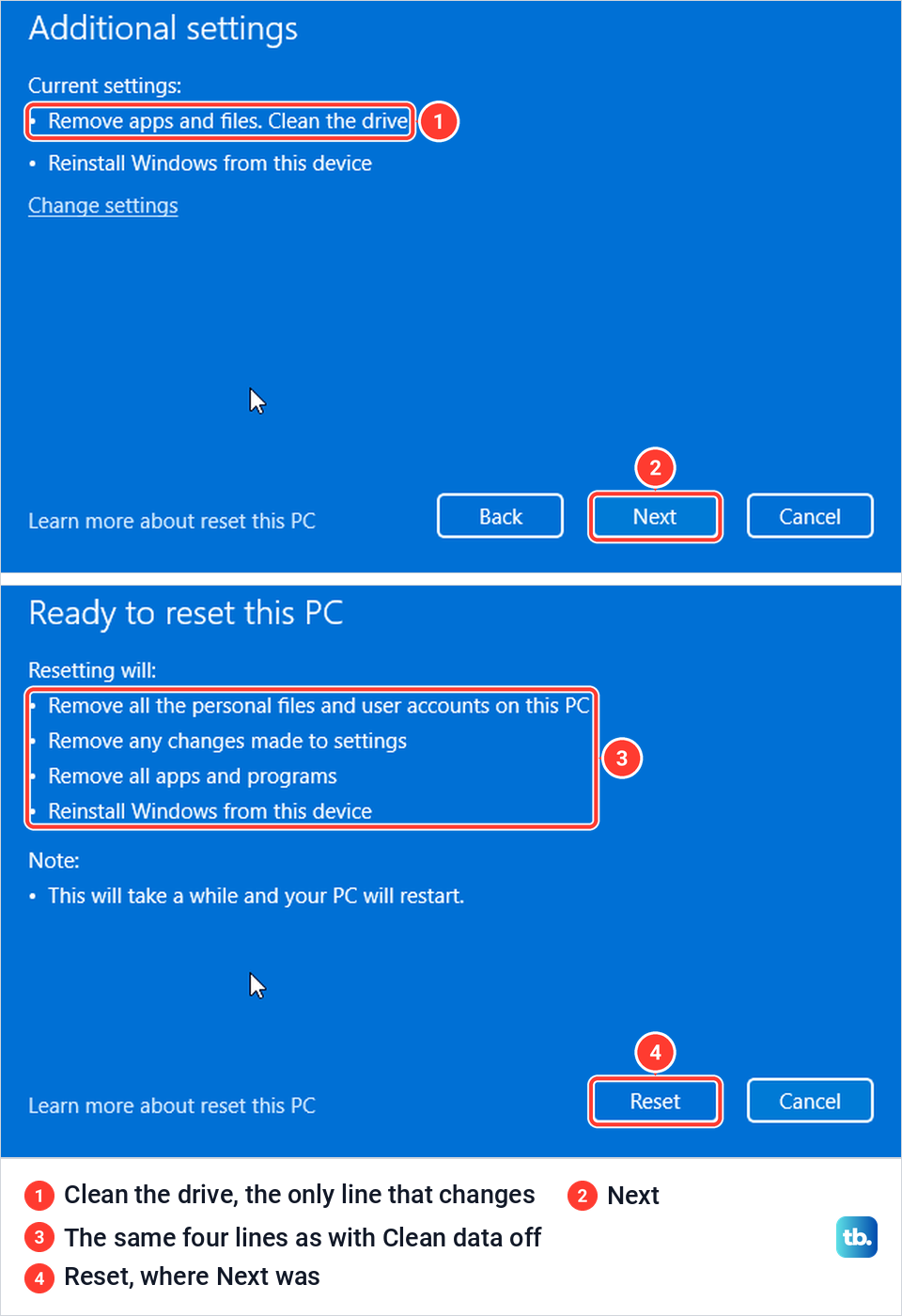
The last screen, Ready to reset this PC, lists what will happen, and its Reset button sits exactly where Next was one screen earlier, so click Next once and read before you go on. The steps after you select Reset follow Microsoft's instructions. Microsoft says the screen may go black for a long time, occasionally upwards of 15 minutes, and the laptop may restart itself, and that restarting it yourself could make the reset fail.
Wipe a Dell before you sell or give it away
Choose Remove everything, then Cloud download or Local reinstall. On our PC the Additional settings screen then read Remove apps and files, Do not clean the drive, which is the default, so select Change settings.
Turn the Clean data switch to Yes. Its text changed from Just remove your files, quicker but less secure, to Clean the drive, which the screen says may take hours but will make it harder to recover files. After Confirm, the Additional settings line read Clean the drive.
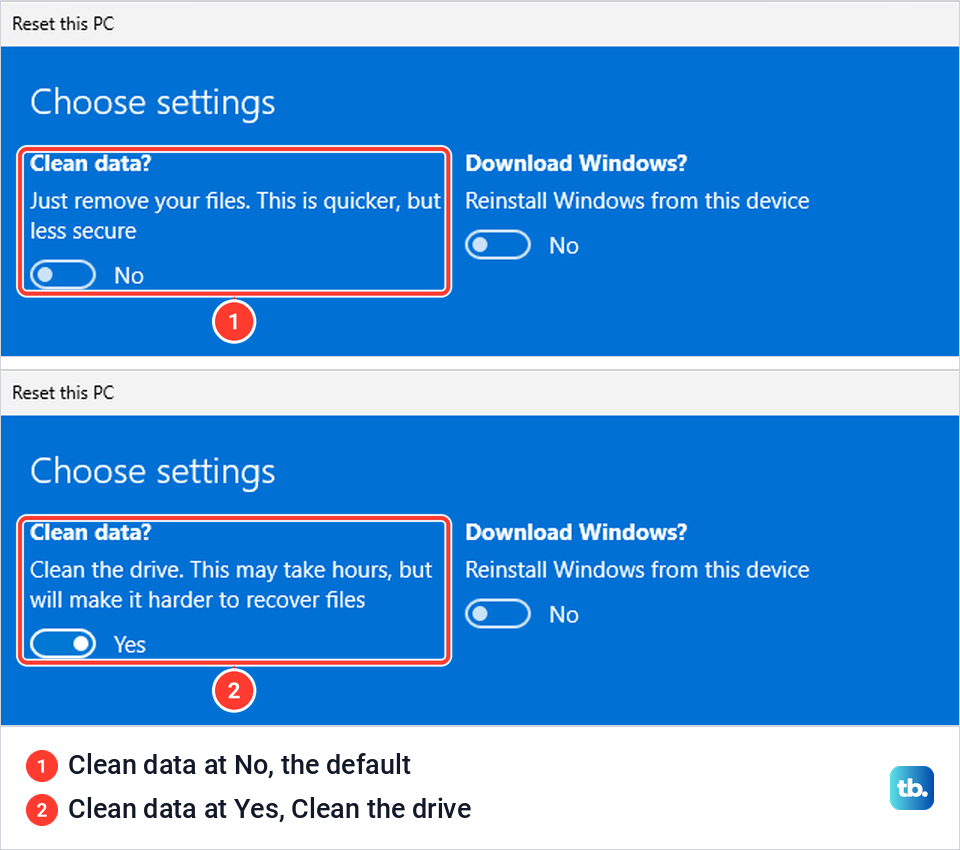
Do not expect the last screen to confirm it. Ready to reset this PC listed exactly the same four lines with Clean data on as with it off, with no word about cleaning, so the Additional settings line is the place to check. When we backed out and started the wizard again, the switch was back at No.
A laptop with more than one internal drive or volume can show one more choice. Microsoft says you can then remove data from all volumes or only the Windows volume, so look for that choice before you reset a laptop you are selling.
Microsoft says Clean data makes removed files harder to recover, but does not meet government and industry data erasure standards. Dell's trade-in page says cleaning can take from an hour to a few hours, and tells you to take out CDs, USB drives and any other removable storage first. After the reset, remove the laptop from your Microsoft account at account.microsoft.com/devices, as Microsoft recommends.
Factory reset a Dell laptop without the password
Try to get back in first. If you sign in with an email address, reset your Microsoft account password from any phone or computer and keep your files. With a local account, Microsoft says you can reset the password on the sign-in screen by answering your security questions, or with a password reset disk.
If neither works, Dell says resetting or reinstalling Windows is the only solution it supports, and Microsoft says its support staff cannot get around a forgotten password. Wiping is the last resort, so run through these sign-in fixes worth trying first.
The reset follows Microsoft's instructions. On the sign-in screen, hold Shift while you select Power > Restart, then on the blue recovery screens choose Troubleshoot > Reset this PC and Remove everything.
By default, Microsoft's security policy has Keep my files ask for an administrator sign-in in the recovery environment, while Remove everything needs none and carries on. So without the password you can wipe the laptop but cannot keep your files, and a work or school laptop can be set to ask on both. An encrypted drive also needs its BitLocker recovery key here.
Restore the Dell factory image with SupportAssist OS Recovery
SupportAssist OS Recovery is Dell's own recovery environment, available on certain Dell models that came with Windows 10 or Windows 11 installed at the factory. Its Reset to factory settings option needs Dell's factory image on the drive. These steps follow Dell's support documents.
Plug the laptop into a power outlet, which Dell lists as a requirement. Turn it on and tap F12 repeatedly at the Dell logo to open the One Time Boot Menu, then select SupportAssist OS Recovery. Dell says that if you wait too long, Windows loads instead, so restart and try again.
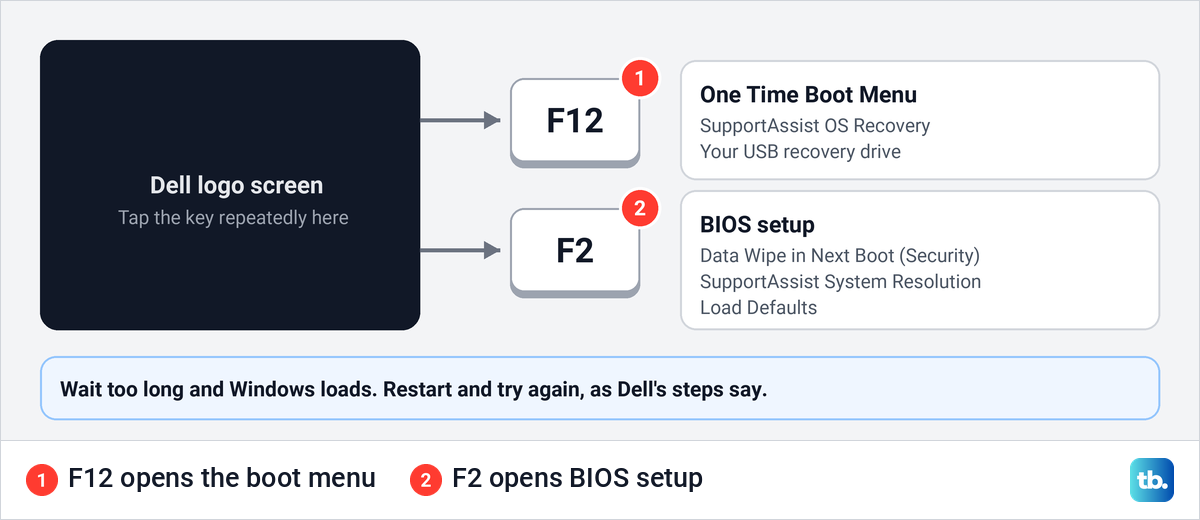
The first time, select APPROVE to accept the privacy policy. Select Start Reset, connect to Wi-Fi if asked, choose Reset to factory settings and select NEXT. Dell then offers to back up your files to a USB drive with more free space than the backup size it shows.
On the Confirm your reset page, tick the box that confirms the reset will delete all of your system data and personal files, then select YES, CONTINUE and NEXT. Dell says the reset may take 45 or more minutes, and you select RESTART when it is done.
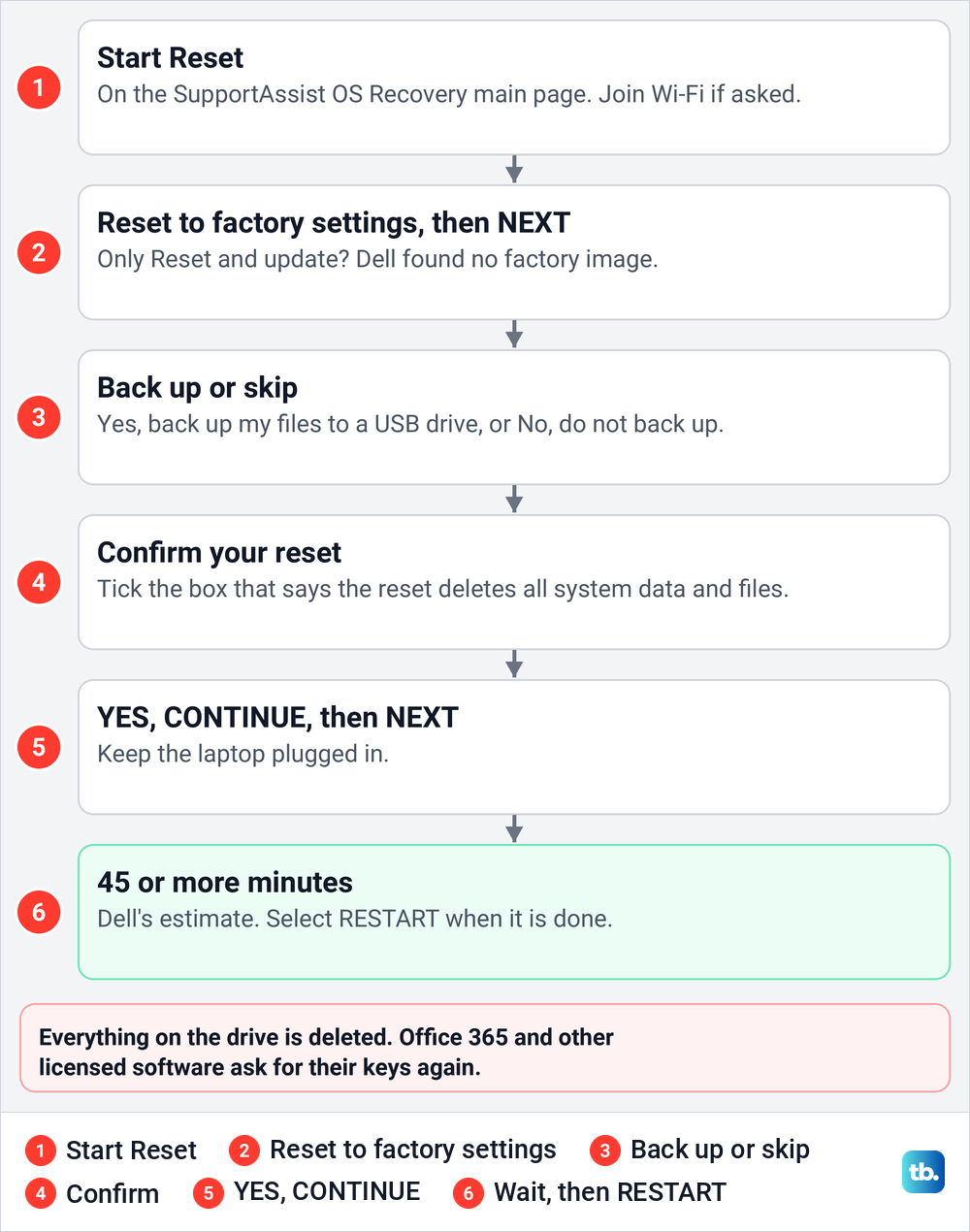
If only Reset and update appears, Dell says it could not find the factory-installed operating system. That option downloads the latest version of the Windows that came on the Dell, so it needs internet. Both options delete everything on the drive, and Microsoft Office 365 and other licensed software will ask for their keys again.
The same tool also scans hardware, backs up files and repairs Windows. Our guide to using Dell recovery on Windows covers its repair and backup options, the recovery USB and BIOSConnect.
When your Dell will not start
Dell says SupportAssist OS Recovery starts by itself after two failed boot attempts in a row, by default. If it does not appear, tap F12 at the Dell logo as above.
Windows has its own route, which follows Microsoft's instructions. Hold the power button to shut the laptop down as soon as the logo appears, twice, and Windows should show Automatic Repair on the third start. Select Advanced options, then Troubleshoot > Reset this PC. On a Dell with SupportAssist OS Recovery, Dell's two-failed-boots default means this can open SupportAssist instead, where Start Reset works as described above.
There are other ways into the recovery environment if the forced restarts do not work. If the laptop is stuck in an Automatic Repair loop instead, fix that before you choose a reset.
Make a Dell recovery USB on another computer
When F12 shows no SupportAssist OS Recovery, or the drive has been wiped, Dell's OS Recovery Tool builds a recovery USB drive on any working Windows 10 or Windows 11 PC. Dell asks for the broken Dell's Service Tag, a USB flash drive of at least 16 GB that will be erased, Microsoft .NET Framework 4.8.1 or later, and 16 GB of free space on the PC doing the download.
Choose to make media for another computer and enter the Service Tag; for Windows 11, Dell's only image type is Automated by SupportAssist. Then plug the USB drive into the Dell, tap F12 at the Dell logo and pick the USB drive. Dell says SupportAssist OS Recovery starts from it, where you select Start Reset.
Every screen of the app is in our walkthrough of the Dell OS Recovery Tool. Dell notes the image is always the operating system the Dell shipped with.
Erase every drive with Dell Data Wipe
Dell Data Wipe is built into the BIOS of most newer Dells, including Alienware, Inspiron, Latitude, OptiPlex, Precision, Vostro and XPS models. It erases all internal storage and removes Windows too, so the laptop needs Windows reinstalled afterwards. These steps follow Dell's instructions.
Tap F2 repeatedly at the Dell logo to enter BIOS setup. Go to Security, or Advanced > Maintenance on Alienware, select Data Wipe in Next Boot, choose Wipe on Next Boot, confirm twice, then save and exit. Dell shows more prompts after the restart, your last chance to cancel, and a green Data Wipe Completed Successfully message at the end.
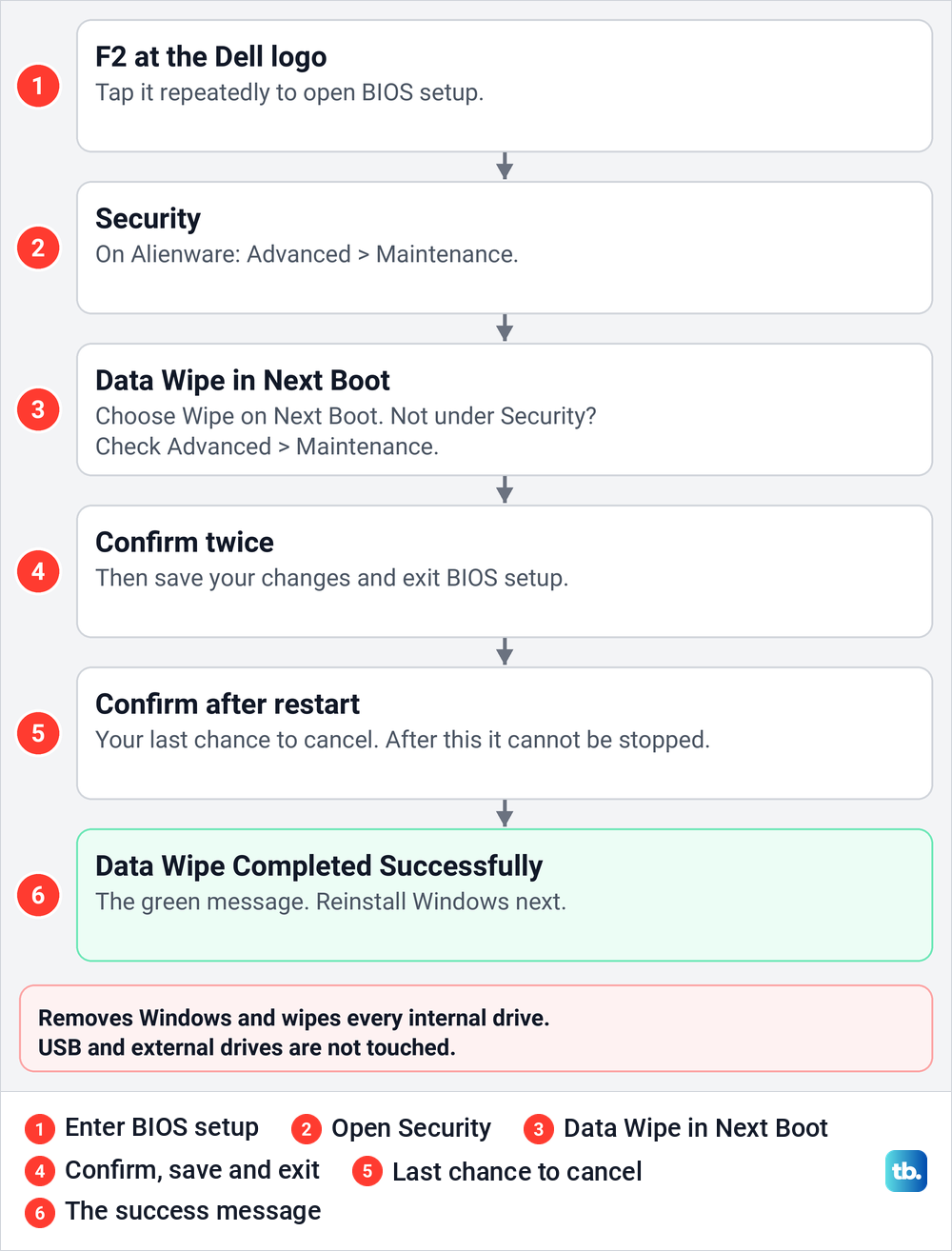
Dell says every internal drive is wiped, external drives are not touched, and you must be at the computer. Dell's check is simple: if Data Wipe in Next Boot appears under Security or Advanced > Maintenance, the computer supports it, and if F2 keeps missing the moment, our guide to getting into BIOS setup has another way in.
What each Dell reset puts back
| What you get | Reset this PC | Reset to factory settings | Reset and update |
|---|---|---|---|
| Windows version | The one installed now, with its updates | The one Dell shipped | The latest version of the Windows that came on the Dell |
| Dell apps | Removed, unless your Dell offers Restore preinstalled apps | Put back as shipped | Critical drivers and applications installed |
| Your files | Kept or removed, your choice | Removed, with an optional backup first | Removed, with an optional transfer first |
| What it needs | Internet for Cloud download, and the BitLocker key when started from the recovery screens | Dell's factory image, kept on consumer models | An internet connection, and the BitLocker key if you transfer files from an encrypted drive |
| Time the maker gives | No total given; Microsoft says the screen can occasionally stay black upwards of 15 minutes | 45 or more minutes, Dell says | 45 or more minutes, Dell says |
Installing Windows from a Microsoft USB drive also works on a Dell, but Dell warns that formatting the drive deletes the SupportAssist OS Recovery environment. Dell says Reset and update can put it back, and Microsoft suggests the maker's own recovery media for the best compatibility.
What to do after the reset
After Dell's own reset, connect to Wi-Fi before you sign in and expect to set a PIN. Dell says SupportAssist Recovery Assistant then installs Windows and Dell updates, puts back Dell's factory software and restores any backup you made. Reinstall the apps you added yourself, and on Dell Pro, Latitude, OptiPlex and Precision models run Dell Command Update if drivers are missing.
Windows itself should not need a product key, because Dell says the key is stored on the system board and activation reads it from there. If Windows 11 does not activate after the reset, work through those fixes.
If the reset fails or a password blocks it
If Reset this PC stops with an error, run it again with the other source, since Microsoft says Cloud download helps when local files are corrupted or missing. If Windows says There was a problem resetting your PC, start with those fixes. If a reset keeps failing, Dell's recovery steps start with a hardware scan in SupportAssist OS Recovery, and Dell says a clean result most likely means a software problem. You can also run Dell's pre-boot hardware check.
If SupportAssist OS Recovery is missing from F12, the model may not have it, the drive may have been formatted, or it may be off in BIOS setup. Dell's fix for the last is to press F2, open SupportAssist System Resolution, select SupportAssist OS Recovery and make sure Auto OS Recovery Threshold is not set to OFF.
A password that stops the laptop from booting is a BIOS system password, and Dell says its release code is the only option on a laptop, so a Windows reset is no way around it. Dell says laptops have no jumper, so enter a wrong password three to five times until an error code appears, then give Dell that code and proof of ownership for a release code.
Dell cannot make one for NVMe SSD passwords. If the laptop asks for a BitLocker key you cannot find, Dell and Microsoft both say a reset that loses your files is the only way back.
Resets that do not erase anything
A hard reset and an RTC reset are for a Dell that will not power on or start, and neither erases anything. For a hard reset, Dell says to disconnect the AC adapter, remove the battery if it is removable, and hold the power button for 15 to 20 seconds. For an RTC reset, keep the adapter connected and hold the power button for about 30 to 35 seconds, until the power light blinks three times.
Dell warns an RTC reset also restores BIOS defaults and may leave the laptop unable to boot until the time, date and drive settings are right. Loading BIOS defaults with F2 only changes hardware settings. All of these belong to the fixes for a Dell laptop that will not turn on, not to a factory reset.
How we tested this guide
We tested this on Windows 11, version 25H2, walking through Reset this PC for Keep my files and Remove everything up to the Reset button.
Frequently Asked Questions
How do I factory reset a Dell laptop without the password?
On the sign-in screen, hold Shift while you select Power > Restart, then choose Troubleshoot > Reset this PC > Remove everything. Microsoft says Remove everything needs no administrator password by default, though an encrypted drive asks for its BitLocker key.
What key do I press to factory reset a Dell?
Tap F12 at the Dell logo for the One Time Boot Menu, where supported models list SupportAssist OS Recovery. F2 opens BIOS setup, where Dell Data Wipe sits.
Does a factory reset put back the Windows my Dell came with?
Dell's own options do: Reset to factory settings restores the system as it shipped, Reset and update installs the latest version of the Windows that came on the Dell, and Dell's recovery USB holds the operating system the Dell shipped with. So a Dell that came with Windows 10 gets Windows 10 back, while Reset this PC reinstalls the version you have now, so use it to stay on Windows 11.
How long does a Dell factory reset take?
Dell says 45 or more minutes for its own reset, and an hour to a few hours when Windows cleans the drive. Microsoft gives no total for Reset this PC, but says the screen can occasionally stay black upwards of 15 minutes, so do not restart it.
Do I need a product key after resetting a Dell?
Not for Windows, which Dell says reads its key from the system board. Office 365 and other licensed software ask for their keys again.
Why is SupportAssist OS Recovery missing from my F12 menu?
Not every Dell has it, Qualcomm and S mode Dells are not supported, it can be off in BIOS setup, and formatting the drive deletes it. On Qualcomm and S mode Dells, use Reset this PC instead. On other Dells, Dell's OS Recovery Tool can put it on a USB drive.
Will a factory reset remove a BIOS password?
No. Dell says a password release code is the only option on a laptop, and it gives one once you provide the error code and proof of ownership.