Need to change boot order, enable virtualization, or check firmware settings? The BIOS or UEFI screen is where those controls live, and current PCs give you several supported ways to get there. Start with Windows Settings when Windows opens, then use startup keys or recovery when it does not.
1. Open UEFI from Windows Settings
This opens firmware settings when Windows still starts normally. Open Settings.
On Windows 11, go to System > Recovery. On Windows 10, go to Update & Security > Recovery. Under Recovery options, select Advanced startup > Restart now.
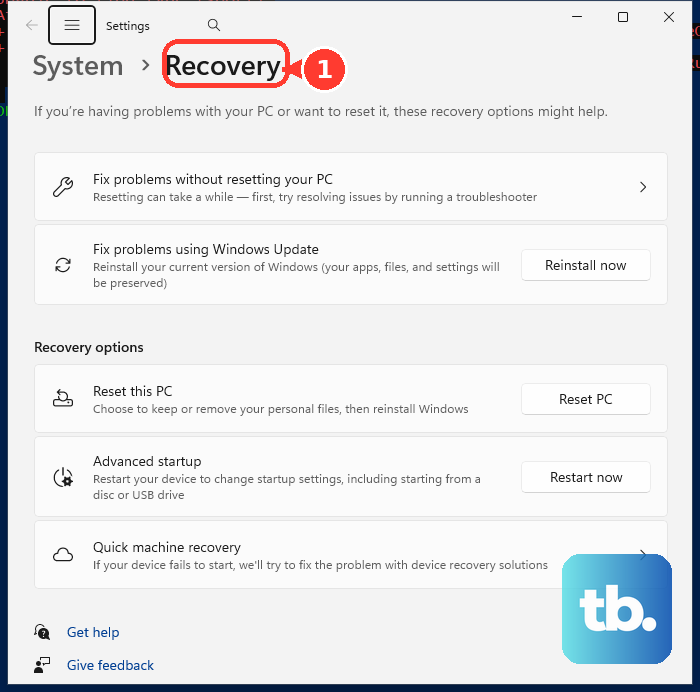
After the PC restarts, select Troubleshoot. Then select Advanced options. Select UEFI Firmware Settings or UEFI Settings, then select Restart.
2. Use Shift Restart from Start or sign in
Open the Start menu, or stay on the Windows sign-in screen. Select Power.
Hold Shift and select Restart. Choose Troubleshoot, then select Advanced options.
Select UEFI Firmware Settings. After that, select Restart.
3. Tap the startup key for your PC brand
This gets you into BIOS or UEFI before Windows loads. Shut down the PC completely, then turn it on and press the supported key repeatedly when the logo appears.
On Dell PCs, press F2, or press F12, select BIOS or System Setup, then press Enter. On many HP consumer notebooks, press Esc until Startup Menu opens, then press F10. On many HP desktops and notebooks, press F10 before Windows starts.
On Lenovo ThinkPad, ThinkCentre, ThinkStation, desktops, and all-in-ones, press F1. On Lenovo IdeaPad, Yoga, and Flex models, press F2 or Fn + F2.
On ASUS notebooks and many ASUS PCs, hold F2, press Power, then release F2 when the BIOS screen appears. On Acer notebooks, press F2. On Acer desktops, press Del.
On MSI notebooks, MSI motherboards, and GIGABYTE consumer motherboards, press Del. On Samsung PCs, press F2 before the Samsung logo appears.
4. Use Surface or Lenovo hardware buttons
For Microsoft Surface, shut down the device and wait about 10 seconds. Press and hold Volume Up.
While holding Volume Up, press and release Power. On Surface Pro 4 and later, Surface Laptop, Surface Go, Surface Studio, and Surface Book, keep holding Volume Up until the Surface UEFI screen appears.
On Surface Pro (1st Gen), Surface Pro 2, Surface Pro 3, and Surface 3, release Volume Up when the Surface logo appears, and the BIOS menu opens a few seconds later.
For a Lenovo laptop with a Novo button, shut it down. Press the Novo button, then in Novo Boot Menu, select BIOS Setup.
5. Restart to firmware from a Windows command
Open Command Prompt, Windows Terminal, or PowerShell with sufficient rights. Run shutdown /r /fw /t 0 to restart directly to the firmware user interface.
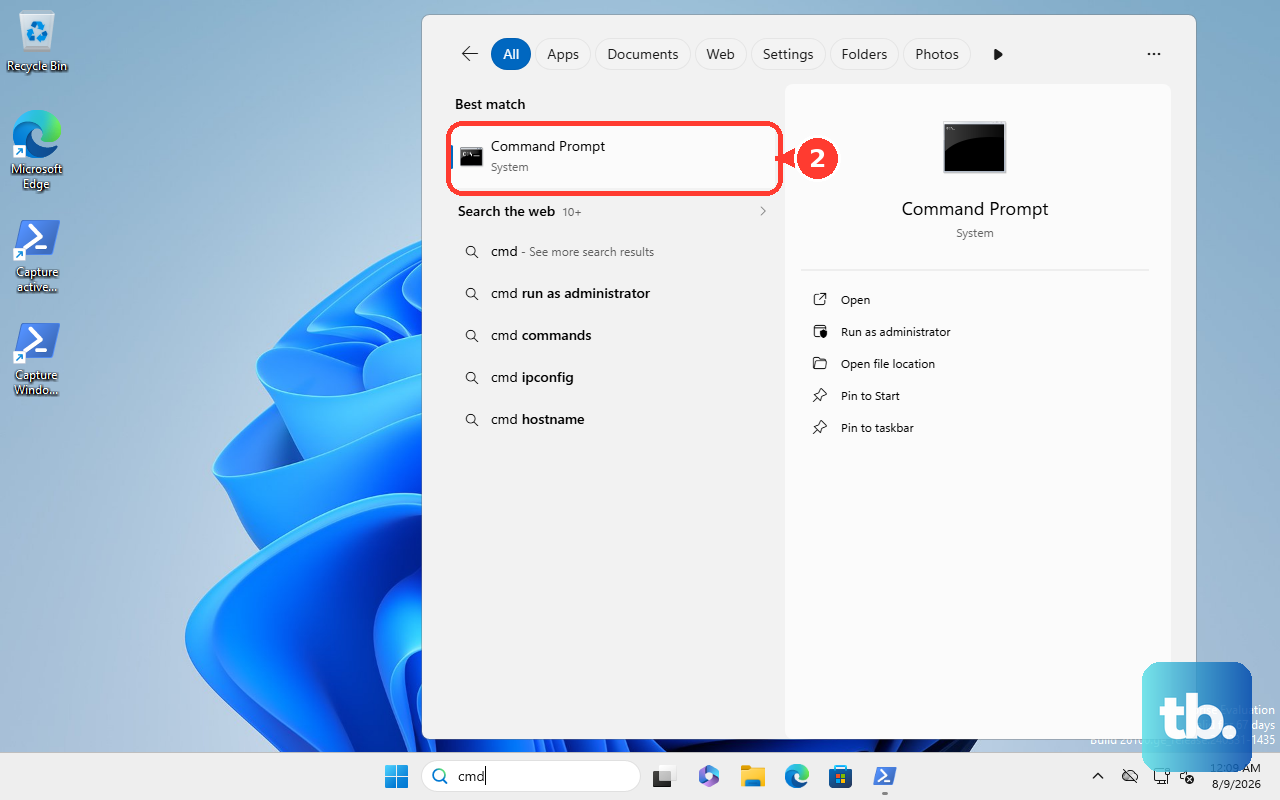
If Windows reports an environment-option error, run shutdown /r /o /t 0. After the restart, select Troubleshoot > Advanced options > UEFI Firmware Settings > Restart.
If the direct firmware command is blocked, use Settings or Shift + Restart.
6. Enter UEFI from Windows Recovery
This works after Windows sends the PC into recovery following failed starts. On the recovery screen, select Troubleshoot.
Select Advanced options, then select UEFI Firmware Settings. Once that opens, select Restart.
7. Ignore outdated BIOS advice
Do not use older Windows 8 instructions that send you to Settings charm > Change PC settings > General > Advanced startup > Restart now on a current Windows 10 or Windows 11 PC. Pressing F8 opens old Windows Advanced Boot Options on older systems; it is not a supported BIOS or UEFI entry method on current Windows PCs. Use UEFI Firmware Settings, shutdown /r /fw /t 0, or the correct OEM startup key instead.
8. Ask IT before changing managed PCs
Stop before changing firmware settings on a company-owned or school-owned PC. Ask your IT admin which BIOS or UEFI options you are allowed to change.
Use the consumer firmware screen only when your organization permits it. Follow your organization’s vendor management process when IT manages firmware settings through enterprise tools.
Managed fleets use tools such as Surface commercial UEFI management or Samsung BIOS WMI and PowerShell workflows instead of manual changes on each PC.
Frequently Asked Questions
Why do I see UEFI instead of BIOS?
UEFI is the modern firmware interface on current PCs. Windows labels the option UEFI Firmware Settings or UEFI Settings, while many users still call the same area BIOS.
What should I do if the startup key does not work?
Use Windows Settings or Shift Restart to reach UEFI Firmware Settings. If the key still matters for your model, follow the on-screen prompt or the device manual because startup keys are OEM and model specific.
Why is UEFI Firmware Settings missing?
That option requires UEFI firmware support. It is unavailable on legacy BIOS installs and some damaged configurations, so use the correct startup key for the PC model.
Can I open BIOS from the sign-in screen?
Yes. Select Power on the sign-in screen, hold Shift, choose Restart, then go to Troubleshoot, Advanced options, UEFI Firmware Settings, and Restart.