

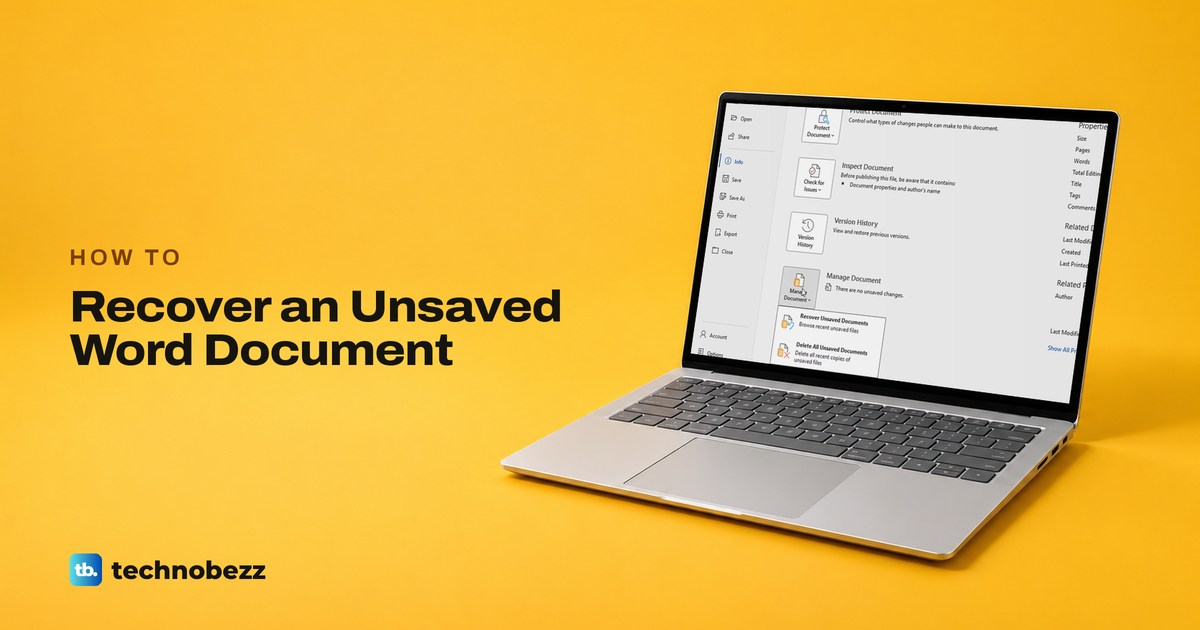
To recover an unsaved Word document on Windows, open Word, select Blank document, then go to File > Info > Manage Document > Recover Unsaved Documents. Open the newest copy and select Save As on the bar at the top to keep it as a normal file. If Word crashed or you ended it in Task Manager, reopen Word first, because it can bring the document back by itself.
In Word for Microsoft 365 on Windows 11, version 25H2, we closed documents with Don't Save and ended Word in Task Manager, and two results go against common advice. Don't Save did not throw our text away, even on a new document we closed about half a minute after we started typing. Ending Word in Task Manager was the risky one: a document we ended 16 seconds in was gone for good.
The short version
- Clicked Don't Save: open a blank document, then select File > Info > Manage Document > Recover Unsaved Documents.
- Word crashed or was ended in Task Manager: open Word again and save each document it reopens.
- A saved file lost its changes: open it, select File > Info and pick the copy listed under Manage Document.
- The file is on OneDrive: select the file name in the title bar, then Version History.
- Keep what comes back: recovered copies are read-only, so press F12 or select Save As straight away.
Which recovery route fits what happened
| What happened | Where to look | What you get |
|---|---|---|
| You clicked Don't Save on a new document | Blank document > File > Info > Manage Document > Recover Unsaved Documents | A read-only copy named after its first line, ready for Save As |
| Word crashed, or you ended it in Task Manager | Open Word again | If AutoRecover had saved, each document reopens with a RECOVERED UNSAVED FILE bar, or Word lists it in a Document Recovery pane |
| A saved document lost its latest changes | Open it, then File > Info > Manage Document | A copy listed with a day and time, marked closed without saving |
| The file is on OneDrive or SharePoint | The file name in the title bar > Version History | Earlier versions you can open and restore |
| Word asked Keep or Discard when you closed | Your OneDrive, if you chose Keep | The document Word created there, with its own Version History |
| Word's lists are empty | The AutoRecover file location from File > Options > Save | Recovery files ending in .asd that open in Word |
| Always create backup copy was turned on | The document's own folder | A file named Backup of, then the document name, holding the previous save |
| File History was set up | The folder's Properties > Previous Versions | Dated copies of the folder |
Not sure whether your document lived on OneDrive? Check the AutoSave switch at Word's top left. Microsoft says AutoSave is on by default only for files stored on OneDrive or SharePoint, and a new document that was never saved shows it Off, as ours did.
If the file was saved and later deleted, start with our guide to finding deleted Word documents instead. It covers the Recycle Bin and OneDrive's recycle bin.
Recover a new Word document you never saved
You typed into a new document, closed Word and clicked Don't Save, or never saved at all. When we closed a new document, Word asked Save your changes to this file? with a box for the name, a location set to OneDrive, and three buttons.
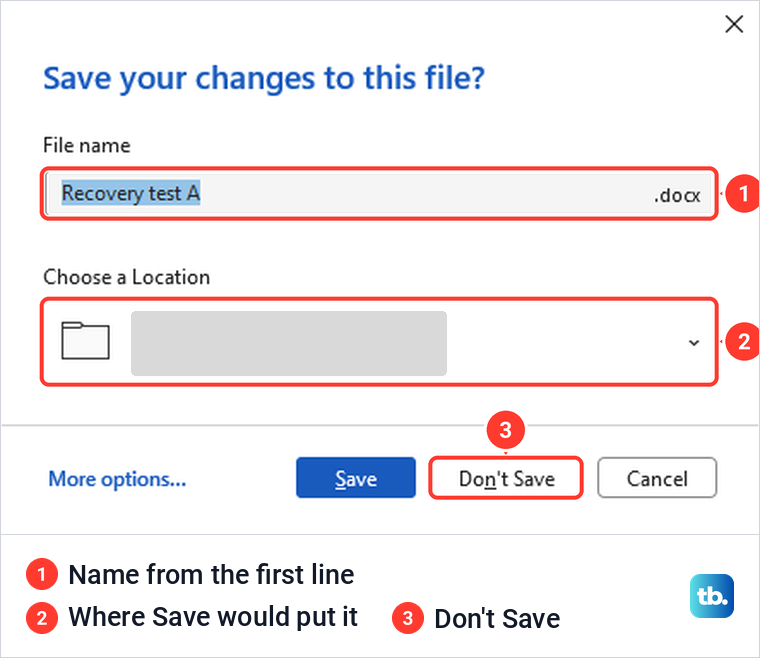
We clicked Don't Save about half a minute after we started typing, long before Word's first timed AutoRecover save. The text was not lost. Word wrote a recovery copy to its AutoRecover folder at the moment we clicked, and the copy was waiting when we opened Word again.
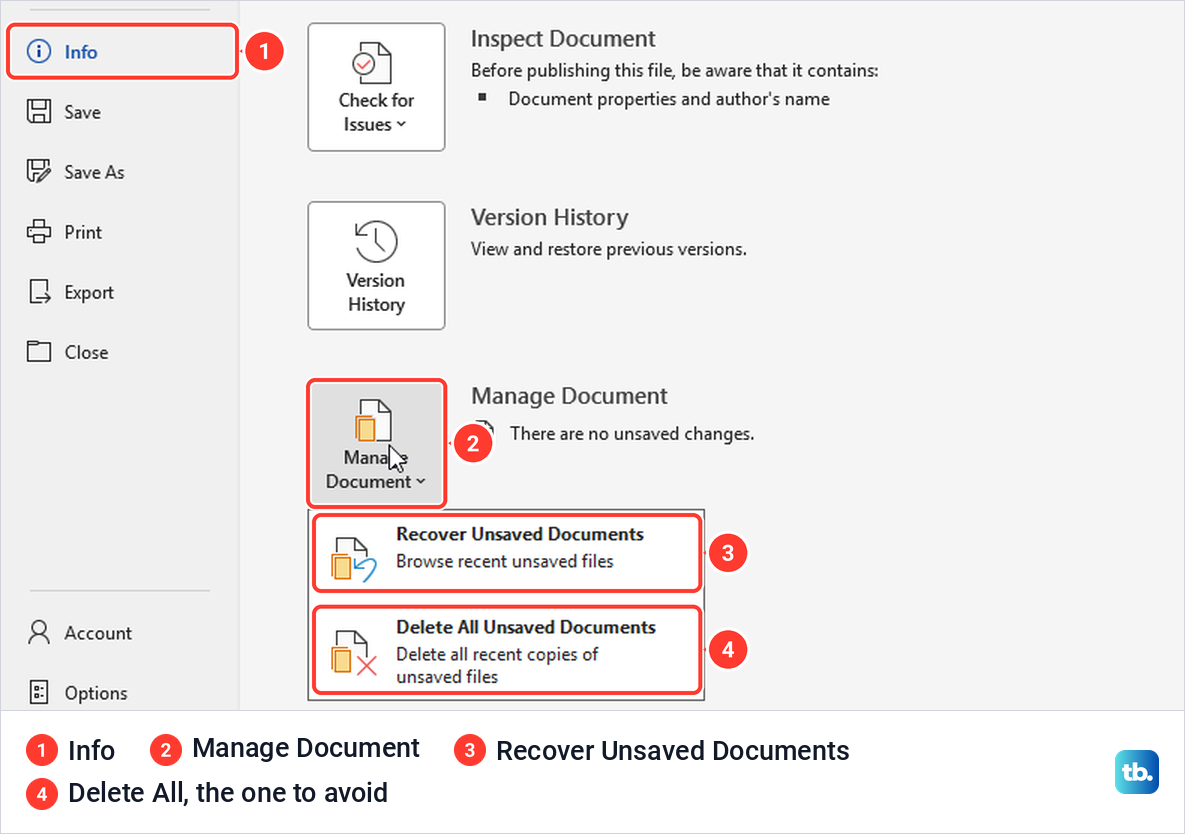
To get it back, open Word and select Blank document. Word's Start screen has no Info entry, so this step matters. Then select File > Info > Manage Document > Recover Unsaved Documents. Directly below it sits Delete All Unsaved Documents, which deletes the very copies you are looking for, so take care where you click.
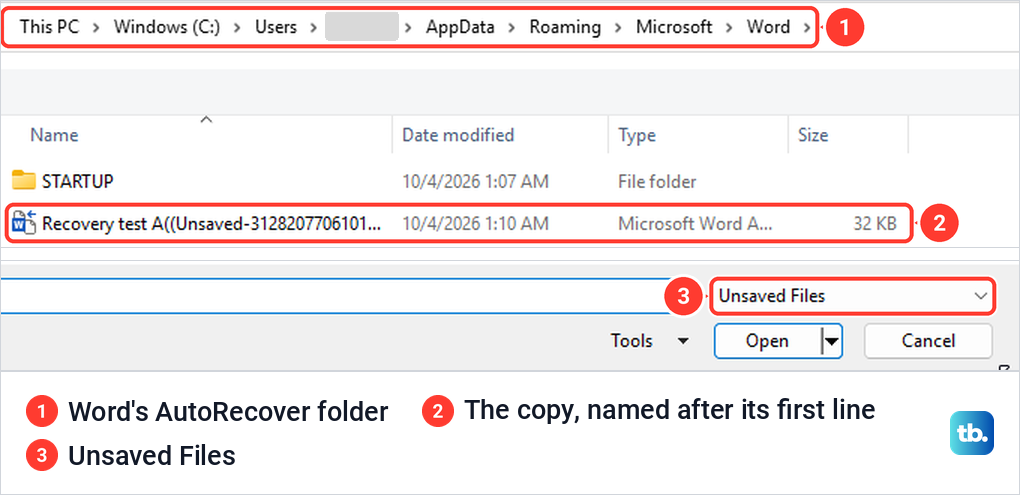
Recover Unsaved Documents opens an Open window on Word's AutoRecover folder, with the file type set to Unsaved Files. Each copy is named after the first line of the document, followed by the word Unsaved and a long number in double brackets. If there are several, sort by Date modified, select the newest and select Open. Do it soon rather than days later.
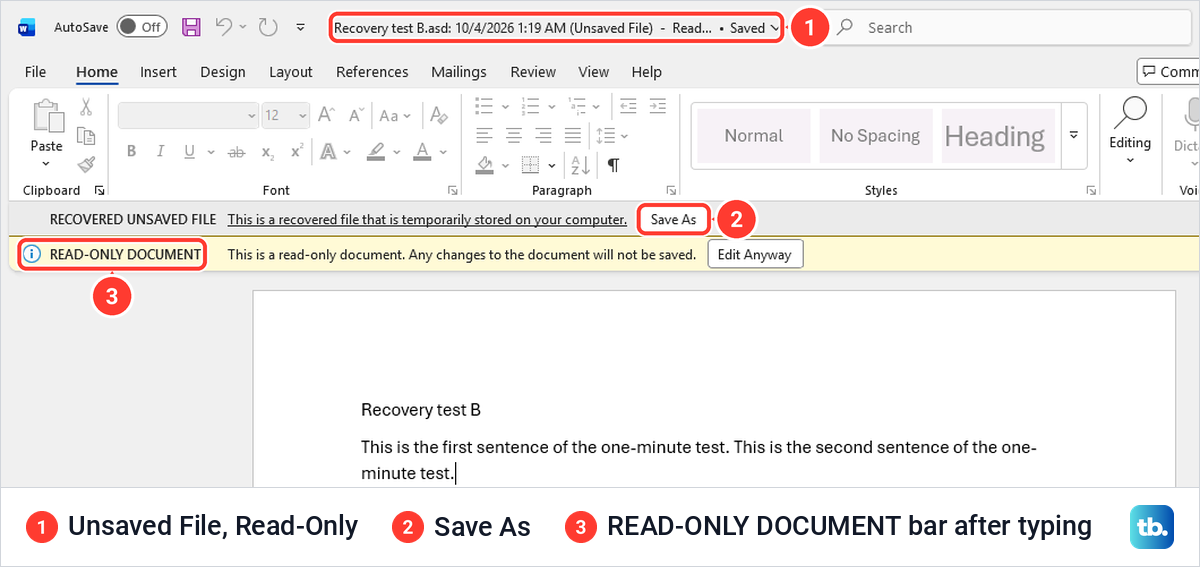
The copy opened with all of its text, but read-only. The title bar said Unsaved File, a grey bar read RECOVERED UNSAVED FILE, and when we tried to type, Word answered You can't make this change because the selection is locked.
A yellow READ-ONLY DOCUMENT bar with an Edit Anyway button appeared as well. We used Save As on the grey bar instead: pick a folder and a name, and the copy becomes a normal document.
There is a second way in. Press Ctrl + O for File > Open, and a Recover Unsaved Documents button waits at the bottom of the Recent list. On our PC it opened the same folder. If Save As fails on the recovered copy, see what to do when Word will not save the document.
Why did Don't Save keep a copy? The setting that starts Keep the last AutoRecovered version, in Word Options, was ticked by default on our PC. Microsoft says it makes Word create an AutoRecover file and preserve it when you close Word. For a workbook, see how to recover an Excel file you did not save.
Reopen Word after a crash or End task
After a crash, or after you closed a frozen Word from Task Manager, open Word again before anything else. Microsoft says Word searches for AutoRecover files every time it starts. If Word is frozen rather than closed, give it a minute, then force quit a frozen app on Windows and come back here.
For this test we set Word's AutoRecover interval to 1 minute, opened two documents, a new one and a saved one with a paragraph added after its last save, and waited two and a half minutes. In Task Manager we selected Microsoft Word on the Processes tab and selected End task. Word closed at once, without asking anything.
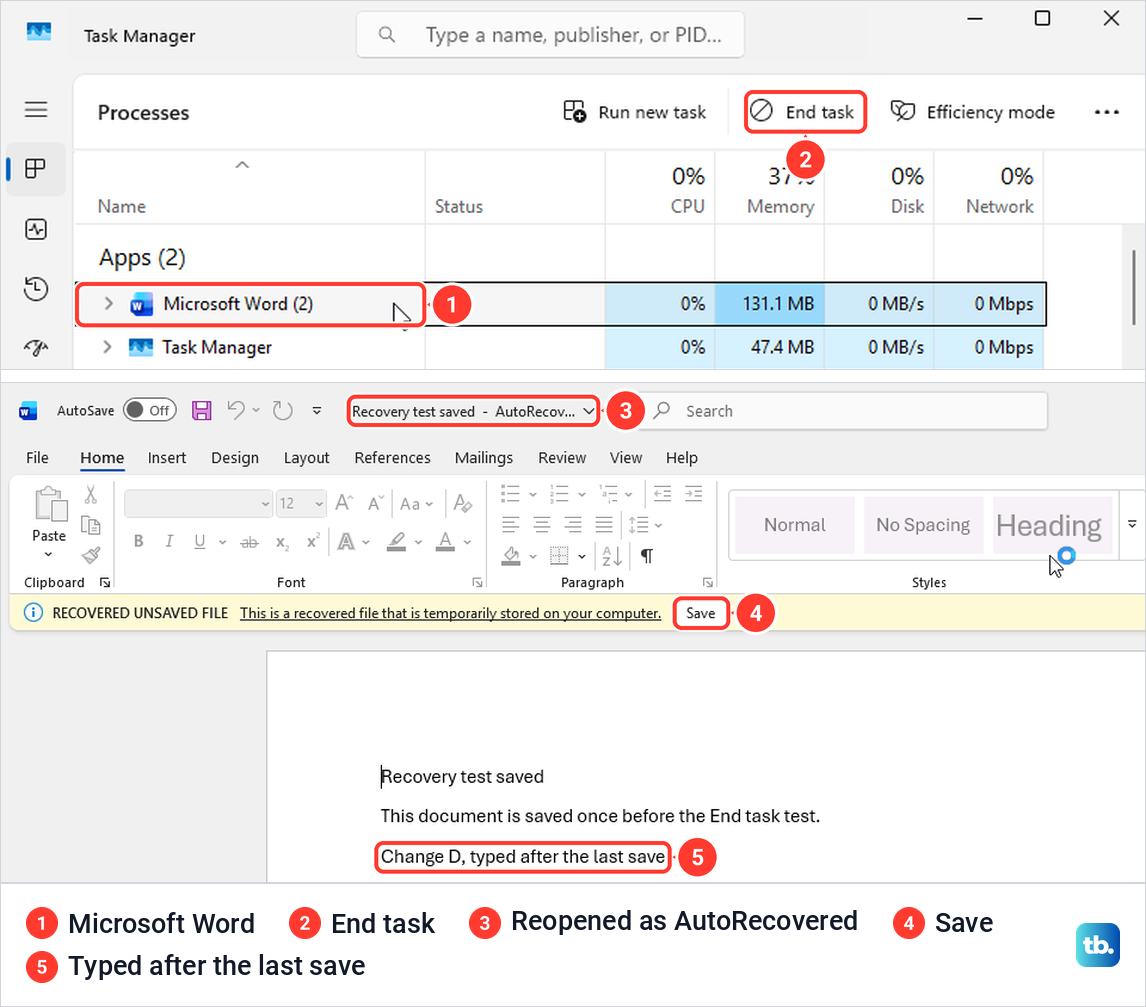
When we opened Word again there was no Document Recovery pane. Word went straight to two windows, each titled with the document name followed by AutoRecovered, with a yellow RECOVERED UNSAVED FILE bar and Recovered in the status bar. Both held all their text, including the paragraph typed after the last save, because Word's 1-minute AutoRecover save had already run after we stopped typing.
The button on that bar read Save, and it opened Save this file with OneDrive already chosen as the location. To keep the file on your PC, choose another location there or press F12 for Save As, which is how we saved both documents to Documents.
Microsoft describes a Document Recovery pane for this moment, so your Word may show that instead. Its advice is to open the version with the most recent time and save it. If you close the pane before you have saved everything, choose the option to view the files later, which Microsoft calls the safest.
Why the last few minutes can be missing
A crash only gives back what AutoRecover saved before Word closed. We repeated the test with Word's interval at 10 minutes and ended Word 16 seconds after we started typing. No recovery file had been written, Word reopened on its normal Start screen, and that text was gone.
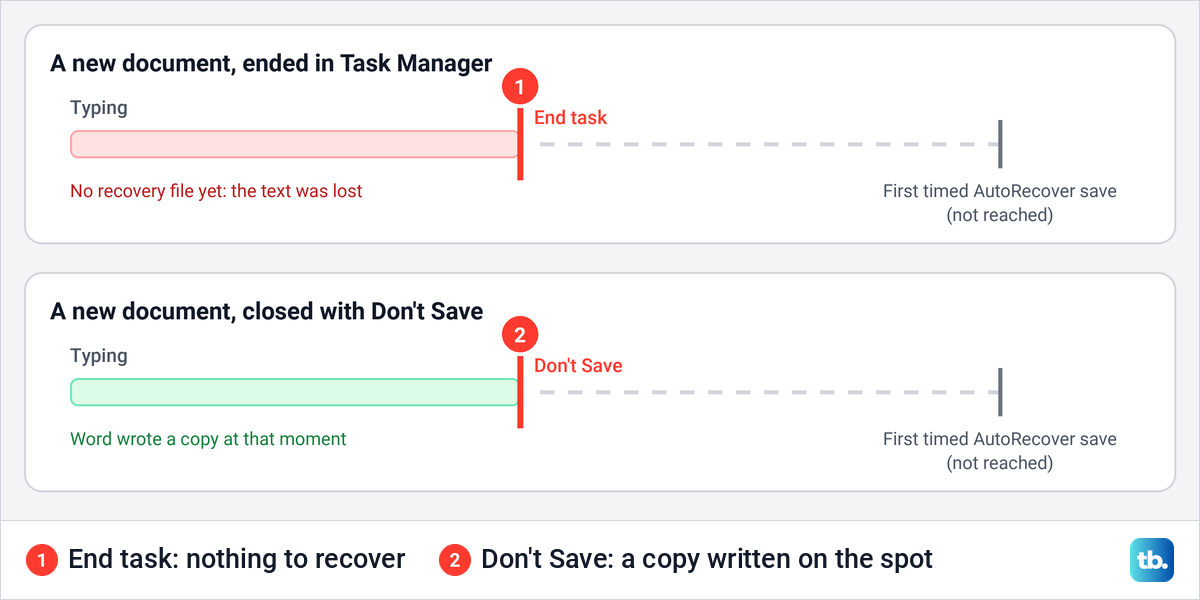
Microsoft's own example makes the same point: with a 15-minute interval, the recovered file will not contain your last 14 minutes of work. On our PC, when Word had not yet made a timed AutoRecover save, Don't Save made it write a copy on the spot. When a timed save already existed, Word kept that save as the copy, so a short AutoRecover interval still matters.
If Word keeps crashing when it opens the recovered file, our guide for Word that will not open or keeps crashing goes through safe mode and a repair. If it hangs again and again, work through our fixes for Word not responding before you type anything new.
Get back changes to a saved document
A document that was saved before is handled differently. When we closed one with unsaved changes, the same Save your changes prompt appeared, this time with Documents as the location and a line suggesting a folder backed up to the cloud. We clicked Don't Save.
To get the changes back, open the document again and select File > Info. Under Manage Document, ours listed one entry: the day and time, followed by closed without saving in brackets. Select that entry.
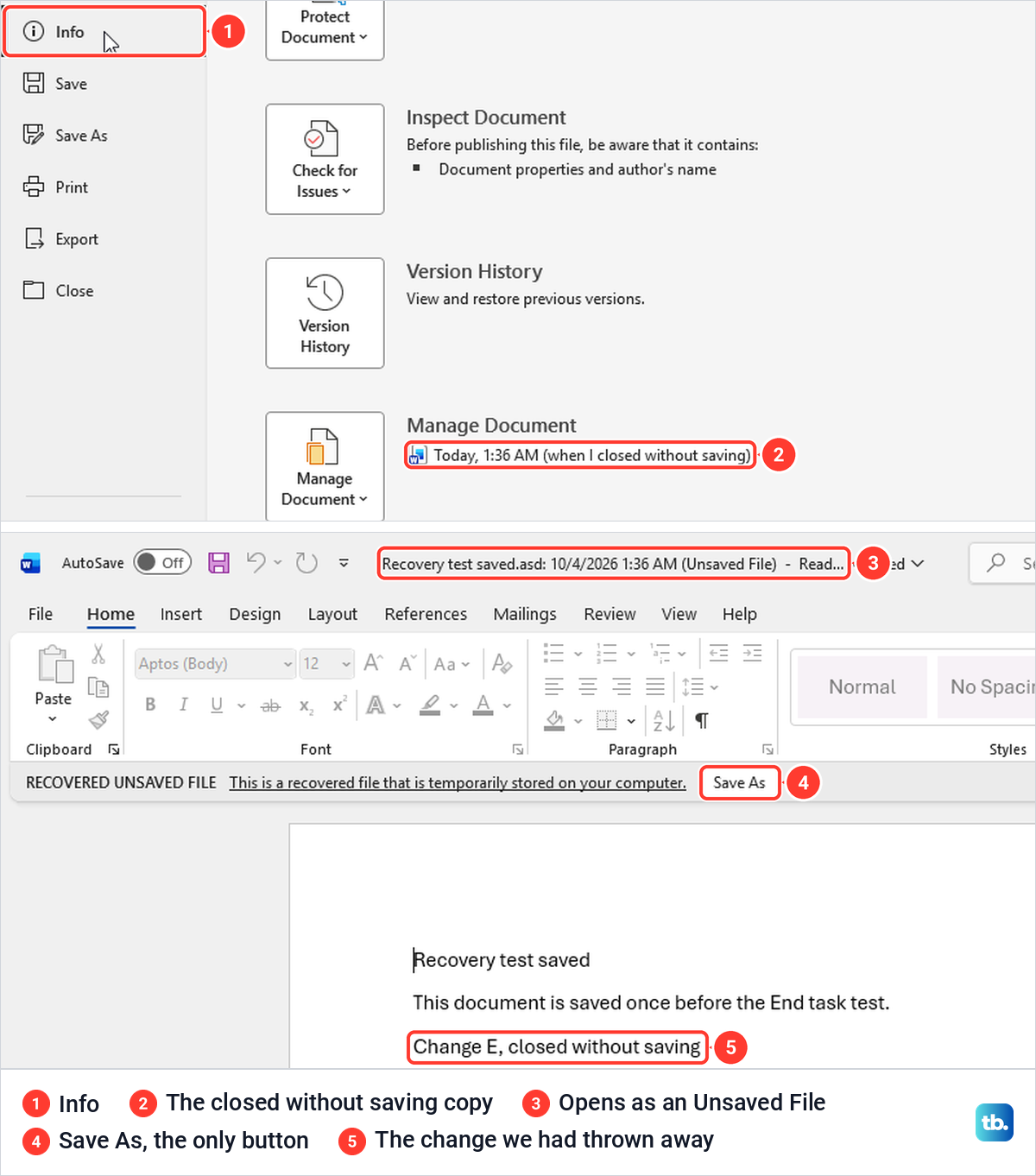
The entry opened a second, read-only window holding the change we had thrown away, under the same RECOVERED UNSAVED FILE bar. Microsoft's page describes Restore and Compare buttons on that bar, but ours offered only Save As. Save the copy under a new name, then copy the missing paragraphs into your document or carry on in the new file.
The entry appeared even when we closed the document about 15 seconds after changing it. When we closed the same document again with Don't Save, the newer entry replaced the older one, so recover the copy before you close that document a second time.
When Word saved the document to OneDrive for you
In newer Word for Windows behavior, Microsoft says a new document is created in OneDrive with AutoSave already on and named with a date instead of Document1. Closing it before saving asks whether to Discard or Keep it, and Keep leaves it in your OneDrive.
Microsoft says the Save page of Word Options then has a box named Create new files in the cloud automatically. Our Word did not work this way yet: new documents were still called Document1 with AutoSave off, and that box was not on its Save page. If you chose Keep, open the document from OneDrive and use Version History.
Restore an earlier version with Version History
For a file stored on OneDrive or SharePoint, Version History is the way back. Open the file, select its name in the title bar and select Version History. Microsoft says a version opens in a separate window, and Restore there makes it the current version.
File > Info has a Version History button too. Microsoft says AutoSave adds a version when you first make changes and after that only about every 10 minutes, so the last few minutes may exist only in the open document. Versions are kept for a limited time, and on a work or school account an administrator decides how many.
Without Word, Microsoft's steps start on the OneDrive website: right-click the file, select Version history, then select the three dots next to a version and Restore. With the OneDrive app on Windows, right-click the file in File Explorer and select Version history. If AutoSave stays off on a file in your OneDrive folder, OneDrive may be paused, so check why OneDrive is not syncing.
Where Word keeps unsaved documents on Windows
Word shows its recovery folder in Word Options as the AutoRecover file location. Press Alt, then F, then T to open Word Options, or select File > Options, and select Save. On our PC the box held the AppData\Roaming\Microsoft\Word folder under the user's profile.
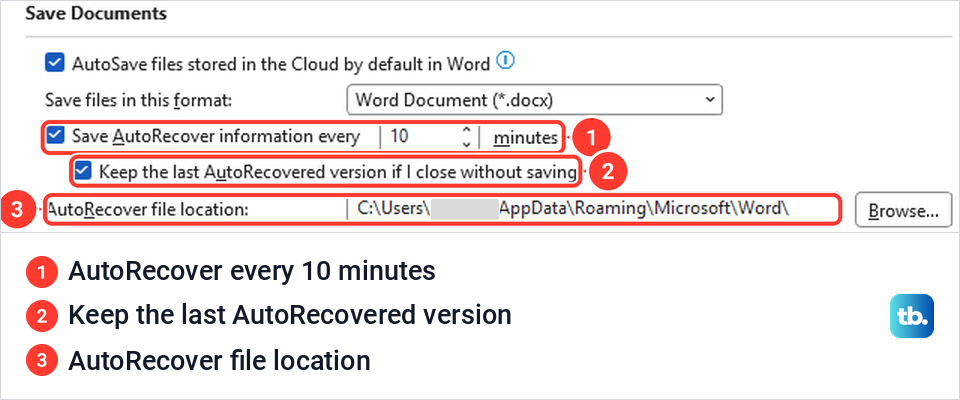
The same page holds the two settings that decide whether there is anything to find. Save AutoRecover information every 10 minutes and Keep the last AutoRecovered version were both ticked by default on our PC.
To open the folder, press Windows + E, click the address bar, paste the path from that box or type the line below, and press Enter. AppData is hidden, so pasting is quicker, although you can also show hidden files in Windows and browse there.
%appdata%\Microsoft\WordOurs held each never-saved copy as a file named after its first line, and the copies of a saved document in a subfolder named after that document. File Explorer hides file name extensions to begin with, so ours showed no .asd ending, only a Type that begins Microsoft Word A. Turn on file name extensions in Windows 11 to see the .asd ending at a glance.
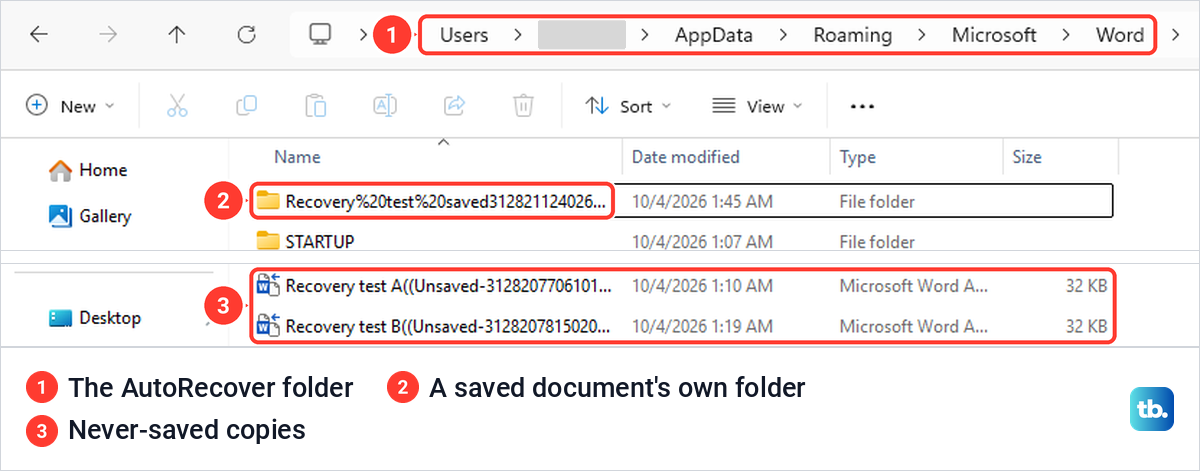
Double-clicking an .asd file opened it in Word, read-only, just like Recover Unsaved Documents. From inside Word, File > Open > Browse hides these files until you change the file type list from All Word Documents to All Files. Either way, use Save As before you edit.
Microsoft also lists AppData\Local\Microsoft\Office\UnsavedFiles under your user folder. On our PC that folder did not exist, and File Explorer said Windows can't find it. Every copy Word made, saved or never saved, went to the AutoRecover folder above, so a missing UnsavedFiles folder is nothing to worry about.
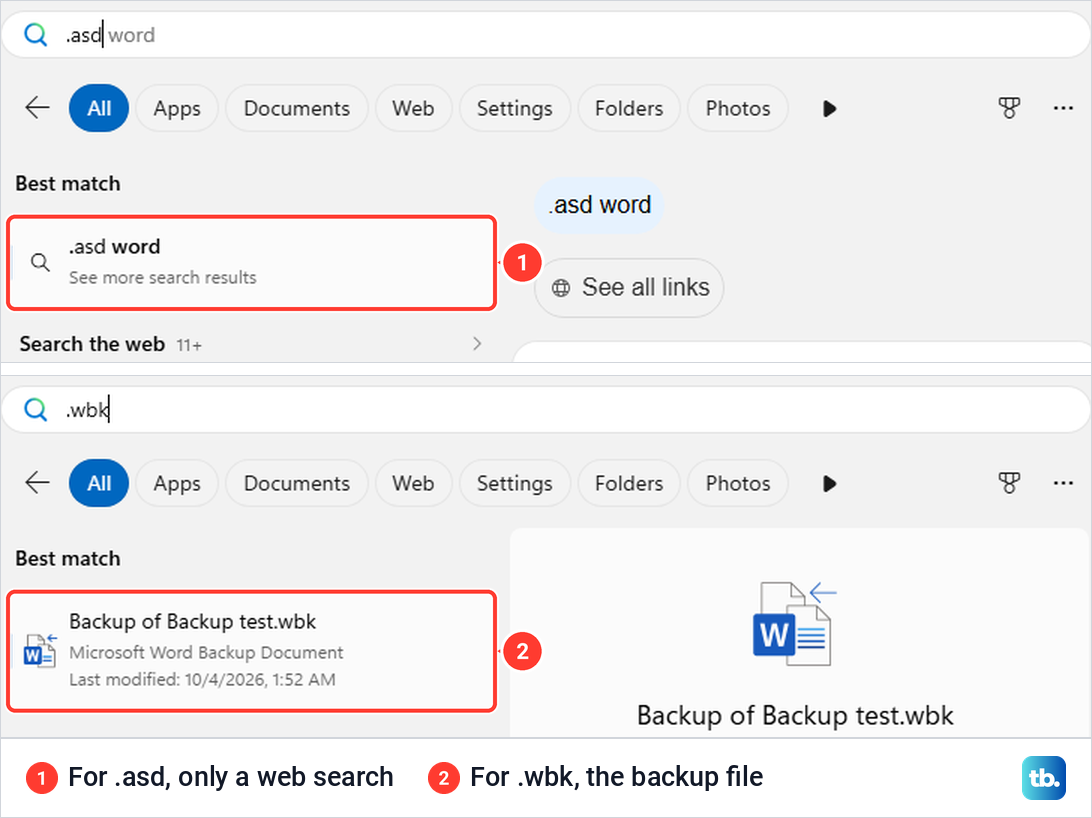
When we typed .asd into the Start menu search, Windows offered only web searches and a Copilot answer, and a File Explorer search of our user folder for *.asd found nothing, although several .asd files were there. Open the folder directly instead.
If a recovered file opens as garbled text or not at all, follow our steps for a Word document that says it is corrupted. Work on a copy, and leave the original .asd file where it is until you have what you need.
Look for a Word backup copy
Word can keep a backup of the previous save, but only if Always create backup copy was turned on before the loss. It sits under File > Options > Advanced, in the Save group, and it was off by default on our PC.
We turned it on and saved a test document three times. The first save made no backup. From the second save on, Word kept one file named Backup of followed by the document name, in the same folder as the document, and it always held the previous save.
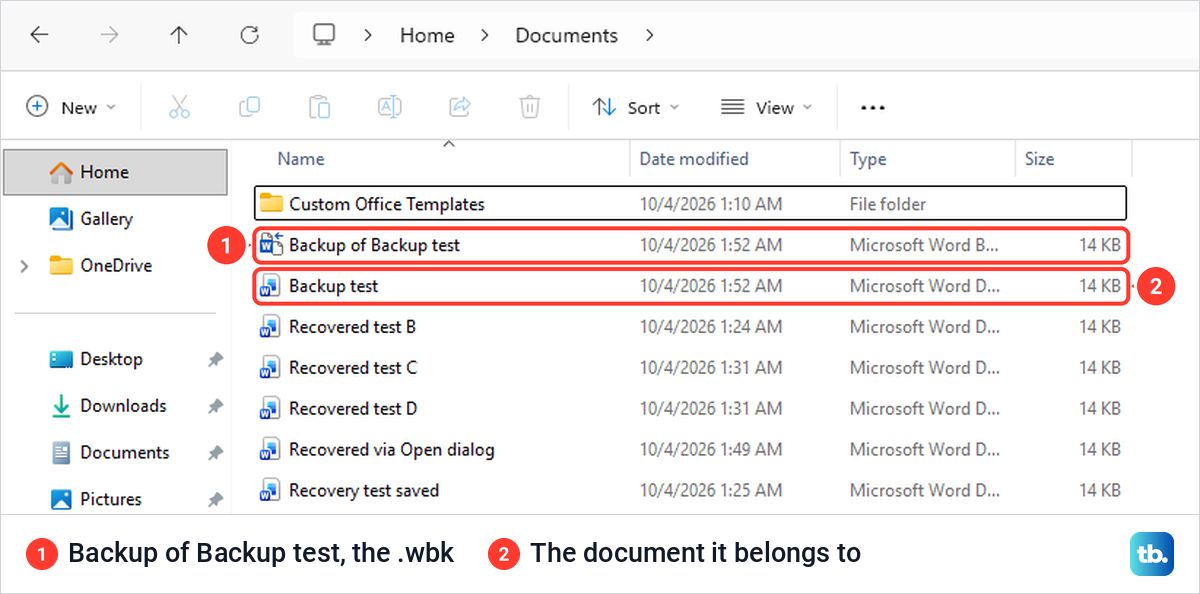
After our third save, the backup held the text of the second. It has a .wbk ending, it opened in Word with a double-click, and the Start menu search found it because it sat in Documents. A backup copy helps when a save overwrote good text, not with a document that was never saved.
If nothing comes back
With AutoRecover off, or Word crashed or was ended in Task Manager before its first AutoRecover save, there may be no copy at all. Check two more places first.
Text you copied may still be on the clipboard. Press Windows + V; if Windows offers to turn clipboard history on, as it did on our PC, it was off and holds nothing older. Our guide to clipboard history in Windows 11 explains what it keeps.
Next, search File Explorer for the document's name, in case it was saved after all under another name or in another folder. Then skip temporary files. Microsoft says the files that start with ~$ beside a document hold the logon name of the person who opened it, and ours were 162 bytes with no text from the document.
Our Temp folder held no text from any test document either. The ~$ file left behind when we ended Word in Task Manager stayed even after a normal open and close, and Microsoft lists such a leftover owner file as one cause of the message that a document is locked for editing.
Restore from a Windows backup
A backup made before the loss, such as File History, can hold an older copy of the folder. Microsoft's route is to right-click the folder in File Explorer and select Restore previous versions. The short Windows 11 right-click menu on our PC did not list it, so we selected the Documents folder, pressed Alt + Enter for Properties and opened the Previous Versions tab.
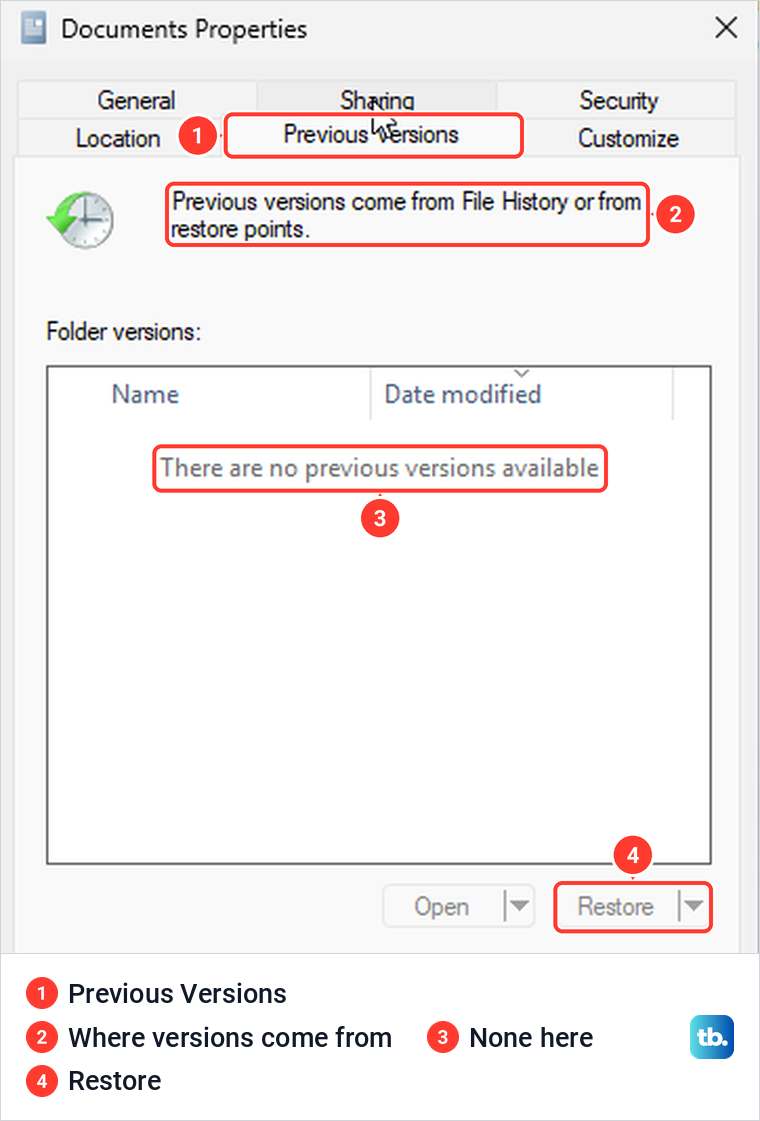
Ours said There are no previous versions available, because File History had never been set up. Microsoft says to preview a version with Open in File History, and to use Restore to if you want to keep the current file, because Restore replaces it and cannot be undone.
File History needs an external drive or a network location. With no second drive, ours reported No usable drives were found. Our guide on how to restore previous versions in Windows walks through the tab in more detail.
Word for the web and Word for Mac
Word for the web keeps documents in OneDrive. When we created a new document there, it was saved to OneDrive straight away and showed Saved beside its name, so there is no unsaved copy to hunt for. To go back to an earlier state, Microsoft's steps are File > Version History, then open a version and select Restore.
Word for Mac keeps its recovery files in a hidden folder. Microsoft's Office for Mac page gives the path below. In Finder, select Go > Go to Folder, or press Shift + Command + G, paste it, replace <username>, brackets included, with your Mac user name, and press Return.
/Users/<username>/Library/Containers/com.Microsoft.Word/Data/Library/Preferences/AutoRecoveryDo not count on Don't Save on a Mac: Microsoft says it deletes the AutoRecover file there, the opposite of what we saw on Windows. Microsoft also says Word for Mac saves a recovery file every 10 minutes by default, which you can change under Word > Preferences > Save. For a file on OneDrive, select the document name in the title bar and choose Browse Version History.
Set up Word so you lose less next time
Open File > Options > Save and keep both AutoRecover boxes ticked. Microsoft suggests a small number in the minutes box, like 5 or 10, and our End task test shows why: anything typed since the last AutoRecover save is lost in a crash.
AutoRecover does not replace saving, and Microsoft's advice is to press Ctrl + S often. For important documents, Microsoft's safest setup is OneDrive or SharePoint with AutoSave on. If your files live only on the PC, set up OneDrive on Windows first.
AutoSave changes the original as you type, so Microsoft recommends File > Save a Copy before you edit a cloud document you want to keep as it was. For files on the PC, Always create backup copy gives you one save of safety, and you can set up File History backup on an external drive.
How we tested this guide
We tested this on Windows 11, version 25H2, with Word for Microsoft 365, ending Word in Task Manager and recovering the unsaved copies.
Frequently Asked Questions
Can you recover a Word document you never saved?
Usually, if AutoRecover was on. Open a blank document, select File > Info > Manage Document > Recover Unsaved Documents, open the newest copy and use Save As. With AutoRecover off, or Word crashed or was ended in Task Manager before its first AutoRecover save, there is no copy to find.
I clicked Don't Save. Is my Word document gone?
On Windows, probably not. With Word's default settings, Don't Save left a copy in Recover Unsaved Documents on our PC, even when we closed a new document about half a minute after we started typing. On a Mac, Microsoft says Don't Save deletes the AutoRecover file.
Where are unsaved Word documents stored in Windows 11?
In the AutoRecover file location shown under File > Options > Save. On our PC that was %appdata%\Microsoft\Word, a hidden folder you can open by pasting the path into File Explorer's address bar.
Why is Recover Unsaved Documents empty?
AutoRecover was off, Word was ended or crashed before its first AutoRecover save, or the copies were deleted. Check the AutoRecover folder once by hand, then Version History if the file was on OneDrive.
Why is there no Info on my File menu?
Word's Start screen only shows Home, New, Open, Account and Options. Select Blank document first, and Info appears on the File menu.
Does AutoSave replace AutoRecover?
No. AutoSave saves files stored on OneDrive or SharePoint every few seconds, while AutoRecover writes recovery copies at an interval. Microsoft says AutoRecover still works in a crash when AutoSave is off.
How do I open an .asd file?
Double-click it, and Word opens it read-only, as it did on our PC. From inside Word, use File > Open > Browse and set the file type to All Files. Then use Save As to keep it as a normal document.