You make your edits, hit save, and Word refuses. Maybe you see "Word cannot complete the save due to a file permission error," or "There is not enough memory or disk space to complete the operation," or a quiet "Couldn't save automatically" while you work in the cloud. Whatever the wording, your work is sitting in an open window with nowhere safe to land.
The good news: almost every save failure traces back to a short list of causes. The file is read-only or locked, your drive or OneDrive is full, an add-in or antivirus is interfering, a Trust Center policy is blocking the file type, or a cloud sync hit a snag. Once you know which one you are looking at, the fix is usually quick.
The fixes below are ordered fastest and most common first. Start at the top and stop as soon as your document saves. Your immediate priority is protecting the work in front of you, so the first move costs you nothing.
Save a Copy With a New Name or Location
Before troubleshooting anything, get your current work onto disk somewhere it can actually go. This sidesteps a locked original, a read-only file, or a folder where your account lacks write permission.
- 1.Select File at the top.
- 2.Choose Save As (or Save a Copy for cloud files) from the left pane.
- 3.Pick a different location, ideally a local folder under Documents rather than a network share or a drive root, and type a new filename.
- 4.Click Save.
Saving to a drive root or a network or shared folder is a common trigger for the permission error, and a plain local subfolder often resolves it on its own. If this works, your content is safe and you can investigate the original at your leisure.
Free Up Disk Space and Close Programs
If Word says "There is insufficient memory or disk space" (or asks you to close extra windows or an application), Windows cannot finish the write. Make room and try again.
Run Disk Cleanup: Start > Programs (or All Programs) > Accessories > System Tools > Disk Cleanup, select the drive (for example C:), select OK, choose the items to remove, and select OK.
Next, close programs you are not using so Windows can resize the page file, then wait a few minutes for it to adjust.
After that, delete documents and applications you no longer need to free more space.
If the document still will not save to its original spot, save it to a different drive (for example a network drive) as a workaround. On the legacy memory error, pressing Ctrl + Shift + I shows error number 200843, which confirms you are dealing with this specific condition.
Clear the Read-Only Restriction
A read-only file may allow only viewing or printing, or prevent saving changes to the original. Several things can cause it, so check them in turn.
Read-only attribute set: right-click the file, select Properties, uncheck the Read-only box, and click OK.
Protected View: files from the internet or other unsafe locations open read-only by design. Review the Protected View notice and enable editing before any save will stick.
Antivirus opening files read-only: contact your antivirus provider to add an application exclusion (BitDefender, for example, supports exclusions).
OneDrive full: a full OneDrive prevents saving. Check storage via the OneDrive icon in the notification area or at onedrive.live.com and free up space.
Unlicensed Office: if Microsoft 365 or Office is not activated, or your Microsoft 365 subscription has expired, you may see an Unlicensed Product message or an activation error. Reactivate Office.
If none of those apply, the general remedies for this case are to restart the computer, install Office updates, run an Online repair of Office, and confirm your internet connection.
Save a Copy When the Cloud Upload Fails
If Word desktop shows "Upload Failed," your edits may conflict with changes from others or be unable to merge with them. For "Upload Pending," a network connection issue is usually the cause; leave Word open with AutoSave turned on so it can retry saving.
Use Save a Copy to store the document under a new name or location so your work is not lost.
If the original was deleted by mistake, restore it from the SharePoint or Teams recycle bin, or from OneDrive's trash.
For edits that cannot merge, reopen the live document after saving your copy and add back any changes missing from the server copy. If Word offers Resolve, follow the conflict steps below.
Resolve the Co-Authoring Conflict
When several people edit the same document, Word uses in-app prompts to sort out save conflicts. Match your prompt to the right response.
Upload Failed (edits cannot merge): select Save a Copy to keep your work under a new filename, reopen the live document, and re-add the changes that did not sync. Alternatively, copy your content into a new window and select Discard Changes.
Upload Failed, conflicting edits: select Resolve, use the Next button on the Conflicts tab to step through each change, accept or reject each one, then close the conflict view.
Refresh recommended: a newer version exists on the server, so select Refresh to continue.
Upload Pending: usually a network issue. Keep Word open with AutoSave on and it retries automatically in the background until it succeeds.
Recovered Conflicts: conflicting edits appear as tracked changes attributed to "Microsoft Word." Select Review Changes and use the Review tab to accept or reject them.
Clear the File Block Setting in the Trust Center
If you see "You are attempting to save a file that is blocked by your registry policy setting" or a message about File Block settings in the Trust Center, a policy is blocking that file type.
Select File > Options. If you cannot open the file, open a blank document first to reach this option.
Then select Trust Center > Trust Center Settings.
Now select File Block Settings, then clear the Open check box if it is checked before clearing Save for the file type. The logic is inverted here: clearing the box allows saving, and checking it blocks the type.
Select OK twice and try saving again.
Two caveats. In managed environments this can be enforced by Group Policy under User Configuration > Administrative Templates > Microsoft <Product Name> > <Product Name> Options > Security > Trust Center > File Block Settings, so you may need IT. And for an embedded object (such as an Excel or Visio object inside your document), change File Block in the app that owns that file type, not in Word.
Start Word in Safe Mode and Disable Add-Ins
A faulty COM add-in, such as a PDF maker, can hook the save process and break it. Safe Mode can help narrow down the cause.
Press Windows key + R, type winword /safe, and press Enter to start Word in Safe Mode.
Try to save. If it works in Safe Mode, an add-in is likely the cause.
Exit Word and restart it normally before changing add-in settings, since preferences cannot be saved in Safe Mode. Go to File > Options.
Choose Add-ins in the left pane.
Next to Manage, open the dropdown, select COM Add-ins, and click Go.
Select the add-ins you do not need and click Remove, or clear their checkboxes.
If a third-party antivirus is interfering with the save, temporarily disable it and try again. If that resolves it, get an updated version from the antivirus vendor, since this is a known historical conflict that newer builds fix.
Take Ownership and Grant Full Control
When a permission error persists on a specific file, your account may not have write rights to it. Take ownership and grant yourself full control.
Right-click the file, choose Properties, and open the Security tab.
Then select Advanced, then click Change next to Owner.
Select Advanced > Find now, choose your user account, and click OK.
Close the windows, then return to Properties > Security > Advanced > Add.
Select Select a principal > Advanced > Find now, pick your account, and click OK.
Check Full control, then click OK > Apply > OK.
Repair Office and Apply Updates
If the problem spans every document, the installation itself may need attention.
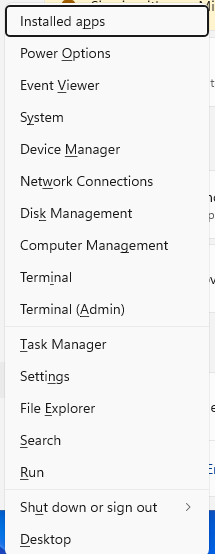
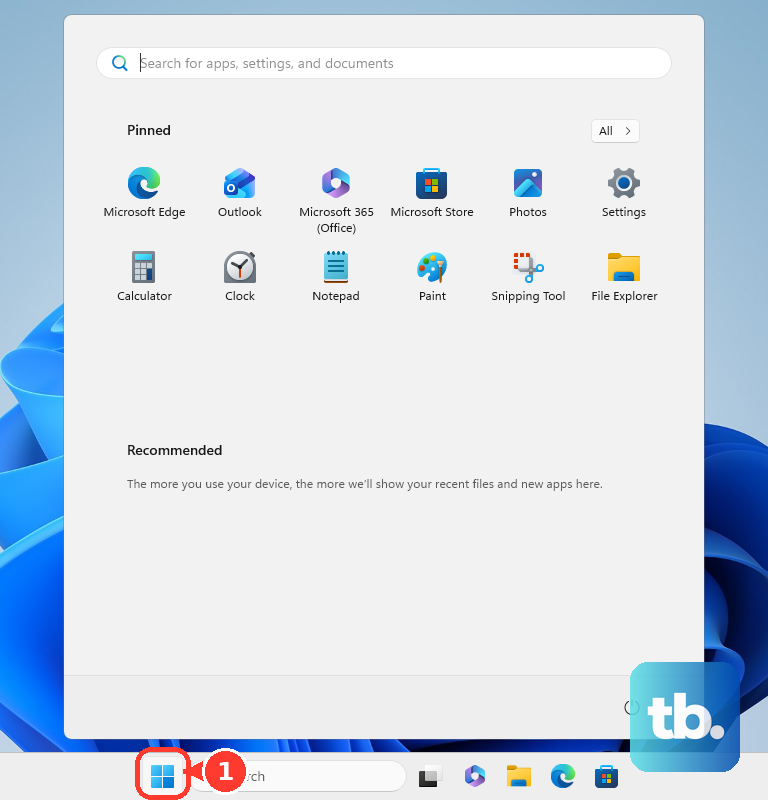
Online Repair: right-click Start and select Installed apps on Windows 11 or Apps and Features on Windows 10. Find your Microsoft 365 or Office product, open the ellipses menu on Windows 11 or select the product on Windows 10, then select Modify. For a Click-to-run installation, choose Online Repair > Repair; for an MSI-based installation, choose Repair > Continue. Follow the remaining prompts.
Update Word: in Word go to File > Account > Update Options > Update Now.
Update Windows: Settings (Windows key + I) > Windows Update > Check for updates.
Reset the Normal Template on Mac
If your Mac shows the exact error "Word cannot complete the save due to a file permission error. (Normal.dotm)," Apple's sandboxing is blocking the save because Normal.dotm sits in a non-default location.
Open Word > Preferences > File Locations and check the path for User templates.
Click Reset to restore the default location, or point it to a folder inside Documents if it is non-standard.
If that does not help, quit Word fully. In Finder, choose Go, hold the Option key, click Library, and navigate to Group Containers > UBF8T346G9.Office > User Content > Templates.
Move the entire Templates folder to the Desktop, reopen Word so it creates a fresh Normal.dotm, then delete the old folder from the Desktop.
These steps only work if Word is fully quit first, and the Templates folder lives behind the hidden Library you reach by holding Option in the Go menu.
Recover the Work If Word Crashed
If Word closed before you could save, AutoRecover can bring it back. On Windows, go to File > Info > Manage Document > Recover Unsaved Documents, select the file, select Open, then use Save As in the bar at the top. You can also close and reopen Word so the Document Recovery pane appears, then double-click the listed file and save it as a .docx. To search manually, select Start, type .asd, and press Enter.
On Mac, reopen Word and it reopens recovered work automatically; save it immediately. To find files manually, open Finder, select Go > Go To Folder (or press Shift + Command + G), and enter /Users/<username>/Library/Containers/com.Microsoft.Word/Data/Library/Preferences/AutoRecovery. Critically, if you ever click Don't Save, the AutoRecover file is deleted, so never dismiss a recovery prompt before saving.
Frequently Asked Questions
Why does Word say it cannot complete the save due to a file permission error?
The destination file or folder is read-only, on a network or shared location, at a drive root, or your account lacks write permission. It can also surface from low disk space, an interfering add-in or antivirus, or, on Mac, a mislocated Normal.dotm. Saving a copy to a local subfolder under Documents is the quickest workaround.
What does "Couldn't save automatically" or "Upload failed" actually mean?
These messages can have different causes. In Word desktop, Upload Failed can mean your edits cannot merge with changes from others: use Save a Copy, reopen the live document, and add back missing changes. If Word offers Resolve, review the conflicts. For Upload Pending, leave Word open with AutoSave on so it retries. If the file was deleted by mistake, restore it from the SharePoint, Teams, or OneDrive trash.
I cleared the box in File Block Settings and it still blocks the file. What went wrong?
The checkbox logic is inverted: clearing the Save box allows saving and checking it blocks the type. Clear Open first if it is checked, since Open cannot stay checked without Save. If the file is an embedded object such as an Excel or Visio item, change File Block in the app that owns that file type, not in Word. In managed setups, the block may be enforced by Group Policy and require IT.
Will I lose my document if Word will not save it?
Not if you act before closing. Use Save As or Save a Copy to a new local location first. If Word already crashed, AutoRecover can restore your work through File > Info > Manage Document > Recover Unsaved Documents on Windows, or by reopening Word on Mac. Just never click Don't Save, because that deletes the recovery file.
Why did my file open read-only when I never set it that way?
Several causes do it silently: the Read-only attribute, Protected View for files from the internet, antivirus opening files read-only, a full OneDrive, or an expired or unlicensed Office subscription. Check and clear each in turn, then restart, install Office updates, and run an Online repair if it persists.