Microsoft Word will not open, or it launches and then crashes a few seconds later. Maybe it only quits when you start typing, or it freezes the moment you open one specific document. Whatever the pattern, your work is stuck behind an app that refuses to cooperate.
The good news: nearly every Word crash traces back to a short list of causes, and most have a fast, well-documented fix. The usual culprits are a faulty add-in, a corrupted global template, a damaged document, an outdated build, or a graphics driver problem.
Work through the fixes below in order. They are arranged quickest and most common first, so you can often stop after the first one or two. Where a step differs by platform, the surface (Windows, Mac, or a specific crash type) is named so you can jump straight to yours.
Install Office Updates and Restart
This is Microsoft's first recommendation for any startup or crash problem, and it resolves a surprising number of cases on its own. An outdated build can crash where a patched one runs cleanly.
- 1.In any Office app, go to File > Account.
- 2.Under Product Information, select Update Options > Update Now.
- 3.Restart the computer, then reopen Word.
If Word still will not behave, move on. The rest of the fixes assume you are on the latest build.
Start Word in Safe Mode to Test for Add-ins
Safe Mode loads Word without add-ins, custom templates, or hardware acceleration. If Word runs fine here but not normally, the cause is almost certainly an add-in or your global template, which narrows your search dramatically.
Find the Word shortcut, then press and hold CTRL while you double-click it. Click Yes when asked to start in Safe Mode.
Alternatively, press Windows key + R to open Run, type winword /safe, and click OK.
If Word opens, the next fix is yours. To leave Safe Mode later, just close and reopen Word; it returns to normal mode automatically.
Disable Faulty Add-ins
Add-ins are the single most common cause of Word startup crashes. Older ones are frequent offenders, and Microsoft specifically flags Abbyy FineReader, PowerWord, and Dragon Naturally Speaking.
With Word open in Safe Mode, go to File > Options > Add-Ins.
In the Manage list at the bottom, select COM Add-ins (or Word Add-ins), then click Go.
Uncheck one add-in at a time and click OK. Uncheck any of the three known-problematic add-ins above first if you see them.
Close Word and reopen it normally. If it starts, the last add-in you unchecked is the culprit; check the vendor's site for an update.
You can also bypass add-ins and global templates in one shot: open Run and launch winword /a. If Word is stable that way, the problem lives in an add-in or template.
Rename the Corrupted Global Template (Normal.dotm)
Word's global template, Normal.dotm, holds your default formatting, AutoText, styles, and macros. When it corrupts, Word can hang or crash on launch. Renaming it forces Word to build a fresh, clean one.
Exit all Office programs, then open Command Prompt (Start, then type cmd).
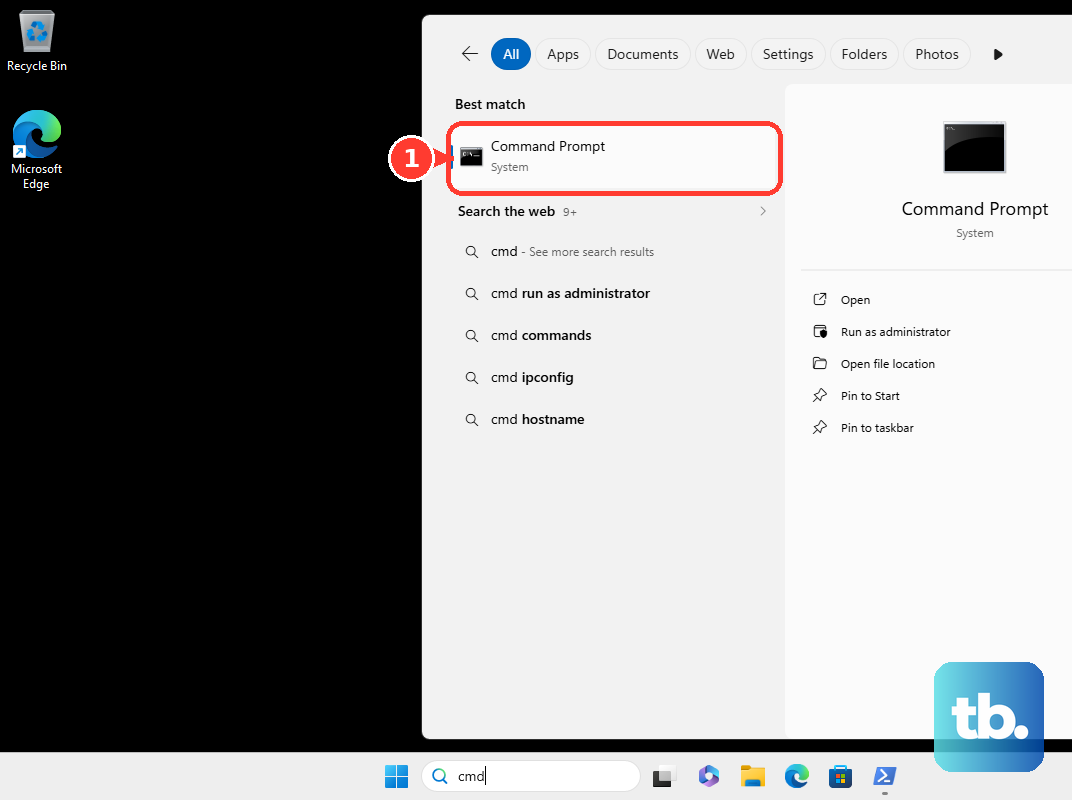
Run: ren %userprofile%\AppData\Roaming\Microsoft\Templates\Normal.dotm OldNormal.dotm (for Word 2007 through 2016 and Microsoft 365). For Word 2003, use Normal.dot.
Type exit, then start Word so it rebuilds the template.
Be aware this discards customizations stored in that template. If the rename does not help, you can restore the old file by renaming it back.
Clear Startup-folder Add-ins in Both Locations
Some add-ins and templates load from Startup folders rather than the add-ins list, so they survive the steps above. On Windows there are two such folders, and you must clear both.
Exit all Office programs and open File Explorer.

Go to the install-level folder. For Word 2016 64-bit Click-to-Run: %programfiles%\Microsoft Office\root\office16\Startup\ (use the (x86) path for 32-bit; Office14 for 2010, Office12 for 2007).
Right-click each file, choose Rename, and add .old to the end of the name.
Go to the user-level folder %userprofile%\AppData\Roaming\Microsoft\Word\Startup and rename those files the same way.
Start Word and test. Re-enable files one at a time to find the offender.
Run Quick Repair, Then Online Repair
If the problem is the Office installation itself, repairing it replaces corrupted files. Start with Quick Repair, which is faster and only detects and replaces corrupted files; fall back to Online Repair, which is slower, more thorough, and needs an internet connection.
On Windows 11, right-click Start and select Installed apps. On Windows 10, right-click Start and choose Apps and Features.
Find your Microsoft 365 or Office product, click the three dots (or select it), and choose Modify.
For a Click-to-Run install, choose Quick Repair and click Repair; if that fails, choose Online Repair and click Repair. For an MSI install, select Repair, then Continue.
Repairing Word repairs the entire Office suite, not just Word, so expect every Office app to be touched.
Recover a Single Corrupt Document
If Word only crashes or freezes when you open one particular file, the document is the problem, not the app. Word can attempt to repair it on open.
In Word, go to File > Open > Browse and navigate to the folder. Do not open the file from the Recent list.
Click the file, then click the arrow next to the Open button.
Choose Open and Repair.
If it still will not open, try the Recover Text option from that same dropdown, knowing some formatting will change. You can also confirm the file is at fault by opening a blank document, then on the Insert tab choosing Object > Text from File and inserting the problem document.
Update Your Video and Device Drivers
Office 2013 and later lean on hardware-accelerated rendering managed by your operating system. An incompatible video card or driver can cause crashes, flicker, blurry or all-white screens, and poor text. Printer, mouse, and keyboard drivers can contribute too.
Run Windows Update and install any offered driver updates. On Windows 10, go to Settings > Update & Security > Windows Update > Check for updates.
If no newer video driver appears, download the latest one from the video card manufacturer's support site.
Restart and reopen Word.
For text that looks wrong rather than crashing, search for ClearType, select Adjust ClearType Text, and run the tuner. If problems persist, go to File > Options > Advanced and, under Display, clear Use the subpixel positioning to smooth fonts on-screen. Note that when Office detects a bad driver, it silently disables hardware acceleration with no notification, and a good driver can silently re-enable it.
Fix Mac-specific Crashes (Preferences and Reinstall)
On a Mac, the same crash usually traces to corrupted preferences, the global template, a damaged user profile, or corrupted application files. Work through them in that order.
Quit all apps. In Finder, use the Go menu, choose Home, and open the Library folder (hold Option if Library is hidden).
Open Preferences, find com.microsoft.Word.plist, and drag it to the desktop. Launch Word and test. This removes custom keyboard shortcuts and toolbar changes.
If the crash continues, put the file back, then go to Application Support > Microsoft > Office > User Templates, drag Normal.dotm to the desktop, and reopen Word.
Still failing? Create a separate macOS user account and open Word there to rule out a profile-specific issue, and perform a clean startup to disable interfering background apps.
If none of that works, corrupted application files are likely, and the fix is to remove and reinstall Office. Note that Disk Utility's First Aid only repairs Apple system software, not Office.
If Word Crashes Only While Typing
A crash that happens specifically as you type points to a known unsupported configuration: Office 2016 proofing tools coexisting with Microsoft 365 language packs. This affects Word, Outlook, OneNote, and PowerPoint.
Permanent fix: update Microsoft 365 to build 2409 or later.
As an immediate workaround, go to Settings > Apps > Installed Apps, select the Office app, and choose Repair.
Better still, find and uninstall the old Office 2016 language pack from that same Installed Apps list, then reinstall the current language pack.
Repairing Office alone is only a workaround here; updating the build and removing the legacy language pack is the lasting fix.
Frequently Asked Questions
How do I know whether an add-in or my template is causing the crash?
Start Word in Safe Mode with
winword /safe or by holding CTRL as you open it. If Word runs in Safe Mode but crashes normally, the cause is almost certainly an add-in or the global template, because Safe Mode loads neither.Will renaming Normal.dotm delete my work?
It does not touch your documents, but it does discard customizations stored in the template itself, such as default formatting, AutoText, styles, and macros. Word builds a fresh template automatically, and you can restore the old one by renaming it back.
What is the difference between Quick Repair and Online Repair?
Quick Repair only detects and replaces corrupted files, so it is faster; try it first. Online Repair is more thorough, needs an internet connection, and takes longer. Either one repairs the entire Office suite, not just Word.
Is editing the Windows Registry safe to fix Word?
The Word Data and Options subkeys can become corrupted, and deleting them forces a rebuild. Registry edits are risky, so export each key first (for example to Wddata.reg or Wdoptn.reg) before deleting, so you can restore it by double-clicking the saved file.
Word crashes only when I open one specific file. What should I do?
The document is corrupt, not the app. Use File > Open > Browse, select the file, click the arrow beside Open, and choose Open and Repair. Do not open it from the Recent list. If that fails, try Recover Text, accepting that some formatting will change.
Why does my default printer matter for Word crashes?
A faulty or unavailable default-printer driver can cause Word startup problems. Microsoft's workaround is to set Microsoft XPS Document Writer as your default printer, then start Word to see if the crash clears.











