You double-click a Word file and instead of your document you get an error: "The file is corrupt and cannot be opened," "Word experienced an error trying to open the file," or a warning that the document type is blocked. Maybe nothing happens at all. The work you need is sitting right there, locked behind a message.
Here is the reassuring part. A lot of these files are not actually damaged. They are blocked by Office security, saved in a format the current surface cannot read, or held back by a glitchy Word install. Even genuinely corrupt files can often be repaired or have their text pulled out intact.
Work through the fixes below in order. The quickest and most common solutions come first, so you may never need to reach the deeper recovery methods. Throughout, save any recovered result under a new filename so you never overwrite your only copy of the original.
Run Open and Repair in Word
Word has a built-in repair tool for damaged documents, and it is the single most reliable first move on Windows. The catch is that you must reach it through the Open dialog box, not the Recent list.
- 1.In Word, select File > Open > Browse and navigate to the document's location. Do not open it from the Recent list, since that path skips the dialog box that holds the repair button.
- 2.In the Open dialog box, click once to highlight (select) your document.
- 3.Select the arrow next to the Open button, then select "Open and Repair."
- 4.If repair succeeds, immediately save the recovered document under a new name with File > Save As so you do not overwrite the corrupt original.
If the strange behavior persists after repairing, restart Windows and continue with the methods below.
Unblock the File and Clear Protected View
If your file came from the internet, an email attachment, or a USB drive, Office may be flagging it rather than failing to read it. This is one of the most common reasons a perfectly good file throws a corruption error.
If the file opens in Protected View, a yellow Message Bar appears at the top. Click "Enable Editing" on that bar to exit Protected View. If Office reports it detected a problem with the file, you can choose File > Edit Anyway, but only if you trust the source.
If the file will not open at all, close Word and unblock it from Windows.
In File Explorer, right-click the file and select Properties.
On the General tab, look at the Security section near the bottom.
If you see "This file came from another computer and might be blocked," check the "Unblock" box, then click Apply and OK.
Reopen the file in Word.
To adjust the setting itself, go to File > Options > Trust Center > Trust Center Settings > Protected View. Uncheck the relevant box ("Enable Protected View for files originating from the Internet," "for files that are located in potentially unsafe locations," or "for Outlook attachments"), click OK, then reopen the file. Re-enable these afterward for security.
Change File Block Settings for the File Type
If your error mentions a "file type that has been blocked by your File Block settings in the Trust Center" or a "registry policy setting," Office is refusing an older or restricted format on purpose.
Select File > Options.
If you cannot open any file, first open a blank document to reach the menu.
Select Trust Center > Trust Center Settings.
Select "File Block Settings."
Clear the "Open" checkbox for the file type you want to open.
Select OK twice.
Try the file again.
The logic here is inverted, so read it carefully: a cleared box allows the file, and a checked box blocks it. If the options are greyed out, an administrator has locked them through Group Policy; moving the file into a Trusted Location overrides the lock. For an embedded object such as an Excel or Visio item inside the document, change File Block Settings in the application that owns that object, not in Word.
Convert the File for Mobile, Web, or Mac
Sometimes the file is fine but the surface cannot read its format. Mobile Word is most reliable with .docx. On iOS it will not open the following for editing: .doc, .docm, .odt, PDF, RTF, XML, HTML, plain text, or Works files. On Android the unsupported list adds Word templates (.dotx), binary templates (.dot), and rights-protected (IRM) files.
The fix is to open the file on a desktop and use File > Save As to convert it to .docx, then open the .docx on your phone. A file marked "Open as read-only" can be viewed but not edited.
You can also sidestep the desktop app entirely. Upload the .docx to OneDrive and open it in Word for the web, whose renderer sometimes accepts files the desktop app rejects. Or upload it to Google Drive, right-click it, and choose Open with > Google Docs, which converts and often recovers readable content. WordPad and LibreOffice Writer are further offline options, though formatting fidelity varies.
Recover the Content from a File That Will Not Open
If the document is genuinely corrupt, you can still extract its text. Try these in order, saving the result under a new name each time.
Insert it into a new file. Select File > New > Blank document > Create.
On the Insert tab, select Insert Object > "Text From File."
Locate the damaged document.
Select Insert.
You may need to reapply formatting to the last section.
Recover Text from Any File. Select File > Open.
Set the "Files of type" box to "Recover Text from Any File (*.*)."
Select the document.
Open it.
Delete the binary garbage that appears at the start and end before saving.
Formatting, graphics, fields, and drawing objects are lost; field text, headers, footers, footnotes, and endnotes survive as plain text.
Open in Draft mode without links. On the View tab select Draft.
In File > Options > Advanced, under "Show document content," check "Use draft font in Draft and Outline views" and "Show picture placeholders."
Scroll to General and clear "Update automatic links at open."
Click OK.
Close Word.
Reopen it.
Open the damaged file.
Open in Notepad as a last resort. Right-click the document > Open with > Notepad (change the filter to "All Files" if needed).
Delete the surrounding code.
Use File > Save As under a new name.
Reopen the cleaned file in Word.
All formatting is lost; the goal is the text.
When copying recoverable text into a new document, do not copy the final paragraph mark or section breaks, since that can carry the corruption across.
Switch to Draft view while copying to avoid transferring section breaks.
Restore from AutoRecover, Backups, or the Recycle Bin
If a crash or power loss left you with a damaged or missing file, Word's own safety nets may hold a clean copy.
Restart Word. It searches for AutoRecover files at every launch.
If found, the Document Recovery pane opens with the file listed as "[Original]" or "[Recovered]."
Double-click it.
Save As to a .docx.
Use the menu. Select File > Info > Manage Document > "Recover Unsaved Documents."
Find AutoRecover files manually. Select Start.
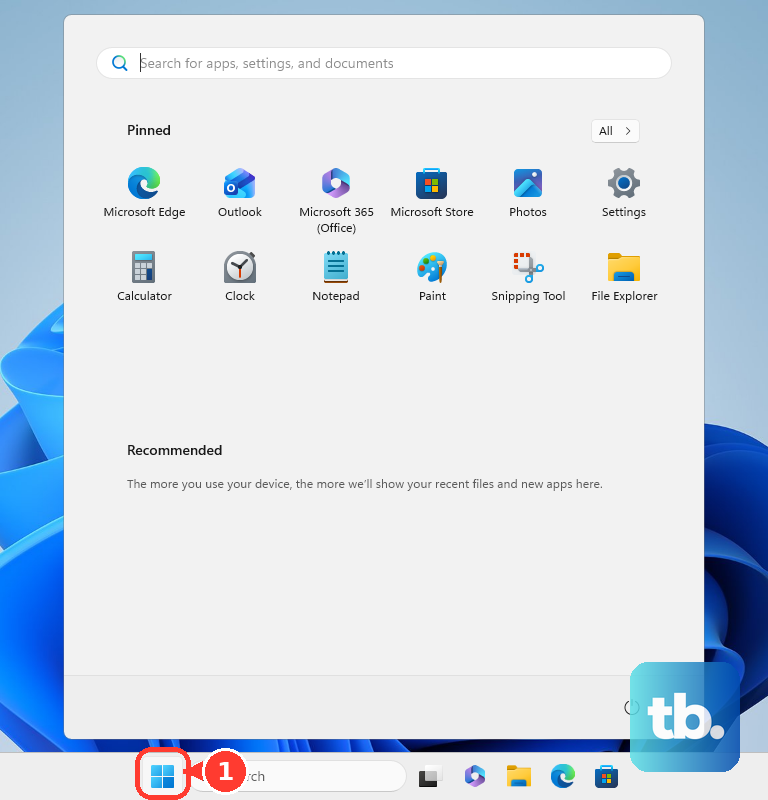
Type .asd.
Press Enter.
In Word, go to File > Open > Browse.
Set the file type list to "All Files."
Right-click the backup.
Open it.
The Microsoft 365 folders are C:\Users\<UserName>\AppData\Roaming\Microsoft\Word and C:\Users\<UserName>\AppData\Local\Microsoft\Office\UnsavedFiles.
Find backup (.wbk) files. Confirm "Always create backup copy" is on under File > Options > Advanced > Save.
Search Start for .wbk.
Open any file named "Backup of."
Find temporary files. Search Start for .tmp.
Open the Documents tab.
Match names to your last edit times.
If none appear, repeat the search for the tilde character (~), since temp names begin with one.
Check the Recycle Bin. Look for .doc, .docx, or .dot files.
Right-click, and select Restore.
On a Mac, open Finder and choose Go > Go to Folder (Shift + Command + G).
Enter /Users/<username>/Library/Containers/com.Microsoft.Word/Data/Library/Preferences/AutoRecovery.
That folder is hidden, so the full path is the only way in.
You can also adjust the save interval under the Word menu > Preferences > Save.
Check the Trash before emptying it.
Rule Out Add-ins, the Template, or a Broken Install
If every Word document misbehaves, the problem is Word, Office, or Windows, not one file. First confirm by opening other documents and other Office programs.
Start Word with default settings to bypass add-ins and your global template.
Exit Word.
Open Run.
Type winword.exe /a.
Open the document.
Holding Ctrl while launching Word is the equivalent Safe Mode shortcut.
If that helps, the culprit is an add-in or a damaged template.
To rebuild the template, exit Word.
Search Windows for normal.dotm (usually under %userprofile%\appdata\roaming\microsoft\templates).
Right-click it.
Rename it to Oldword.old.
Restart Word so it builds a fresh copy.
You lose customizations such as custom styles, macros, and AutoText stored in the old template.
You can also strip corruption with an RTF round-trip.
Open the doc.
Use File > Save As > "Rich Text Format (*.rtf)."
Close it.
Reopen the .rtf.
Save As back to "Word Document" under a new name.
If that fails, try Webpage (.htm) or another format, leaving Plain Text (.txt) for last since it destroys all formatting, macros, and graphics.
If the install itself is suspect, repair Office through Windows.
On Windows 11, right-click Start > "Installed apps."
Find your Microsoft 365 product.
Click the three dots, and select Modify.
On Windows 10, right-click Start > "Apps and Features."
Select the product, and choose Modify.
Run "Quick Repair" first.
If the problem persists, run "Online Repair," which is more thorough but needs internet.
This repairs the whole Office suite, not Word alone.
Frequently Asked Questions
Why does Word say my file is corrupt when it opened fine yesterday?
Often it is not corrupt at all. Files from the internet, email, or a USB drive get flagged by Protected View or File Block Settings. Unblock the file through its Properties or enable editing on the yellow Message Bar first, before assuming damage.
What actually causes a Word file to become corrupt?
The common triggers are pulling out a USB drive while the file is still open, a system crash or power loss while editing, and damage to the Normal.dotm template the document relies on. Use the Safely Remove Hardware icon before unplugging storage to prevent it.
Will Open and Repair lose my formatting?
Open and Repair tries to preserve the document as-is, so it is your best chance at keeping formatting intact. The text-only recovery methods, such as Recover Text from Any File and the Notepad route, do strip formatting, graphics, and fields, so reach for those only after the repair tool fails.
Why can I open the file on my computer but not on my phone?
Mobile Word supports a narrower set of formats and is most reliable with .docx. Legacy and template files (.doc, .docm, .odt, .dot, .dotx) and rights-protected files will not open for editing. Convert the file to .docx on a desktop with File > Save As, then open it on mobile.
I have no backup. Can I still get my text back?
Yes, in most cases. Try inserting the damaged file into a blank document with Insert Object > Text From File, then the Recover Text from Any File converter, and finally opening it in Notepad to salvage the raw text. Save each attempt under a new name so the original stays available for the next method.
Does repairing Office delete my documents or settings?
No. Repairing Office fixes the application files, not your documents. Quick Repair simply replaces corrupted program files, and Online Repair does a deeper reinstall of the suite. Your files are untouched, though the repair covers all Office apps rather than Word by itself.











