Windows hides some files and folders from the normal File Explorer view. Windows 11 gives you current routes through File Explorer, Settings, File Explorer Options, PowerShell, and Command Prompt. Start with the File Explorer switch, then use protected-file and command-line options only when the file still stays out of sight.
Show hidden files from File Explorer
This fixes normal hidden files and folders that Windows 11 File Explorer is not showing.
Open File Explorer from the taskbar.

Select View.
Choose Show.
Select Hidden items.
Reveal protected operating system files
The most common cause is that the item is marked as a protected operating system file instead of only a hidden item.
Use this only when the file is both hidden and protected as a system file.
Open File Explorer Options.
Select the View tab.
Under Advanced settings, select Show hidden files, folders, and drives.
Clear Hide protected operating system files (Recommended).
Confirm the warning prompt, then select OK.
Use Settings in Windows 11
Right-click the Start menu.
Select Settings.
Select System.
Select Advanced. Before Windows 11 version 25H2, select For developers instead, because the Advanced page carries the former For developers settings only in Windows 11 version 25H2 and later.
Select File Explorer to expand the section.
Under File Explorer, turn Show hidden and system files on.
Use this route when you want hidden and system files visible from the Windows 11 Settings app. The File Explorer menu route covers normal hidden items, while this toggle is named Show hidden and system files because it also exposes system files.
Open File Explorer Options from Control Panel
Control Panel still opens the classic File Explorer Options window for this setting.
Open Control Panel, then set View by to Large icons or Small icons.
Select File Explorer Options, open the View tab, and look under Advanced settings.
Choose Show hidden files, folders, and drives, then select OK.
If this method fails, return to the View tab in File Explorer Options and clear Hide protected operating system files (Recommended).
Find the hidden files setting with Search
The most common cause is that Windows Search opens either Settings or File Explorer Options based on your Windows 11 build and indexing.
Open Search.
Type Show hidden files and folders.
Press Enter.
If Folder Options opens, select the View tab.
Under Advanced settings, select Show hidden files, folders, and drives.
Select OK.
If Settings opens instead, use System > Advanced > File Explorer, then turn Show hidden and system files on. Before Windows 11 version 25H2, use For developers in place of Advanced.
View hidden files with PowerShell
PowerShell lists hidden and system items inside a folder without changing the global File Explorer setting.
Open PowerShell.
Run Get-ChildItem -Path <folder> -Force.
Add -Recurse to include subfolders, such as Get-ChildItem -Path C:\Users\<name> -Force -Recurse.
Run Get-ChildItem -Path <folder> -Hidden to list only hidden items.
Run Get-ChildItem -Path <folder> -Attributes Hidden to use the attributes form.
If this method fails, use File Explorer Options because PowerShell lists files without changing what File Explorer displays.
List hidden files in Command Prompt
Open Command Prompt.
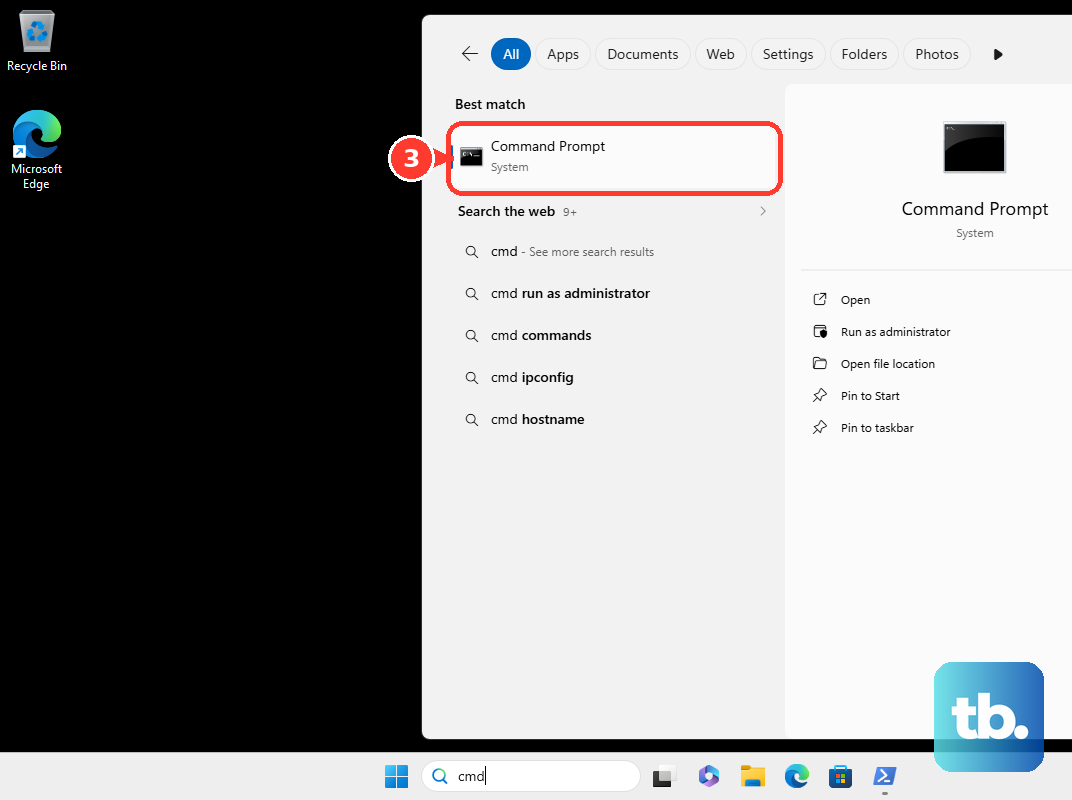
Run dir /a to list all files, including hidden and system files.
Run dir /a:h to list only items with the hidden attribute, including hidden folders.
Run dir /a:s to list only items with the system attribute, including system folders.
Add a folder path for a specific folder, such as dir C:\Users\<name>\AppData /a.
Use Command Prompt for a check that does not change File Explorer's global view setting.
Make one hidden file visible again
The most common cause is that the file itself has the Hidden attribute, so showing hidden files displays it without making it a normal visible file.
In File Explorer, right-click the file.
Select Properties.
On the General tab, clear the Hidden checkbox.
Select OK.
To do the same from Command Prompt, open Command Prompt.
Run attrib -h <PathToFileOrFolder>.
If the item is also marked as a system item, run attrib -s -h <PathToFileOrFolder> only for an item you intend to remove both the system and hidden attributes from.
Check work or school restrictions
This fixes hidden-file settings that change back because a work or school policy controls them.
Use View > Show > Hidden items in File Explorer.
Use Settings > System > Advanced > File Explorer, then turn Show hidden and system files on. Before Windows 11 version 25H2, use For developers in place of Advanced.
Contact the person or team that manages the PC if the setting changes back.
Skip the Windows 10 View ribbon and the Windows 7 or Windows 8 Control Panel paths on a current Windows 11 PC. Keep For developers in mind before Windows 11 version 25H2, where that page still holds the Show hidden and system files toggle.
Frequently Asked Questions
Does PowerShell or dir change File Explorer settings?
No. Get-ChildItem -Force and dir /a list hidden and system items in the terminal and do not change File Explorer's global view setting.
Why did the hidden-file setting return on another PC?
Windows Backup includes File Explorer preferences under Settings > Accounts > Windows Backup > Remember my preferences > Other Windows settings, including hidden and system file visibility.
Why does a managed PC keep reverting the setting?
A managed work or school PC can use Group Policy Preferences for Folder Options to set hidden-file visibility. Group Policy Preferences do not block your change, but they reapply the administrator's value at the next Group Policy refresh, so the setting reverts. The device administrator controls that policy.
Which older Windows instructions are obsolete for Windows 11?
Windows 10 ribbon steps and Windows 7 or Windows 8 Control Panel paths are obsolete on a current Windows 11 PC. The For developers page is not obsolete before Windows 11 version 25H2, where it still holds the Show hidden and system files toggle; Windows 11 version 25H2 and later moves those settings to Settings > System > Advanced.