You copied something on your iPhone, but now you need to find it. The quickest way to see it is to paste into Notes or another app that accepts the content. Here’s how to check your current copy, create a clipboard viewer, and keep snippets for later.
Where your copied content is
Your iPhone’s clipboard holds content for pasting. There’s no built-in clipboard-history screen where you can browse everything you previously copied.
To see your current copied text, open a note in Notes.
Tap the insertion point, then tap Paste. For a copied picture, use a destination that accepts images.
Keep useful pasted snippets in the note to build a manual record. A clipboard-preview shortcut also shows the current copy, but it cannot retrieve earlier copies that were overwritten.
Copy text or an image before pasting
Use the editing menu to copy text between apps or move it within a document. For pictures, both the source and destination apps must support image copying and pasting.
Double-tap a word to select it.
Adjust the selection handles to include the text you need.
Tap Copy, or choose Cut to move editable text.
Open the destination note or document.
Tap the insertion point.
Choose Paste.
For a picture, touch and hold the image.
Tap Copy.
Open a destination that accepts images.
Tap the insertion point.
Choose Paste. If the destination cannot accept the copied content type, use another app that does.
Skip the editing menu with three-finger gestures
Three-finger gestures let you copy, cut, and paste text without choosing editing-menu commands.
Select the text you want to copy or move.
To copy, pinch inward with three fingers.
To cut instead, pinch inward with three fingers twice.
Place the insertion point where you want the text to go.
Spread three fingers outward to paste.
Make a shortcut that previews your clipboard
For a reusable clipboard viewer, combine two actions in Apple’s Shortcuts app.
- 1.Open Shortcuts and tap +.
- 2.Name the shortcut something recognizable, such as Clipboard Preview.
- 3.Use Add Action to add Get Clipboard.
- 4.Add Quick Look after Get Clipboard.
- 5.Save the shortcut, then tap its tile to preview your current clipboard content.
When you need to keep more than one copy
Save a copy before it’s overwritten. Installing a clipboard manager cannot bring back earlier copies, and iPhone apps cannot continuously capture the clipboard in the background.
Paste lets you save and browse captured copies. Install it from its App Store page; the current iPhone version requires iOS 26 or later. Review its trial and purchase options before enabling paid features.
After copying content, open Paste so it can capture the copy.
Grant paste permission if requested.
Browse the chronological list or tap the search icon to find a captured item.
Tap the item to copy it back to the system clipboard.
Return to your destination app.
Tap Paste to insert it.
If you previously denied access, open Settings > Apps > Paste > Paste from Other Apps.
Choose Allow to permit clipboard reads, or Ask to restore permission prompts. This controls the app’s access to copied content; it does not enable system-wide clipboard history.
If Paste still cannot capture the content, paste it directly into a compatible note or document to keep a manual copy.
Use your clipboard across Apple devices
Universal Clipboard lets you copy on one compatible Apple device and paste on another. Keep the devices nearby and signed in to the same Apple Account, with Wi-Fi, Bluetooth, and Handoff enabled.
On iPhone, enable Handoff under Settings > General > AirPlay & Continuity > Handoff. Some software versions call the section AirPlay & Handoff.
Copy the content on the source device.
Promptly paste it into a compatible app on the other device. The transferred copy stays available only briefly. Universal Clipboard transfers the current copy, not a library of clipboard history.
Frequently Asked Questions
Can Siri open my clipboard preview?
Yes. Create and name the clipboard-preview shortcut first. Activate Siri and say the shortcut’s name. Unlock your iPhone if requested. Running an ordinary shortcut with Siri does not require Apple Intelligence.
Can I make copied content expire automatically?
Yes. In a shortcut, add Copy to Clipboard after the action that produces your content. Set Expire At to erase that copy at a specified time. Enable Local Only to prevent Handoff sharing of that copy. These options apply only to content written by this action.
Why can’t I paste from a work app into a personal app?
On a managed iPhone, your organization can restrict copying and pasting between managed and personal apps. Contact your administrator if a work app blocks pasting. There is no universal consumer override menu.
Does removing a clipboard keyboard delete its saved history?
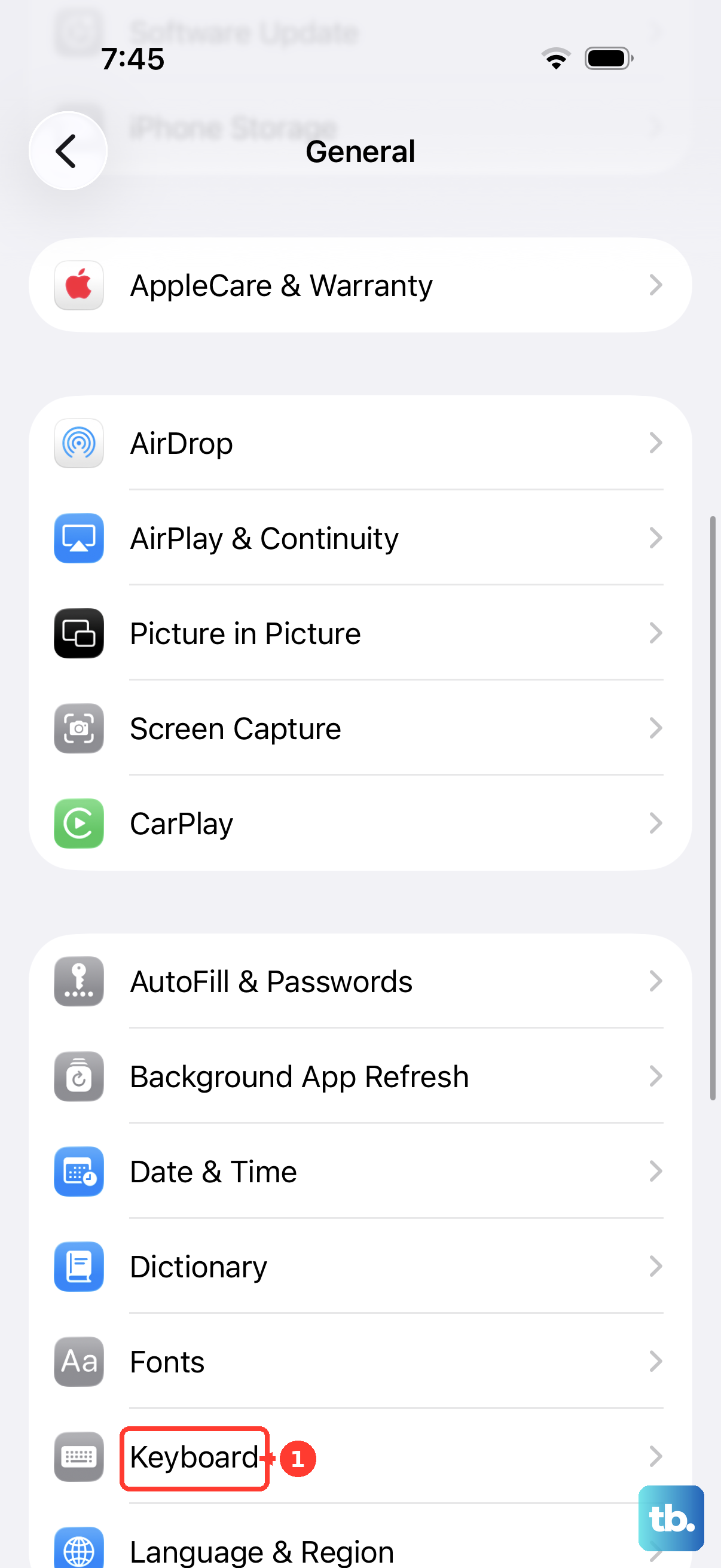
No. Removing a keyboard does not itself delete its parent app or saved history. To remove the keyboard, open Settings > General > Keyboard > Keyboards. Swipe left on the keyboard, then tap Delete.