To fix SharePoint files not syncing, resume or restart OneDrive, check the affected files for errors, and reconnect the library if syncing still fails. SharePoint Online libraries use the OneDrive desktop app to synchronize files on Windows and Mac. Start with the sync menu before changing the library connection or resetting the app.
The short version
- Start with OneDrive: Resume paused syncing or close and reopen the desktop app.
- Check the scope: Check whether one file is stuck or the entire library is affected.
- Avoid overlapping connections: A shortcut and a separate sync connection cannot synchronize the same library together.
- Protect pending edits: Preserve local changes that have not uploaded before reconnecting a library.
| What you notice | What to try |
|---|---|
| Syncing is paused or stalled | Resume syncing or pause and resume it |
| OneDrive is closed or unresponsive | Launch or restart OneDrive |
| Automatic pausing keeps returning | Review startup and pause preferences |
| The browser library is inaccessible | Check the account and ask the owner to restore access |
| The library has no desktop connection | Select Sync in SharePoint |
| An open document or large batch is processing | Save and close the document, then allow processing to finish |
| A file fails naming or size requirements | Correct its name, shorten its path, or reduce its size |
| One file remains stuck | Preserve a copy, then temporarily move the file outside the synced folder |
| An Office document opened directly from the cloud will not save | Check Files Needing Attention |
| A folder is missing on Windows | Review Choose folders |
| A Windows file is unavailable offline | Select Always keep on this device |
| A Mac file is unavailable offline | Select Always Keep on This Device |
| Local disk space is low on Windows | Select Free up space for uploaded content |
| An error mentions an existing shortcut | Remove the conflicting shortcut or stop the overlapping library sync |
| A separately synced Windows library still fails | Stop and reconnect that library |
| You prefer a shortcut connection | Stop overlapping sync, then select Add shortcut to My files |
| The desktop sync app needs updating | Install the current OneDrive desktop app |
| OneDrive still fails on Windows | Reset the Windows sync app |
| OneDrive still fails on Mac | Run the reset script for your installation |
| You need access during troubleshooting | Work in the browser library |
| The library is read-only or rejects uploads | Ask the owner to review restrictions and permissions |
Resume or restart OneDrive
Open the blue OneDrive cloud icon and check whether syncing is paused. If it is, select Resume syncing. If syncing has stalled without being paused, select the gear icon, choose Pause syncing > 2 hours, then reopen the menu and select Resume syncing.
On Windows, battery saver or a metered network can pause OneDrive automatically. Select Sync Anyway, or open the cloud menu and select the paused-sync alert. If this keeps happening, open the OneDrive cloud menu > Help & Settings > Settings > Sync and back up > Preferences to review startup and automatic-pause behavior. Some work-account settings are controlled by your administrator.
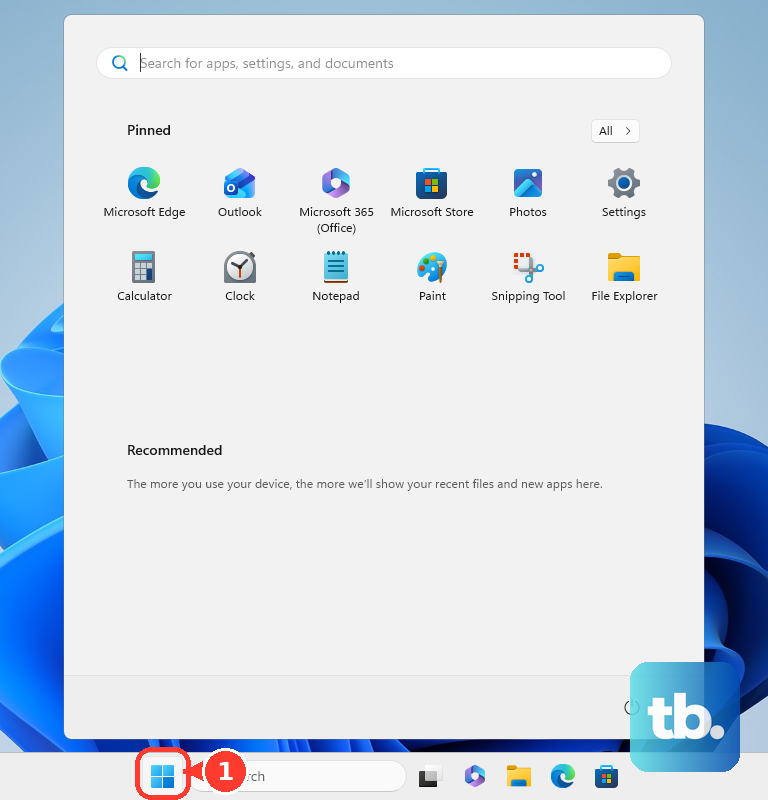
Restart the app if resuming does not help. Open the OneDrive cloud menu > Help & Settings > Close OneDrive, then on Windows open Start, search for OneDrive, and launch it. On Mac, search for OneDrive in Spotlight and open it; if the app was not running, simply launch it.
Check access to the correct library
Sign in to Microsoft 365 with the account that has access to the affected SharePoint site, then open its document library. If you cannot access it in the browser, ask the site owner to restore access before continuing with desktop fixes. For help locating and working with the library, follow the steps to use SharePoint files and sites.
Once the library opens, select Sync to establish synchronization through OneDrive. When the command is tucked into the menu, select ... > Sync instead. Allow the browser to open OneDrive when prompted, then finish OneDrive sign-in and setup.
If OneDrive reports that a shortcut from this shared library is already syncing, resolve that conflict before establishing another connection. The same document library cannot use a shortcut and a separate library sync together. Follow the shortcut steps below to choose which connection to keep.
Check the file that is holding up syncing
Select the OneDrive cloud icon to identify active transfers and the affected file. Save and close an open document that is stuck, then allow synchronization to continue. Large batches can take time to process, and repeatedly resetting OneDrive can restart that processing.
File names and folder paths can also prevent SharePoint Online uploads. Rename files or folders to remove unsupported characters: " * : < > ? / \ |, and shorten deeply nested paths. Files exceeding 250 GB must be reduced or split before uploading; these limits apply to SharePoint Online.
Preserve a separate copy of unsynced work before moving a persistently stuck file. Pause syncing, move the affected file outside the synchronized folder, and resume syncing. Once the remaining synchronization finishes, return the file to its original location.
For a Microsoft 365 document opened directly from SharePoint or OneDrive that is not synchronized locally, check the editor's upload controls. Open File > Open > Files Needing Attention in Word, Excel, or PowerPoint, then open the document and save it again after restoring connectivity. That section appears only when a file needs attention.
Restore missing folders and offline files
A missing folder may be excluded from the library's local selection. In OneDrive for Windows, open the cloud menu > gear icon > Settings > Account, then select Choose folders beside the affected library. Select the required folder names to include them.
An online-only cloud icon does not itself mean SharePoint is not syncing. On Windows, right-click the required file or folder in File Explorer and select Always keep on this device. Wait for its download to finish before disconnecting from the internet.
On Mac, open Finder and select Always Keep on This Device for the required synchronized content. Files On-Demand is integrated into macOS 12.1 and later, so the old toggle cannot disable it.
For Windows content that has already uploaded, right-click it in File Explorer and select Free up space to release local disk space without deleting the cloud files. Use this option for uploaded content, keeping pending local edits separate.
Resolve a conflicting OneDrive shortcut
Use one connection method for each SharePoint library. Microsoft says a separate library sync and a shortcut cannot be used together for the same document library. If you want to retain the library's Sync connection, remove the conflicting shortcut first.
Removing the shortcut preserves the shared source; avoid deleting the folder contents. In OneDrive on the web, open My files, select the shortcut, then select Remove shortcut. On Windows, you can instead right-click the shortcut and select OneDrive > Remove shortcut.
Return to the SharePoint library and select Sync after removing the conflict. If you prefer to keep the shortcut, retain that connection and stop the overlapping separate library sync using the Windows steps below.
Reconnect the affected library
Stopping sync disconnects that library, so preserve any local changes that have not uploaded before proceeding. In OneDrive for Windows, open the cloud menu > gear icon > Settings > Account, locate the affected site, and select Stop sync. Return to the correct SharePoint document library in your browser and select Sync to reconnect it.
This procedure applies to a separately synchronized SharePoint library. If your folder connects through a OneDrive shortcut, use the shortcut controls above.
If you are switching from a separate sync connection to a shortcut, preserve pending local changes and stop the overlapping library sync first. In the SharePoint shared library, select the required folder or the entire library, then select Add shortcut to My files. Access the shortcut through your work-account OneDrive; this option requires the necessary access and a library where shortcuts are available.
Update or reset the OneDrive desktop app
Install or update the desktop sync application from the Microsoft OneDrive download page. A viewing-only OneDrive Store app does not replace the desktop sync client. If you still use the retired Groove.exe client for SharePoint Online, move to the current OneDrive.exe client.
On Windows, press Windows + R to open the command dialog. Run the following command as the first reset troubleshooting step.
wsreset.exeIf syncing still fails, resetting OneDrive resets all sync connections and requires you to restore your selective-sync choices afterward. Press Windows + R again and run the OneDrive reset command below.
%localappdata%\Microsoft\OneDrive\onedrive.exe /resetIf Windows cannot find that location, try the installation under Program Files. Press Windows + R and run the following command instead.
C:\Program Files\Microsoft OneDrive\onedrive.exe /resetIf Windows cannot find that installation either, try the remaining location below. Press Windows + R and run this command.
C:\Program Files (x86)\Microsoft OneDrive\onedrive.exe /resetAfter the reset, launch OneDrive from Start. Restore your folder selections through Settings > Account > Choose folders beside the affected library.
The Mac reset procedure resets the OneDrive app and requires setup again. Quit OneDrive, then in Applications hold Control and click OneDrive, select Show Package Contents, and open Contents > Resources. Run ResetOneDriveApp.command, or ResetOneDriveAppStandalone.command for the standalone installation, then reopen OneDrive and complete setup using the previous location.
Keep working from the browser
While desktop syncing remains unresolved, open the correct SharePoint document library in a browser. With contributor access, you can drag a preserved local file into the library to upload it or open the cloud document for browser editing. Verify the uploaded version before discarding local work.
Browser access bypasses the desktop transfer problem without repairing it. If the library remains inaccessible, ask the site owner to restore access. If the library is read-only or rejects local uploads, ask the owner to review checkout requirements, approval, required metadata, validation, and your permissions. Writable sync requires Contribute permission or higher.
Frequently Asked Questions
Can syncing too many files slow down SharePoint synchronization?
Yes, Microsoft recommends no more than 300,000 items across cloud storage for standard OneDrive synchronization. Reduce the libraries or folders connected to the device, but excluding folders alone does not necessarily remove the performance effects of an oversized collection.
Are all files shared in Teams stored in SharePoint?
Channel files belong to the team's SharePoint library, while chat attachments are stored in OneDrive for Business. On Teams desktop, open the channel and select Shared; on Teams mobile, open the channel and tap Files.
Why have changes made in mobile Word not reached SharePoint?
SharePoint changes can require Word to be running while connected to the internet. Reconnect and reopen the app, then on iOS open the document, tap ..., and enable AutoSave. On Android, open the document, tap ..., select Save, and enable AutoSave.
Why do some file types never upload through OneDrive?
The sync app excludes .tmp and .ini files. Additional extensions can be blocked through SharePoint upload restrictions. If another file type is consistently rejected, ask the administrator responsible for the site to review the blocked extensions.