

If only one Samsung TV app is not working, close it, cold boot the TV and update the TV software, then delete and reinstall the app. If every app fails, cold boot the TV, check the network, run the Smart Hub Connection Test and update the software, and reset Smart Hub only as a last resort. If Apps opens without a list, select the Apps tile, accept the Terms and Conditions when prompted, and sign in if asked.
That is Samsung's own order for a broken app: a cold boot, a software update, a reinstall and finally a Smart Hub reset. Test the app after each step, so you can stop at the first one that works and keep the more drastic steps in reserve.
The short version
- One app fails: close it, cold boot with a long press of Power, update the TV software, then delete and reinstall the app.
- Every app fails: cold boot the TV, run Network Status and the Smart Hub Connection Test, then update the TV software.
- No Apps list: press the Apps tile, agree to the terms when asked and sign in to your Samsung account.
- Samsung TV Plus: check the internet connection, and remember that Samsung says channels can change without notice.
- Reset Smart Hub last: it signs you out of your Samsung account and every app.
| What you see | Check first | Then |
|---|---|---|
| One app crashes or will not load | A second app, then a cold boot | Update the TV software, then delete and reinstall the app |
| Every app fails | Cold boot and Network Status | Smart Hub Connection Test, software update, Reset Smart Hub |
| Apps tile opens with no app list | The Terms and Conditions pop-up | Sign in to your Samsung account |
| An app has gone from the Home screen | The Apps screen | Add it back with Add to Home |
| Search in Apps cannot find an app | Your model and region | A streaming device that supports the app |
| A Samsung TV Plus channel is gone | The internet connection and the Guide | Accept that the lineup can change |
| The app says your device is no longer supported | The service's own message | A streaming stick or box over HDMI |
Find out whether one app or every app fails
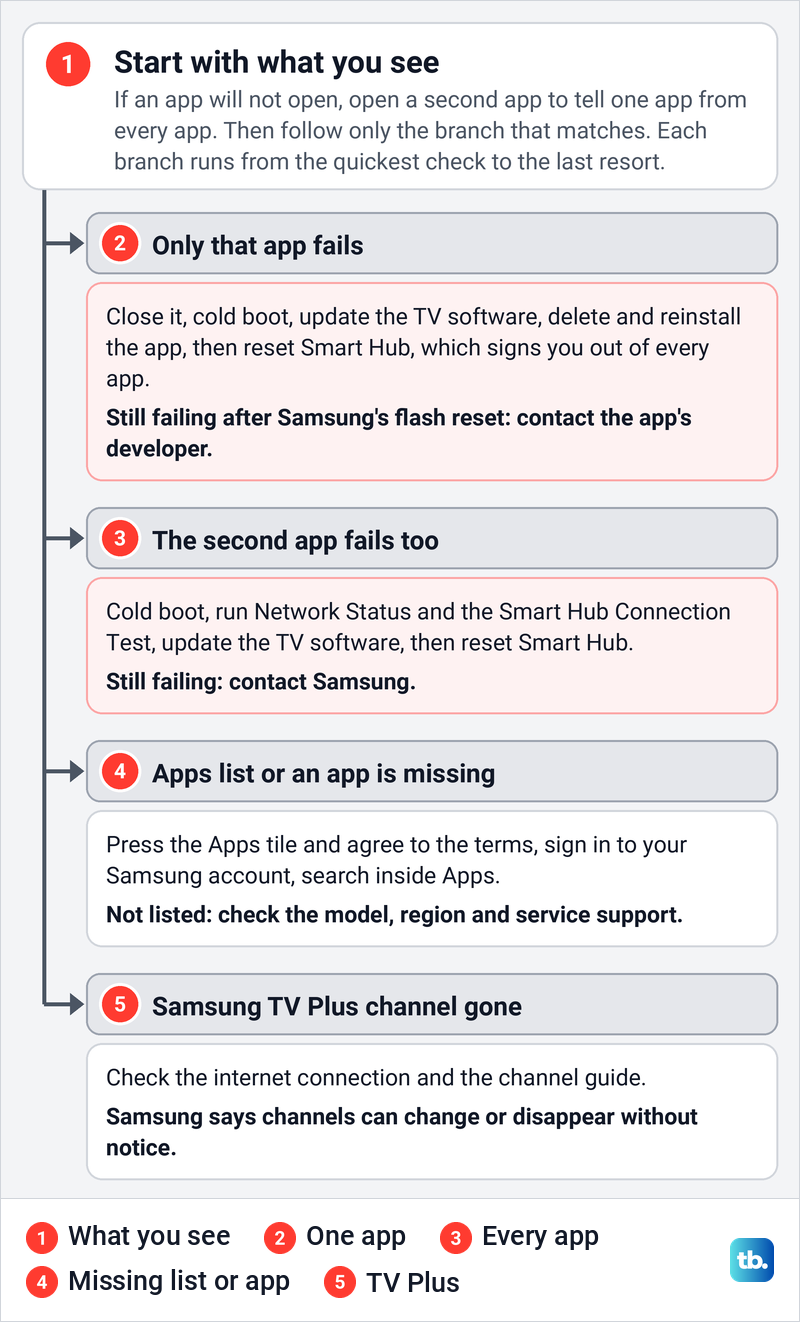
Start by opening a second app from the Home screen. Samsung's steps end differently for the two: an app that keeps failing while other apps work normally goes to its developer, while Samsung says a TV where none of the apps work after a Smart Hub reset needs service. Try the same service on a phone as well. If it also fails on a phone, check the service, account and internet connection before changing TV settings.
Our photos come from our Samsung Odyssey OLED G9, a smart monitor that runs the same Tizen software as Samsung's smart TVs. On its Home screen the installed apps sit in one row, from SmartThings and Netflix to YouTube and Browser, so a second app is only a press or two away.
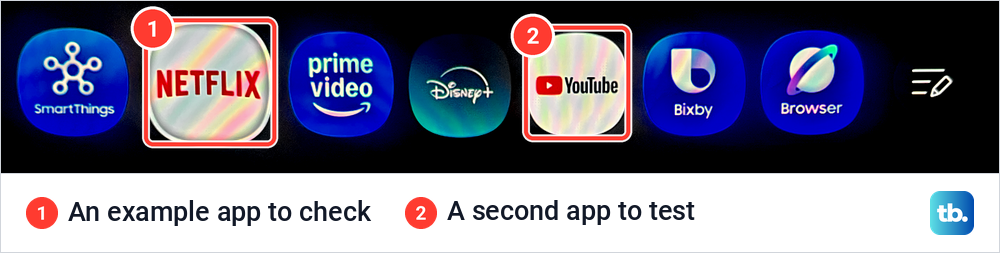
If the Home screen works and only one app is stuck, first restart one Samsung TV app, which closes it fully. Netflix and YouTube have their own error screens, so use the error and account checks to fix Netflix on a Samsung TV, or the separate steps to fix the YouTube black screen when one of them is the app. The diagram shows where each answer leads.
Cold boot the TV and try the app again
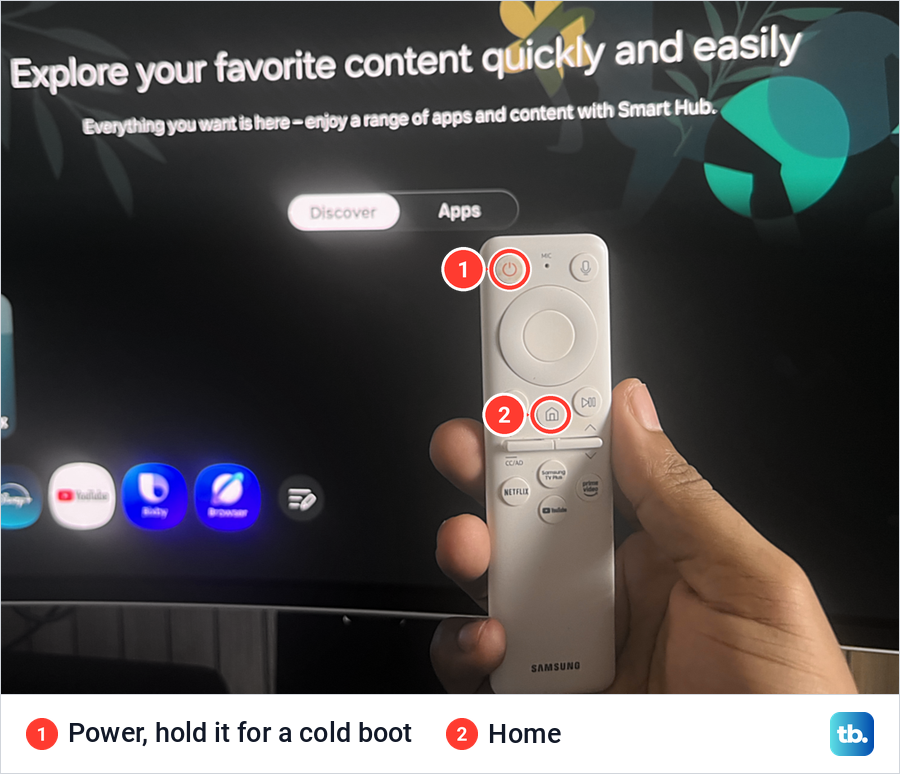
A cold boot is more than turning the TV off. Samsung explains that switching off only puts the TV in standby, while a cold boot shuts it down and restarts it, which can solve problems with apps. With the TV on, hold down Power on the remote until the TV turns off and on again, which Samsung says takes about 5 seconds.
On our monitor's white Samsung remote, Power is the round key at the top left, and Home sits under the navigation ring. Hold Power rather than tapping it, because a tap only sends the TV to standby.
Without the remote, unplug the TV from the wall outlet or surge protector, leave it unplugged for 30 seconds and plug it back in. If the surge protector also powers your router, Samsung says to give it time to reconnect before you test the app. Our guide on how to restart a Samsung TV fully covers both methods in more detail.
Check the network and the TV clock
When every app fails, check the connection before you touch the apps. Samsung's path on current TVs is Settings > All Settings > Connection > Network > Network Status, and on some models Network sits under General instead. Samsung says any error message the test shows will tell you the best way to resolve the connection.
Our monitor names the top-level menu Connections rather than Connection, and Network is the first item inside it. Its help text describes Network as the place to configure the screen's network.
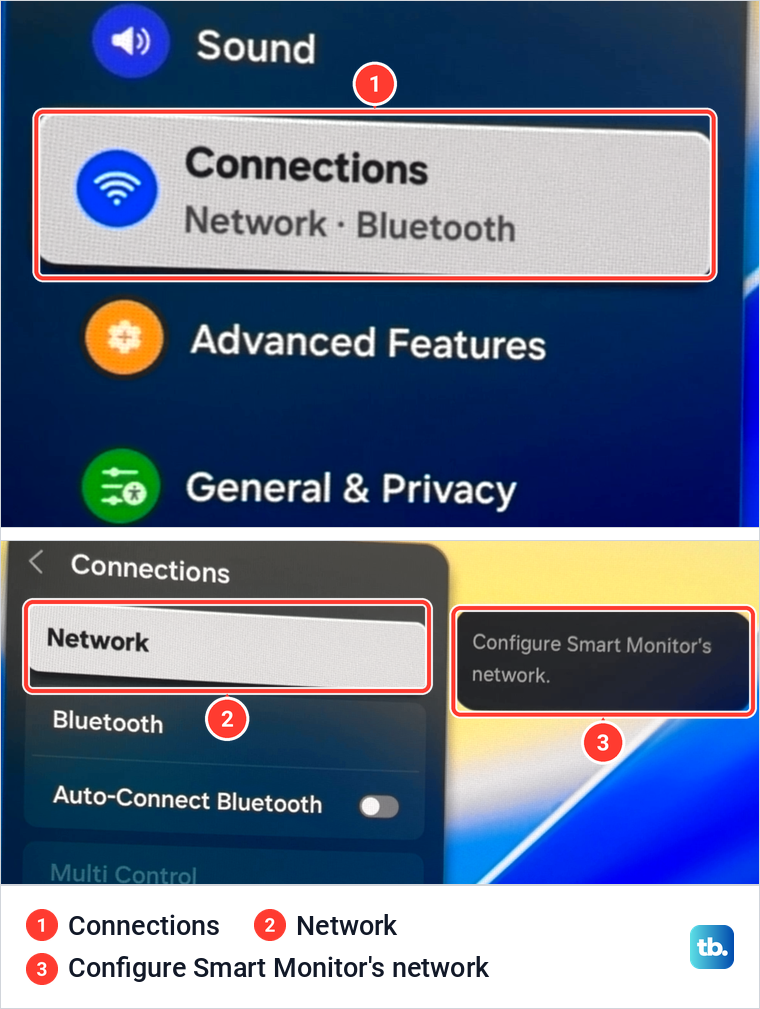
Samsung's own troubleshooting includes a TV that is connected to the local network but not to the internet, so a Wi-Fi icon alone does not prove that apps can reach their servers. If Network Status reports a problem, fix a Samsung TV Wi-Fi connection before you reinstall anything. If apps open but the video keeps pausing, use the steps to fix buffering on a Samsung TV instead.
The clock matters too. Samsung says an incorrect date and time on a Samsung TV can lead to Wi-Fi issues, and that the date and time should be correct or Clock Mode set to Auto. Its path is Settings > All Settings > General & Privacy > System Manager > Time > Clock, then Clock Mode > Auto.
On our monitor, Time is listed directly in General & Privacy, a few rows below Terms & Privacy. Samsung adds that the clock has to be set manually if the TV is not connected to the internet, and that a greyed-out Clock setting means an app is open, so switch to the TV source first.
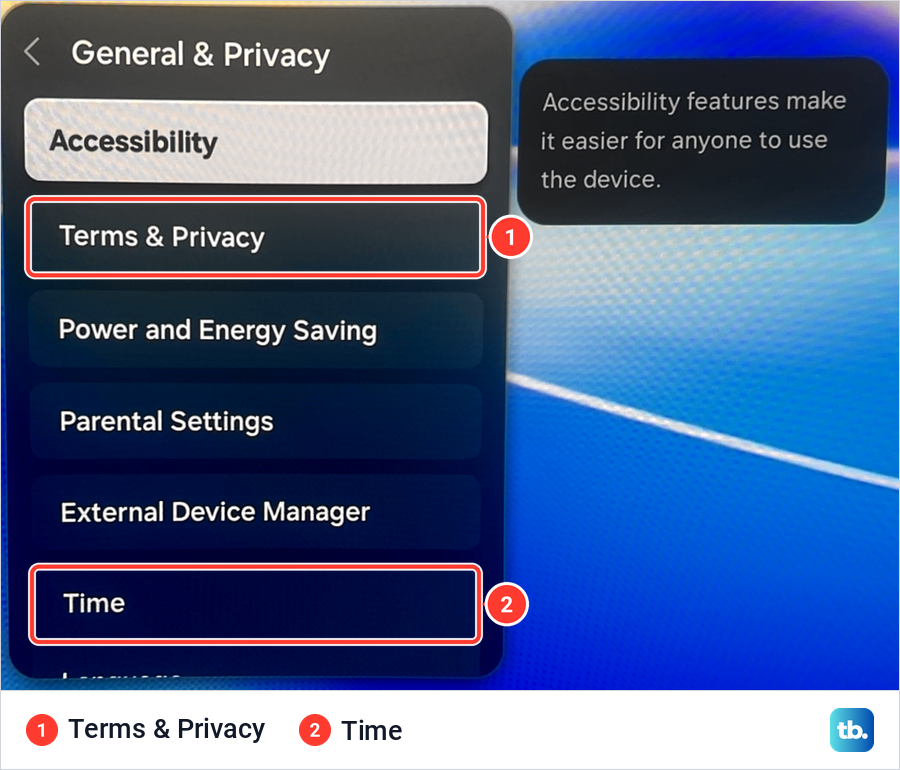
Run the Smart Hub Connection Test
Smart Hub is where Samsung keeps its apps, and our monitor's welcome screen invites you to enjoy a range of apps and content with Smart Hub. Samsung's path to its test is Settings > All Settings > Support > Device Care > Self Diagnosis > Smart Hub Connection Test. Samsung says the test checks network connectivity and signal strength, and that it can take a few minutes to run DNS and ISP blocking tests.
On our monitor the test sits in the Self Diagnosis grid as a tile shortened to Smart H..., beside Bluetooth, with a separate Wi-Fi test under it. Samsung notes that some models do not support wired networks for this test.
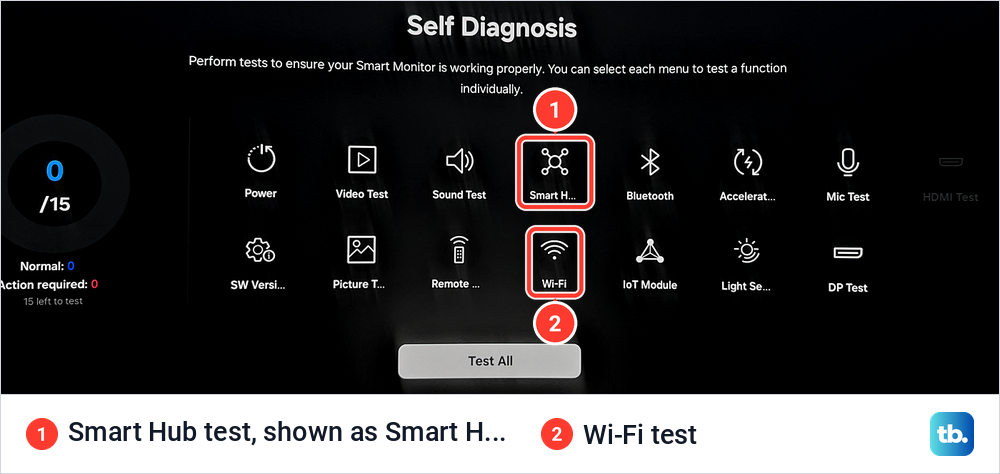
Read the result before you reset anything. Samsung's guidance covers a wireless connection that fails, a wired connection that fails, and a TV connected to the local network but not to the internet, where it suggests checking the DNS setting under Network Status > IP Settings. If a test reports a problem you cannot fix, Samsung says to contact Samsung Support.
Update the TV software and your apps
Samsung says software updates add new features or fix bugs, and its app troubleshooting puts the update second, right after the cold boot. The path is Settings > All Settings > Support > Software Update > Update Now. Samsung says updates usually take a few minutes, that you should not turn the device off until the update is complete, and that it restarts by itself when done.
On our monitor, Software Update sits further down the Support menu from Device Care. During an update the screen read "Do not turn off the device during the update" above a progress bar, so leave it alone until it restarts.
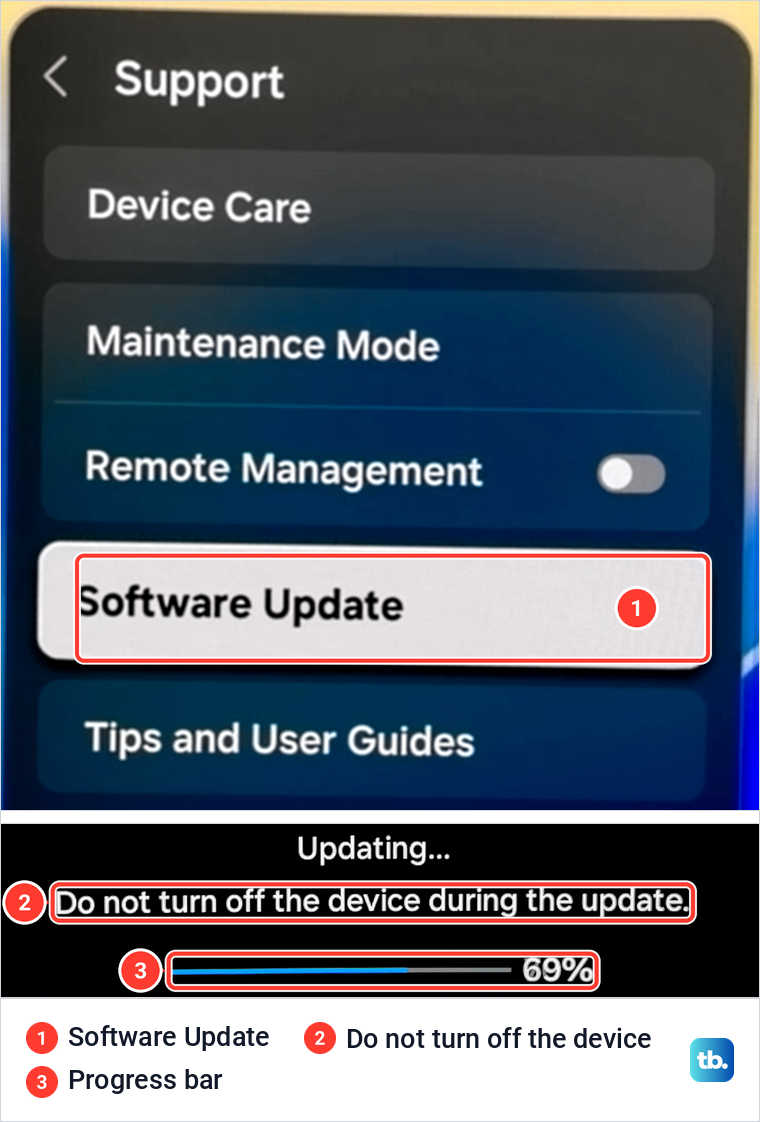
If Software Update is greyed out, Samsung says a streaming app is running in the background, so switch to the TV source or press Samsung TV Plus on the remote first. Samsung also warns that video and audio settings may return to their defaults after an update.
Apps update separately from the TV. Samsung's steps are to open Apps, scroll down to App Settings, select Auto Update and set it to on. Samsung's US guide covers app updates only through this Auto Update switch.
Clear the cache and run Device Care
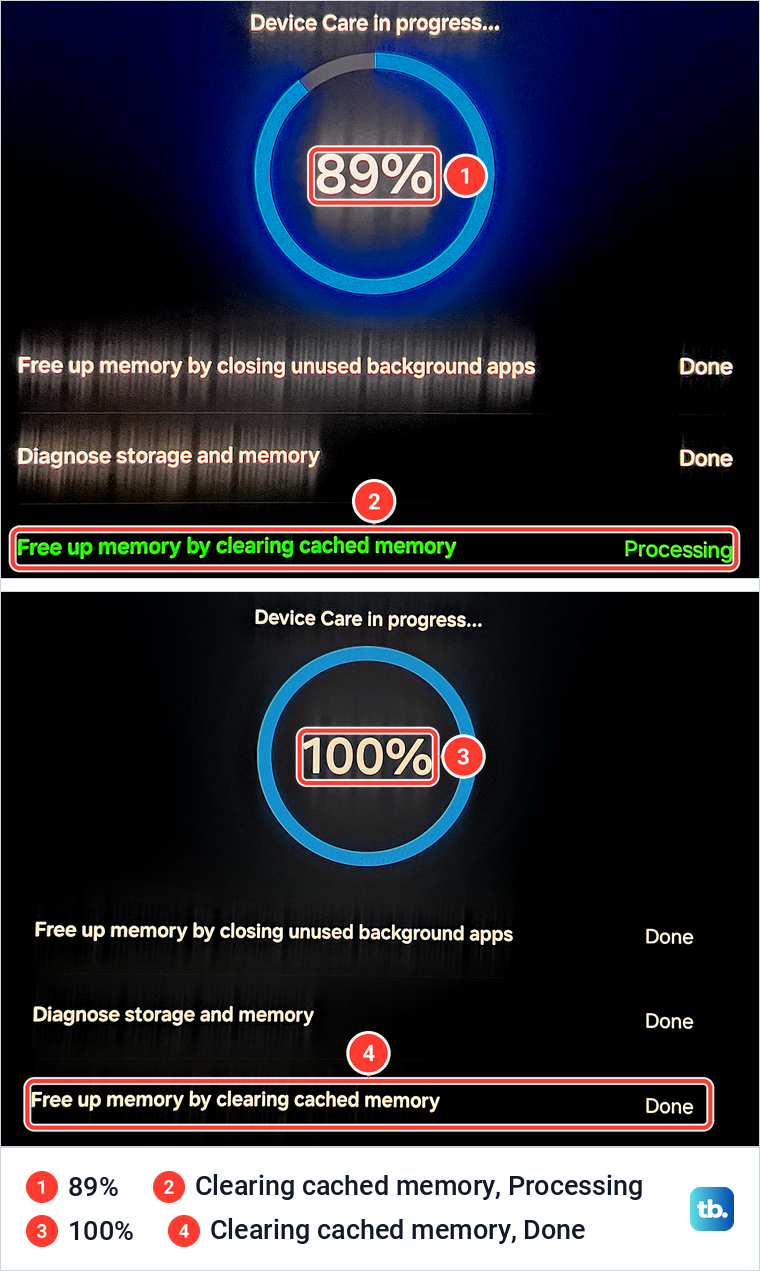
Device Care is Samsung's built-in maintenance tool, at Settings > All Settings > Support > Device Care. Select Start Device Care to run its scan. Samsung says that when the diagnosis is complete, it clears the cached memory and closes unused background apps to free up memory.
We ran it on our monitor. At 89%, closing unused background apps and diagnosing storage and memory were done while clearing cached memory was still processing, and at 100% all three steps read Done.
Manage Storage goes app by app. Samsung's path is Device Care > Manage Storage, then the app and View Details, where Clear Data and Clear Cache sit for that app. On our monitor, Manage Storage listed each installed app with its size, and its summary showed 2.72 GB used and 1.12 GB available.
We cleared the cache of the SmartThings app to see what changes. Its cache dropped from 412.00 KB to 0.00 KB and its total from 111.02 MB to 110.62 MB, while the Data line stayed at 4.00 KB and the Clear Cache button turned grey.
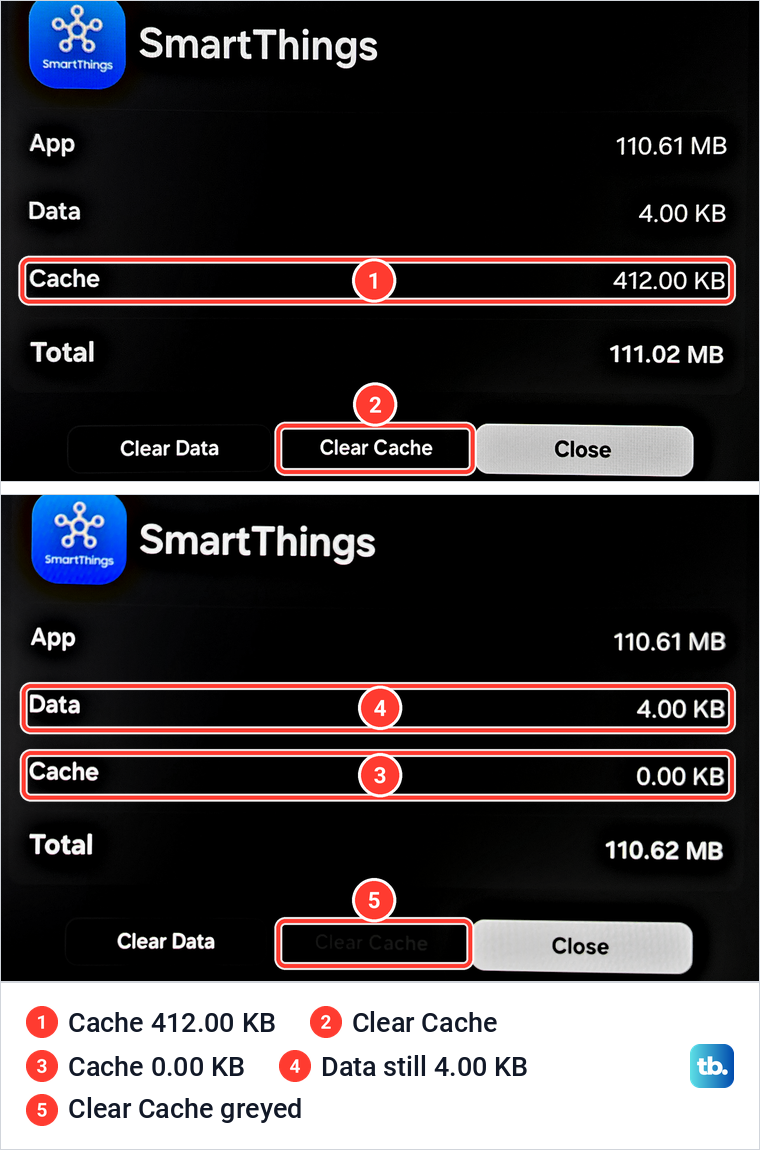
A greyed-out button is not a fault. Netflix on our monitor already showed a cache of 0.00 KB with Clear Cache greyed out, and its Clear Data button was greyed too, even though its Data line read 11.62 MB. Clear Data goes further than Clear Cache and empties that stored data, so have the app's sign-in details ready before you use it.
If Clear Cache is active for your app, follow the pictured steps to clear a Samsung TV app cache. Samsung lists insufficient storage among the things that can restrict app functionality or prevent new installations, so delete apps you no longer use if space is short. If menus also lag, the separate steps to fix a slow Samsung TV go beyond the apps.
Repair the one app that will not open
If Clear Cache does not help, or it is greyed out, Samsung's next step is to delete the app and install it again. Have the app's sign-in details ready first, because Samsung says these steps sign you out and you will need to sign back in. Samsung also notes that deleting an app removes its associated data.
Open Apps, select the Settings icon in the top right corner, find the app and select Delete. If Delete is greyed out, Samsung says this is a recommended app, so select Reinstall instead. To get the app back, press Return, select the Search icon in the top right corner, enter the app's name and select Install.
The full steps to delete and reinstall a Samsung TV app show what happens to its data and how to put it back on the Home screen. If it still fails after a fresh install, Samsung's next step is Reset Smart Hub, covered further down.
Restore a missing Apps list or app
Samsung calls its app store Apps, and on our monitor Smart Hub has an Apps tab beside Discover. It mixes a catalog row, where YouTube carried the label Installed, with a Downloaded App row of the apps already on the screen.
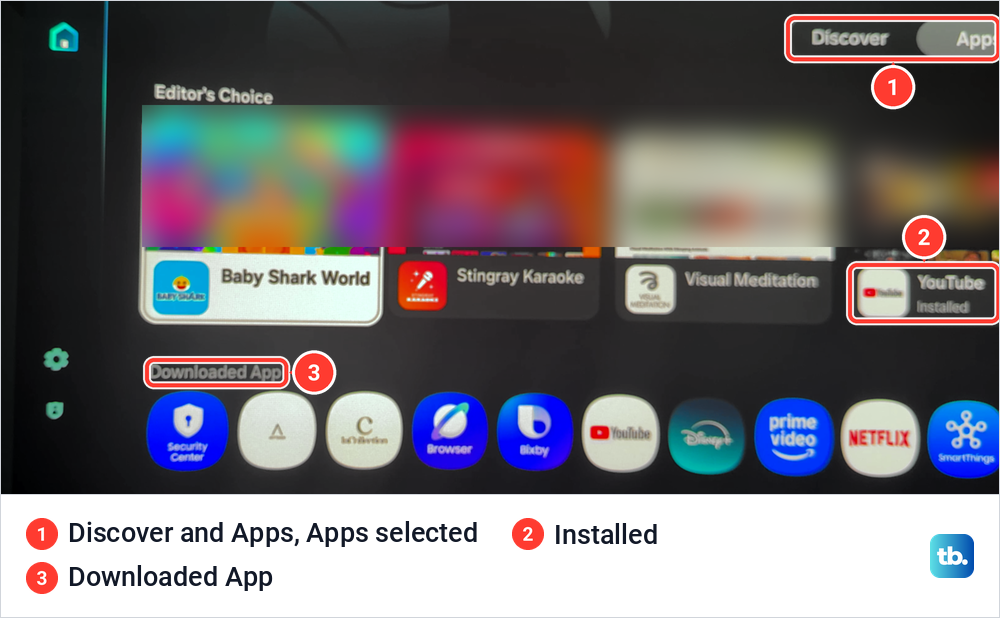
If the Apps tile opens but no app list appears, Samsung says to press the Apps tile on the Home Screen, where a pop-up asks you to agree to the Terms and Conditions. After you agree, the Apps list is displayed. Samsung's India guide adds that a Samsung account is required to access the app store, so sign in when the TV asks.
An app that has gone from the Home screen may still be installed. Samsung's steps are to open Apps and select the app there, or to select Settings in the upper right corner of Apps, highlight the app and select Add to Home. To find a new app, use the Search icon in the top right corner of the Apps screen rather than a phone's app store.
Check whether the app works on your model and region
If search inside Apps cannot find an app, it may not be offered for your TV. Samsung says only apps available in the App store can be installed, that menu names and features vary by TV model, software version and region, and that you should verify the app's services are active and supported in your region. To compare a service's supported devices, first check your Samsung TV model.
Older sets can also lose an app for good. A Samsung support notice from August 2023 says Netflix decided to phase out support for older devices, so Samsung smart TVs dating back 12 to 13 years could no longer use the app. Netflix itself says it may no longer be available on some TVs and TV streaming devices made before 2015.
Netflix's message in that case says Netflix is no longer available on this device, sometimes with error code R40, R12 or R25-9. Netflix says your account and membership have not changed in any way, and suggests checking whether a streaming stick, cable box or game console connected over HDMI has a Netflix app. A reset does not change a service's list of supported devices, so a streaming device is the practical fix.
Fix Samsung TV Plus when it is not working
Samsung TV Plus is Samsung's free, ad-supported video service, available on Samsung smart TVs from 2016 on in select areas. It streams its channels over the internet, and Samsung says an internet connection is required. If your TV asks you to sign in to a Samsung account to use it, follow that prompt.
Our monitor's remote has a dedicated Samsung TV Plus key just below the volume and channel keys. Samsung says you can open the TV Plus Guide by pressing in on the channel key of a Samsung Smart Remote, or by pressing GUIDE on a standard remote.
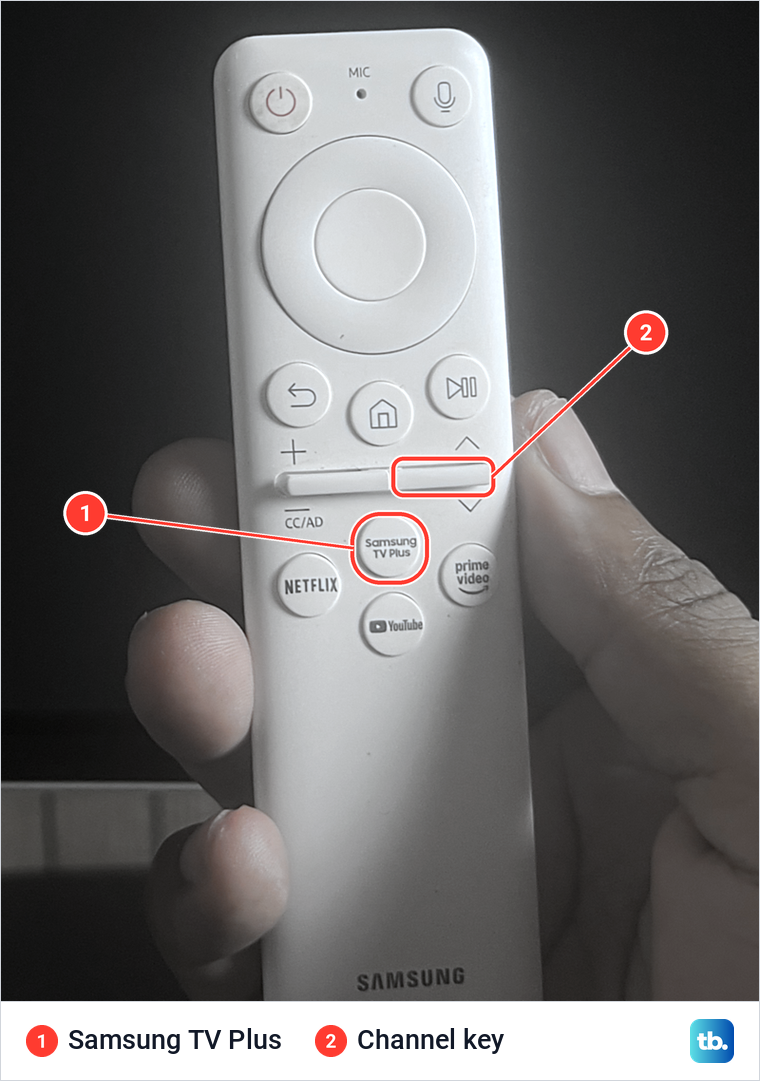
If TV Plus will not play at all, run the same checks as for any app: Network Status, a cold boot and a software update. If a channel you watched has gone, Samsung says TV Plus channels are subject to change or can disappear without any prior notice, so a missing channel is not by itself a sign of a fault. Samsung adds that if you remove every channel, the app will not play automatically until new channels are added.
If TV Plus starts by itself every time you turn the TV on, that is a setting rather than a fault. On certain models Samsung lets you switch it off at Settings > General > Smart Features > Autorun Samsung TV Plus, where newer menus show General as General & Privacy. Turning Autorun off only stops the automatic start, and the TV Plus app stays available.
Reset Smart Hub when apps still fail
Reset Smart Hub is Samsung's last software step for apps, and Samsung's UK page calls it a last resort because you are signed out of every app, not just the one you want to fix. Samsung says it resets all Smart Hub settings, downloaded apps and accounts stored on the TV, and signs you out of your Samsung account. Gather every app's sign-in details first, and expect to download some apps again.
Where the item sits depends on the model year. Samsung's Mexican support page lists Settings > All Settings > Support > Device Care > Reset Smart Hub for 2025 and 2026 TVs and Device Care > Self Diagnosis > Reset Smart Hub for 2020 to 2024 models. For 2016 to 2019 models it lists Support > Self Diagnosis > Reset Smart Hub, so if one place is empty, look in the other.
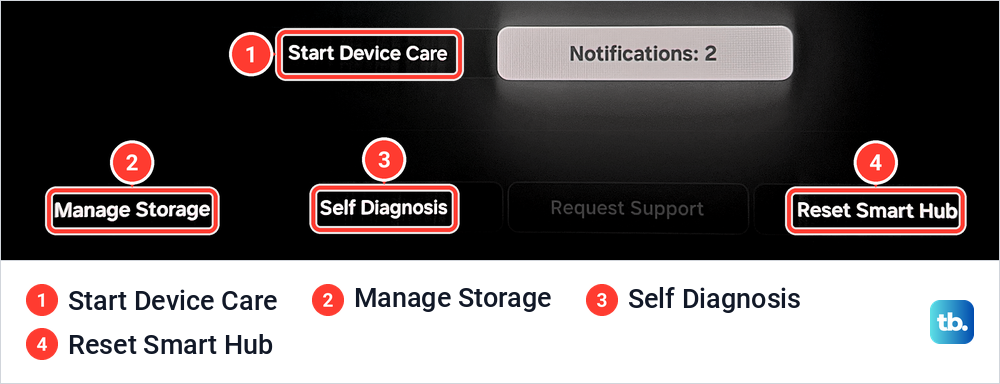
On our monitor, Reset Smart Hub sits directly in Device Care next to Start Device Care, Manage Storage and Self Diagnosis, the same layout Samsung gives for its newest TVs. The TV may ask for its PIN. Samsung says the default is 0000 on models before 2025, while 2025 and newer models use the PIN created during initial setup.
Afterwards you may have to run through parts of the TV's setup again. Accept the Terms and Conditions when the TV asks, because Samsung says they are needed for the smart features and apps to work, then sign back in to each app and test the one that failed.
Get help when apps still fail
Samsung's US troubleshooting lists one more step after Reset Smart Hub, a flash reset. Samsung describes holding the TV's own power button for 5 seconds, then the remote's Power for 5 seconds, after which the TV powers on in reset mode. Samsung says it only worked if the initial setup screen appears, so expect to set the TV up again, and read our guide to factory reset a Samsung TV first to see what a reset can remove.
Complete setup, download the affected app again and test it. If one app still fails after all of that while other apps work normally, Samsung says the TV can be ruled out, because app developers are responsible for making their apps compatible. Look for the Contact Us option on the app's website. If several apps and the Smart Hub Connection Test still fail, contact Samsung Support and describe the error the test showed.
How we tested this guide
Our photos come from our Samsung Odyssey OLED G9, a smart monitor that runs the same Tizen software as Samsung's smart TVs, and its white Samsung remote. On it we opened the Smart Hub app row and Apps tab, Connections, General & Privacy, Support, Self Diagnosis and Manage Storage, ran Start Device Care to 100%, and cleared the cache of the SmartThings app.
The network, clock, Smart Hub test, reinstall, Smart Hub reset, flash reset and Samsung TV Plus steps follow Samsung's own support pages for TVs, and the retired Netflix details follow Netflix's Help Center. Where Samsung's TV menus use a different name from our screen, we give Samsung's wording.
Frequently Asked Questions
Why is only one app not working on my Samsung TV?
If other apps open, focus troubleshooting on the affected app first. Close it, cold boot the TV, update the TV software, then delete and reinstall the app. If it still fails after Samsung's full sequence, Samsung points you to the app's developer.
Why do Samsung TV apps fail when the Wi-Fi says connected?
A TV can be connected to your router without reaching the internet. Run Network Status, then the Smart Hub Connection Test, which Samsung says includes DNS and ISP blocking tests, and check that the date and time are correct.
Where did the app store go on my Samsung TV?
Samsung calls it Apps. If the Apps tile opens without a list, Samsung says a pop-up asks you to agree to the Terms and Conditions, after which the list appears, and a Samsung account is needed to use the store.
Why can't I find an app in Samsung TV search?
Only apps in the TV's own store can be installed, and Samsung says availability varies by model, software and region. Some services have also stopped supporting older TVs, so check the service's supported devices for your model.
Why are my Samsung TV Plus channels missing?
Samsung says TV Plus channels are subject to change or can disappear without any prior notice. Check that the TV is online, and if you removed every channel, Samsung says the app will not play automatically until new channels are added.
What does Reset Smart Hub delete?
Samsung says it resets all Smart Hub settings, downloaded apps and accounts stored on the TV, and signs you out of your Samsung account and every app. Have your sign-in details ready, plus the TV's PIN, which is 0000 by default on models before 2025 and the one created during setup on 2025 and newer models.