
To factory reset a Samsung TV, open Settings > All Settings > General & Privacy, scroll to the bottom, select Factory data reset (called Reset on many 2022 to 2024 models), enter your PIN and select Reset to confirm. Older TVs keep it under General or Support > Self Diagnosis. Samsung says the TV turns off and on again by itself and opens the Initial Setup screen, ready to be set up like a new one.
The PIN is where most people get stuck. On Samsung TVs made before 2025 it is 0000 unless someone changed it, while 2025 and later models make you create your own PIN during setup. If nobody remembers it, a short button sequence on the remote sets it back to 0000.
A factory reset returns your settings to their defaults and removes Samsung accounts and downloaded apps, so it is the last step, not the first. If only your apps misbehave, Reset Smart Hub is lighter, and a restart or a picture, sound or network reset keeps everything else.
The short version
- Path: Settings > All Settings > General & Privacy > Factory data reset (Reset on many 2022 to 2024 TVs).
- PIN: 0000 on TVs made before 2025. On 2025 and later models it is the PIN you created during setup.
- Forgot the PIN: with the TV on, press Volume, Volume Up, Return, Volume Down, Return, Volume Up, Return to set it to 0000 (start with Mute instead on a remote with a Mute button).
- Greyed out: close the app you were using, then switch to the TV or an HDMI source and try again.
- Only apps broken: restart the TV, update it and reinstall the app first, then use Reset Smart Hub in Settings > All Settings > Support > Device Care (under Self Diagnosis on 2019 to 2024 models).
Factory reset a Samsung TV from Settings
The photos here come from our Samsung Odyssey OLED G9, a smart monitor that runs the same Tizen software as Samsung's smart TVs. Samsung's own reset article covers TVs and smart monitors together, and our screen shows the same menu names as Samsung's 2025 TV manual.
Before you start, back up your settings and note your app logins and Wi-Fi password, as covered further down. If the TV is leaving your home, sign out of your Samsung account and remove the TV from SmartThings first. Close any app that is playing, or the reset stays greyed out.
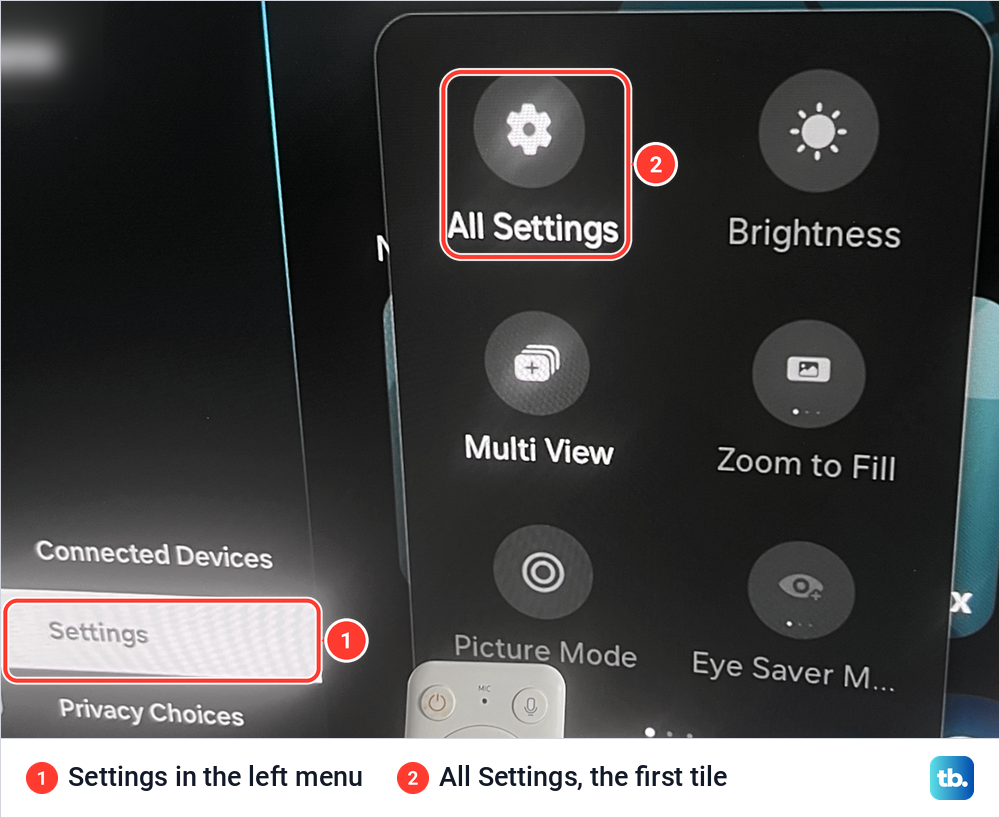
Press Home on the remote. On our monitor, selecting Settings in the left menu opened a small panel with All Settings as its first tile.
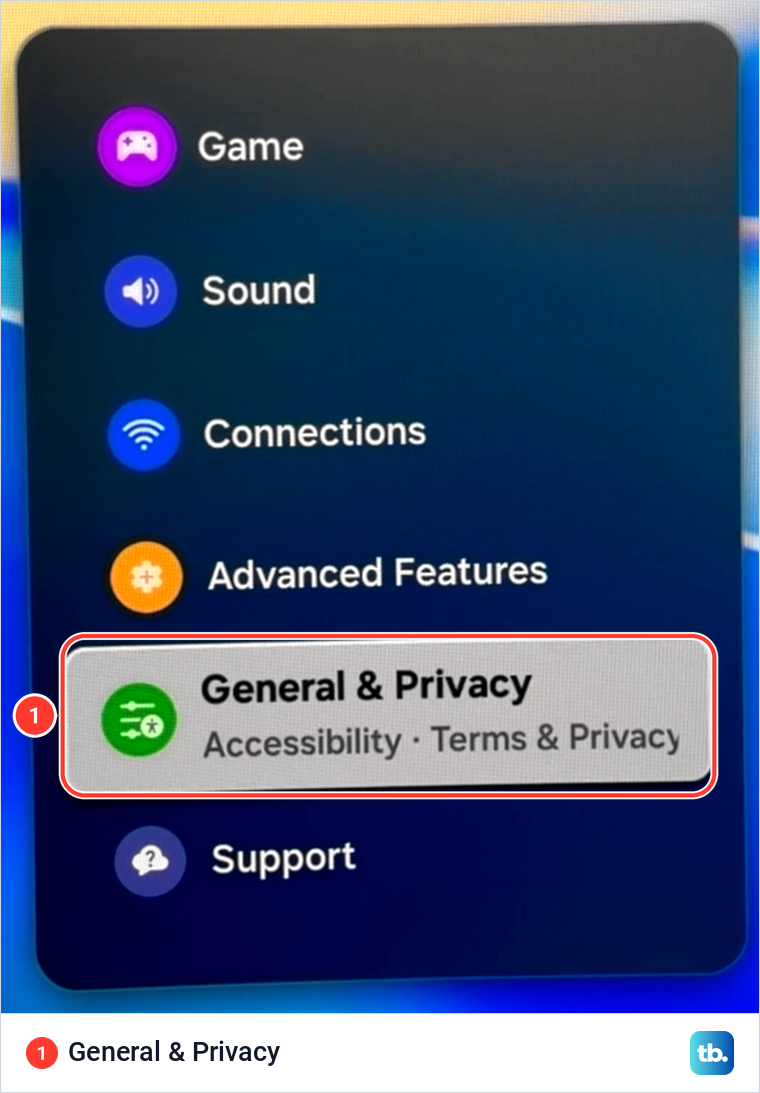
Select All Settings, then scroll down and select General & Privacy. On our monitor it sat between Advanced Features and Support, with Accessibility named in the line under it.
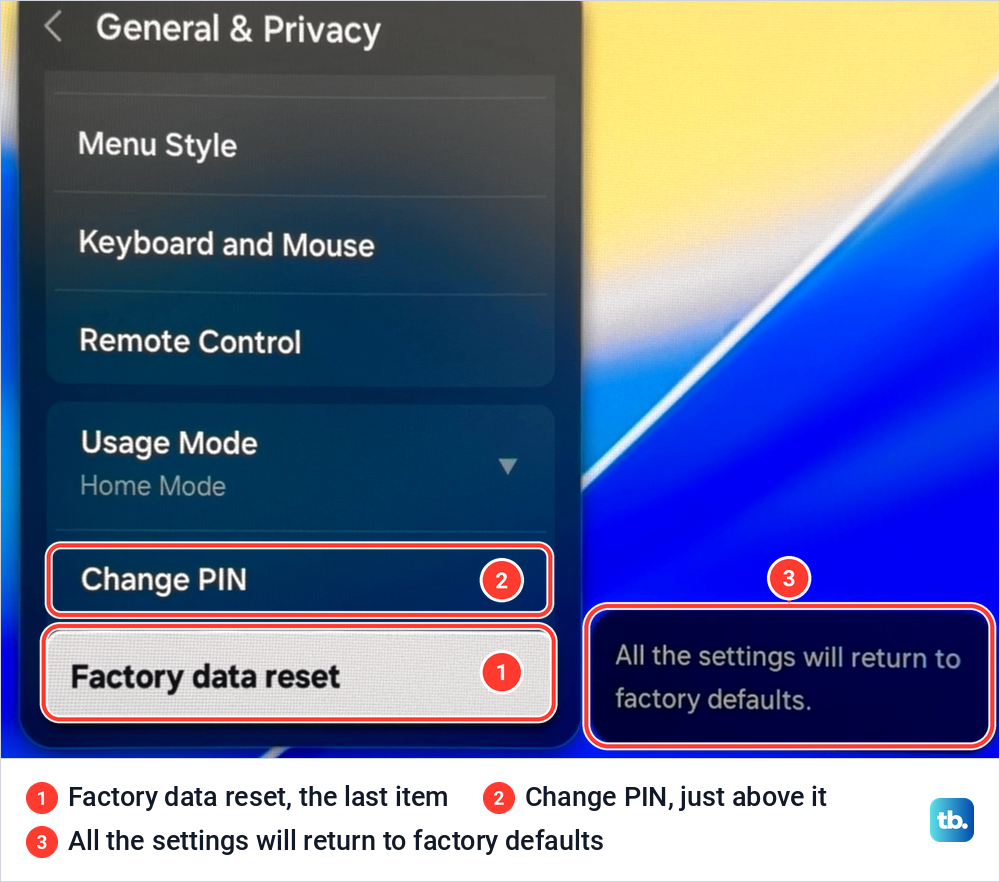
Scroll to the very bottom of General & Privacy. The last item on our screen was Factory data reset, with Change PIN just above it, and the note beside it read "All the settings will return to factory defaults." On TVs from 2022 to 2024 the same spot usually says Reset.
Select it and a PIN box opens. Ours asked us to "Enter your PIN." with four boxes, a Cancel button and a number strip at the bottom right of the screen, and the Samsung remote we use with it has no number keys. Samsung's manual says to use that on-screen pad to type numbers such as a PIN.
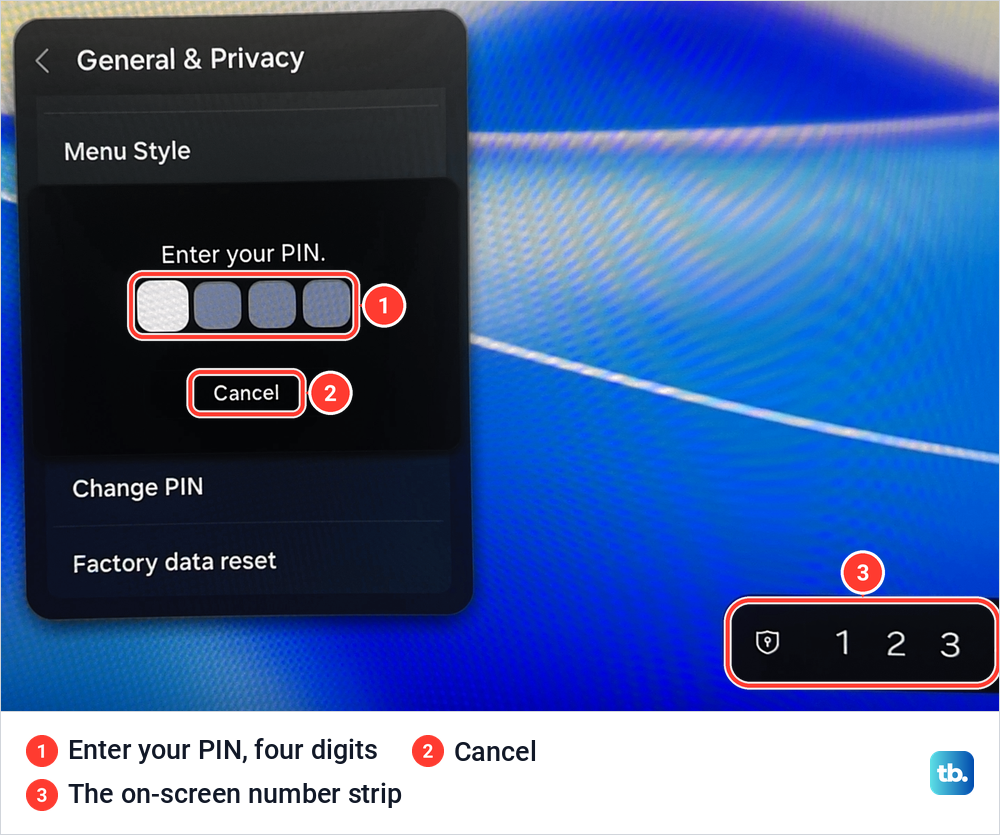
The steps after the PIN follow Samsung's instructions. Samsung's 2025 manual says to enter the PIN and select Reset, and some of its regional pages show Yes or a final OK at this point. All settings are then reset, and the TV turns off and on again by itself and shows the Initial Setup screen.
Samsung warns that the TV may turn off and on several times before the setup screen appears. Do not switch it off or unplug it while it works. Samsung gives no fixed time for this, so wait for the setup screen.
Find the reset on older Samsung TVs
Samsung has moved and renamed the reset over the years, and the diagram below follows Samsung's own paths by model year. For 2017 to 2021 its regional pages disagree. Samsung's Australian page puts Reset under Settings > General, while its Philippine and Indian pages put it under Settings > Support > Self Diagnosis for some of those models, so check both.
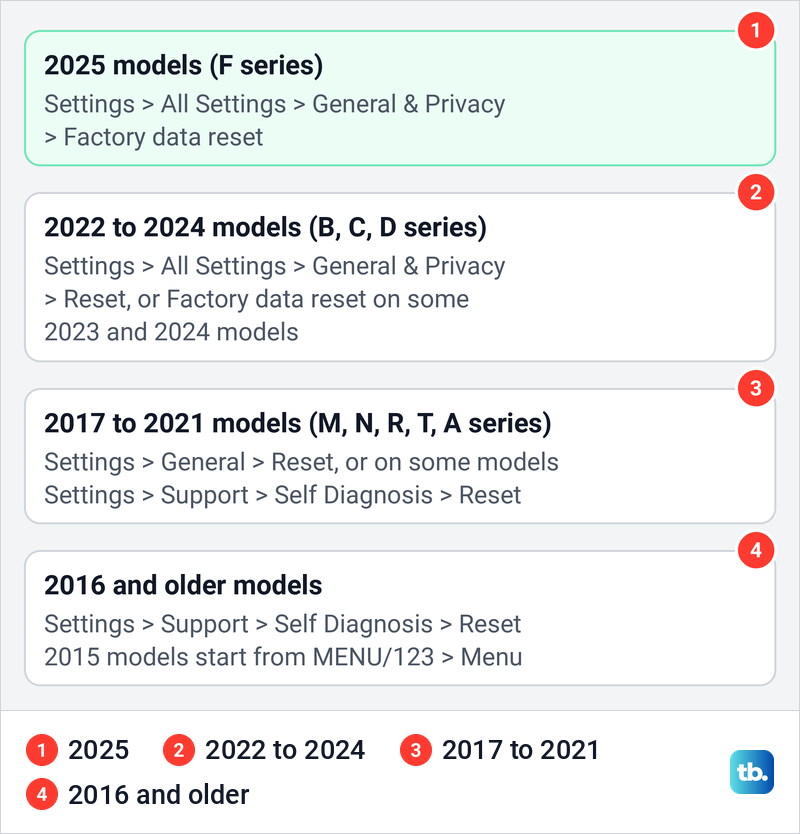
The model code tells you the year. It is on a sticker on the back of the TV and under Settings > All Settings > Support > About This TV, and one letter in it gives the year: Samsung's table lists H for 2026, F for 2025, D for 2024, C for 2023 and B for 2022. Our guide on how to check the model number of your Samsung TV shows where to look.
In Samsung's Australian example QA75QN80HAWXXY, the H right after the series number QN80 marks a 2026 model. The same table also used F for 2013 and H for 2014, so think about how old the TV is before you trust the letter. Samsung's reset pages do not give 2026 models a row of their own yet, so on a 2026 H series TV start with the 2025 path and use the fallback below if your screen differs.
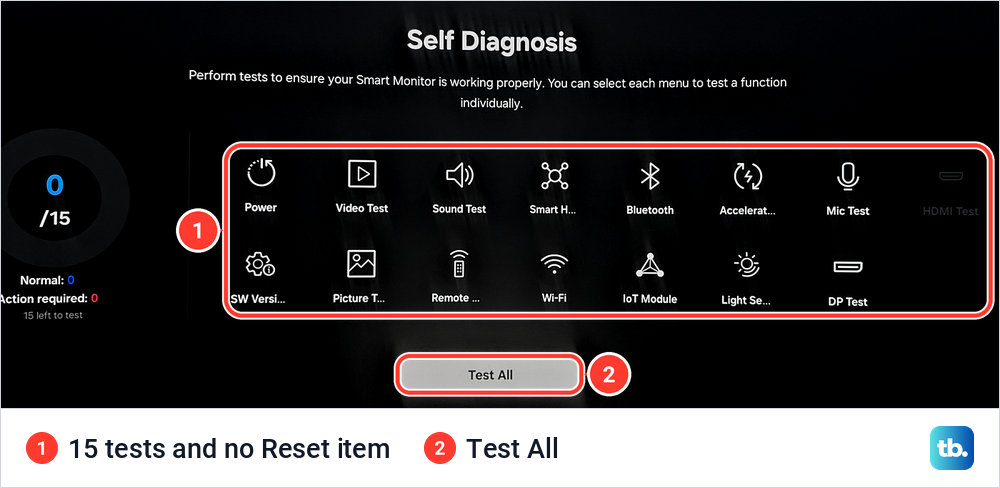
If none of those paths matches your screen, Samsung's fallback is Settings > Support > Self Diagnosis, where older TVs keep Reset, starting from MENU/123 > Menu on 2015 models. On our monitor, Self Diagnosis held 15 tests and a Test All button but no reset, which matches the newer layout where the reset lives in General & Privacy.
What your Samsung TV PIN is
Samsung TVs made before 2025 come with the PIN 0000, and it stays that way unless someone changed it. On 2025 and later models, Samsung says you must create a PIN during the initial setup and the step cannot be skipped, so there is no default to fall back on.
To change a PIN you know on a 2025 model, open Settings > All Settings > General & Privacy > Change PIN, enter the current PIN and then the new one twice. On models before 2025, Samsung says you may need to open System Manager first, and its 2023 manual lists General & Privacy > System Manager > Change PIN. On our monitor, Change PIN sat directly above Factory data reset, as in the 2025 layout.
Samsung is clear that on a 2025 TV you cannot change a PIN you do not know. If yours is lost, reset it with the remote first, then run the factory reset with 0000.
Reset a forgotten PIN with the remote
Samsung's PIN reset uses the volume key and the Return button, and it works only while the TV is on. On the slim Samsung Smart Remote, like the one we use with our monitor, the volume key is a rocker marked + and minus, and Return is the button with the curved arrow.
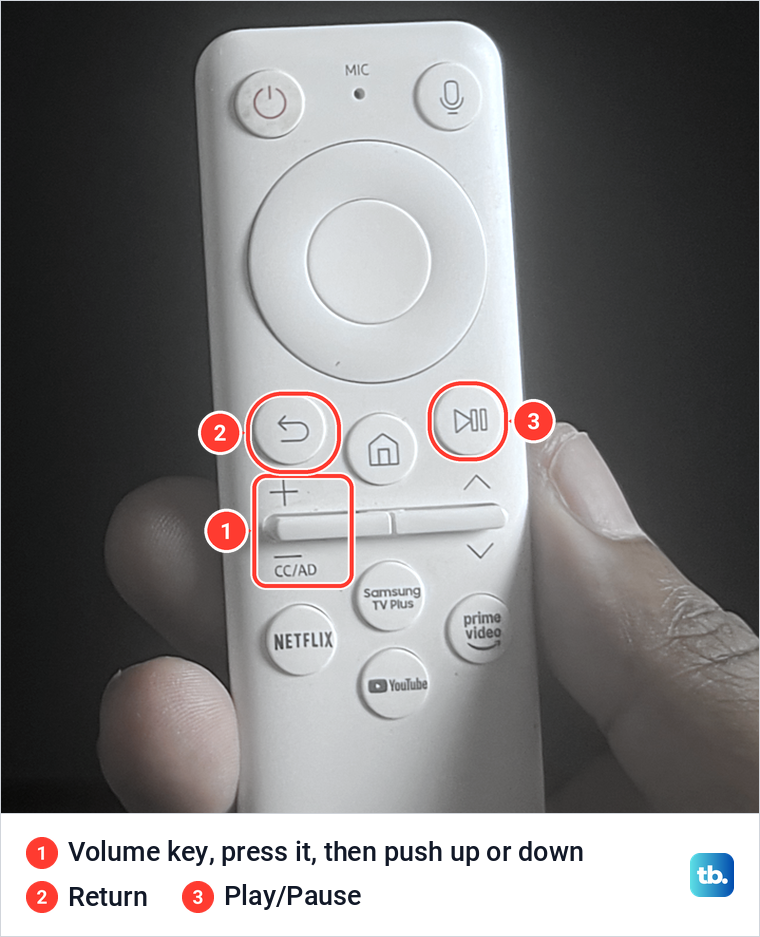
With the TV on, press Volume, then Volume Up, Return, Volume Down, Return, Volume Up and Return. Samsung describes it as pressing the volume key, flicking it up or down, and pressing Return after each flick. The PIN is then back to 0000.
On a standard Samsung remote with a Mute button, start with Mute instead of the volume key, then press Volume Up, Return, Volume Down, Return, Volume Up and Return. That is the sequence Samsung gives for its standard remote.
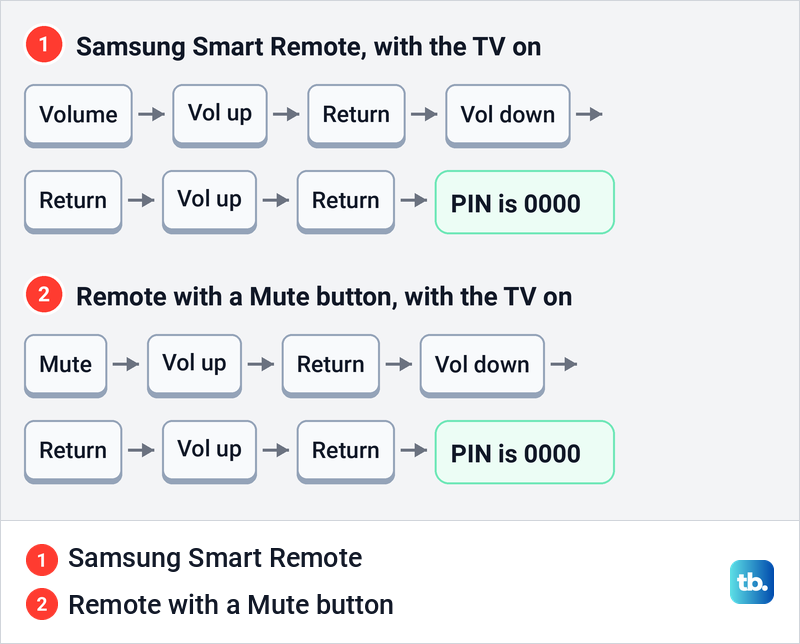
Those two sequences are the ones Samsung's support pages and 2025 manual give for a lost PIN. Number codes that start with Mute turn up elsewhere, but Samsung's instructions do not include them, so skip them.
If the PIN box never shows its number pad, the remote may have lost its pairing. Samsung's fix is to hold Return and Play/Pause together for at least 3 seconds, and some of its pages say at least 5, until a message on the screen says the remote is connected. Our guide on how to pair the Samsung remote with your TV has more help.
What a factory reset erases and what it keeps
Samsung lists what goes back to default: picture and sound settings, channel settings including saved channels, the clock and timers, and any other setting you changed. Calibration you paid for can be lost too, unless it was done through the service menu. Samsung's pages also say Samsung accounts and downloaded apps are deleted, so every app needs signing in again afterwards.
Wi-Fi is where Samsung contradicts itself. Its US and Australian pages say a factory reset leaves network settings alone, while its UK, Indian and Canadian pages tell you to write down the Wi-Fi name and password first. Write them down anyway, since it takes a minute.
Do this before you reset
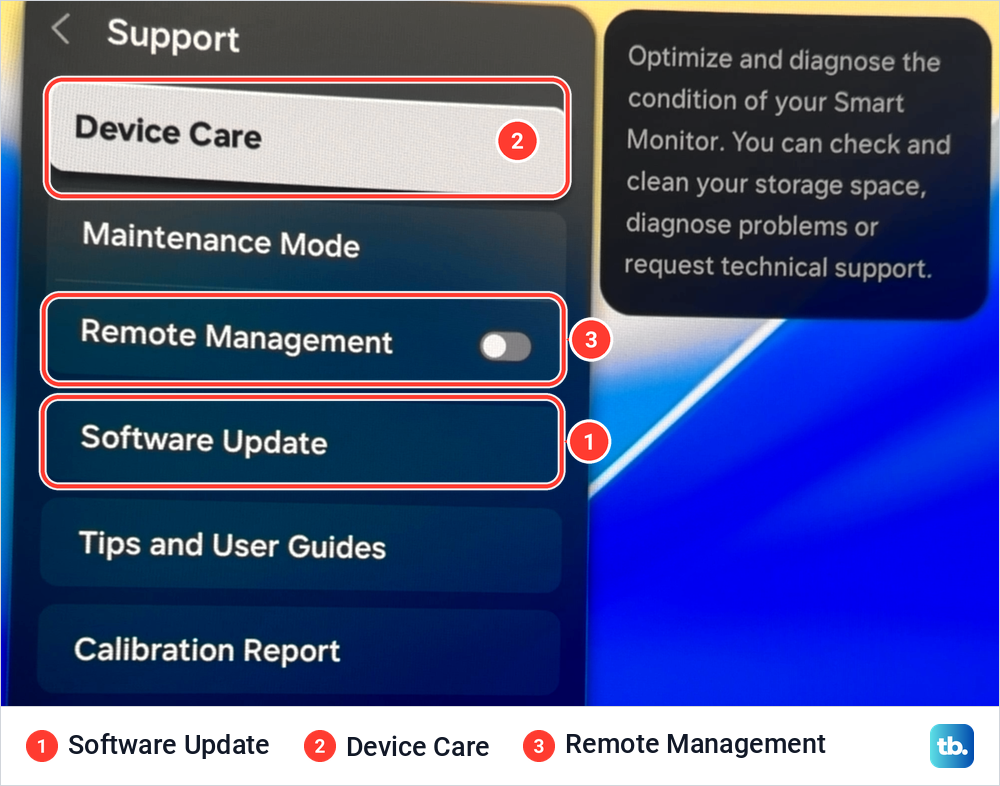
Check for a software update first, since Samsung notes that an update may fix the problem without a reset. Open Settings > All Settings > Support > Software Update and select Update Now. On our monitor, Software Update sat in the Support menu below Device Care and Remote Management.
You can also save your TV settings to Samsung's cloud first. Sign in to your Samsung account on the TV, open Settings > All Settings > Samsung Account > My Account and choose Back up. Samsung says you can restore those settings after a reset. Then write down the sign-in details for each streaming app, as Samsung advises, and anything else on the TV you do not want to lose.
Try Reset Smart Hub if only apps misbehave
If the TV itself works and only apps freeze, crash or will not load, a factory reset is more than you need. Samsung's order for app trouble is to restart the TV, update its software, delete and reinstall the problem app, and only then reset Smart Hub.
Start small: restart the TV by holding Power on the remote for about 5 seconds, or restart the app on your Samsung TV. If one app still fails, delete the app and install it again, or clear the app cache on a Samsung TV. When we cleared the SmartThings app's cache on our monitor, the cache dropped from 412.00 KB to 0.00 KB and its Data figure did not change.
If Netflix is the only app in trouble, reset only the Netflix app first. After those steps, Samsung's next fix for apps that fail even when the TV is online is Reset Smart Hub.
On 2025 models it is a button in Settings > All Settings > Support > Device Care, and on our monitor Reset Smart Hub sat at the right end of the row under Start Device Care. On 2019 to 2024 models Samsung puts it under Device Care > Self Diagnosis, and on 2018 and older models under Support > Self Diagnosis. It asks for the same PIN as the factory reset.
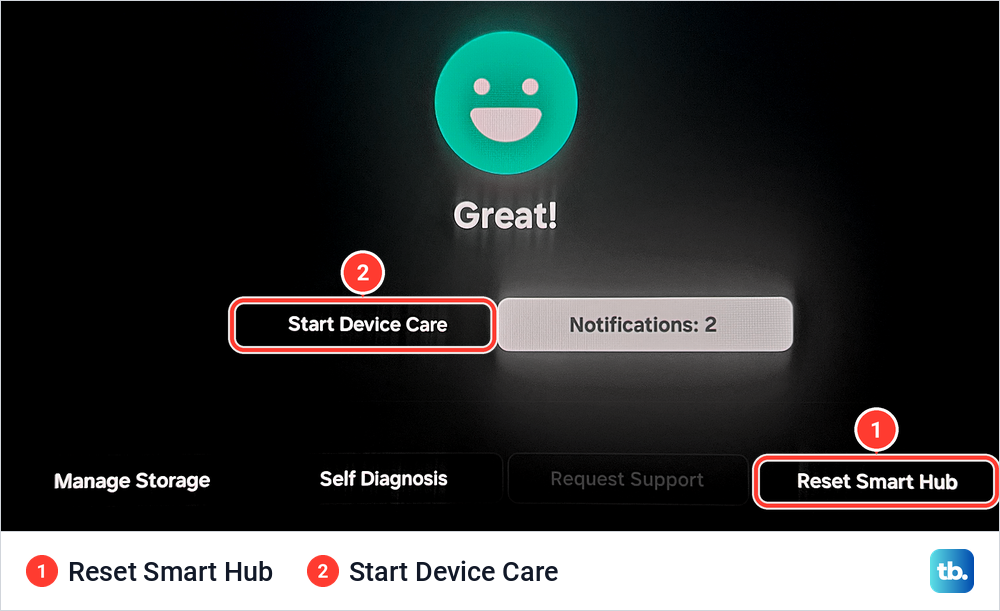
Samsung says Reset Smart Hub returns Smart Hub settings to default and deletes everything tied to Samsung accounts, linked service accounts, Smart Hub service agreements and Smart Hub apps. It signs you out of your Samsung account and all your apps, and you may need to download some apps again. Picture and sound settings are not on Samsung's list for it.
Smaller resets that keep your setup
Samsung has a separate reset for each part of the TV, and each one leaves the rest alone. Pick the smallest one that matches the problem.
| Reset | Where on recent TVs | What it resets | Use it when |
|---|---|---|---|
| Restart | Hold Power on the remote until the TV turns off and on again | Nothing, the TV only restarts | The TV is slow or something is stuck |
| Reset Picture | Settings > All Settings > Picture > Expert Settings | Picture settings | The picture looks wrong after changes |
| Reset Sound | Settings > All Settings > Sound > Expert Settings | Sound settings | The sound is wrong after changes |
| Reset Network | Settings > All Settings > Connections > Network | Network settings | Wi-Fi or the internet keeps failing |
| Reset Smart Hub | Settings > All Settings > Support > Device Care on 2025 models | Smart Hub settings, Samsung and app accounts, Smart Hub apps | Apps freeze, crash or will not load |
| Factory data reset | Settings > All Settings > General & Privacy | Picture, sound, channel and other settings, Samsung accounts and downloaded apps | Nothing else worked, or the TV is changing hands |
When the problem is Wi-Fi, reset only the network settings and set up the connection again from Network Settings. For a Samsung TV that keeps freezing or slow response on a Samsung TV, work through those fixes before you wipe anything.
You can also run Device Care first. When we selected Start Device Care on our monitor, it closed unused background apps, checked storage and memory, and cleared cached memory, with all three steps reading Done at 100%.
When Reset is greyed out
Samsung's explanation is that the reset is not available while you are using an app like Netflix, YouTube or Hulu. Close the app, switch to the TV or an HDMI source, then open General & Privacy again and the item should be available.
If an app will not close, a USB keyboard helps, because Samsung says holding Esc closes whatever is running on the screen. Or restart the TV as described above, then go straight to Settings.
Factory reset a Samsung TV without the remote
Before you work around it, try the fixes for a Samsung remote that has stopped responding. If the remote is lost or broken, Samsung documents three other ways into the menus.
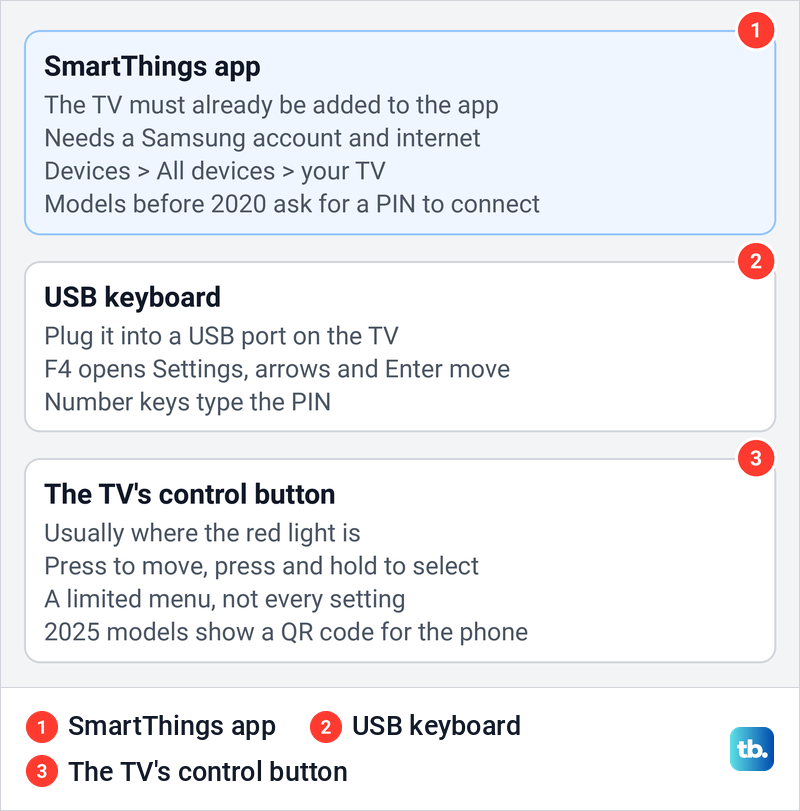
The SmartThings app on your phone comes closest to the remote. Samsung says the TV must already be added to SmartThings, and you need a Samsung account and an internet connection. Open the app, tap the Devices tab, choose All devices from the location menu at the top, and select your TV to use your phone as its remote. Samsung notes that products made before 2020 ask for a PIN when you connect the phone to the TV.
A USB keyboard works as a remote too. Plug it into a USB port on the TV, press F4 to open Settings, use the arrow keys and Enter to move through the menus, and type the PIN with the number keys. Our monitor lists Keyboard and Mouse in General & Privacy, just above Remote Control.
Samsung documents the PIN reset only as a button sequence on its remotes, so a keyboard types a PIN you already know. If the TV was never added to SmartThings, the keyboard and the TV's own button are the routes left.
The last option is the control button on the TV itself, which Samsung says is usually where the red standby light shows. Press it to bring up a small control menu at the bottom of the screen, press again to move through it, and press and hold to select.
Samsung warns that this button has limited functionality and cannot reach every setting. On 2025 TVs its menu has a Mobile Remote entry that shows a QR code, and scanning it with your phone opens the SmartThings remote.
Samsung's Flash Reset with the power buttons
In Samsung's troubleshooting for apps, a Flash Reset comes after Reset Smart Hub. It brings the TV back to the initial setup screen with two long presses of the power buttons. Turn the TV on, hold the power button on the TV itself for 5 seconds and let go, then hold Power on the remote for 5 seconds and let go.
Samsung says to wait 30 seconds to a minute while the TV power cycles, after which it starts in reset mode. The Flash Reset has worked only if the initial setup screen appears, and if it does not, repeat the steps. Afterwards, set the TV up again and download your apps again.
Holding only the remote's Power button is Samsung's normal restart, and the Flash Reset adds the 5-second hold on the TV's own button first. Do not use this sequence just to restart the TV, because it takes you back to setup. If the screen stays dark and the TV ignores both buttons, follow the checks for a Samsung TV that will not turn on instead.
What happens during and after the reset
Once the Initial Setup screen appears, follow the setup prompts, sign in to your Samsung account again and download the apps you use. If you skip a setup step, Samsung's 2025 manual says you can finish it later with Set Up TV, found by opening Connected Devices, choosing TV, and pressing and holding the Select button. If setup stalls at the network step, see our fixes for a Samsung TV that will not connect to Wi-Fi.
If the reset does not solve the problem, Samsung's support can connect through Remote Management in the Support menu. After you accept its service agreement, a Samsung technician can diagnose and correct problems over the internet, and the TV must be online.
Before you sell or give the TV away
Do three things, in this order, before a TV leaves your home. Sign out of your Samsung account under Settings > All Settings > Samsung Account > My Account > Sign Out, remove the TV from the SmartThings app on your phone, then run the factory reset. On some TVs from before 2024, Samsung puts the account under General & Privacy > System Manager > Samsung Account instead.
In SmartThings, Samsung's steps are to open the Devices tab, select the TV, tap the three-dot More options menu, then Remove device and Remove. Samsung notes that signing out does not cancel any active subscriptions. If the TV has already gone, sign out of Netflix on all your devices so the next owner is not watching on your account.
If the new owner sees that the TV is already registered to another SmartThings account, Samsung's fix is the Make me the owner option. It appears when the TV is registered to another account and is not connected to a network.
How we tested this guide
We photographed the menus on our Samsung Odyssey OLED G9, a smart monitor that runs the same Tizen software as Samsung's smart TVs, with a Samsung remote. We opened Settings, All Settings and General & Privacy down to Change PIN, Factory data reset and its PIN prompt, along with the Support menu, Device Care and Self Diagnosis. We also ran Device Care and cleared one app's cache.
Everything else on this page follows Samsung's support pages and TV manuals. Menu names can differ slightly between model years and regions.
Frequently Asked Questions
What is the default PIN on a Samsung TV?
It is 0000 on Samsung TVs made before 2025, unless someone changed it. On 2025 and later models you create a PIN during setup, so the PIN is the one you chose.
How do I factory reset my Samsung TV if I forgot the PIN?
Reset the PIN first. With the TV on, press Volume, Volume Up, Return, Volume Down, Return, Volume Up and Return on a Samsung Smart Remote, or start with Mute on a standard remote, and the PIN becomes 0000. Then run Factory data reset and enter 0000.
Why is Reset greyed out on my Samsung TV?
Samsung says the reset is not available while an app such as Netflix or YouTube is in use. Close the app and switch to the TV or an HDMI source, and the option should come back.
Does a factory reset delete the Wi-Fi settings?
Samsung's US and Australian pages say a factory reset keeps network settings. Its UK, Indian and Canadian pages still tell you to note the Wi-Fi name and password first, so write them down.
Can I factory reset a Samsung TV without the remote?
Yes, if the TV is already added to the SmartThings app, whose on-screen remote can move through the Settings menu. A USB keyboard also works, with F4 opening Settings. The button on the TV itself reaches only a limited menu.
Is Reset Smart Hub the same as a factory reset?
No. Reset Smart Hub deletes Samsung account and app information and resets Smart Hub, while a factory reset returns the TV's settings to their defaults and removes accounts and downloaded apps.
How long does a Samsung TV factory reset take?
Samsung gives no time. It says the TV turns off and on, possibly several times, before the Initial Setup screen appears, and that you should not switch it off or unplug it in the meantime.
How do I reset a Samsung TV before selling it?
Sign out of your Samsung account on the TV, remove the TV from the SmartThings app, then run Factory data reset. Signing out does not cancel any subscriptions, so cancel those separately if you need to.