To fix CapCut not working, close and reopen it, install available updates, and check your connection before troubleshooting cache, imports, or exports. Save your project before restarting. Before major troubleshooting, back up important projects to Cloud Space if your account has storage available and confirm the upload finished; newly created cloud spaces no longer include free storage. The Windows steps below use Windows 11 menus.
The short version
- Start simple: Reopen CapCut, update it, and restart your device if the problem continues.
- Check connectivity: Try another network when templates, cloud assets, or AI tools fail to load.
- Match the symptom: Check permissions for missing media and storage or export settings for failed exports.
- Protect drafts: Verify project backups before reinstalling because local drafts can be permanently lost.
| Fix | When to use it | Where it applies |
|---|---|---|
| Close and reopen CapCut | The app freezes or stops responding | iPhone, Android, Windows and Mac |
| Install updates | CapCut needs an available update | Desktop and mobile |
| Restart and close competing workloads | Exports remain unresponsive | Desktop, mobile and web |
| Test another connection | Online features fail to load | All platforms |
| Check data permissions | CapCut fails on a particular connection | Mobile |
| Clear cache | Preview or export problems persist | Mobile |
| Refresh the preview | Your edits do not appear correctly | Mobile and web |
| Check browser compatibility | The web editor fails | Desktop browsers |
| Test Incognito and extensions | Browser interference is suspected | Desktop Chrome |
| Clear browser data | Web problems persist after browser checks | Desktop Chrome |
| Restore media access | Photos or videos are missing | Mobile |
| Check import categories and source locations | CapCut cannot find your media | Mobile and desktop |
| Reduce export demands | Rendering stalls or fails | All platforms |
| Keep rendering active | A template export gets stuck | iOS and Android |
| Retry with a local destination | An export to cloud storage or an external drive fails | Desktop |
| Repair project materials | An export reports a material error code | Installations showing the relevant code |
| Retry a cloud project | A template export continues to fail | Accounts with project synchronization |
| Update graphics software | Desktop rendering or preview fails | Windows and Mac |
| Test hardware acceleration | Compatibility faults or editing lag persist | Compatible desktop installations |
| Turn off proxy preview | The preview differs from the export | CapCut PC with proxy controls |
| Check account and AI requirements | Login or AI features fail | Mobile, desktop and web |
| Reinstall after verifying backups | iOS export faults survive other fixes | iPhone and iPad |
| Submit feedback | The problem remains unresolved | Installations offering feedback or Smart Chat |
Reopen CapCut and install updates
On an iPhone with Face ID, swipe up from the bottom and pause to show recent apps. On a model with a Home button, double-click Home instead. Find CapCut, swipe its preview upward, and reopen it.
On Android, open the phone’s app settings, force-stop CapCut, and reopen it. The controls vary by manufacturer, so follow your phone’s app settings.
Ending CapCut through Task Manager can lose unsaved changes. On Windows 11, press Ctrl + Shift + Esc, select CapCut under Processes, and choose End Task. Reopen CapCut afterward.
On a Mac, try Command + Q first. If CapCut remains unresponsive, press Option + Command + Esc, select CapCut, and click Force Quit. Alternatively, open the Apple menu and choose Force Quit. Reopen CapCut afterward.
On iPhone, iPad, or Android, search for CapCut in the App Store or Google Play and tap Update when available. Do not uninstall it first. On desktop, use CapCut’s Check for Updates option; current CapCut help pages place it under Settings or Help, depending on the installation.
If the problem continues, save your project, close CapCut, and restart the device. On desktop, close unnecessary resource-intensive programs and browser tabs before retrying. If you need installation files, use CapCut’s official download page; availability varies by device and region.
Check your connection and data settings
Check whether another app can access the internet, then try another Wi-Fi network, mobile data, or a hotspot. Restart your router if the connection remains unreliable. Temporarily disconnect a VPN, proxy, or DNS-filtering tool and retry CapCut.
On iPhone, open Settings > Cellular and enable CapCut. On Android, check CapCut’s app-specific network permissions. The Android controls vary by manufacturer.
For an affected iPhone Wi-Fi connection, open Settings > Wi-Fi, tap the information button beside the connected network, and turn off Low Data Mode. For cellular data, open Settings > Cellular > Cellular Data Options and turn off Low Data Mode there. On 5G, open Data Mode to change the setting; cellular options depend on your carrier and SIM configuration.
If CapCut fails on a school or work network, test an unrestricted personal network. If it works there, ask the network administrator to review filtering or firewall rules affecting CapCut.
When login, cloud assets, synchronization, or AI operations fail across multiple devices or networks, check CapCut’s official announcements and retry later. A service-side problem may need time to clear.
Clear cache and refresh the preview
Clearing cache removes cached files, so back up important projects to Cloud Space first if your account has storage available. In CapCut on mobile, open Settings and tap Clear cache. Do not substitute system-level app-data deletion for this operation.
The Android cache operation also removes cached files. On devices with matching controls, open Settings > Apps > CapCut > Storage > Clear Cache. Manufacturer labels can differ; if the path does not match, use CapCut’s own mobile cache control.
If your edits do not match the mobile preview, switch to another editor tab, such as Audio, then return. For CapCut Web, refresh the editor with Ctrl + R on Windows or Command + R on Mac.
Troubleshoot the web editor
Retry CapCut Web in an updated desktop Chrome or Edge browser, or Safari on macOS. CapCut identifies limitations with Firefox, Opera, mobile browsers, and older browsers. To update desktop Chrome, open More > Help > About Google Chrome, then select Relaunch when offered.
In Chrome, open More > New Incognito window, sign in to CapCut, and retry. You can also open that window with Ctrl + Shift + N on Windows or Command + Shift + N on Mac.
Test suspected ad-blocking, privacy, or script-blocking extensions individually. Open More > Extensions > Manage extensions, turn off one suspected extension, and retry CapCut.
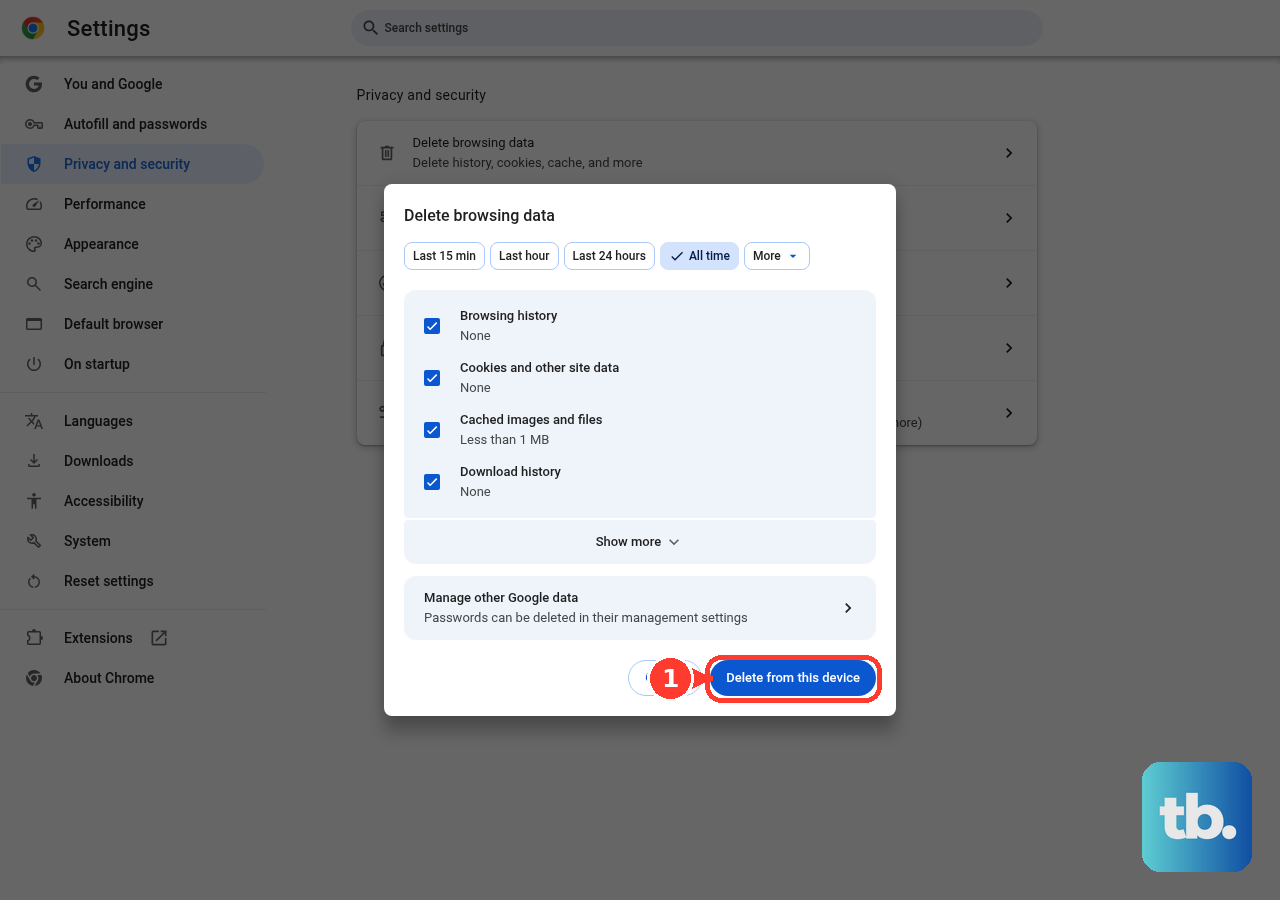
Deleting cookies and site data can remove locally stored website state, so ensure your projects are saved first. Open Chrome’s More > Delete browsing data and choose a time range. Select Cookies and other site data and Cached images and files, then select Delete data. Reopen CapCut and sign in again.
Restore missing photos and videos
On iPhone, open Settings > Privacy & Security > Photos > CapCut and grant access to the media you need. On Android, open Settings > Apps > CapCut > Permissions > Photos and Videos, then select Allow all. Some Android versions use Storage instead, and wording varies by manufacturer.
Check the import category: choose Photos for images or Videos for video files. Allow the album list time to load. On Windows or Mac, copy source media into a local folder and import from there instead of an external or cloud-synced location.
Get a stuck export moving again
Check available storage under Settings > General > iPhone Storage on iPhone, or Settings > Storage on Android. On desktop, make sure the export drive has free space. Reduce the export resolution or frame rate, or export shorter sections and combine them afterward.
Simplifying a project removes or shortens its content, so back up important projects to Cloud Space first if your account has storage available. Shorten demanding clips and remove unnecessary overlays, transitions, animations, or effects. Test smaller timeline sections before retrying the full export.
For iOS or Android template exports, keep CapCut visible while it renders, avoid locking the screen or switching apps, and disable the device’s battery-saving mode. Tap Resolution and choose 1080p instead of 4K if needed. On iPhone 15 or later, open Settings > Battery > Power Mode and turn off Low Power Mode. On iPhone 14 or earlier, open Settings > Battery and turn off Low Power Mode there.
Click Retry when the failed progress screen offers it. If your desktop export targets cloud storage or an external drive, choose a local destination and retry. A different export destination is also a troubleshooting step for error -30007.
For error 4114, export sections to isolate the defective asset. Replacing that asset changes your project’s content, so back up the project to Cloud Space before replacing it if your account has storage available. Replace the defective asset and retry the export.
Removing a faulty clip changes the project’s content, so back up the project to Cloud Space before proceeding if your account has storage available. For error 10004, isolate the failing section, remove its faulty clip, import it again, and retry the export.
Rebuilding compound clips changes the project, so back it up to Cloud Space first if your account has storage available. For error 22113, rebuild the compound clips and retry the export. For error 10006, reconnect the project’s missing source media and export again.
Cloud synchronization provides another option when your account and project support it. On mobile, select Sync to Cloud, open the synced project in CapCut Desktop, and export there. On the web, select Save to Cloud, then open My Projects to reopen the saved project and retry with fewer layers.
Fix desktop rendering and preview problems
On Windows, find and update your graphics driver through NVIDIA, AMD, or Intel’s official tools. On Mac, install available macOS updates. CapCut recommends these updates for compatibility and rendering faults.
For desktop failures on installations with acceleration controls, open Settings > Performance. Disable Hardware-accelerated encoding and Hardware-accelerated decoding, click Save, and restart CapCut. Use this as a compatibility test.
For editing lag or exported-video lag, CapCut also recommends enabling hardware acceleration on desktop systems with compatible GPU support. Try enabling it when your installation offers the control. Test this separately from disabling acceleration for compatibility faults.
If a PC preview looks different from the exported video and your installation has the proxy control, turn off Proxy in CapCut’s settings. Compare the preview with a short export.
For permission-related sharing or export failures on Windows, right-click the CapCut shortcut and select Run as administrator. This requires appropriate account privileges.
Check account and AI feature requirements
Sign in with the same provider you used when creating your CapCut account. Accounts created through different login methods are not interchangeable. Desktop does not support phone-number login, and the web version does not support Apple ID or phone-number login.
For desktop or web installations that offer QR login, sign in to CapCut Mobile, display the login QR code on the computer, and scan it using the mobile app. Sign in only through CapCut’s own app or website, and never share a code, password, or remote access with someone who contacts you.
When an AI feature fails, check its credit balance and any required Pro entitlement. On the web, open the profile menu and select Credits; on mobile, open Me, then select Credits. Try the same AI feature on the web for a clearer error message. For regional or unsupported-device restrictions, contact CapCut support about availability.
Protect your drafts before reinstalling
Reinstalling CapCut on iPhone or iPad can permanently remove local drafts, so back up important projects to Cloud Space if your account has storage available, and verify your backups first. If you cannot back up a draft you need, skip reinstalling. For persistent iOS export faults, hold the CapCut icon, tap Remove App, tap Delete App, and tap Delete. Reinstall it from the App Store.
If parental controls prevent deletion, check that Deleting Apps is set to Allow. If your iPhone or iPad is managed by an organization, contact its administrator. Keep your important project backups verified before proceeding with removal.
For problems that remain, open Settings > Feedback > Give Feedback in CapCut installations with that route. Include your device, operating system, CapCut version, and exact error, and take a screenshot of the error or include a recording. If redirected to Smart Chat, type Feedback, send it, and click Submit.
Frequently Asked Questions
Why are CapCut auto captions not generating?
Check that speech is audible and the audio track is neither missing nor muted. On desktop or web, open Captions > Auto Captions, choose the spoken language, and click Generate. On mobile, open Captions, choose the appropriate language or template, and start generation. Entitlement and language support vary.
What can you do when CapCut will not share a finished video?
On CapCut Web, select Download to save the video, then upload the file directly through the destination service. On desktop, select Export and upload the saved file directly.
Why does typing text in CapCut lag or display incorrectly?
Try the system keyboard instead of a third-party keyboard on mobile. On desktop, switch input methods or the full-width or half-width input mode and test again. The exact controls depend on your installed keyboard.
What should you try when CapCut will not download?
Close and reopen the app store, verify its account, and retry. Check operating-system compatibility and leave additional free storage beyond the installer’s size. For a failed mobile download connection, enable Airplane Mode for 30 seconds, disable it, reconnect, and retry.
Why does an exported CapCut video lose detail?
In CapCut editions with custom bitrate controls, open Export, set Bit rate to Custom, and enter an appropriate Kbps value. Increasing bitrate can preserve detail, but it also increases file size.
What should you check when CapCut does not recognize your Pro subscription?
On the web, open the profile menu and select Membership or Pro Status to check the subscribed account and expiration; on mobile, check the account under Me. For an Apple purchase, open Settings, select your name, then open Subscriptions > CapCut. For a Google Play purchase, open Google Play > Profile > Payments & Subscriptions > Subscriptions. If the store subscription is active, verify that CapCut uses the subscribed account and reopen the app.
Why does CapCut ask for Pro when you try to export?
Your project may contain paid assets that require an entitlement your account does not have. Removing or replacing those assets changes your project’s content, so back it up to Cloud Space first if your account has storage available. Inspect every timeline track for Pro-marked content and remove or replace those assets. Check the cover too, redesign or reselect it if it contains premium material, then retry the export.