Wi-Fi, cellular, Bluetooth, and DNS problems sometimes survive restarts and quick toggles. A network reset gives the device or router a clean connection setup. Start with the smallest reset that matches the problem, then move to the deeper options only when the issue remains.
1. Choose the right network reset
Use a device network reset when your phone, tablet, or PC fails across more than one Wi-Fi network or mobile connection.
Forget one Wi-Fi network when a single saved network is broken and you need to reconnect with its password.
Renew the DHCP lease on a Mac when you need a fresh assigned IP address without deleting saved Wi-Fi credentials.
Factory reset a router or mesh system when you are ready to erase its network setup and configure it again.
Pick the smallest reset first, because router and mesh resets erase the most.
2. Reset network settings on iPhone or iPad
This fixes stubborn Wi-Fi, cellular, VPN, and APN settings on current iPhone and iPad models.
Open Settings.
Tap General.
Tap Transfer or Reset iPhone or Transfer or Reset iPad.
Tap Reset.
Tap Reset Network Settings.
3. Clear Android network settings on Pixel or Samsung Galaxy
On a Google Pixel, open Settings, tap System, tap Reset options, then choose Reset mobile network settings for cellular problems.
For Wi-Fi and Bluetooth on a Google Pixel, open Settings, tap System, tap Reset options, then choose Reset Bluetooth & Wi-Fi to delete saved Wi-Fi connections and reset Bluetooth and Wi-Fi settings.
On a Samsung Galaxy phone or tablet, open Settings, tap General management, tap Reset, tap Reset mobile network settings, then tap Reset settings and Reset.
For Wi-Fi and Bluetooth on a Samsung Galaxy phone or tablet, open Settings, tap General management, tap Reset, tap Reset Wi-Fi and Bluetooth settings, then tap Reset settings.
4. Reset networking on a Windows PC
This fixes Windows connection problems by removing installed network adapters and settings, then reinstalling adapters after restart.
On Windows 11, open Start, then Settings.
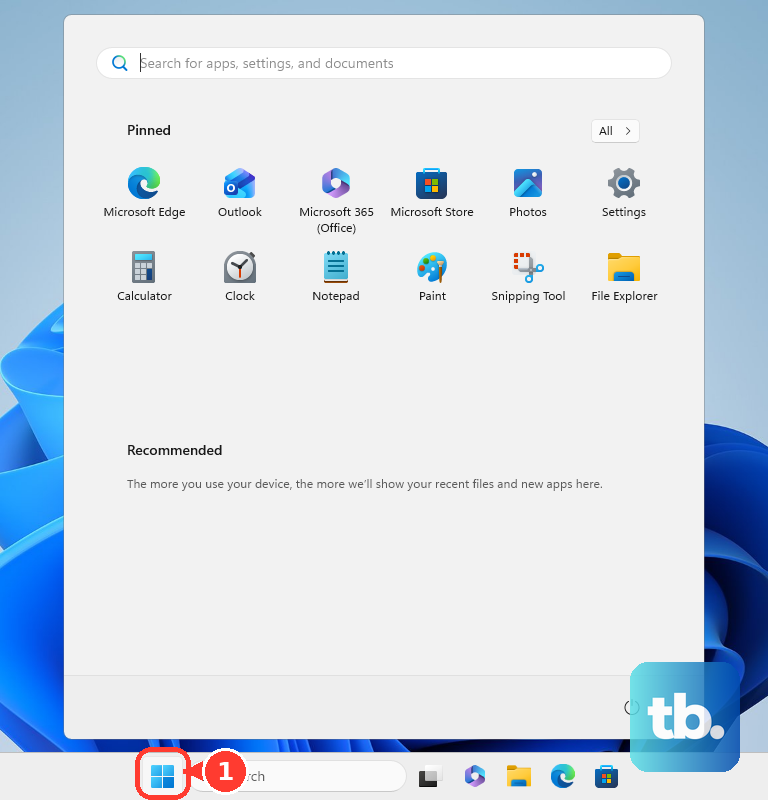
Go to Network & internet.
Select Advanced network settings.
Select Network reset.
Select Reset now, then choose Yes.
5. Run Windows command fixes
Search the taskbar for command prompt.
Select Command Prompt.
Select Run as administrator, then choose Yes.
Run netsh winsock reset.
Run netsh int ip reset.
Run ipconfig /release.
Run ipconfig /renew.
Run ipconfig /flushdns.
For one broken Wi-Fi profile, use Settings, Network & internet, Wi-Fi, Manage known networks, choose the network, select Forget, then reconnect.
6. Refresh network settings on Mac or Chromebook
This fixes saved Wi-Fi profile issues on macOS and ChromeOS without resetting the whole computer.
On a Mac, open the Apple menu, choose System Settings, select Wi-Fi, click Details, choose Forget This Network, then join the network again.
To remove another saved Mac network, open the Apple menu, choose System Settings, select Wi-Fi, click Advanced, click More next to the network name under Known Networks, then choose Remove From List.
To renew a Mac IP address, open the Apple menu, choose System Settings, select Network, choose the network service, click Details, open TCP/IP, choose Renew DHCP Lease, then click OK.
On a Chromebook, sign in, select the time at the bottom right, open Settings, select Network, choose Wi-Fi, open Known networks, select More next to the network name, then choose Forget.
7. Reset a Samsung TV network connection
On a 2022 or newer Samsung TV, use your remote control to navigate to Settings, then choose All Settings.
Select Connection.
Select Network.
Select Reset Network.
Select Reset.
Open Open Network Settings to set the TV connection up again.
Samsung notes that settings vary by country and model, so use the 2022-and-newer path above for current TVs.
8. Factory reset routers and mesh Wi-Fi systems
This fixes router-level problems by erasing the network setup, so use it when you can set up the Wi-Fi network again afterward.
For Google Nest Wifi Pro, Nest Wifi, or Google Wifi in the Google Home app, open Google Home, select Home, open All devices, touch and hold the device tile, open Settings, choose Factory reset network, then select Factory Reset.
For Google Nest Wifi Pro hardware reset, hold the reset button for 12 seconds until the light is solid yellow. For a Nest Wifi router, hold the factory reset button for 10 seconds until the light is solid yellow. For a Nest Wifi point, press and hold the factory reset button: the reset starts after about 5 seconds, and you keep holding for about 10 more seconds until a sound confirms the reset. For a Google Wifi point, hold the factory reset button for 10 seconds until the light is solid blue.
For a TP-Link router, keep the router powered on, press and hold Reset or WPS/Reset for more than 10 seconds, release when the SYS LED changes from slow-flash to quick-flash, then wait for the reboot.
For TP-Link through the web interface, open tplinkwifi.net or 192.168.0.1 in a browser, enter the admin password, go to Advanced, then System or System Tools, open Backup and Restore, and choose Factory Restore.
For a NETGEAR router, verify the Power light is on, locate Restore Factory Settings or Reset, press and hold it with a paper clip for seven seconds, then release.
For eero, open the eero App, go to Home, tap the eero to remove, tap More options, then choose Remove. To delete the whole network, open Settings, choose Advanced networking, tap More options, choose Delete network, then confirm with Delete network again.
9. Check work or school management
On iPhone, open Settings.
Tap General.
Tap VPN & Device Management.
Select the configuration profile, then tap Remove Profile when the VPN or network settings came from a profile.
Select the management entry, then tap Remove Management when the device allows management removal.
Removing a profile also removes other settings or accounts provided by that profile.
Frequently Asked Questions
Does resetting network settings delete my photos, apps, or files?
Samsung says its mobile network reset does not erase apps or data. Apple says Reset All Settings does not delete media or data, but it is broader than Reset Network Settings.
Will I need my Wi-Fi password again?
Yes. iPhone and Pixel network resets remove saved Wi-Fi networks, and Samsung says you need to reconnect Wi-Fi networks afterward.
Should I reset my router or my phone first?
Reset the device first when the issue affects only that device. Factory reset the router or mesh network only when you are ready to erase and rebuild the Wi-Fi setup.
What should I use on Windows 10?
Microsoft documents the Windows 10 path as Settings, Network & internet, Status, Network reset, Reset now, then Yes. Windows 10 is legacy for general consumers after end of support, so the current consumer path in the steps focuses on Windows 11.