

To fix a flickering Samsung TV screen, first check whether the TV's own menus flicker too, then run Samsung's Picture Test in Support > Device Care > Self Diagnosis. If the test picture flickers, Samsung says to request service. If it looks normal, check the HDMI cable, port and device, then turn off Brightness Optimization, Energy Saving Solution and Motion Lighting one at a time.
Flicker over every input and the TV's own menus is a different job from flicker on one HDMI device, flicker only in games, or brightness that pulses with the room light. Find where it shows before you change anything.
The short version
- Menus flicker too: run Settings > All Settings > Support > Device Care > Self Diagnosis > Picture Test, and contact Samsung if the test picture flickers.
- One HDMI device flickers: swap the cable, then the port, then the device, and for a PC or game console turn on Input Signal Plus for that port.
- Only in games: with a console connected, read the frame rate and VRR in the Game Bar; on a PC, check the refresh rate in its display settings.
- Brightness pulses: turn off Brightness Optimization, Energy Saving Solution, Motion Lighting and Contrast Enhancer one at a time.
- Still flickering: unplug other devices on the TV's circuit and play an app or USB video, then update the software or request service.
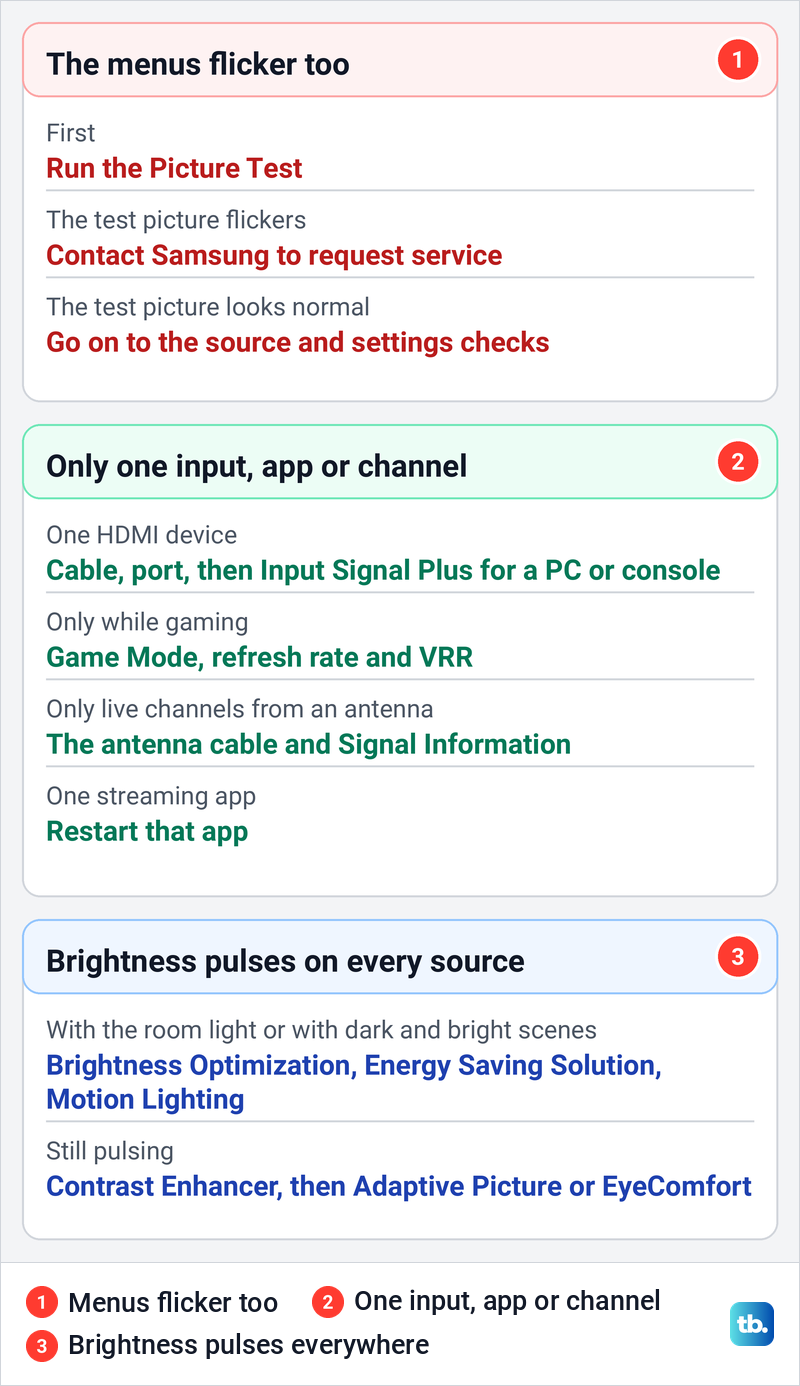
Samsung TV flicker fixes at a glance
Start with where the flicker shows, because that decides the first check. Flicker over the menus and every source points at the TV and its Picture Test, while flicker on one device points at that device, its cable or its port.
| Where the flicker shows | Check first | If that does not help |
|---|---|---|
| Menus, apps and every input | Picture Test | Contact Samsung if the test picture flickers |
| One HDMI device only | Another HDMI cable, then another port | Input Signal Plus for a PC or console port, then the device's output settings |
| Only while gaming | The Game Bar with a console, or the PC's display settings | The console's or PC's refresh rate and VRR |
| Brightness pulses with the room or the scene | Brightness Optimization, Energy Saving Solution and Motion Lighting | Contrast Enhancer, then Adaptive Picture |
| Fast motion only | Picture Clarity Settings | LED Clear Motion on 2018 QLED TVs |
| Live channels from an antenna only | Reconnect the antenna cable | Signal Information in Self Diagnosis |
| One streaming app only | Restart that app | Update the TV software |
| Built-in apps flicker with the TV on its own circuit | Picture Test | Request service from Samsung |
Find where the flicker appears
Before you change a setting, watch where the flicker shows. Open the Settings menu over the picture, play something in a built-in app, and then switch your Samsung TV to another HDMI input with a second device. Flicker that follows one device points at that device, its cable or its port, while flicker over the menus too calls for the Picture Test next.
Note the details of the input while you are there. On our Samsung Odyssey OLED G9, a smart monitor that runs the same Tizen software as Samsung's smart TVs, the banner for the current input names the source and its port, the refresh rate of the signal and whether Input Signal Plus is on. Our computer was sending 120Hz over DisplayPort.
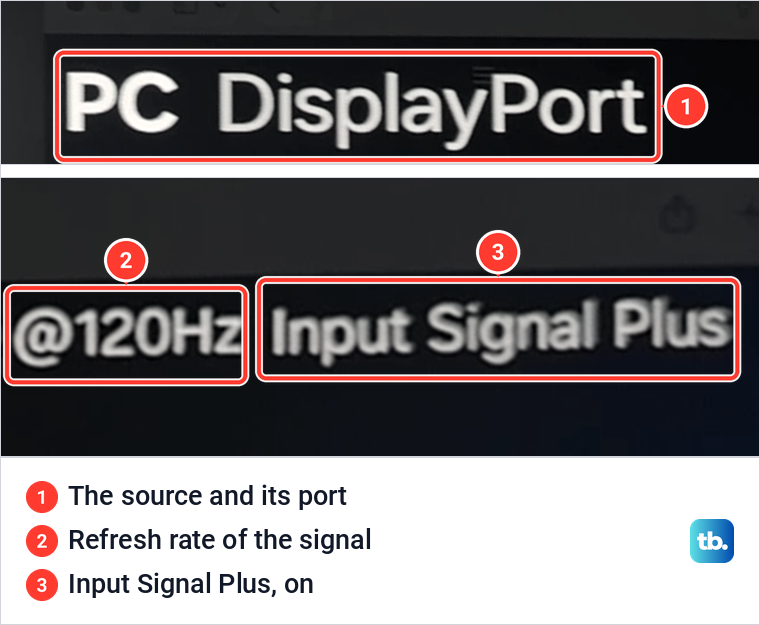
Those details matter later. Samsung says a TV screen "may flicker or may not appear properly if your PC resolution is not supported," so the resolution and refresh rate your source sends are worth comparing with the list in your TV's e-Manual.
If the flicker started suddenly and the TV also feels stuck, restart your Samsung TV with the remote and repeat the same check. Samsung's cold restart is to hold Power on the remote until the TV turns off and on again, which it says should only take about 5 seconds.
Some problems look like flicker but have their own fixes. If the screen goes black and stays black, use the Samsung TV black screen troubleshooting guide, and if the whole set switches off and back on, follow the Samsung TV turning off by itself guide. A steady picture with the wrong tint needs the steps to fix wrong colors on a Samsung TV, and one that stays dim needs the steps to brighten a Samsung TV that is too dark.
If only one streaming app flickers while other apps and inputs look fine, restart the affected Samsung TV app first. If that app is Netflix and it also freezes or shows an error, use the steps to fix Netflix on a Samsung TV.
If only live channels from an antenna flicker, Samsung UK says digital TVs "may flicker or freeze if the broadcast signal is weak." Its first fix is to disconnect the antenna cable completely and reconnect it. Then check the signal at Support > Device Care > Self Diagnosis > Signal Information, which works on digital channels only, and check with your broadcaster if the signal is weak.
Run the Samsung Picture Test
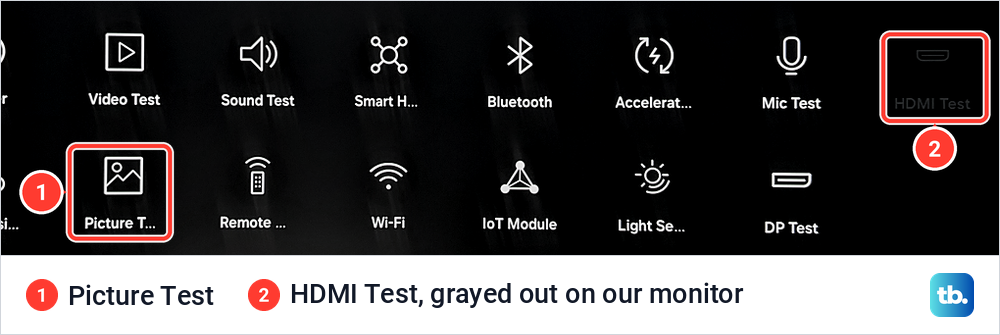
Samsung says the Picture Test will help you determine whether picture trouble "may be caused by the TV itself or something else." On 2022 and later TVs Samsung's path is Settings > All Settings > Support > Device Care > Self Diagnosis > Picture Test, then OK. Older models use Settings > Support > Self Diagnosis > Picture Test.
On our monitor Picture Test is one of 15 tiles in Self Diagnosis, and its HDMI Test tile was grayed out. On Samsung TVs, Self Diagnosis is also where the HDMI cable test lives on models that have it.
Watch the test picture closely, then answer the question. Samsung says to select Yes if the picture looks normal, No if there is a problem, or Show Again to see it a second time.
We ran the Picture Test on our monitor. After the test picture it asked "Does the test picture look normal?" with Yes, No and Show Again, and the next screen read "Picture Test Complete" with the line "The test results are normal. If the problem continues, check your external devices and connections." The Self Diagnosis counter then went from 1 to 2 of 15 tests, with Picture Test ticked.
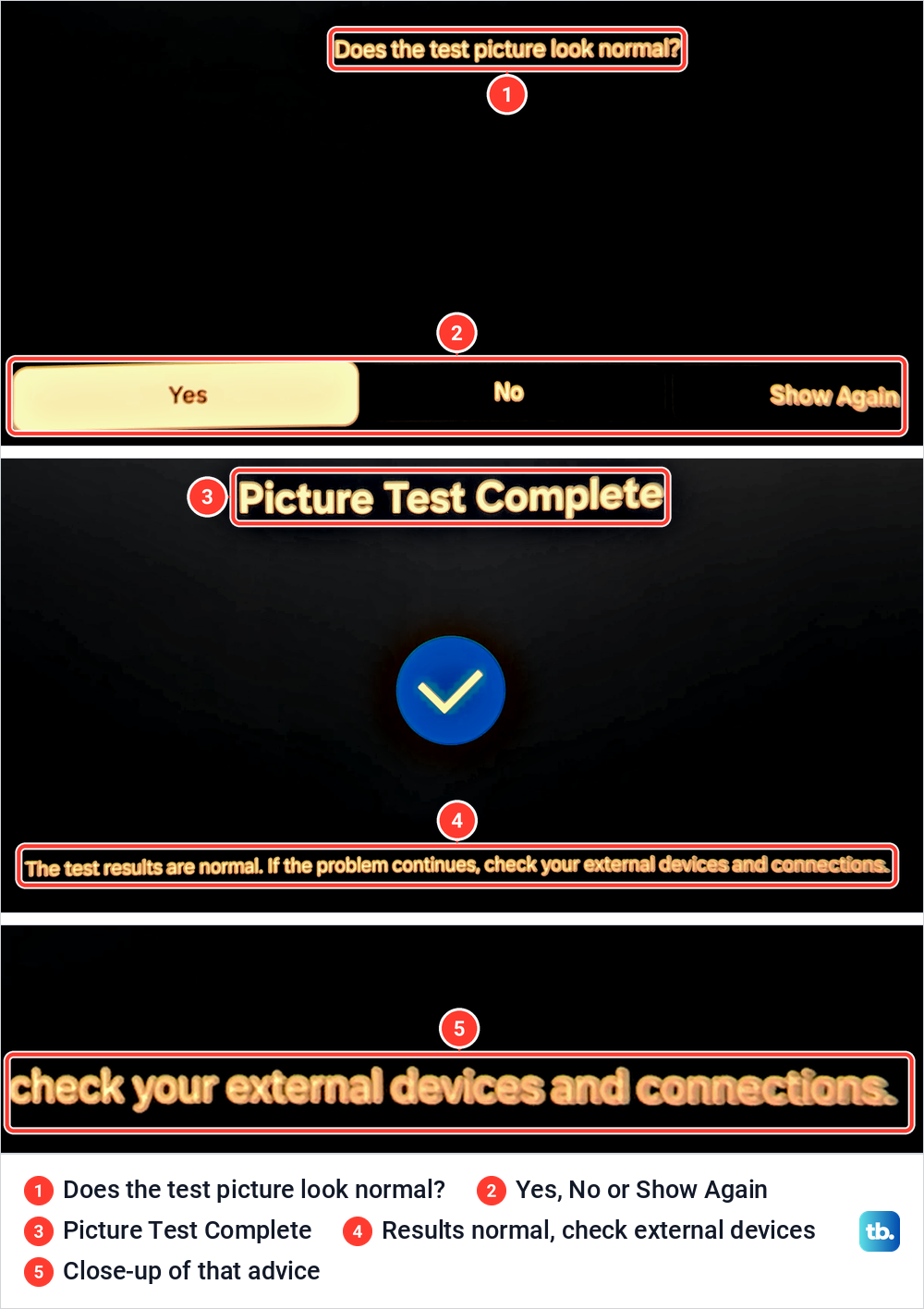
That advice matches Samsung's TV instructions. If the picture is flickering in the Picture Test, Samsung says to visit its Support Center to request service. If the test finds nothing, Samsung says to check the connection between the TV and external devices, so carry on with the source checks below.
The test does not name a failed part. A flickering test picture is a reason to book service with Samsung, not proof that a particular board or the backlight has gone.
Swap the HDMI cable, port and device
When one HDMI device is the only one that flickers, change one thing at a time so you can tell which part is at fault. Start by disconnecting the HDMI cable completely from the TV and the device and plugging it back in firmly. If that changes nothing, work through the cable, the port and the device in turn.
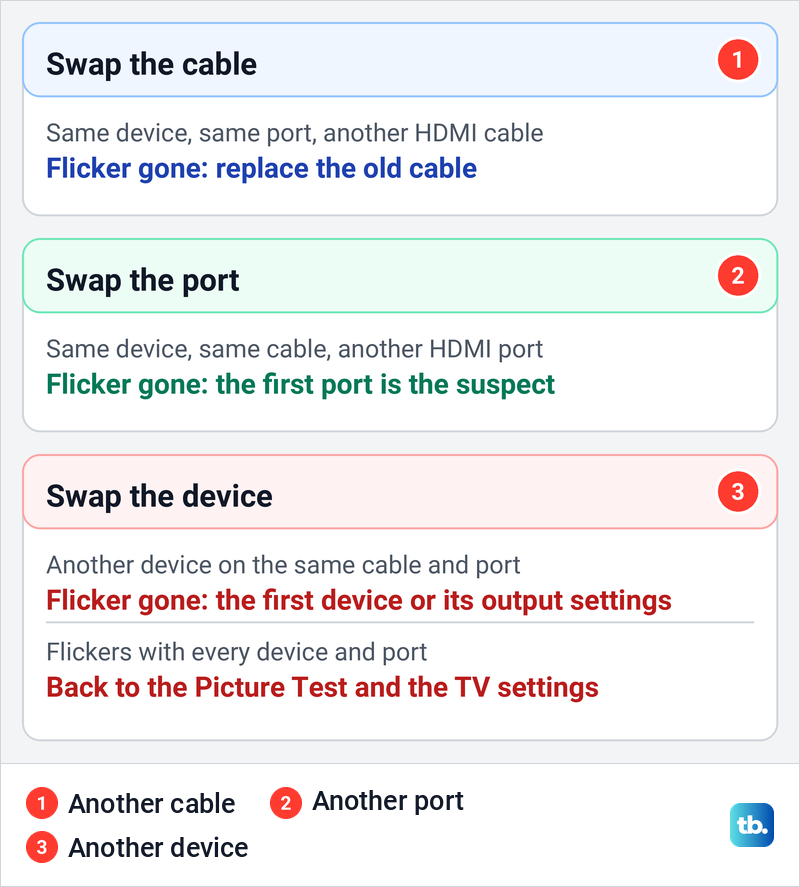
Samsung's steps for finding a faulty external device or cable are to try a different device or a different source port, and to swap in another HDMI cable that is working. A swap that clears the flicker narrows the cause to the part you changed. If a known-good device and cable flicker on one HDMI port only, keep that port under suspicion.
The cable has to match the signal. Samsung highly recommends a certified HDMI cable and says a non-certified one may cause connection issues or a picture that does not appear properly. For a PS5 at its highest output, Sony asks for the cable that came with the console or an Ultra High-Speed cable rated for that output.
Some Samsung TVs can test the cable. On 2022 and later models Samsung's path is Settings > All Settings > Support > Device Care > Self Diagnosis > HDMI Troubleshooting, then the HDMI connection you want to test. Samsung says certain models only get this test after a software update and older ones may not have it.
Samsung also says the test is designed for HDMI cables under 2 meters and may not give good results on longer cords. If it reports a cable problem, replace the cable, and Samsung adds that service is not required.
If the picture drops out when you move the plug, troubleshoot the Samsung TV HDMI connection before you change picture settings. If a known-good device works on one port but not another, check a Samsung TV HDMI port that stopped working.
Turn on Input Signal Plus for that HDMI port
Input Signal Plus lets an HDMI port take a wider range of signals. Samsung lists it being disabled among the reasons a TV may not display a PC properly, because that "limits the TV's ability to handle certain PC resolutions," and its gaming page has you enable it for the port your console uses.
Samsung's TV pages place it in External Device Manager, under Connection in its PC guide and under General in its gaming guide, so check both. Select Input Signal Plus and switch it on for the HDMI port your PC or console uses. If the flicker gets worse or does not change, switch it back to its earlier setting for that port. Samsung notes the feature is called HDMI UHD Color on 2018 and older models.
Our monitor keeps it in General & Privacy > External Device Manager, with a switch for HDMI 1, HDMI 2 and DisplayPort under the note "Expands the input signal range for external device connections. Extend for HDR input." All three switches were on.

The setting changes which signals the port accepts. Samsung's PC guide lists a lower native refresh rate with Input Signal Plus off than with it on, and says some PC resolutions are not supported in Game Mode. Match the source's output to the supported signals in your TV's e-Manual before you blame the cable.
Check Game Mode, the refresh rate and VRR
If the flicker appears only while you play, look at the game signal before the TV's picture settings. Samsung's own note for Game Mode on our monitor says the "screen may flicker when switching to the game mode." When we switched Game Mode on, the screen went blank for a few seconds before the picture came back, which is that mode change rather than a fault.
With Game Mode on, our monitor's Game Bar showed the incoming signal along the bottom, reading FPS 240, HDR Off and VRR Off with our computer as the source. Samsung says the Game Bar on its TVs shows the same readings. Its FPS figure is "displaying frames per second in real time, which varies if VRR is active," so expect it to move while VRR is on.
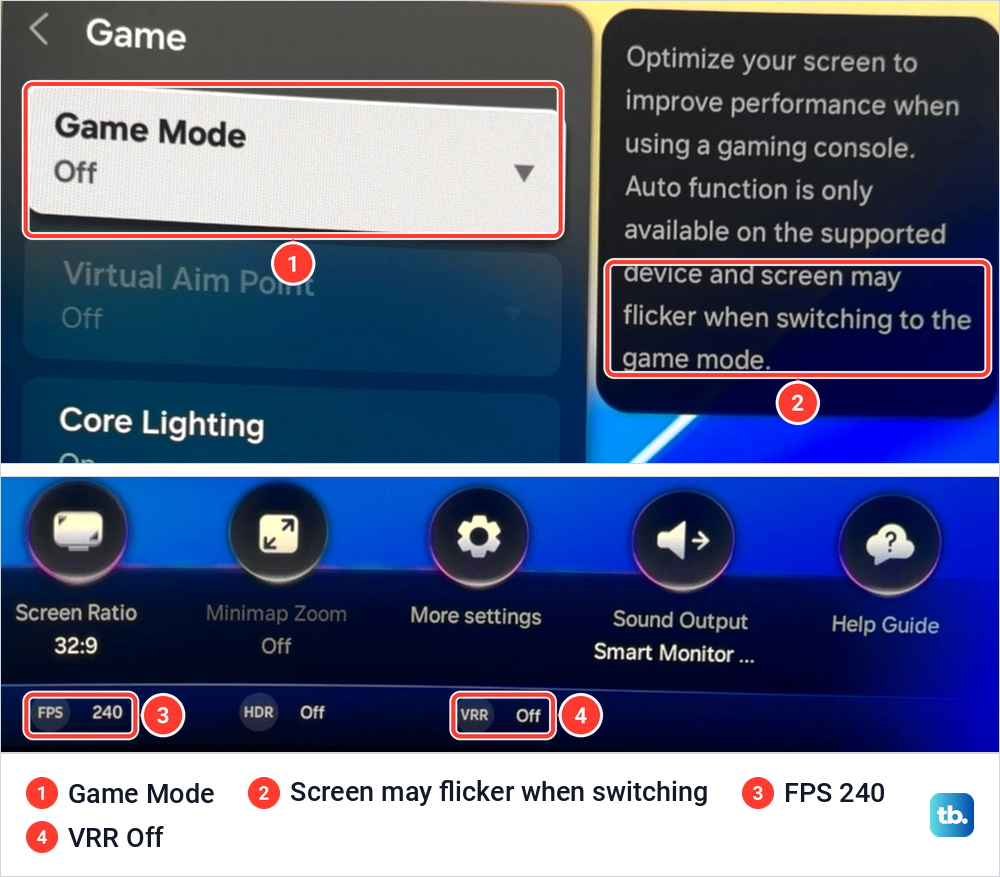
Samsung says the Game Bar needs Game Mode on and, on its TVs, a game console connected. On 2023 and 2024 models you set Game Mode to On or Auto at All Settings > Connection > Game Mode Settings, then press and hold Play/Pause on the remote to open the bar. Our monitor's remote uses a press and hold of Settings instead.
If VRR reads On while the game flickers, try the same game with VRR turned off on the console or PC, and turn it back on if the flicker stays. On the models Samsung's FreeSync page covers, FreeSync "does not have its own separate option in the menu" and runs through Game Mode, which a PC source needs turned on by hand. If your TV's Game Mode Settings show a FreeSync or VRR item, compare with it off.
On a PS5 the settings are in Settings > Screen and Video > Video Output. Sony says that if you see flickering, you can set Video Transfer Rate to -1 or -2 to limit output, which may improve picture quality, and that 120 Hz Output can be turned off if 120 Hz games have video output problems. Both limit what the console sends, so put them back if they make no difference.
On a Windows PC, Microsoft's path is Start > Settings > System > Display > Advanced display, where you choose a refresh rate the display supports. Microsoft marks rates that do not support your current resolution with an asterisk, and picking one changes the resolution.
Turn off automatic brightness one setting at a time
A picture that dims and brightens on its own can look like flicker. Samsung says its energy saving features "adjust the screen based on how bright it is and how bright your room is," so with many changes between light and dark scenes, or sudden changes in room lighting, the TV may appear to flicker as it adjusts.
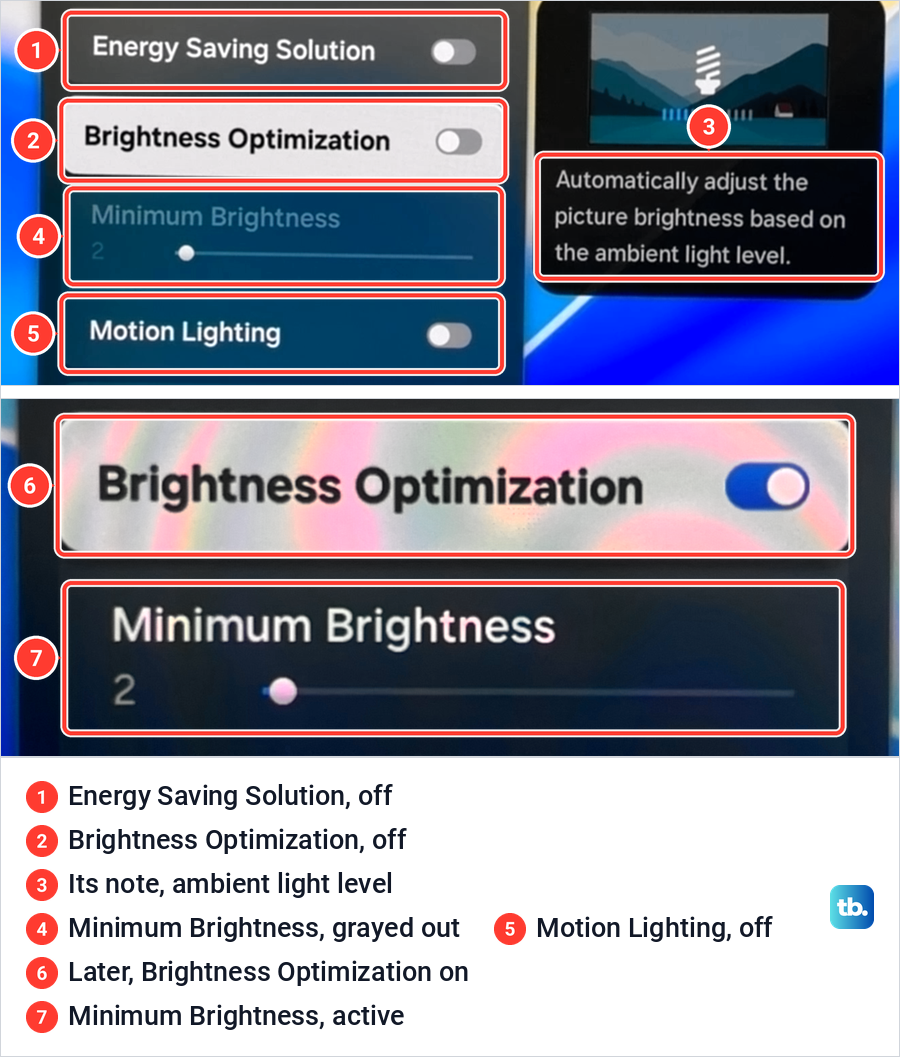
On current TVs Samsung's path is Settings > All Settings > General & Privacy > Power and Energy Saving, where you turn off Brightness Optimization, Energy Saving Solution and Motion Lighting. Change one, watch the same scene again, and move to the next only if the flicker is still there.
On 2021 TVs, go to All Settings > General > Eco Solution and compare Ambient Light Detection, Power Saving Mode and Motion Lighting, and on older models look for Energy Saving or Eco Solution under General. Samsung says that if the flickering is still present after that, the brightness adjustment was not the cause, though Contrast Enhancer and Adaptive Picture below also change brightness.
Our monitor has the same Power and Energy Saving page. Its note for Brightness Optimization reads "Automatically adjust the picture brightness based on the ambient light level," and the one for Energy Saving Solution reads "Reduce power consumption by adjusting brightness settings." In our video all three switches were off, with Minimum Brightness grayed out, and it became adjustable in a later photo once Brightness Optimization was on.
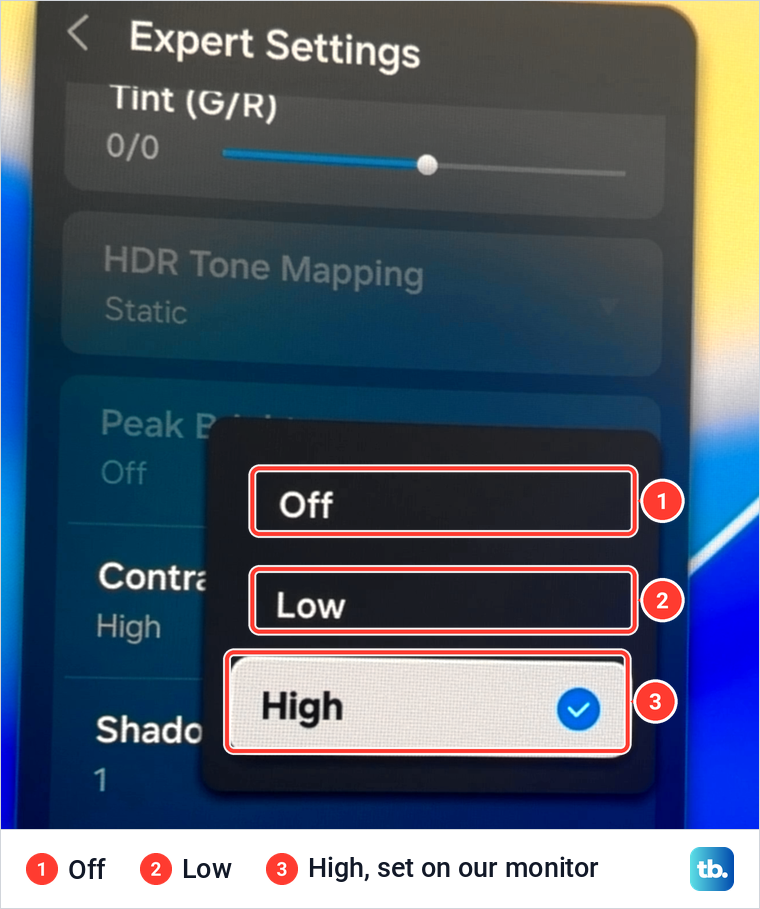
Contrast Enhancer is the fourth setting Samsung names for a TV that flickers or dims. Samsung says it "automatically adjusts contrast to balance brightness between the lighter and darker areas," and it lives in Picture > Expert Settings > Contrast Enhancer, where Samsung's fix is to select Off. On our monitor it offered Off, Low and High, with High set.
Check Adaptive Picture and EyeComfort
Some Samsung TVs also change brightness through Intelligent Mode. Samsung says Adaptive Picture "Optimizes the brightness of the TV and provides the best picture quality based on the surrounding lighting and content you're viewing," and on 2023 QLED TVs it is at All Settings > General & Privacy > Intelligent Mode Settings. Turn it off there and watch the same scene again.
On compatible TVs, Samsung says EyeComfort Mode "automatically adjusts the screen's brightness and tone based on a built-in light sensor and sunset/sunrise information," so a picture that slowly changes in the evening may be this feature at work. Samsung says it is only on select TVs from 2022 on.
On 2025 models the path is Settings > All Settings > Picture > EyeComfort Mode Settings. On 2022 to 2024 models Samsung Australia's path is Settings > All Settings > General & Privacy > System Manager > Intelligent Mode > Adaptive Picture > EyeComfort, and Samsung's pages differ on whether System Manager is part of that path. Turn EyeComfort off there and compare the same scene.
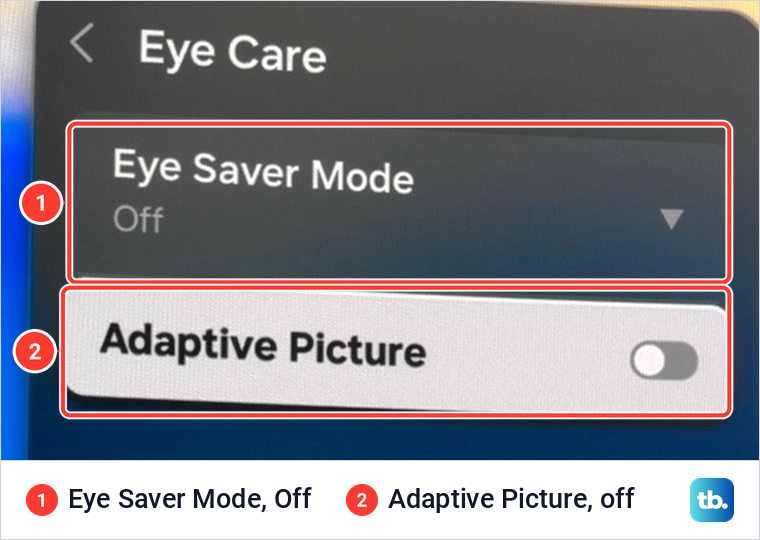
On our monitor Adaptive Picture sits in Picture > Eye Care next to Eye Saver Mode, rather than under Intelligent Mode, and both were off. If you cannot find it in one menu, look in the other.
Compare Picture Clarity and motion settings
If the flicker follows fast motion rather than brightness, compare the motion settings. Samsung's TV path is Picture > Expert Settings > Picture Clarity Settings, and older models use Auto Motion Plus Settings. Samsung notes that "enabling features like LED Clear Motion or Clear Motion can make the screen appear darker." Turn off LED Clear Motion or Clear Motion if your TV has them, watch the same scene, and switch them back on if nothing changes.
Samsung has confirmed one specific case. Some 2018 QLED TVs on one software version flickered with LED Clear Motion enabled, and Samsung told owners to turn it off at Expert Settings > Auto Motion Plus Settings > Auto Motion Plus > Custom until a software update was available. That bug is limited to those models, so treat motion settings on other TVs as something to compare rather than a known cause.
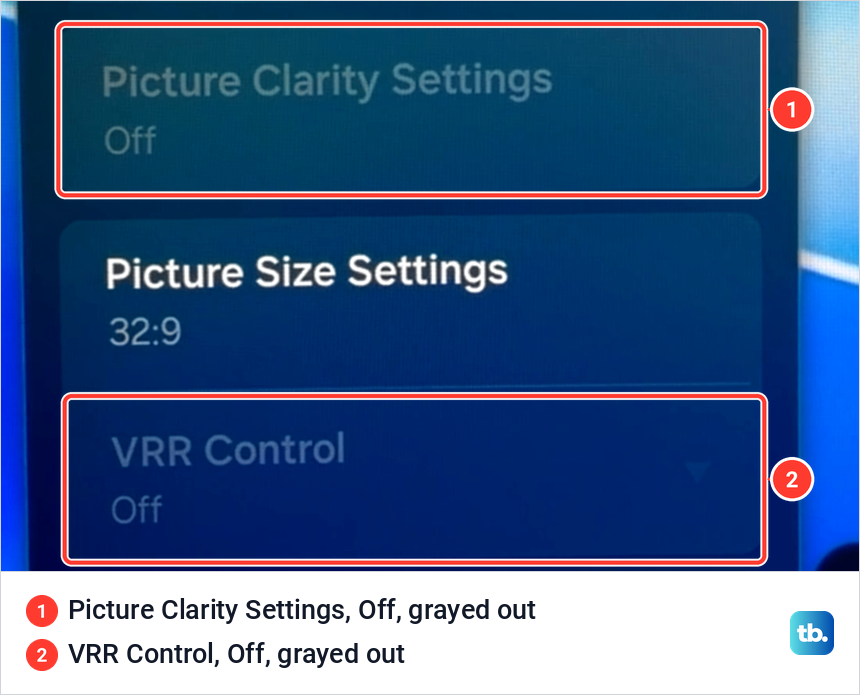
On our monitor Picture Clarity Settings and VRR Control both read Off and were grayed out on the input we used. Samsung says supported functions vary with the model, region, input signal and software version, so a grayed-out row is not a fault.
Rule out the electrical circuit
If the TV still flickers in its own apps, Samsung suggests checking the wiring it shares. It says disruptions on the circuit can affect the TV's picture, "most frequently through flickering," so unplug every other device on the same circuit as the TV, which may cover more than one outlet.
With the TV on its own circuit, play a video from an internal source such as an app or a USB drive. If it still flickers, Samsung says to request service. If it stops, plug the other devices back in one at a time to find the one causing it, since that device may have bad grounding.
Update the TV software
On 2022 and later TVs Samsung's path is Settings > All Settings > Support > Software Update > Update Now, and older models use Settings > Support > Software Update > Update Now. Samsung says updates generally take a few minutes, so do not turn off the TV until the update is complete. It also warns that video and audio settings may be reset to their defaults afterwards, so check your picture settings again.
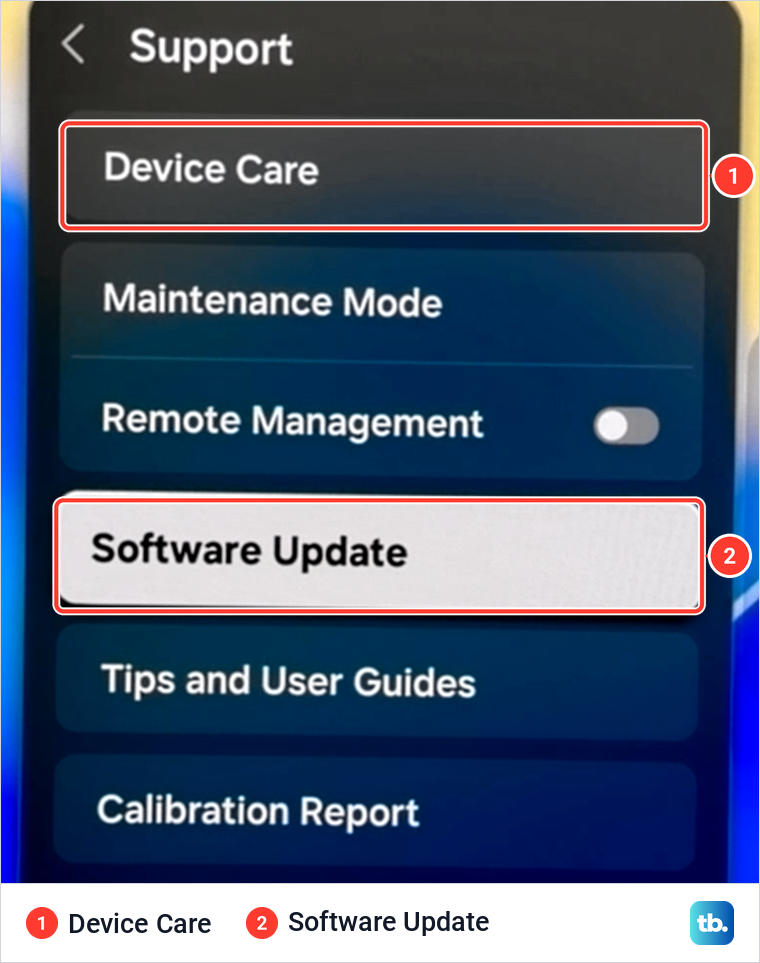
On our monitor Software Update sits in the same Support menu as Device Care, which holds Self Diagnosis and the Picture Test. On Samsung TVs, Samsung says Update Now checks for an update and starts downloading it if one is available.
Reset the picture settings or contact Samsung
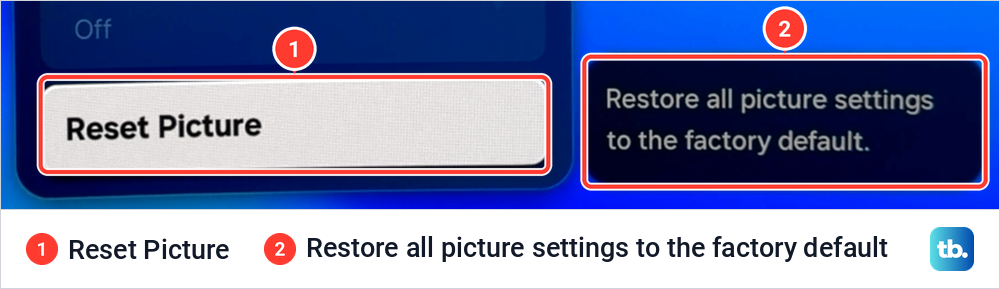
If you changed several picture settings while testing and lost track, Reset Picture puts them back. Samsung's path is Settings > All Settings > Picture > Expert Settings > Reset Picture at the bottom of the menu, then Reset on the pop-up, and the picture settings return to their factory defaults.
Our monitor shows the same item at the bottom of Expert Settings. Its note reads "Restore all picture settings to the factory default." It covers picture settings only, which makes it far smaller than the full Samsung TV factory reset procedure.
If the flicker survives the source checks, the settings above, the circuit test and an update, and above all if it shows in the Picture Test, contact Samsung to request service. Samsung asks you to have the TV's model code, software version and serial number ready, so find the model of your Samsung TV before you call.
How we tested this guide
We tested this on a Samsung Odyssey OLED G9 smart monitor, which runs the same Tizen software as Samsung TVs, running the Picture Test and switching Game Mode on.
Frequently Asked Questions
Why is my Samsung TV screen flickering?
Samsung's support pages name automatic brightness features, a bad HDMI cable or connected device, an unsupported signal, interference on the electrical circuit and, if the Picture Test flickers too, a fault that needs service. Find where the flicker shows first, then run the Picture Test.
Why does my Samsung TV flicker on only one HDMI input?
Swap the cable, then the port, then the device, one at a time. If the device is a PC or game console, turn on Input Signal Plus for that port. If your TV has HDMI Troubleshooting in Self Diagnosis, Samsung designed it for cables under 2 meters.
What does it mean if the Picture Test flickers?
Samsung says to visit its Support Center and request service. Have the TV's model code, software version and serial number ready.
Why does my Samsung TV brightness keep changing?
Brightness Optimization, Energy Saving Solution, Motion Lighting, Contrast Enhancer and Adaptive Picture can all change brightness with the room or the scene. Turn them off one at a time and watch the same scene after each change.
Why does my Samsung TV flicker in Game Mode?
A short flicker or blank screen while Game Mode switches on can happen, and Samsung's own note on the setting says the screen may flicker. If the flicker continues during play, check the frame rate and VRR in the Game Bar and compare the console's or PC's refresh rate and VRR settings.
Will Reset Picture delete my apps?
No. Samsung says it returns the picture settings to their factory defaults, and a full factory reset is a separate procedure.