
To force restart an iPhone 8 or later, including every Face ID model, press and quickly release Volume Up, press and quickly release Volume Down, then press and hold the Side button until the Apple logo appears. Let go at the logo and it starts up normally. This is what most people call a hard reset, and it erases nothing.
Older models use different buttons. An iPhone 7 needs the side and volume down buttons held together, and an iPhone 6s, the first iPhone SE or an older model needs the Home button. The table below shows which group your iPhone is in.
The short version
- iPhone 8 and later: press Volume Up, press Volume Down, then hold Side until the Apple logo.
- iPhone 7 and 7 Plus: hold Side + Volume Down together until the Apple logo.
- iPhone 6s and earlier: hold Home + Side (or Top on the first SE and the iPhone 5 or earlier) until the Apple logo.
- Screen still works: a normal restart through the power off slider is the gentler choice.
- Not the same thing: Erase All Content and Settings and a computer Restore wipe the iPhone. A force restart does not.
Which force restart your iPhone needs
Apple uses three button sequences, and the one you need depends on the model, not on whether it has a Home button. That catches out owners of the iPhone 8 and the second and third generation iPhone SE: they have a Home button but use the same sequence as the newest Face ID models.
| Your iPhone | Force restart (frozen screen) | Normal restart (screen works) |
|---|---|---|
| Face ID models, iPhone X and later, including iPhone 16 and iPhone 17 | Press Volume Up, press Volume Down, hold Side until the Apple logo | Hold Side + either volume button until the slider |
| iPhone 8, iPhone 8 Plus, iPhone SE (2nd or 3rd generation) | Press Volume Up, press Volume Down, hold Side until the Apple logo | Hold Side until the slider |
| iPhone 7 or iPhone 7 Plus | Hold Side + Volume Down together until the Apple logo | Hold Side until the slider |
| iPhone 6, iPhone 6 Plus, iPhone 6s or iPhone 6s Plus | Hold Home + Side together until the Apple logo | Hold Side until the slider |
| iPhone SE (1st generation), iPhone 5 or earlier | Hold Home + Top together until the Apple logo | Hold Top until the slider |
The force restart column follows Apple's instructions for an iPhone that will not respond. The normal restart column is Apple's ordinary shutdown: you drag the slider, wait 30 seconds, then hold the side button (the top button on the first SE and the iPhone 5 or earlier) until the Apple logo appears.
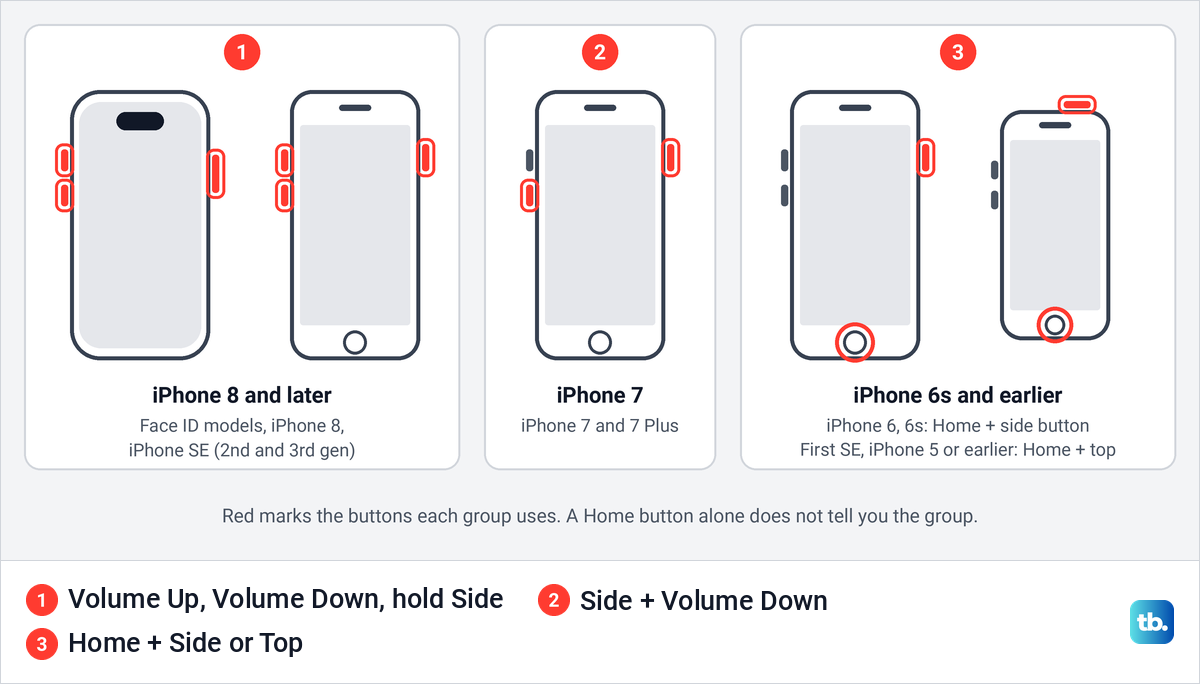
Not sure which model you have? A Face ID iPhone has no Home button and a notch or Dynamic Island at the top of the screen. If your iPhone has a round Home button, the model name is printed in Settings > General > About once the phone is working again. The first iPhone SE is also easy to spot, because its power button is on the top edge.
Force restart iPhone 8 and later, including Face ID models
This covers every iPhone from the iPhone 8 onward: the iPhone X, every Face ID model up to the iPhone 17 family, and the second and third generation iPhone SE. Volume Up is the upper of the two volume buttons on the left edge, and the side button is the upper button on the right edge.
Press and quickly release Volume Up. Then press and quickly release Volume Down. Now press and hold the Side button, and keep holding it while the screen goes dark. When the Apple logo appears, release the side button.
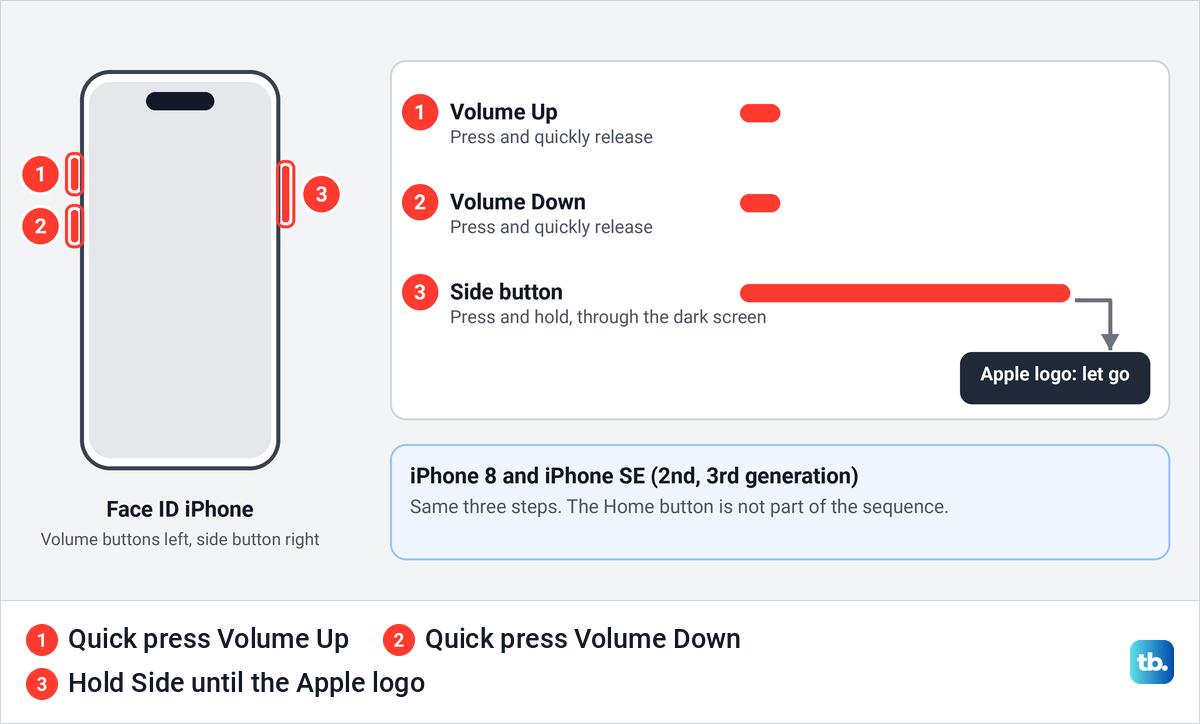
The two volume presses are taps, not holds. Apple says the side button hold might take longer than 10 seconds, so do not let go early just because the screen goes black. If you let go before the logo, start again from Volume Up.
If you hold the side button together with a volume button, a Face ID iPhone brings up the power off screen, which is the normal shutdown, not the force restart. If the sliders appear, let go, tap Cancel and press the buttons one after another instead. Keeping both buttons held starts the Emergency SOS countdown, and when it ends the iPhone calls emergency services.
After any restart, including a force restart, the iPhone asks for your passcode before Face ID or Touch ID works again. That is Apple's passcode rule, so if you have forgotten the code, see how to unlock an iPhone after forgetting the passcode first.
Force restart iPhone 7 and iPhone 7 Plus
The iPhone 7 is the odd one out. Press and hold the Side button and the Volume Down button at the same time, and keep holding both until the Apple logo appears. Then release them.
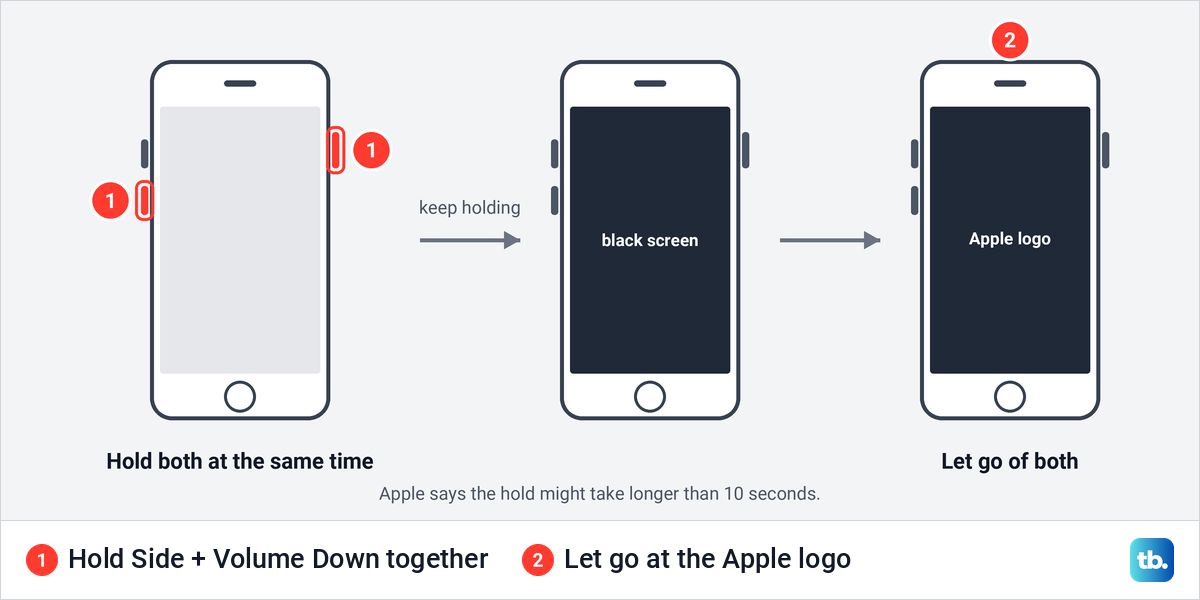
Apple warns that this hold can also take longer than 10 seconds. Keep both buttons down through the black screen, and only let go once the logo shows.
Force restart iPhone 6s, the first iPhone SE and older models
On the iPhone 6s and earlier, including the first generation iPhone SE, press and hold the Home button and the power button at the same time until the Apple logo appears. The power button is on the right edge (the side button) on the iPhone 6 and 6s, and on the top edge (the top button) on the first iPhone SE and the iPhone 5 or earlier.
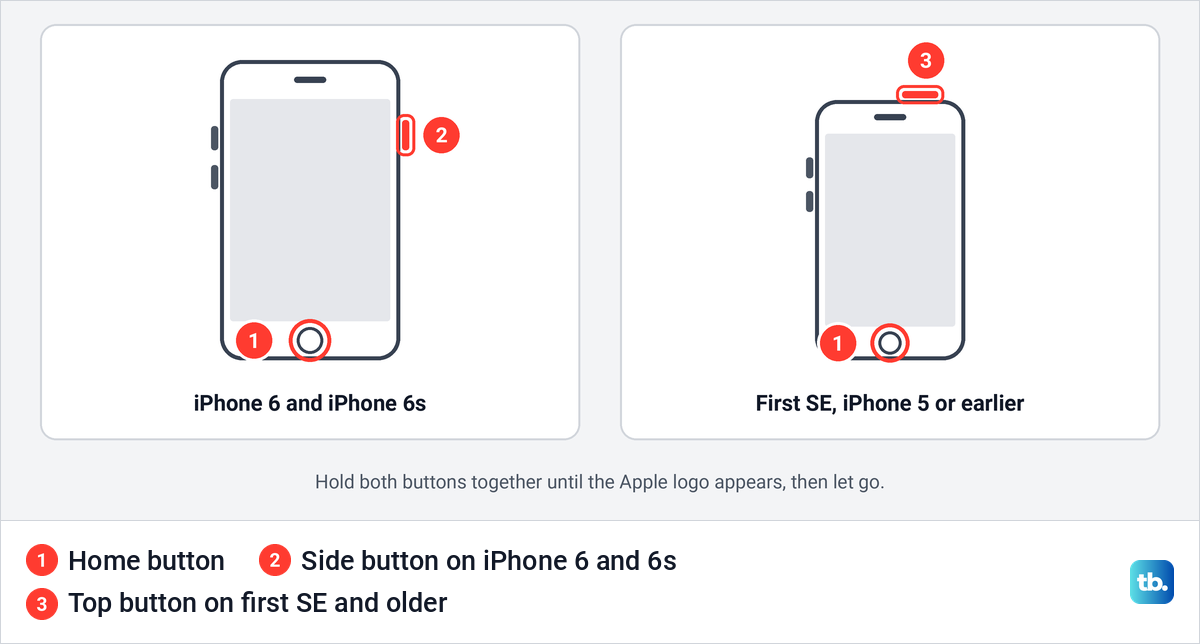
The first iPhone SE looks like a small iPhone 5s, with its power button on top. The second and third generation SE look like an iPhone 8 and use the iPhone 8 sequence above, so check which one you have before you press anything.
Restart your iPhone normally when the screen still works
A force restart is for a phone that ignores your taps. If the screen still responds, the ordinary restart is the gentler choice, because iOS shuts down in its usual way before the phone starts again.
On a Face ID iPhone, press and hold the Side button and either volume button until the sliders appear, then let go. Holding on starts the Emergency SOS countdown, and when it ends the iPhone calls emergency services.
On an iPhone 6, 7, 8 or the second or third generation SE, hold the Side button alone. On the first SE and the iPhone 5 or earlier, hold the Top button. On any model, drag the slider, wait 30 seconds, then hold the side or top button until the Apple logo appears.
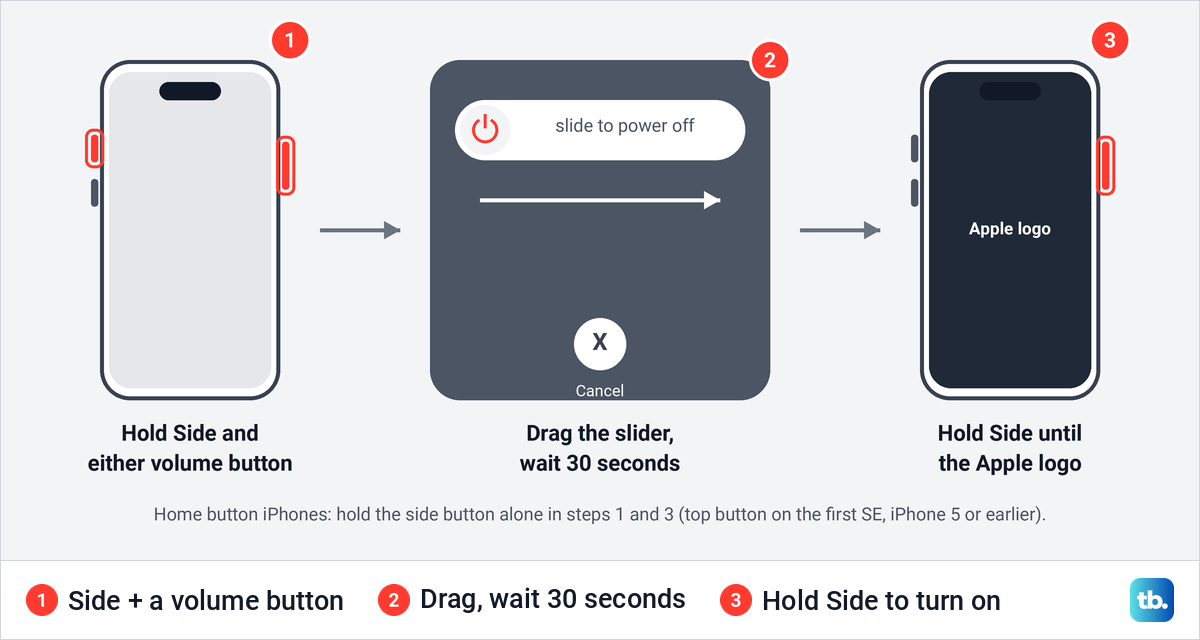
Have your passcode ready before you do this. As after a force restart, Face ID or Touch ID only works again once you have typed it.
Turn off your iPhone from Settings or Control Center
Settings, and on iOS 18 or later Control Center, reach the same power off slider without holding any buttons. Both need a screen that responds to touch, and Apple's step for turning the iPhone back on is still the side or top button.
The first is in Settings. Open Settings, tap General and scroll to the very bottom. On our iPhone 17 Pro with iOS 26.6, Shut Down was the last row, on its own, directly under Transfer or Reset iPhone.
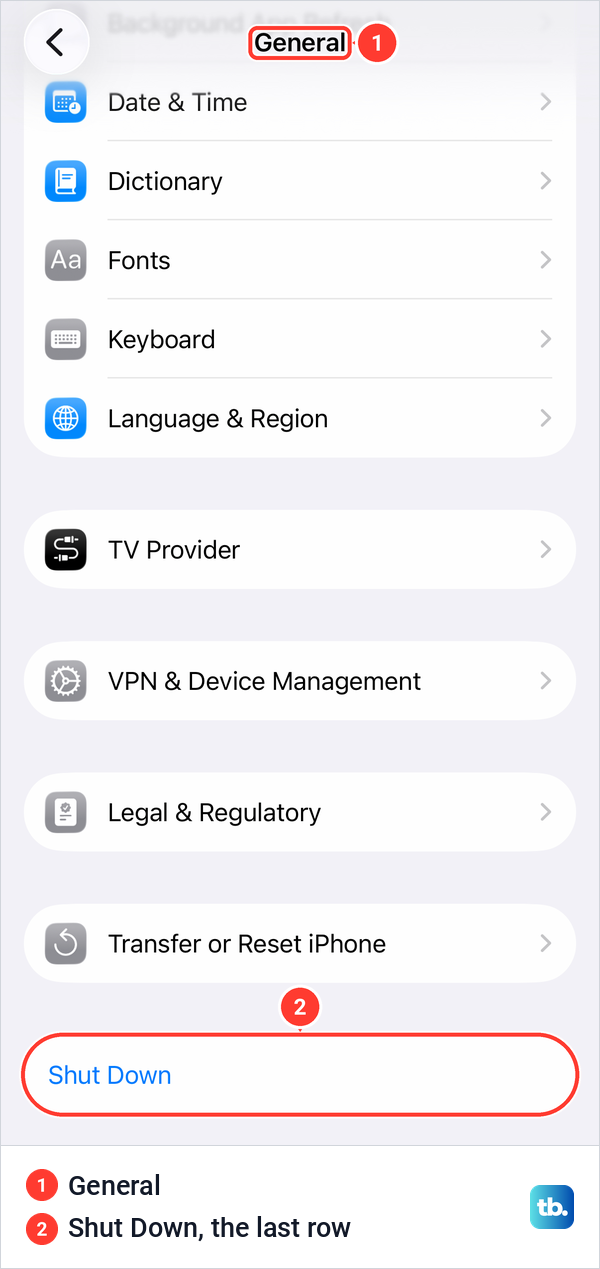
Apple's instruction is to tap Shut Down and drag the slider. To start the iPhone again, hold the side button (or the top button on the first SE and the iPhone 5 or earlier) until the Apple logo appears.
The second route is Control Center. On a Face ID iPhone, swipe down from the top right corner of the screen; on an iPhone with a Home button, swipe up from the bottom. Apple says you can turn off your device from Control Center in iOS 18 and later, and we found the power icon at the top right of the panel on iOS 26.6 and on iOS 26.5.
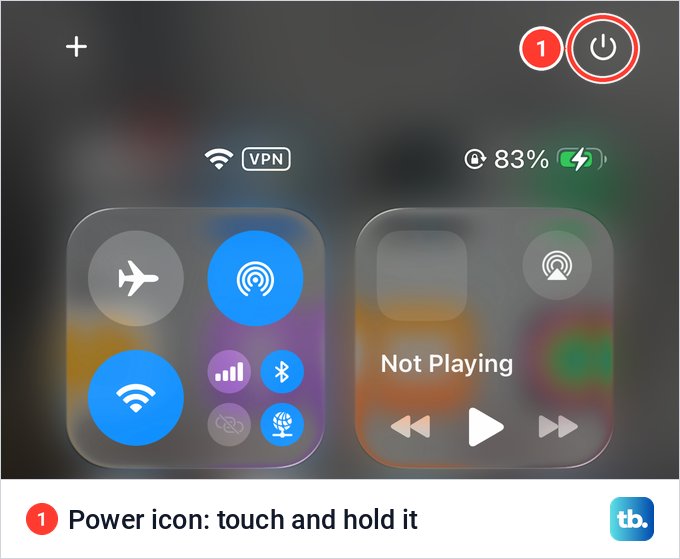
A quick tap on that icon did nothing on our iPhone. When we touched and held it for a moment, the power off screen opened, with the slide to power off slider at the top, a line that reads iPhone Findable After Power Off, and a round Cancel button at the bottom.
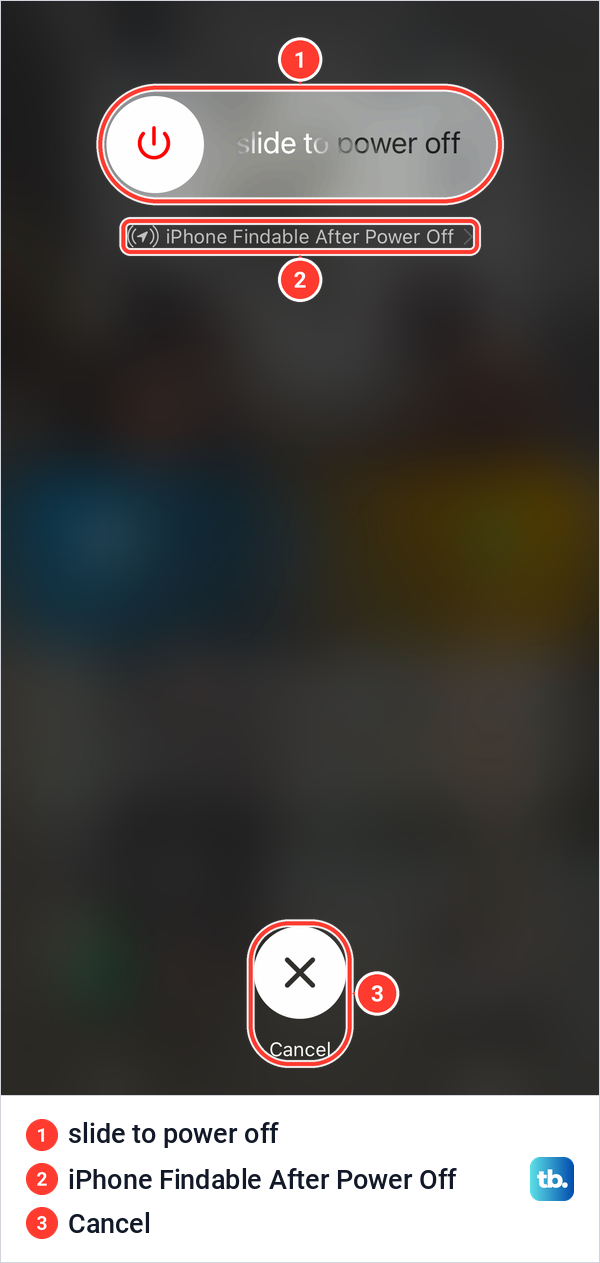
The iPhone Findable After Power Off line is part of Find My, not a choice you need to make before restarting. You can leave it alone and use the slider or Cancel.
We tapped Cancel instead of sliding, and the iPhone did not just go back to where it was. It showed Enter Passcode with the line Your passcode is required to enable Face ID. So on our iPhone, just opening the power off screen, without sliding, meant typing the passcode before Face ID worked again.
If a side or volume button is broken, AssistiveTouch can stand in for it. Turn it on in Settings > Accessibility > Touch > AssistiveTouch and a floating button appears on screen. Apple lists restarting the device among the things its menu can do in place of the physical buttons.
If the screen stays black after a force restart
A black screen that does not react to the button sequence is often a flat battery. Apple's instruction is to charge the iPhone for one hour and then try again. If a low battery picture appears instead, Apple says to check your charging hardware, then charge for 30 minutes or until the phone starts.
After charging, repeat the force restart for your model and keep holding until the logo. If the phone starts but taps still fail, test your iPhone touch screen before you try anything drastic, because a dead touch screen and a frozen iPhone can look the same.
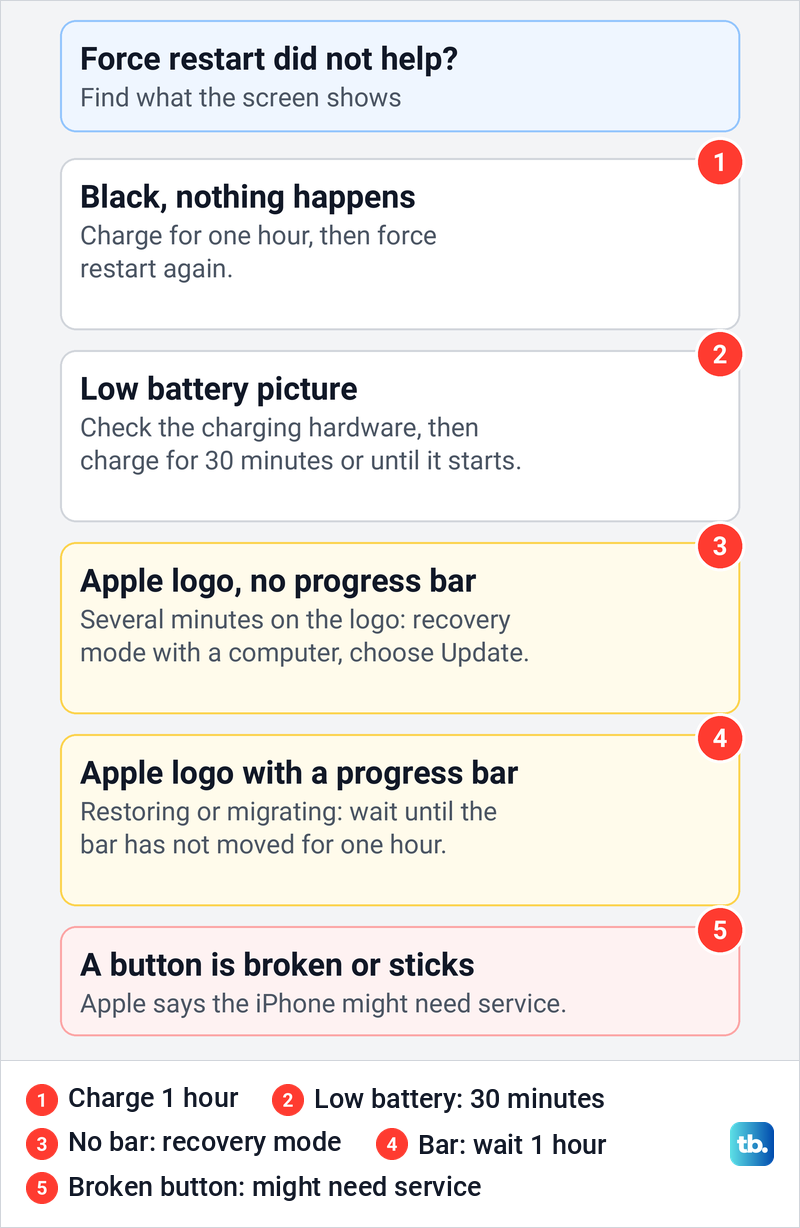
A button that is broken or sticks can stop the force restart from working at all. Apple says the iPhone might need service in that case, since recovery mode uses the same buttons.
If your iPhone is stuck on the Apple logo
Look closely at the logo screen first, because Apple treats two cases differently. An Apple logo with no progress bar for several minutes is one of the reasons Apple gives for using recovery mode. A logo with a progress bar appears while an iPhone is being restored or migrated from another device, and Apple says to wait until that bar has not moved for at least one hour.
If the frozen screen is an update screen rather than the plain logo, use our guide to fix an iPhone stuck on the software update screen. For the plain logo, recovery mode is the next step.
For recovery mode you need a Mac or a Windows PC and a cable. On a Mac, open Finder. On a Windows PC, open the latest Apple Devices app, or iTunes if that is what you have.
Connect the iPhone, then press the same buttons as for a force restart, but do not let go at the Apple logo. Keep holding until the Connect to computer screen appears.
When the computer offers Update or Restore, choose Update first. Update installs the latest version of iOS, while Restore erases all your data, and Apple's advice is to try updating before restoring. If the download takes more than 15 minutes, the iPhone can leave recovery mode on its own; let the download finish, then hold the buttons again.
If Update does not help, Restore is the last step. It erases the iPhone, so your data comes back only if you have a backup to restore from; without one, weigh that loss before you choose it. The full steps to restore an iPhone with a computer walk through Finder and Apple Devices, including setting the phone up again afterward.
How a force restart differs from a factory reset
The phrase hard reset gets used for two very different things. The button sequence above is a force restart: Apple files it with restarting, and it leaves your apps, photos and messages where they are. A factory reset is Erase All Content and Settings, which Apple describes as restoring the iPhone to factory settings.
Both reset commands live in Settings > General > Transfer or Reset iPhone. On our iPhone, that screen showed Reset and Erase All Content and Settings as two separate rows. Tapping Reset opened a list that starts with Reset All Settings and Reset Network Settings, and ends with Cancel, which is what we chose.
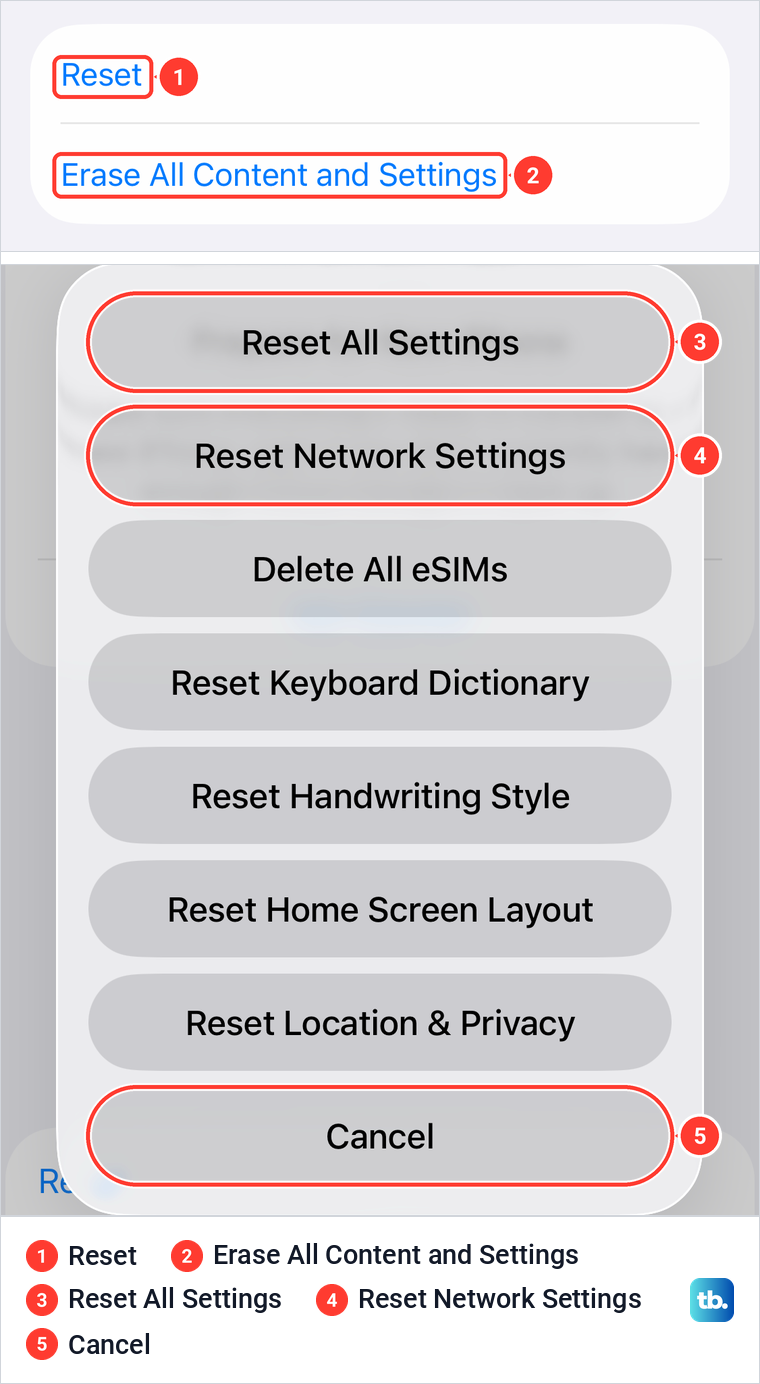
Apple says Reset All Settings returns settings to their defaults without erasing your content. The network choice is narrower again, so learn what Reset Network Settings does before you pick it to fix a Wi-Fi or cellular problem.
If you actually want a factory reset, the separate steps to erase an iPhone before selling it cover that deliberate wipe from start to finish. None of it is needed for a frozen screen.
Once the phone is back, find out why it froze. If one app keeps locking up, update the app on your iPhone from the App Store first. If the whole phone keeps freezing, update Apple software on your iPhone through the normal Settings route.
How we tested this guide
We tested this on an iPhone 17 Pro with iOS 26.6, going through the power off screen and Transfer or Reset iPhone, stopping at the Reset prompt.
Frequently Asked Questions
Does a force restart erase anything on my iPhone?
No. A force restart only restarts the iPhone, so apps, photos and messages stay where they are. Erasing is a separate command, Erase All Content and Settings, and a Restore from a computer also erases the phone.
Why does holding the side and volume buttons only show the power off slider?
On a Face ID iPhone, holding the side button with a volume button is the normal shutdown, and holding on starts the Emergency SOS countdown, so let go when the sliders appear. For a force restart, tap Volume Up, tap Volume Down, then hold only the side button until the Apple logo appears.
How long do I hold the side button?
Until the Apple logo appears, then let go. Apple says it might take longer than 10 seconds, and the screen goes black first, so keep holding through the dark screen.
How do I force restart an iPhone with a Home button?
It depends on the model. An iPhone 8 or a second or third generation SE uses Volume Up, Volume Down, then hold Side. An iPhone 7 uses Side and Volume Down together, and an iPhone 6s or earlier, including the first generation SE, uses Home with the side or top button.
Can I restart my iPhone without the buttons?
Yes, if the screen responds. Go to Settings > General > Shut Down, or on iOS 18 or later touch and hold the power icon in Control Center, then drag the slider. Apple's step to turn it back on is the side or top button, while AssistiveTouch can restart the iPhone from its on-screen menu.
What if my iPhone stays on the Apple logo after a force restart?
With no progress bar for several minutes, Apple points you to recovery mode with a computer, where you choose Update first. With a progress bar during a restore or migration, wait until it has not moved for at least one hour before using recovery mode.