Trying to turn off Stolen Device Protection but getting stopped by a security delay? You can disable it in Settings, but the authentication requirements depend on your security settings and whether your iPhone recognizes your location. Here's how to finish the change and check whether you qualify to skip the wait.
Turn off Stolen Device Protection in Settings
Stolen Device Protection is available starting with iOS 17.3. Start by opening Settings.
Tap Face ID & Passcode. On a compatible Home-button iPhone, including the second- and third-generation iPhone SE, tap Touch ID & Passcode instead.
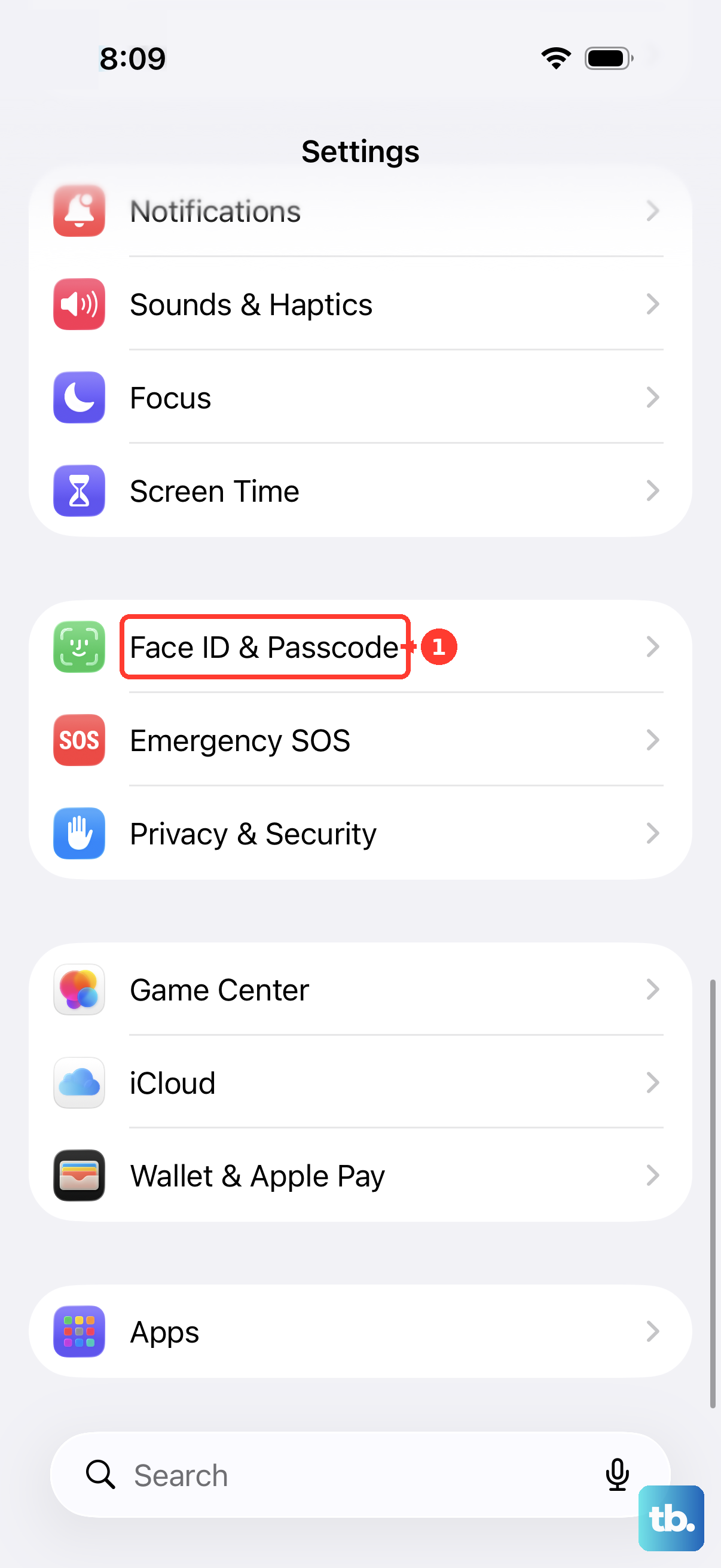
Enter your device passcode, then tap Stolen Device Protection. Turn off Stolen Device Protection. If the change stops at a security-delay prompt, complete the authentication and waiting period below.
When your iPhone requires a security delay
Finish turning the feature off with this sequence:
- 1.Tap Start Security Delay when prompted.
- 2.Authenticate with Face ID or Touch ID.
- 3.Wait one hour.
- 4.Authenticate with Face ID or Touch ID again.
- 5.Complete the onscreen instructions to turn off Stolen Device Protection.
A familiar location can remove the extra wait
This removes the additional delay at a recognized familiar location when Require Security Delay is set to Away from Familiar Locations; it does not apply with Always selected.
Go to a location your iPhone recognizes as familiar. Simply being at home does not guarantee recognition. Recognizing a familiar location also allows the phone to end an existing delay early.
Open Settings, then tap Face ID & Passcode or Touch ID & Passcode. Enter your device passcode.
Normal passcode authentication is available at a recognized familiar location under this setting. Open Stolen Device Protection, then turn off Stolen Device Protection.
If you cannot complete biometric authentication
When the additional protections apply, turning off Stolen Device Protection requires Face ID or Touch ID. Your device passcode alone cannot replace those biometric checks.
Use the familiar-location method above if your phone uses Away from Familiar Locations. With Always selected, moving to a familiar location does not remove the requirement.
There is no Apple-supported remote switch for disabling Stolen Device Protection. Protected settings cannot be changed through account.apple.com, and you cannot turn off Find My while Stolen Device Protection is enabled.
Don't reset the phone to get around the checks. Erasing it locally requires biometrics when the additional protections apply, and restoring an iCloud backup restores Stolen Device Protection settings. A reset or restore is not a supported shortcut.
Preparing your iPhone for repair or trade-in
Taking your iPhone in for service? On iOS 27 or later, Ready for Repair or Trade In prepares it for eligible authorized repairs or trade-ins while keeping Find My enabled. It does not turn off Stolen Device Protection.
Open Find My and select your iPhone. Tap More, then tap Repair or Trade In. Tap Enable, then enter your Apple Account password.
If on-device preparation fails, open Find My on another device. Select your iPhone, then choose Repair or Trade In or Remove This Device as directed by the service workflow.
Follow the repair-preparation prompts. This prepares the phone for service; it does not remotely disable Stolen Device Protection. If you cannot complete that route, sign in at iCloud.com/find to use Apple's web-based service-preparation workflow.
Frequently Asked Questions
Do I need to download an app to turn off Stolen Device Protection?
No. No download or installation is required.
Can Stolen Device Protection turn on during setup or an update?
Yes. Apple documents automatic enablement during setup or restore with iOS 26.4 or later, and when updating from iOS 26.4 to a later version. Setting up the phone as new is not a reliable way to keep the feature off.