Your iPhone keeps missing its iCloud backup, or Back Up Now fails before it finishes. The next move depends on whether storage, the connection, or a backup setting is blocking it. Start with a manual backup, then follow the checks that match what you see on your screen.
Try a manual backup first
A manual backup handles an overdue backup and gives you a completion time to check. Connect your iPhone to Wi-Fi. Open Settings > [your name] > iCloud > iCloud Backup.
Tap Back Up Now. Stay connected to Wi-Fi until the backup finishes. Check the latest backup date and time beneath Back Up Now. That timestamp confirms the completed backup; an unchanged timestamp means this attempt has not produced a new restore point.
Compare available storage with your next backup
Open Settings > [your name] > iCloud to check available storage. Open Storage or Manage Account Storage > Backups > this iPhone to read Next Backup Size. Allow several minutes for the calculation.
Your available iCloud space must accommodate the next backup; free space inside the iPhone does not resolve a cloud storage shortage. iCloud Photos and Messages synchronization are separate from the device backup, but all use the same iCloud capacity.
To shrink the backup, open Settings > [your name] > iCloud > iCloud Backup > this iPhone > Show All Apps. Turn off backup for apps whose data you do not need preserved, then confirm removal. This also removes their previously backed-up data; some apps cannot be excluded.
To buy more space on iOS 27, open Settings > [your name] > iCloud > Manage Plan for an existing subscription. For a new subscription, use Settings > [your name] > iCloud > Storage or Almost Full > Get More Storage. Select a plan and complete the purchase.
Check that Wi-Fi actually provides internet access
Joining Wi-Fi without working internet leaves your iPhone without a usable Wi-Fi connection for its backup. Turn off Airplane Mode in Settings. Open Settings > Wi-Fi.
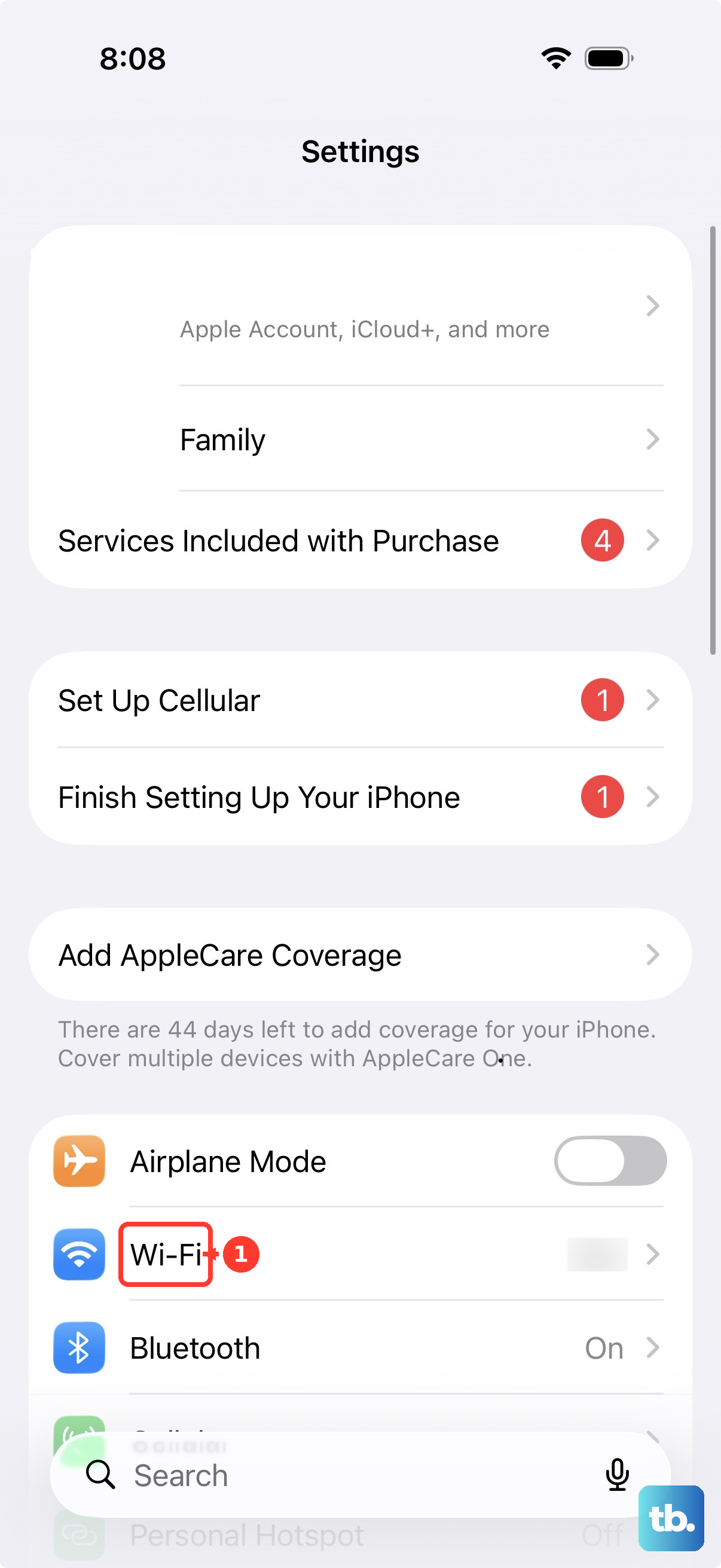
Turn on Wi-Fi. Select your intended network. A checkmark confirms that you have joined it. Move within range of the router.
Check whether that connection provides internet access. On a hotel, airport, or other captive network, complete its login or acceptance screen. If that screen is missing, tap the network's information button. Select Join Network to reopen the login screen.
If the connection still fails, join another working network through Settings > Wi-Fi. For a failing home connection, restart the router and modem. Contact your internet provider if other devices also lack internet access.
Give automatic backups the conditions they need
This addresses missed automatic backups caused by a disabled setting or unmet operating conditions. Open Settings > [your name] > iCloud > iCloud Backup. Turn on Back Up This iPhone.
Connect the iPhone to power. Connect it to Wi-Fi. Lock the screen.
If automatic backups remain paused, open Settings > Wi-Fi. Tap the connected network's information button. Turn off Low Data Mode. Apple states that this mode pauses automatic backups and iCloud updates.
Allow time for a slow backup or unfinished restore
A large initial backup or slow upload connection needs time. Check your connection's upload speed before treating a long-running backup as a failed one.
Leave the iPhone connected to power and Wi-Fi for 24 hours. If the backup control is unavailable, check Settings > [your name] > iCloud > iCloud Backup for an active-restore message. An unfinished iCloud restore prevents a new backup while restoration completes.
Keep the iPhone connected until the restore finishes. Tap Back Up Now once restoration is complete.
Check Apple's System Status page for an iCloud Backup or account-service incident. If Apple reports an incident, retry after service recovery.
If the backup remains incomplete after 24 hours, preserve important information before trying the storage, connection, and software checks again. For cloud files or photos, select them at iCloud Drive or iCloud Photos and use Download. These copies preserve selected content; use the computer-backup method below for a device backup.
Restart and address persistent network trouble
This addresses connection trouble that survives the basic Wi-Fi checks. Open Settings > General > Shut Down. Slide the power slider to turn off the iPhone. Hold the side button to turn it back on.
Retry Back Up Now after the phone reconnects to Wi-Fi. If you use a VPN or filtering app, temporarily disable its VPN or filtering feature through that app's controls. Apple lists failed iCloud backups among the symptoms of interference from this software; controls differ by app.
Restart the iPhone after changing those settings. If Wi-Fi trouble continues and the control is available, turn off Connectivity Assist under Settings > Wi-Fi. Retry Back Up Now on that connection.
For a managed iPhone, consult your administrator before resetting network settings. If simpler network fixes fail, open Settings > General > Transfer or Reset iPhone > Reset.
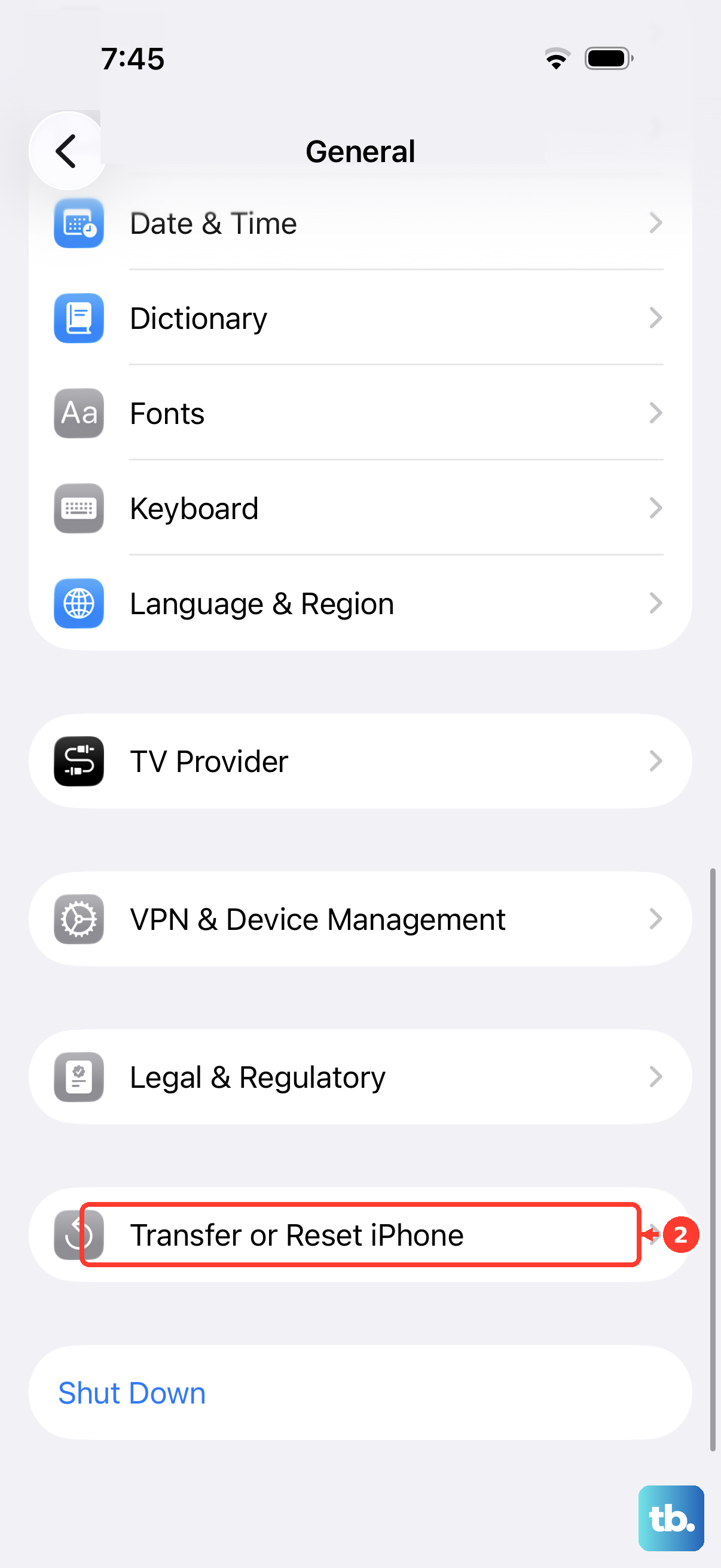
Tap Reset Network Settings. This resets saved Wi-Fi passwords and cellular, VPN, and APN settings. Rejoin your network through Settings > Wi-Fi. Retry Back Up Now.
Install a compatible iOS update
Make a computer backup using the method below before updating if your iCloud backup cannot complete. Connect the iPhone to power. Join a working Wi-Fi network. Open Settings > General > Software Update.
Tap Download and Install when an update is offered. Follow the installation prompts for the latest release compatible with your iPhone. Retry Back Up Now after the update finishes. For computer updates, use Finder on macOS Catalina or later through General > Check for Update > Download and Update, or Apple Devices on Windows through General > Check for Update, if needed, > Update.
Resolve account prompts and restricted settings
Open Settings > [your name] and complete any displayed sign-in or password request. Confirm that iCloud uses the Apple Account you intend to back up to.
For a locked or inactive account, select Request Access when offered, or follow account recovery at iforgot.apple.com. An account disabled for security reasons requires Apple's password-reset process.
If your account settings are grayed out, open Settings > Screen Time > Content & Privacy Restrictions. With All Restrictions enabled, go to Privacy Restrictions > Allow Changes to Settings > Accounts > Allow, entering the Screen Time passcode when required. For restrictions controlled by a parent or guardian, ask them to make the change.
On a work or school iPhone, inspect Settings > General > VPN & Device Management. Ask your administrator to review restrictions on iCloud Backup and managed-app backups before changing managed network settings. Managed Apple Accounts have limited backup behavior and do not provide a normal full-device restore.
Protect your data if iCloud still will not back up
Use a computer backup while resolving a persistent iCloud failure, or before installing an update when iCloud backup is unavailable. It protects your data without repairing the iCloud problem.
Connect your iPhone to the computer. Complete the trust prompt. On a Mac running macOS Catalina or later, select your iPhone in Finder. On Windows, select your iPhone in the Apple Devices sidebar.
Open General in the app you are using. Choose the local computer backup option. Select Encrypt local backup. Encryption preserves additional protected data.
Set a backup password. Keep that password somewhere you can retrieve it. Click Back Up Now. On the Mac, verify the completed backup timestamp.
If the storage, network, update, and restore checks still leave iCloud backup failing, open Apple's iCloud backup troubleshooting page. Select Get suggestions to reach Apple Support.
Frequently Asked Questions
Can I back up my iPhone to iCloud using cellular data?
Yes, on a 5G-capable iPhone with a supporting carrier. Open Settings > [your name] > iCloud > iCloud Backup and enable Back Up Over Cellular when offered. Availability depends on your carrier.
Should I delete my current iCloud backup to fix the problem?
Keep your current phone's only backup: deleting it sacrifices its restore point and stops iCloud from automatically backing up this iPhone. To reclaim space from an unused device instead, open Settings > [your name] > iCloud > iCloud Backup, select that device, and tap Turn Off and Delete from iCloud or Delete & Turn Off Backup. Deletion also disables backup for that device.
Can I get temporary storage before moving to a new iPhone?
Eligible purchasers with insufficient iCloud storage receive temporary storage for the transfer. Open Settings > General > Transfer or Reset iPhone > Prepare for New iPhone > Get Started. Select Turn On Backup to Transfer if offered, then Continue for temporary storage. Wait for completion. The initial restore window is 21 days; this is not permanent free storage.
Will deleting photos free space without affecting my other devices?
With iCloud Photos enabled, deletions synchronize across devices using that library. Preserve independent copies before deleting photos you need. Without iCloud Photos, a photo library included in the device backup contributes to its size, so removing unwanted photos reduces that part of the next backup.