Your old iPhone can stay linked to your Apple Account after you've stopped using it. Removing it takes a different approach depending on whether you're keeping it, selling it, or have already handed it over. Start with the option that matches your situation, then tackle any restrictions blocking the change.
Sign out on the iPhone you're keeping
This removes your Apple Account sign-in while keeping the local information specified during sign-out. Back up your iPhone first. Let syncing finish before continuing.
On iOS 26 or later, open Settings > [your name] > Sign Out. Choose Sign Out But Don't Erase. Review the prompts explaining what will stay on the phone.
Authenticate with the requested device passcode or Apple Account password. Tap Confirm and Sign Out.
Remove account access from another device
No spare Apple device? Use a browser. Removing the iPhone from your account's device list takes away its account access and trusted-device role. Preparing it for a new owner also requires erasing its content and removing Activation Lock.
Sign in at account.apple.com with the Apple Account linked to the iPhone. Open Devices. Select View Details if it appears. Complete any requested authentication.
Select the iPhone you want to remove. Choose Remove from Account. Confirm the removal.
To use another iPhone or iPad signed in to the same account instead, open Settings > [your name]. Select the target iPhone in the device list. Tap Remove from Account. Confirm the removal.
If the iPhone returns to the list, sign out directly on that phone for permanent removal. If you've already sold or given it away, use the remote erase-and-remove procedure below.
Erase an iPhone before selling or giving it away
Back up the iPhone before starting. Erasing deletes its local content. Open Settings > General > Transfer or Reset iPhone.
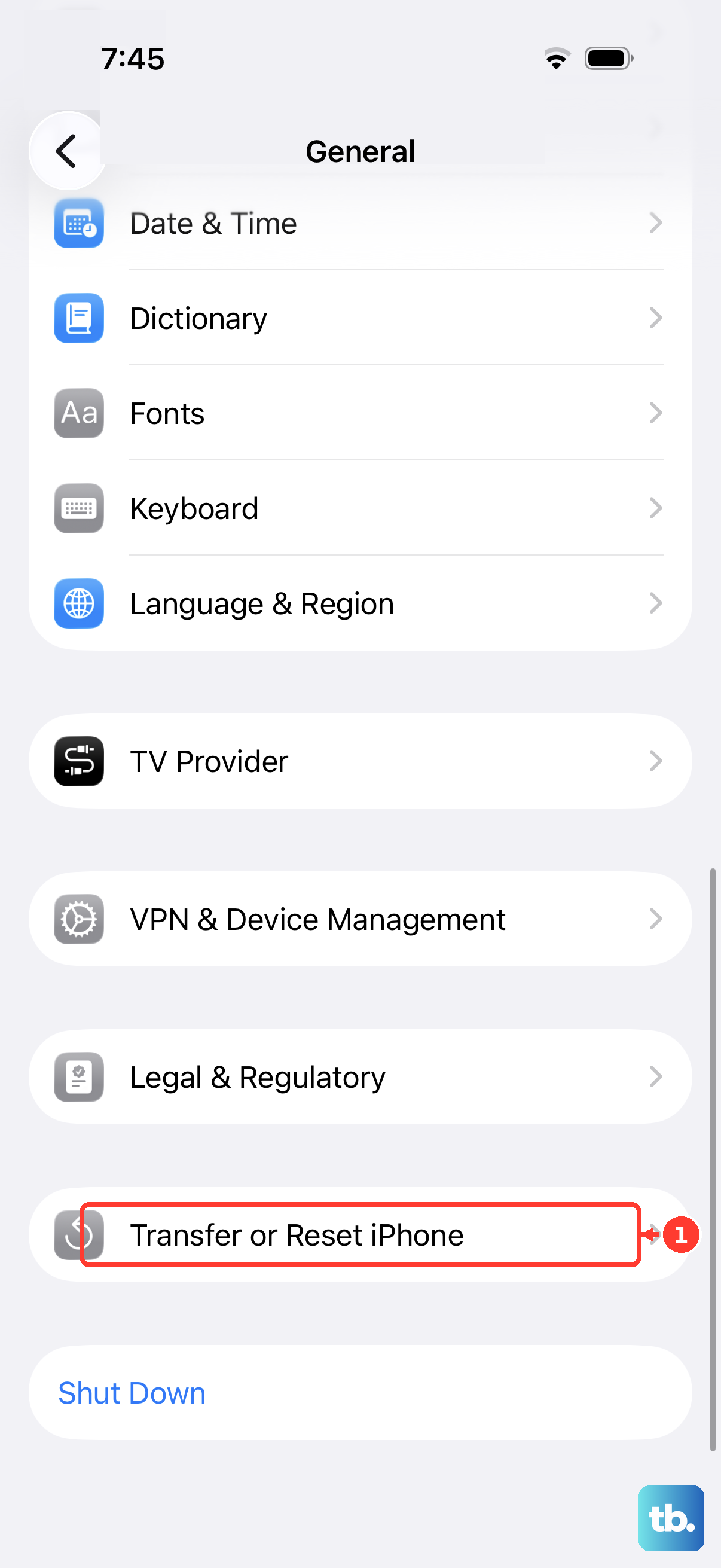
Tap Erase All Content and Settings. Enter the requested passcodes and Apple Account credentials. For a sale, choose to erase the eSIM profile when prompted.
Confirm with Erase iPhone. This authenticated local erase turns off Find My and Activation Lock. Before handing over the iPhone, check that Activation Lock has been removed.
Why a removed iPhone keeps coming back
An iPhone that's still signed in on the phone can reappear in your account's device list. For permanent removal while keeping the phone, open Settings > [your name] > Sign Out on that iPhone. Complete the Sign Out But Don't Erase procedure above.
If you're transferring ownership, use Settings > General > Transfer or Reset iPhone > Erase All Content and Settings and complete the local erase procedure instead. The account device list, Find My, and purchase associations are separate. Clearing one list doesn't complete every part of an ownership transfer.
Offline list removal in Find My also isn't a permanent ownership release: an iPhone with Activation Lock still enabled reappears when it reconnects. For a sale or gift, complete the erase-and-remove procedure below.
If you've already handed over the iPhone
Use iCloud Find Devices to erase an iPhone you've sold or given away, then remove Activation Lock. Remote erasure alone leaves that lock enabled, so don't stop after the erase. Reserve these ownership-release steps for a transfer; they aren't the default response to theft.
Sign in at icloud.com/find with the Apple Account linked to the iPhone. Select the iPhone. Choose Erase This Device. Complete the erasure prompts.
Wait for erasure to finish. An offline iPhone must reconnect before the pending erase completes. After erasure, select Remove This Device to remove Activation Lock and the Find My association.
If Activation Lock still blocks setup, enter the Apple Account credentials originally used to set up the iPhone at the Activation Lock screen, or use the device passcode if that option appears. If you cannot complete authentication, submit an Activation Lock support request with the requested proof of purchase and device details. Submitting a request does not guarantee approval.
When sign-out is blocked or account settings are gray
Use these steps when Screen Time restrictions block Sign Out or leave your account settings grayed out. When your iPhone is away from familiar locations (or at all times, if you've set it to always require these measures), Stolen Device Protection also requires Face ID or Touch ID and a security delay before you can sign out of your Apple Account or remove a trusted device.
If Sign Out is restricted, open Settings > Screen Time > Manage Screen Time > Change Screen Time Passcode. Select Turn Off Screen Time Passcode. Complete the prompts. For grayed-out account settings, open Settings > Screen Time > Content & Privacy Restrictions.
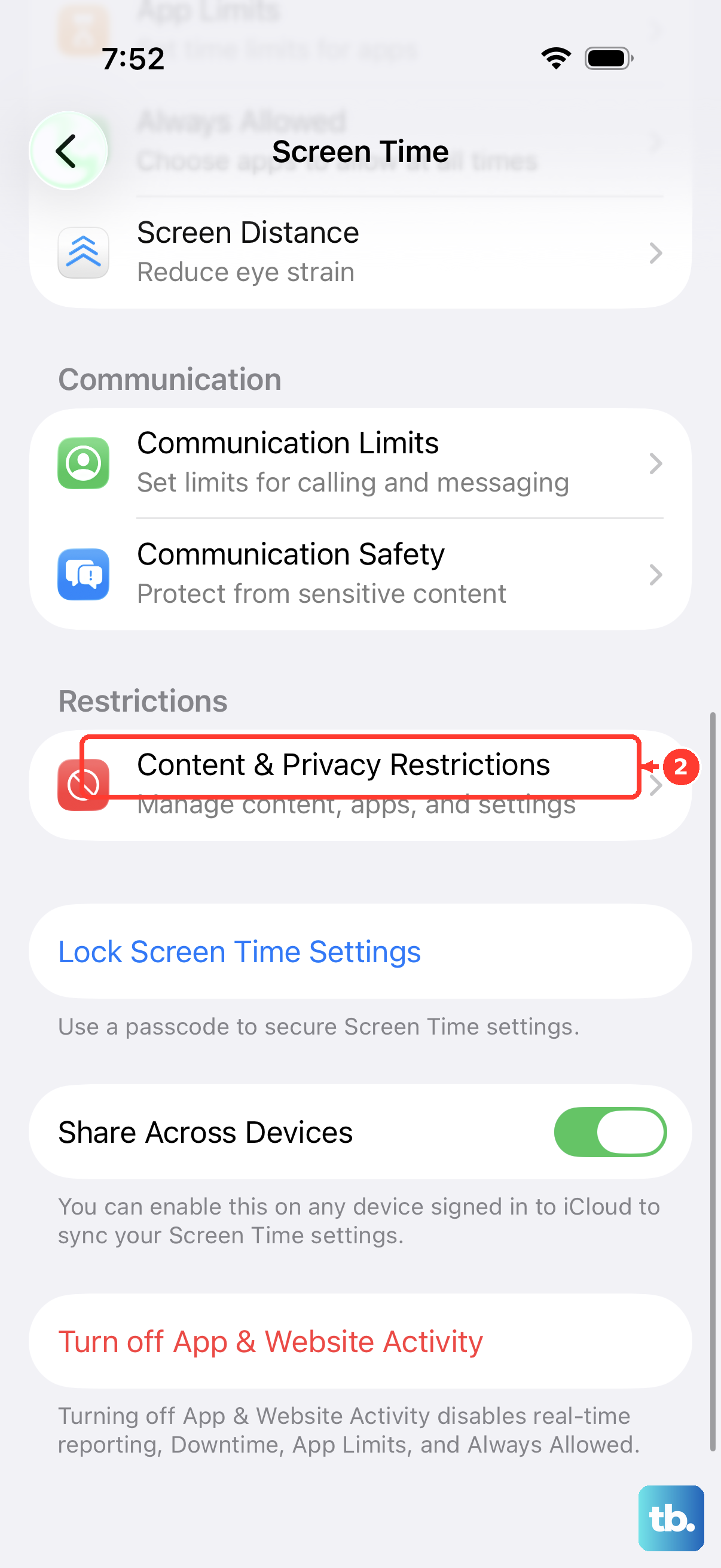
With All Restrictions enabled, open Privacy Restrictions > Allow Changes to Settings > Accounts. Select Allow. For a child's account, involve the parent or guardian when their authorization is required. Return to Settings > [your name] > Sign Out.
Complete the sign-out procedure for your chosen option. Complete any biometric authentication required by Stolen Device Protection. Wait out any required security delay. Stolen Device Protection also prevents you from turning off Find My while the protection is enabled.
Frequently Asked Questions
Does turning off Find My sign me out of my Apple Account?
No. Turning off Find My iPhone removes Activation Lock, but it does not sign you out of all Apple services.
How do I remove an iPhone associated with purchases?
Open Settings > [your name] > Media & Purchases on the iPhone. Authenticate if requested. Scroll down and tap Remove This Device. This removes the purchase association, not the main iCloud sign-in or Activation Lock. If a reassociation waiting period applies, switching to another account requires waiting up to 90 days.
Can I remove the iPhone from my account using a Mac?
Yes. On a Mac signed in to the same Apple Account, open Apple menu > System Settings > [your name]. Scroll to the device list. Select the iPhone. Click Remove from Account, then confirm.
What if the iPhone belongs to my employer or school?
Contact the organization's IT department. An authorized administrator can remove Activation Lock on eligible organization-owned devices through Apple's organization tools or the organization's device-management service.