
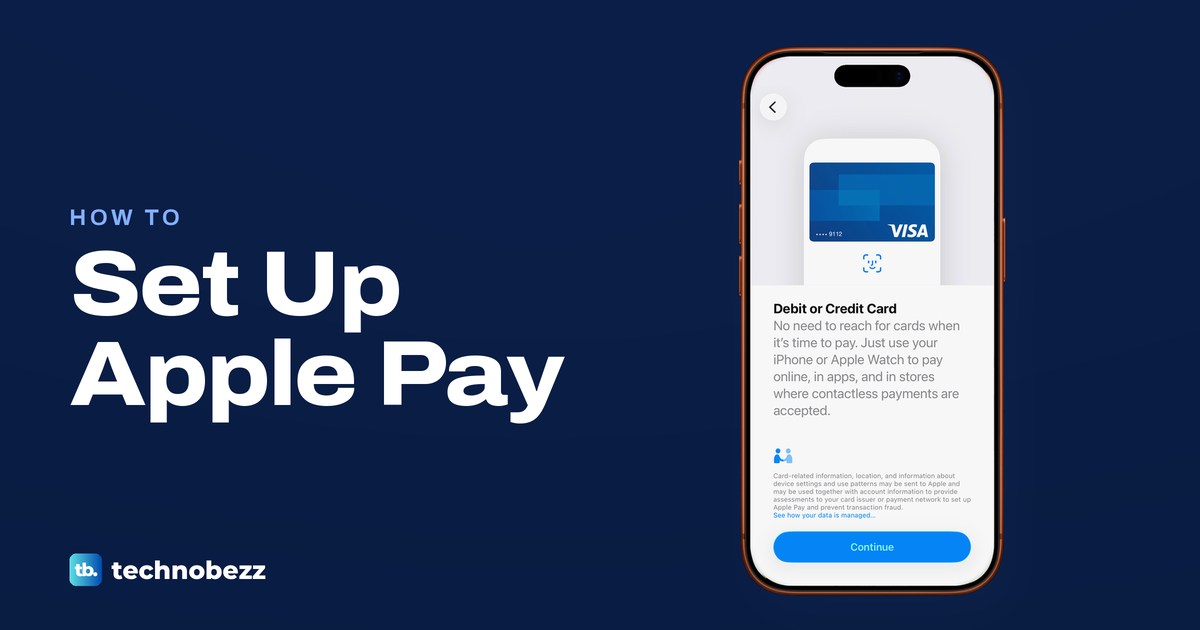
To set up Apple Pay, open the Wallet app, tap the Add Card button, tap Debit or Credit Card, tap Continue and hold your iPhone near the chip on your card, then finish whatever check your bank asks for. The first card you add becomes your default. From then on you pay in a store by double-clicking the side button, glancing at your iPhone (or using the Home button and Touch ID on older iPhones) and holding its top near the reader.
You need a passcode on your iPhone, an Apple Account signed in, and a card from a bank that supports Apple Pay. You can also start from Settings > Wallet & Apple Pay > Add Card, which opened Add to Wallet on our iPhone 17 Pro with iOS 26.6. Apple Watch needs its own copy of each card, added from the Watch app on your iPhone.
The short version
- Add a card: Wallet, Add Card, Debit or Credit Card, Continue, then hold your iPhone near the card's chip.
- Verification is your bank's: pick a text, email, call or the bank's app. A code only goes to contact details the bank holds.
- Default card: the first card you add, or drag another to the front, or pick one in Apple Pay Defaults.
- Pay in a store: double-click the side button, glance at the iPhone, hold the top near the reader.
- Apple Watch: add the card again in the Watch app on your iPhone. It gets its own card number.
Apple Pay at a glance
The table gives the route for each job on iPhone and Apple Watch. The sections below walk through them with the screens.
| What you want | On iPhone | On Apple Watch |
|---|---|---|
| Add a card | Wallet > Add Card > Debit or Credit Card > Continue | Watch app on iPhone > My Watch > Wallet & Apple Pay > Add Card |
| Finish the bank's check | Pick text, email, call or the bank's app, then enter the code in Wallet | The same, in the Watch app on your iPhone |
| Set the default card | Drag the card to the front, or Settings > Wallet & Apple Pay > Apple Pay Defaults | Watch app > Wallet & Apple Pay > Default Card, or Wallet on the watch > More Options |
| Pay in a store | Double-click the side button, Face ID, hold the top near the reader | Double-click the side button, hold the display toward the reader |
| Pay online or in an app | Tap the Apple Pay button, then double-click the side button (or use Touch ID) to confirm | Choose Apple Pay, double-click the side button |
| Remove a card | Wallet > card > More > Card Details > Remove Card | Wallet on the watch > card > Remove |
| Lost device | Mark it as lost in Find My, then Remove Items at account.apple.com | Lost Mode, or Remove Items below Apple Pay |
What you need before you set up Apple Pay
Apple lists four things: a compatible device with the latest version of iOS or watchOS, a supported card from a participating card issuer, an Apple Account signed in, and Face ID, Touch ID or a passcode. Apple asks for the latest version, so update your iPhone's software before you add a card.
The passcode is the hard requirement. Apple's privacy page says you must have a passcode set and, optionally, Face ID or Touch ID. Face ID is what turns paying into a glance instead of typing a code, so set up Face ID on your iPhone if you skipped it. Apple also warns that if you sign out of iCloud or remove your passcode, every card is removed from that device.
Every iPhone with Face ID works, and so does every iPhone with Touch ID except iPhone 5s. On the watch side, Apple lists Apple Watch Series 1 and later. Your card has to come from a bank in one of Apple's supported countries and regions, and in most of them you need to be 13 or older.
Apple does not approve or decline cards. Whether your card works with Apple Pay is your bank's decision, and Apple's own advice is to contact the card issuer if you are unsure.
Add a card to Wallet on your iPhone
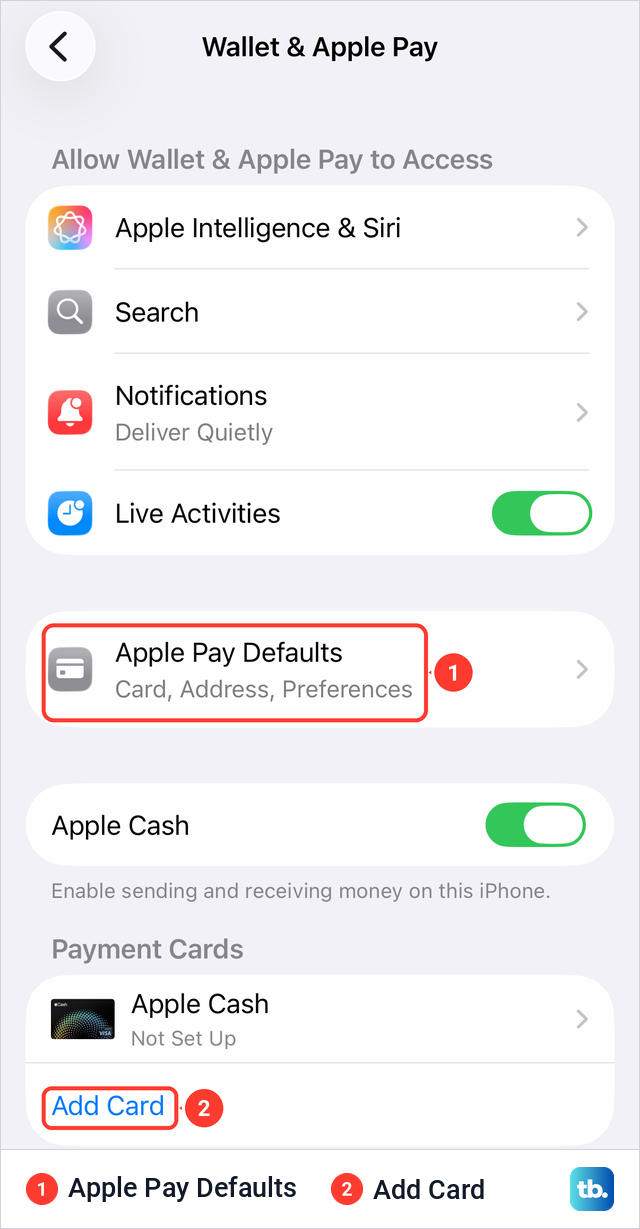
There are two ways in. Apple's steps start in the Wallet app with its Add Card button. The second way is in Settings: on our iPhone, Settings > Wallet & Apple Pay listed Apple Cash, marked Not Set Up, under Payment Cards, with a blue Add Card link right below it. The first time we opened that page, a Get Updates from Wallet sheet asked about notifications, and we tapped Not Now.
On our iPhone, Add Card in Settings opened Add to Wallet. It listed these rows, top to bottom: Cards Found For You (From other devices, None), Debit or Credit Card, Transit Card, Driver's License and ID Cards, Apply for Apple Card, Add Apple Account, Pay Later Options, and a From Apps on Your iPhone heading with a bank's app under it.
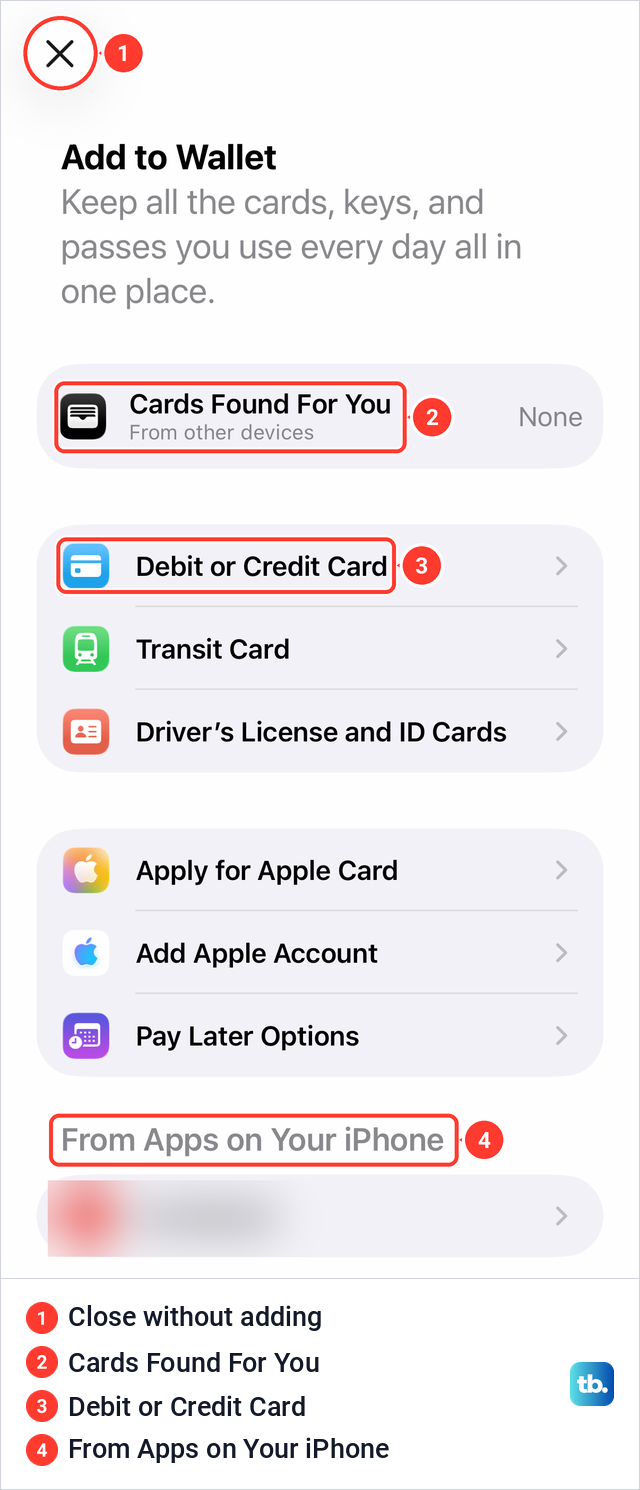
Apple's iOS 26 user guide calls the first row Previous Cards, while Apple's support article and our screen say Cards Found For You, so look for either name. Apple says these can include the card linked to your Apple Account, cards in Wallet on your other devices and cards you saved for AutoFill. On our iPhone the row read None. For a new card, follow these five steps:
- 1.Tap Debit or Credit Card, then tap Continue on the screen that follows.
- 2.Hold your iPhone near the chip on the card, as Apple's iOS 26 guide describes.
- 3.If the card has no chip, tap Enter Card Details Manually, then type the number or tap Scan Card with Camera.
- 4.Accept your bank's terms and conditions if they appear.
- 5.Finish the verification step your bank offers, covered in the next section.
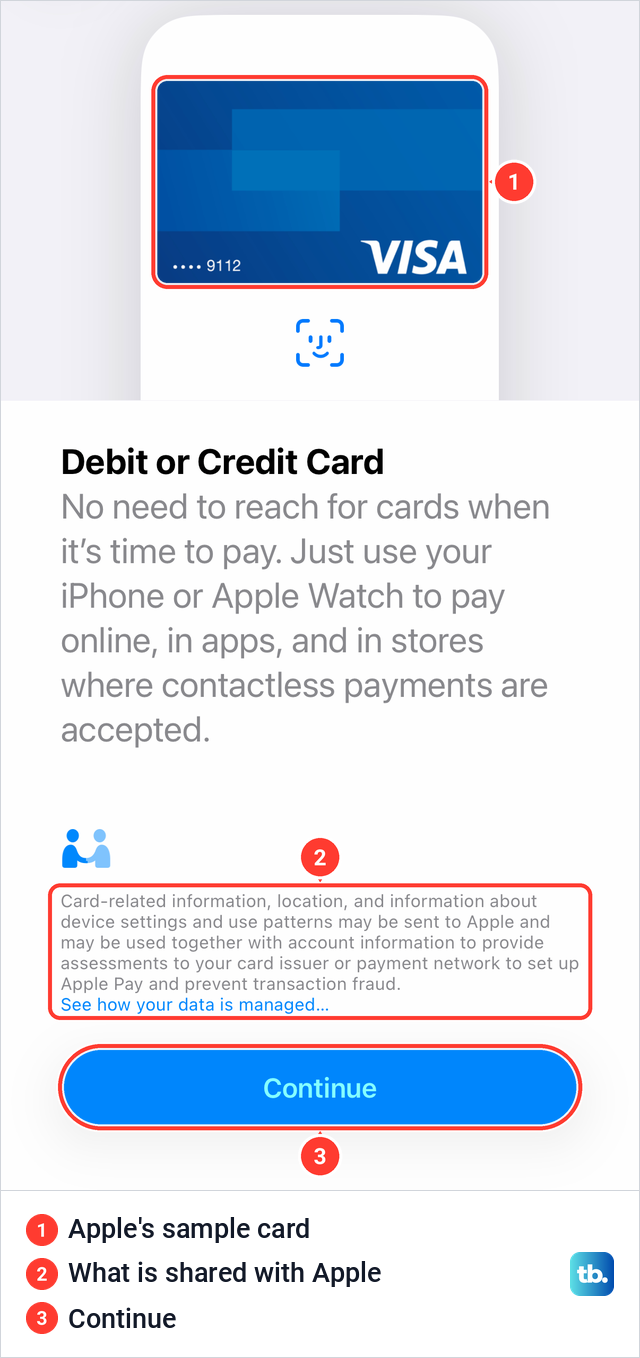
The Debit or Credit Card screen on our iPhone showed a sample Visa card from Apple, not one of ours, above the line "No need to reach for cards when it's time to pay." Below it, a note said that card details, location and device information may be sent to Apple and used to give assessments to your card issuer and prevent fraud. The Continue button sat at the bottom.
Older guides start by pointing the camera at the front of your card. Apple's iOS 26 steps hold the iPhone to the chip first and keep the camera as an option inside manual entry. Apple notes that adding a card by tapping it isn't available in all countries or regions, so if your iPhone doesn't offer it, tap Enter Card Details Manually.
If you type the details, Apple asks for the name, card number, expiry date and security code. It also says a camera photo of the card is never saved to the device or your photo library.
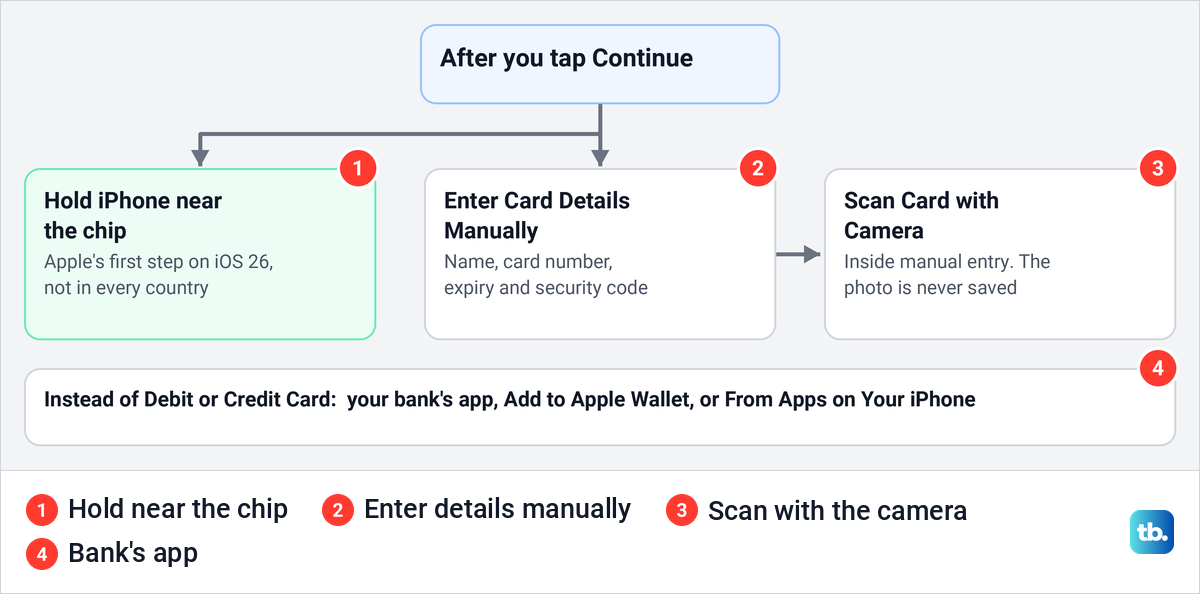
Your bank's own app is a third route. Apple says to look for Add to Apple Wallet or Add to Apple Pay in the bank's app, or to tap that app under From Apps on Your iPhone on the Add to Wallet screen.
On a new iPhone, Apple's setup screens offer to add your cards along the way, so you may find them already in Wallet. If you have updated to iOS 27, Apple's iOS 27 guide replaces the list of card types with a step that says to choose a category, then follow the onscreen instructions.
Verify the card with your bank
After the card is read, your bank decides whether it needs one more check. Apple's security guide says the issuer may offer a choice of a text message, an email, a customer service call or a step in the bank's app. If you added the card by tapping it to your iPhone, Apple says that on iOS 26 or later you can finish the bank's check with your card's PIN, if your bank supports it.
The code goes only where your bank says it can. Apple explains that for a text or email you choose from contact information the issuer already holds on file, then enter the code in Wallet, Settings or the Apple Watch app. If the code goes to an old phone number, update your details with the bank or add the card from the bank's app instead.
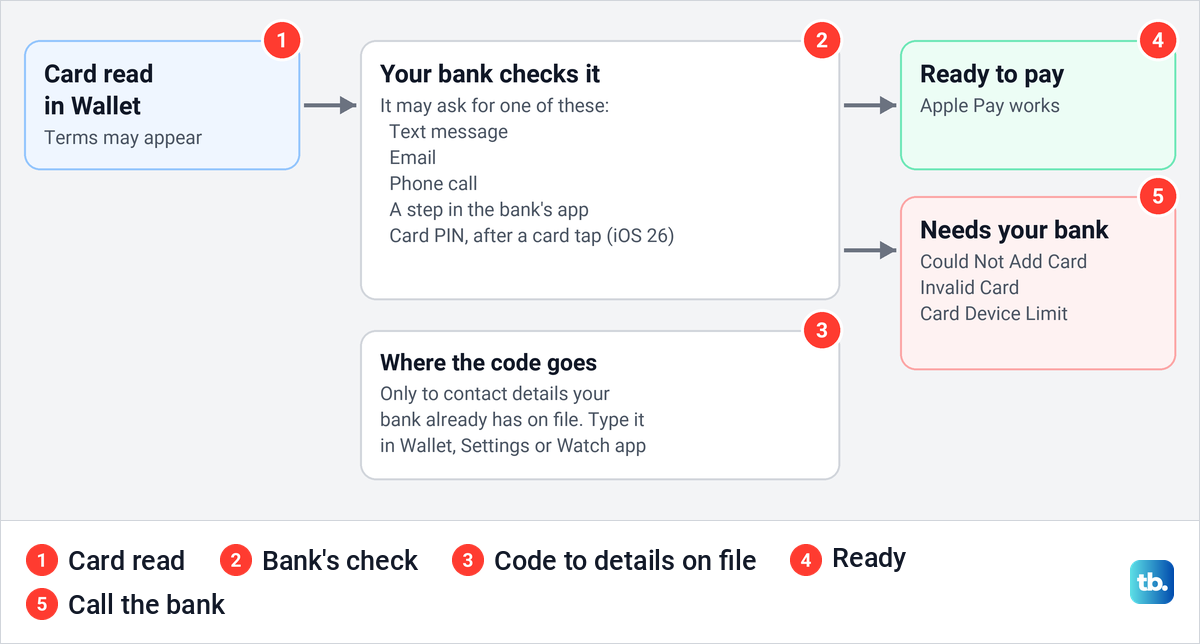
A card can sit in Wallet with verification still pending, and it cannot pay until that step is finished. Apple's iOS 26 guide says to follow the onscreen instructions to verify your information with your bank or card issuer. If the bank refuses it, Apple's advice for the messages Could Not Add Card, Invalid Card and Card Device Limit is the same each time: contact your bank or card issuer.
Choose your default card
Apple says the first payment card you add on a device becomes the default card for that device. To change it in Wallet, touch and hold the card you want and drag it in front of your other cards.
Settings has a second way. On our iPhone, Wallet & Apple Pay > Apple Pay Defaults opened with a Transaction Defaults group: Default Card, Shipping Address, Email and Phone. Default Card was greyed out because there was no payment card in Wallet yet. The note under the group read "Addresses and payment options can be changed at the time of transaction."
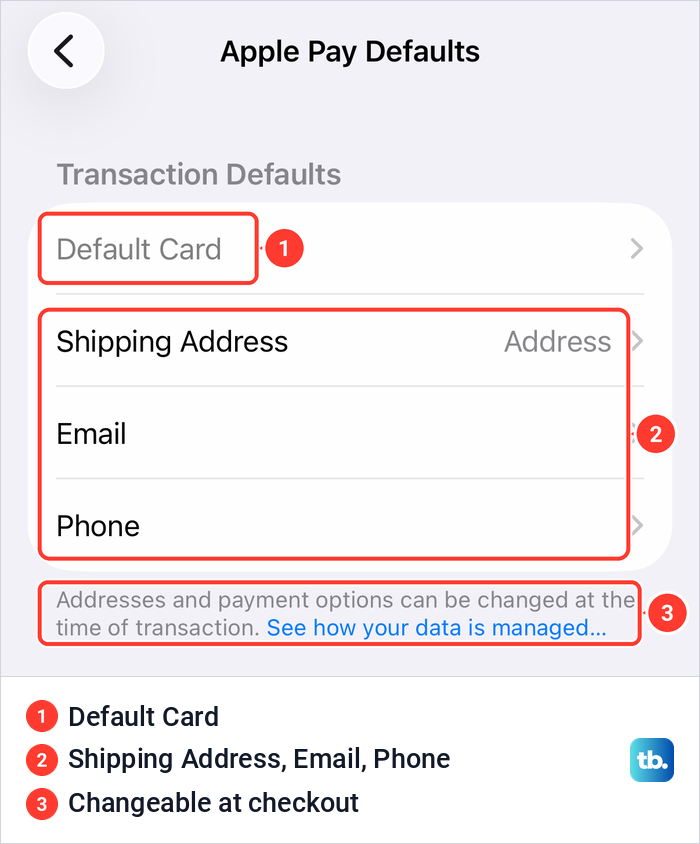
The same page held switches for Pay Later, Rewards and Offers, which show what your cards offer when you check out. You can also set a default while paying online: Apple says to tap Change Payment Method on the payment sheet, tap the Info button next to a card, then tap Set as Default Card.
Set up Apple Pay on Apple Watch
A card on your iPhone does not pay from your watch until you add it there too. Apple's steps are to open the Apple Watch app on your iPhone, tap My Watch, tap Wallet & Apple Pay, then tap Add Card for a new card or Add next to a card already on your iPhone. If you have just moved to a new iPhone, pair your Apple Watch with the new iPhone before you add cards.
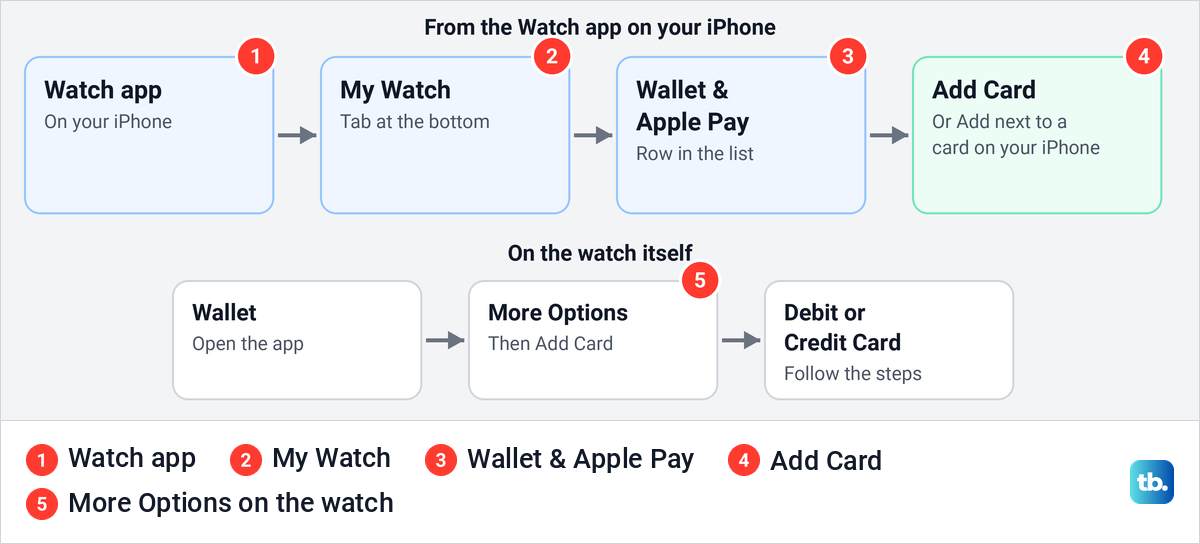
Apple says watch cards have their own device account numbers, stored in the watch, and that your bank may ask you to verify again. While you add a card, the watch needs to be within Bluetooth range of your iPhone. You can also add a card on the watch: open Wallet, tap the More Options button, tap Add Card and choose Debit or Credit Card.
To pick the watch's default card, Apple's steps are to open the Watch app on your iPhone, tap Wallet & Apple Pay, then Default Card; if you see Apple Pay Defaults, tap that first. On the watch, open Wallet, tap More Options and tap Default Card.
Apple Pay on the watch also depends on its passcode. Apple says that with Wrist Detection turned off, the watch asks for your passcode every time you double-click the side button to pay.
Pay in stores with iPhone or Apple Watch
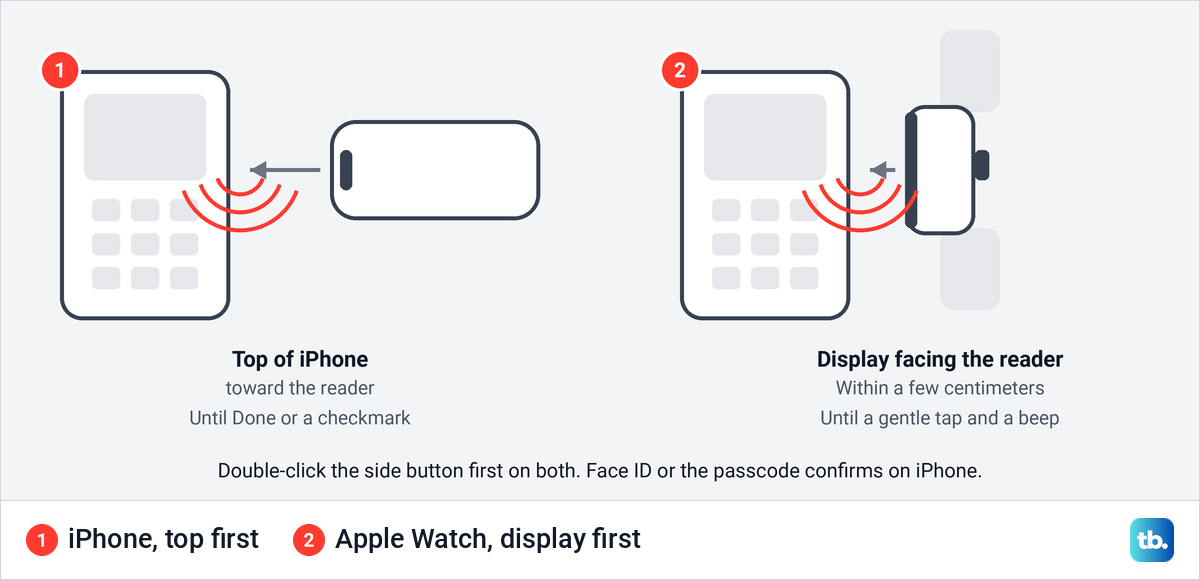
On an iPhone with Face ID, Apple's steps are to double-click the side button, authenticate with Face ID or your passcode when your default card appears, then hold the top of the iPhone near the card reader until Done or a checkmark appears. On an iPhone with a Home button, double-click the Home button and rest your finger on Touch ID. To use another card, tap the cards at the bottom of the screen and choose one.
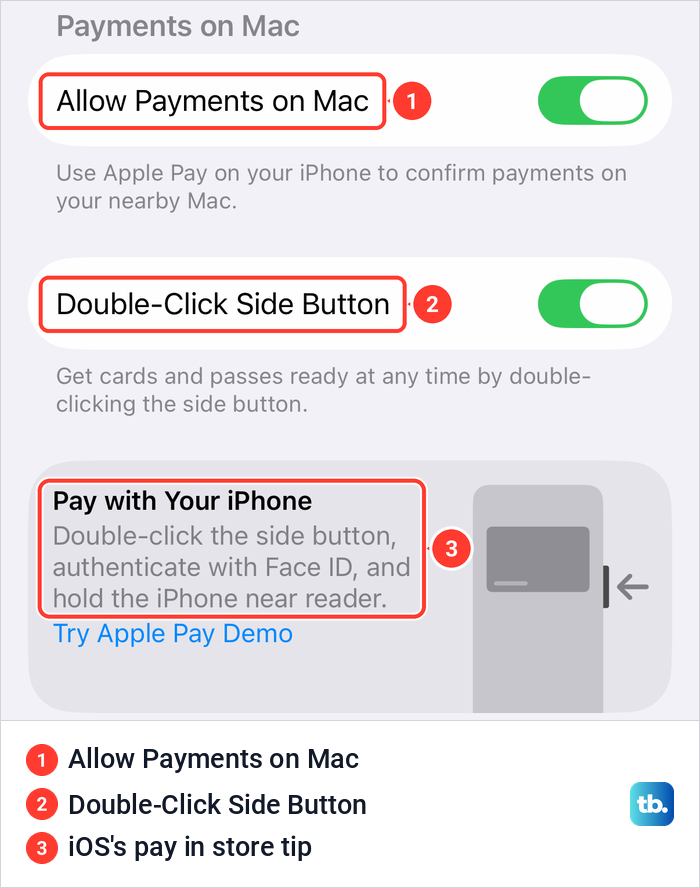
If double-clicking does nothing, check this setting first. On our iPhone it sat at the bottom of Apple Pay Defaults as Double-Click Side Button, switched on. On an iPhone with a Home button, Apple calls the switch Double-Click Home Button. The page ended with a tip from iOS itself: double-click the side button, authenticate with Face ID and hold the iPhone near the reader.
On Apple Watch, Apple's steps are to double-click the side button, scroll to choose a card, and hold the watch within a few centimeters of the reader with the display facing it. A gentle tap and a beep confirm the payment was sent, and a notification follows when the transaction is confirmed.
Apple Pay works where you see the contactless symbol, as long as the store also accepts your card and its network. Apple notes that some readers show the symbol without being set up for contactless payments yet. In some countries the merchant or bank may still ask for a PIN or a signature.
Apple says that with Location Services on, where you pay may be sent to Apple and your bank to help prevent fraud. Transit cards with Express Transit, which Apple notes isn't available in all countries or regions, are the exception to the double-click: Apple says you don't need Face ID, Touch ID or a passcode, or even a connection, at the gate.
Pay online and in apps
Look for the Apple Pay button at checkout and tap it. Apple's steps are to check the card, the billing and shipping address and your contact details on the sheet that opens, then confirm. On a Face ID iPhone you double-click the side button and look at the phone, and Done with a checkmark means the payment went through.
In a browser other than Safari on a computer, choose Apple Pay, then scan the code with your iPhone camera and confirm on the phone. Apple says this needs iOS 18 or later on the iPhone.
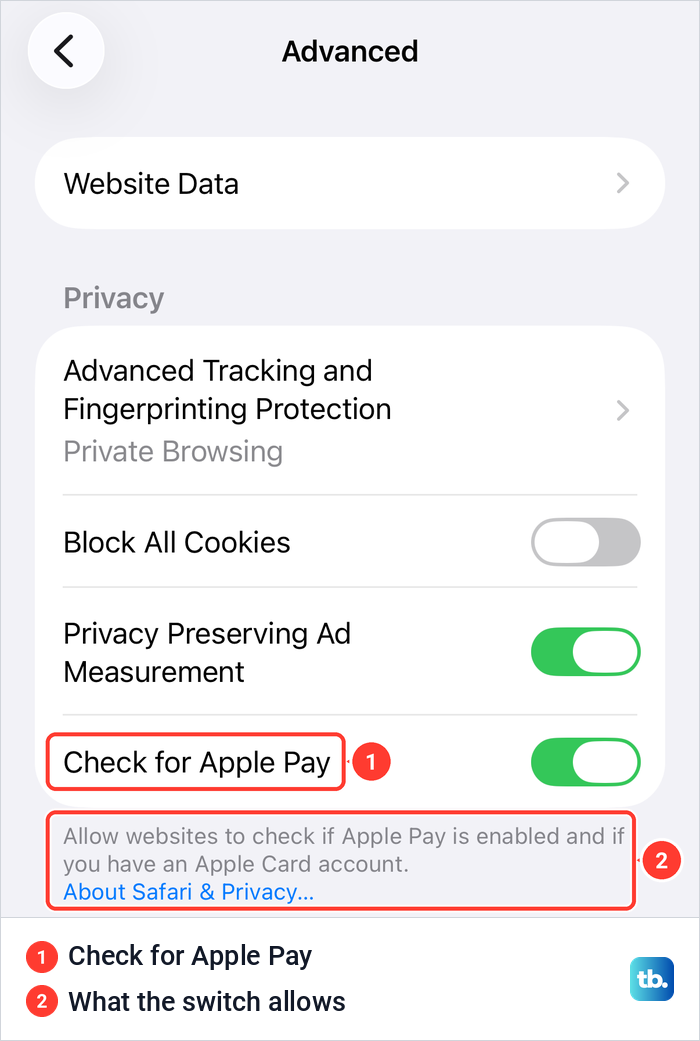
Websites can ask Safari whether you have Apple Pay set up. On iOS 26.5, Settings > Apps > Safari > Advanced showed a Check for Apple Pay switch, on, with the note "Allow websites to check if Apple Pay is enabled and if you have an Apple Card account." Turn it off if you would rather sites not know.
Some services keep charging the card you paid with. Apple says to open Wallet, tap the More button, then Preauthorized Payments and Revoke Payment Authorization to stop the automatic charges. Revoking doesn't cancel the service itself, so also cancel a subscription on iPhone or with the merchant. If someone tricked you into paying, see how to get your money back after an Apple Pay scam.
If your card will not add
Apple's checklist is short: update iOS, make sure Face ID, Touch ID or a passcode is set, check that you are in a supported country and that your device is compatible, and look for a connection problem. It also asks you to turn on two-factor authentication for your Apple Account.
Apple says you might not be able to add cards if you have an Apple Account that is locked, inactive or disabled. Apple also blocks new cards for security reasons when Apple Pay activity looks unusual, while cards already in Wallet keep working. On iOS 27 you can request a review from the affected device, and Apple says the review can take a few days.
If you double-click and another app opens instead of Wallet, Apple says a different contactless app has been chosen as the default. Its iOS 26 guide puts that choice under Settings > Apps > Default Apps > Contactless App, where you pick Apple Wallet.
If none of this helps, work through our fixes for a card that will not add to Apple Pay. The error messages above always need your bank.
Remove a card from Apple Pay
On iPhone, Apple's steps are to open Wallet, tap the card, tap the More button, tap Card Details, scroll down and tap Remove Card. Apple notes that this removes the card from that iPhone only. It stays in Wallet on your other devices, and you can add it again later.
On Apple Watch, open Wallet on the watch, tap the card, scroll down and tap Remove. Apple also gives a route from the iPhone: in the Watch app, tap Wallet & Apple Pay, tap the card, then tap Remove Card.
Removing a card from AutoFill is not the same thing, and Apple says it doesn't remove the card from Apple Pay. When you erase your iPhone before you sell it, Apple says every card you added for Apple Pay is erased with it.
If your iPhone or Apple Watch is lost
Mark the device as lost in Find My first. Apple says marking it as lost locks it with your passcode and suspends the cards and passes you use with Apple Pay. If the device is offline, Find My shows Pending until it connects again. If no other Apple device is to hand, use Find My iPhone from a computer to mark it as lost.
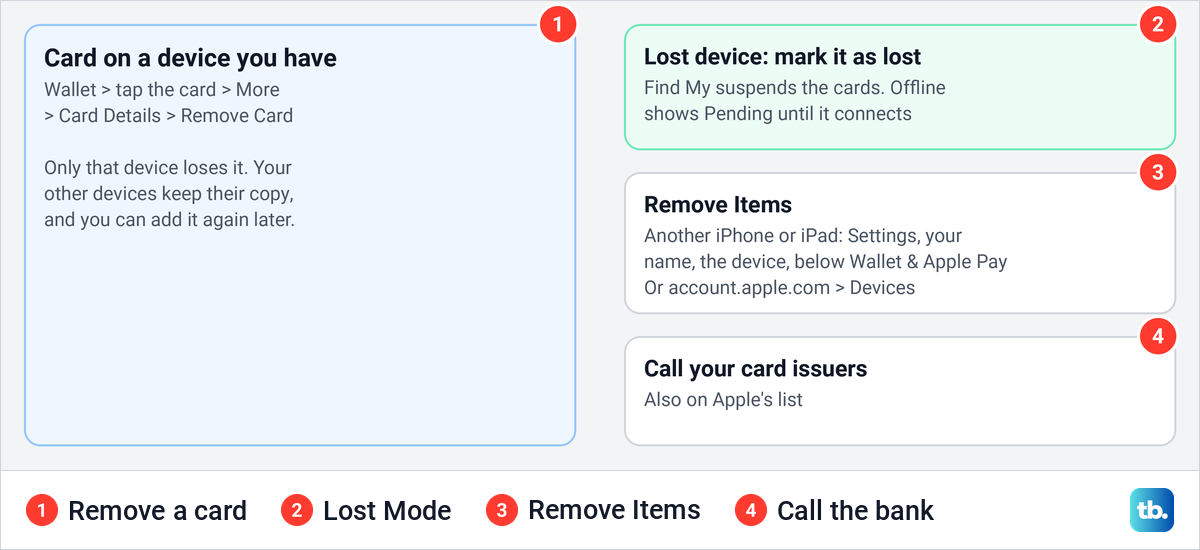
To take the cards off it, Apple lists a choice of routes. On another iPhone or iPad, go to Settings, your name, the lost device, then Remove Items below Wallet & Apple Pay. In a browser, sign in at account.apple.com, open Devices, choose the device and click Remove Items. Apple also lists calling the issuers of your cards as another way to remove them.
How we tested this guide
We tested this on an iPhone 17 Pro with iOS 26.6, going through the Wallet & Apple Pay settings up to the Debit or Credit Card screen.
Frequently Asked Questions
Why does Wallet say verification required?
Your bank wants one more check before the card can pay. Follow the onscreen instructions to verify with your bank, such as a text, an email, a call or the bank's app. If the card still shows verification required, contact the bank.
The verification code goes to my old phone number. What can I do?
Wallet only offers the contact details your bank has on file. Update them with the bank, or add the card from your bank's own app instead.
Do I need Face ID to use Apple Pay?
No. Apple Pay needs a passcode, and Face ID or Touch ID is optional. Apple says removing the passcode removes every card from the device.
Do I have to add my card again for Apple Watch?
Yes. Add it in the Watch app on your iPhone under My Watch, then Wallet & Apple Pay. The watch gets its own card number and your bank may verify it again.
Is Apple Pay the same as Apple Wallet?
No. Wallet is the app that holds your cards and passes. Apple Pay is how you pay with the cards in it, in stores, in apps and online.
If I remove a card from my iPhone, is it gone from my other devices?
No. Apple says removing a card on your iPhone doesn't remove it from Wallet on your other devices, and you can add it again later.
Can I use Apple Pay without a bank card?
Apple Pay needs a supported credit, debit or prepaid card from a participating bank or card issuer. In the US, Apple Cash is also an option: our Wallet & Apple Pay settings listed it under Payment Cards, and Apple says money you receive goes onto that card and can be spent with Apple Pay.