
To recall an email in Outlook, open it from Sent Items in its own window and choose Recall This Message in classic Outlook, Recall Message in the new Outlook or Recall message on the web. It needs work or school accounts, normally in the same organization, for you and the recipient. Just sent it? Select Undo before the delay runs out in Outlook on the web, the new Outlook or Outlook.com, if Undo send is on, while classic Outlook offers Delay Delivery instead.
We recalled messages in classic Outlook and in Outlook on the web, and used Undo send on the web, on Windows 11, version 25H2. Two things stood out. A copy the recipient had already opened was removed too, although the classic dialog only talks about unread copies, and nothing on screen confirmed any recall, so the report email was the only way to know it had worked.
The short version
- Just sent it: select Undo on the Sending bar before the delay runs out. Undo send has to be switched on first.
- Classic Outlook: double-click the message in Sent Items, then select ... > Actions > Recall This Message and OK.
- New Outlook and the web: open the sent message and choose Recall Message (Recall message on the web), on the ribbon or in the ... menu.
- Did it work: open the Message Recall Report email and its View Message Recall Report link.
- Personal account: Outlook.com, Hotmail and Gmail cannot recall, so Undo send, or Delay Delivery in classic Outlook, is the only safety net.
Undo send or recall, which one your Outlook has
Undo send and recall sound alike but do different jobs. Undo send holds a message for a few seconds after you select Send, so you can stop it before it leaves. Recall deletes a copy that has already been delivered, on the mail server, and it only reaches mailboxes in your own organization unless the other side allows yours. Which one you get depends on your Outlook and the account in it.
| Your Outlook | Undo send | Recall | Where to find it |
|---|---|---|---|
| Classic Outlook for Windows | No Undo send setting in File > Options > Mail; use Delay Delivery or a delay rule | Recall This Message, with an Exchange work or school account | Opened message > ... > Actions, or Message > More Move Actions on the Classic Ribbon |
| New Outlook for Windows | Yes, in Settings > Mail > Compose and reply | Recall Message, with a work or school account | The opened message's ribbon |
| Outlook on the web (work or school) | Yes, 0 to 30 seconds | Recall message | Settings > Mail > Compose for Undo send; the opened message's ... menu for recall |
| Outlook.com or Hotmail | Yes, up to 30 seconds | No | Settings > Mail > Compose |
| Outlook for Mac | Yes, 5 to 120 seconds | Recall, in version 16.94 or later, with a work or school account | Outlook > Settings > Composing; Recall on the opened message's ribbon |
| Outlook for iPhone or Android | Not in Microsoft's instructions for the app | Recall, with a work or school account | Sent > open the message > More options |
Not sure which Outlook you have? Microsoft's rule of thumb is the Settings gear at the top right, which the new Outlook has and classic Outlook does not. On our PC classic Outlook showed a Try the new Outlook switch in that corner instead, set to Off. A File tab proves nothing on its own, because Outlook on the web had one too, next to Home, View and Help.
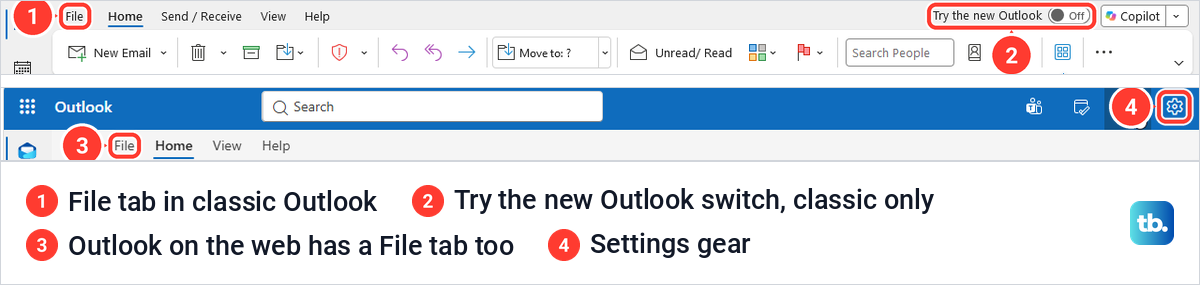
In a browser, the address tells you. Microsoft says an address starting with outlook.live.com is Outlook.com, for personal accounts, while outlook.office.com or outlook.office365.com is Outlook on the web for work and school accounts. If you moved to the new Outlook and miss the classic tools further down, you can switch back to classic Outlook.
Recall an email in classic Outlook
Classic Outlook calls the command Recall This Message, and it needs a Microsoft Exchange account, the kind your organization or Microsoft 365 provides. On our PC the status bar at the bottom of the window read Connected to: Microsoft Exchange, which is a quick way to check before you start.
Open Sent Items and double-click the message so it opens in its own window. Microsoft says selecting it in the reading pane is not enough, and on our PC neither the reading pane's ... menu nor the main window's ribbon offered recall at all.
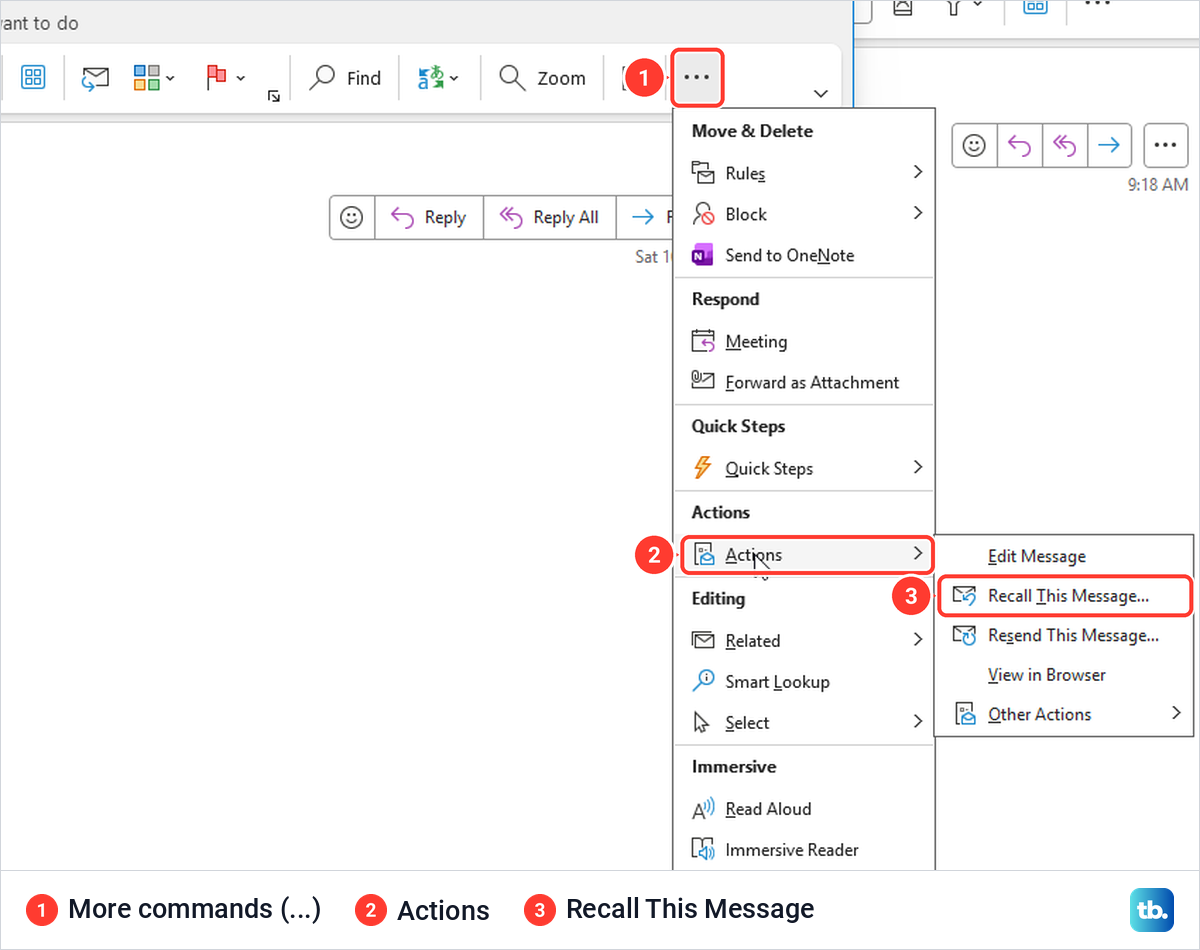
With the Simplified Ribbon, which our copy of Outlook used, the message window had no Recall button in view. Select ... (More commands) at the right end of the ribbon, point to Actions and select Recall This Message. With the Classic Ribbon, Microsoft's route is the Message tab, then More Move Actions in the Move group, then Recall This Message.
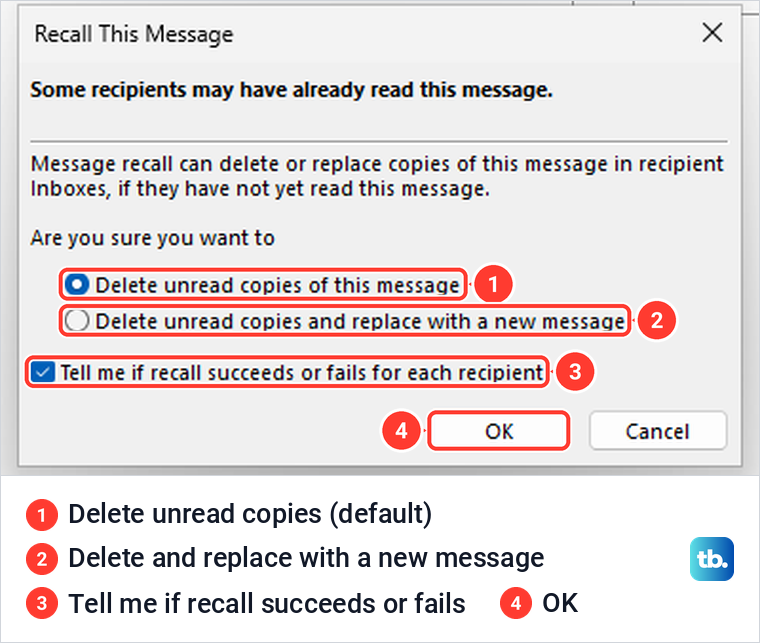
A small dialog opens. Its bold first line says Some recipients may have already read this message, and it showed that on every recall we made, even when nobody had opened the email. Below it are two choices, Delete unread copies of this message, which is selected by default, and Delete unread copies and replace with a new message.
The box Tell me if recall succeeds or fails for each recipient was ticked by default. Leave it on, keep the first choice and select OK. The dialog closed with no confirmation, and the message window gained one line under its header, You tried to recall this message on, followed by the date and time.
If it is there but greyed out, check which message you opened. In a message we had received, opened from the Inbox, Recall This Message was greyed out, so open your copy from Sent Items.
If Recall This Message is missing, Microsoft says you probably do not have an Exchange account or your organization has turned the feature off. To check the account, select File > Account Settings > Account Settings. On the Email tab, an Exchange account is listed with the type Microsoft Exchange.
Replace the email with a corrected copy
Choose Delete unread copies and replace with a new message when the email needs fixing rather than taking back, such as a missing attachment. On our PC, OK opened an editable copy with the same recipient, subject and text. We added a line, selected Send, and the recipient's inbox then held only the corrected copy, not the original.
Look in Deleted Items if the original seems to have vanished from Sent Items. In one of our tests it stayed in Sent Items next to the corrected copy, and in a later one it moved to Deleted Items.
Microsoft says recall deletes the original first and then Outlook sends the new message as normal mail. So treat the replacement like any new email, and check the recipients and attachments before you send it.
Check whether the recall worked
Instead of an on-screen message, a Message Recall Report arrives in your inbox from [email protected], with the original subject in its own subject line. Ours arrived within about a minute of selecting OK, both from classic Outlook and from Outlook on the web.
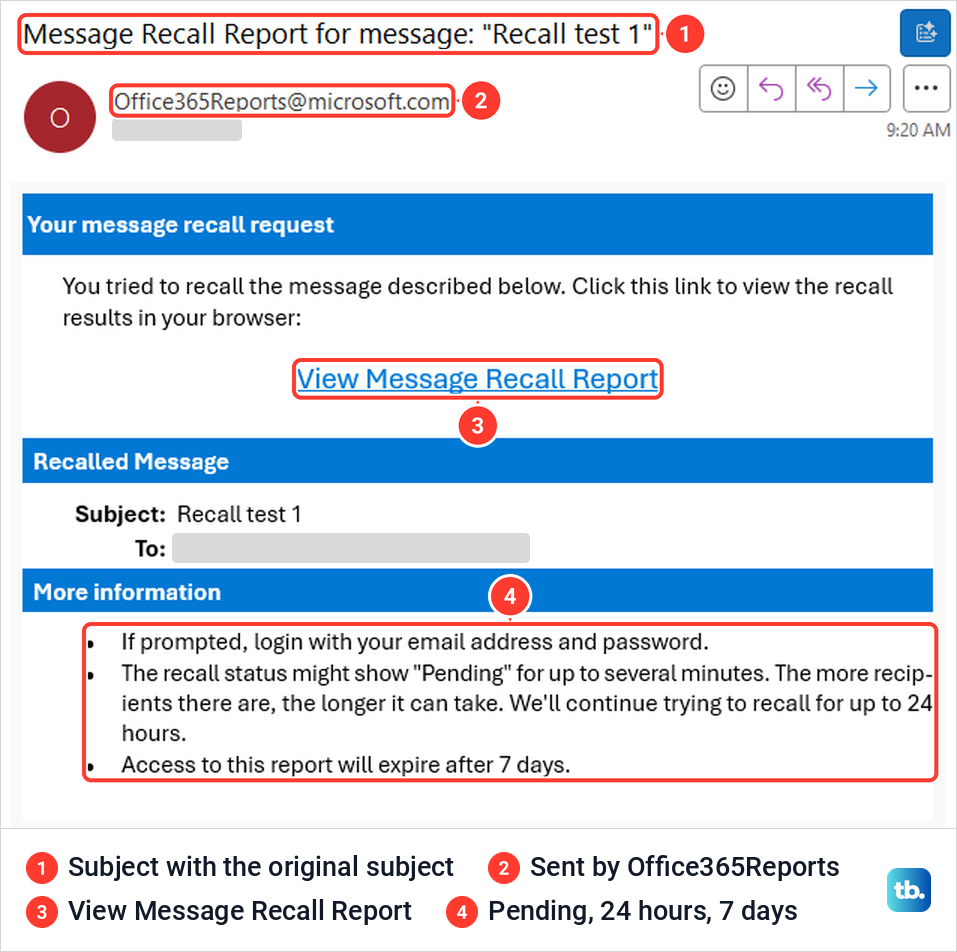
Look in the Other tab too if you use Focused Inbox, because one of our reports landed there. The report's own notes say the status can show Pending for up to several minutes and that Outlook keeps trying for up to 24 hours. They also say access to the report expires after 7 days.
Select View Message Recall Report to open the Message Recall Status Report in your browser. It has three tabs, Recalled, Pending and Failed, with one line per recipient. When we opened it right after a recall it showed Pending, with Getting recall status from the system, although the copy had already gone, and Refresh moved it to Recalled.
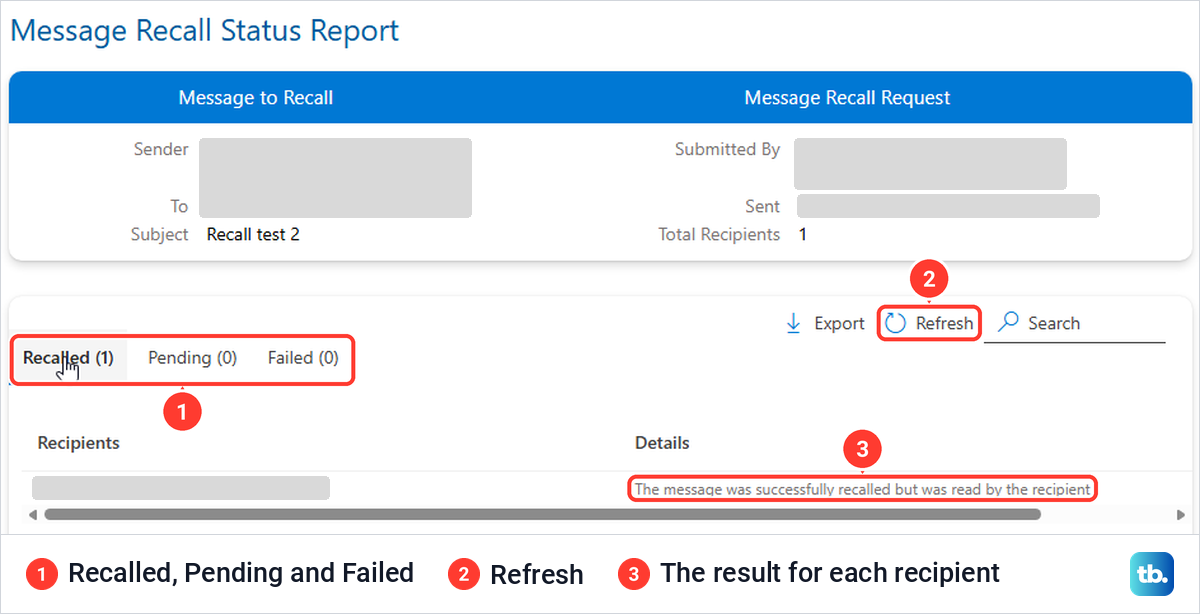
The status page needs the sender's own sign-in. Our link from classic Outlook opened in Edge, which was signed in to Outlook on the web as a different account, and it showed An error occurred while processing your request instead of the report. Sign in to Outlook on the web with the account that sent the message and open the link again.
A message you only recall stays in your Sent Items. Classic Outlook marks it with You tried to recall this message on and the date, and Outlook on the web shows a Recall attempted at banner. If no report arrives within a few minutes, check whether Outlook email has a problem today before you try again, and if reports never arrive, ask IT whether [email protected] is blocked or quarantined, which Microsoft tells admins to check.
What the recipient sees after a recall
When the recall works, nothing. We recalled an unread message from classic Outlook and then opened the recipient's mailbox in Outlook on the web for the first time. The message was not in the Focused or Other inbox or in Deleted Items, and no notice about a recall had arrived. Microsoft says recipient notifications are an admin setting and are off by default.
Recall can also remove a message that has been read, if your organization allows it. A copy the recipient had already opened disappeared from their inbox about 35 seconds after a recall from classic Outlook, although we had chosen Delete unread copies. When we sent a message to our own address from Outlook on the web, opened it and recalled it, it was gone about 70 seconds later, and the status page said The message was successfully recalled but was read by the recipient.
Do not count on that everywhere. Microsoft's admin documentation leaves read messages to each organization, while its support summary still says unread only, so send a short follow-up if the reader may have seen it.
Turn on Undo send in Outlook on the web
With a personal account, Undo send (or Delay Delivery in classic Outlook) is the only way to stop a message, and it has to be set up before you need it. In Outlook on the web, select the Settings gear at the top right, then Mail and Compose, and scroll down to Undo send. Drag the slider to the delay you want and select Save.
On our work account the slider started at 0 seconds, so there was no Undo window at all until we changed it. It moves in steps of 5 seconds up to 30. Past 10 seconds the track turns orange and a warning recommends up to 10 seconds, because a longer delay may result in the email not being sent if the network drops, the app closes or the computer shuts down.
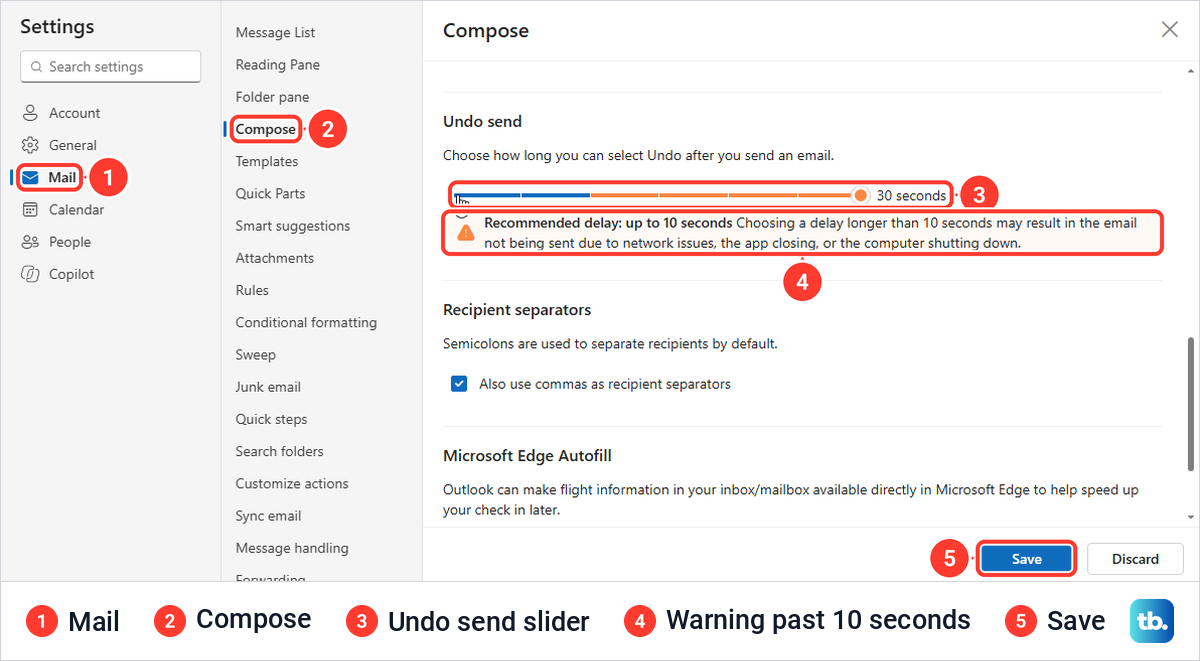
Save gave no confirmation, but the slider stayed where we left it. Microsoft gives Outlook.com the same route, Settings > Mail > Compose, with a delay of up to 30 seconds. If you use a Hotmail address, sign in to Hotmail on the web and the setting is in the same place.
Undo send in the new Outlook and classic Outlook
Microsoft puts the setting for the new Outlook for Windows under Settings > Mail > Compose and reply > Undo send. Its tips page for the new Outlook says the Undo option shows for up to 10 seconds, while the web slider went to 30 seconds for us, on a page labelled Compose rather than Compose and reply. Pick a delay you can live with, keeping in mind Outlook's own warning about delays over 10 seconds.
Classic Outlook works differently. On our PC, File > Options > Mail had no Undo send setting and no send delay anywhere on the page. In classic Outlook you hold mail back with Delay Delivery or a delay rule instead, both covered further down.
Unsend an email with the Undo button
With Undo send on, select Send as usual. A dark bar reading Sending... appeared at the bottom of the message list with an Undo link on its right, and Microsoft says the prompt stays for the length of time you set. Select Undo before it disappears.
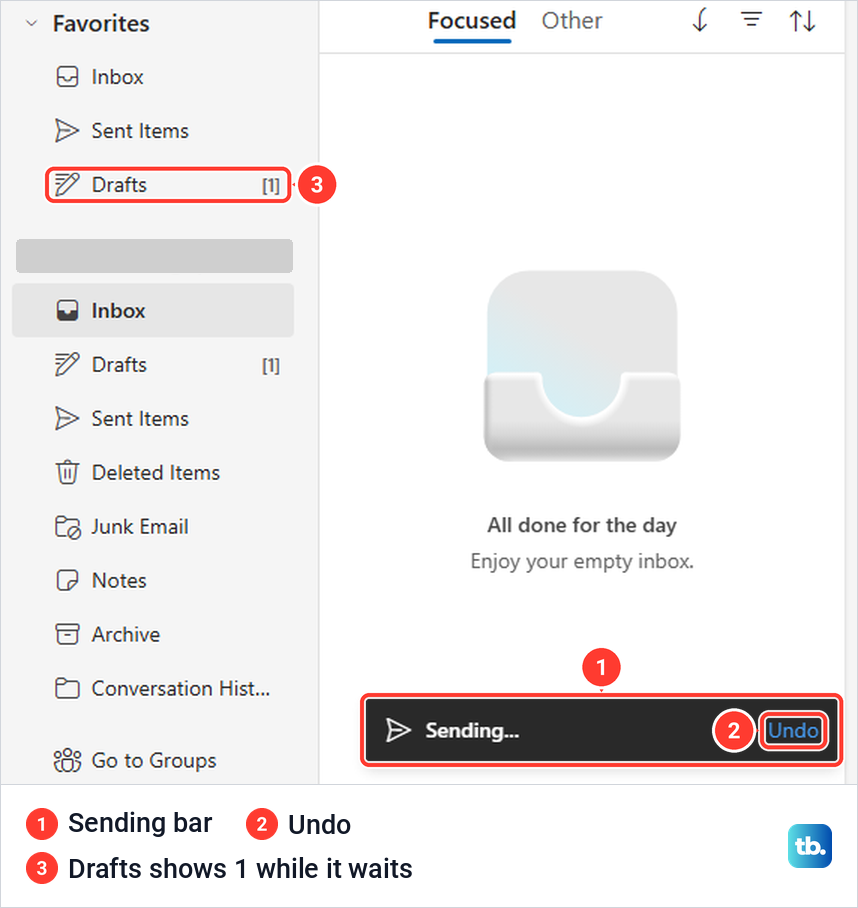
While the bar was up on our PC, the Drafts folder already showed a count of 1. We selected Undo about 20 seconds after Send, with the delay at 30 seconds. The message reopened for editing with the recipient, subject and text intact, and a Draft saved note beside the subject.
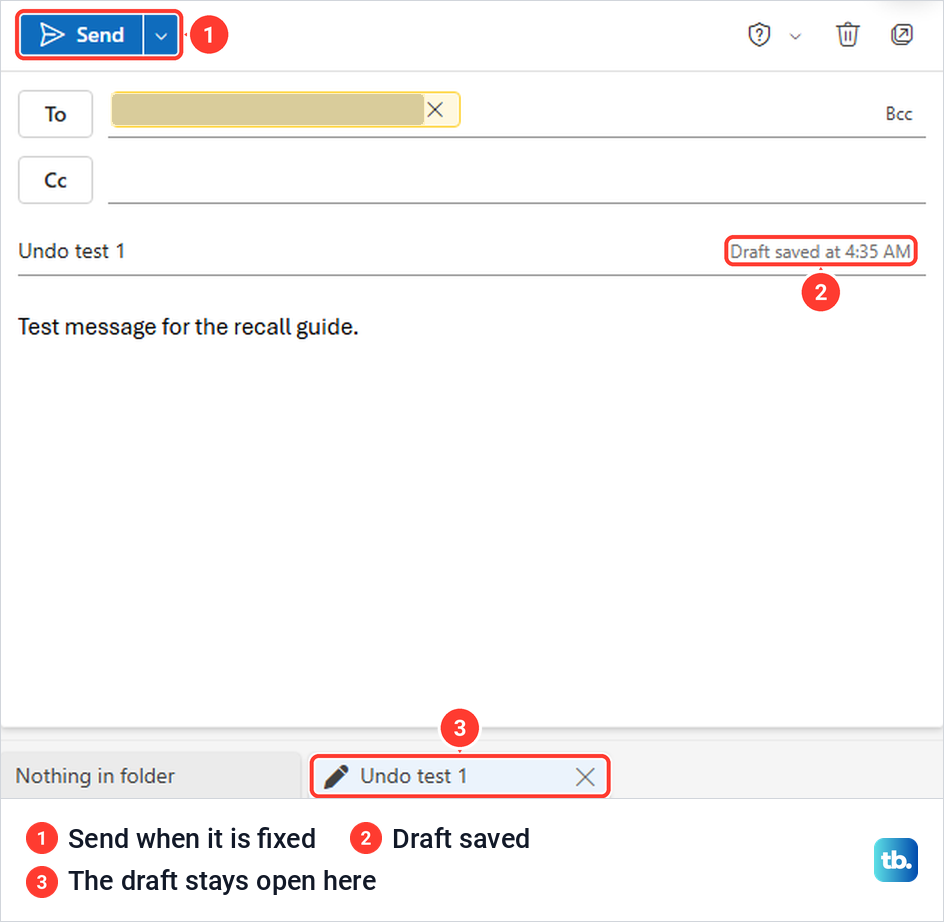
Fix the mistake and select Send again, or select the bin icon to throw the draft away, which first asks Are you sure you want to discard this draft? Once the bar has gone, Undo cannot help, and recall is the next step.
Recall an email in Outlook on the web or the new Outlook
In Outlook on the web, open Sent Items and double-click the message so it opens in its own window. Microsoft's steps put Recall Message on the ribbon, but on our screen it was not on that window's toolbar. Select ... (More actions) at the right of the toolbar, and Recall message is under Respond, next to Resend message.
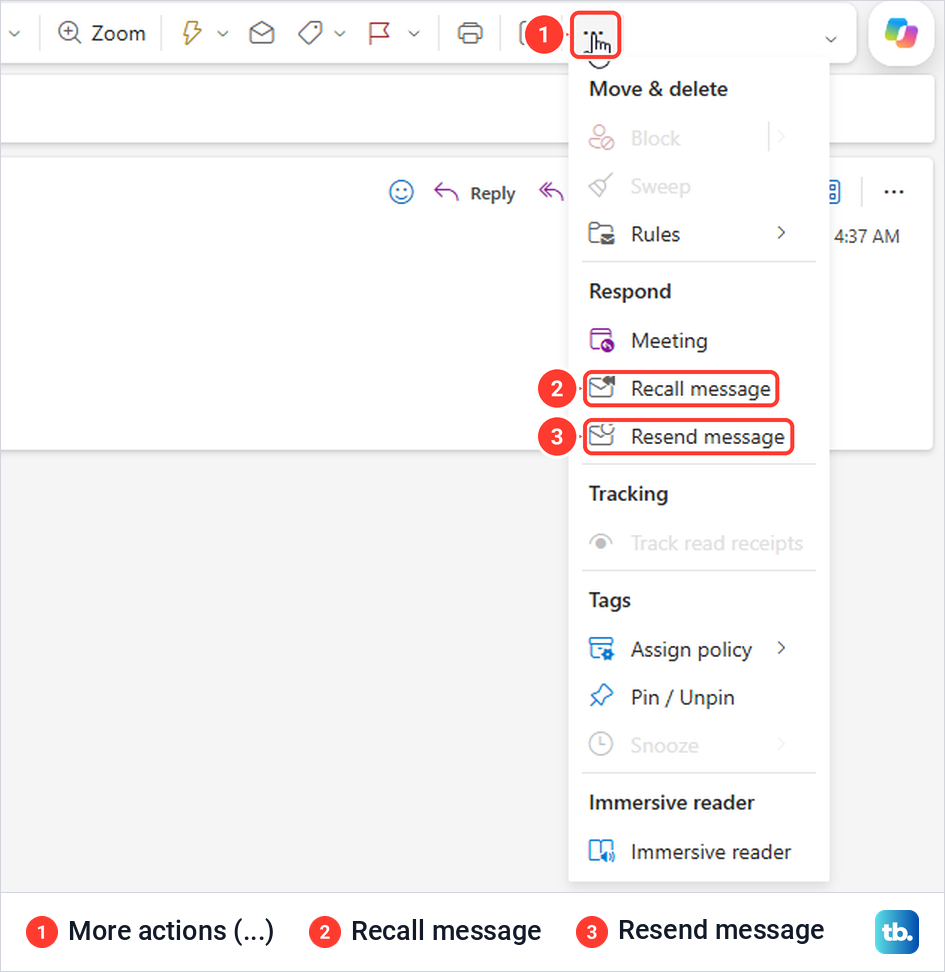
On the web you do not have to open the message at all. With it selected in Sent Items, the reading pane's ... menu has Advanced actions at the bottom, which lists Recall message too, and it ran the same recall for us. The submenu opened to the left of the menu, and when pointing at it did nothing, the Right arrow key opened it.
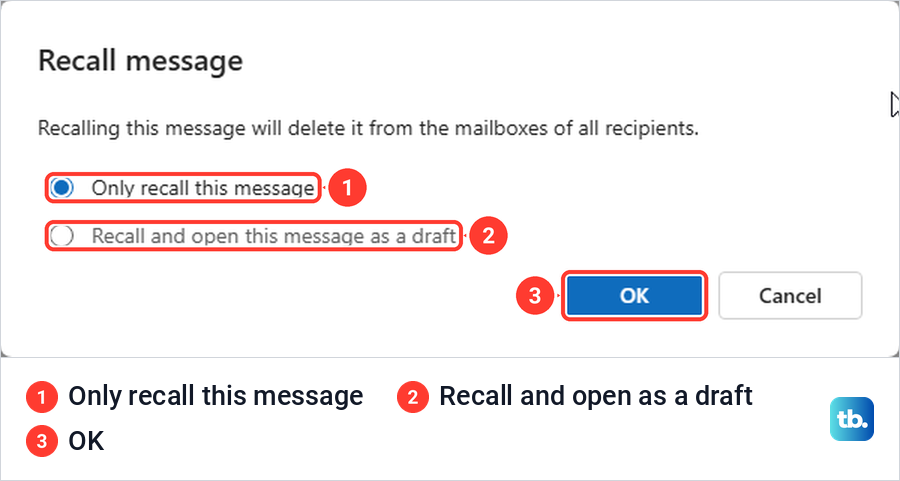
The web dialog says Recalling this message will delete it from the mailboxes of all recipients. It offers Only recall this message, selected by default, and Recall and open this message as a draft, for when you want to send a corrected version. Select OK and watch your inbox for the report.
Microsoft's steps for the new Outlook for Windows are the same. Select Sent Items, double-click the message, select Recall Message on the ribbon, then OK. If the ribbon does not show it, look in the ... menu, where Outlook on the web kept it.
Recall or unsend on a Mac, iPhone or Android
In Outlook for Mac, recall needs version 16.94 or later and does not work in legacy Outlook for Mac. Open Sent, double-click the message, select Recall on the ribbon and then OK, or Control-click the message and choose Recall.
If the Recall button is missing, Microsoft says you can add it by customizing the toolbar, and you can update Outlook on your Mac if your version is older than 16.94. Microsoft set October 2026 as the month legacy Outlook for Mac stops working with Exchange Online mailboxes, so turn its Legacy Outlook switch off if you still use it.
Outlook for Mac also has its own Undo Send, for Microsoft 365 subscription and Outlook.com accounts. Microsoft's route is Outlook > Settings > Composing, where the delay runs from 5 seconds up to 120. After that, an Undo prompt appears at the bottom of Outlook each time you send.
On an iPhone or Android phone, open the Sent folder in the Outlook app, open the message, tap the three dots (More options) at the top right and tap Recall. Microsoft says an email then tells you whether it worked, and that a recall can fail if the message is very old or IT has turned the feature off.
Why an Outlook recall fails
Most failures come down to where the message went. Recall only reaches Microsoft 365 mailboxes, so it cannot touch Gmail, Outlook.com, Yahoo or any other address on the internet. The same goes for your side: Microsoft says personal accounts cannot use recall at all, and that includes a Gmail account added to Outlook.
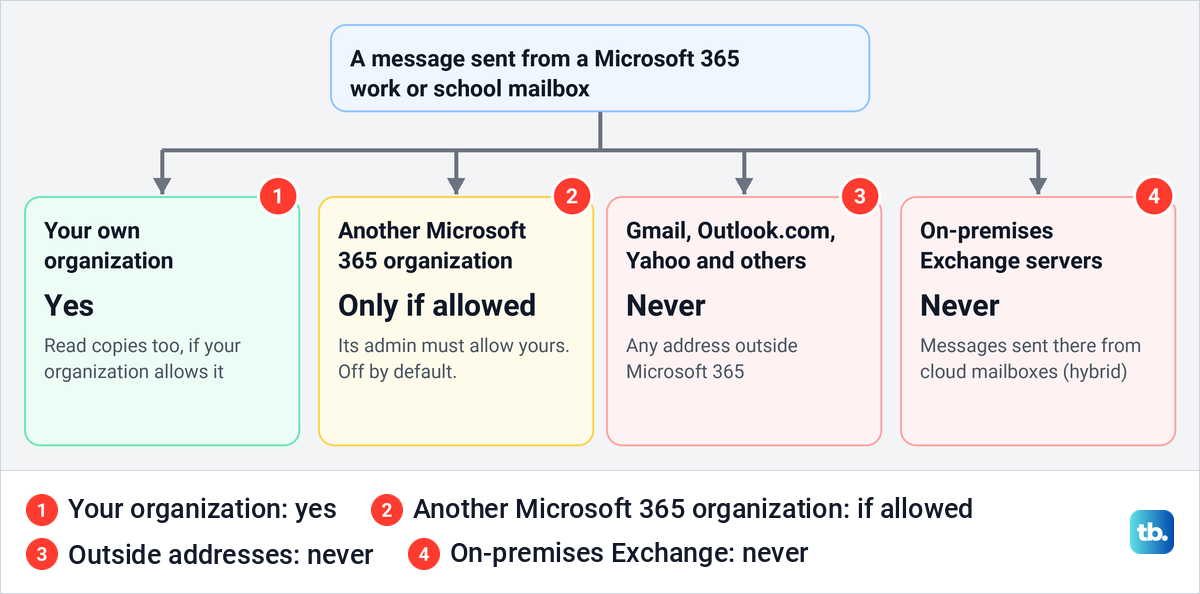
Another company on Microsoft 365 can be reached only if its admin has put your organization on an allow list, which is off by default. Without that, Microsoft says the status report shows that the message cannot be recalled across organizations. Messages sent from cloud mailboxes to on-premises Exchange servers, in a hybrid setup, cannot be recalled either.
Inside your organization, Microsoft lists several more reasons. The message may be older than the age limit, which is 365 days unless your admin changed it. The recipient may have forwarded it by hand or with an inbox rule, or it went to a mail-enabled public folder, and none of those copies can be recalled. Your organization may also have chosen not to recall read messages, or turned recall off.
Classic Outlook has two blockers of its own, Microsoft says, which are Online mode and a profile with more than one Exchange account. Encrypted mail is limited too. Microsoft says mail protected by Azure Information Protection cannot be recalled, and mail encrypted with Microsoft's encryption or sensitivity labels only if your organization gives you Premium Encryption and you recall from Outlook on the web or the new Outlook.
For IT staff, a message trace shows the recall request, the message whose subject starts with Recall:, as Failed even when the recall worked. Microsoft calls that normal, because the request is dropped once the recall succeeds.
What to do when you cannot recall it
Send a short correction quickly. A plain line such as "Please ignore my last email, a corrected version follows" tells the recipient what to expect, and for a typo or a missing attachment you can resend a fixed copy.
Classic Outlook can resend from the same menu as recall. In the opened sent message, select ... > Actions > Resend This Message, and on our PC an editable copy opened with the same recipient, subject and text. On the web, Resend message sits next to Recall message and did the same, but a resent email is a second copy and does not remove the first.
Hold your email back next time
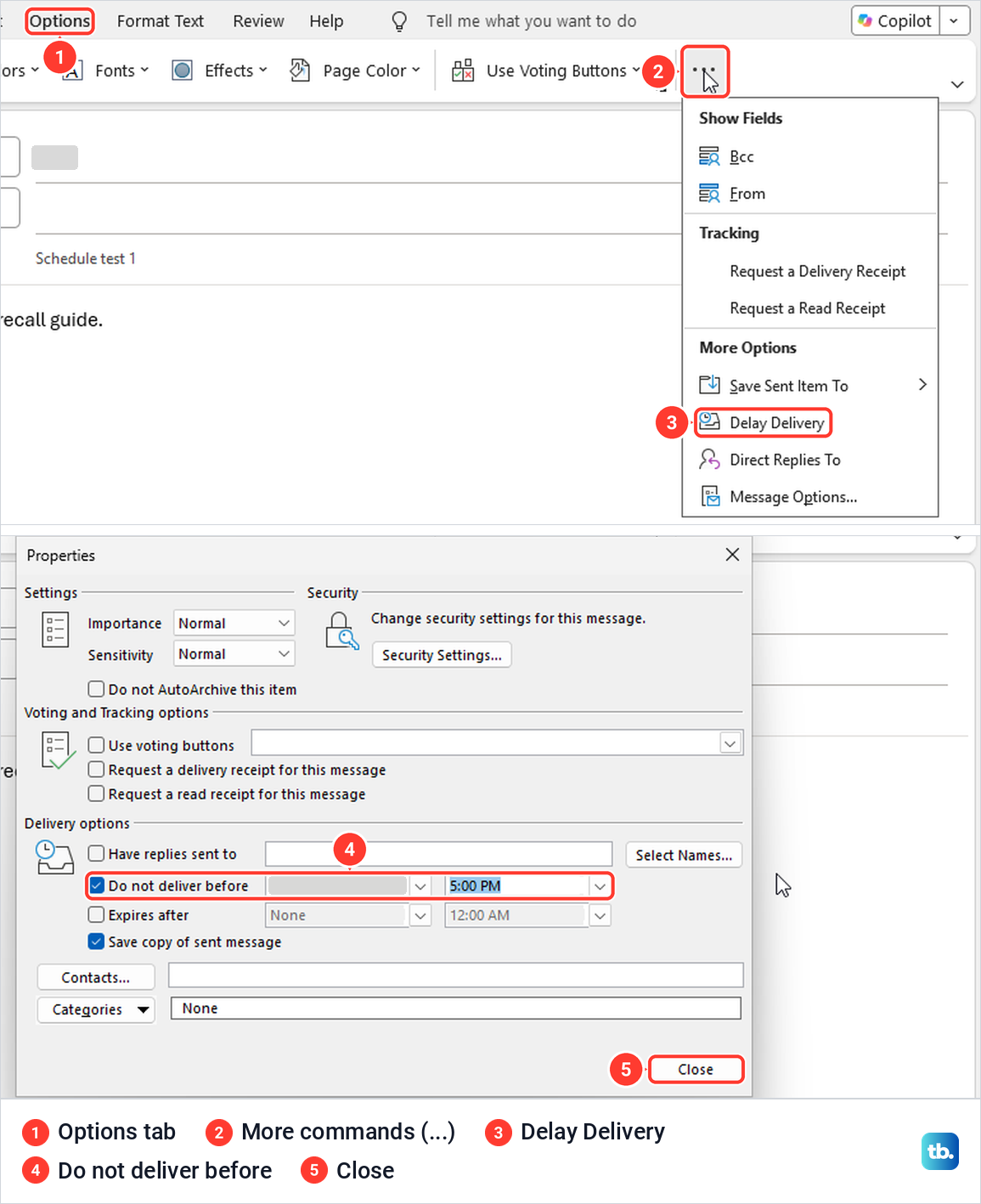
Classic Outlook can hold one message until a time you choose with Delay Delivery. In a new message, open the Options tab. On our screen the button was not on the Simplified Ribbon, so select ... and then Delay Delivery under More Options.
The Properties dialog opened with Do not deliver before already ticked and a date and 5:00 PM filled in. Set the date and time you want, select Close and then Send. The message then waited in the Outbox, shown in italics, and Microsoft says Outlook must be online and connected for it to go.
To change a held message, open it from the Outbox. On our PC that turned it back into an editable draft, and closing it left it in the Outbox unsent, with Sent showing None, so select Send again when it is right.
To cancel it instead, select it in the Outbox and press Delete. Ours left the Outbox and sat in Deleted Items as an unsent draft. If a held message never leaves the Outbox, here is what to do when delayed delivery is not working in Outlook.
To hold every message, use a rule. Select File > Info > Manage Rules & Alerts > New Rule, choose the blank rule for messages you send, the second choice under Start from a blank rule, and select Next without ticking a condition. Outlook then asks whether the rule should apply to every message you send, and Yes takes you to the actions.
Tick defer delivery by a number of minutes, select a number of in the description and enter the minutes. When we typed 200, Outlook refused with Enter a whole number between 1 and 120. Name the rule, keep Turn on this rule ticked and select Finish.
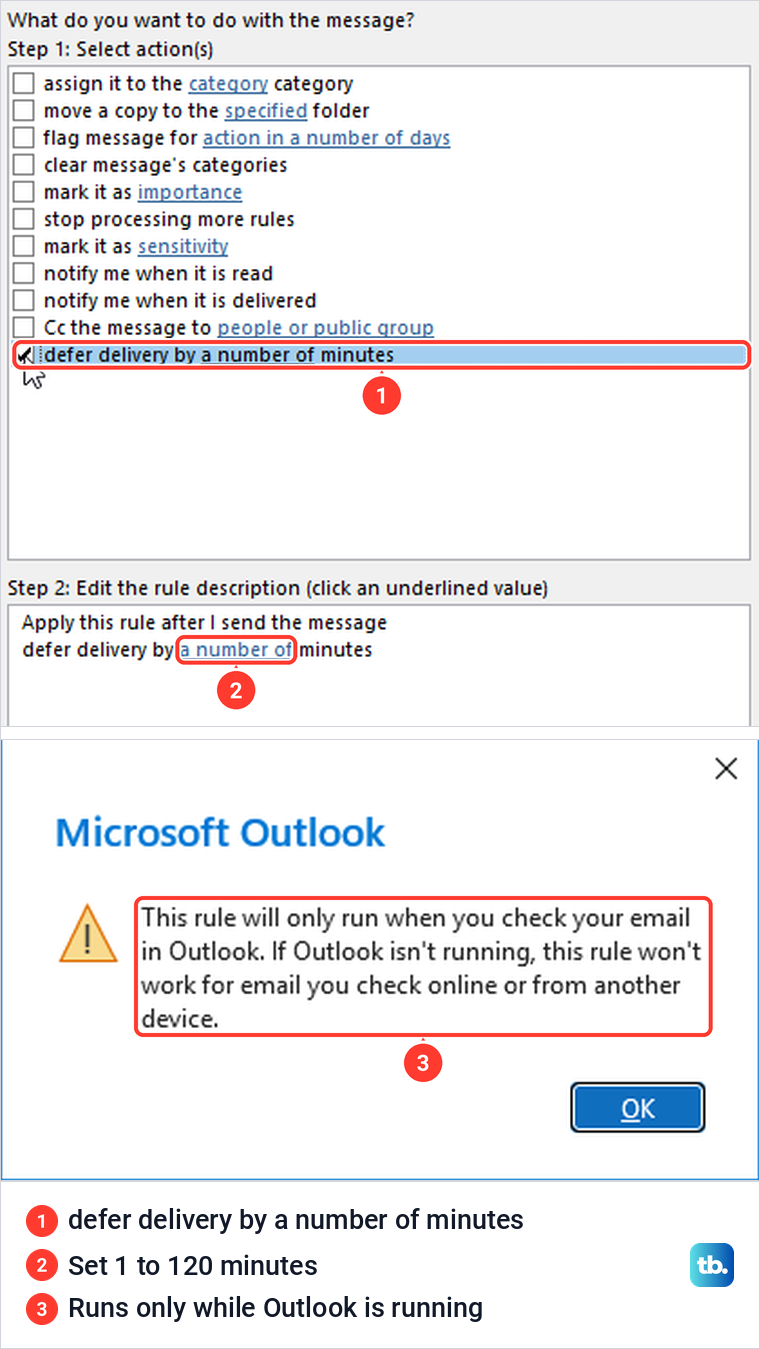
Read the warning that appears at Finish. Outlook told us the rule only runs when you check your email in Outlook and will not work for email you check online or from another device, and it listed the rule as client-only. So do not count on it for mail you send from Outlook on the web or your phone, and the fixes for Outlook rules that stop working apply to it like any other rule.
A message the rule holds waits in the Outbox in the same way, and you can delete it there. To stop holding mail, untick the rule in Rules and Alerts and select OK.
The new Outlook and Outlook on the web use Schedule send instead, in the dropdown next to Send, and Microsoft lists the delay rule as only partly available in the new Outlook. If you would rather hold a message for hours, or until the morning, schedule an email in Outlook instead of sending it now. If a message still sits in the Outbox long after its delay, Outlook is not sending emails at all, and that has its own fixes.
How we tested this guide
We tested this on Windows 11, version 25H2, with classic Outlook for Microsoft 365 and Outlook on the web, recalling unread and already read messages.
Frequently Asked Questions
Can you unsend an email in Outlook?
Yes in Outlook on the web, the new Outlook, Outlook.com and Outlook for Mac, if Undo send is on and you select Undo before the delay runs out. On our PC, classic Outlook showed no Undo send setting in File > Options > Mail, so use Delay Delivery there. After that only recall can help, with work or school accounts, normally in the same organization.
Can I recall an email after the recipient has read it?
Sometimes. Each organization decides whether read messages are recalled, and on ours a copy that had been opened was removed. Microsoft's support summary still says unread only, so send a follow-up if it matters.
Does the recipient know when you recall an email?
Not by default. Microsoft says recall notifications for recipients stay off unless an admin turns them on, and our recipient got no notice of any kind.
Why is Recall This Message missing in Outlook?
The account may not be an Exchange work or school account, your organization may have turned recall off, or the message is only selected instead of open in its own window. In classic Outlook, look under ... > Actions in the opened message.
Can I recall an email sent to Gmail or another company?
Not to Gmail or any other address outside Microsoft 365. Another company on Microsoft 365 can be reached only if its admin has allowed your organization.
How long do I have to recall an email in Outlook?
Your organization sets an age limit, 365 days unless it was changed. Once you start a recall, Outlook keeps trying for up to 24 hours, though our reports arrived within about a minute.
Can I recall an email in Outlook.com or Hotmail?
No. Microsoft says personal addresses cannot use recall, so turn on Undo send in Settings > Mail > Compose, with a delay of up to 30 seconds.
Does a recalled email disappear from my Sent Items?
Not when you only recall it. On our PC it stayed in Sent Items with a note saying you tried to recall it, in both classic Outlook and Outlook on the web. After a replace in classic Outlook, the original sometimes moved to Deleted Items instead.