

To change the default font in Outlook, open File > Options > Mail > Stationery and Fonts in classic Outlook, select Font under New mail messages, pick a font and size, and select OK three times. In Outlook on the web and the new Outlook, go to Settings > Mail > Compose, pick the font and size, then Save. On a Mac, it is Outlook > Settings > Composing.
On our PC, new mail started in Aptos, size 12, in both classic Outlook and Outlook on the web, because Microsoft's refreshed Office theme uses Aptos for new emails where Calibri used to be. If you want the old look back, pick Calibri in the same place. Making mail you receive bigger to read is a different setting, the zoom, which we cover further down.
We changed the default fonts for new mail, replies and plain text in classic Outlook and in Outlook on the web on Windows 11, version 25H2. Two results surprised us: a draft saved before the change kept its old font even for new lines, and text pasted from Word took on our new font instead of keeping its own.
The short version
- Classic Outlook: File > Options > Mail > Stationery and Fonts, then Font for new mail, for replies and forwards, and for plain text.
- Outlook on the web and new Outlook: Settings > Mail > Compose, choose the font and size, then Save. On the web, that one setting covered new mail and replies for us.
- Outlook for Mac: Outlook > Settings > Composing, with separate fonts for new mail and for replies.
- Want Calibri back? Our classic Outlook and Outlook on the web started new mail in Aptos, so pick Calibri in the same place.
- Bigger text for reading is the zoom, not the default font. In classic Outlook, click the zoom percentage and tick Remember my preference.
Which Outlook do you have
Each Outlook keeps the default font in a different place. Microsoft's test is the Settings gear: if there is one at the top right, you have the new Outlook, and if not, you have classic Outlook. On our PC, classic Outlook showed a Try the new Outlook switch in that corner instead.
Outlook on the web runs in a browser tab and has the gear too, and Microsoft gives Outlook.com the same steps. On a Mac, look for the Outlook menu in the menu bar at the top of the screen.
If the new Outlook opened in place of the app you know, you can switch back to classic Outlook and use the steps below. The table sums up each version.
| Your Outlook | Where to change the font | Font settings | Bigger text for reading |
|---|---|---|---|
| Classic Outlook for Windows | File > Options > Mail > Stationery and Fonts | Separate fonts, plus a third one for plain text | Zoom slider at the bottom right, then Remember my preference |
| New Outlook for Windows | View > View settings > Mail > Compose | A font under Message format | View > Zoom, for the message you are reading |
| Outlook on the web and Outlook.com | Settings > Mail > Compose | One font, used for new mail and replies | View > Zoom, or the browser's zoom |
| Outlook for Mac | Outlook > Settings > Composing | Separate fonts for New mail and Reply or forward | Format > Increase Font Size, for the folder you are in |
| Legacy Outlook for Mac | Outlook > Settings > Fonts | A font for each composition style | The display size slider on the same page |
| Outlook for iPhone and Android | The Formatting button while you write | A font picked for each message | Your phone's text size setting |
Change the default font in classic Outlook for Windows
In classic Outlook, select File, then Options, and choose Mail in the Outlook Options window. At the top, Compose messages in this format read HTML on our PC, which is the default. Below it, next to Use stationery to change default fonts and styles, colors, and backgrounds, select Stationery and Fonts.
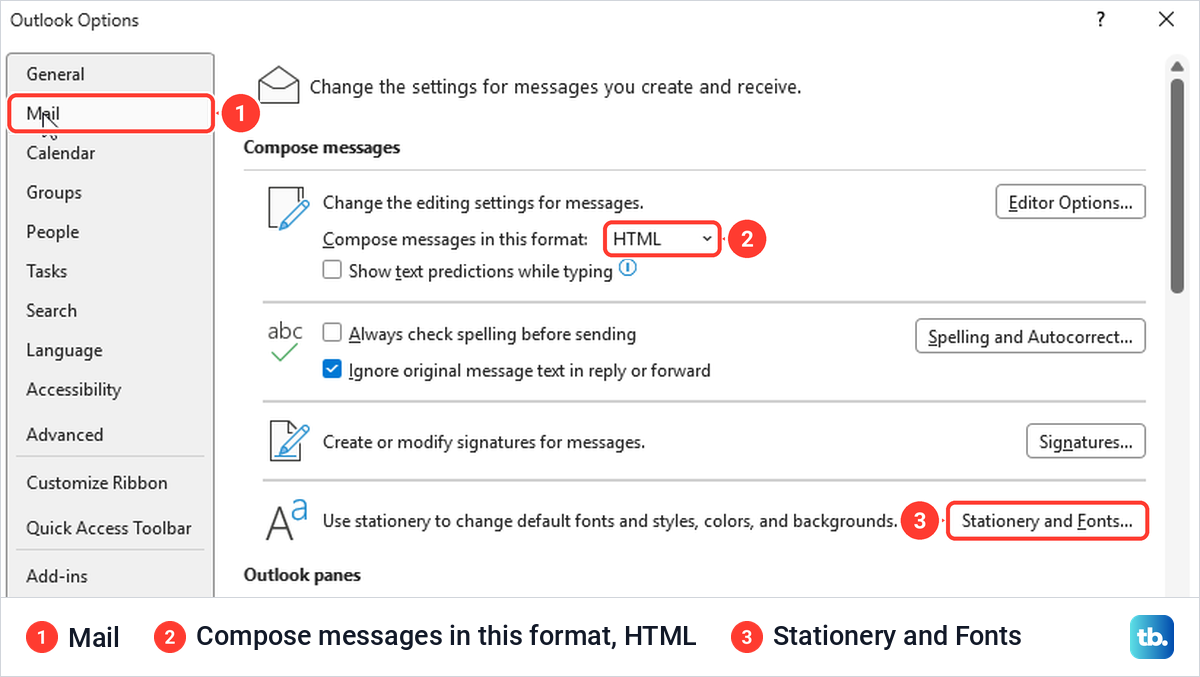
Leave the format on HTML, since Microsoft says plain text does not support bold or italic text, colored fonts or other text formatting. Plain-text messages get a font slot of their own, covered below.
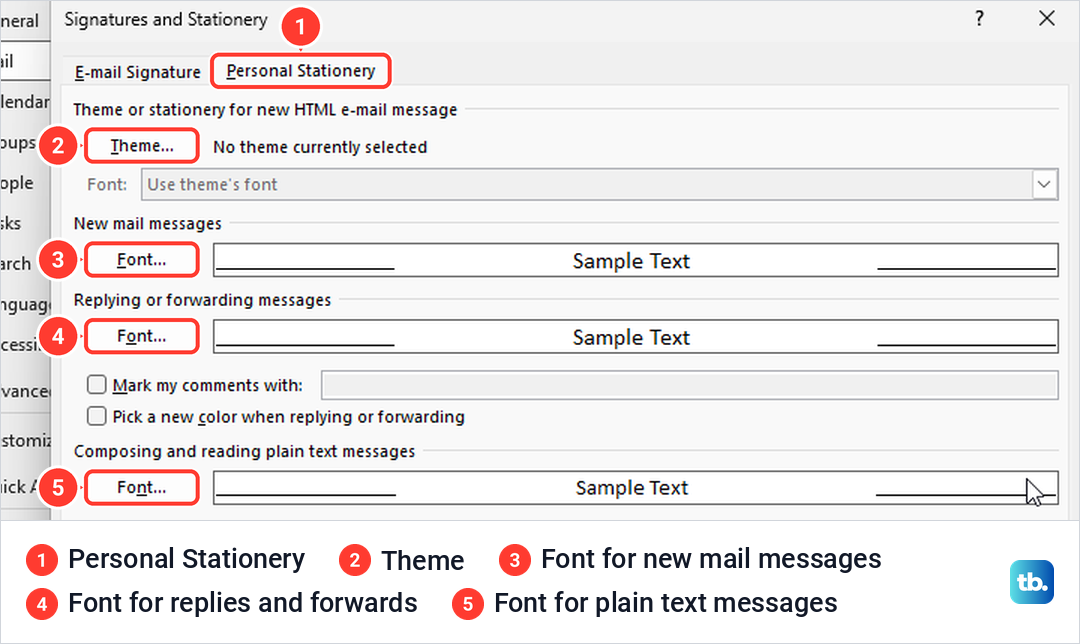
Stationery and Fonts opens a window called Signatures and Stationery on its Personal Stationery tab. It has three Font buttons, for New mail messages, Replying or forwarding messages, and Composing and reading plain text messages, each with a Sample Text box. A Theme button sits above them, and on our PC it read No theme currently selected.
Select Font under New mail messages. The Font window opened on our PC with +Body in the Font box, size 12 and the colour Automatic, and its preview read Aptos. A new message showed the same starting point, Aptos (Body) at 12 points.
Pick a font in the Font list or type its name, then choose a style, a size and a Font color. We chose Georgia, Regular, 14 and the standard colour Dark Blue, and the preview changed as we went. The Advanced tab holds character spacing and OpenType settings, which most people can leave alone.
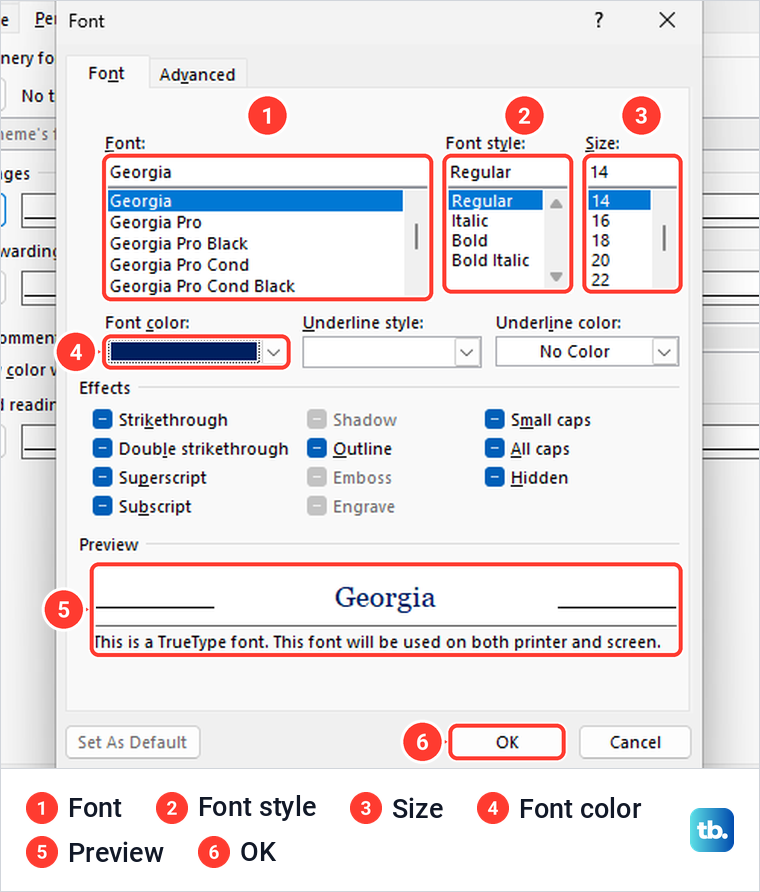
Select OK three times, once each for the Font, Signatures and Stationery and Outlook Options windows. The Set As Default button in the Font window stayed greyed out for us, so OK is what saves your choice. Outlook asked for no restart, and the next new message we opened typed in Georgia 14 in dark blue.
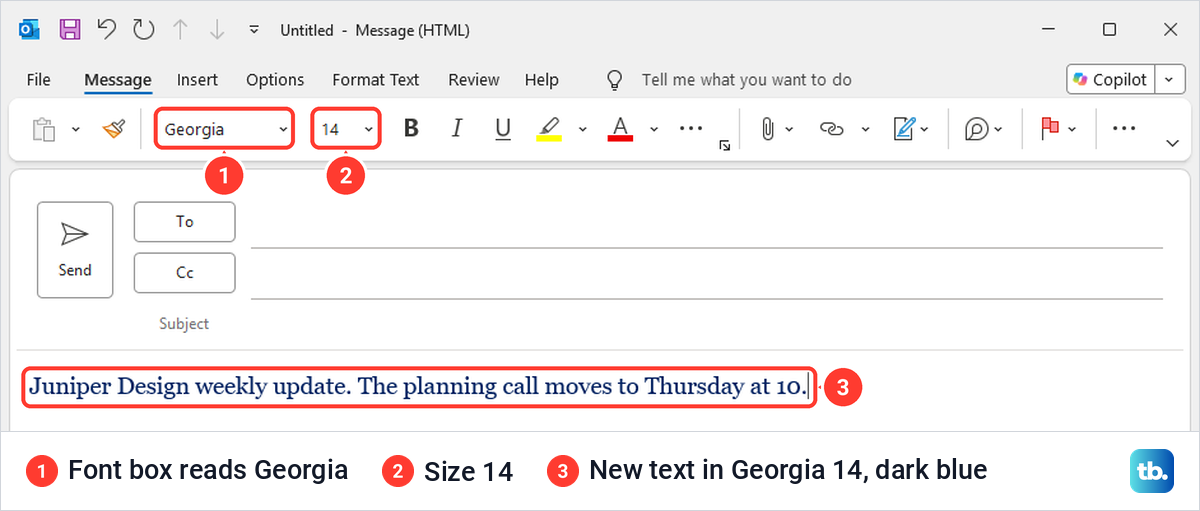
There is also a keyboard route: Alt + F and T for Outlook Options, the Down arrow to Mail, then Alt + F and Enter for Signatures and Stationery. There, press F for the new mail font, O for the reply font and N for the plain text font.
Use a different font for replies and forwards
Replies and forwards have their own Font button under Replying or forwarding messages, and it does not follow the new mail font. On our PC it started at the same +Body, 12 and Automatic as new mail. Microsoft's instructions say you have to set the two independently.
We set replies to Verdana 14 while new mail stayed Georgia. A reply and a forward both typed in Verdana 14, and the quoted message underneath kept the sender's own font, Aptos. Georgia appeared nowhere, so if your replies look different from your new messages, this second button is why.
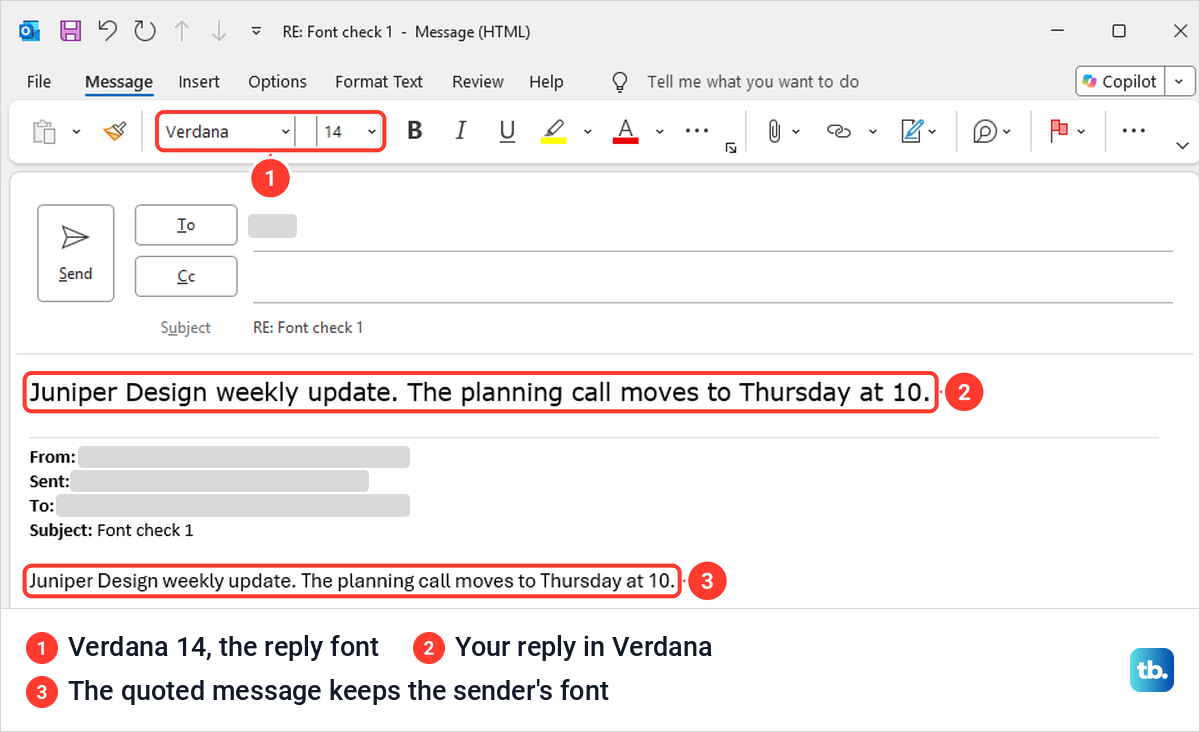
To make new HTML messages and replies match, choose the same font and size in both buttons. Outlook on the web has no second font at all, as its section below shows.
Change the font for plain text messages
The third button, Composing and reading plain text messages, works differently from the other two. On our PC it did not start at Aptos but at Calibri, Regular, 11. As its label says, it also sets how plain-text mail you receive looks, not just mail you write.
We set it to Consolas 14 and sent a plain-text message from Outlook on the web to our classic mailbox. It showed in Consolas in the Reading Pane and in its own window, titled Message (Plain Text). After we set the slot back to Calibri 11, the same message showed in Calibri.
A reply to a plain-text message is plain text too. Ours opened as Message (Plain Text) with the font box empty and greyed out, bold, italic and colour greyed, and our typing in Consolas. Plain text carries no formatting, so this slot only changes how plain text looks on your screen.
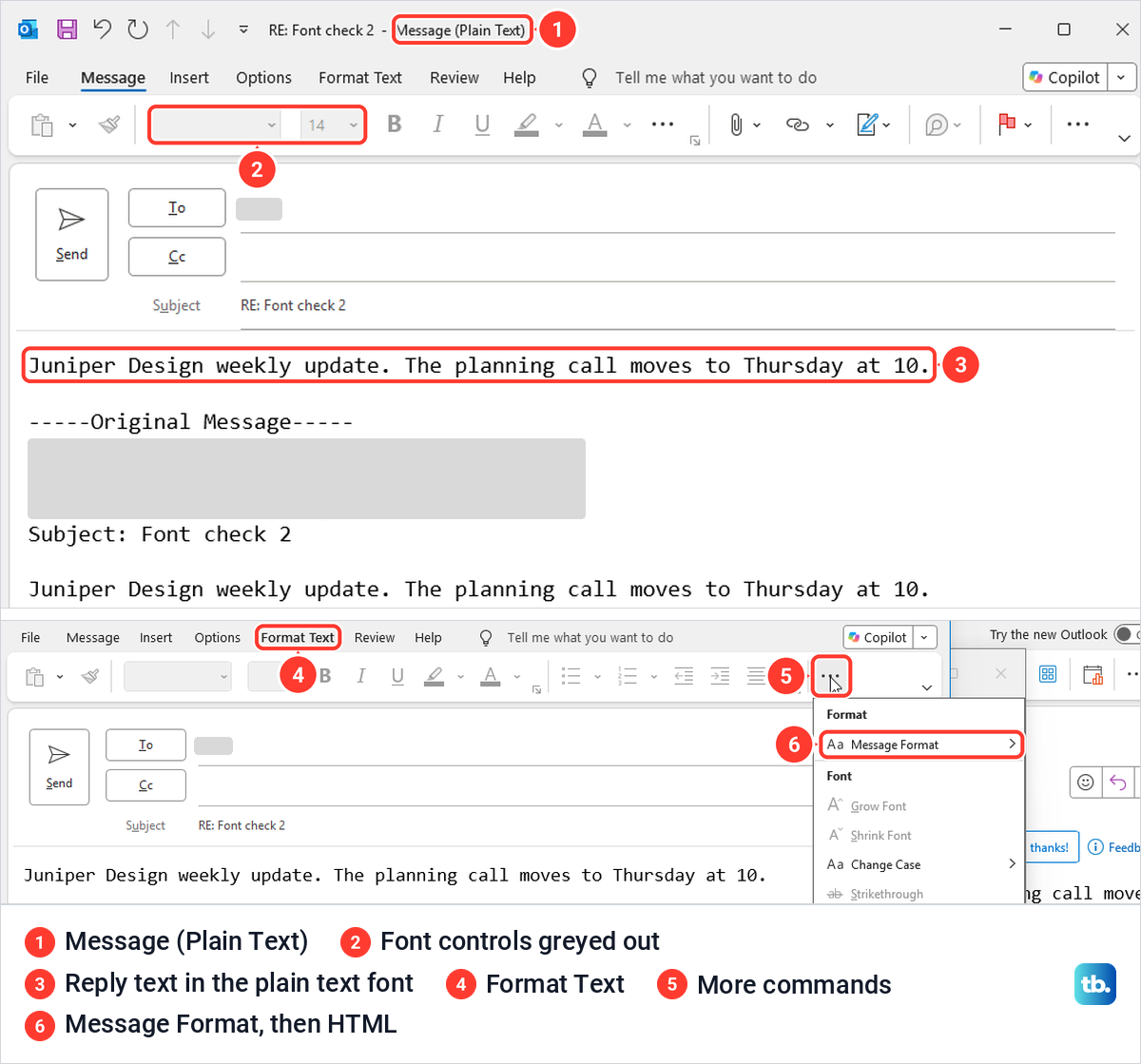
To give one reply its formatting back, switch it to HTML. On the Simplified Ribbon we found the switch under Format Text, the three dots, Message Format and HTML. The formatting buttons came back, but the text and new lines we typed stayed in Consolas 14 rather than our Verdana reply font, so pick the font for that reply by hand.
If every reply comes out as plain text, check one more setting. Microsoft says that if you chose to read all mail in plain text, your replies are also sent in plain text. The option is Read all standard mail in plain text, under File > Options > Trust Center > Trust Center Settings > Email Security.
Why the Font button is greyed out
If the Font buttons for new mail and replies are greyed out, a theme or stationery is choosing the font for you. Select Theme on the Personal Stationery tab to see the Theme or Stationery list, which starts with (No Theme) and goes on with themes such as Afternoon, Arctic and Blue Calm.
When we picked Blue Calm, the Font box under the theme switched on with Use theme's font, and the new mail and reply Font buttons turned grey. The plain text button stayed active. A new message then came out white on dark blue in the theme's Verdana 12, ignoring our Georgia 14.
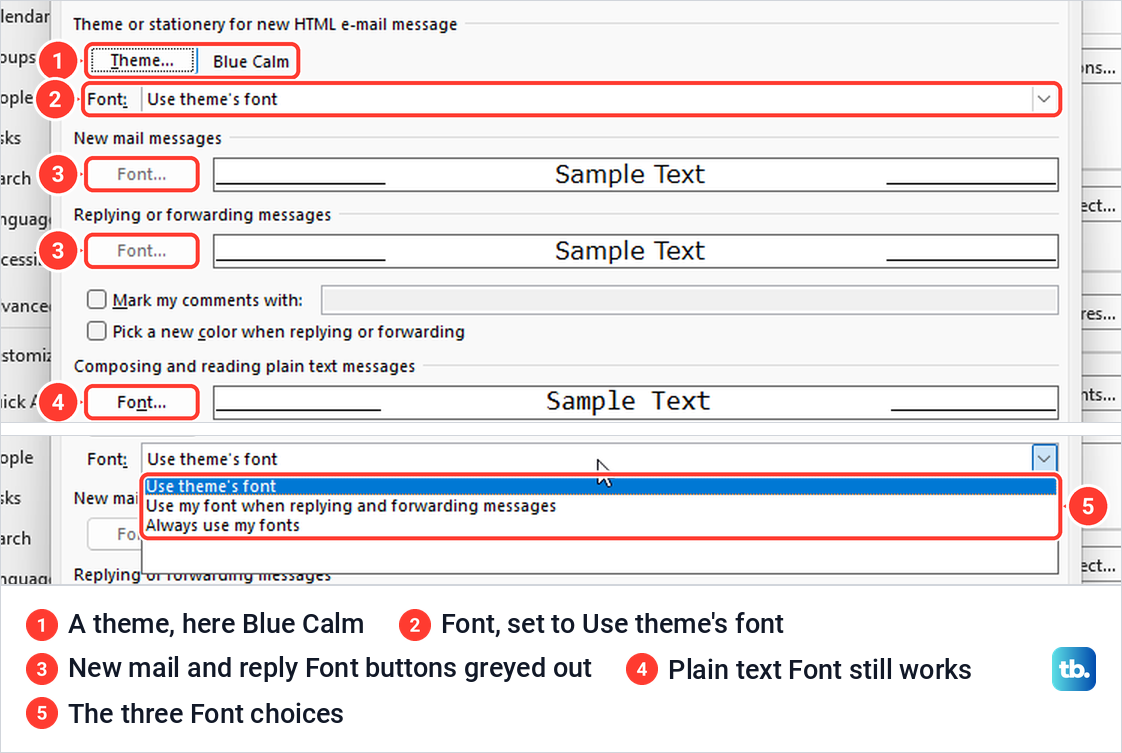
The Font box has three choices. Always use my fonts brought back both buttons for us, and Use my font when replying and forwarding messages brought back only the reply button. To drop the theme altogether, select Theme, then (No Theme) and OK, which re-enabled all three buttons. Microsoft adds that themes work only in the HTML format and cannot be applied to replies or forwards.
Get Calibri back or restore the original font
Microsoft refreshed the Office theme with a new default font, Aptos, and its blog says all new emails you create in Outlook use the new theme, while existing documents won't change. That is how new mail can move from Calibri to Aptos without anyone touching a setting. For the old look, choose Calibri and the size you want in each Font button.
To return to Outlook's own starting point, use the values our PC started with: +Body, Regular, 12 and Automatic for new mail and for replies, and Calibri, Regular, 11 for plain text. +Body is the first entry in the font list, and its preview read Aptos with the note This is the body theme font.
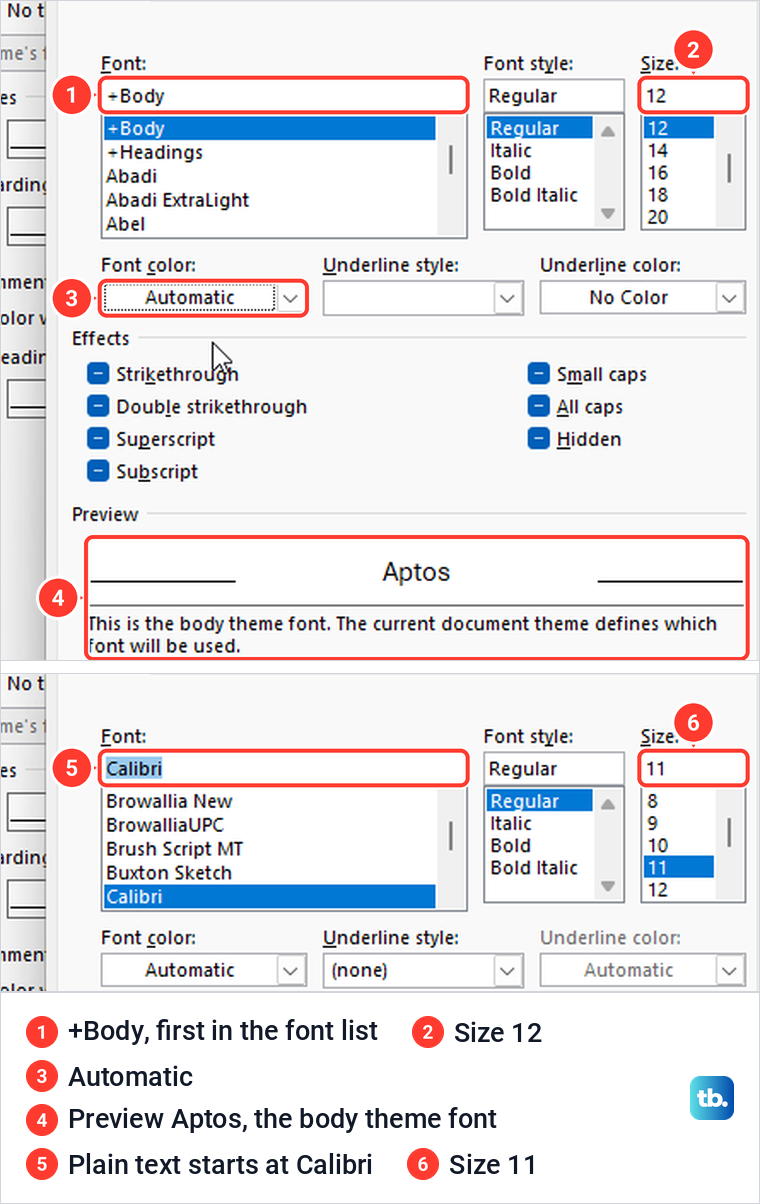
Microsoft's support page lists size 11 for +Body and still calls Calibri the default, which matches the older theme. After we entered the values above, a new message was back to Aptos (Body) 12, the same as before our changes.
Change the default font in Outlook on the web
In Outlook on the web, select the Settings gear at the top right. On our screen it opened Settings on Mail, and the item to choose was Compose, which older guides call Compose and reply. Under Message format, Compose messages in should read HTML, since Microsoft says you can change fonts if you use HTML format.
Below that is a single font box, which started at Aptos, 12, in black. Click the box and type a font name or pick one, then choose a size from a list that ran from 8 to 20 and beyond. The colour button opens a grid of swatches whose names show when you point at them.
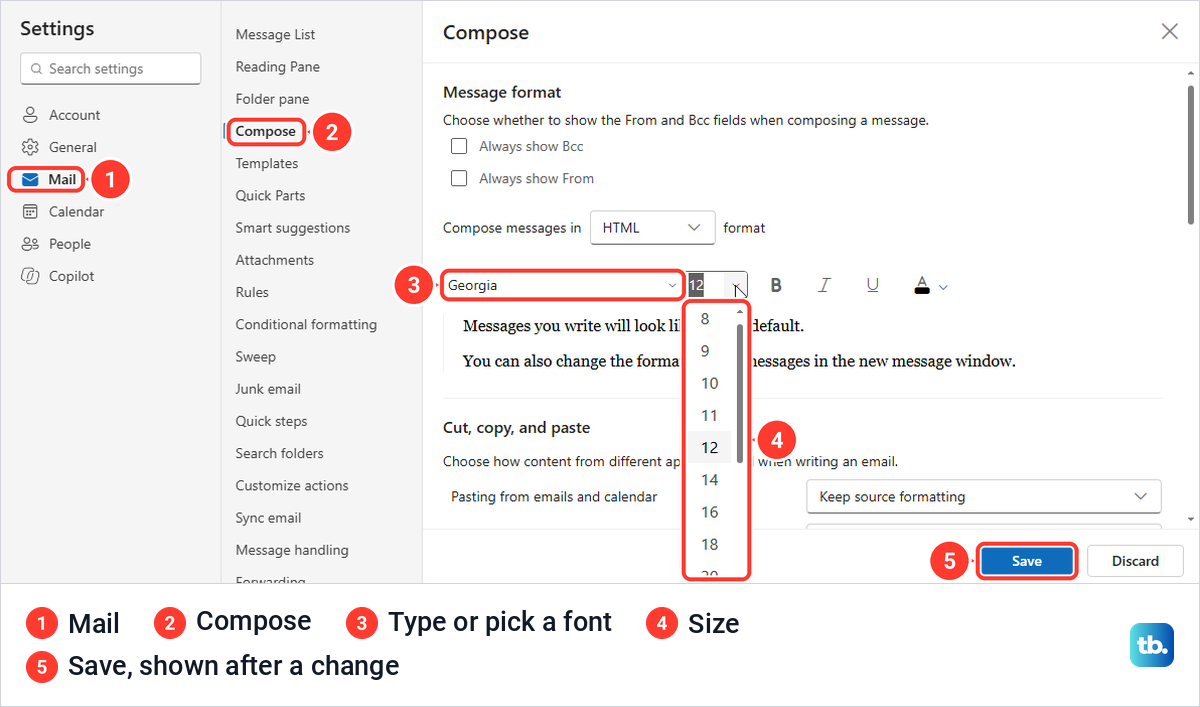
A Save and Discard bar appears at the bottom only after you change something. Select Save. The bar disappears with no message, which is the sign it worked.
There is no second font for replies on this page. After we saved Georgia 14 in dark blue, both a new message and a reply typed in it.
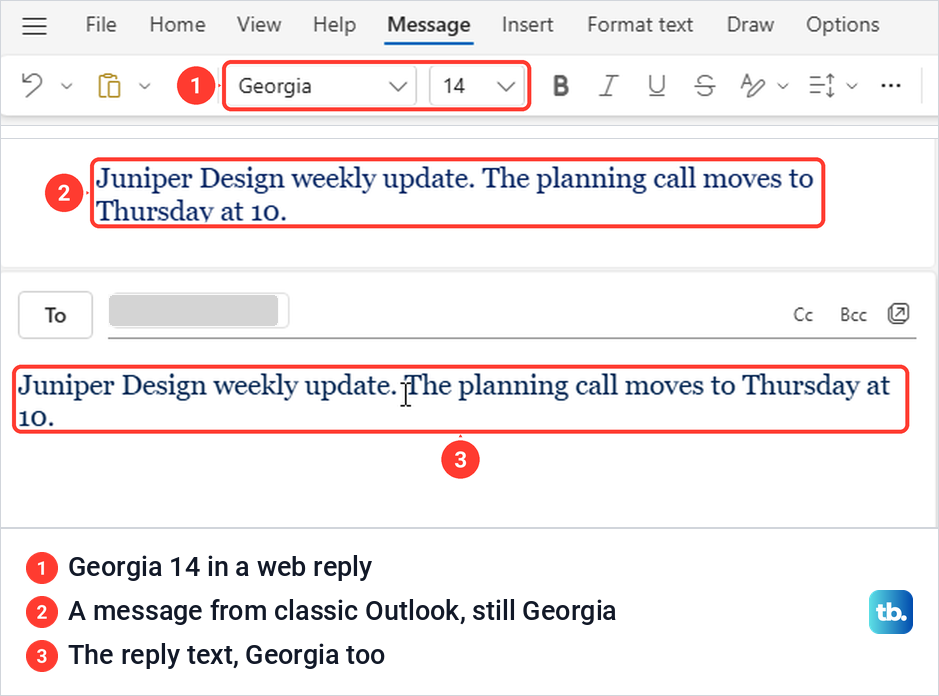
Fonts travel with HTML mail. The message we sent from classic Outlook in Georgia 14 showed in Georgia in Outlook on the web, and the quoted text in the web reply kept it too. Microsoft adds that if the person you write to does not have the font, their mail program substitutes an available font.
To undo the change, note that the page has no reset button and no Automatic colour. We put Aptos, 12 and the black swatch back by hand and selected Save, which restored the page as it was.
Change the default font in new Outlook for Windows
In the new Outlook for Windows, select the View tab, then View settings, Mail and Compose. Under Message format, choose the font, size and style you want, then select Save. You can also open the same settings with the Settings button at the top of the window, and HTML is the default message format there.
Change the default font in Outlook for Mac
In Outlook for Mac, open the Outlook menu, select Settings and then Composing. Select the Select button for Composing (New mail) or for Reply or forward, choose a font and size in the Font panel, and select OK.
The font Outlook uses to show mail is a separate choice, under Settings, Reading and Preview font for message. If the font you want is not in the Font panel, install fonts on your Mac first and then look again.
Legacy Outlook for Mac keeps the setting under Outlook > Settings > Fonts, with a Font button for each composition style and a slider for the display size. Microsoft set the end of support for legacy Outlook for Mac for October 2026, so switch to the current app if you still use it.
Fonts in the Outlook app on iPhone and Android
In the Outlook app for iPhone and Android, you choose a font while you write. Select the Formatting button, the A with a pencil, on the toolbar, and the font option is in the formatting toolbar. The same choice appears when you update your signature or set up an out of office reply in the app.
For text size, Microsoft says the app adjusts when you change the font size in your device settings, so make mail bigger the same way you change the text size on your iPhone. On Android, Microsoft gives Settings > Display and wallpaper > Font. If the Formatting button shows no font option, update Outlook on your phone and look again.
Why old drafts, signatures and pasted text look different
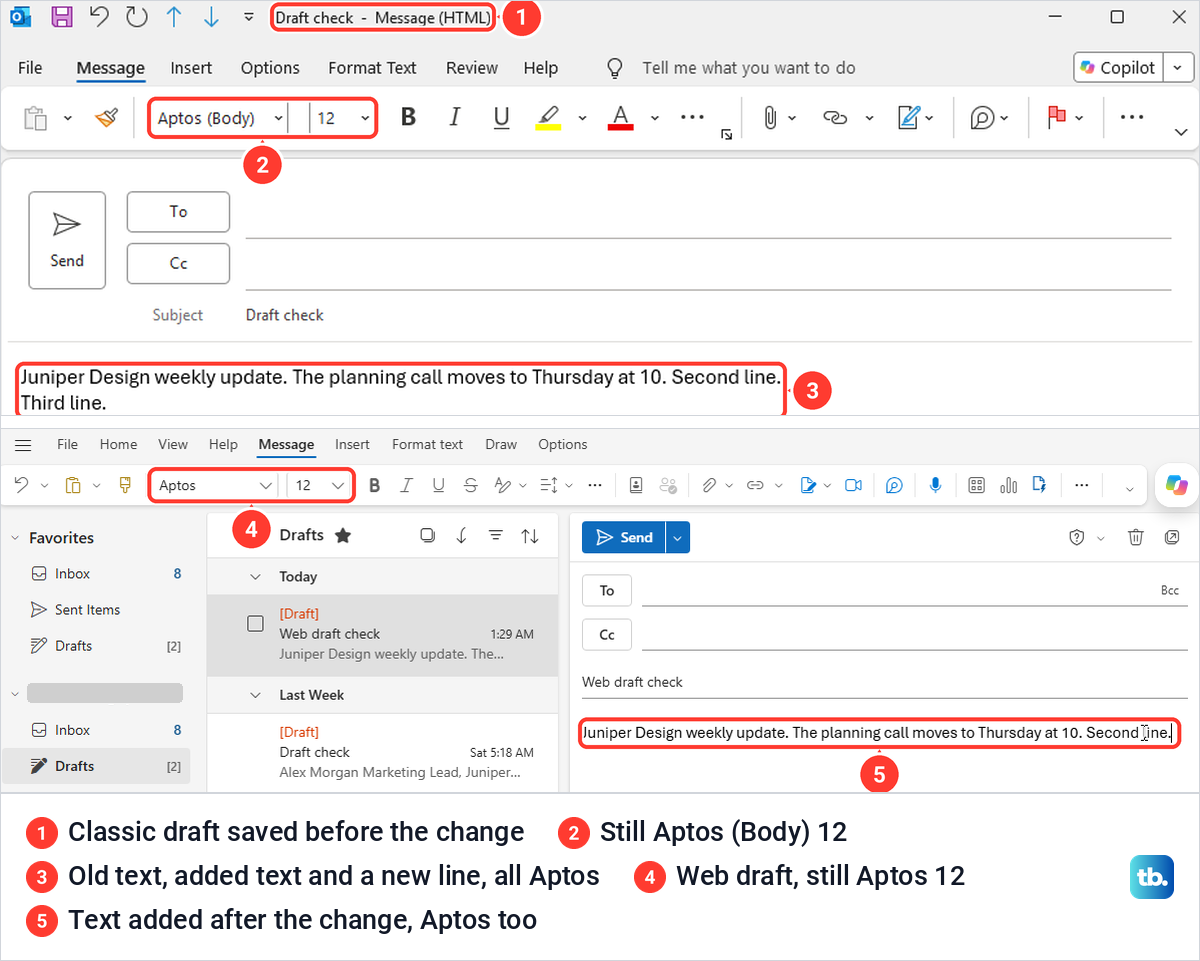
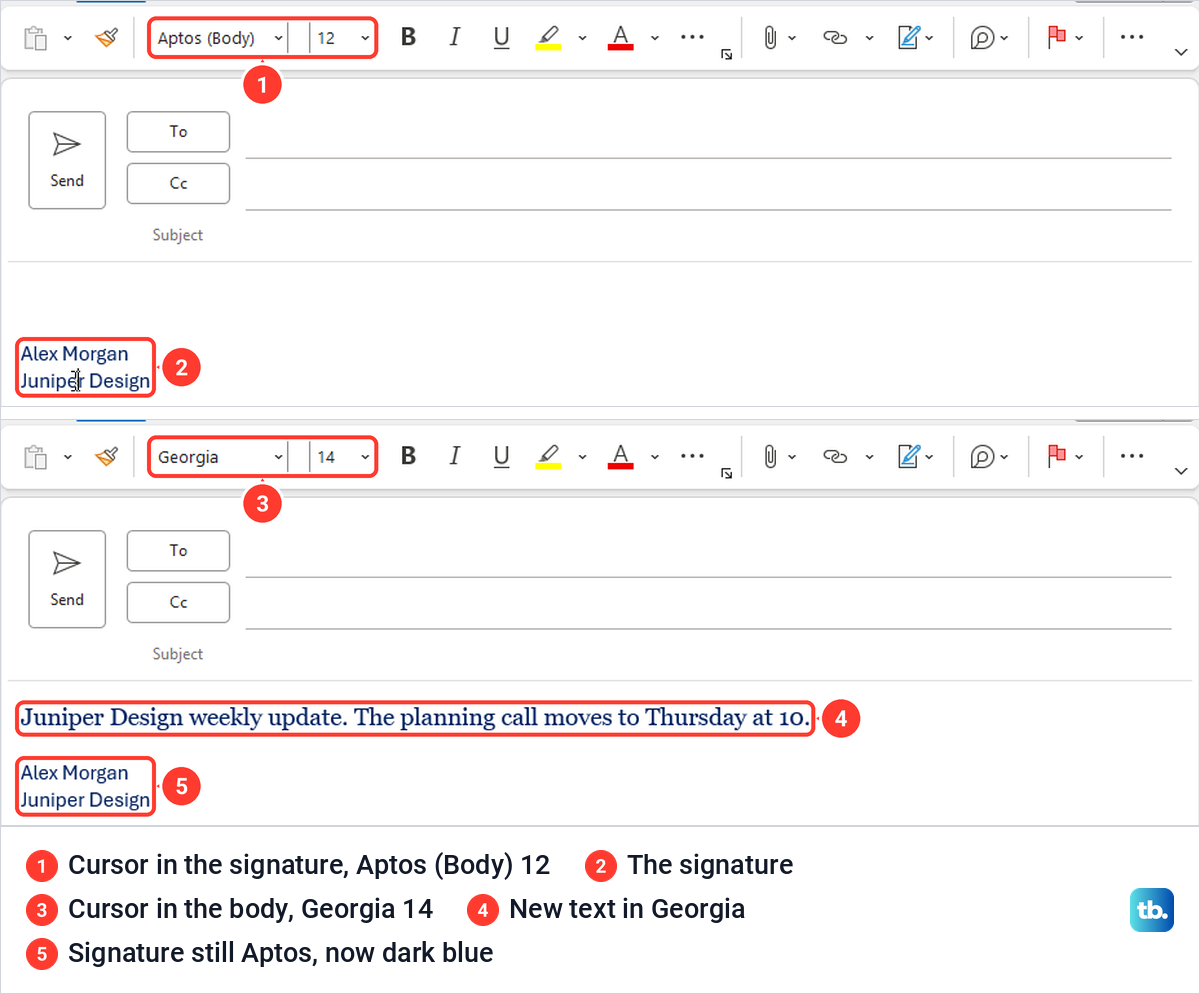
A new default only reaches messages you start after the change. A message window that was already open when we switched to Georgia stayed in Aptos (Body) 12, even for a line typed after the change. A draft saved before the change did the same when we reopened it: old text, text typed at its end and a new paragraph were all Aptos 12.
Outlook on the web behaved the same way, and our web draft kept Aptos 12 for new text typed at its end. To bring an old draft into line, select its text and choose the font in the message's font box, or start a fresh message.
Your signature keeps the font it was typed in. We made a test signature in the signature editor's starting font, Aptos (Body) 12, and with new mail set to Georgia 14 it still came in as Aptos 12 below the Georgia text. One thing did change: it picked up our dark blue new mail colour, although we had typed it in Automatic.
If your signature should match, open the signature editor and change your signature in Outlook. Select its text there and pick the same font and size as your new default.
Pasted text surprised us. You might expect text pasted from Word to keep its font, but on our PC it did not. A Times New Roman 16 line copied from Word came into a Georgia 14 message as Georgia 14 in dark blue.
The Paste Options button that appeared below the text showed why: the paste in use was Merge Formatting. Keep Source Formatting is the choice that keeps the original font, and it brought back Times New Roman 16 when we pasted again.
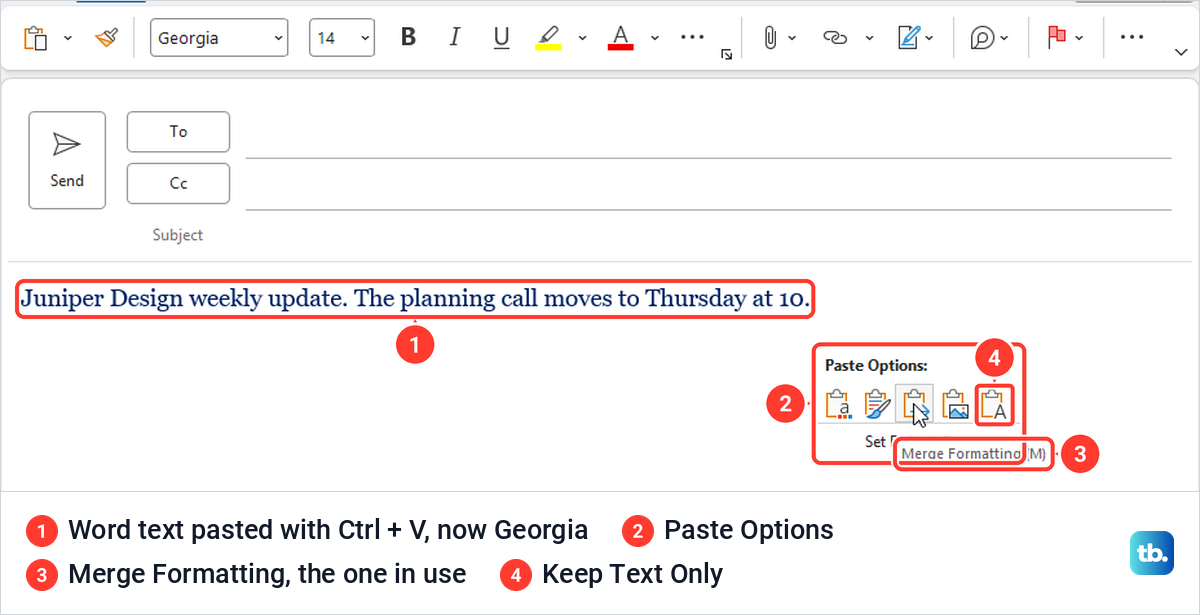
To fix pasted text that kept its own font, select it and press Ctrl + Space, the same shortcut you use to clear formatting in Word. On our Times New Roman line it switched straight to the message's Georgia 14. Keep Text Only also gave us the default font.
Outlook on the web shows the same idea as a setting. Its Compose page has a Cut, copy, and paste section, set on our screen to Keep source formatting for pasting from emails and calendar, and Merge formatting for pasting from other apps.
Make emails easier to read without changing the default
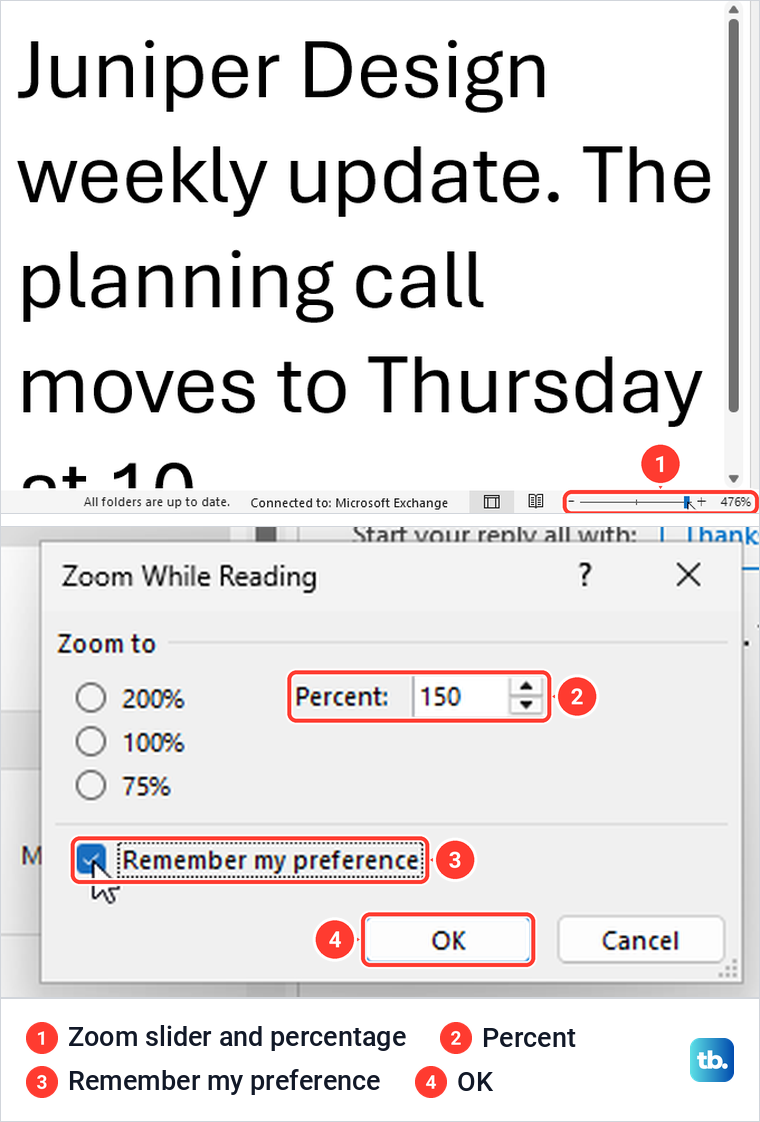
The default font only changes mail you write. To make mail you read bigger in classic Outlook, use the zoom slider at the bottom right of the window. When we dragged it, only the message text in the Reading Pane grew, and the next message we selected was back at 100%.
To keep a zoom level, click the percentage next to the slider to open Zoom While Reading. Pick 200%, 100% or 75%, or type a number in Percent, then tick Remember my preference and select OK. With 150% and the box ticked, every message we opened afterwards showed at 150%.
Mail you receive in HTML keeps the sender's fonts, as our Georgia message did in Outlook on the web, so zoom is the dependable fix for small received text. In Outlook on the web, use View > Zoom or your browser's own zoom. For the new Outlook, it says the larger size only lasts for the email you are looking at.
The inbox list has fonts of its own. In classic Outlook we found them under View > Current View > View Settings > Other Settings, where Column Font, Row Font and the Message Preview font all read 8-point Segoe UI. Microsoft's page says View > View Settings, and on our Simplified Ribbon that command sat under Current View.
On the web, the list size is Settings > Mail > Message List > Text size and spacing, where Microsoft's page says Layout. A note beside the Small, Medium and Large choices says they fit content on your screen without affecting received or sent emails.
When your font keeps changing back
Changes took effect at once on our PC, so a font that will not stick is usually being overridden. Check, in this order, for a theme that greys out the Font buttons, a reply font that differs from the new mail font, a plain-text message, and a draft or open window from before the change.
Also make sure you changed the Outlook you actually send from, because the setting sits in a different place in each version. If a new message still shows the old font, close every Outlook window and restart Outlook completely, then check again.
How we tested this guide
We tested this on Windows 11, version 25H2, with classic Outlook for Microsoft 365, changing the fonts for new mail and replies.
Frequently Asked Questions
Why did my Outlook font change to Aptos?
Microsoft's refreshed Office theme uses Aptos for new emails, so the change came with an update, not a setting you touched. Mail you already wrote keeps its font.
How do I change the Outlook font back to Calibri?
In classic Outlook, choose Calibri in the Font buttons for new mail and for replies, then select OK three times. On the web and in the new Outlook, choose it under Settings > Mail > Compose and select Save.
Why is the Font button greyed out in Stationery and Fonts?
A theme or stationery is set to use its own font. Set the Font box under the theme to Always use my fonts, or select Theme, then (No Theme) and OK.
Why do my replies use a different font from new emails?
Classic Outlook has a separate Font button for replies and forwards, so set it to match. A reply to plain-text mail also uses the plain text font, even after a switch to HTML.
How do I make the text bigger when I read emails?
Use the zoom, not the default font. In classic Outlook, click the zoom percentage and tick Remember my preference, and on the web use View > Zoom.
Will the people I email see my font?
Yes, if the message is HTML and they have the font. Our Georgia message showed in Georgia in Outlook on the web, and Microsoft says a recipient without the font gets an available substitute.
Can I change the default font in the Outlook app on my phone?
Microsoft documents choosing a font for the message you are writing with the Formatting button, the A with a pencil. Text size in the app follows your phone's own text size setting.
Does changing the default font change emails I already sent?
No. It only applies to messages you start afterwards, and even our saved draft kept its old font. If one just went out in the wrong font, you may be able to recall an email in Outlook and send it again.