Archived emails in Gmail are not gone; they just stop showing in Inbox. That makes a message feel missing when you are checking Primary, Promotions, or the regular inbox view. Start with All Mail, then use in:archive when the message is buried.
Open All Mail on a computer
This fixes an email that was archived and removed from Inbox.
Open Gmail on your computer.
Look at the left side of the page and click More.
Click All Mail.
Browse the messages there. Gmail puts archived email in All Mail because archiving removes the message from Inbox while keeping it in your account.
Search only archived emails
Use Gmail search when All Mail has too many messages to scan by hand. On your computer, open Gmail and click the search bar at the top.
Type in:archive and press Enter. Gmail shows messages that are in the archive.
Add words after the command to narrow the results. For example, search in:archive payment reminder when you remember the topic but not the sender.
If this method fails, search with in:anywhere plus your keywords so Gmail also checks messages outside the archive.
Find archived mail in the Gmail Android app
Open the Gmail app on your Android phone or tablet.
Tap Menu at the top left.
Tap All mail.
Scroll through All mail to find the message that no longer appears in Inbox.
Tap the search bar at the top of Gmail if you want to search instead.
Enter in:archive and tap Search.
Add a sender, subject word, or phrase after in:archive when the results are still too broad.
Use All mail first when you want to browse, and use in:archive when you already remember part of the email.
When categories do not show the message
The most common cause is that archived emails do not appear in Gmail categories.
If you expected the email under Primary, Social, Promotions, Updates, Forums, Reservations, or Purchases, stop searching the category tabs.
Open Gmail and select All mail instead. That view includes archived messages even when category tabs do not.
Use the Gmail search bar with in:archive and a keyword from the email if All mail is crowded.
Find archived mail on iPhone or iPad
This fixes the same missing Inbox problem in the Gmail app for iPhone and iPad.
Open the Gmail app on your iPhone or iPad.
Tap Menu at the top left.
Tap All mail.
Look through All mail for the archived message.
Tap the search bar at the top of Gmail if browsing is too slow.
Enter in:archive.
Move an archived email back to Inbox
Open the Gmail app on Android, iPhone, or iPad.
Find the archived message using All mail or the in:archive search.
Touch and hold the message.
Tap More at the top right.
Tap Move to Inbox.
Use this when you want the email to appear in Inbox again instead of only sitting in All mail.
Try smarter Gmail search tools
On a computer, Gmail can show an AI Overview above search results for natural-language searches. This feature is still gradually rolling out, is available only in the US and in English, and needs smart features turned on plus a Google AI Plus, Pro, or Ultra plan on a personal account or an eligible Google Workspace plan on a work or school account. Enter a question or phrase in the search box, such as show receipts from July that are not in my inbox or find my hotel confirmation, then press Enter.
On Android, enter a natural-language question or key phrase in the Gmail search box and tap Search. To see the full AI Overview, tap Expand. In the Gmail app this works only with a personal Google AI Plus, Pro, or Ultra plan, in the US and in English, with smart features turned on, and it is still rolling out. On a work or school account, AI Overview is limited to the web, so open Gmail in a browser instead.
Ask Gemini in Gmail can also find information from previous emails, and it requires an eligible Google Workspace or Google AI plan. On your computer, open Gmail, click Ask Gemini at the top right, enter a prompt with the sender, topic, date range, or missing message details, then press Enter. Google AI Pro and Google AI Ultra subscribers in the US may no longer see Ask Gemini or be able to open the Gemini in Gmail side panel, because those AI experiences are moving inline. If the button is missing, use Gmail search or the inline AI features that are still available.
If this method fails, use the standard search command in:archive, because it works directly in Gmail search without depending on AI features.
Show All Mail or check another mail app
The most common cause is that All Mail is hidden from the Gmail label list.
On your computer, open Gmail and click Settings at the top right.
Click See all settings.
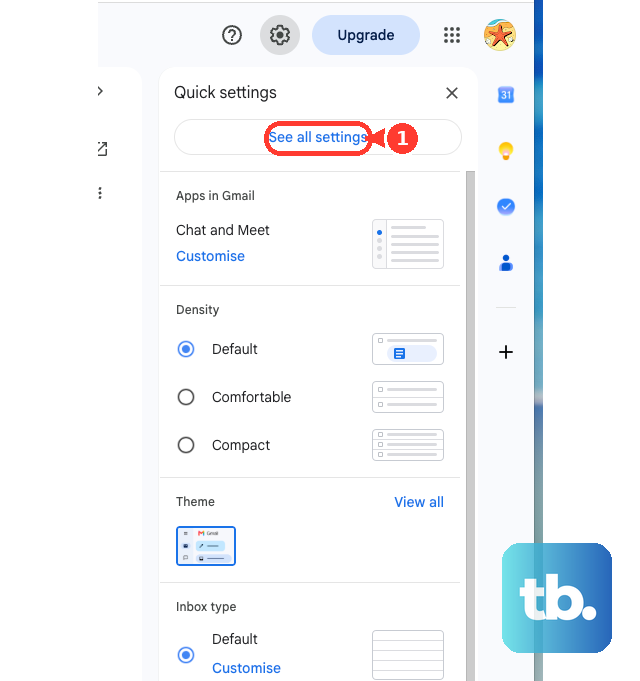
Click Labels at the top.
Next to All Mail, click Show so it appears in the left label list.
If you use Gmail in Microsoft Outlook, Apple Mail, or another IMAP mail app, look for the Gmail All Mail mailbox. Some clients display it as [Gmail]/All Mail or Archive, but Gmail itself uses All Mail and in:archive for archived messages.
Use exports or admin tools only when needed
Google Takeout can export Gmail data, including archived messages, for offline review or account migration. Go to Google Takeout, select Mail, create the export, download it, and search the exported mail archive with an MBOX-capable mail app or viewer.
This is slower than using Gmail search, so treat it as a backup method. For everyday recovery, All Mail and in:archive are the right starting points.
For work or school accounts, access can depend on the organization. Google Vault lets authorized admin or legal users search, retain, and export organization Gmail data, but it is not a consumer self-service archive view.
Skip older advice that points to a separate Gmail Archive folder or Inbox by Gmail. Gmail uses All Mail and in:archive for archived messages, and Inbox by Gmail ended at the end of March 2019.
Frequently Asked Questions
Are archived Gmail emails deleted?
No. Archiving removes the message from Inbox, but Gmail keeps it under All Mail.
What should I type to find archived emails in Gmail?
Type in:archive in the Gmail search bar. Add keywords after it, such as in:archive hotel confirmation, to narrow the results.
Why can’t I find an archived email in Primary or Promotions?
Archived emails do not appear in Gmail categories. Open All Mail or search with in:archive instead.
Can I put an archived Gmail message back in my Inbox?
Yes. In the Gmail mobile app, find the message, touch and hold it, tap More, then tap Move to Inbox.