Blocked a Gmail sender and now their messages are missing from your inbox? Gmail lets you remove the block from an old message, from desktop settings, or from the mobile app when the message is still available. Start with the method that matches where you are and what you can still find.
Unblock a sender from a desktop email
Use this when you can still open a message from the blocked address.
- 1.Open Gmail on your computer.
- 2.Open a message from the sender you want to allow again.
- 3.Next to Reply, click More.
- 4.Click Unblock "sender".
Use settings when the message is gone
This method applies when the sender's message was deleted or you cannot find it in your mailbox. Gmail keeps blocked senders in the same settings area as filters.
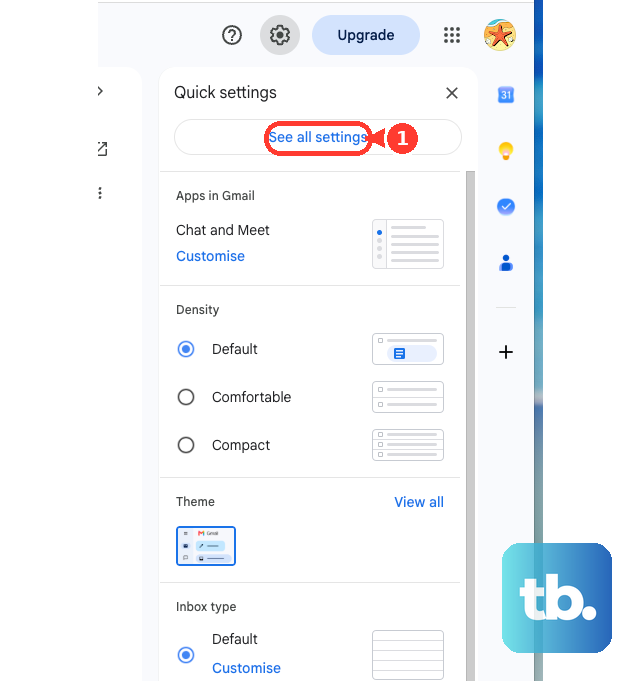
Open Gmail on your computer. Click Settings, then choose See all settings.
Open Filters and Blocked Addresses.
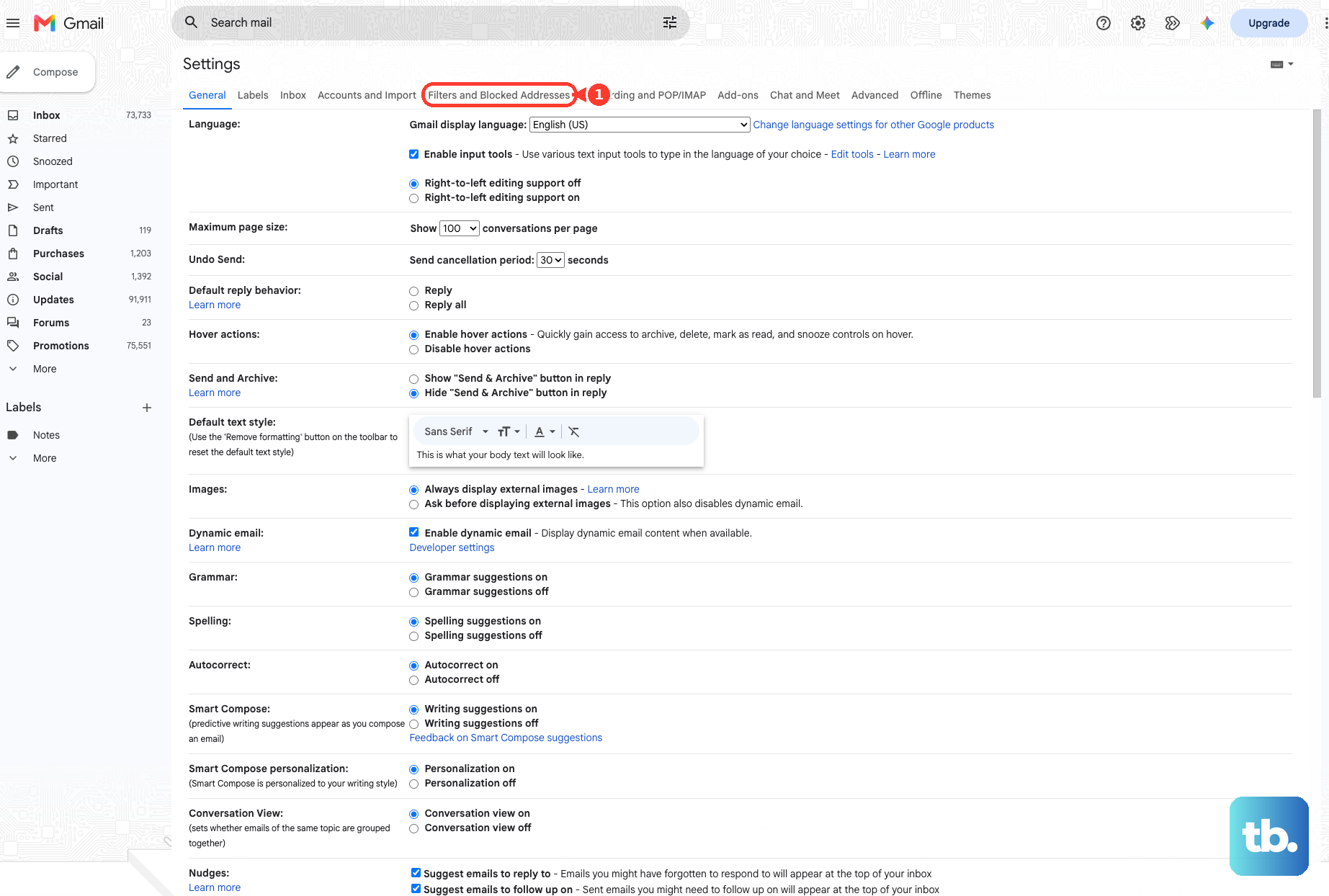
Check the box next to each sender you want to unblock. Choose Unblock selected addresses.
Fix it in the Gmail Android app
Open the Gmail app on your Android phone or tablet. Open a message from the blocked sender. When the message is in Spam, open Menu, go to Spam, and open the sender's message there.
Next to Reply, tap More. Tap Unblock sender.
Tip: after unblocking, mark a valid message as not spam if Gmail still sends that sender's mail to Spam.
Allow the sender on iPhone or iPad
On iPhone or iPad, the unblock option is inside the sender's message.
- 1.Open the Gmail app.
- 2.Open a message from the blocked sender.
- 3.When the message is in Spam, open Menu, then Spam, and open the message there.
- 4.Next to Reply, tap More.
- 5.Tap Unblock "sender".
Remove a filter acting like a block
Use this when the address was never blocked with Gmail's Block command. A filter can send the sender's mail to Trash, archive it, apply a label, forward it, or handle it another way.
On a computer, open Gmail. Click Settings, choose See all settings, and open Filters and Blocked Addresses.
Find the filter that mentions the sender. Choose Edit to remove only that sender from the filter criteria, such as the From field.
Click Continue, then click Update filter or OK. Choose Delete only when you want to stop the whole rule.
Stop messages going to Spam
This happens when Gmail still classifies the sender's messages as spam after the block is removed. On a computer, open Gmail, go to More, then open Spam. Check the box next to a valid message from that sender and click Not spam.
In the Gmail app on Android, iPhone, or iPad, open Menu, then Spam. Open the email you want to remove, tap More, and choose Report not spam.
Do this after unblocking. When the sender is still blocked, Gmail can keep sending that mail to Spam.
Add the sender to Google Contacts
Adding the person to Google Contacts helps legitimate mail from that sender avoid Spam after you unblock them. It does not remove a Gmail blocked-sender entry by itself.
Open Google Contacts and choose Create contact. Enter the sender's name and email address. Choose Save. If this method fails, create a Gmail filter that keeps that sender out of Spam.
Create a filter to bypass Spam
This keeps that sender's future messages out of Spam after the Gmail block has already been removed. It does not override an organization-level blocked senders rule on a work or school account.
On a computer, open Gmail. Use the search bar's Show search options control. In From, enter the sender's email address.
Choose Create filter. Check Never send it to Spam. Choose Create filter again.
Handle work or school Gmail accounts
For Google Workspace accounts from work or school, an organization rule can block addresses or domains before they reach your mailbox. Personal Gmail settings do not remove an organization-level blocked senders rule.
Contact your Google Workspace administrator and ask them to check Blocked senders in the Google Admin console. The admin can remove the sender or domain from that list, or exempt it with an approved senders list. Mail from approved senders still goes through Gmail's regular spam and virus protection.
If this method fails, use Gmail's Filters and Blocked Addresses settings on a computer to check your personal blocked sender list and filters.
Frequently Asked Questions
Can I unblock a Gmail address without an old message from that sender?
Yes. On a computer, open Gmail, go to Settings, choose See all settings, open Filters and Blocked Addresses, select the sender, and choose Unblock selected addresses.
Does adding someone to Google Contacts unblock them in Gmail?
No. Contacts helps wanted messages avoid Spam after unblocking, but it does not remove a Gmail blocked-sender entry.
Why are emails still going to Spam after I unblock the sender?
Gmail is still classifying the messages as spam. Mark a valid message as Not spam, then create a Never send it to Spam filter for that sender.
Can I unblock Gmail email addresses from Google Account Blocked users?
No. Google Account Blocked users applies to some Google products, but Gmail blocked email addresses are excluded from that list.