A messy Gmail inbox buries bills, replies, receipts, and anything that needs action. The safest cleanup starts by removing clutter from the Inbox without deleting it, then narrowing down what should be unsubscribed, filtered, or moved to Trash.
Use these Gmail controls in order and you can clear the noise without losing messages you still need.
1. Archive messages you may need later
Archive is the cleanest first move.
Open Gmail on your computer.
Check the box next to the message.
Click Archive.
It removes a message from Inbox, keeps it in All Mail, and returns the thread to Inbox if someone replies.
For faster cleanup, if Gmail keyboard shortcuts are enabled, select a message and press E. Otherwise, use Archive.
To find archived mail later, open More in the left rail, choose All Mail, or search in:archive.
To put one back, check the message and click Move to Inbox.
2. Save the mail that needs attention
Before selecting hundreds of messages, pull the important ones out of the cleanup pile.
Click Star beside messages you need soon, then find them from Starred or search is:starred.
Click the importance marker next to mail that should stand out, then search is:important before a cleanup pass.
Open a message that needs action and click Add to Tasks. If it is hidden, click More, then Add to Tasks.
Select unread noise and click Mark as read.
Point to mail you need later, click Snooze, and choose the return time.
When you need to check missing mail before deleting, use Show search options, open the Search dropdown, choose Mail & Spam & Trash, enter what you know, and click Search.
3. Unsubscribe from repeat clutter
Deleting newsletters one by one leaves the source running, so stop the sender first, then clean up what is already there.
Open an email from the sender, next to the sender name click or tap Unsubscribe, then choose Unsubscribe or Go to website.
If Manage subscriptions is available, open More on the web or Menu on Android, iPhone, or iPad, choose Manage subscriptions, then select Unsubscribe for the sender.
Google says the feature is still rolling out and may not appear yet.
New mail from a sender removed this way goes to Spam; use Report not spam if you want it back in the Inbox.
For a sender you want out of the Inbox entirely, open a message, click More next to Reply, and choose Block.
Future mail from that sender goes to Spam.
4. Narrow results before bulk selecting
Bulk cleanup works best after you search or open a category.
Do not begin with every message in the Inbox.
Open Promotions, Updates, or All Mail, or search with an operator such as category:promotions, older_than:1y, before:2025/01/01, from:, has:attachment, larger:10M, or is:unread.
Review the first page of results.
Click the Select box above the messages.
If Gmail shows the link, click Select all conversations in the current view.
Click Archive for mail you may want later, or Delete for mail you are ready to send to Trash.
5. Organize what stays with labels and categories
Categories are Gmail's built-in tabs: Primary, Social, Promotions, Updates, and Forums.
To turn them on, open Settings, under Inbox type choose Default, click Customize, select the categories, and click Save.
Gmail does not offer Default inbox categories when the Inbox contains more than 250,000 messages, so archive or delete enough mail to get below that limit first.
If a message lands in the wrong tab, drag it to the correct category tab.
Click Undo immediately if you moved it by mistake.
Gmail does not let you create custom categories; use labels for that.
To create a label on the web, go to the left rail, find Labels, click Create new label, enter a label name, choose Nest label under if needed, and click Create.
To apply it, select a message, click Labels, and choose the label.
Deleting a message removes it from every label and from Inbox.
6. Build filters for future messages
- 1.In Gmail on the web, click Show search options in the search box.
- 2.Enter the sender, subject, words, size, date, or other criteria.
- 3.Click Search to test the match.
- 4.Click Create filter.
- 5.Choose actions such as Skip the Inbox (Archive it), Apply the label, Delete it, Star it, Always mark it as important, or Categorize as.
- 6.Click Create filter.
Filters keep the Inbox clean after the first cleanup.
You can also start from a message: select it, click More, choose Filter messages like these, set the criteria, and click Create filter.
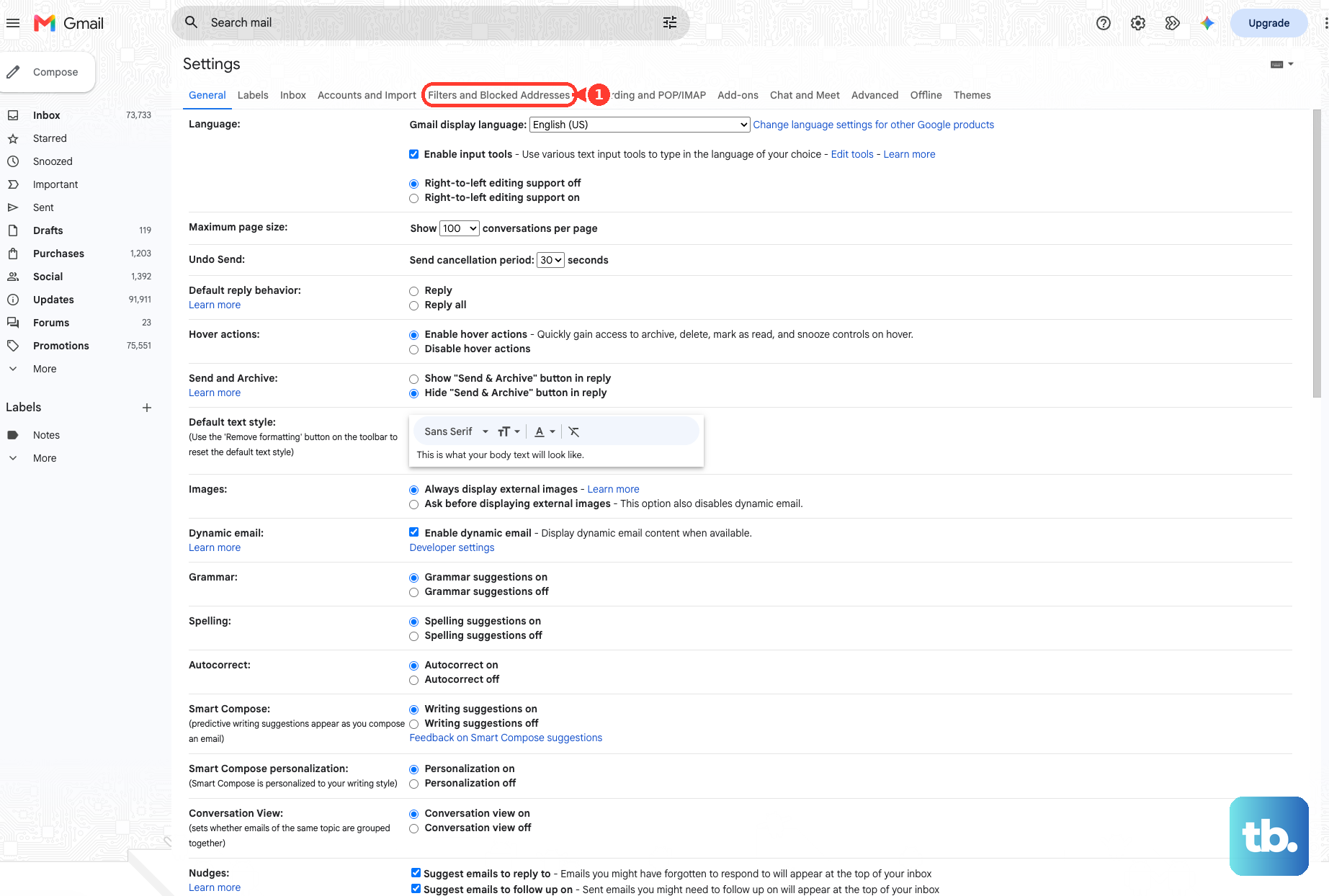
To change one later, open Settings, click See all settings, open Filters and Blocked Addresses, then choose Edit or Delete.
7. Use mobile swipes for quick cleanup
On Android, open the Gmail app, tap Menu, go to Settings, tap General settings, tap Swipe actions, then tap Change next to Right swipe or Left swipe.
Choose Archive, Delete, Mark as read/unread, Move to a label, or Snooze.
On iPhone or iPad, open the Gmail app, tap Menu, open Settings, go to Inbox customizations, tap Mail swipe actions, choose Right swipe or Left swipe, then select Archive, Trash, Mark as read/unread, Snooze, Move to, or None.
Set one swipe to Archive when you are clearing old Inbox clutter.
Set a destructive swipe to Delete on Android or Trash on iPhone and iPad only when you are confident those messages should be deleted.
8. Delete only when Trash recovery is enough
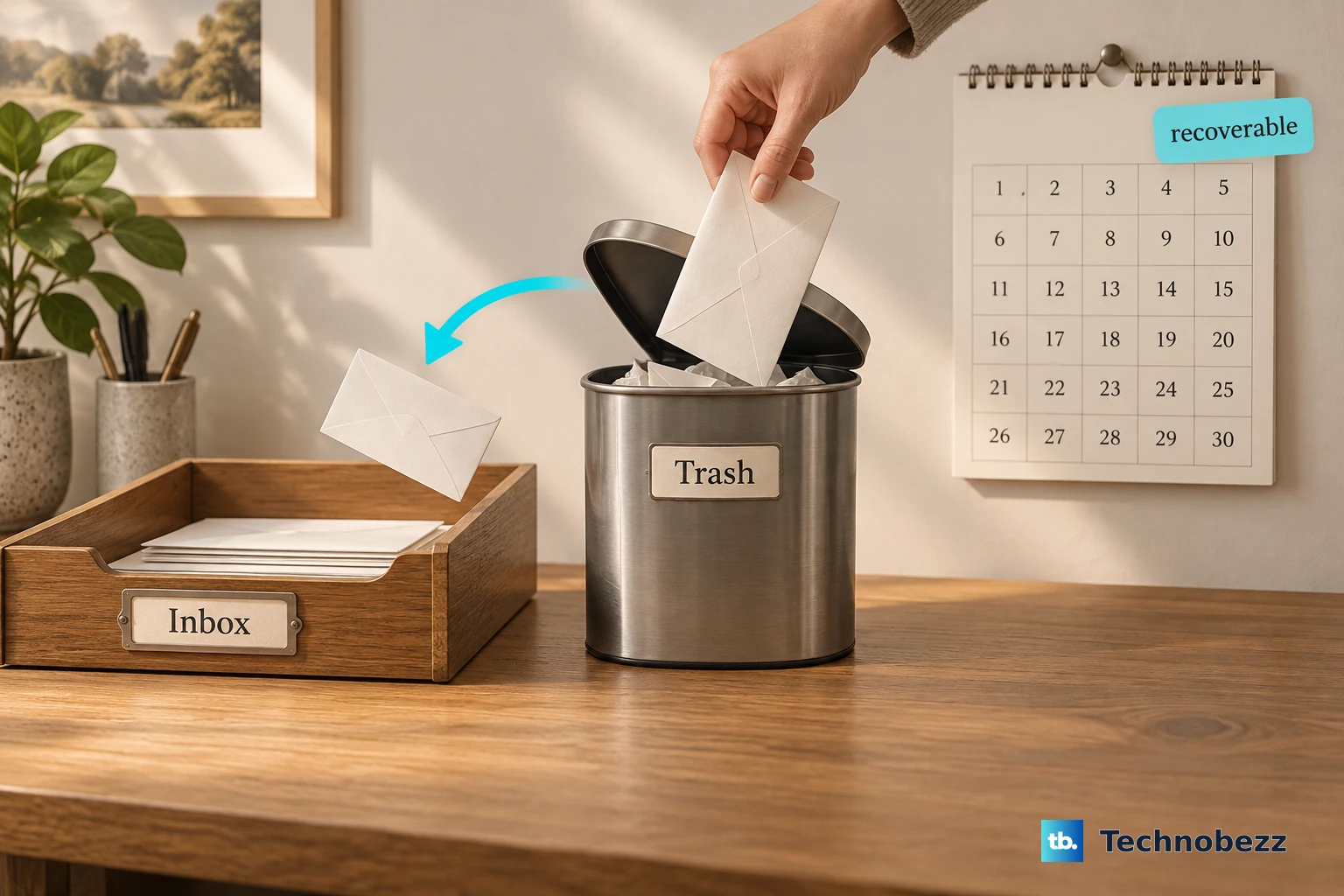
Delete is reversible for a short window.
To delete mail, select the messages and click Delete.
To recover deleted mail, open More in the left rail, choose Trash, check the messages, click Move to, and choose Inbox or another destination.
To permanently delete selected messages, open Trash, select the messages, and click Delete forever.
To clear all Trash, open Trash and click Empty Trash now.
Deleted messages move to Trash and can be recovered for up to 30 days unless you permanently delete them.
Keep storage cleanup as a separate job.
If storage is the problem, search has:attachment larger:10M or use advanced search with Size, delete only messages you do not need, then empty Trash.
Google storage can take 48 to 72 hours to update after large deletions.
9. Replace outdated sorting advice with search
Gmail does not offer a current documented sort-by-sender control like an Outlook column.
Use search instead: click Show search options, fill in From, or search with from:, then select, archive, delete, or label those results.
For work or school Gmail, some delivery and organization controls belong to administrators.
Google Workspace admins can use routing and quarantine controls before mail reaches users.
If messages are missing before they arrive, contact your organization's Google Workspace administrator.
Frequently Asked Questions
Can I clean up Gmail from the mobile app?
Yes. Use Gmail swipe actions for quick archive, trash, snooze, or read/unread cleanup. Android also supports Manage subscriptions from the Gmail app menu.
How do I select all Promotions emails in Gmail?
Open Promotions or search category:promotions, click Select, then use the Select all conversations link if Gmail shows it. Archive or delete after reviewing the results.
Can Gmail automatically archive newsletters?
Yes. Create a filter with the sender or search criteria, choose Skip the Inbox (Archive it), optionally Apply the label, then click Create filter.
Can I sort Gmail by sender?
Gmail's current documented method is search, not a sender-sort column. Use Show search options and From, or search with from: plus the sender's address.