Gmail spam filters can fail in two annoying ways: junk lands in your inbox, or real messages get buried in Spam. Start by correcting Gmail's signals, then check the settings that can override normal filtering. Use these fixes first, from quick cleanup to deeper account checks.
1. Report missed junk as spam
Train Gmail with the exact messages it missed when obvious junk keeps reaching your inbox. On a computer, open Gmail and select one or more unwanted emails, then click Report spam.
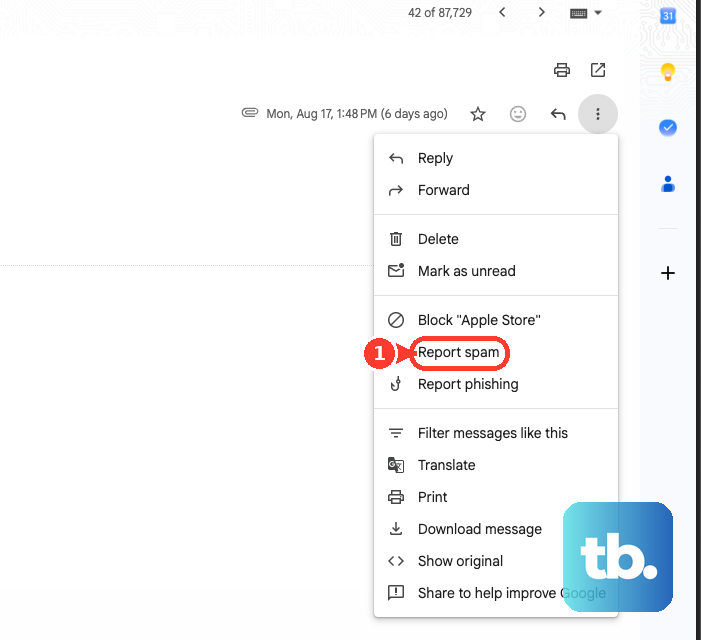
On Android, iPhone, or iPad, open the message in the Gmail app. Tap More, then tap Report spam.
To report several messages on mobile, tap each sender's profile picture. Tap More, then tap Report spam.
2. Rescue real emails from Spam
- 1.On a computer, open Gmail.
- 2.Go to More > Spam.
- 3.Check the message.
- 4.Click Not spam.
Good mail in Spam needs the opposite signal, so move it back with Report not spam. On Android, open the Gmail app, then tap Menu > Spam.
Open the message. Tap More, then tap Report not spam.
On iPhone or iPad, go to Menu > Spam. Touch and hold the message, tap More, then tap Report not spam.
Google says future emails from that sender should stop going to Spam after you remove them, unless another setting or signal overrides it.
3. Find missing messages everywhere
A missing email is not always a spam-filter failure. Standard Gmail search excludes Spam and Trash, so search all mail before changing settings.
On a computer, open Gmail. Click Show search options in the search bar, then open the Search dropdown.
Choose Mail & Spam & Trash. Enter the sender, subject, or message details, then click Search.
On Android, tap the Gmail search box. Type in:anywhere with your search terms.
4. Trust senders with Contacts and filters
Open Gmail. Click Show search options in the search bar, then enter the sender's email address in From.
Click Create filter. Check Never send it to Spam, then click Create filter.
For a sender that keeps getting flagged, add the person to Google Contacts first. On a computer, open Google Contacts.
Choose Create contact > Create a contact or Create multiple contacts. Enter the sender's name and email address, then click Save.
On iPhone or iPad, open Google Contacts in a browser. Tap Add > Create a contact.
Enter the details. Tap Save, then create the Gmail filter from a computer.
Gmail filters must be created from Gmail on a computer, even when the problem shows up on your phone.
5. Clean up bad filters and blocked senders
Filters can make Gmail look broken because a rule can delete mail, skip the inbox, or let junk bypass Spam. On a computer, open Gmail.
Go to Settings > See all settings > Filters and Blocked Addresses. For missing mail, look for filters using Delete it or Skip Inbox.
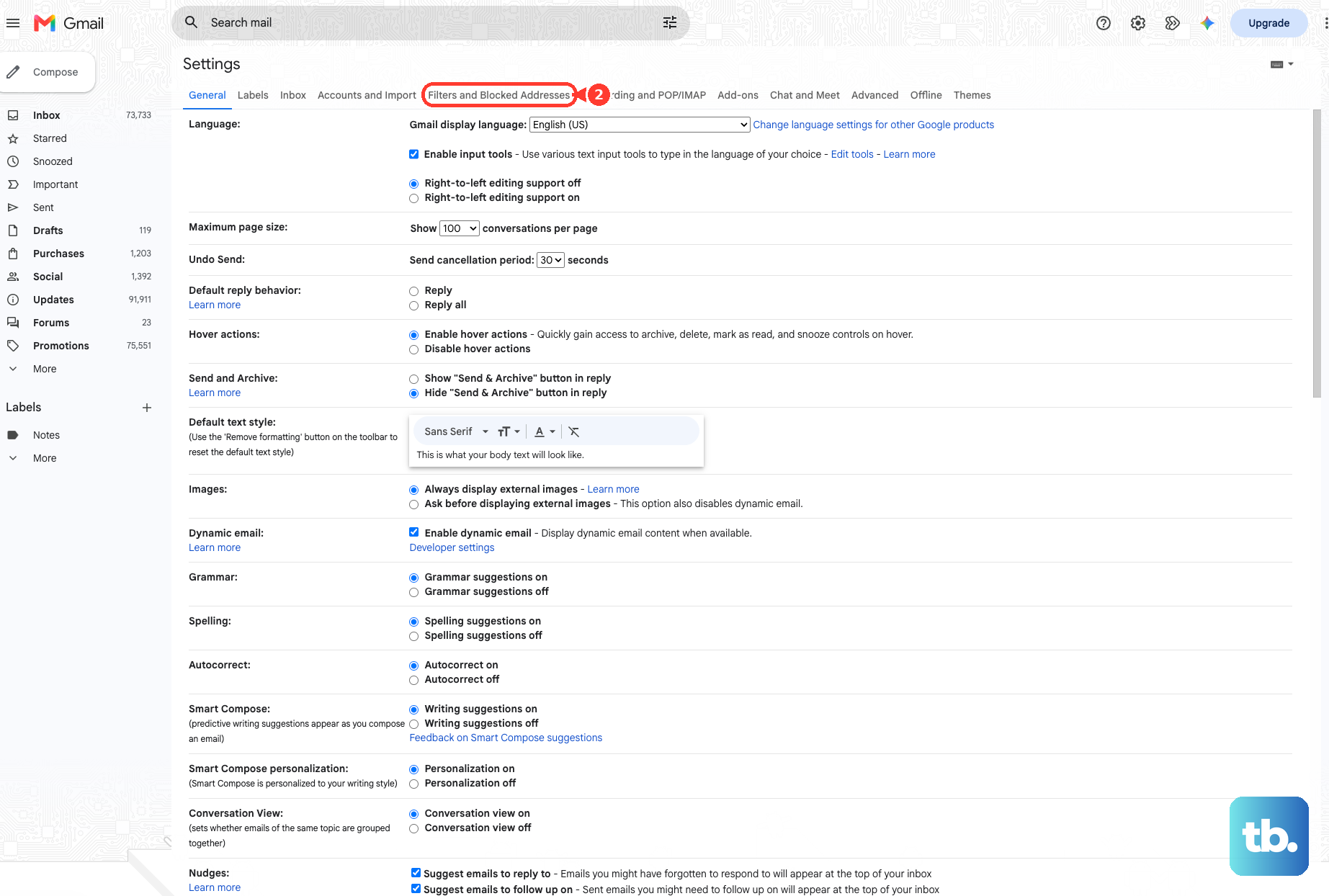
For junk that keeps reaching the inbox, look for filters using Never send it to Spam. Click Edit or Delete on the filter causing the problem.
If a real sender is blocked, check the sender. Click Unblock selected addresses.
You can also unblock from a message. Open the sender's email, click More next to Reply, and choose Unblock.
6. Block pests and unsubscribe from promotions
To block a sender, open the message. Click or tap More next to Reply, then choose Block.
To unsubscribe from a message, open the email. Click or tap Unsubscribe next to the sender name, then choose Unsubscribe or Go to website.
To clean up recurring senders on a computer, open More > Manage subscriptions. Click Unsubscribe next to a sender.
On Android, iPhone, or iPad, open Menu > Manage subscriptions. Tap Unsubscribe next to a sender.
If Manage subscriptions is missing, Google is still rolling it out and it may not have reached your account yet. Use the per-message Unsubscribe option instead.
Use the right tool for the type of unwanted mail. Blocking sends future messages from that sender to Spam. Unsubscribe handles promotional mail that exposes an unsubscribe option.
7. Report phishing from Gmail on a computer
For phishing, use Gmail on the web. Open the message, then click More next to Reply.
Click Report phishing. If Gmail shows a warning banner for a suspicious message, click Report this suspicious message.
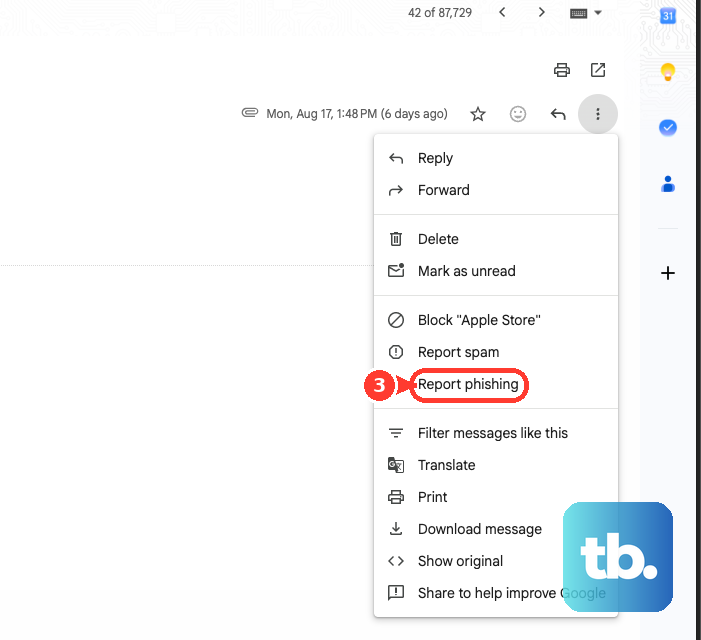
For suspicious empty or spoofed messages, do not reply. Do not open links. Report the message as spam or phishing from Gmail's message actions.
8. Rule out storage, forwarding, and account access
Check your Google Account storage. If storage is full, empty Gmail's Trash and Spam folders, then allow time for the storage change to apply.
On a computer, review forwarding under Settings > See all settings > Forwarding and POP/IMAP or Forwarding, depending on which tab your account shows. In Forwarding, choose Keep Gmail's copy in the Inbox or Mark Gmail's copy as read.
To stop suspicious forwarding, choose Disable forwarding. Click Save Changes.
In POP, replace Delete Gmail's copy or Archive Gmail's copy with Keep Gmail's copy in the inbox. Click Save Changes.
Check external mail clients such as Apple Mail or Outlook for delete or archive behavior. Open your Google Account Third-party apps & services page.
Choose Access to your Google Account. Select any unrecognized app, then click See details.
Click Remove access. Click Confirm.
Apps sitting under Sign in with Google or Linked account use Stop using Sign in with Google or Delete link instead. During a sudden spam flood, run Security Checkup.
Search your Inbox and Spam for security alerts. If messages are not arriving, disappearing, or getting moved behind your back, check the account-level causes next.
For a work, school, or managed Gmail account, administrator policies can control spam handling. If Gmail says messages are marked by administrator-set policies, contact your admin.
Workspace admins with the Gmail Settings administrator privilege can manage spam rules in Google Admin console > Apps > Google Workspace > Gmail > Spam, Phishing and Malware.
Frequently Asked Questions
Can I change Gmail spam sensitivity in a personal account?
Google does not document a personal Gmail spam-sensitivity toggle. The aggressive spam-filter setting is documented for Google Workspace admins.
Does Gmail blocking stop a sender before delivery?
No. Gmail's current Block feature sends future messages from that sender to Spam in a personal Gmail account.
What should a sender do if their emails keep going to Gmail Spam?
Ask the sender to review Gmail sender guidelines and configure required authentication and sending practices, including SPF, DKIM, and DMARC where applicable.
Can I create Gmail filters from the mobile app?
No. Google states Gmail filters must be created from Gmail on a computer, even when the spam problem appears on Android, iPhone, or iPad.