

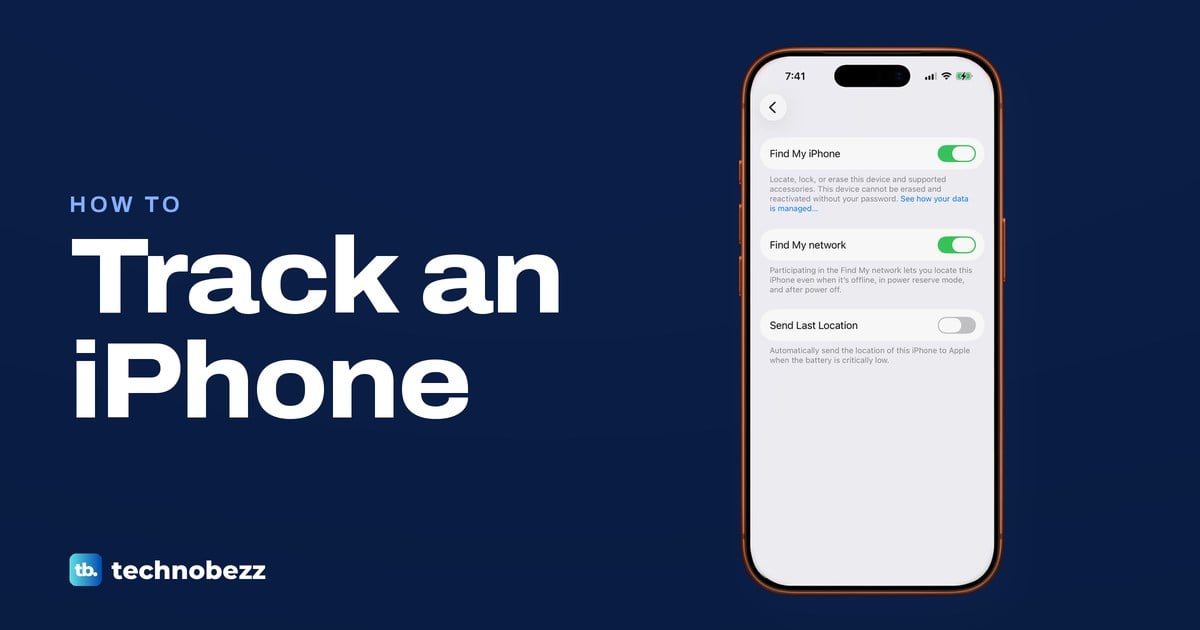
To track your iPhone, open the Find My app on another Apple device signed in to the same Apple Account, or go to icloud.com/find in a supported web browser and sign in, then choose your iPhone under Devices or All Devices. If Find My can locate it, it appears on a map, and from there you can play a sound, mark it as lost or erase it. Both routes work only if Find My was turned on before the phone went missing.
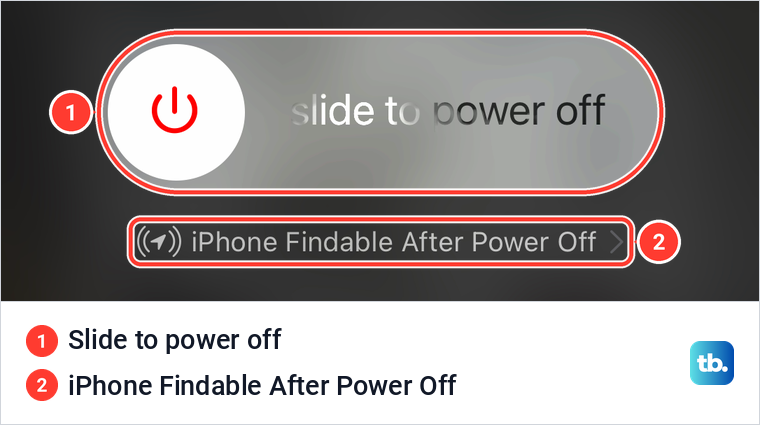
The map is not always live. Apple shows a last known location for up to 24 hours on iCloud.com and up to seven days in the Find My app, and a supported iPhone can still be found for a while after it is turned off. On our iPhone 17 Pro with iOS 26.6, the power-off screen itself says iPhone Findable After Power Off, right under the slider.
The short version
- Another Apple device: open Find My, tap Devices, then tap your iPhone.
- A computer, or some Android phones: go to icloud.com/find in the browser, sign in, and choose Find Devices if asked for a code.
- Nearby: play a sound. Farther away: use Directions in the Find My app.
- Still missing: mark it as lost to lock it and show your number, then report it.
- Gone for good: erase it last, and never remove it from Find My.
Ways to track an iPhone at a glance
Which route you take depends on what you have in your hand. All three need Find My to have been on before the loss.
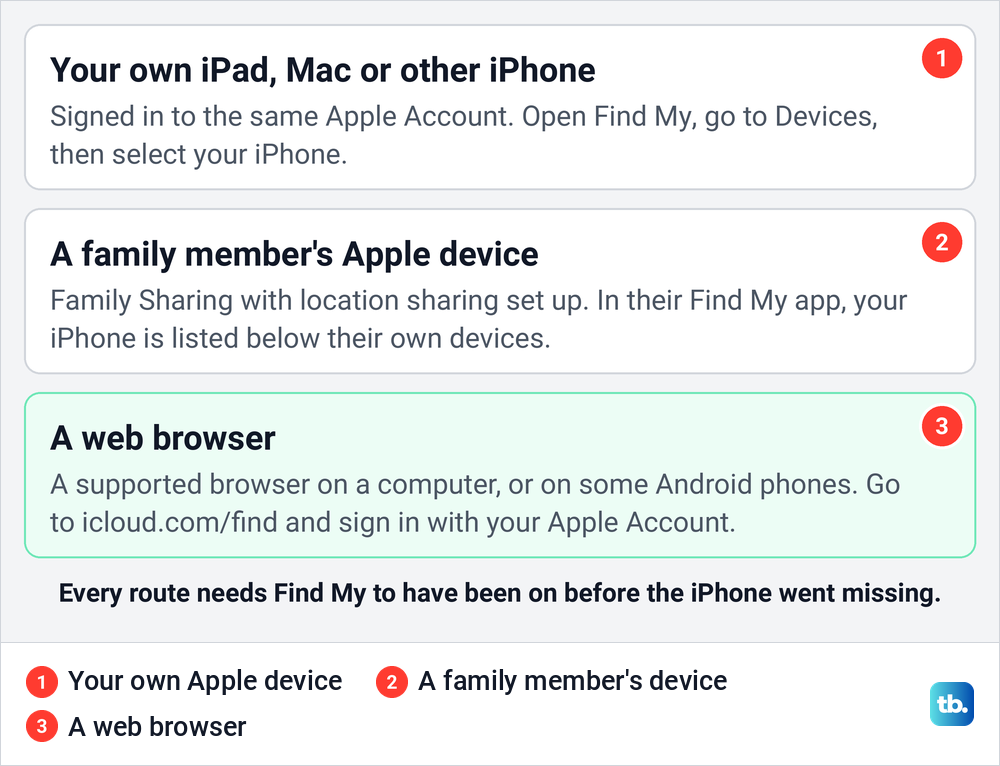
The table puts the common situations side by side, with what each route can and cannot do. It follows Apple's instructions.
| What you have | Where to look | What you can do | Limit |
|---|---|---|---|
| Your iPad, Mac or another iPhone on the same Apple Account | Find My app, Devices tab | Map, Play Sound, Directions, Lost Mode, Erase | Last known location kept up to 7 days |
| A family member's iPhone, iPad or Mac | Their Find My app, Devices tab, below their own devices | The same actions as on your own device | Only with Family Sharing and location sharing set up |
| A Windows PC or a Mac browser | icloud.com/find, then All Devices | Map, play a sound, Mark As Lost, Erase This Device | Last known location shown up to 24 hours |
| An Android phone | icloud.com/find in its browser | The same as a computer browser | Apple says some Android devices can use iCloud.com, so it may not load |
| A friend's phone or computer | icloud.com/find, signed in with your own account | The same as a computer browser | Your friend cannot add your iPhone to their Find My |
| Someone else's iPhone | Find My app, People tab | See their location | Only after they accept your request |
Track your iPhone from another Apple device
This is the quickest route if you own an iPad, a Mac or a second iPhone signed in to the same Apple Account. Open the Find My app, go to Devices, then select your missing iPhone. Apple says that if the device can be located it appears on the map, and if it can't, you see "No location found" below its name.
The tap-by-tap steps here are Apple's for the Find My app on an iPhone or iPad. On a Mac you click instead of tap, and some controls sit in other places, so for the Mac app follow our guide to using Find My iPhone on a computer.
If you see No location found, turn on Notify When Found under Notifications, and Find My tells you when the phone reports in again. Apple notes that notifications must be allowed for the Find My app for that alert to reach you. To see how far away the phone is from where you stand, Precise Location has to be on for Find My.
If Find My has never been used on the device in your hand, expect a permission question first. When we opened Find My for the first time on our iPhone, it asked to use our location before it went any further, saying it would show how far away your friends, devices and items are. The alert offered Allow Once, Allow While Using App and Don't Allow, and Allow While Using App lets Find My keep showing those distances.
Track an iPhone from a computer or Android phone
A web browser is the way in when you have no other Apple device, as long as it is one iCloud.com supports. Go to icloud.com/find and sign in with the Apple Account the lost iPhone uses. Apple says you don't need a verification code there, which matters because that code would normally go to the very phone you lost.
If the regular iCloud sign-in asks for a code anyway, don't wait for it. Apple's instruction is to select the Find Devices button at the bottom of the window instead. Once you are in, select All Devices and pick your iPhone to see it on the map, with the options to play a sound, mark it as lost or erase it.
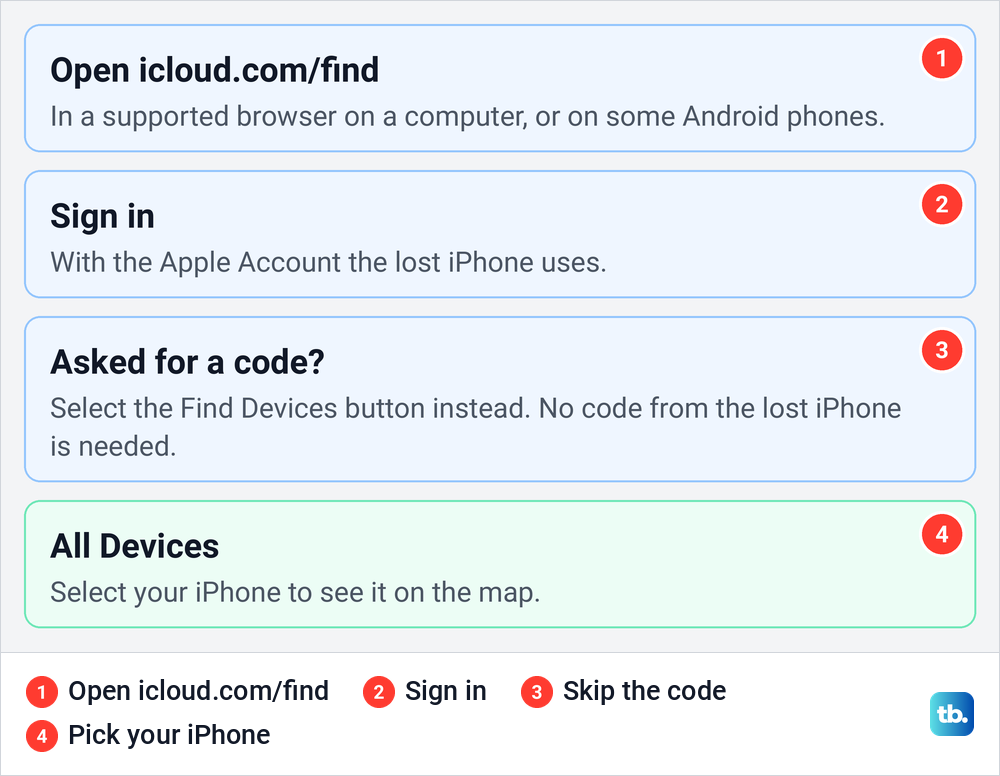
On a Windows PC, Apple lists current versions of Chrome, Edge and Firefox as supported browsers for iCloud.com. Android is less certain: Apple says some Android devices can use iCloud.com, but the site works best on Apple devices and Windows. If it will not load on the Android phone you have, try another browser or borrow a computer.
The web view has limits of its own. Apple documents the Directions button only in the Find My app, and the website keeps an offline phone's last location for a shorter time, as the next sections explain.
Use a family member's device or a friend's phone
With Family Sharing, your iPhone can show up in Find My on a relative's iPhone, iPad or Mac. Apple says their own devices sit at the top of the Devices list and family members' devices below, so your iPhone appears under theirs. They can also find it on iCloud.com under All Devices while signed in to their own account.
This works only if location sharing was set up in the family group beforehand. Apple's iCloud guide says each family member must set up their devices to share their locations with the others. A family member can also put your iPhone in Lost Mode, and Apple's web guide says that if your iPhone has no passcode, your own Apple Account password is needed to do it.
A friend outside your family group is a different case, because Apple says you can't add a friend's device to Find Devices. Borrow their phone or laptop, open icloud.com/find in a private browser window, and sign in with your own Apple Account. Sign out when you are done so your account does not stay on their device.
Read what the map is telling you
A dot on the map is not always where the phone is now. Find My shows one of four results, and each calls for a different next step.
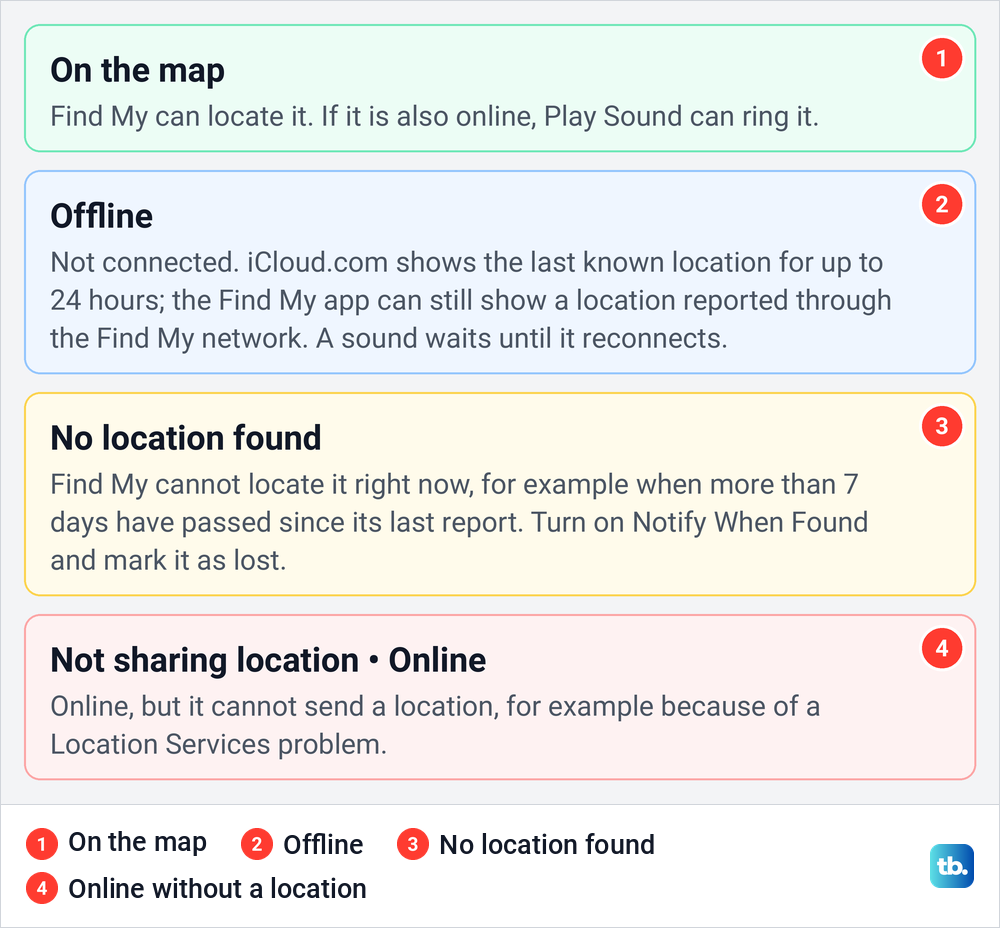
A location on the map means Find My can locate the phone, and if it is also online, a sound will reach it. Offline means the phone has no Wi-Fi or cellular connection, and the two views differ: iCloud.com shows its last known location, while the Find My app can still show a location reported through the Find My network. Either way, a sound waits until the phone reconnects.
No location found means Find My cannot locate the phone right now. One reason Apple gives is that more than seven days have passed since the phone last sent its location through the Find My network. Not sharing location • Online is the odd one out: the phone is connected but cannot send a location, for example because of an issue with Location Services. In both cases, mark it as lost so it locks and shows your number.
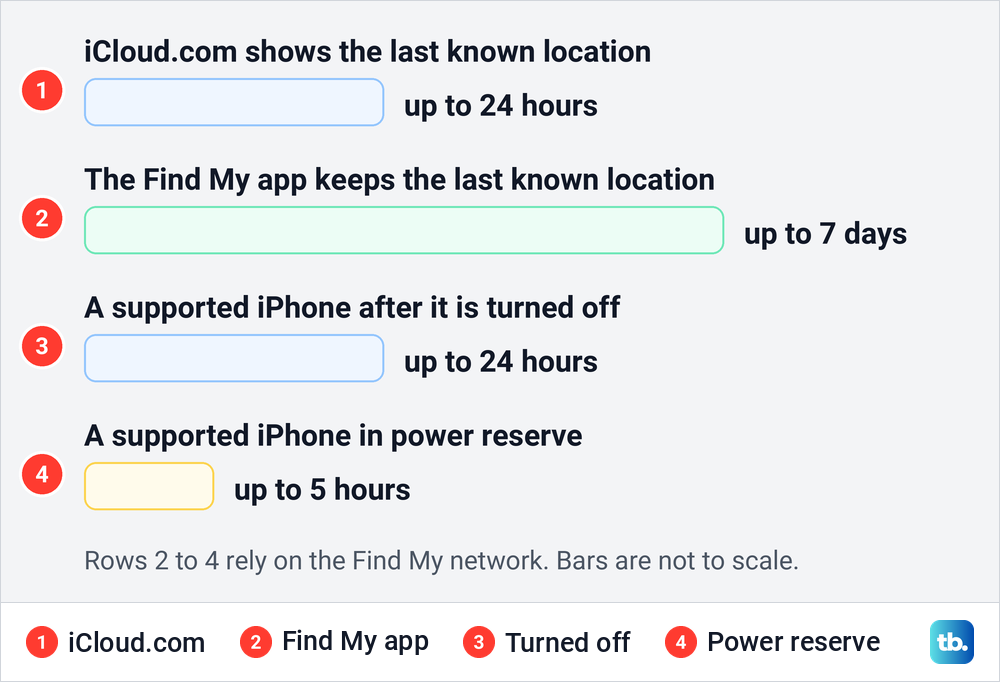
The two time limits trip many people up. Apple's web guide says the last known location is displayed for up to 24 hours, while the Find My app on a device signed in to the same account keeps it for up to seven days when the Find My network is on. If the website shows nothing, check the app on another Apple device before you give up.
Find an iPhone that is off or has a dead battery
A phone that is switched off can still be found, within limits. Apple says that on a supported iPhone, turning on the Find My network lets you locate it for up to 24 hours after it's turned off, or up to 5 hours in power reserve mode. After that, check for a last known location, within the time limits shown in the chart above.
You can see whether yours takes part on the power-off screen. On our iPhone 17 Pro with iOS 26.6, touching and holding the power control in Control Center opened the slide to power off screen, and right under the slider it read iPhone Findable After Power Off.
Send Last Location covers the dead battery. Apple says that if the battery charge level becomes critically low, the iPhone's location is sent to Apple automatically, so with it on, you may have a last reported position from before the battery died. On our iPhone that switch was off, which is why the setup section below is worth five minutes today.
Play a sound or get directions
When the map puts the iPhone somewhere you can reach, such as home, the car or the office, play a sound first. In the Find My app on an iPhone or iPad, tap Devices, tap your iPhone and tap Play, which Apple's newer support article places behind the More button; on iCloud.com, select the iPhone and choose to play a sound. Apple says the sound starts after a short delay, gradually gets louder and plays for about two minutes.
If the phone is offline, the app shows Sound Pending, and the sound plays the next time it connects to Wi-Fi or cellular. To stop the sound once you find the phone, press its power button or a volume button.
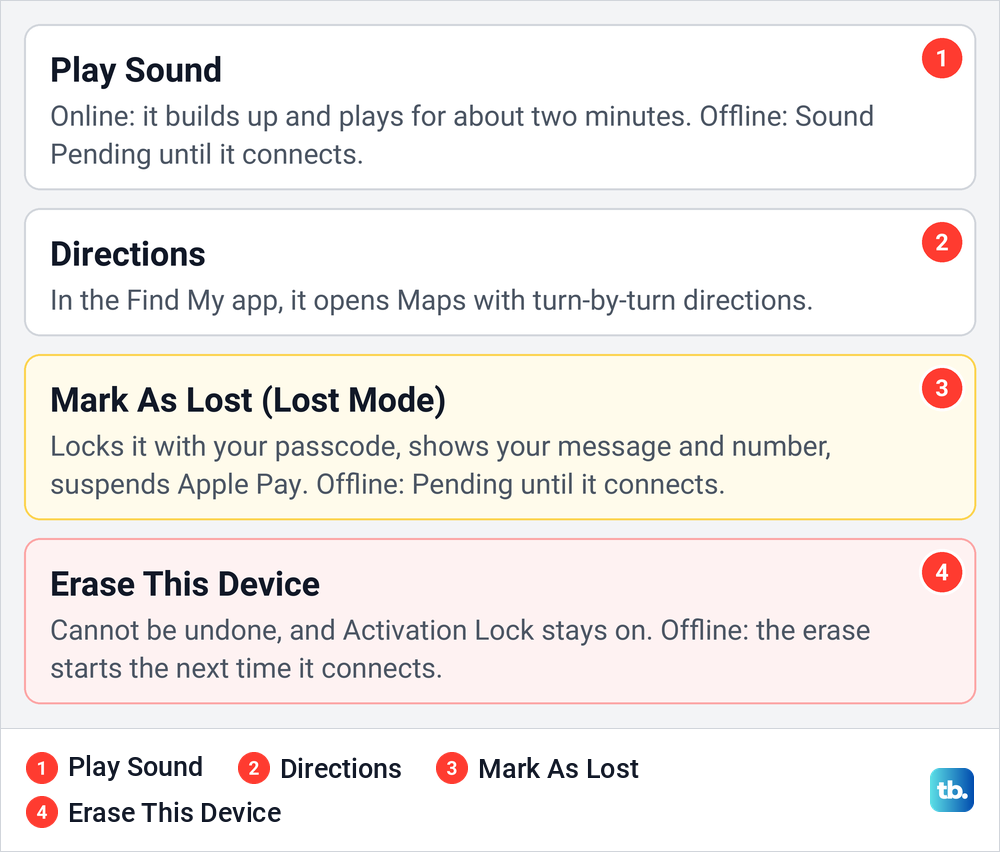
For a phone that is farther away, tap Directions in the Find My app, behind the More button in Apple's newer article, which Apple says opens the Maps app with turn-by-turn directions to the location on the map. Treat that location as approximate. If it points to a stranger's home or anywhere you would not go alone, give the location to the police instead of going yourself.
Mark the iPhone as lost
If the phone is not somewhere you can reach, mark it as lost straight away, even while you keep looking. Apple says this locks it with your passcode and suspends the payment cards and passes you use with Apple Pay. You can also add a phone number and message that appear on its Lock Screen, so whoever finds it can call you.
In the Find My app on an iPhone or iPad, tap Devices, tap your iPhone, tap the More button, scroll down to Lost iPhone and turn on Lost Mode, then follow the steps and tap Activate. On iCloud.com, select the iPhone and choose Mark As Lost. The label differs between the app and the website, but both put the phone in Lost Mode.
An offline phone takes the change later. Apple says it only appears online and in Lost Mode once it is turned on and connected to Wi-Fi or cellular, and until then the app shows Pending. With Stolen Device Protection on, Face ID or Touch ID is needed to turn Lost Mode off, so a thief who knows your passcode is still locked out.
Watch for scams once the phone is marked. Apple says it will never contact you to say your iPhone has been found, and that you should never share your passcode, passwords or verification codes with anyone who asks. A message that claims to be from Apple and says your phone was found did not come from Apple.
If you get the phone back with Lost Mode on, enter your passcode on it, or turn Lost Mode off in Find My. If the passcode itself is the problem, the next step is to unlock an iPhone when you forgot the passcode.
Erase a lost iPhone only as a last resort
Erasing removes your data from the phone, but it can't be undone, so Apple says to try everything else first. If the phone is offline, the erase begins the next time it's online.
In the Find My app on an iPhone or iPad, tap Devices, tap the iPhone, tap the More button and choose Erase This Device, then follow the steps. On a Mac, Apple's steps are to click Devices, select the iPhone, click the More button, then click Erase in the Settings section. On iCloud.com, select the iPhone and choose Erase This Device.
Two details change what you can expect. Apple says a remote erase leaves Activation Lock on, so the phone still needs your Apple Account password to be set up again, and that an erased iPhone on iOS 15 or later can still be located or rung in Find My. Without two-factor authentication on your Apple Account, you can't erase from the Find My app and have to use iCloud.com.
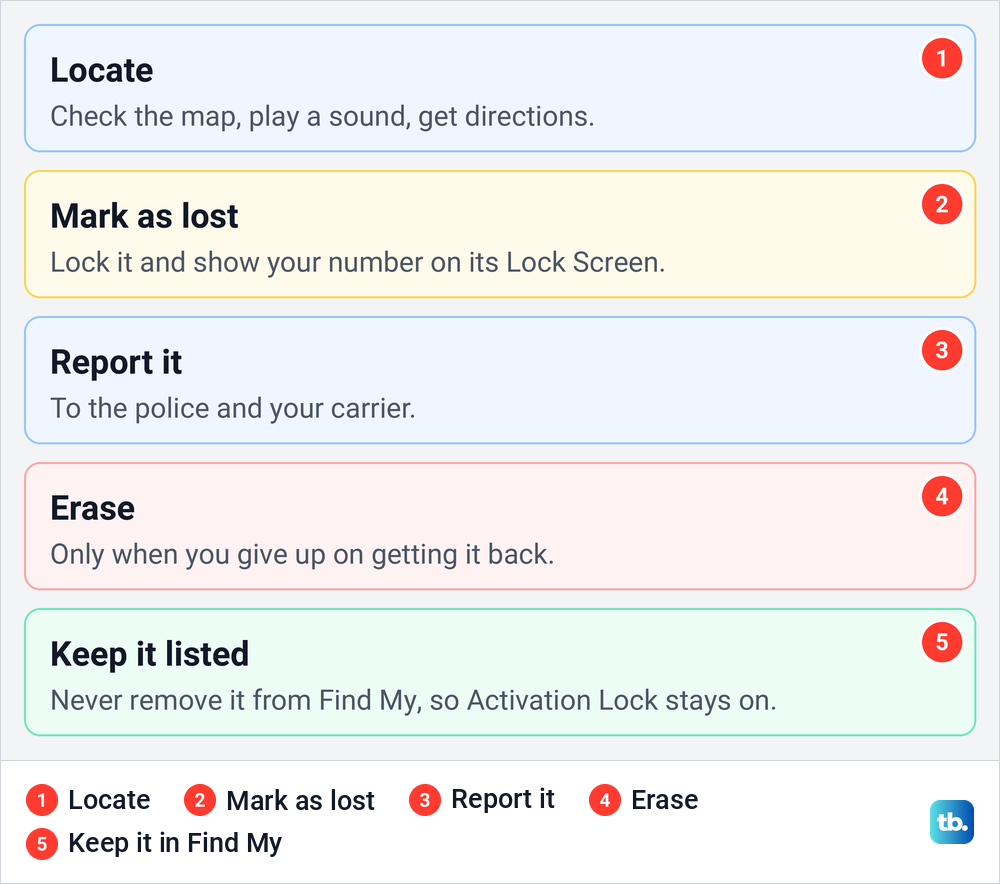
The one thing never to do with a stolen iPhone is remove it from Find My. Apple warns that removing a device from your Find My list removes Activation Lock, which makes it easier for a thief to unlock and resell it. If you have AppleCare+ with Theft and Loss, also keep it in Find My and in your Apple Account until your claim is fully approved.
A remote erase is a different job from wiping a phone you are holding before you sell it, which is how to erase an iPhone safely. If the phone comes back after a remote erase, set it up from your latest backup, and if pictures are still missing, our guide to recover deleted iPhone photos covers checking iCloud.com and your other backups.
What to do if Find My was off
If Find My wasn't turned on before the phone was lost, Apple says it won't appear at icloud.com/find or in the Find My app, and you can't mark it as lost or erase it remotely. There is no way to switch it on from somewhere else afterwards. What you can still do is protect the line, the account and the data.
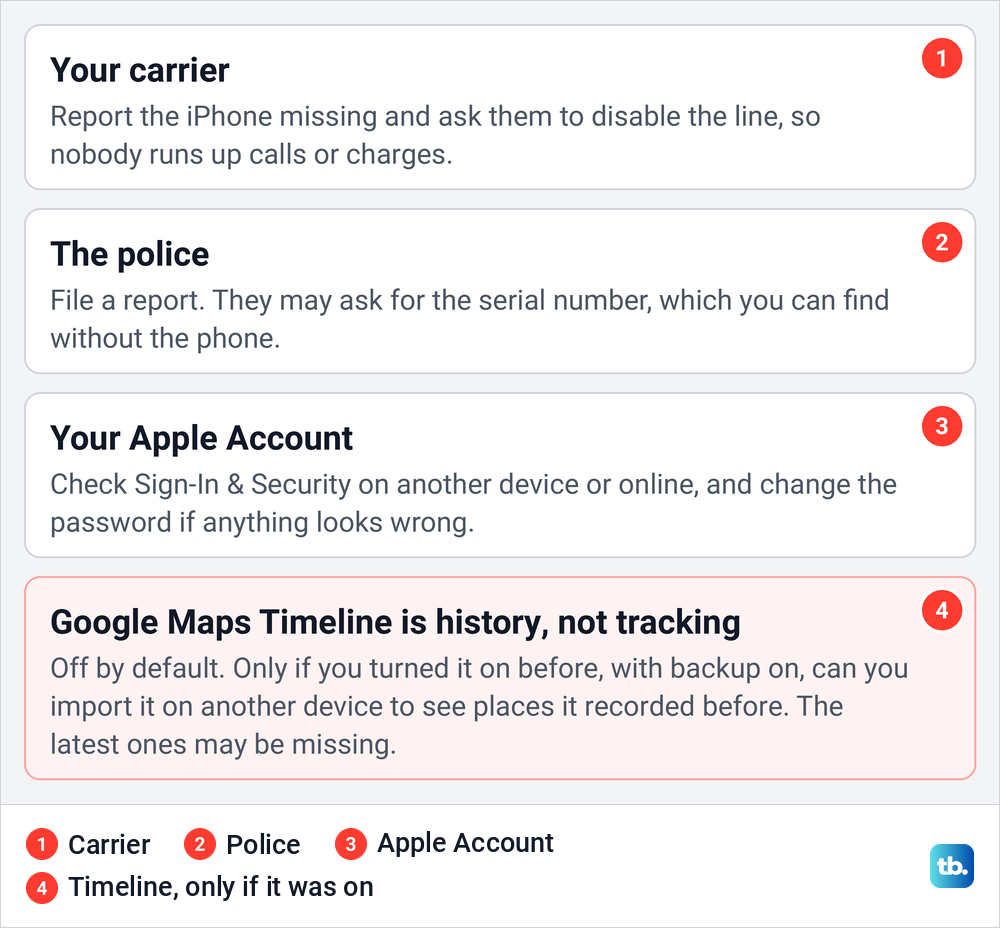
Call your carrier first. Apple's advice is to report the missing iPhone to your wireless carrier and ask them to disable your account, so nobody runs up calls or charges on your line, and any carrier insurance claim goes through them too. Then report it to local law enforcement, who may ask for the serial number, which Apple says you can find even without the device.
Next, secure your Apple Account. On another trusted device, go to Settings, tap your name and then Sign-In & Security, or review the account at account.apple.com, and change your Apple Account password if you see anything you don't recognize.
Google Maps Timeline often comes up at this point, but it is history, not tracking. Google says Timeline is off by default and only turned on if you opt in, and that its data can be imported onto a different device as long as you had turned on backup. Even then, Google notes it can take a few days for changes to reach the backup, so the last places may be missing.
Track someone else's iPhone with permission
Find My can show another person's location, but only with their agreement. In the People tab, Apple's steps are to tap the person and then Ask To Follow Location, and you see their location once they receive and accept the request. Apple's steps also assume you already share your own location with them, through People, the add button, then Share My Location, and we cover the full set of choices in how to share your location on iPhone.
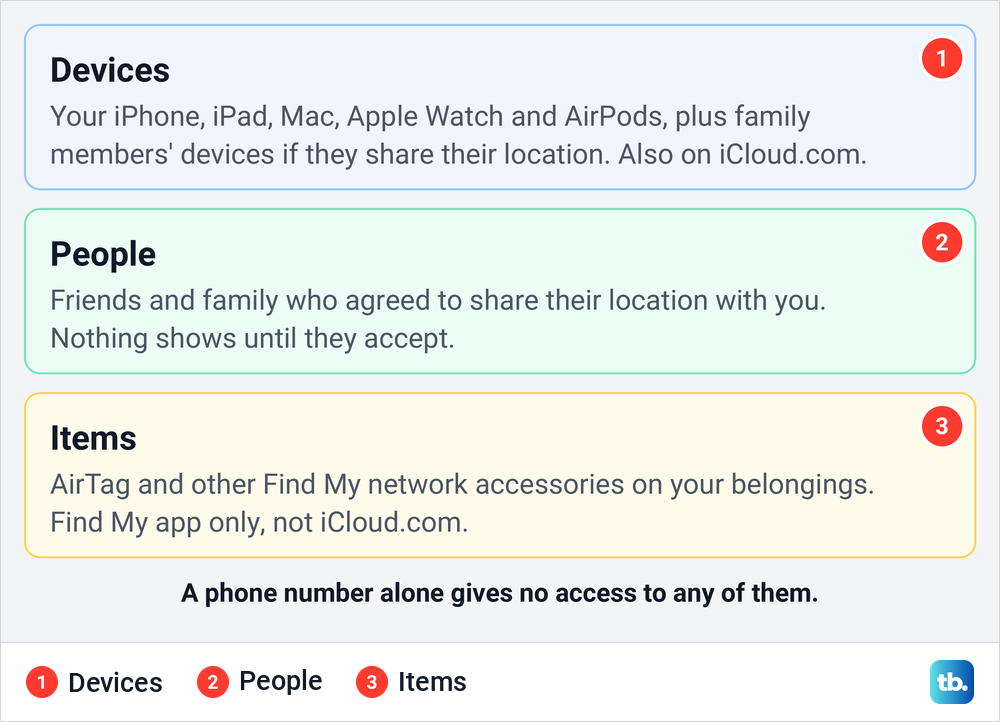
In a Family Sharing group, location sharing set up in Family settings puts relatives' devices in your Devices list and their location in People. There is no Apple route that finds a phone from its number, and nothing here works in secret: both kinds of sharing depend on the other person's settings.
Where AirTag and AirPods fit in
AirTag lives in its own tab. Find My splits into Devices for your Apple devices, People for shared locations and Items for AirTag and other Find My network accessories. Apple says you can locate AirTag and those accessories only with the Find My app on iPhone, iPad, Mac or Apple Watch, not on iCloud.com.
An AirTag in a bag or wallet is a good backup for the things you lose along with your phone, but it is not a way to follow a person. Apple says these products should not be used to track people, and that tracking people without their consent is a crime in many countries. Both iPhones and Android phones can alert their owners when an unknown tracker moves with them.
AirPods sit under Devices next to your iPhone, with Play Sound and, for AirPods Pro 2 or later with an iPhone that has Ultra Wideband, Find Nearby to show the distance and direction. Our guide to find your missing AirPods walks through those steps.
Set up Find My before you lose your iPhone
Everything above depends on a few switches set before the loss. Apple's path is Settings, your name, Find My, then Find My iPhone, where you turn on Find My iPhone and can also turn on Find My network and Send Last Location. On our iPhone 17 Pro with iOS 26.6, Find My sat on the Apple Account page between Family and Media & Purchases.
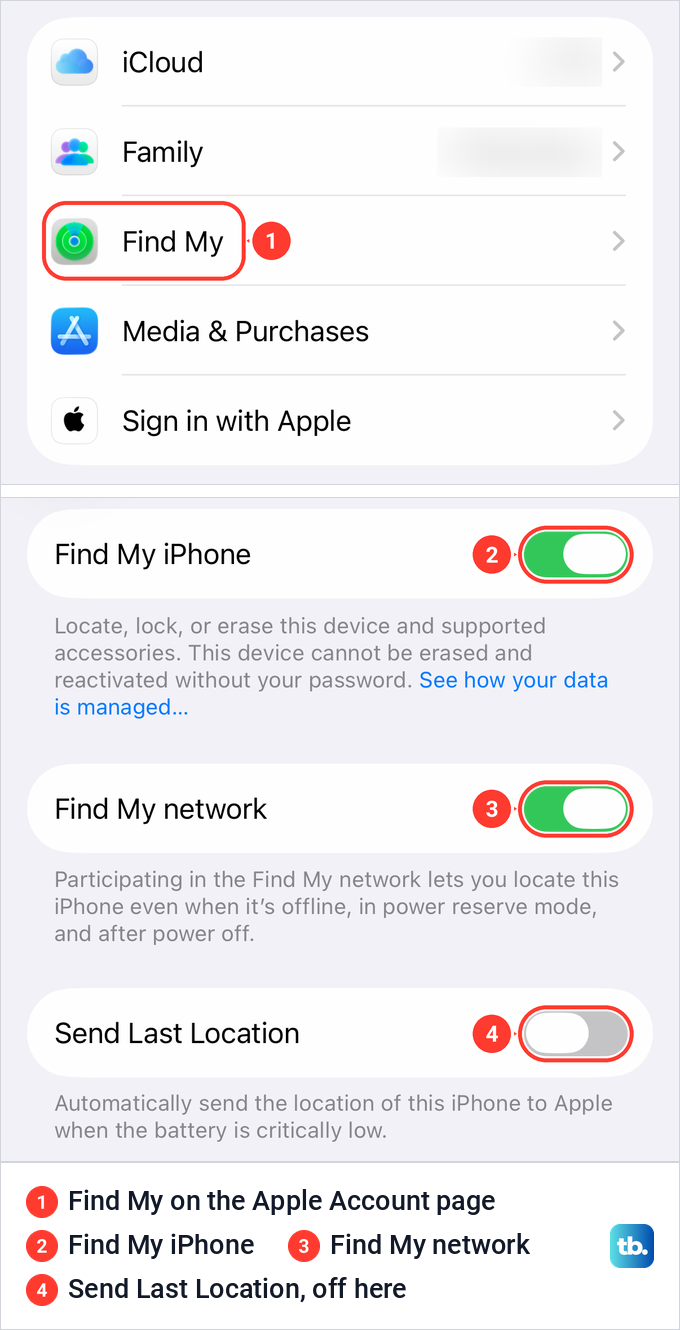
On that phone's Find My iPhone page, Find My iPhone and Find My network were on and Send Last Location was off. Under Find My network, iOS says it lets you locate the iPhone even when it's offline, in power reserve mode and after power off. Under Find My iPhone, it warns that the device cannot be erased and reactivated without your password, which is Activation Lock at work.
Turn all three on: Find My iPhone, Find My network and Send Last Location. Keep Find My on for as long as you use the phone, and only turn off Find My on an iPhone when you sell it or give it away. If Find My lists several devices with nearly the same name, change your iPhone name now so the right one is easy to pick in a hurry.
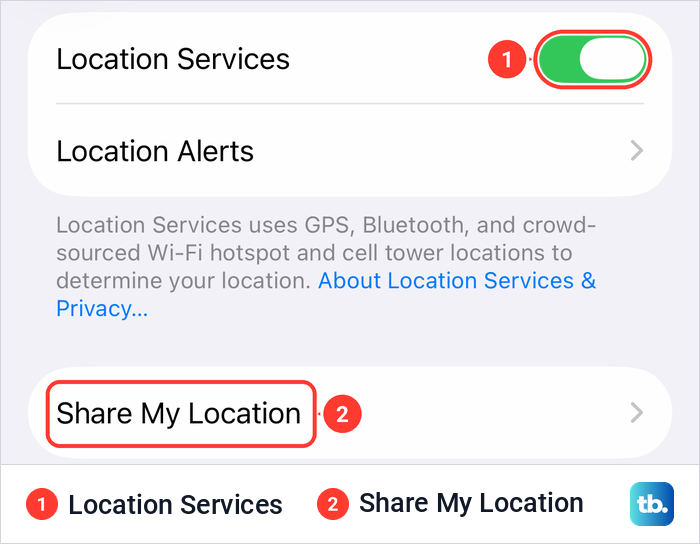
Location Services needs to be on too, and Apple gives a Location Services issue as one reason a phone can show as online without sharing a location. On our iPhone 17 Pro with iOS 26.6 the switch sits at the top of Settings, Privacy & Security, Location Services, with Share My Location listed below it, and our guide to turn on iPhone Location Services covers it step by step.
Last, back up your iPhone regularly. If the phone never comes back and you erase it remotely, a recent backup lets you restore the data it contains.
How we tested this guide
We tested this on an iPhone 17 Pro with iOS 26.6, going through the Find My iPhone page and its three switches.
Frequently Asked Questions
Can I track my iPhone from an Android phone?
Try icloud.com/find in the Android phone's browser and sign in with the lost iPhone's Apple Account. Apple says some Android devices can use iCloud.com rather than all of them, so if it does not load, use a computer instead.
Can I track my iPhone if it is turned off?
Often, for a while. On a supported iPhone with the Find My network on, Apple says it can be located for up to 24 hours after it is turned off, or up to 5 hours in power reserve mode.
What if my iPhone's battery is dead?
Check its last known location, which the Find My app keeps for up to seven days, and turn on Notify When Found. With Send Last Location on, the iPhone sends its location to Apple when the battery is critically low.
Do I need a verification code to use Find My on iCloud.com?
No. Apple says icloud.com/find does not need one, and if the normal iCloud sign-in asks for a code, select the Find Devices button instead.
Can I track an iPhone with just its phone number?
No. Find My works through an Apple Account, a Family Sharing group or a location sharing request the other person accepted, and none of them starts from a phone number.
Can I find my iPhone if Find My was turned off?
Not through Apple. It will not appear in Find My, so report it to your carrier and the police and secure your Apple Account. Google Maps Timeline can show past places only if you turned it on and backed it up beforehand.
Does erasing a lost iPhone turn off Activation Lock?
No. Apple says Activation Lock stays on after a remote erase. Removing the iPhone from your Find My list is what turns it off, so keep it listed.