The safe way to install the iOS 27 beta is to make two backups first. Run an iCloud backup so your everyday data is current, then create a local backup on a Mac or Windows PC and archive it. Apple's beta guidance at developer.apple.com/support/install-beta/ is blunt about this. Always back up your devices before installing beta software, and to leave the beta later you restore from the backup made before it went on.
Apple announced iOS 27 at WWDC26 on June 8, 2026, and released developer beta 1 (build 24A5355q) the same day through the Apple Developer Program. A public beta follows through the Apple Beta Software Program in July 2026, and the finished version arrives as a free software update this fall. Until then you are running unfinished software, so treat the backup steps below as mandatory.
Why This Beta Needs a Real Backup Plan
Developer betas are early test builds. Expect bugs, faster battery drain, and apps that misbehave or refuse to run, and remember that anything you see in the beta, including headline additions like the all new Siri AI, AI photo editing, the Siri mode in Camera, and the new Child Safety features, can change before the fall release. None of that is a crisis if you can roll back cleanly.
There is one trap that catches beta testers every year. Apple warns that backups created while using beta software might not be compatible with earlier versions of iOS or iPadOS (support.apple.com/en-us/108763). Once your iPhone is on iOS 27, every new backup it makes may be useless for restoring to iOS 26. The only reliable escape hatch is a backup made before you install the beta, which is why the archive step later in this guide matters so much.
Confirm Your iPhone Supports iOS 27
iOS 27 keeps the same device cutoff as iOS 26, according to the device list on Apple's official preview page at apple.com/os/ios/. The supported models are iPhone 17 Pro Max, iPhone 17 Pro, iPhone Air, iPhone 17, iPhone 17e, iPhone 16 Pro Max, iPhone 16 Pro, iPhone 16 Plus, iPhone 16, iPhone 16e, iPhone 15 Pro Max, iPhone 15 Pro, iPhone 15 Plus, iPhone 15, iPhone 14 Pro Max, iPhone 14 Pro, iPhone 14 Plus, iPhone 14, iPhone 13 Pro Max, iPhone 13 Pro, iPhone 13, iPhone 13 mini, iPhone 12 Pro Max, iPhone 12 Pro, iPhone 12, iPhone 12 mini, iPhone 11 Pro Max, iPhone 11 Pro, iPhone 11, and iPhone SE (2nd generation and later).
The new assistant has stricter hardware requirements than the OS itself. Apple says Siri AI needs an iPhone 16 model or later, or an iPhone 15 Pro or iPhone 15 Pro Max, and that Siri AI arrives in beta later this year on an Apple Intelligence enabled device set to a supported language, in English to start. Apple also says Siri AI will not be available initially in the EU on iPhone and will not be available in China. An iPhone 13 can install iOS 27, but it will not get the new assistant.
Back Up to iCloud First
An iCloud backup is the quickest layer of protection. It stores data that is not already synced to iCloud, including your settings, Home Screen and app layout, app data, and messages and photos that are not synced. Continuously synced data such as iCloud Photos, iCloud Drive, and Notes already lives in iCloud and is not part of the backup.
Connect the iPhone to Wi-Fi.
Open Settings > [your name] > iCloud > iCloud Backup.
Tap Back Up Now and stay on Wi-Fi until it finishes. The date and time of the last backup appears on the same screen.
Turn on Back Up This iPhone if you want automatic backups, then leave the phone connected to power, on Wi-Fi, with the screen locked.
iCloud includes 5 GB of free storage, which fills up quickly. If your backup will not fit, follow the onscreen steps to buy more storage. In the US, iCloud+ runs $0.99 a month for 50GB, $2.99 for 200GB, $9.99 for 2TB, $29.99 for 6TB, and $59.99 for 12TB.
Make a Local Backup With Finder on a Mac
On a Mac running macOS Catalina 10.15 or later, Finder handles iPhone backups.
Connect the iPhone to the Mac with a USB cable. Allow the accessory if asked, tap Trust on the iPhone, and enter your passcode if prompted.
Select the iPhone in the Finder sidebar.
Select Encrypt local backup and set a password if you want Health and Activity data included. Store that password somewhere safe, because it cannot be recovered if you lose it.
Click Back Up Now and let it finish.
Finder stores these backups at ~/Library/Application Support/MobileSync/Backup/.
Make a Local Backup on a Windows PC
On Windows, use the Apple Devices app, or iTunes if the Apple Devices app is not installed.
Connect the iPhone with a cable and respond to the passcode and Trust prompts.
Select the device, then click General in the Apple Devices app or Summary in iTunes.
Optionally select Encrypt local backup and create a password so Health and Activity data is included. The same warning applies, since the password cannot be recovered.
Click Back Up Now. The backup is done when the last backup date and time appears.
Windows keeps backups under %USERPROFILE% when they are made with the Apple Devices app or the Microsoft Store version of iTunes, or under %AppData% with legacy iTunes.
Archive the Backup Before You Touch the Beta
This is the step most people skip. Archiving the local backup you just made marks it as your pre-beta restore point.
With the iPhone still connected, open Finder on the Mac, or the Apple Devices app or iTunes on Windows.
Go to the General tab and click Manage Backups.
Right-click or Control-click the backup you just created and choose Archive, then close the backup list.
Do this before installing iOS 27, not after. Backups made on beta software might not restore to earlier versions of iOS, and once the phone is running iOS 27, every new backup it creates, in iCloud or on a computer, is a beta era backup. The pre-beta copy you archive here is the safety net that Apple's downgrade process depends on, and support.apple.com/en-us/108809 documents the Archive option under Manage Backups.
Install the iOS 27 Beta Only After the Archive Is Done
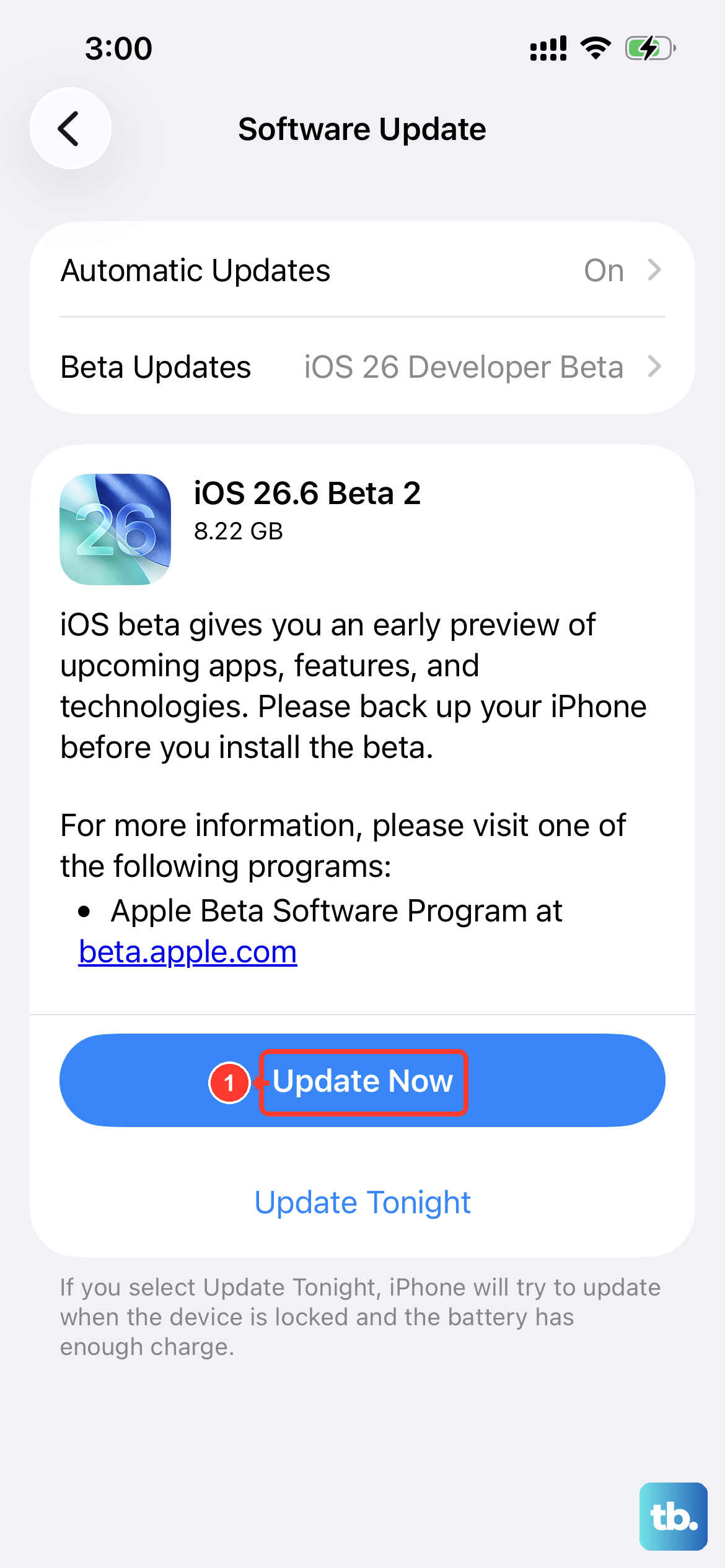
With both backups made and the local one archived, you can enroll. The developer beta is live now through the Apple Developer Program.
Open Settings > General > Software Update > Beta Updates. This menu is available on iOS 16.4 or later.
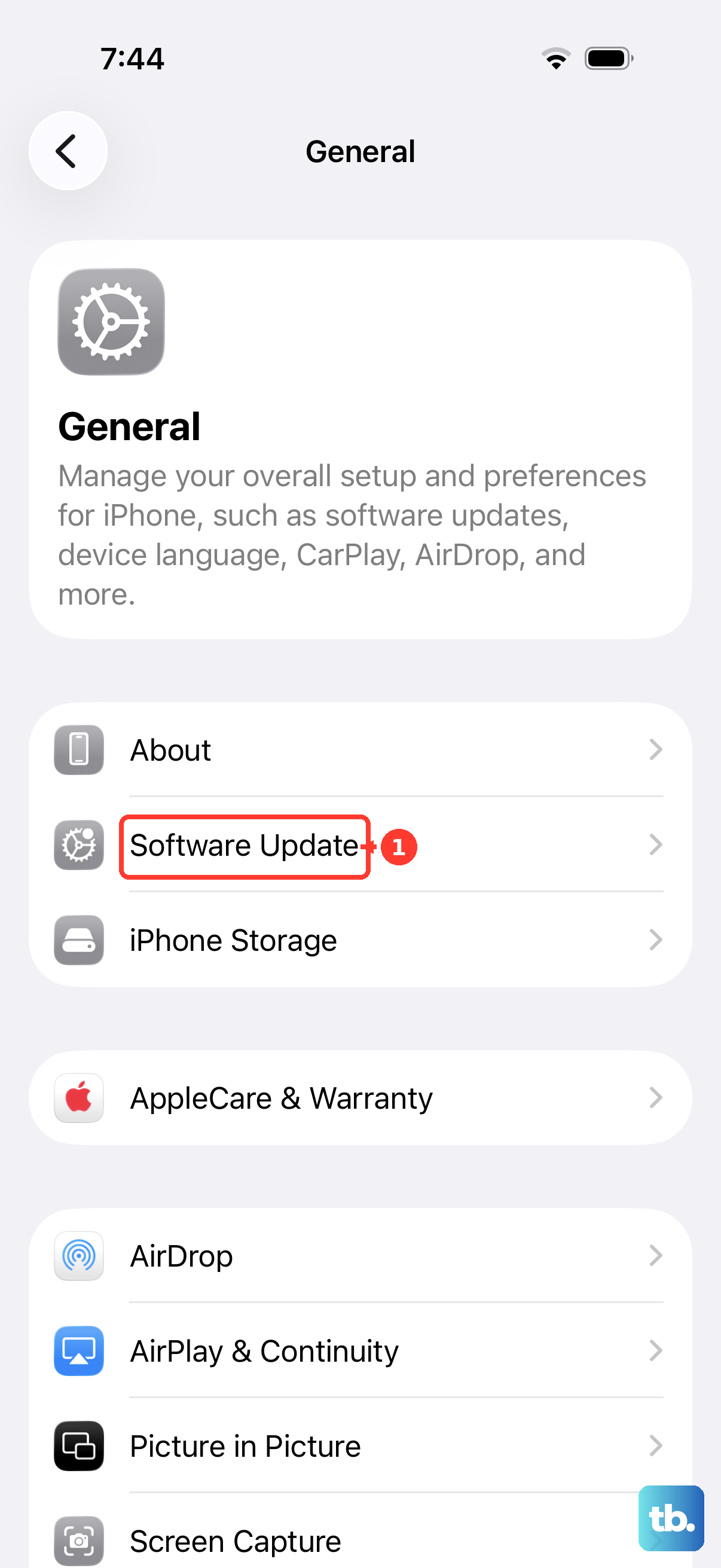
Choose the iOS 27 developer beta.
Return to Software Update and install the update when it appears.
If you would rather wait, Apple's June 8 announcement says the public beta arrives through the Apple Beta Software Program in July 2026, with no specific day announced. beta.apple.com currently lists the iOS 27 public beta as coming soon, so sign up there with your Apple Account once enrollment opens.
Getting Back to iOS 26 If the Beta Lets You Down
You have two exits. The patient option is Settings > General > Software Update > Beta Updates > Off, which stops beta deliveries. You stay on the installed beta until the next non-beta release arrives and you update onto it.
The immediate option is the reason you archived a backup. Restore the iPhone in recovery mode using a computer, then set it up from the pre-beta backup through Finder > General > Restore Backup, entering the password if the backup was encrypted. Apple's downgrade instructions require a backup made before you installed the beta, which an iCloud-only routine cannot guarantee.
Frequently Asked Questions
Is an iCloud backup enough before installing the iOS 27 beta?
No. Apple warns that backups created on beta software might not be compatible with earlier iOS versions, and once you are on iOS 27, every new backup, including iCloud backups, is made from the beta. A computer backup made and archived before installing the beta is the restore point Apple's downgrade process calls for.
When does the iOS 27 public beta come out?
Apple's June 8, 2026 announcement says a public beta arrives through the Apple Beta Software Program next month, which means July 2026. No specific day has been given, and beta.apple.com currently shows the iOS 27 public beta as coming soon.
Which iPhones can run iOS 27?
The cutoff matches iOS 26, covering everything from the iPhone 11 lineup and iPhone SE (2nd generation and later) up through the iPhone 17 family and iPhone Air. Siri AI is narrower and requires an iPhone 16 model or later, or an iPhone 15 Pro or iPhone 15 Pro Max.
How do I get the iOS 27 beta today?
The first developer beta has been available through the Apple Developer Program since June 8, 2026. After enrolling, it appears under Settings > General > Software Update > Beta Updates, and everyone else can wait for the public beta at beta.apple.com in July.
What does Encrypt local backup actually do?
Selecting it in Finder on a Mac, or in the Apple Devices app or iTunes on Windows, is required to save Health and Activity data in your computer backup. Record the password carefully, because it cannot be recovered if lost, and restoring an encrypted backup requires it.
Will the features in the iOS 27 beta look the same this fall?
Not necessarily, because beta features can change before release. Apple says the new features arrive as a free software update this fall, and Siri AI itself is described as coming in beta later this year, so expect refinements between now and then.











