


To link SharePoint to File Explorer, open your SharePoint document library, select Add shortcut to OneDrive, and open your organization’s OneDrive folder in File Explorer. The OneDrive desktop app must be signed in to the same account that has access to the library. These steps use Windows 11 menus and apply to SharePoint Online in Microsoft 365.
A OneDrive shortcut follows your account across devices, making it the recommended starting point. You can also select Sync to connect a library separately on each computer. Both approaches let you keep downloaded files available offline.
The short version
- Recommended setup: Select Add shortcut to OneDrive in SharePoint, then find the folder under your organization’s OneDrive in File Explorer.
- Library sync: Select Sync to add a library beneath your organization’s name on that computer.
- Offline access: Right-click a linked file or folder and select Always keep on this device, then wait for the download to finish.
- One-time copies: Select Download when you only need local copies without an ongoing connection.
| Option | Where files appear | What it provides |
|---|---|---|
| OneDrive shortcut from SharePoint | Your organization’s OneDrive folder | A library or folder shortcut that follows your account across devices |
| Shared folder shortcut from OneDrive on the web | The same account’s OneDrive folder | Access to an eligible internally shared folder |
| SharePoint library sync | Beneath your organization’s name | A library connection set up on each computer |
| Sync from a Teams channel | Beneath your organization’s name | A connection to the channel’s SharePoint files |
| Download | Your chosen local destination | Copies without ongoing syncing |
| File Explorer Home | Eligible cloud document results | Document discovery without connecting an entire library |
Get OneDrive ready
Windows 11 normally includes OneDrive, and its desktop app connects SharePoint folders to File Explorer. If the app is missing, open the Microsoft OneDrive download page and select Download OneDrive. Sign in using the work or school account that has access to your SharePoint files.
To add that account to an existing OneDrive setup, select the OneDrive cloud icon in the notification area. Open Help and Settings > Settings > Account, then select Add an account. Complete sign-in before adding the shortcut or starting library sync.
Add a SharePoint shortcut to OneDrive
Sign in to the SharePoint website with the work or school account that has access to the files. Open the document library where you use SharePoint for files. To link only one folder, select that folder inside the library.
Select Add shortcut to OneDrive. On surfaces that use the alternate label, select Add shortcut to My files. With the OneDrive desktop app signed in to the same account, open File Explorer and browse your organization’s OneDrive folder to find the linked content.
The shortcut follows your account across devices, so you can keep the same SharePoint folder alongside your OneDrive files. Online-only files download when you open them. For files you need without an internet connection, use Always keep on this device as described below.
Sync a library to this computer
For a library connection set up on a particular computer, open the SharePoint site in your browser and select Documents. You can instead open the specific document library or subfolder you want to connect. Select Sync to begin OneDrive setup.
Complete OneDrive sign-in and setup using the account that has access to the library. Open File Explorer and look beneath your organization’s name for the synced library. Repeat this setup on each computer where you want that library synced.
You can choose which folders from an already synced library appear on this PC. Select the blue OneDrive cloud icon, then open Help and Settings > Settings > Account. Beside the library, select Choose folders and select the folders you need.
Find and pin your SharePoint folder
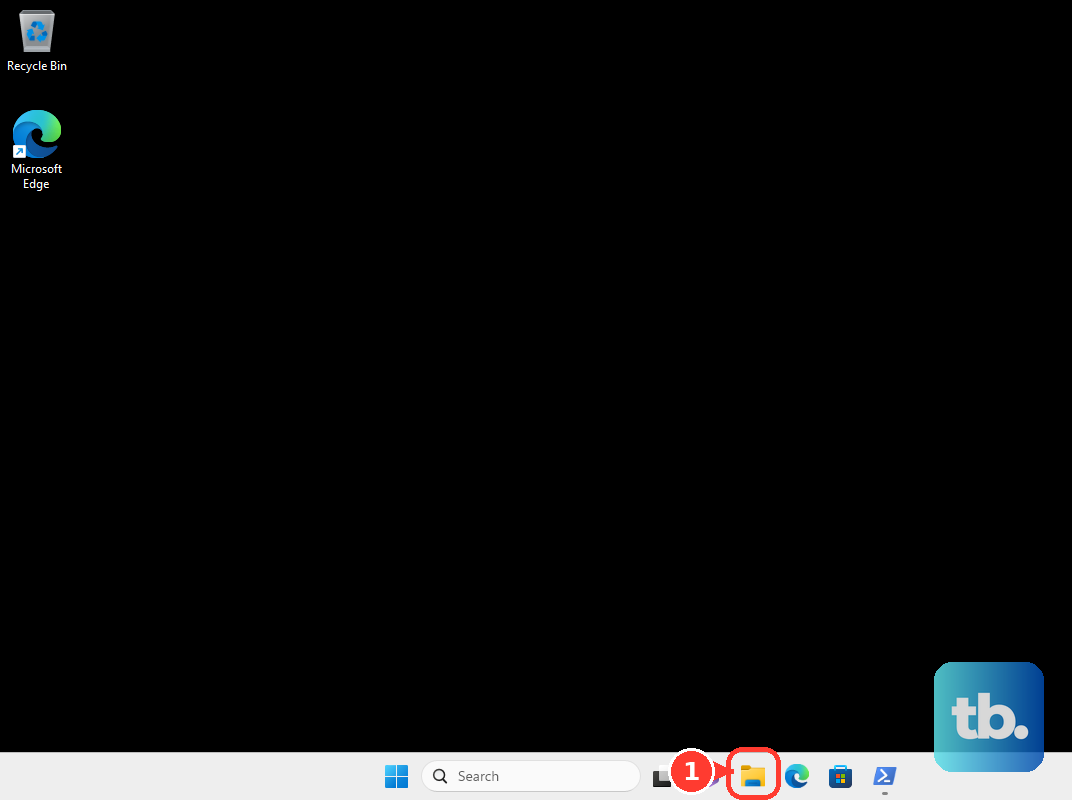
Press Windows + E to open File Explorer, or open it from Start or the taskbar. Look in your organization’s OneDrive folder for a shortcut, or beneath your organization’s name for a synced library. The location depends on which connection method you chose.
To make the folder easier to reach, right-click it and select Pin to Quick access. Pinning adds a route to an existing folder; it does not establish the SharePoint connection. If File Explorer’s navigation pane is hidden, select View > Show > Navigation Pane.
Keep files available offline
OneDrive Files On-Demand is enabled by default in current builds, and online-only files download when you open them. To keep files available offline, right-click the linked SharePoint file or folder in File Explorer and select Always keep on this device. Wait for downloading to finish before disconnecting from the internet.
Freeing up space removes the downloaded copy from local storage while retaining cloud access. To do this, right-click the file or folder and select Free up space. Before you need it offline again, select Always keep on this device and wait for downloading to finish.
For broader Files On-Demand controls, select the OneDrive cloud icon and open Help and Settings > Settings > Sync and back up > Advanced settings. Some OneDrive settings interfaces expose a Files On-Demand toggle. Updated interfaces instead offer Free up disk space and Download all files.
Download files without linking a library
For one-time local access, select the files or folders on the SharePoint website and select Download. You can also right-click the selection and select Download. If prompted, select Save or Save As and choose a local destination.
Open that destination in File Explorer to find the downloaded copies. Multiple selected items can arrive as a ZIP archive, and downloads remain subject to permissions and limits. These copies have no ongoing sync connection, so choose a shortcut or library sync when you want connected access.
Fix a missing SharePoint connection
Check that OneDrive is signed in to the same account you used to access SharePoint. If you need to add that account, select the OneDrive cloud icon and open Help and Settings > Settings > Account, then select Add an account. After setup, look in that account’s organization OneDrive folder for a shortcut or beneath the organization’s name for a synced library.
If you previously quit OneDrive, search Start for OneDrive and open it again. Quitting the app interrupts its sync integration. After opening it, return to the appropriate OneDrive folder or synced library in File Explorer.
When the shortcut command is missing, select Sync if the library permits it. Your tenant administrator can restore the shortcut command, while a site owner or administrator with the required permissions can enable library syncing. If downloading is permitted, select Download to get local copies while the connection settings are addressed.
Microsoft blocks SharePoint Online access through Internet Explorer 11 and Edge’s IE compatibility mode. If an older tutorial tells you to use those browsers with Open with Explorer or WebDAV drive mapping, follow the OneDrive shortcut or library sync steps above instead.
Disconnect a shortcut or synced library
Removing a shortcut also removes it from synced computers. To remove it, right-click the shortcut folder in File Explorer, open OneDrive, and select Remove shortcut. Removing the shortcut is a different action from deleting the shared contents.
Stopping library sync means subsequent changes no longer sync, although downloaded copies can remain locally. For a library you connected yourself, select the blue OneDrive cloud icon and open Help and Settings > Settings > Account. Beside the relevant site or library, select Stop sync.
Frequently Asked Questions
Can you connect SharePoint files from Microsoft Teams?
Yes, for a Teams channel backed by SharePoint Online, open the required team and channel, then select Shared > More commands > Sync. You can also select Shared > More commands > Open in SharePoint and connect through the library’s Sync or Add shortcut to OneDrive command. Older tutorials call the channel tab Files.
Can you add a shared SharePoint folder from OneDrive on the web?
Yes, for an eligible folder shared within your Microsoft 365 organization, open Shared > With you in OneDrive on the web. Select the folder, then select Add shortcut to My files, and access it through the same account’s OneDrive in File Explorer with desktop syncing enabled. Alternatively, right-click the folder and select Add shortcut to My files. Microsoft excludes externally shared folders from this shortcut procedure.
Can OneDrive keep a personal account connected alongside the SharePoint account?
Yes, the current OneDrive desktop app supports multiple work or school accounts alongside one personal account. Use the work or school account with SharePoint access for the library connection.
How do you find cloud documents through File Explorer Home?
On Windows 11, open Start > Settings > Accounts and sign in to the relevant cloud account. Open File Explorer, select Home, and search for the document or use available recent or favorited Office files. The cloud results you can access depend on your account, organizational access, and configuration.











