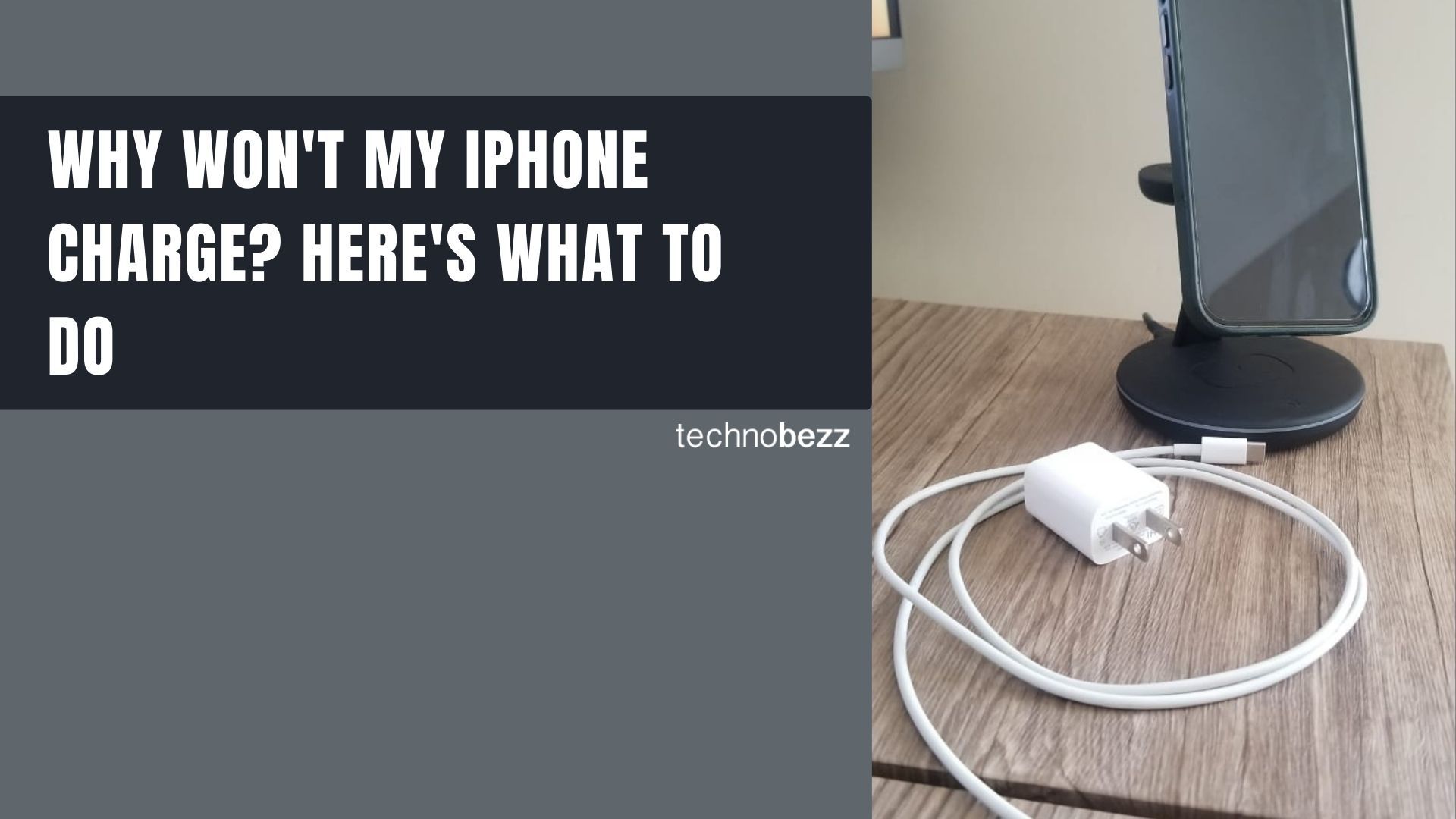
To fix an iPhone that is not charging, check the port for debris, connect an undamaged cable to a wall charger, and charge for 30 minutes before a force restart. If you see a liquid alert, unplug the cable and follow the drying steps below before trying wired charging again.
The short version
- Check the cable, adapter and outlet before changing settings.
- For a black screen, charge for 30 minutes, force restart, then charge for another 30 minutes.
- A charge limit, optimized charging or temperature protection can pause charging.
- Try an update before a restore, which erases your data.
| Fix | What it does | Time | Use it when |
|---|---|---|---|
| Cable and power checks | Checks the power connection | A few minutes | No charge or an accessory alert |
| Port and liquid checks | Finds an obstruction or moisture | A few minutes; drying up to 24 hours | Cable will not fit or a liquid alert appears |
| Charge and force restart | Retries startup after charging | About one hour including both waits | Black screen or low battery icon |
| Charging settings | Checks an intentional pause | Under a minute to check | Charging stops near a set percentage |
| Temperature check | Lets charging resume at normal temperature | Under a minute to relocate the phone | Temperature warning or charging on hold |
| Wireless charging | Tries a different charging connection | A few minutes | Wired charging fails |
| Software update | Installs an available iOS update | A few minutes to start the update | The phone turns on and has power |
| Recovery and restore | Reinstalls iOS when startup fails | A few minutes to enter recovery mode | Charging and restarting do not restore startup |
Check the cable and power source
Look for a split cable covering, bent adapter prongs or other visible damage, and stop using damaged accessories. Check that the cable, adapter and wall outlet connections are secure, then try a different outlet. Change the cable and charger one at a time so you can tell which change helps.
Match the cable to your iPhone's connector. iPhone 15 and later use USB-C, and you can use a cable and power adapter that meet the USB-C standard from Apple or another manufacturer. For an older iPhone with Lightning, choose an Apple cable or a certified accessory with the MFi badge.
If an accessory warning appears, connect the phone directly to the charger without extra adapters between them. A powered-on computer is another charging source, although USB hubs and car ports can charge more slowly than a dedicated USB-C charger. On iOS 18 and later, Slow Charger means a higher-wattage charger could help; it does not mean your phone is broken.
Check the charging port and liquid alerts
Unplug the cable and, if the screen works, open Settings > General > Shut Down, then drag the slider. Inspect the charging port for an obstruction before reconnecting. Do not force a connector that will not fit, and do not use compressed air to clean your iPhone.
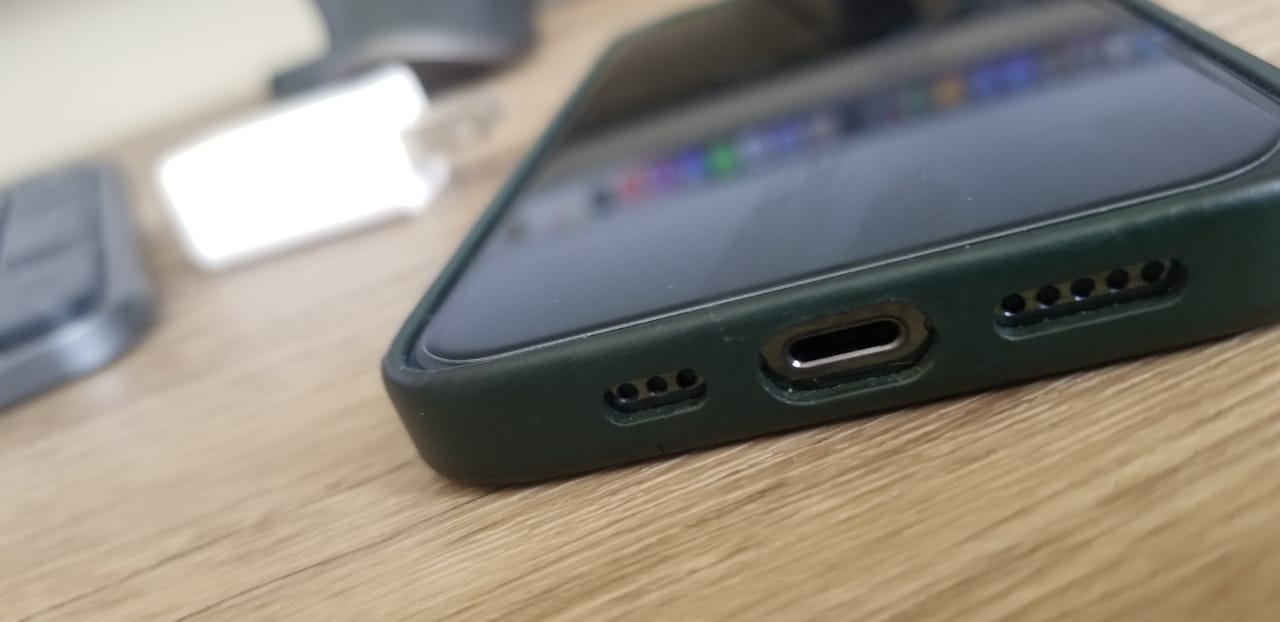
If the cable's connector is dirty, disconnect it from power and wipe that connector with a soft, dry, lint-free cloth. Keep liquids out of the phone's openings and leave packed debris inside the port to a service technician. Avoid digging into the connector with a toothpick, cotton swab or other object.
A liquid alert needs a different response: disconnect both ends of the cable and leave the iPhone in a dry place with airflow. Gently tap it against your hand with the connector facing down to remove excess liquid. For the liquid-detection alert, wait at least 30 minutes before trying the cable again, and reconnect only when the phone and cable are dry.
If the alert returns, continue drying; the connector can take up to 24 hours to dry fully. If the phone was exposed to liquid, allow at least five hours before wired charging or connecting an accessory, and wait longer if it remains wet. Do not use heat or rice to dry it.
Charge the battery and force restart
A blank screen immediately after plugging in does not settle whether charging has failed. An extremely depleted iPhone can initially show nothing, so leave it connected to the charger for 30 minutes. If it still will not turn on or shows a battery icon, keep it connected and force restart it.
On iPhone 8 and later, including iPhone SE models from the second generation onward, quickly press and release Volume Up, then quickly press and release Volume Down. Hold the Side button until the Apple logo appears, then release it. The volume presses are separate, followed by the hold.
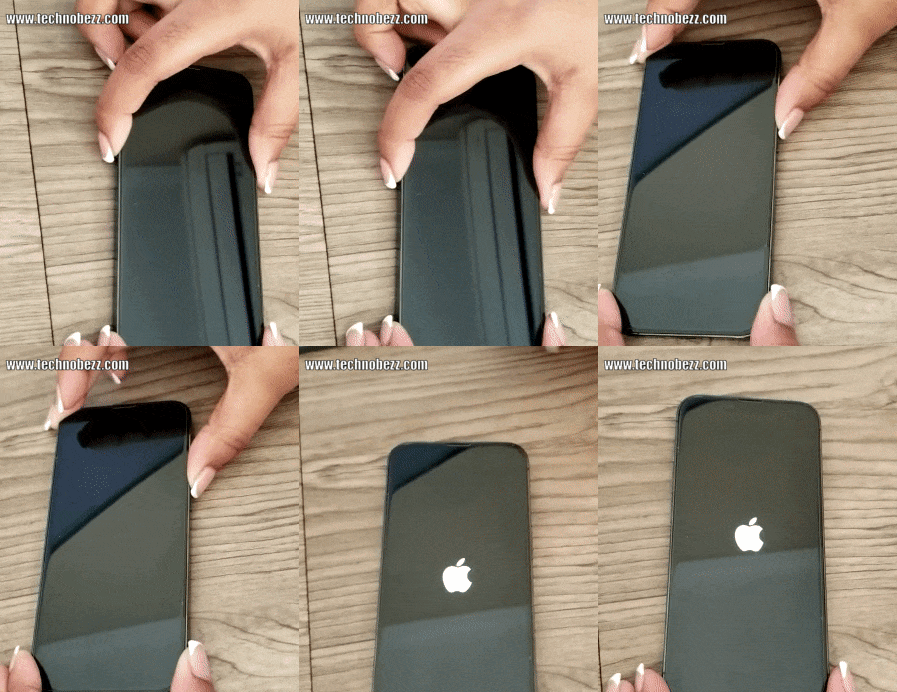
On iPhone 7 or 7 Plus, hold Side and Volume Down together until the Apple logo appears. On iPhone 6s and earlier, including the first iPhone SE, hold Home and Side or Top together until that logo appears. Use the sequence for your model, even if it has a Home button.
Leave the phone charging for another 30 minutes after the restart attempt. If you need help identifying the buttons, follow the steps to force restart an iPhone. If it still will not power on or charge, arrange service; a restore is not a required charging test.
Check charging limits and optimized charging
If charging starts but stops near the same percentage, check your charging settings. On current iOS with iPhone 15 or later, open Settings > Battery > Charging and look at Charge Limit. You can choose a limit from 80% to 100% in 5% steps, so a stop near your chosen limit can be expected.
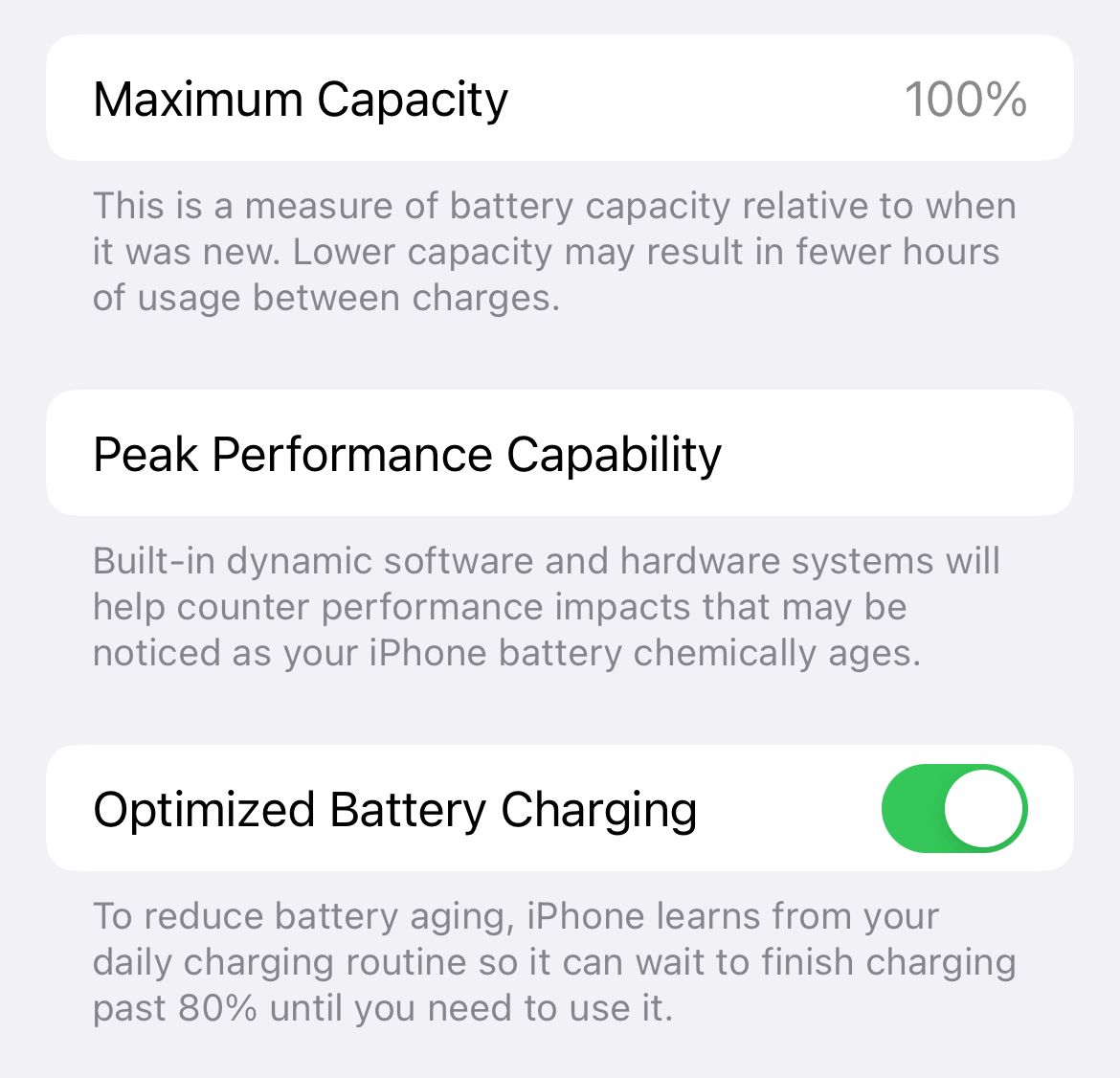
On iPhone 15 running iOS 17, open Settings > Battery > Battery Health & Charging > Charging Optimization instead. Use the options offered in that older menu rather than expecting the current 5% limit choices.
In the current menu, choose 100% if you want to remove that limit. Select Set Limit to 100% to keep the change, or Allow Until Tomorrow for a temporary override. On iOS 26 and later, you can also open Settings > Battery and tap Charge to 100% when that option appears.
Override a charging pause
Optimized Battery Charging is on by default and can delay charging beyond 80% until closer to your usual unplugging time. On iPhone 15 and later it is available with the limit set to 100%; iPhone 14 and earlier put its switch under Settings > Battery > Battery Health & Charging. These settings protect battery lifespan, so check the reason for the pause before disabling them.
On iOS 26 and later, open Settings > Battery and tap Resume Charging to override optimized charging when offered. If your older software instead shows an optimized charging notification on the Lock Screen, touch and hold it, then tap Charge Now. This lets you request a full charge without permanently turning the feature off.
In the United States, Clean Energy Charging can also suspend charging on iOS 16.1 and later. To charge sooner, touch and hold its Lock Screen notification, then tap Charge Now.
Let the iPhone return to normal temperature
On iOS 16 and later, Charging On Hold can mean the phone is too hot or too cold. Move a hot phone and charger somewhere cooler, away from direct sunlight, or move a cold phone indoors to a warmer place. Charging resumes when the temperature returns to normal, so relocating it does not guarantee an immediate restart.
If a full temperature warning appears, turn off the iPhone and let it cool in that cooler location. For a charging pause, lock the screen and leave the phone idle; remove the case if it tends to trap heat while charging. These protections apply to wired and wireless charging and cannot be switched off.
For slow charging without an alert, pause games, camera use and high-quality video streaming while the phone charges. Heavy app use can reduce charging speed, especially with a bright display. Leaving the screen locked is a useful next step before attempting software recovery.
Try wireless charging
iPhone 8 and later support charging with a Qi-certified charger, which gives you another way to try supplying power. Disconnect the USB cable before this check because the iPhone uses the wired connection when both are connected. Wireless charging working is a useful clue about the wired connection, but it does not prove which part needs repair.
Connect the wireless charger to power using its supplied or recommended adapter, and place it on a level surface. Put the iPhone face up in the center of the pad, then check for the charging icon after a few seconds. If charging does not start, remove a thick, metal or battery case and reposition the phone.
Match the MagSafe charger and adapter
For MagSafe, connect the charger to power before placing the phone on it, and use an adapter suited to that charger and iPhone combination. Remove cards or other objects between the phone and charging surface. MagSafe speeds depend on the phone, charger and adapter, so an older 15W specification does not describe every combination.
Check the part number on the charger or its cable. For A3502, A3503, A2580 or A3250, choose a 30W or greater USB-C adapter offering at least 15V/2.0A for maximum speed with compatible models such as iPhone 17 Pro.
For the older A2140 charger, compatible models such as iPhone 15 can reach up to 15W with a 20W or greater USB-C adapter offering 9V/2.22A or 9V/2.56A or higher. A2140 can also work with a 12W adapter rated 5V/2.4A, but charges more slowly; basic charging and maximum speed need different checks.
You can use wireless charging after a liquid alert if the back of the iPhone is dry. Keep following the port's drying instructions before reconnecting a cable. If wired charging continues to fail with another cable and adapter, ask for a service inspection rather than assuming wireless success identifies a damaged port.
Update iOS when the phone has power
Once you have a working power connection, back up the iPhone and connect it to Wi-Fi. Open Settings > General > Software Update and install the available update by following the prompts. Depending on whether the download is ready, you may see Download and Install or Update Now; choose the immediate update if you are troubleshooting now.
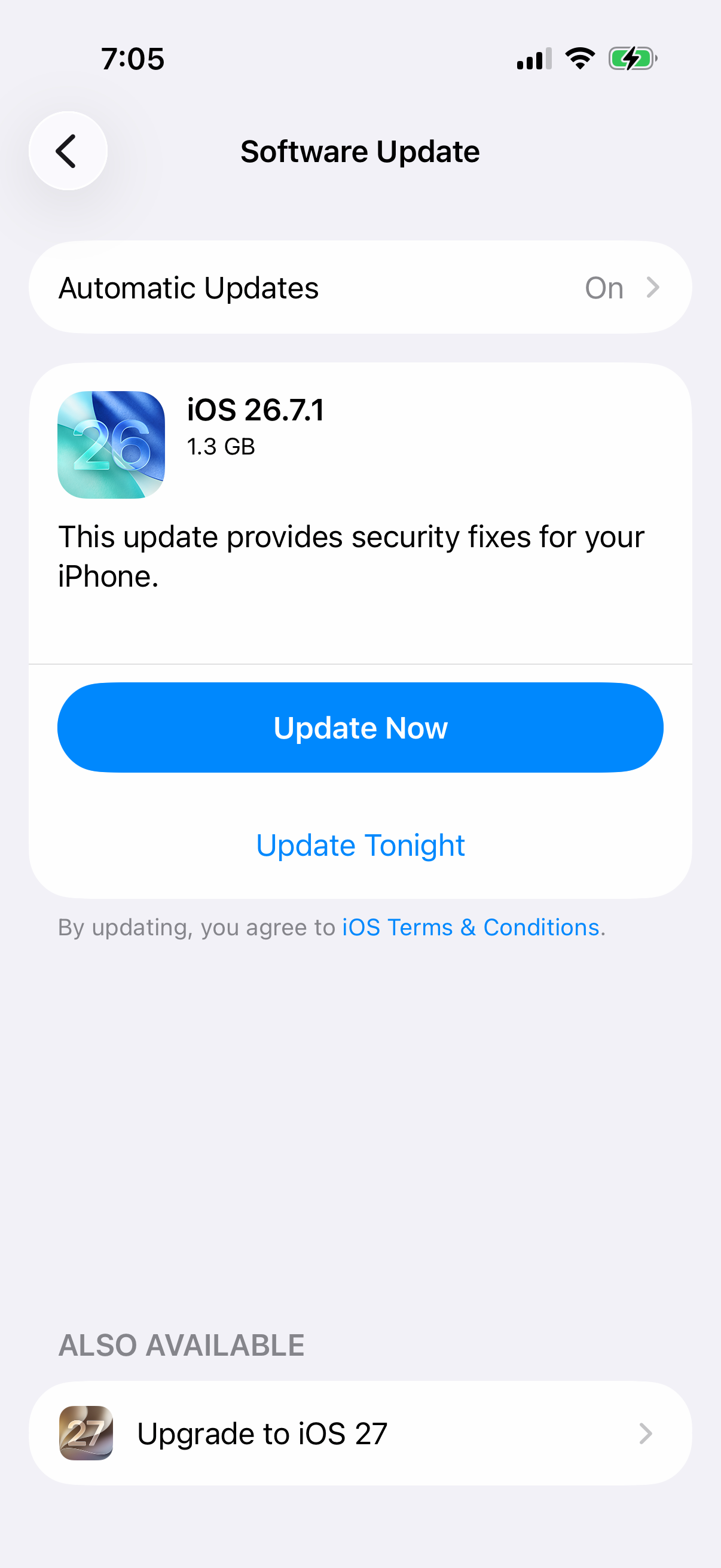
If you cannot update wirelessly but the computer recognizes the phone, connect it with a cable. On a Mac with macOS Catalina or later, select the iPhone in Finder, open General, then choose Check for Update and Download and Update. Enter the passcode if requested and follow the remaining prompts.
On Windows, select the iPhone in Apple Devices, open General, then select Check for Update if needed and Update. If you use iTunes on Windows or a Mac with macOS Mojave or earlier, select the device button, open Summary, then choose Check for Update and Download and Update. The steps to update Apple software on iPhone cover these routes in more detail.
Use recovery or restore only for startup problems
If charging and a force restart leave the phone stuck during startup, recovery mode gives you an update or restore option through a computer. Try Update before Restore, because restoring reinstalls iOS and erases your data. Back up first if the phone still works, and do not erase it just to investigate a loose charging connection.
Restore a phone the computer recognizes
For a normal factory restore, turn off Find My iPhone under Settings > your name > Find My > Find My iPhone, entering your Apple Account password when asked. Connect the iPhone, open Finder or Apple Devices, and select it; follow any passcode or trust prompts. Click Restore iPhone, then Restore to confirm the erase.
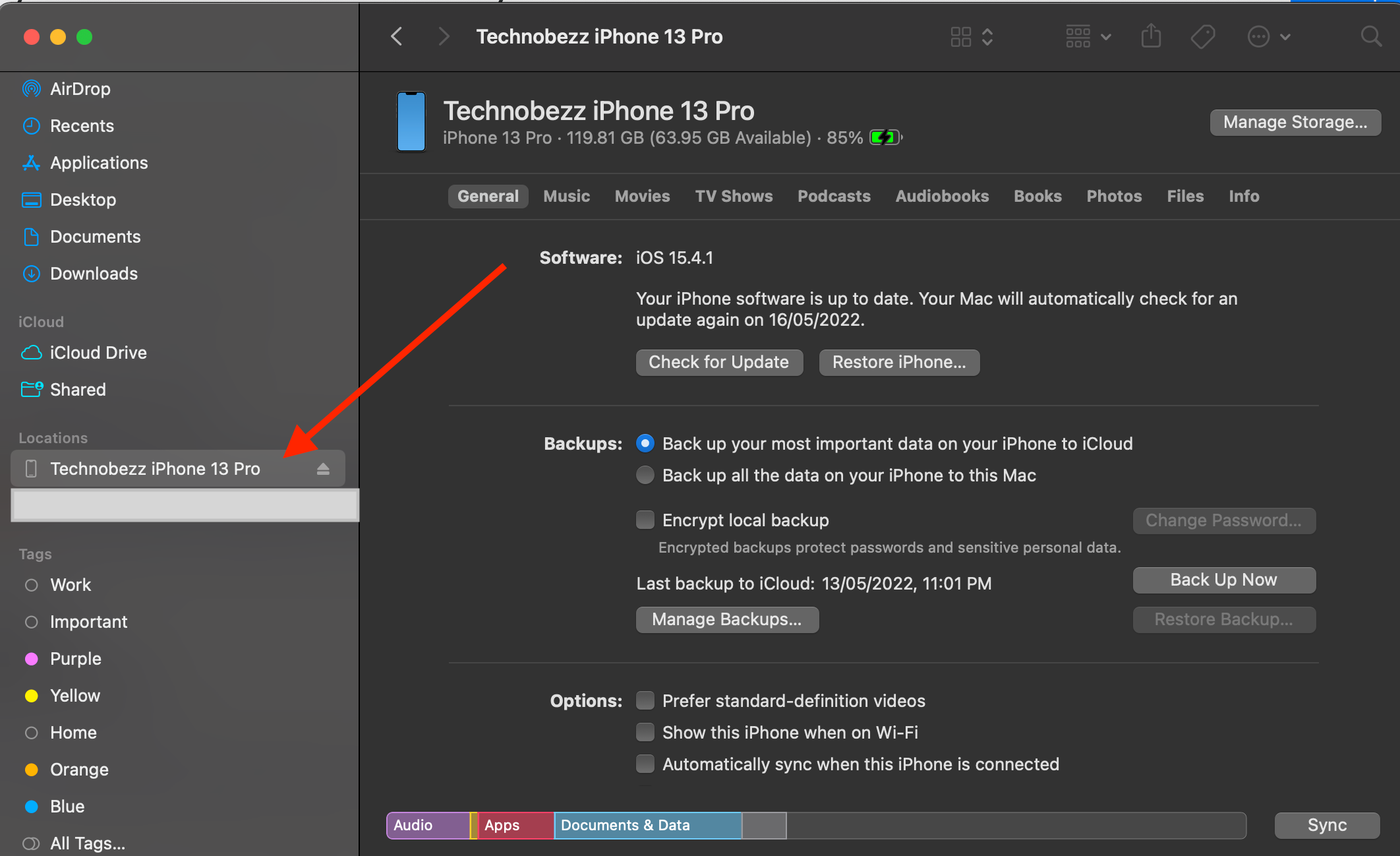
If your setup uses iTunes, its device page provides the restore route for older computers. The steps to restore an iPhone with a computer explain the app choices and backup preparation. A factory restore is a software recovery step, so persistent charging failure still needs inspection.
Enter recovery mode when startup fails
Keep the iPhone connected to an updated computer with Finder or Apple Devices open. On iPhone 8 and later, quickly press and release Volume Up, then Volume Down, and hold Side until the Connect to computer screen appears. Continue holding past the Apple logo; the recovery screen is the stopping point.
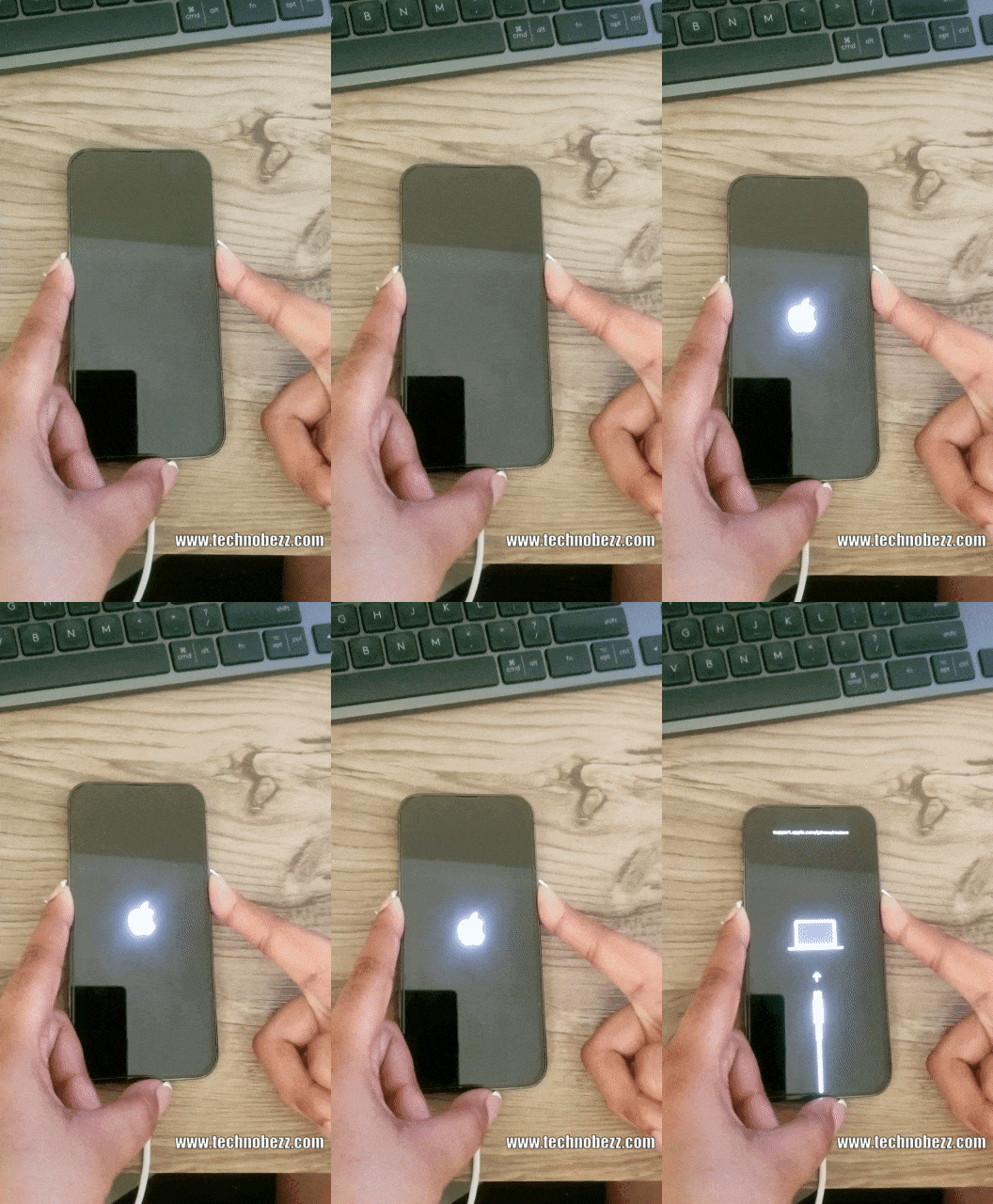
For an older iPhone, follow the button sequence for your model in Apple's recovery mode instructions. Select the phone on the computer and try Update first if you have not done so; choose Restore only after accepting the data loss. If downloading takes more than 15 minutes and the phone exits recovery, let the download finish and enter recovery again.
If charging still fails, or a broken button prevents recovery, use Apple's iPhone service options to arrange an inspection. Apple and Apple Authorized Service Providers can assess the phone and explain repair choices. Tell them which cables, power sources and charging methods you have already tried.
On iPhone 15 and later with iOS 17.4 or later, open Settings > Battery > Battery Health if the phone turns on. On older models or software, open Battery Health & Charging or Battery Health, whichever appears under Battery. A message that battery health is significantly degraded calls for a battery assessment. It does not identify the charging port as the cause.
Frequently Asked Questions
Why does my iPhone stop charging at 80%?
A charge limit, optimized charging or a warm battery can explain the pause. Check Settings > Battery for the charging status, then check the charging options for your model before changing anything.
Can I use any USB-C cable to charge my iPhone?
Use a cable and adapter that meet the USB-C standard for iPhone 15 and later. MFi certification is the relevant check for Lightning accessories, so do not apply that requirement to an ordinary USB-C charging cable.
Why does my iPhone charge slowly on MagSafe?
The phone model, MagSafe charger, adapter and temperature affect charging speed. Check the adapter match, remove an obstructing case and keep cards away from the charging surface; MagSafe does not have one universal 15W maximum.
Should I charge my iPhone after it gets wet?
Wait until the phone and cable are completely dry before wired charging, allowing at least five hours after liquid exposure. A compatible wireless charger can supply power if the back of the phone is dry, but a liquid alert still needs attention.
How long should I charge an iPhone with a black screen?
Start with 30 minutes, then force restart using your model's buttons and charge for another 30 minutes. If it still will not start or charge, arrange service instead of repeating the same checks indefinitely.
Does poor battery health mean the charging port is broken?
Battery capacity and a damaged charging connection are different issues. A battery service recommendation is a reason to get the battery assessed, while a phone that cannot charge needs the cable, power source and connector checks too.