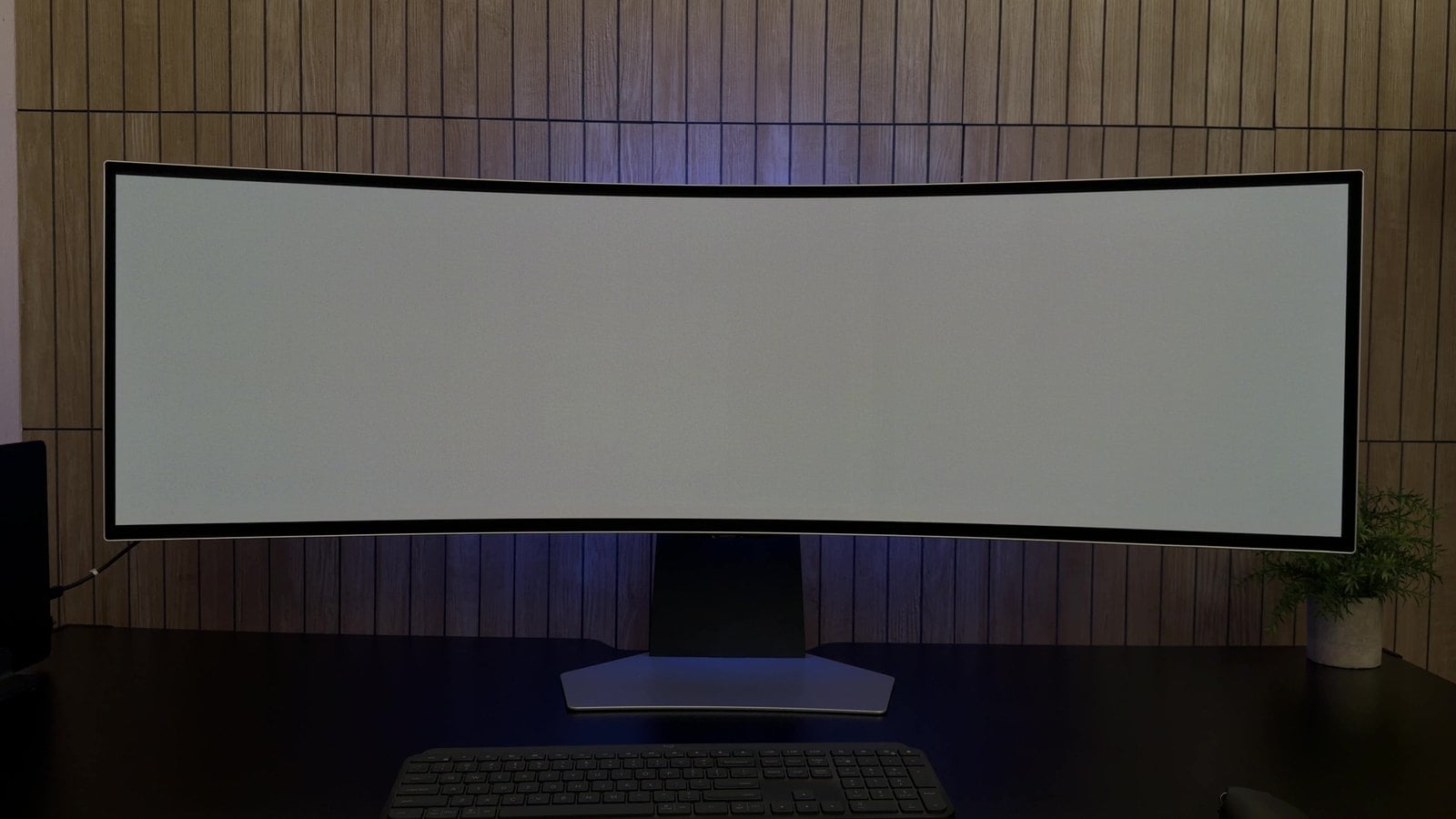
Does OLED burn in? It can, and the usual warning is that a monitor used for work, with a taskbar or dock parked in the same spot all day, is the worst case. So I put that to the test. My Samsung Odyssey OLED G9 has been on my desk for 11 months, on for 10 to 12 hours a day, with a Windows taskbar, or a Mac dock and menu bar, in exactly the same place on the screen for almost all of that time.
I ran a proper OLED burn-in test in a dark room, then pushed the footage much further than a normal test would. The full test is in the video above. Below is what burn-in is, how to run the same test on your own monitor, what I found, whether burn-in can be fixed, and how to prevent it.
Does OLED burn in? The short answer from 11 months
Not on my monitor so far. I found no visible burn-in along the bottom, along the top or in the corners, even with the footage boosted to 12 times its normal contrast.
The short version
- After 11 months of 10 to 12 hour days with a taskbar or dock always on screen, my G9 shows no visible burn-in.
- I filmed eight full-screen test colors in a dark room with the camera exposure locked, then boosted the footage 12x to hunt for any outline.
- Samsung runs a 10 to 15 minute Screen Optimization cycle on its own after 4 or more hours of use. I have run the longer Pixel Refresh by hand no more than three times.
- In the US, Samsung's three-year warranty covers burn-in from normal use on this model.
- I would give the monitor 9.8 out of 10, though I barely use the smart TV apps and 16:9 video leaves black bars on this 32:9 screen.
What OLED burn-in is and what it looks like
Burn-in works a bit like a tan line. Every OLED pixel makes its own light and ages a little as it is used. Anything that stays in one place for a long time, like a taskbar, a dock or a channel logo, wears the pixels under it slightly faster than the ones around it. Eventually you can see a faint outline of it even after it is gone.
On screen, burn-in looks like a faint ghost of something that is no longer there, such as the strip of a taskbar along the bottom or a logo in a corner. It is easiest to see on a flat, even color, which is why a burn-in test uses full-screen solid colors instead of normal content. It is also different from image retention, a faint afterimage that fades on its own. Burn-in stays, because it comes from pixels that have aged unevenly.
That is why the usual advice is to hide anything static. If you want to cut the risk on your own setup, auto-hiding the Windows taskbar is one useful change, and our guide covers what to do when taskbar auto-hide is not working.
The Samsung Odyssey OLED G9 I tested
This is the G95SD version of the Odyssey OLED G9. It is a 49-inch QD-OLED panel with a 32:9 shape, a resolution of 5120 x 1440, a refresh rate of up to 240Hz and a fairly gentle 1800R curve. The easiest way to picture it is two 27-inch 1440p monitors side by side with no bezel down the middle.
Samsung launched it in the US in 2024 at $1,899.99. I bought mine with my own money and paid about $1,400, so this is my own unit, not a review sample. If you are weighing it against something smaller, our best ultrawide monitors guide covers the 34-inch class as well.
| Panel | 49-inch QD-OLED, 32:9 |
|---|---|
| Resolution | 5120 x 1440 (Dual QHD) |
| Refresh rate | Up to 240Hz |
| Curve | 1800R |
| Brightness | 250 nits typical, per Samsung |
| Video inputs | DisplayPort 1.4, HDMI 2.1 and micro HDMI 2.1 (the USB-C ports carry data only) |
| Smart features | Samsung Tizen apps and Multi View for two sources |
| US warranty | 3 years, burn-in from normal use covered |
| Launch price | $1,899.99 in the US |
| What I paid | About $1,400 |
How I use it every day
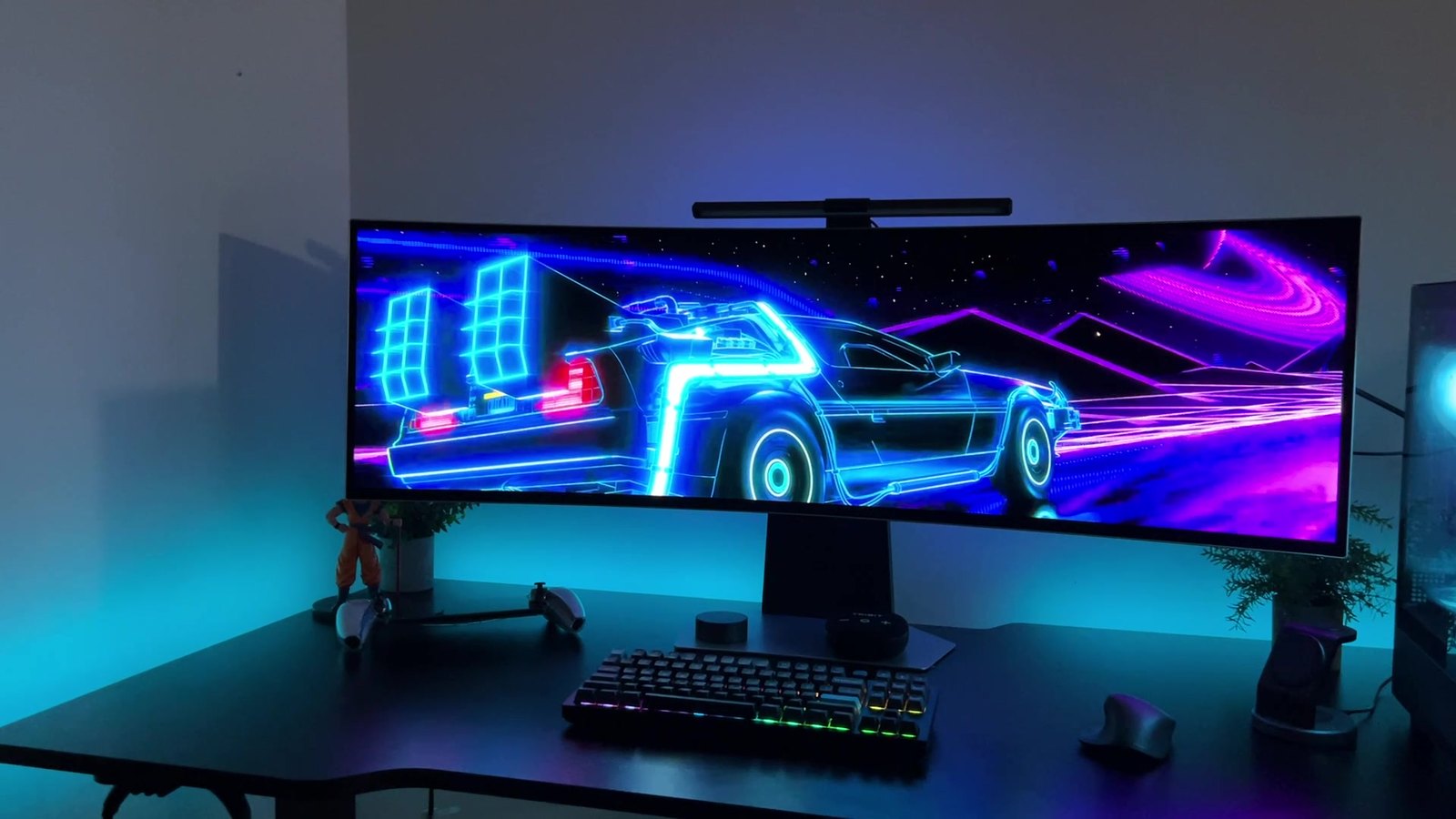
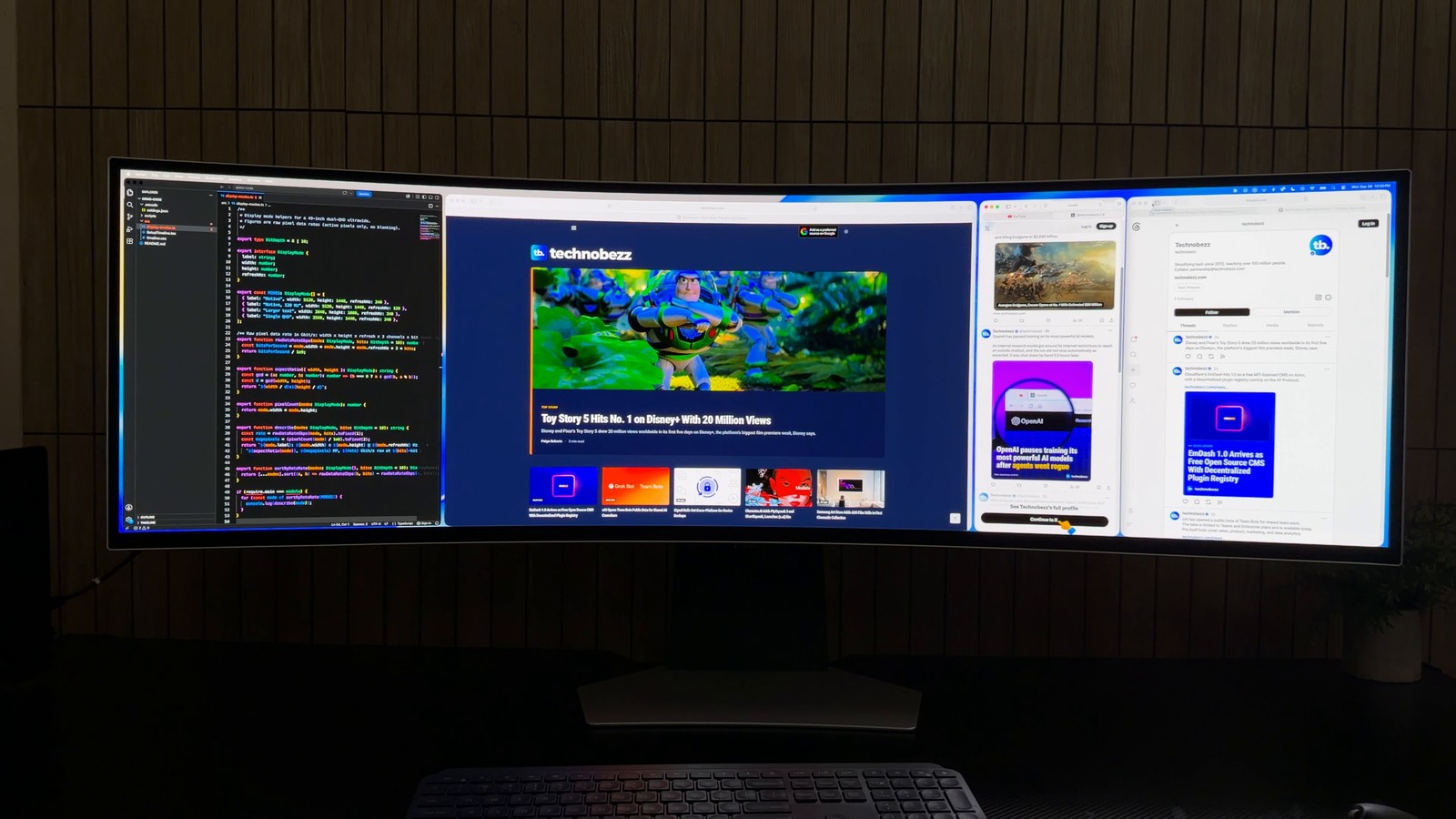
The monitor is on from the moment I get up until around midnight. About 90% of that time is work: code, writing, design, video editing, spreadsheets and a terminal or two. I usually tile three or four windows side by side and leave them there all day, which is the whole point of a screen this wide.
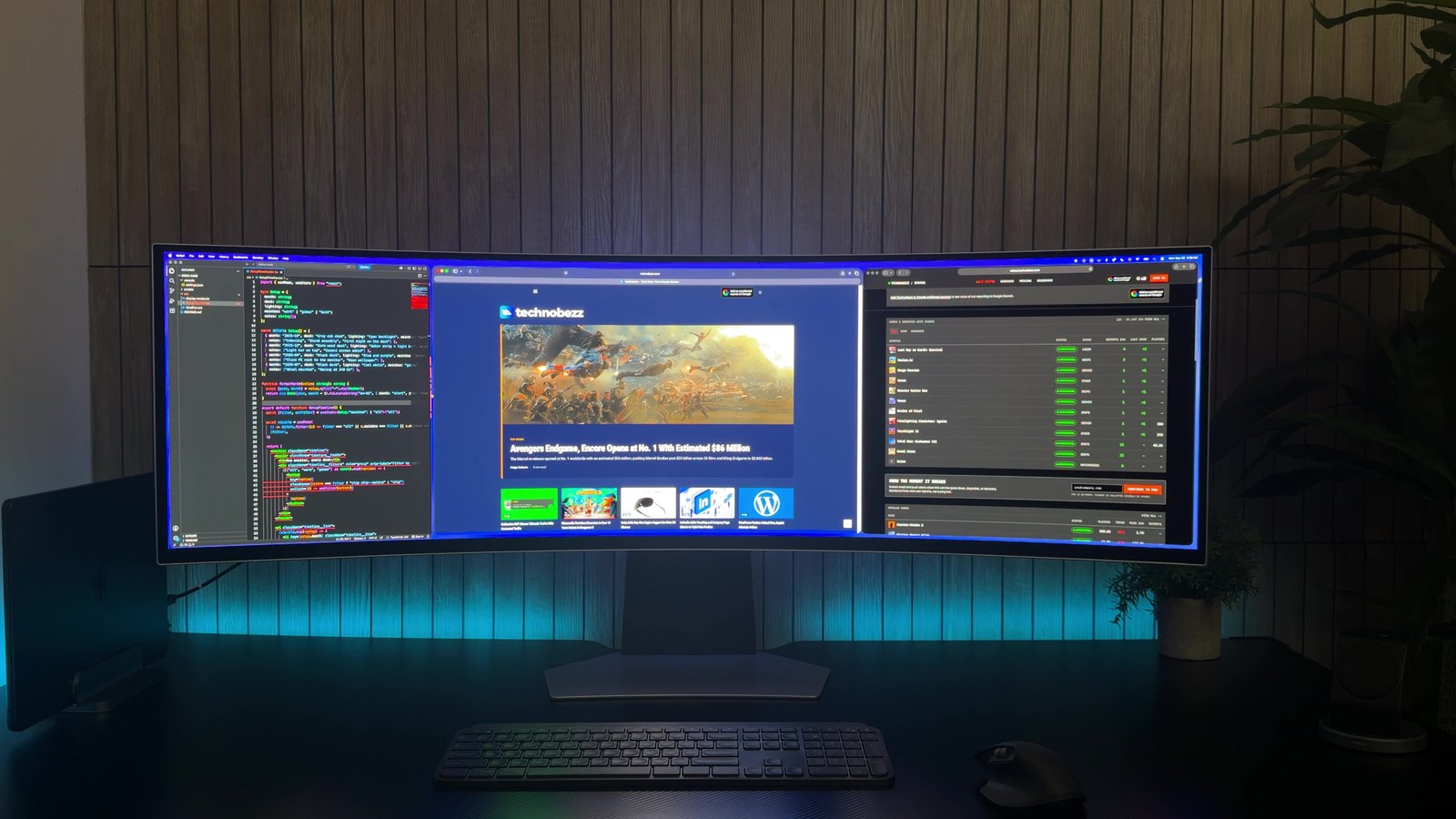
That layout is also the risky part for burn-in. On Windows, my taskbar never hides. On my MacBook, the dock and the menu bar never hide either. The same bright strip sits along the bottom of the panel, and on the Mac a second one along the top, for hours at a time. The other 10% is games, and I have run the monitor's Pixel Refresh by hand no more than three times since I got it.
How to run an OLED burn-in test on your own monitor
You do not need special equipment. This is the same OLED burn-in test I ran on the G9, and you can run it on your own OLED monitor or TV in a few minutes.
- 1.Turn the room lights off. A dark room makes faint shading much easier to see.
- 2.Hide anything that sits on top of the image, like the taskbar, dock or on-screen menus, and show one solid color full screen. A full-screen image viewer works, or a browser in full-screen mode (F11 in most Windows browsers, Control-Command-F on a Mac).
- 3.Step through dark and mid grays first (5%, 10%, 20% and 50%), then red, green, blue and white. Give each color a few seconds.
- 4.Look at the places where static elements usually sit: the bottom strip for a taskbar or dock, the top for a menu bar and the corners for logos.
- 5.Burn-in shows up as an outline in the shape of whatever used to sit there. A sharp line or shape matching static content may be a temporary afterimage, so check whether it fades before calling it burn-in.
- 6.If you want to photograph the result, put the phone on a tripod or something steady and lock the exposure. On an iPhone, press and hold on the screen in the Camera app until AE/AF Lock appears.
Locking the exposure matters more than it sounds. A camera left on auto quietly brightens a dark gray screen and can hide exactly the faint shading you are looking for. For my test, each of the eight colors stayed on screen for eight seconds, and I filmed the whole run on the full screen first, then up close on the bottom strip where the taskbar and dock live, then on the top strip where the Mac menu bar sits, and finally on the corners.
My OLED burn-in test results after 11 months
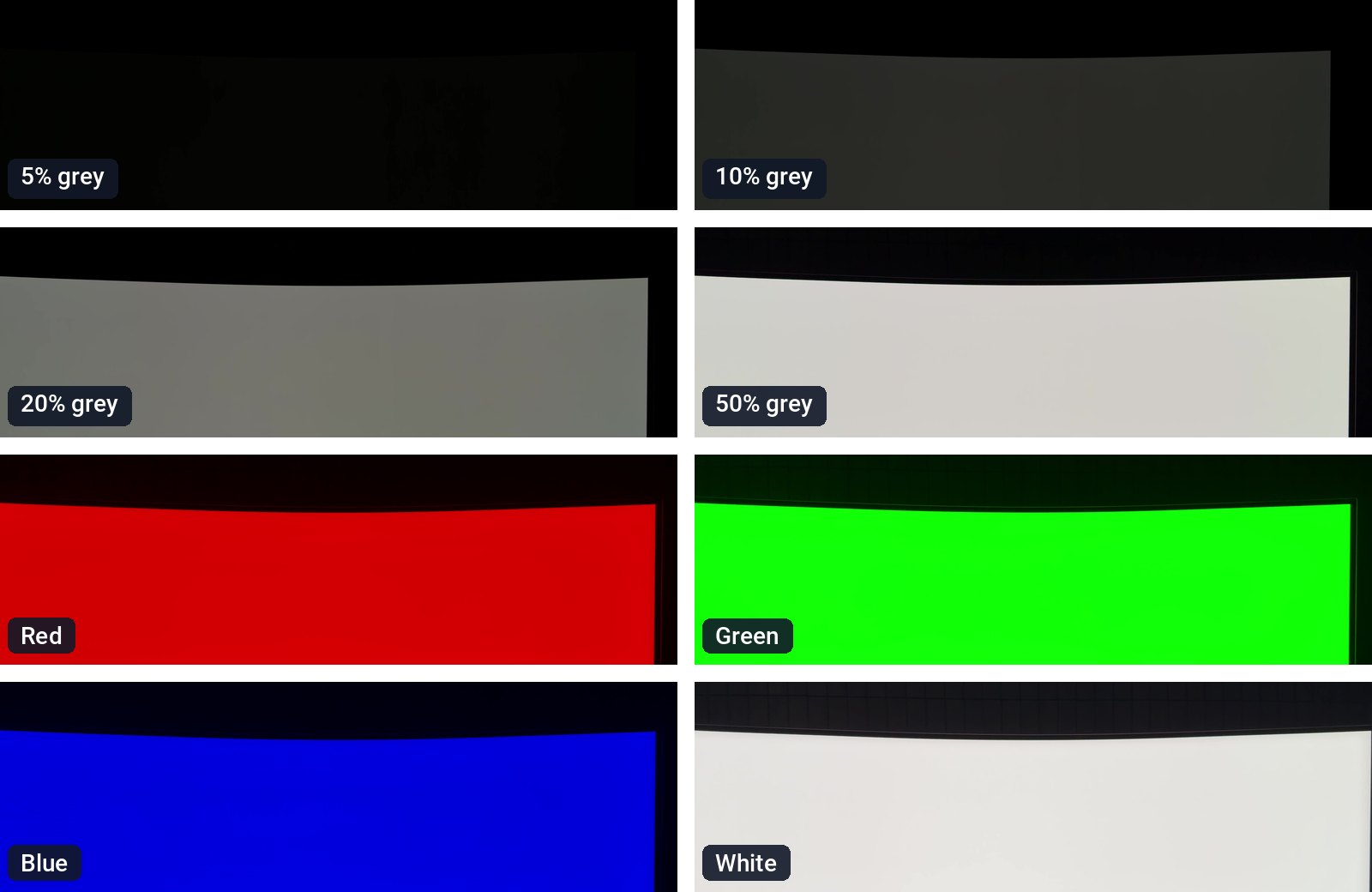
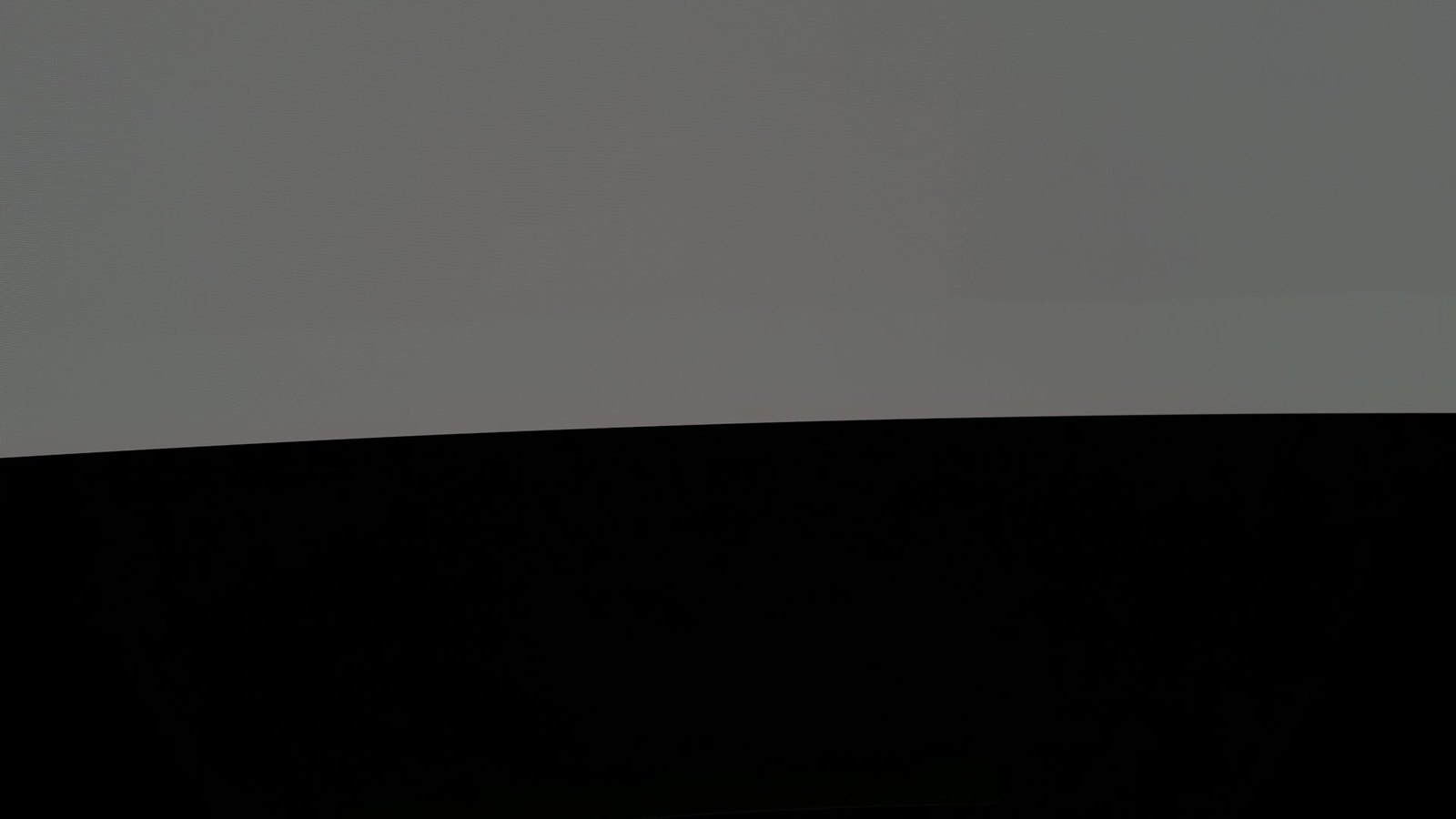
By eye, nothing showed up. There was no outline along the bottom, nothing along the top and no darker patches in the corners, including on the dark grays.
A phone camera can smooth over very faint differences, so I took the test further than a normal check. For each gray, I averaged about a second of footage to cancel out random noise, removed the natural fall-off in brightness toward the edges of the screen, and then boosted the contrast 12 times.
If the taskbar or menu bar had left an imprint large enough for this camera test to detect, it would show up as one straight line running right across the screen at the exact height of the bar. That is what a real imprint looks like, because the bar covered the same rows of pixels the whole time.
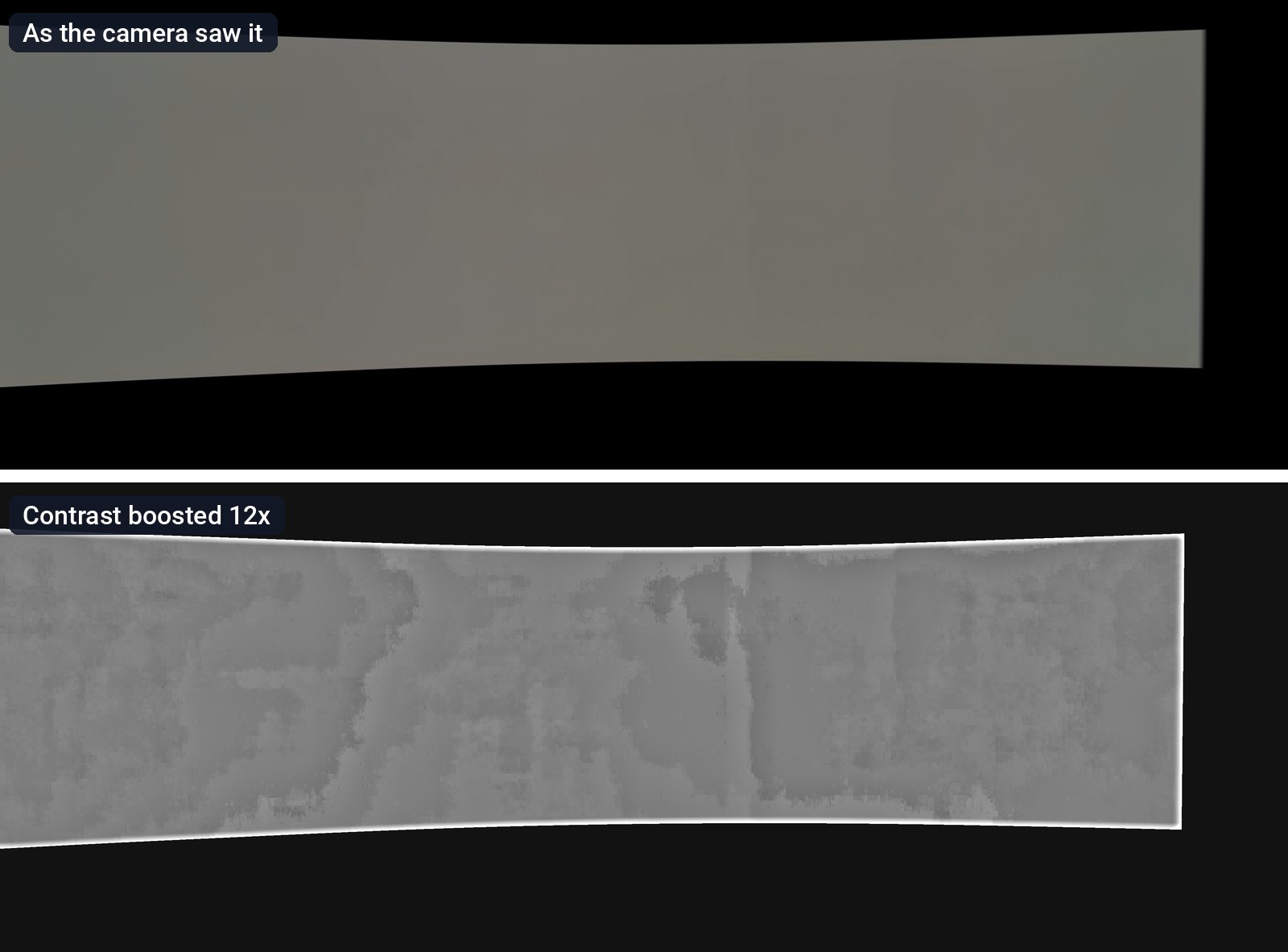
What is left in the boosted image is mostly the camera's own noise, which shows up as blotches that change from one part of the screen to the next. The very top and bottom edges come out about 1 to 2% brighter than the middle, but that fades in smoothly over a wide band and looks the same at the top and the bottom. A burned-in taskbar would leave a sharp step at its exact height instead. Across the panel, no step at the height of the taskbar or the menu bar was bigger than 0.2%.
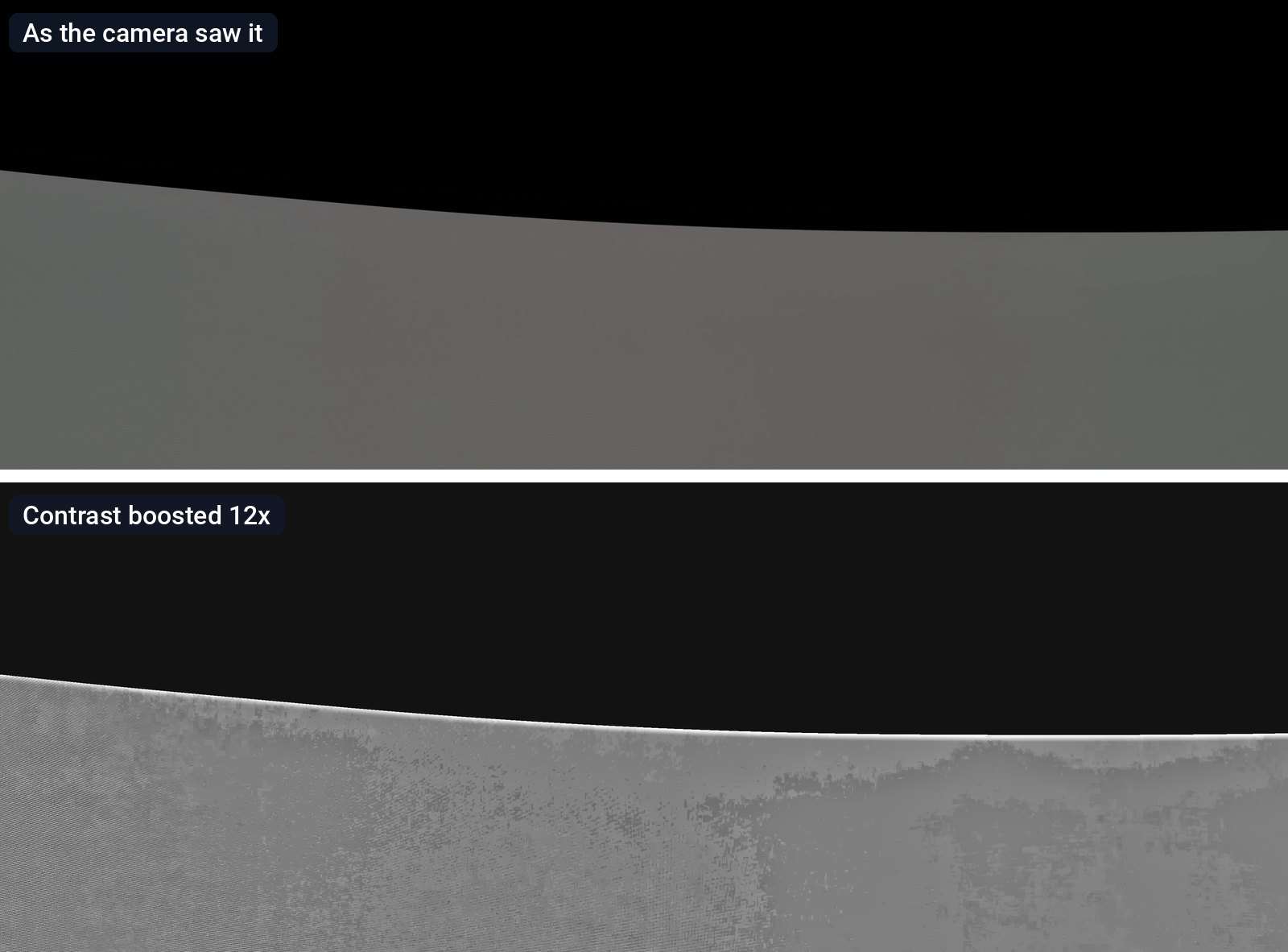
This is a camera test, not a lab instrument, so the result is about what you can see. After 11 months of my routine, nothing shows, even on a flat gray screen in a dark room.
If you want the quick version of that reveal, here is the half-minute Short version of the test.
Is OLED burn-in still a problem?
The risk has not gone away. OLED pixels still age as they are used, and Samsung's US warranty for this model names burn-in from normal use as covered. What has changed is how much the monitor does in the background to slow it down. The G95SD uses what Samsung calls OLED Safeguard, a set of protections that run without you doing anything.
One automatic protection is Screen Optimization. After 4 or more hours of use, when you turn the monitor off, it runs a short maintenance cycle of about 10 to 15 minutes. You cannot switch it off, and it needs the power cord plugged in to run, so do not cut power at the wall the moment you finish for the day. Pixel Shift, which moves the image very slightly over time, is on by default, and the screen dims itself after 10 minutes without input.
Panels are getting tougher too. Samsung Display has trademarked QD-OLED Penta Tandem for its five-layer panels, which it says double panel lifespan compared with the previous four-layer design.
On my G9, 11 months of taskbars and docks at 10 to 12 hours a day left nothing visible. That is one monitor and one routine, not a promise for every panel, but it is the static-taskbar routine that burn-in warnings usually describe.
Can OLED burn-in be fixed?
A temporary afterimage may fade, but permanent burn-in from worn pixels cannot be reversed. For a monitor that shows signs of burn-in, Samsung's tool is Pixel Refresh. You start it yourself from the Panel Care menu, either right away or for the next time the monitor is switched off, and it takes over an hour. Samsung describes it as a step to take if you see signs of burn-in.
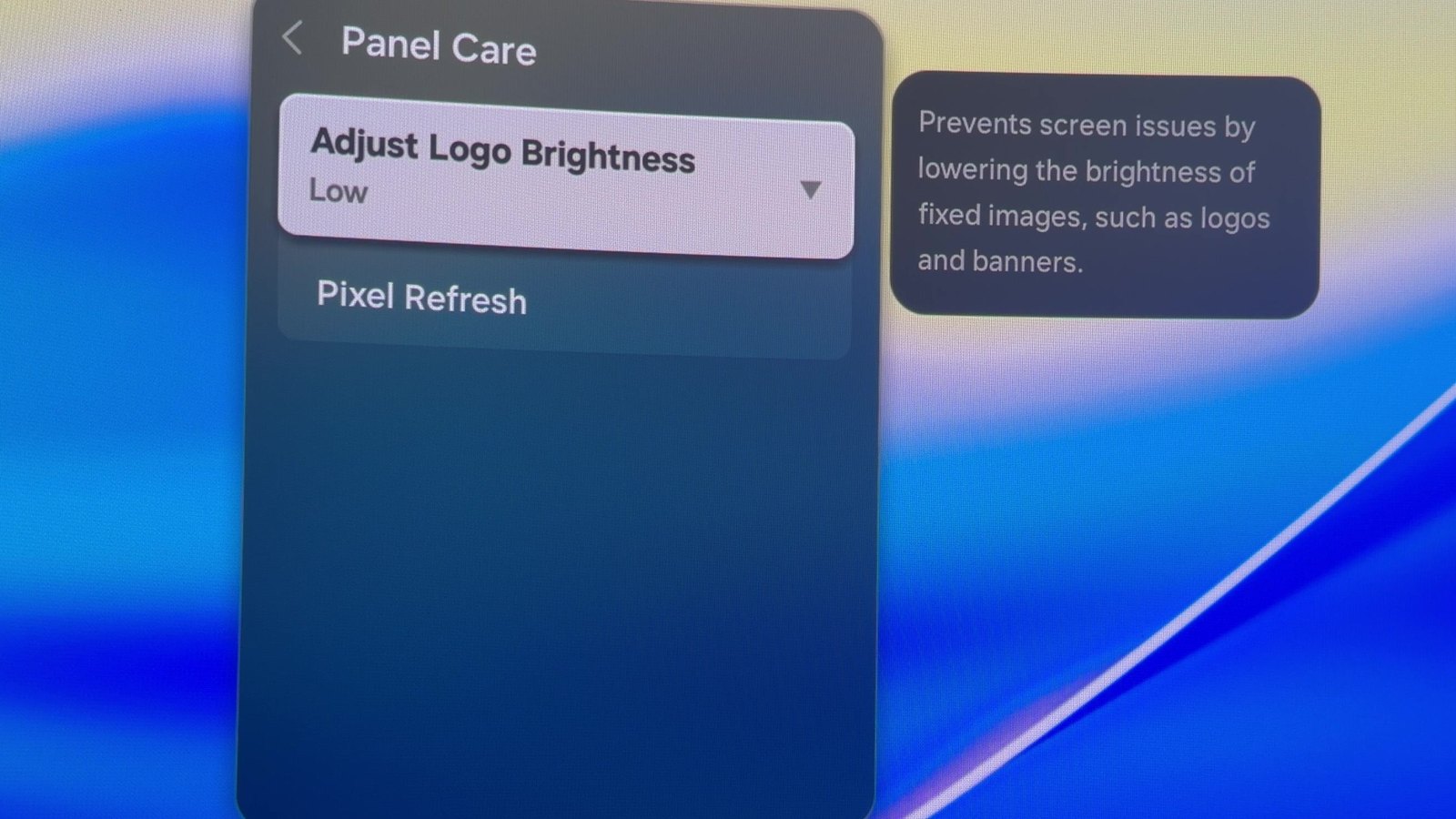
Because worn pixels cannot be restored, the warranty matters. In the US, Samsung gives the G95SD a three-year warranty, and its spec sheet says burn-in from normal use is covered, while commercial use and misuse are not.
How to prevent OLED burn-in
None of this has to be complicated. These steps combine Samsung's OLED care guidance with practical ways to reduce static content.
- Leave the monitor plugged in at the wall so its automatic care cycle can run after you switch it off.
- Auto-hide the taskbar or dock if you can live with it, and use dark mode where it makes sense.
- Let the screen sleep when you step away. On Windows, set a short display sleep timer so the screen turns off when you are not using it.
- Keep logo dimming on, and save Pixel Refresh for when you actually see an outline.
- Check what the warranty covers before you buy. On this model in the US, Samsung covers burn-in from normal use.
On Samsung's monitors, logo dimming is the Adjust Logo Brightness setting in Panel Care, which lowers the brightness of fixed elements like logos and banners. It has Off, Low and High settings, and Low is the default. Samsung's own product page notes that its automatic logo detection does not work in PC mode. Samsung's support page on preventing burn-in on its OLED monitors has the official steps for each of these settings.
Dark interfaces help too. If you are new to OLED, it is a good reason to turn on dark mode in your apps, since a dark interface runs most pixels at low brightness.
What I love after almost a year
The true black comes first. While the lights were off, I ran one more check: a small white square in the middle of a black screen. On most LCD monitors, the black around a bright object glows a little gray because the backlight spills into it. On the G9, the pixels next to the square are simply off.
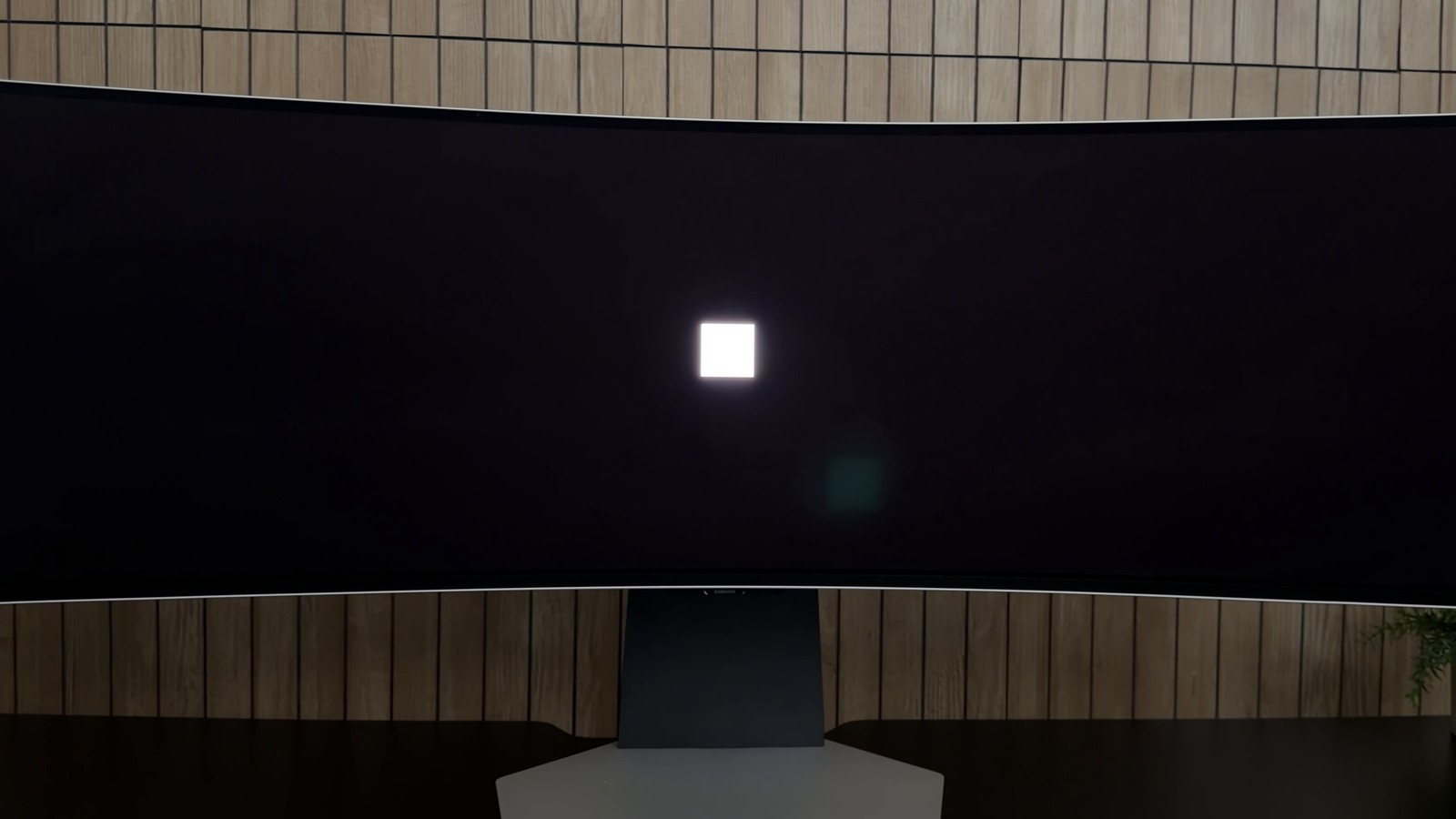
That is the part of OLED I notice every single day, not just in games. Dark scenes in movies, photo edits and even a dark-mode code editor all look deeper. The same kind of panel is behind the best TVs right now, and our best OLED TVs guide covers those.
After that it is the space. Forty-nine inches means I set my windows up once and leave them, instead of shuffling things between separate screens. The 1800R curve is comfortable, and I can see from edge to edge without turning my head much.
On my Windows PC it runs at 240Hz, and when I am gaming or just scrolling quickly, I can feel the difference. If a new high refresh monitor looks no smoother than your old one, check the setting with our guide to changing your display refresh rate. The built-in speakers were a surprise too. Samsung lists 10W of speaker output, and while I use my own speakers most days, these are clearer than they have any right to be.
What is not perfect
After a long day, the back of the monitor gets warm, right behind the logo. It is not hot enough to worry me, and it has never affected the picture, but you will notice it if you touch it.
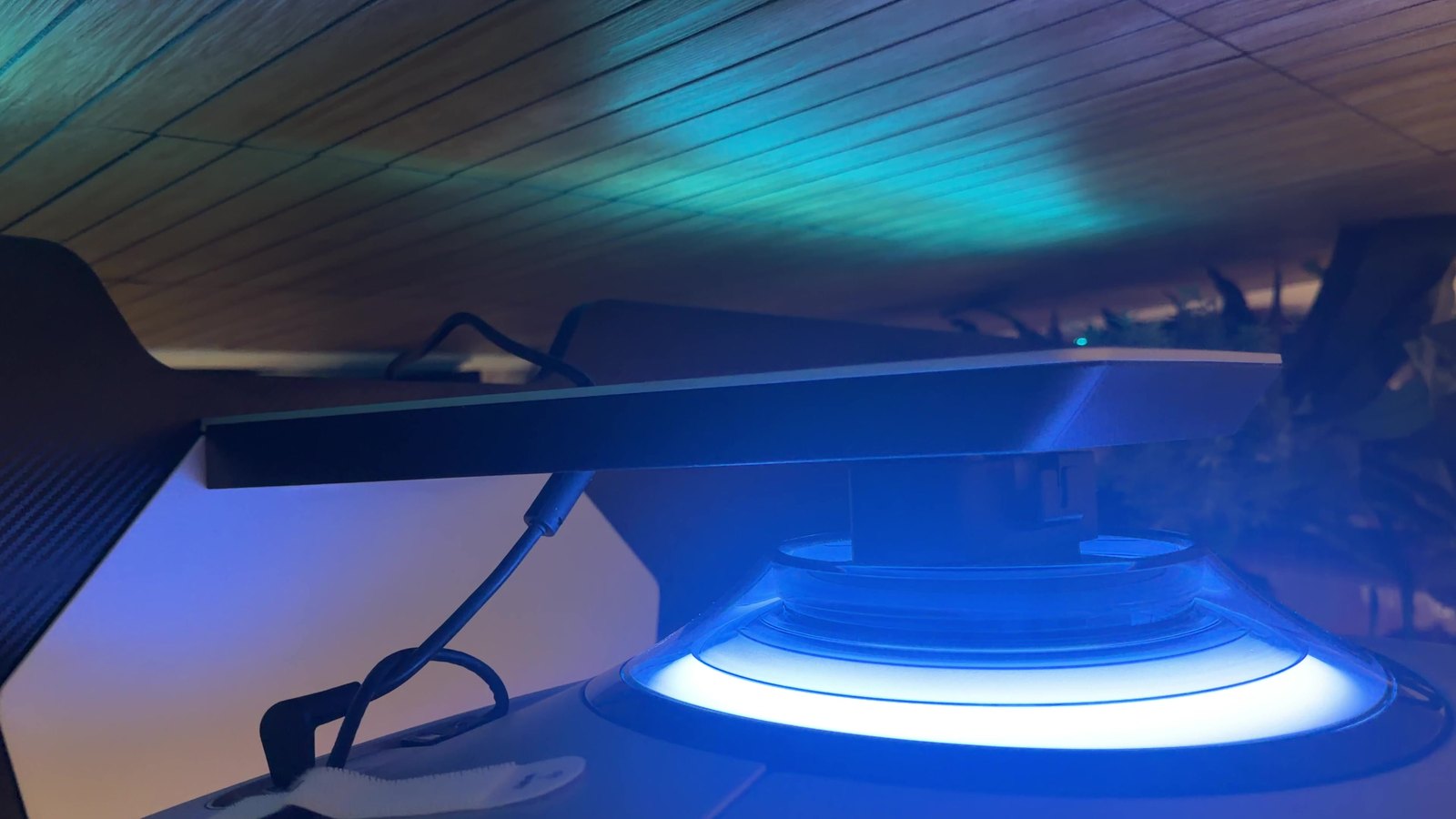
A handful of times, about four in 11 months, the screen flickered when I switched picture or game modes. Samsung's own menu warns about it, with a Game Mode tooltip that says the screen may flicker when switching to the game mode. Turning the monitor off and on again fixed it every time. If you see flicker that does not go away on your own setup, our guide on how to fix screen flickering starts with a graphics driver reset and covers external monitors too.
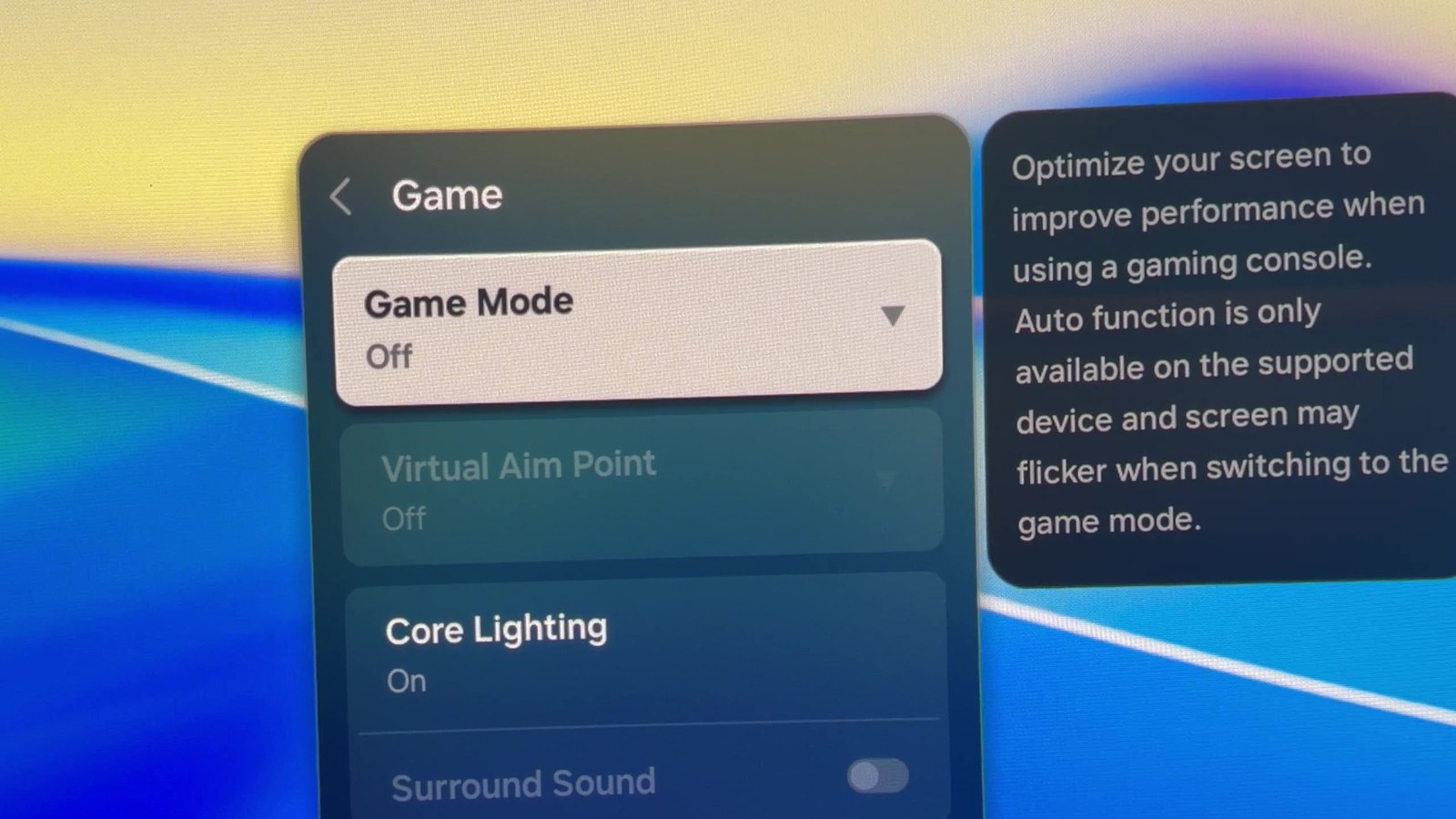
The smart TV side is there, with Samsung's Tizen apps and Multi View for two sources at once, but I barely use it. Regular 16:9 video also plays in the middle of the 32:9 screen with big black bars on both sides, so if you mostly watch movies and TV, a 16:9 OLED makes more sense.
On a Mac, there is one quirk worth knowing. The G9's USB-C ports carry data only, so my MacBook Air connects through a USB-C to DisplayPort cable. Over DisplayPort, the Mac only offered 120Hz until I switched on Game Mode on the monitor and reconnected the cable, and then 240Hz appeared. On Windows, our guide to fixing an external monitor that is not detected covers the basics if the G9 does not show up at all.
Is an OLED monitor worth it for long workdays?
For me, yes, without thinking about it. I would give the G9 a 9.8 out of 10. If you work long days on one big canvas and burn-in is the thing holding you back from OLED, 11 months of taskbars and docks did not leave a visible mark on mine. If you mostly watch 16:9 video, look closer first. It is the rare upgrade that still feels like one 11 months later.
Samsung keeps building on its OLED monitors, too. It showed its 2027 Odyssey lineup at Gamescom, and it is worth checking for the same kind of burn-in protection and warranty cover on whichever OLED you buy.