You press Windows logo key plus R, expecting the Run box, and nothing useful happens. The problem is usually the shortcut, the keyboard, an accessibility setting, Search, Windows system files, or a work policy. Start with the fastest ways to open Run, then use the repair steps that match what is failing.
1. Open Run with Win R
Press Windows logo key and R together to open Run.
In the Run dialog box, type the name of a program, folder, document, or internet resource, then press Enter or select OK.
If you prefer the mouse, right-click Start and select Run, then type the command and press Enter or select OK.
2. Launch Windows tools from Run
Press Windows logo key and R.
Type control, then press Enter to open Control Panel.
Next, type compmgmt.msc, then press Enter to open Computer Management.
Then type eventvwr.msc, then press Enter to open Event Viewer.
Type MSConfig, then press Enter to open System Configuration.
After that, type msinfo32, then press Enter to open System Information.
Type SystemPropertiesAdvanced, then press Enter to open advanced system properties.
Then type regedit, then press Enter to open Registry Editor.
On Windows Pro, Enterprise, Education, and IoT Enterprise editions, type gpedit.msc, then press Enter to open Local Group Policy Editor.
Use exact command names, because Run sends what you type directly to Windows.
3. Check the keyboard when Win R does nothing
This fixes a Run box that never opens because Windows is not receiving the Windows key, the R key, or the full shortcut.
Unplug the keyboard cable, wait briefly, then plug it back in.
Try a different USB port.
If the keyboard is connected through a USB hub, connect it directly to the PC.
Check the cable for visible damage.
For a wireless USB keyboard, unplug the receiver, wait about 10 seconds, then plug it back in.
Test the keyboard on another PC if it does not work at all.
4. Disable shortcut-changing keyboard settings
Open Start.
On Windows 11, go to Settings > Accessibility > Keyboard. On Windows 10, go to Settings > Ease of Access > Keyboard.
Check Sticky keys, which changes how multi-key shortcuts are entered one key at a time.
Check Filter keys, which changes keyboard sensitivity so Windows can ignore brief or repeated keystrokes.
Turn off the setting that is making shortcuts behave differently.
After changing either setting, press Windows logo key and R again before moving to slower repairs.
5. Open Run without the shortcut
Press the Windows logo key, type Run in the search box, then press Enter.
Right-click Start, select Run, type your command, then press Enter or select OK.
On Windows 11, open Start > Settings > Accessibility > Keyboard and turn on On-Screen Keyboard. On Windows 10, open Start > Settings > Ease of Access > Keyboard and turn on the toggle under Use the On-Screen Keyboard. Then use the on-screen Windows and R keys.
On Windows 11 version 22H2 and later, open Start > Settings > Accessibility > Speech, turn on Voice access, then say Press Windows R.
With Voice access enabled, say Enter to submit the command in Run.
6. Type paths and switches correctly
Open Run.
When an app path contains spaces, type a quotation mark, enter the full path to the app's .exe file, then type another quotation mark.
Select Browse to locate the file if you do not want to type the path manually. Run supplies the quotation marks automatically.
To add a supported switch, type one space after the closing quotation mark, then type the switch.
Press Enter or select OK.
Quotation marks matter most when a folder or file name contains spaces, such as a program installed under Program Files.
7. Repair Start or Search when Run is hard to find
This fixes cases where Win R works, but Windows Search or the Start menu cannot reliably find Run or other Windows tools.
Open Settings and install the latest Windows feature and cumulative updates.
Check whether the problem began right after an update.
Review recent changes to the Start menu, Windows folders, registry settings, group policies, or device management settings.
Use the right-click Start menu to open Run while you troubleshoot Search.
8. Repair Windows files when Run is part of a bigger problem
- 1.In the search box on the taskbar, type command prompt.
- 2.Right-click or press and hold Command Prompt.
- 3.Select Run as administrator.
- 4.Select Yes.
- 5.Run DISM.exe /Online /Cleanup-image /Restorehealth.
- 6.After DISM finishes, run sfc /scannow.
9. Spot a work policy blocking Run
This explains why local fixes fail on a managed PC where an organization controls the Run command.
Try opening Run with Windows logo key plus R, Start search, and the right-click Start menu.
Open Task Manager and check whether File > Run new task is available.
If Run is missing from Start and Run new task is also removed, treat it as a work or school policy restriction.
Ask your IT admin to allow Run or restore the Start menu Run entry.
Frequently Asked Questions
What does Win R do in Windows?
Win R opens the Run dialog box. From there, you can type the name of a program, folder, document, Windows tool, or internet resource and press Enter to open it.
Can I open Run from Start search?
Yes. Press the Windows logo key, type Run in the search box, then press Enter when Run appears.
Why is gpedit.msc not opening from Run?
Local Group Policy Editor is available on Windows Pro, Enterprise, Education, and IoT Enterprise editions. It is not available on Windows Home.
Does Run open Command Prompt as administrator?
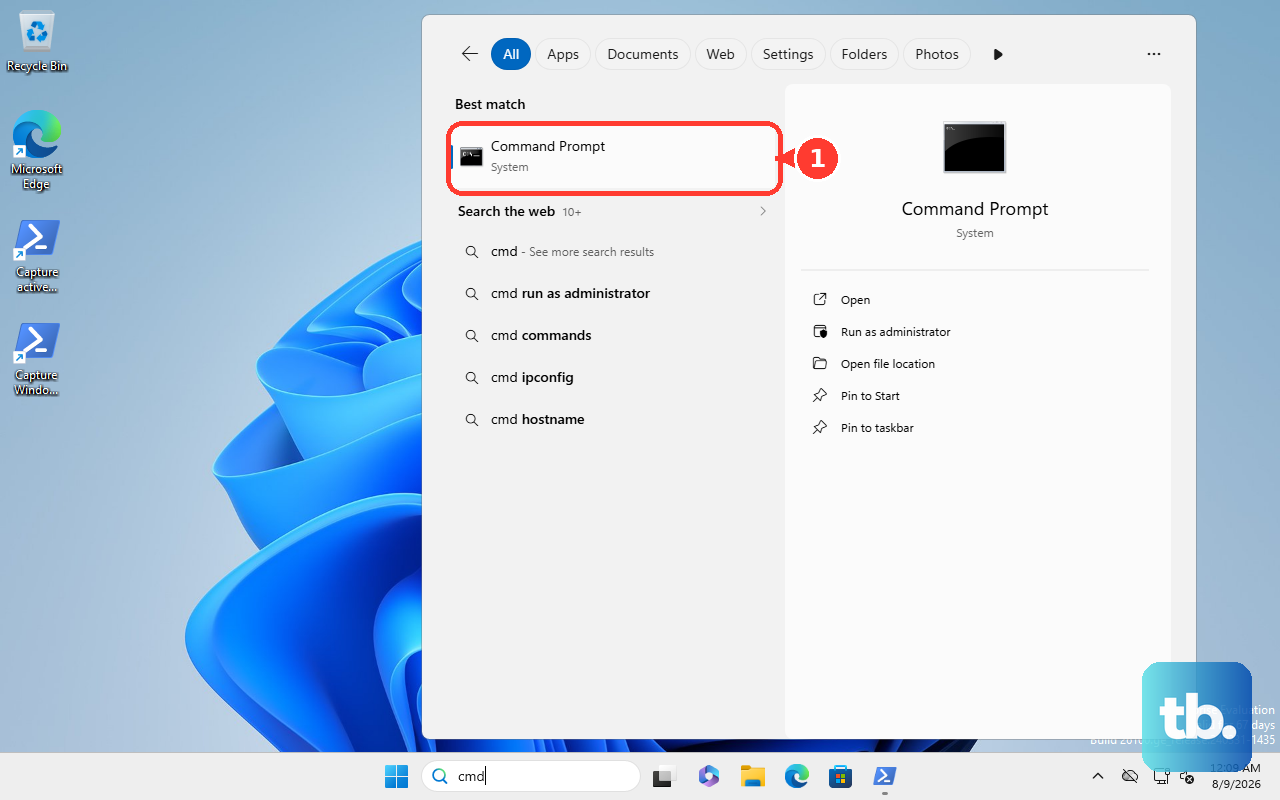
Use Search for elevated repairs. Type command prompt in the taskbar search box, right-click Command Prompt, select Run as administrator, then select Yes.











