Win R opens the Windows Run box when you already know the command you want. Type a command, program name, path, URL, or shell command, then Windows opens the matching item. Start with the shortcut, then use the fallback that fits your keyboard, Start menu, or managed PC setup.
1. Open Run with Win R
Press Windows logo key + R to open the Run dialog box. In the Open box, type a command, program name, path, URL, or shell command, then press Enter or select OK. This is the main Win R Run workflow on Windows 11, and it also works on Windows 10 devices in legacy or ESU scenarios.
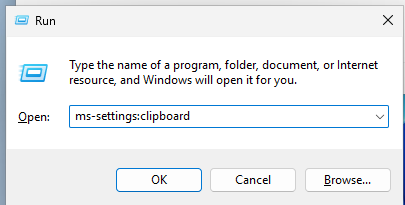
2. Enter a Run command correctly
- 1.Open Run with Windows logo key + R.
- 2.Click the Open box.
- 3.Type the command exactly as you have it, such as control, appwiz.cpl, ncpa.cpl, timedate.cpl, shell:appsfolder, shell:startup, or shell:common startup.
- 4.Press Enter or select OK.
Tip: Run also accepts a program name, a full path, a URL, or a supported shell command.
3. Use Start when Win R feels awkward
What this fixes: opening Run without the keyboard shortcut.
Right-click Start, then select Run. Type your command in the Open box, then press Enter or select OK.
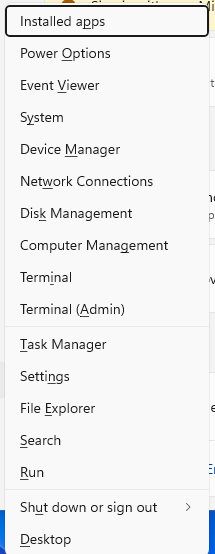
4. Open Run from the Quick Link menu
Press Windows logo key + X, then select Run. Type the command in the Open box, then press Enter or select OK.
5. Find Run with Windows Search
Select Search on the taskbar and type Run, then select Run from the results. You can also press the Windows key and start typing Run. On Windows 11 SE, IT management controls app availability, but Run is a built-in Windows surface unless policy blocks it.
6. Use Windows Search for simple app commands
Select the Search box on the taskbar, or press Windows logo key + S. Type the app or program name, such as cmd, control panel, or the executable name. After that, select the result to open it.
Tip: Search works for apps, programs, and indexed settings; Run remains the better place for full command syntax.
7. Launch a task when the desktop is stuck
Press Ctrl + Shift + Esc to open Task Manager. Select Run new task at the top of Task Manager. Type the command in the Open box, then press Enter or select OK.
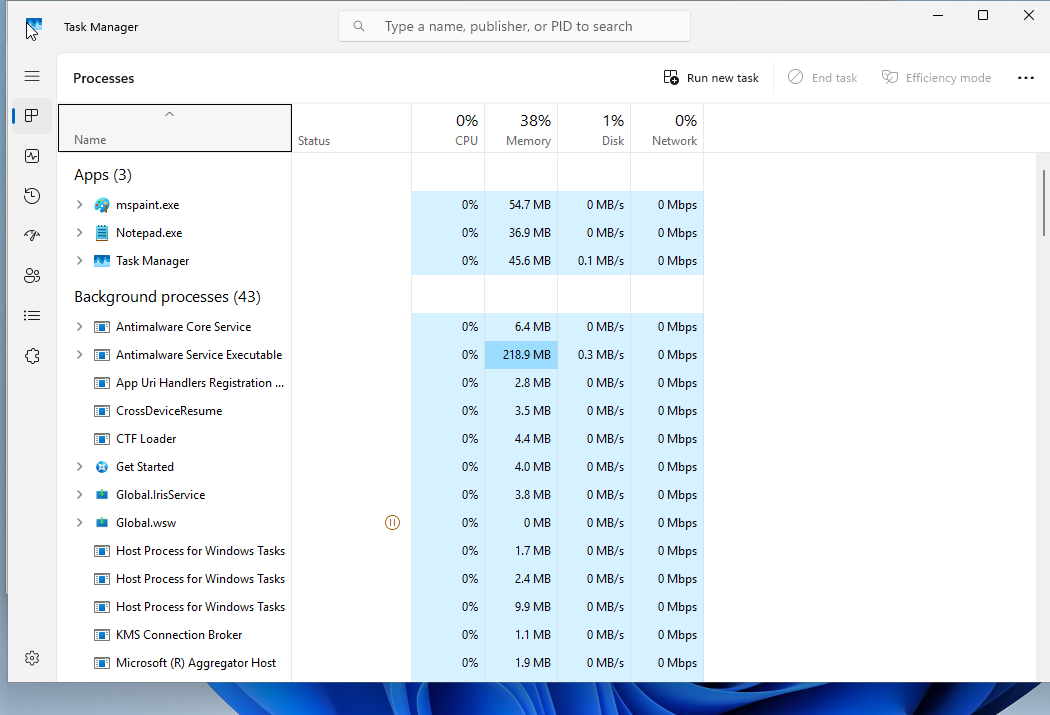
8. Browse to an executable before adding switches
Open Run, then select Browse. Locate and select the executable file. In the Open box, click after the closing quotation mark.
Next, type a space, then type the switch or parameter. Press Enter or select OK.
Tip: Use Browse when a full executable path needs a switch or parameter after it.
9. Check work restrictions when Run is missing
What this fixes: a Run box that has been removed or blocked on a managed PC.
Try opening Run with Windows logo key + R. Then try right-clicking Start and selecting Run. If the problem continues, try Task Manager > Run new task.
When those options are missing or blocked on a work or school device, contact your IT administrator and ask whether Run is disabled by policy.
Skip older advice that uses the Internet Explorer address bar as a Run-like launcher. Internet Explorer 11 is retired or disabled on many Windows 10 versions, Windows 11 uses Microsoft Edge, and IE mode in Edge is for legacy websites instead of Run commands.
Frequently Asked Questions
What does Win R do in Windows?
Win R opens the Run dialog box. From there, you can type a command, program name, path, URL, or supported shell command and press Enter.
Does Win R still work on Windows 11?
Yes. Microsoft documents Windows logo key + R as the shortcut for the Run dialog box in Windows 11.
Can I use Run for Control Panel commands?
Yes. Open Run and type commands such as control, appwiz.cpl, ncpa.cpl, or timedate.cpl, then press Enter or select OK.
Why does Win R not open Run on my work computer?
A managed device can have Run disabled by policy. That setting removes Run from Start, removes Run new task from Task Manager, and blocks Windows logo key + R.