

To use OneDrive, sign in with the account that owns your files, then open the OneDrive folder in File Explorer on your PC or open OneDrive in a web browser. Files you add to that folder upload to OneDrive, and the website lets you upload, share and restore them from any computer. In Word, File > Save As saves a document straight to OneDrive.
To access OneDrive on a PC, press Windows, type OneDrive, open the app and sign in to OneDrive with your Microsoft account or your work account. After that, two habits matter more than any button: copy a file into OneDrive when the original should stay where it is, because dragging it there can move it, and check who a sharing link works for before you send it.
The short version
- Open it: press Windows, type OneDrive and sign in, then use the OneDrive entry in File Explorer, or sign in to OneDrive in a browser.
- Add a file: copy it with Ctrl + C and paste it into the OneDrive folder with Ctrl + V. Dragging it there can move it instead, so read the tip before you drop.
- Share it: right-click, choose Share, and set the audience and Can view or Can edit before you select Send.
- Save space or work offline: right-click and choose Free up space or Always keep on this device. Never delete a file to save space.
- Undo a mistake: use Version history for an unwanted edit and the Recycle bin on the OneDrive website for a deleted file.
Where you can open OneDrive
OneDrive is one storage space with several doors. Pick the one that fits the job, and remember that each door shows the files of the account it is signed in to. The screens below come from a work account, and on a personal OneDrive some labels differ, such as Add new in place of Create or upload in Microsoft's steps.
| Where you open it | How to get there | What it is good for |
|---|---|---|
| The OneDrive app on Windows (Windows, type OneDrive) | Sign in once, then use OneDrive in File Explorer's navigation pane | Working on synced files like any other folder, with status icons and right-click sharing |
| OneDrive on the web | Sign in at onedrive.com, or select OneDrive in the Microsoft 365 app launcher | Uploading, creating, searching, sharing and the Recycle bin, from any browser |
| Word, Excel or PowerPoint | File > Save As, then your OneDrive | Saving a document to OneDrive with AutoSave and version history |
| The OneDrive phone app | Sign in with the same account | Browsing, uploading, sharing and offline files, in Microsoft's steps |
A work or school OneDrive is labelled OneDrive followed by your organization's name, and Microsoft says personal files appear under OneDrive - Personal when you use both kinds of account. When a file seems to be missing, check that the app, the browser and Word are all signed in to the same account before anything else.
Access OneDrive on your PC
Microsoft's steps are to select Start, type OneDrive, select OneDrive and sign in with the account you want to sync. If OneDrive is missing from Start, install the OneDrive desktop app first. Once it runs, Microsoft points you to its cloud icon in the notification area next to the clock; if you do not see the cloud there, select the Show hidden icons arrow on the taskbar.
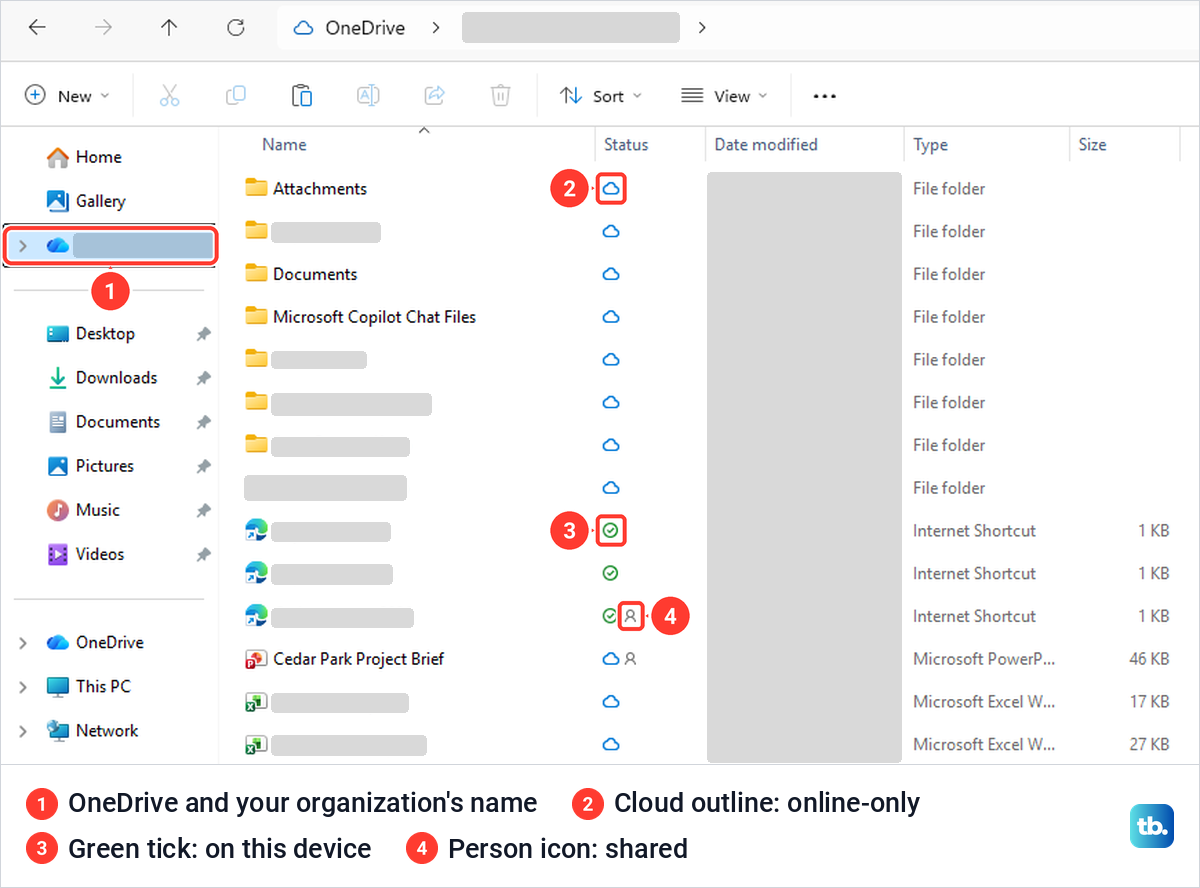
On our PC, the signed-in work account showed up in File Explorer's navigation pane as OneDrive followed by the organization's name, with a blue cloud, above Desktop, Downloads and the other pinned folders. Inside it, every item had a mark in a Status column, which the PC's own Documents folder does not have: a blue cloud outline for online-only files, a green tick for files on this device and a person icon for shared ones.
When the app is not signed in, the clues are plain. On our PC the OneDrive cloud in the notification area turned grey with a line through it and its tooltip read "Not signed in", and clicking it showed "OneDrive isn't connected" with a Sign in button. File Explorer then had no entry for the work OneDrive at all.
Select Sign in and follow the prompts, or open the gear in that panel, choose Settings and use Add an account. If a work account refuses to sign in, fix a Microsoft 365 sign-in problem first. Choosing which folders sync, backing up Desktop and Documents and the rest of the first setup are in our steps to set up OneDrive sync on Windows.
Add files to OneDrive from File Explorer
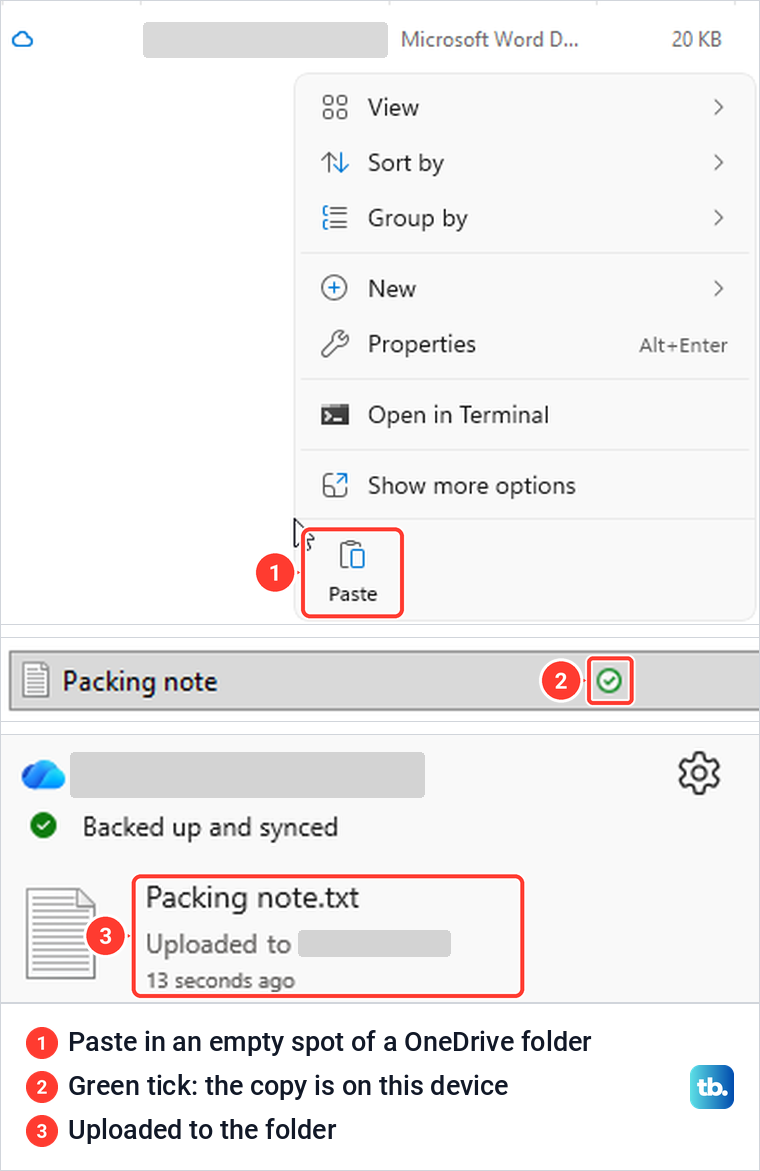
Copy or move a file into the OneDrive folder to upload it, then check the cloud's panel for completion or an error. Microsoft's way to keep the original is to right-click the file, select Copy, open the OneDrive folder or a folder inside it, right-click an empty spot and select Paste. Paste is one of the icons in the row at the top or bottom of that right-click menu; on our PC it was at the bottom.
We did that with a small text note from the local Documents folder. The copy appeared in the OneDrive folder with a green tick and "Available on this device" in less than a second, the original stayed in Documents, and the OneDrive cloud's panel listed the note as "Uploaded to" its folder under "Backed up and synced".
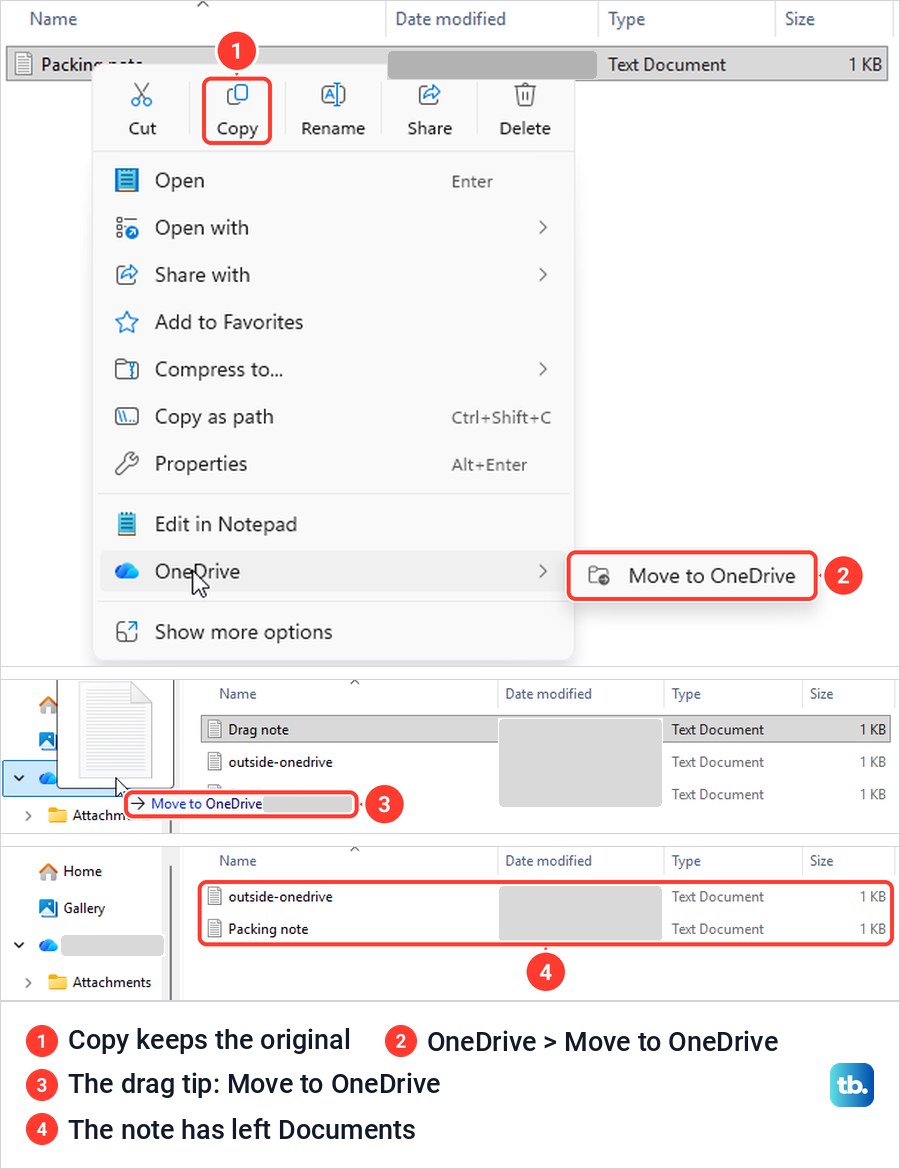
Dragging can be a move. When we dragged a note from Documents onto the OneDrive entry in the navigation pane, the tip read "Move to OneDrive" followed by the organization's name, and after the drop the note was gone from Documents and sat at the top of OneDrive. Read that tip before you drop.
A file outside OneDrive also has a OneDrive submenu on its right-click menu, holding a single command, Move to OneDrive. When the original must stay where it is, use Copy and Paste instead.
If the cloud's panel reports an error instead of "Uploaded to", fix OneDrive files that are not syncing before you rely on the copy in the cloud. A file that sits only in a folder on your PC is not in OneDrive just because OneDrive is installed, so look for the green tick or the cloud before you assume a file is safe.
Save a Word document straight to OneDrive
Word, Excel and PowerPoint save to OneDrive without File Explorer. In Word for Microsoft 365, select File > Save As and pick the OneDrive entry, which for a work account carries your organization's name and your address. Word listed it on our PC with no sign-in prompt even while the OneDrive app was not signed in, so a save from Word does not prove that File Explorer sync is running.
Choose a folder from the list, or select New Folder, type a name and select OK. Type the file name in the box above the file type and select Save. The first save showed "Contacting the server for information." for about 30 seconds on our PC before it finished.
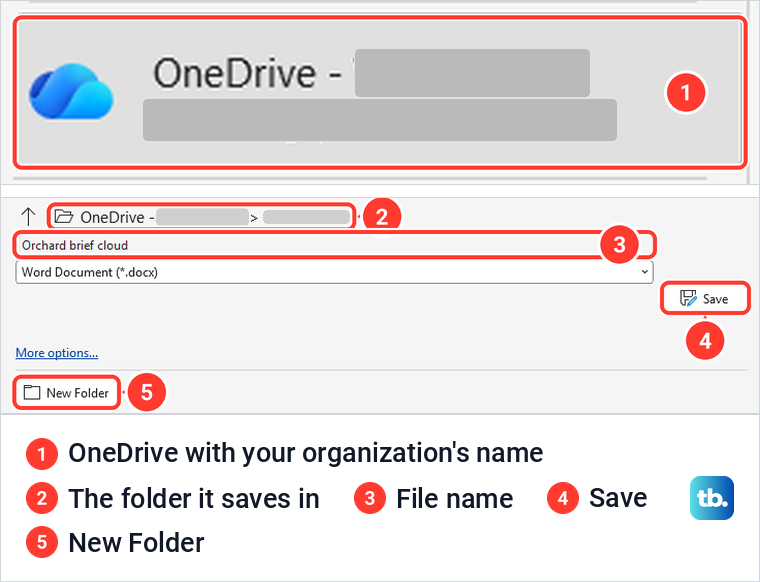
Once the document was in OneDrive, the title bar showed its name followed by "Saved", AutoSave was On by default, and a callout said "We are automatically saving your changes for you." When we typed a new line, Word saved it with no Save step. Clicking the file name in the title bar showed the OneDrive folder and a Version History link.
Create and upload files on the OneDrive website
OneDrive on the web works without the app, which makes it the place to start on a borrowed computer. Microsoft's steps for a work account are to go to microsoft365.com, sign in and select OneDrive in the app launcher, and its restore page sends either kind of account to onedrive.com. From Outlook on the web, we opened OneDrive from the app launcher with no second sign-in.
The left pane listed Home, My files, Shared, Favorites, Libraries and Recycle bin. Everything you can add sits behind one button: on the work OneDrive, Create or upload held Folder, Files upload and Folder upload, then new Word, Excel, PowerPoint and other documents.
Microsoft's steps for a work account still say New and Upload, but the work OneDrive we used had no separate New or Upload button, only Create or upload. Microsoft's steps for a personal OneDrive label the button Add new, with Files upload and Folder upload inside it.
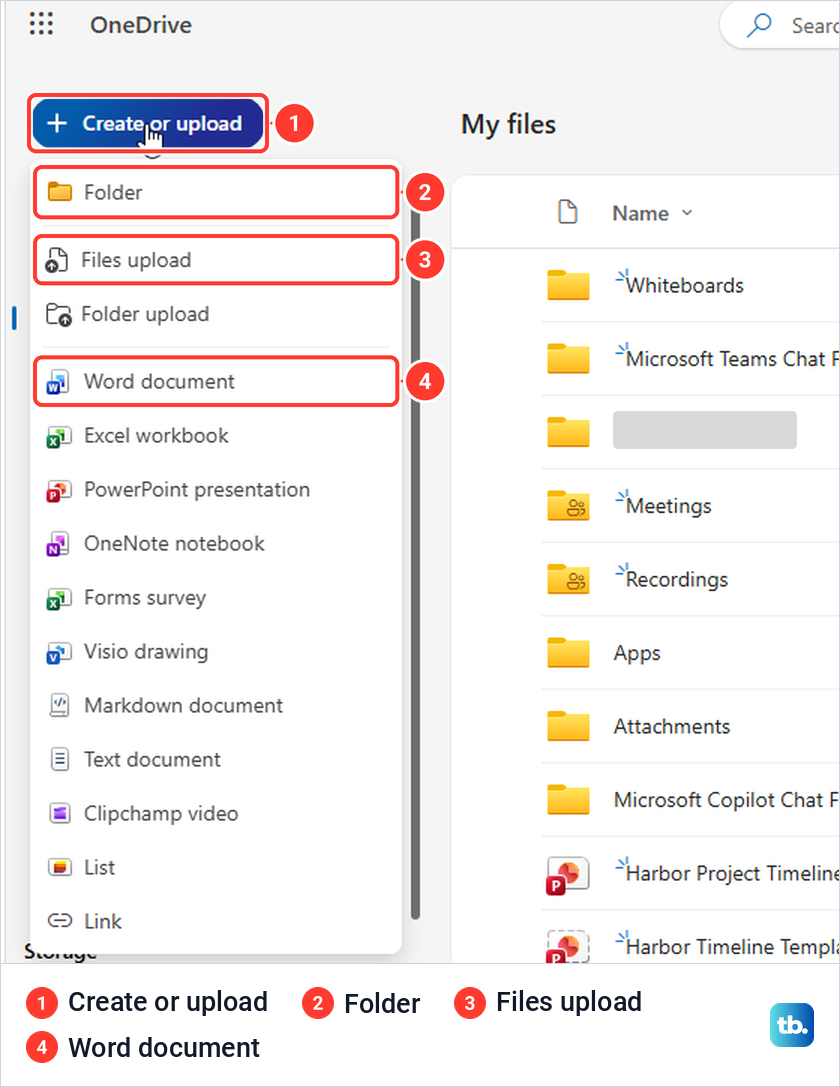
Folder opens a small box for the name and a folder colour, and Create makes it. Files upload opened the browser's Open window, where we picked two files and selected Open, and OneDrive answered "Uploaded 2 items to" the folder. Microsoft adds that you can drag files from your PC into the OneDrive page in the browser.
A new Word document opened in Word for the web, named just "Document". Clicking that name let us rename it, and there was no Save button, because, as Microsoft puts it, the document is saved for you automatically.
Find, rename and move your files
Browse My files first, because search can lag behind. On the OneDrive website the box at the top is labelled Search, and inside a folder it searched that folder only, with an All files tab beside Current folder. When we searched for a document made about three minutes earlier, neither tab found it, while the same search found it about nine and a half minutes after it was created.
If a file still will not turn up, Microsoft's advice is to check that you are signed in to the right account, because the file may be safely in another OneDrive. The Recycle bin, covered below, is the next place to look.
To rename a file on the website, select it and press F2. A Rename box opened with the extension fixed, a few suggested names and an Update button, and the new name appeared at once.
Moving uses Move to. With a file selected, the bar showed Open, Share, Copy link and Delete, while Download, Move to, Rename and Version history sat in its three-dot menu. The Move to window has its own New folder button, and the confirm button is Move here, greyed out while the current folder is chosen.
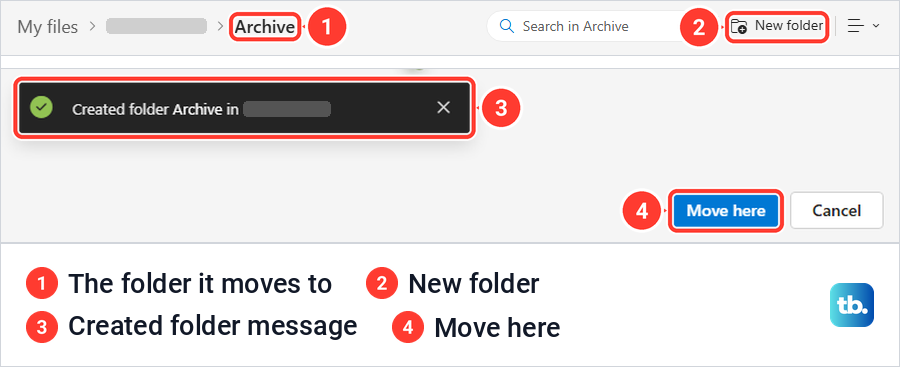
After Move here, OneDrive said "Moved 1 item to" the new folder, but the file still showed in the old list until we refreshed the page. If a moved file seems to be in two places, refresh before you do anything else.
Download a file or a folder
Download moves around on the OneDrive website. Inside a folder with nothing selected, the bar showed Download, which downloads everything in that folder, as Microsoft describes. As soon as we selected a file, Download left the bar and moved into the three-dot menu, which is why it can seem to be missing.
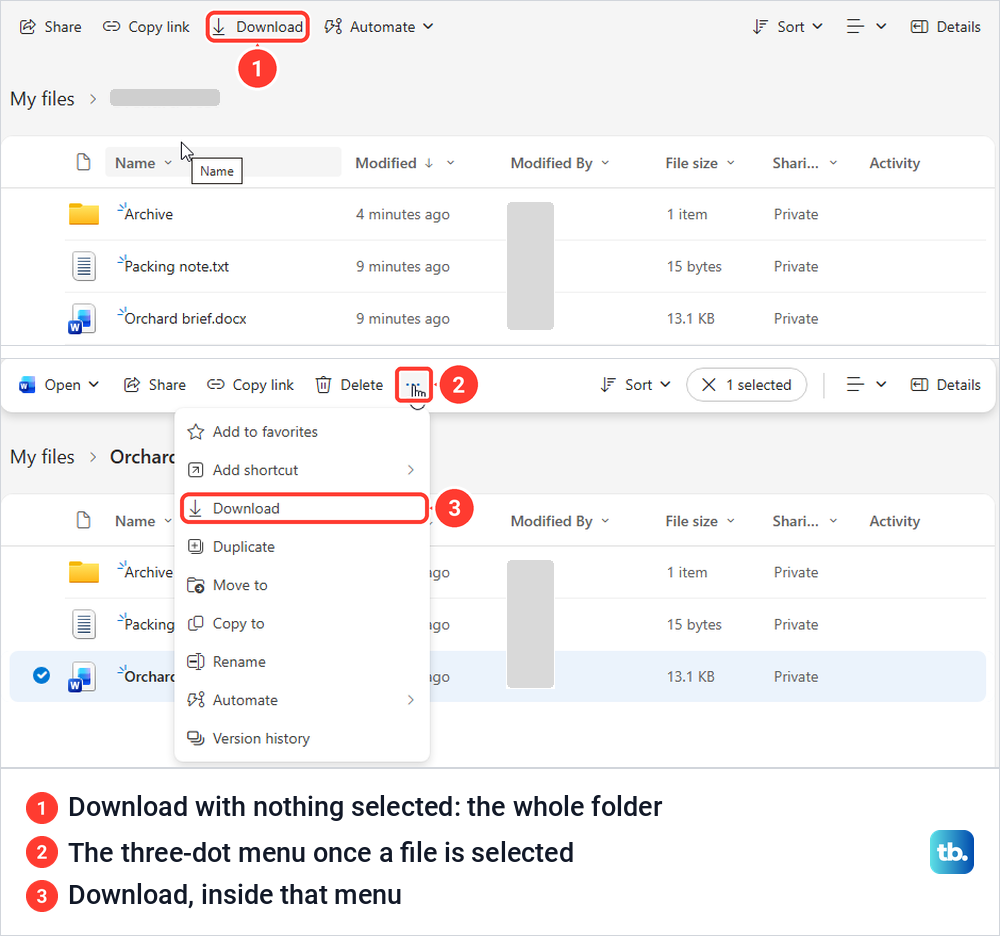
Right-clicking the file also offered Download, and Microsoft Edge saved the copy at once and listed it under Downloads with Open file. That copy is separate from the one in OneDrive, so edits to it do not sync back. If you cannot find it afterwards, see how to open a downloaded file from the browser or the Downloads folder.
To download a folder itself rather than what is inside it, Microsoft says to go up a level and select the whole folder, or to right-click the folder and select Download. With a folder selected from its parent, the bar showed Share, Copy link, Request files and Delete, so look for Download on the folder's right-click menu, where Microsoft puts it. Microsoft says that when you download several files or folders, the browser downloads one .zip file containing them.
Share a file with the right permission
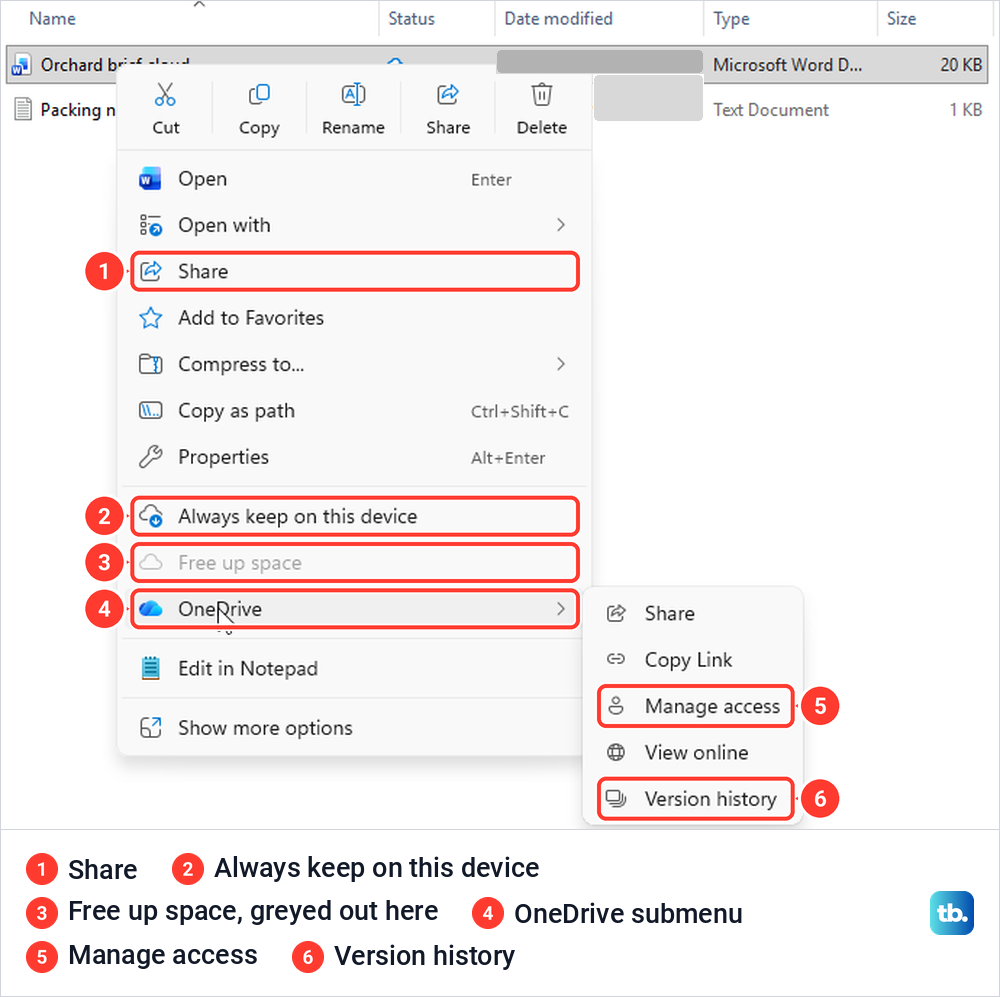
Microsoft says OneDrive files are private until you share them. In File Explorer, right-click a synced file to find Share in the main menu, plus a OneDrive submenu with Share, Copy Link, Manage access, View online and Version history. For a text file, our first right-click showed Windows' own Share with in that place and the second showed Share, so open the menu again if it is missing.
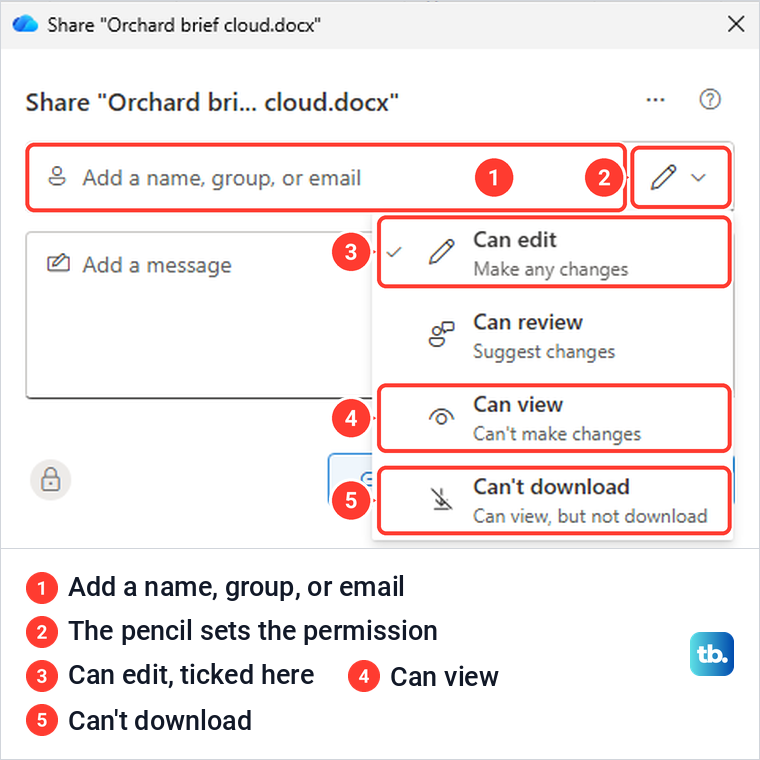
Share opens OneDrive's own window, not a browser. Type a name, group or email in Add a name, group, or email, then open the pencil beside it to set what they can do: Can edit, Can review, Can view or Can't download. Can edit was ticked when we opened it, so change it before you select Send if the person should only read the file.
The link has its own settings. Select the gear beside Copy link to open Link settings, where Anyone, "Share with anyone, doesn't require sign-in", was selected for us, with Can edit under More settings. The other audiences were People in the organization, Only people with existing access and People you choose, and there were fields to set an expiration date and a password.
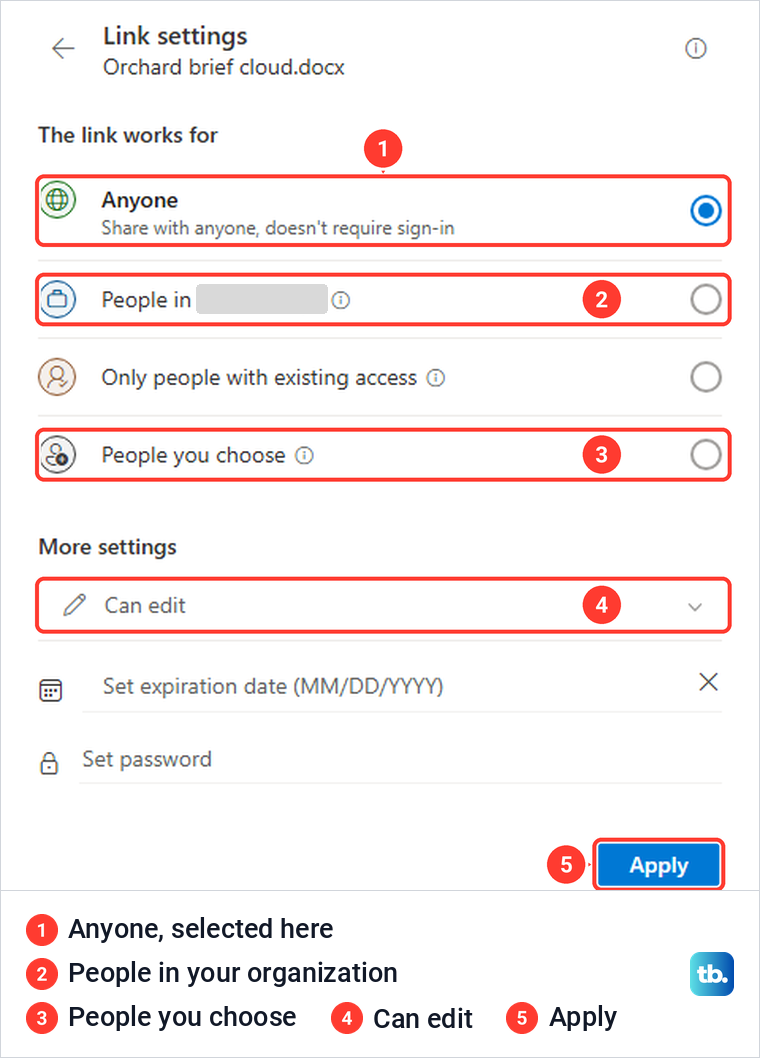
On the OneDrive website, a plain Copy link with the same settings said "Link copied. Anyone with the link can edit." What is selected at first can differ by organization, so for a narrower link, pick People you choose and Can view, select Apply, type the people's names or email addresses, and only then select Send or Copy link. Microsoft notes that other people may already have access, and that a greyed-out option may be one your organization's admins restricted.
The website's Share window looks the same. We invited another person with Can view, selected Send, and OneDrive confirmed "You've invited" them "to view" the document. With Can view chosen for a link, there was no switch to block downloads; the option for that is Can't download, which Microsoft says lets the recipient view the file but not save a local copy. Check Manage Access too, because the person may already have another grant.
Check who has access and remove it
Manage Access shows the direct grants, groups and sharing links for a file. In File Explorer, right-click the file, open the OneDrive submenu and select Manage access: it opened in a OneDrive window with People, Groups and Links tabs and the owner, and an unshared file read "This file has not been shared with anyone yet." On the website, select the file, then Details and Manage access.
Trust Manage Access over the summary. A minute after we shared a document, the website's Details pane still said "This item is not shared", while Manage Access listed the person with Can view.
Select a person to see how they have access. Under Direct Access you can switch them to Can edit, Can review, Can view or Can't download, or choose No direct access, and then select Apply. We changed one person from Can view to Can edit that way.
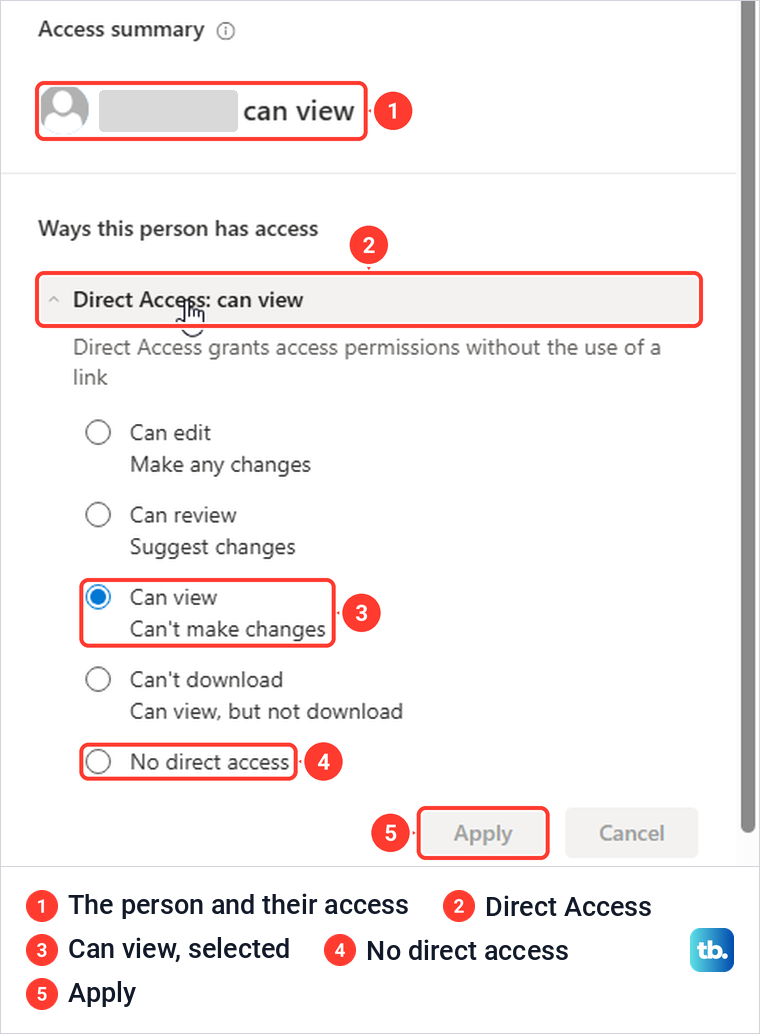
No direct access asks whether to remove that person's direct access, with the warning "They may still have access to this item through a group or link". After Remove, the file was back to "This file has not been shared with anyone yet". Sharing links are on the Links tab, where a trash icon asked "Delete link?" and explained that the link will not work for anyone anymore.
Check the Links tab whenever you remove a person, because, as that warning says, a link can still give them access. For a team's shared files rather than your own, use SharePoint for team files instead of sharing one file at a time.
Keep files offline or free up space on your PC
Microsoft's Files On-Demand lets a file sit in OneDrive without taking space on the PC, and the Status column tells you which is which. A blue cloud outline means the file is only available online, a green tick in a circle outline means it is on this device, and a solid green circle with a white tick means it is always kept here.
Right-click a file and choose Always keep on this device for anything you need without an internet connection. When we did, the status turned into the solid green circle, the status bar read "Always available on this device" and the menu item gained a check mark.
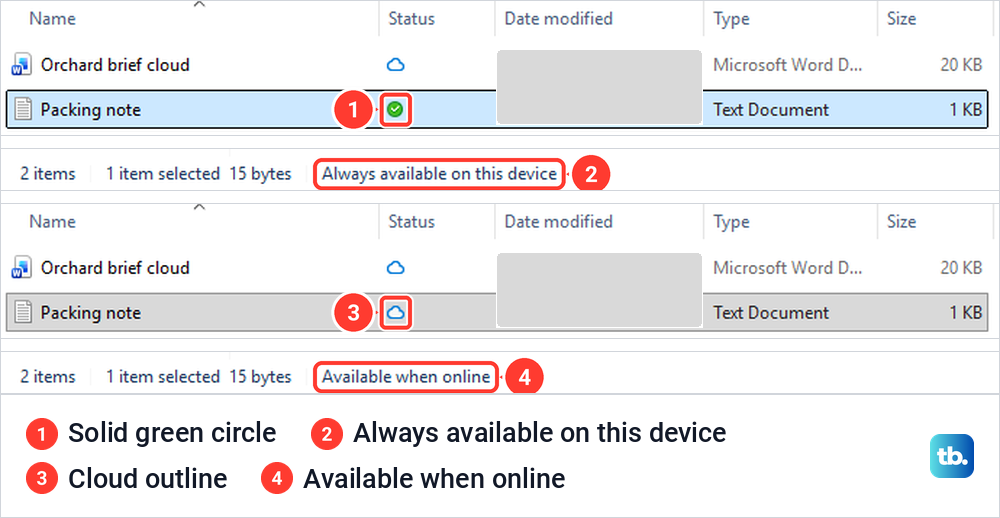
Free up space does the opposite. It turned the same file into a blue cloud outline, "Available when online", while the file stayed in the list, and OneDrive opened its panel with the tip "Online files save you space!" On a file that is already online-only, Free up space was greyed out.
This is how to save space, not Delete. Microsoft says changing a file to online-only does not delete it from OneDrive, but deleting an online-only file from your device deletes it from OneDrive on all devices and online. For the rest of the drive, our steps to free up disk space on Windows 11 help.
To keep a whole folder off this PC, Microsoft's route is OneDrive's Settings > Account > Choose folders, where a cleared folder leaves the PC but stays online. If you want to stop OneDrive altogether, turn off OneDrive without losing files by pausing, quitting or unlinking it.
Restore an older version of a file
OneDrive keeps earlier versions of a file as it changes. In File Explorer, right-click the file, open the OneDrive submenu and select Version history, which is not on the main menu. A window titled "Version history for" the file listed each version with its date, the person who saved it and its size.
Select the three dots beside an older version to see Restore, Open File and Delete Version, and use Open File to check the text first. Microsoft says the version you restore becomes the current one, and the previous current version stays in the list.
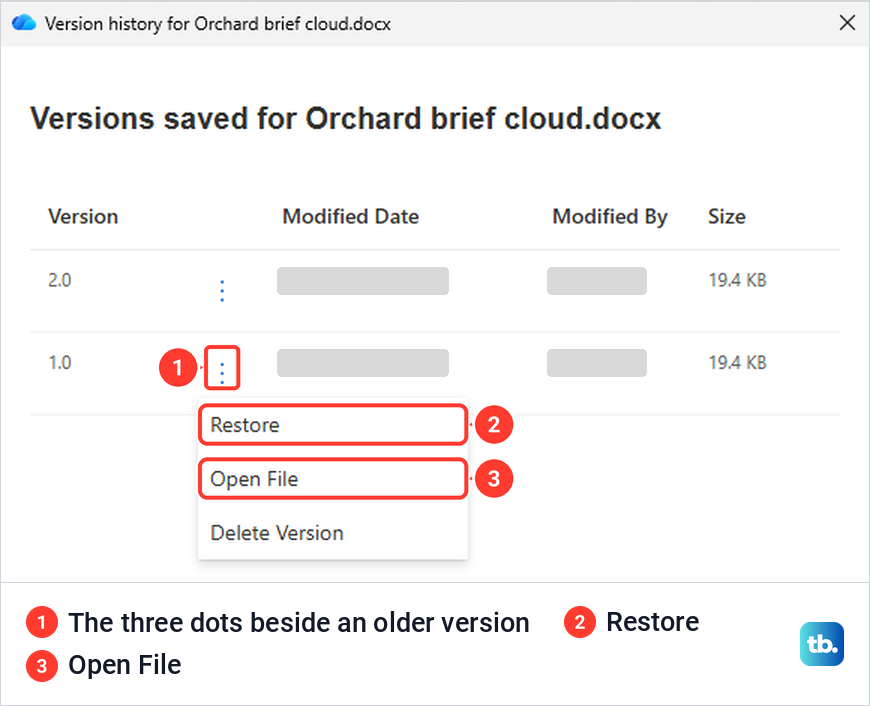
On the OneDrive website the same list is under the file's three-dot menu, Version history. When we selected Restore there on an older version, it happened with no confirmation: a new version appeared at the top, the replaced one stayed in the list, and the document showed the older text again.
In Word, click the file name in the title bar and choose Version History. Selecting an older version opened it read-only with a yellow "VERSION" bar and a Restore button. To keep both versions as separate files, make a copy of a Word document before you restore, and if the file was never saved to OneDrive, recover an unsaved Word document from Word's own tools instead.
Recover a deleted file
Deleting in File Explorer is quick and silent. When we selected a synced file and pressed Delete, it was removed at once with no confirmation, and only the cloud's panel said it was "Deleted from" OneDrive. The copy that had been on the PC went to the Windows Recycle Bin, with the OneDrive folder as its original location.
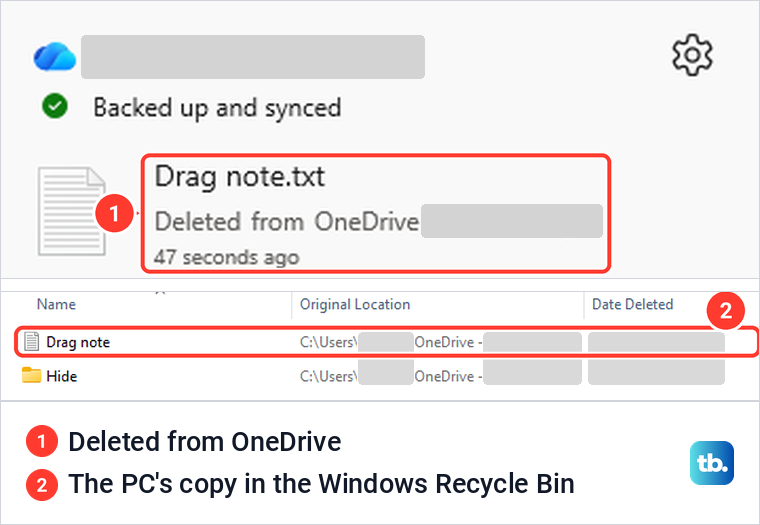
Microsoft says you can open the Windows Recycle Bin, right-click the file and select Restore to put it back in its original folder. A file that was online-only when you deleted it will not be there, because Microsoft notes that files deleted from the cloud, including online-only files, do not appear in your computer's Recycle Bin.
The website asks first. Delete showed "Are you sure you want to send this item to the recycle bin?" and then "Deleted 1 item" with a link to the Recycle bin, which is where to look for anything deleted online.
To get a file back, open the OneDrive website and select Recycle bin in the left pane. Select the circle beside the file and then Restore. The file came back to its original folder with no confirmation and the message "Restored 1 item".
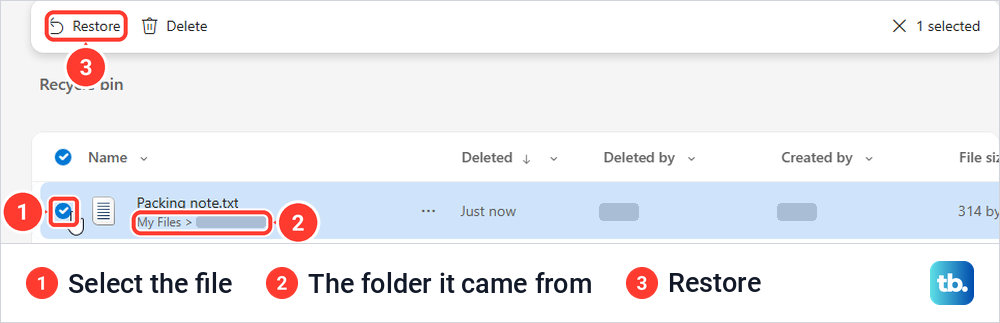
How long a file stays there is Microsoft's rule: 30 days for personal accounts and 93 days for work or school accounts, unless your administrator changed the retention setting. The recycle bin we used showed no period at all, only a link to a Second-stage recycle bin. If the file was only ever on your PC, recover deleted files in Windows instead.
Use OneDrive on a phone
The OneDrive app for iPhone, iPad and Android works with the same account. Microsoft's steps to upload are to open the app, tap the (+) icon at the bottom of the screen, select Upload and choose the files. To share a file or keep it offline, tap the three dots next to its name and select Share or Make available offline.
Deleted files are in the app's Recycle bin, which Microsoft places under the Me icon. Camera backup, under Me > Settings, saves the phone's photos and videos to OneDrive automatically.
How we tested this guide
We tested this with the OneDrive app and Word for Microsoft 365 on Windows 11, version 25H2, and OneDrive in Microsoft Edge, adding a file and restoring it.
Frequently Asked Questions
Can I use OneDrive without installing the app?
Yes. Sign in to OneDrive in a browser to upload, create, share, download and restore files. The app adds the synced folder in File Explorer and the offline choices.
If I delete a file from OneDrive on my PC, is it deleted online too?
Yes, for a file in the synced OneDrive folder. Pressing Delete removed it from OneDrive with no warning, so use Free up space when you only want the PC's copy gone, and restore mistakes from the Recycle bin on the website.
Why is a OneDrive folder missing from File Explorer?
Check that the app is signed in to the right account first. Then open OneDrive's Settings, go to Account and select Choose folders, because Microsoft says a cleared folder is removed from the PC but stays online.
How do I let someone view a file without editing it?
Right-click the file and choose Share, then set the pencil to Can view before you select Send. For a link, open Link settings, choose People you choose and Can view, select Apply, then type the people's names or email addresses before you select Send or Copy link.
How do I see how much OneDrive storage I have left?
Open the OneDrive cloud, select the gear, choose Settings and open Account. The left side of that page shows Storage with the space used and a Manage storage link.