

To turn off OneDrive on Windows 11, select the OneDrive cloud in the notification area, select the gear icon and choose Quit OneDrive, the last item in that menu, which stops it until you reopen it or sign in again. To disable OneDrive for good, uninstall it in Settings > Apps > Installed apps, or select Unlink this PC in OneDrive's settings to stop OneDrive from syncing on this PC. Microsoft says neither one loses your files in OneDrive.
The right choice depends on what should happen to the files on your PC. Pausing, quitting and turning off the startup entry leave every file where it is. Stopping folder backup and hiding a folder both take files off one side, and unlinking keeps the files that were on this device while removing the online-only ones from it.
The short version
- Stop it for a few hours: select the OneDrive cloud, then the gear, then Pause syncing and 2, 8 or 24 hours.
- Stop it now: select the cloud, then the gear, then Quit OneDrive, and confirm with Quit OneDrive.
- Stop it starting with Windows: in OneDrive's Settings > Sync and backup, turn off the Start OneDrive switch under Preferences.
- Stop syncing this PC: in OneDrive's Settings > Account, select Unlink this PC, then Unlink account.
- Remove the app: press Windows, type Programs, open Add or remove programs and uninstall Microsoft OneDrive.
- First, keep what you need: right-click the files or folders you need offline and choose Always keep on this device.
Choose the right way to turn off OneDrive
Each control stops a different part of OneDrive, so pick by the result you want. The table runs from the option that undoes the least to the one that undoes the most.
| What you want | Do this | What happens to your files |
|---|---|---|
| A break of a few hours | Cloud, gear, Pause syncing, then 2, 8 or 24 hours | Nothing moves. Sync starts again when the time is up or when you resume it. |
| Stop it right now | Cloud, gear, Quit OneDrive | Nothing moves. Changes stop syncing until OneDrive runs again. |
| Stop it opening at sign-in | OneDrive Settings > Sync and backup, the Start OneDrive switch Off | Nothing moves. The switch only changes what happens at your next sign-in. |
| Keep Desktop, Documents or Pictures off OneDrive | OneDrive Settings > Sync and backup > Manage backup | You pick Only in OneDrive or Only on my PC, and the files leave the other side. |
| Keep one cloud folder off this PC | OneDrive Settings > Account > Choose folders | The folder leaves this PC. OneDrive's note says the files stay on OneDrive. |
| Stop syncing this PC for good | OneDrive Settings > Account > Unlink this PC | Files on this device stay. Online-only files are removed from the PC. |
| Remove the app | Settings > Apps > Installed apps, Microsoft OneDrive, Uninstall | Microsoft says you won't lose files or data. An administrator may have to approve it. |
Turning off AutoSave in Word and signing out of OneDrive on the web are not on this list, because neither one stops the OneDrive app on your PC. Both are covered further down, along with the Mac and phone steps.
Find the OneDrive cloud and its menu
OneDrive's own controls start at its cloud icon in the notification area, next to the clock. On our PC the blue cloud sat there without opening the Show hidden icons arrow, and hovering over it showed the folder name, "OneDrive - your organization's name", with the status "Backed up and synced".
One click on the cloud opens a flyout with the same status line, the files that changed recently, and Open folder, View online and Recycle bin along the bottom. The gear at the top right has no label, but hovering over it shows "Help & Settings".
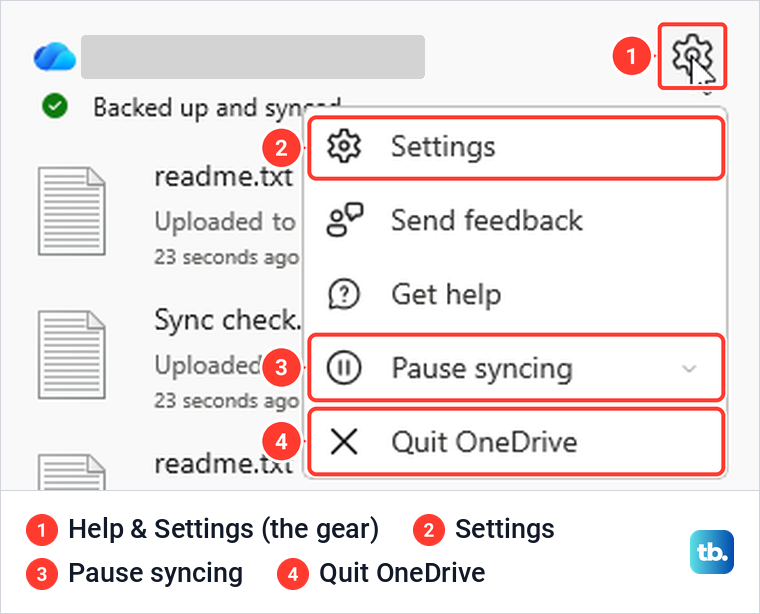
Selecting the gear opens a menu of five items: Settings, Send feedback, Get help, Pause syncing and Quit OneDrive. A right-click on the cloud opens the same flyout with that menu already open, so either click gets you there.
Pause OneDrive syncing for a few hours
Pausing is the gentlest option, and the right one when sync is slowing down your PC or your internet connection. Open the gear menu and select Pause syncing. It does not open a new menu: it expands in place to 2 hours, 8 hours and 24 hours, with Quit OneDrive still a separate item below them.
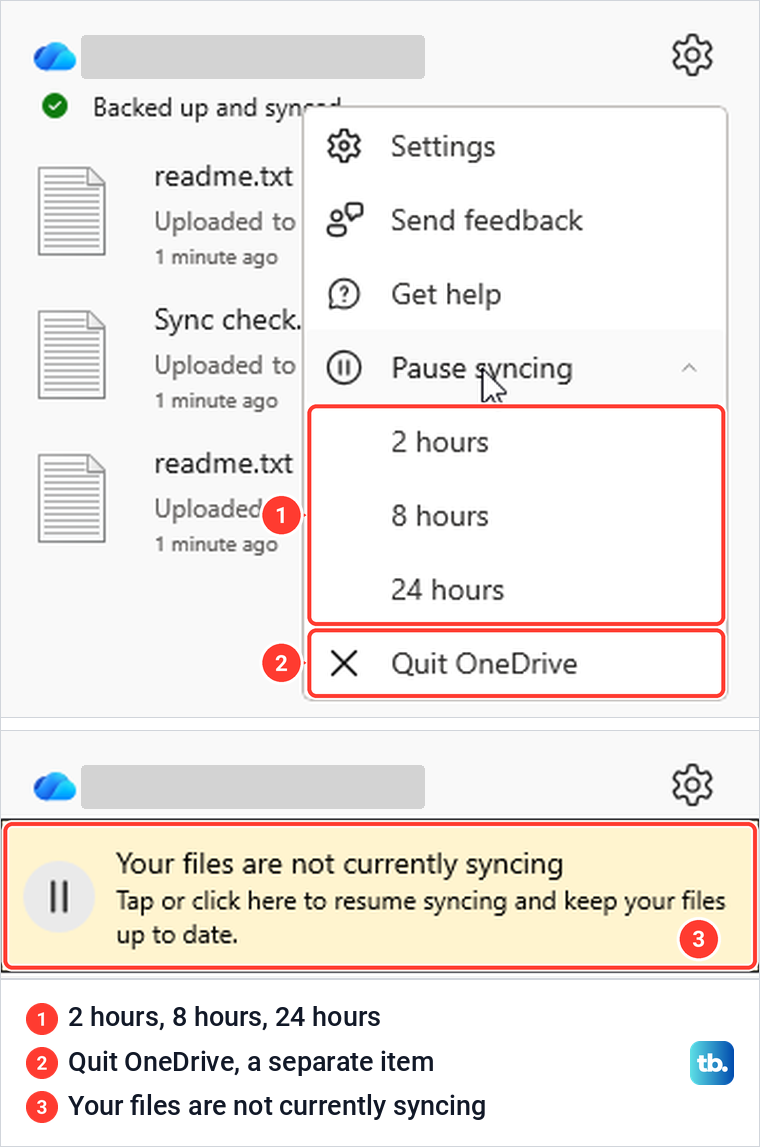
When we chose 2 hours, a small pause badge appeared on the cloud and its tooltip changed to "Paused". The flyout showed a yellow bar reading "Your files are not currently syncing", with "Tap or click here to resume syncing and keep your files up to date." Neither the bar nor the tooltip showed when the pause would end, for 2 hours or for 24.
Microsoft says sync starts again by itself when the time runs out. To restart it sooner, select the yellow bar once, or open the gear menu, where Resume syncing now sits in place of Pause syncing. Either click put the status back to "Backed up and synced" at once on our PC.
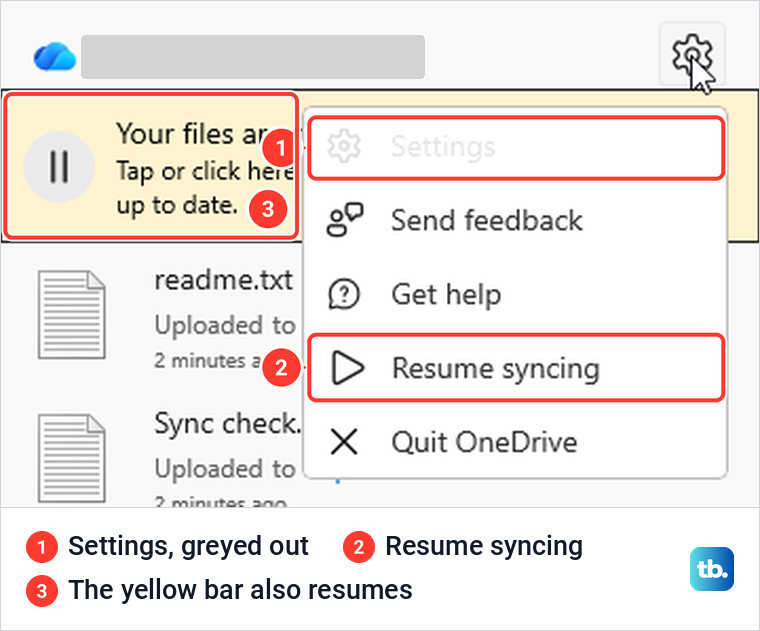
While sync was paused, Settings in that menu was greyed out, and so were View online and Recycle bin in the flyout, so resume first if you need the settings. Microsoft also says OneDrive pauses on its own on a metered network or in battery saver, and OneDrive's Settings page listed Pause syncing when this device is on a metered network as On for us.
Quit OneDrive until you open it again
Quitting closes the OneDrive app, so nothing syncs until it runs again. Select the cloud, select the gear and choose Quit OneDrive, the last item in the menu. It sits directly in the menu, not inside Pause syncing.
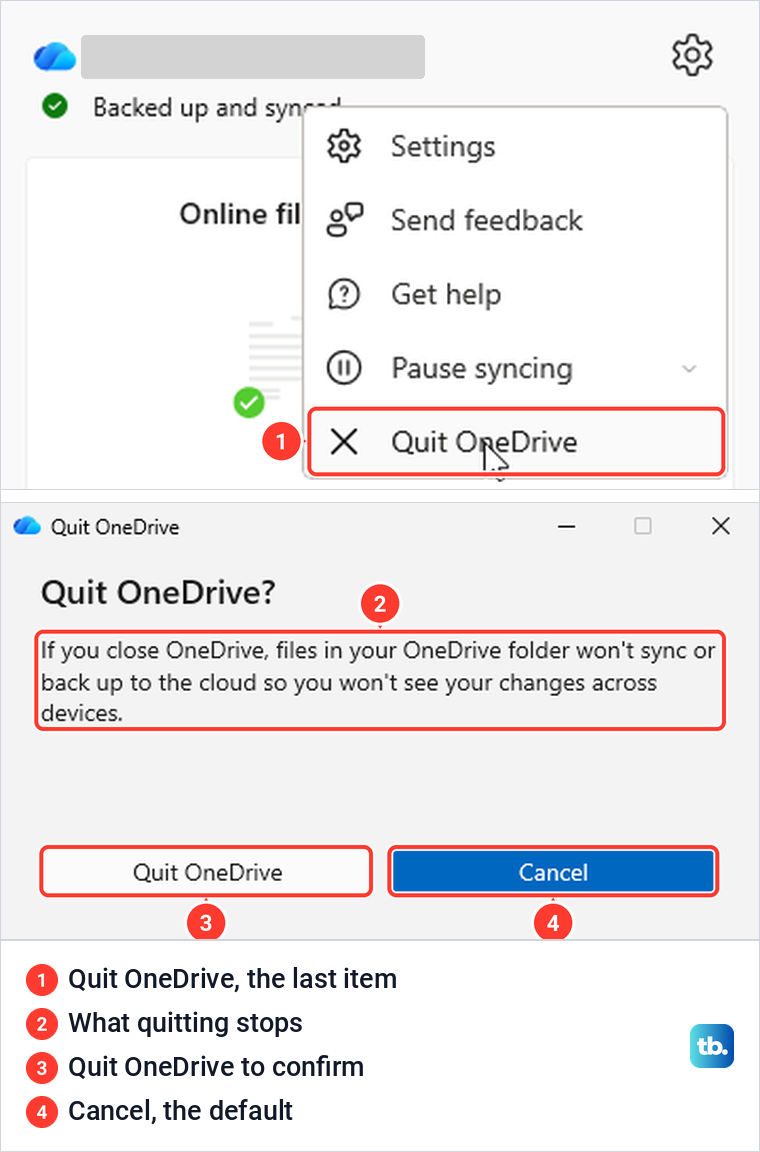
A box titled "Quit OneDrive?" explains: "If you close OneDrive, files in your OneDrive folder won't sync or back up to the cloud so you won't see your changes across devices." The highlighted button is Cancel, so read before you click, then select Quit OneDrive. When we confirmed it, the cloud left the notification area.
To start OneDrive again, press Windows, type OneDrive and select Open under the OneDrive app. On our PC the cloud came back with "Backed up and synced" and no sign-in prompt, and OneDrive also opened a File Explorer window on its folder. While its startup switch is on, OneDrive starts again at your next sign-in too.
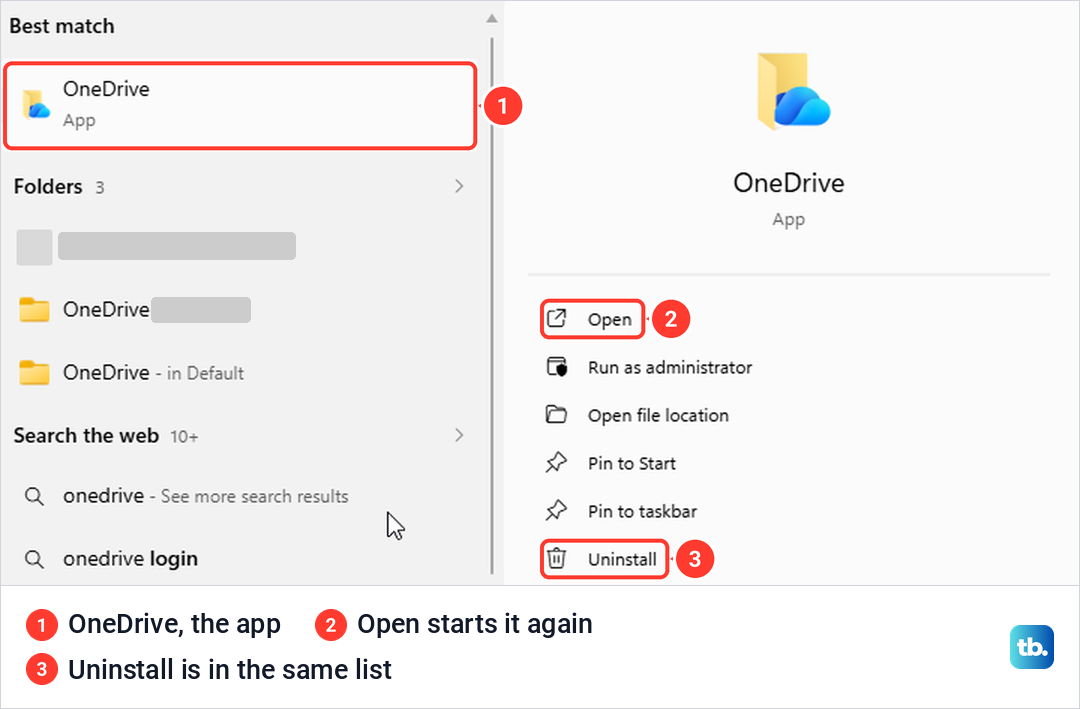
Stop OneDrive from starting with Windows
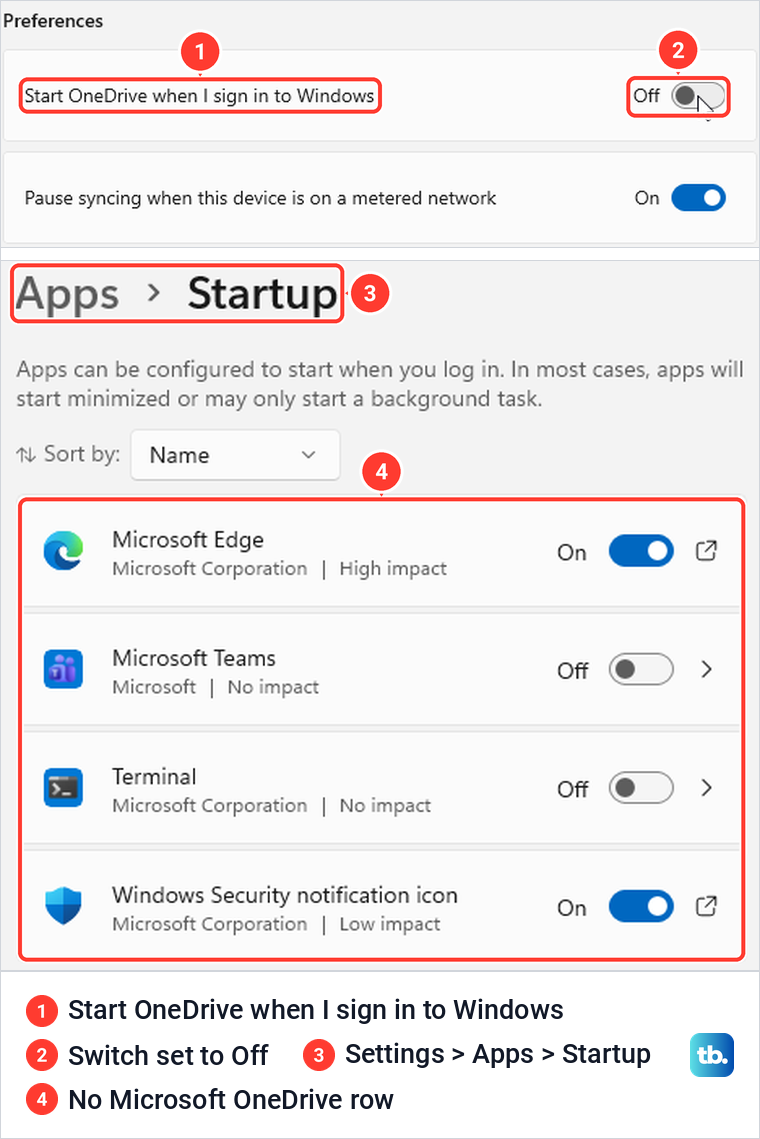
If OneDrive keeps coming back after a restart, turn off its startup switch. OneDrive has its own: open the gear menu, choose Settings, which opens on Sync and backup, and set the first switch under Preferences, the one that starts OneDrive when you sign in to Windows, to Off. Its label begins Start OneDrive, and it was switched On when we opened it.
That switch does more than you might expect. When we turned it Off, Microsoft OneDrive disappeared from the list in Windows Settings > Apps > Startup altogether, instead of showing as Off. Turning it back On brought the row back as Microsoft OneDrive, Microsoft Corporation, High impact, switched On.
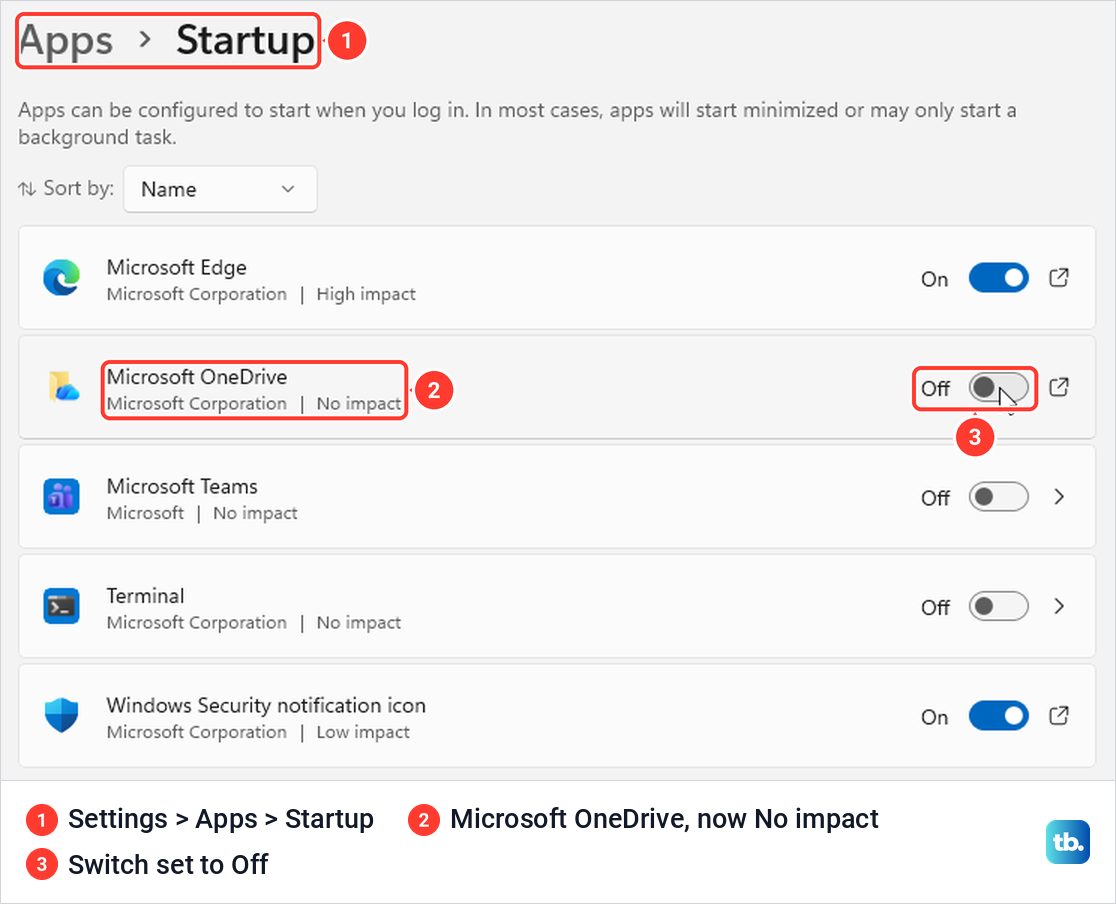
So if OneDrive is missing from Windows' startup list, check OneDrive's own switch. Windows has its own switch for the same entry: press Windows + I, go to Apps > Startup and set Microsoft OneDrive to Off. On our PC the row changed to Off and No impact at once.
The Windows switch does not close the copy that is already running: we checked straight after turning it off, and the OneDrive process was still there, so quit OneDrive as well if you want it gone now. Our guide shows how to stop apps opening at startup if you are cleaning up more than OneDrive.
Task Manager shows the same entry under a shorter name. Right-click Start, select Task Manager and open Startup apps, where our row was called just OneDrive, with Enable and Disable at the top. Turning it back on in Task Manager also set the Windows Settings switch back to On, so both change one setting. There are other ways to open Task Manager in Windows 11 if right-clicking Start is awkward.
Check which files are only in the cloud first
Before you stop folder backup, hide a folder or unlink the PC, find out which files are actually on your PC. Microsoft says Files On-Demand is on by default, so files in your OneDrive folder can look normal in File Explorer and still open only with an internet connection. On our PC, OneDrive's advanced settings had no switch to turn Files On-Demand off, only Free up disk space and Download all files.
The Status column in File Explorer tells them apart. A cloud outline means the file is online-only, and a green tick means it is on this device. Right-click a file or a whole folder to see Always keep on this device and Free up space; when we chose Free up space on a downloaded file, it turned back into a cloud outline.
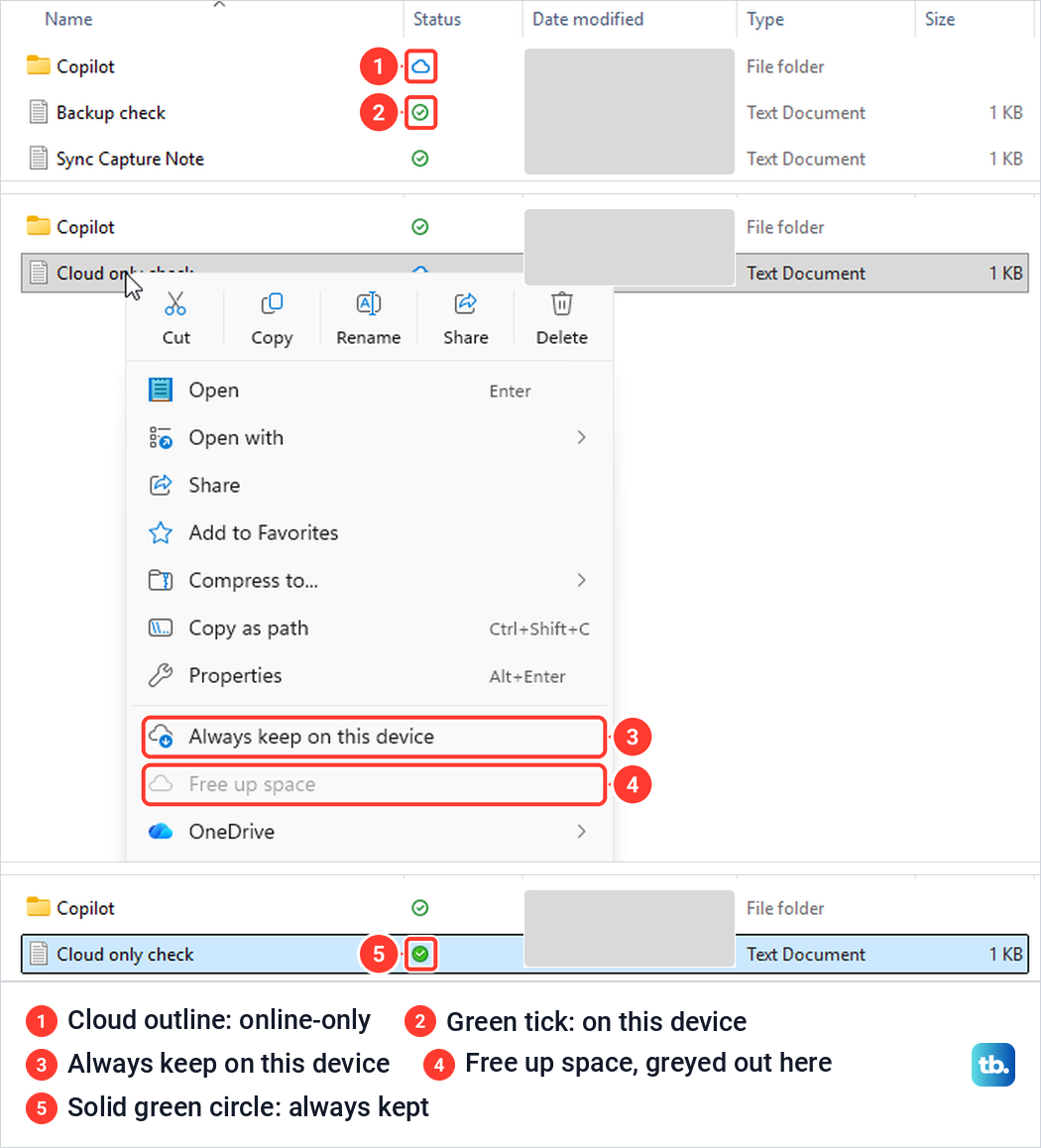
On an online-only file, Free up space was greyed out. Choosing Always keep on this device gave it a solid green circle, and the status bar read "Always available on this device". Do that for anything you need offline before you take OneDrive away, and let OneDrive finish with recent edits too: Microsoft says files are backed up once they finish syncing to OneDrive.
To do the same for everything at once, use Download all files in OneDrive's advanced settings. Microsoft says it is the same as choosing Always keep on this device for the entire OneDrive folder, and that it downloads every file, taking up disk space on the PC.
Do not delete files from a syncing OneDrive folder to save space. Microsoft says that when you delete an online-only file from your device, you delete it from your OneDrive on all devices and online, and its fix is the Recycle bin on the OneDrive website. Use Free up space instead, and our guide to free up disk space on Windows 11 covers the rest of the drive.
Stop backing up Desktop, Documents and Pictures
OneDrive's folder backup moves your Desktop, Documents and Pictures into OneDrive. To stop it, open OneDrive's Settings, stay on Sync and backup and select Manage backup. A window titled "Back up folders on this PC" lists Documents, Pictures and Desktop, each with a switch.
When we turned off the switch for a backed-up Documents folder, OneDrive first asked "Stop backing up Documents folder?" and had Continue backing up (Recommended) already selected. Choose Stop backup and choose where to keep files to see the two real choices, then select Continue.
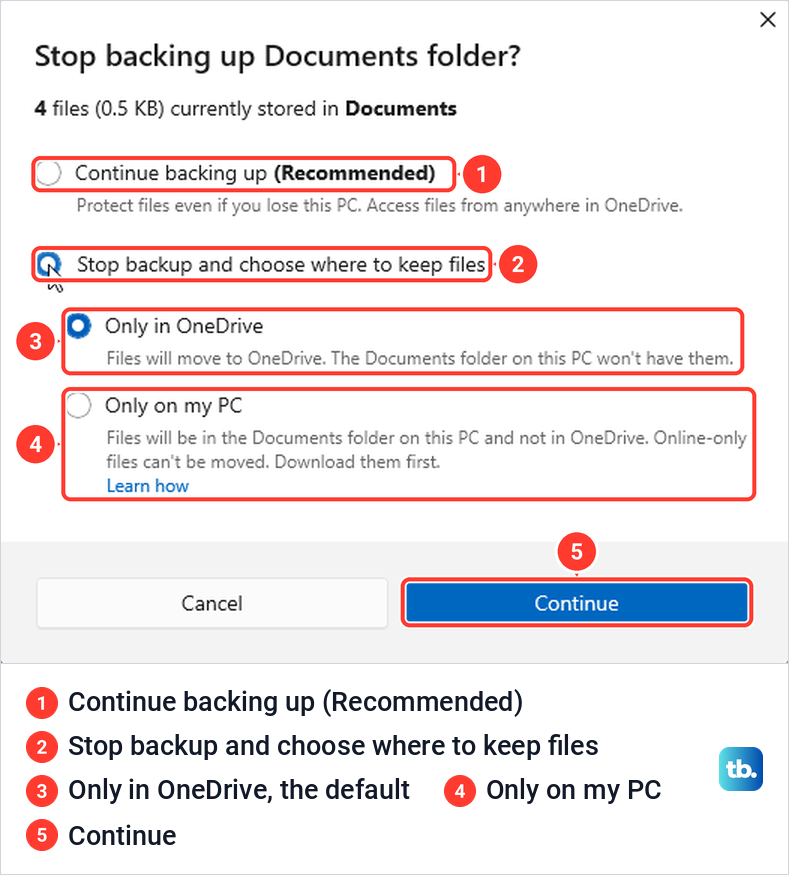
Only in OneDrive is selected by default, and its description says the files "will move to OneDrive" and that the Documents folder on this PC "won't have them". Only on my PC says they "will be in the Documents folder on this PC and not in OneDrive", and that "online-only files can't be moved".
For a PC that will stop using OneDrive, the second one is normally the one you want. Because it takes the files out of OneDrive, do not choose it if another PC still uses OneDrive's Documents folder.
Take that warning seriously. When we chose Only on my PC with one online-only file in the folder, OneDrive showed "Some files couldn't be moved" and told us to right-click and select Always keep on this device. Backup had already stopped: the other files moved to the PC, and the online-only file stayed behind in OneDrive's Documents folder, with only Open in OneDrive and OK to choose from.
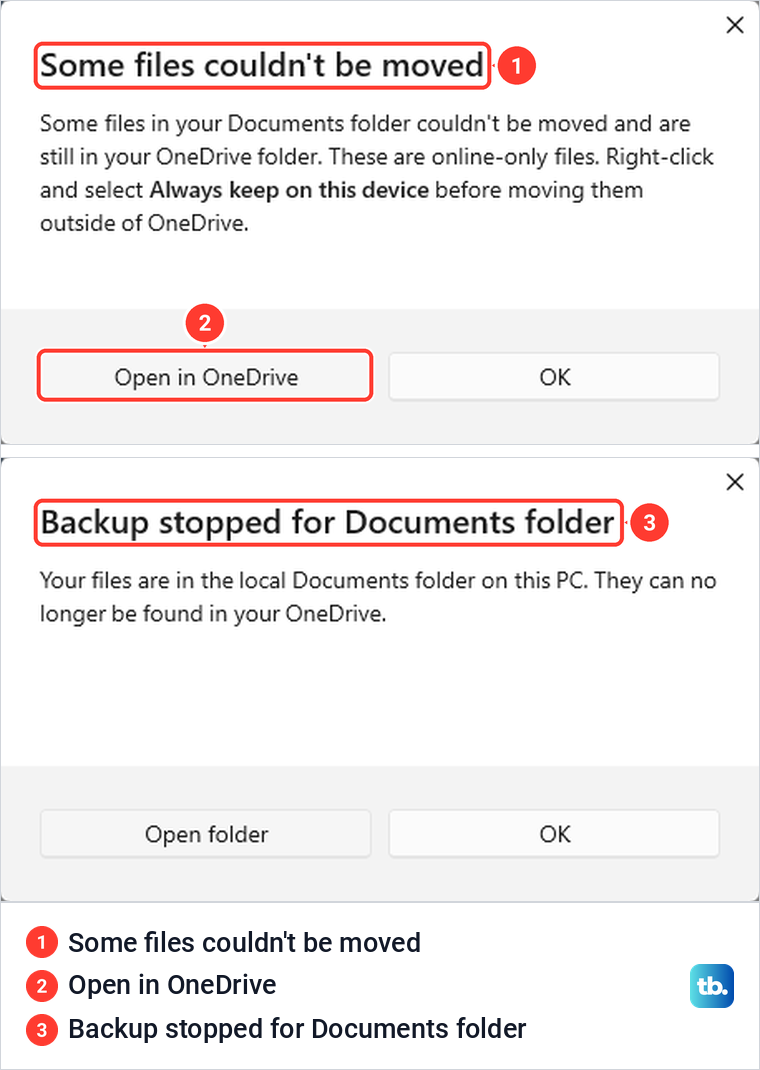
Once we set that file to Always keep on this device, it moved to the PC with the others the next time backup was stopped. Microsoft also lists a "File is open and cannot be moved" message, but with a file from the folder open in Notepad we got no error at all. Microsoft's third message, "OneNote notebooks can't be moved", appears because notebooks are cloud-based.
The finished stop said "Backup stopped for Documents folder": "Your files are in the local Documents folder on this PC. They can no longer be found in your OneDrive." File Explorer then showed the files in the PC's own Documents folder with no Status column, next to a new Shortcut to Documents that points back to OneDrive.
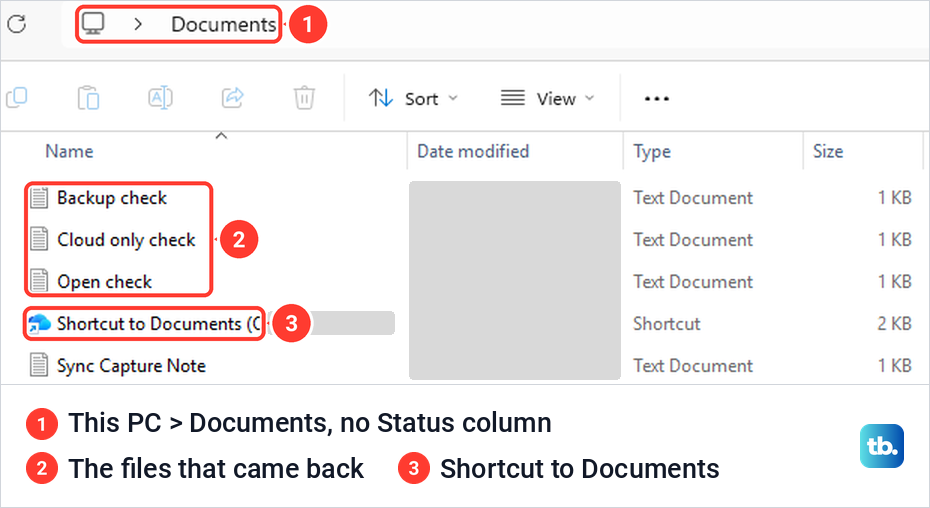
OneDrive no longer backs up files you keep only on your PC, so make sure you have another backup if you need one. Our guide shows how to set up File History backups on the same PC.
Stop syncing some folders to this PC
If you still want OneDrive but not every folder on this PC, hide the ones you do not need. Open OneDrive's Settings, go to Account and select Choose folders. The window says unselected folders will be hidden from File Explorer, and lists each cloud folder with its size.
Clearing a box changes the note under the list to: "If you hide these folders on your PC, the files will stay on OneDrive but won't be available on this PC. Any items in this folder will be deleted from this PC." When we selected OK, the window closed with no further prompt and the folder was gone from File Explorer at once.
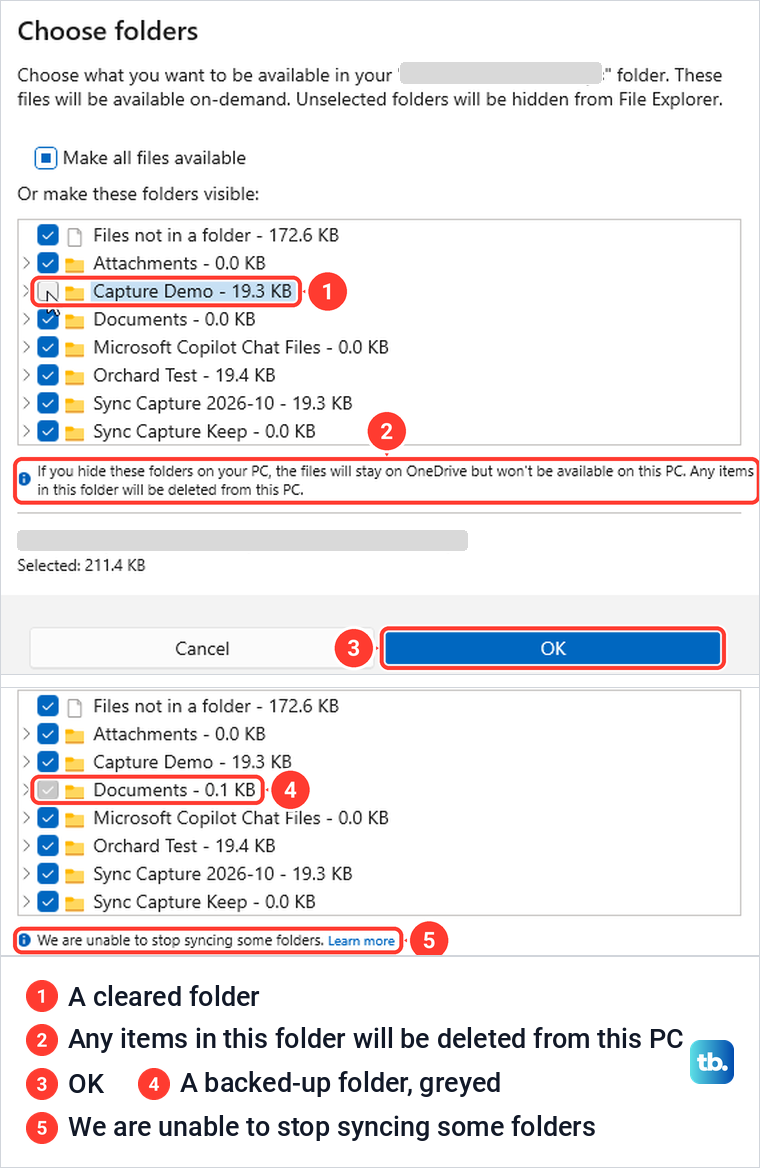
Ticking the folder again and selecting OK brought it back, but every file in it came back online-only, including a text file that had been on the PC. Microsoft adds that these choices are saved separately for each computer and each account.
A folder that OneDrive is backing up cannot be hidden here. Our backed-up Documents folder had a grey, ticked box that a click did not change, and the list carried the note "We are unable to stop syncing some folders." Desktop and Pictures, which were not backed up, were not listed at all. Use Manage backup for those three folders.
Unlink this PC to stop OneDrive from syncing
Unlinking is Microsoft's answer for anyone who does not want to use OneDrive, and it is how you unsync OneDrive without removing the app. Select the cloud, select the gear, choose Settings and open Account, which shows your account name and address with a blue Unlink this PC link under them. If Manage backup shows Desktop, Documents or Pictures as backed up, stop that backup first, as described above.
For a work account, the "Unlink account on this PC?" box names your account, says your business content will stop syncing, and adds: "Locally available files will remain on this device while online only files will be removed". Select Unlink account to finish, or Cancel to back out.
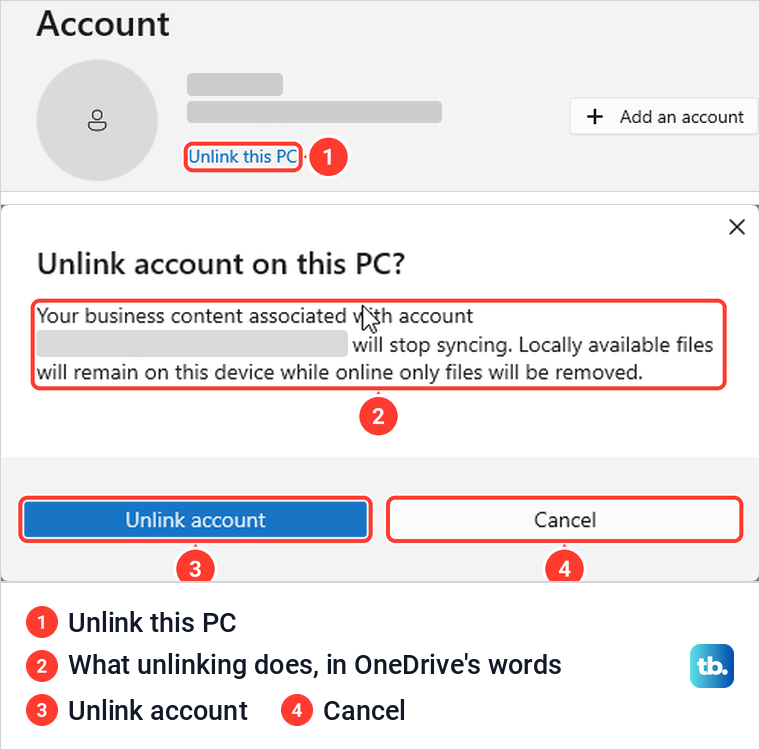
After we selected Unlink account, the Settings window closed and a "Sign in to OneDrive" window opened with the address already filled in. Closing it with the X ended OneDrive: the cloud left the notification area, and File Explorer's navigation pane no longer listed OneDrive.
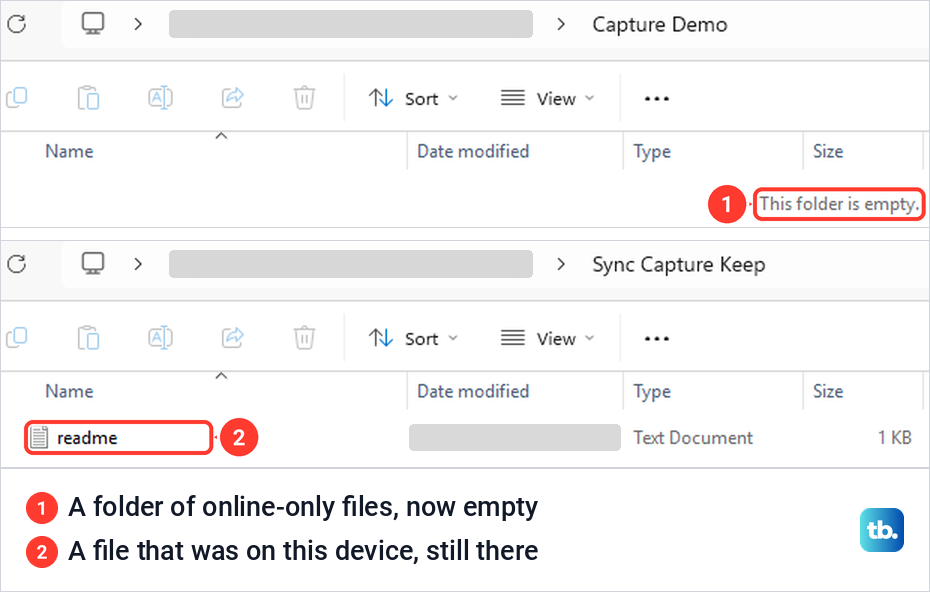
The OneDrive folder stayed in the user folder as a plain folder with no Status column. A file that had been available on this device was still there and opened normally, while folders whose files had been online-only were empty. Microsoft says everything stays available on OneDrive on the web, so set the files you need to Always keep on this device before you unlink.
To use OneDrive on this PC again later, sign in from that window or the OneDrive app and set up OneDrive on Windows as you did the first time. If files then refuse to update, work through our steps to fix OneDrive sync problems.
Uninstall OneDrive on Windows 11
Uninstalling removes the sync app. Microsoft says you won't lose files or data by uninstalling and can always reach them by signing in to OneDrive.com. Before you uninstall, set the files you need to Always keep on this device, or unlink first, so nothing you need is online-only on this PC.
Press Windows, type Programs and select Add or remove programs, which on Windows 11, version 25H2 opened Settings > Apps > Installed apps. Search the list for OneDrive. Ours showed Microsoft OneDrive from Microsoft Corporation, and its three-dot menu offered Uninstall with Modify greyed out. Select Uninstall, and a small box warns that the app and its related info will be uninstalled, so select Uninstall again.
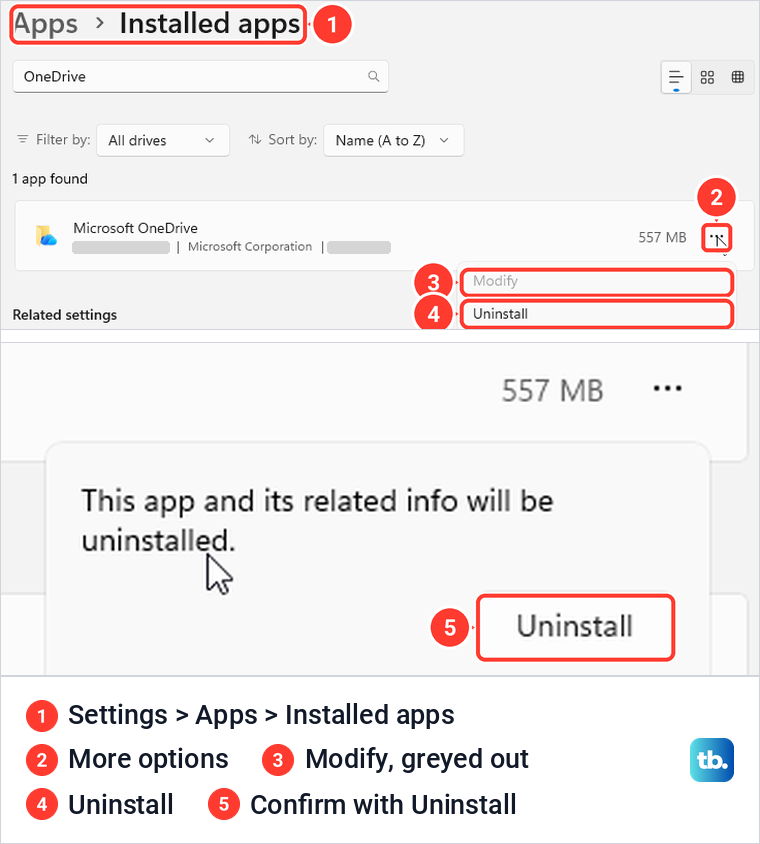
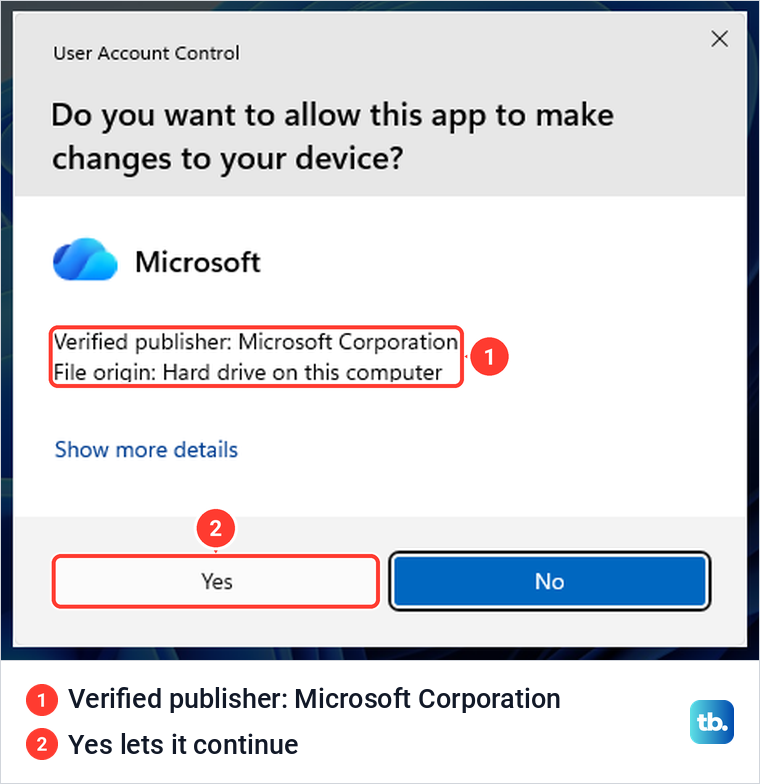
Windows then asks for permission. On our PC a User Account Control box appeared, naming Microsoft Corporation as the verified publisher, and Yes is the button that lets the uninstall continue. Microsoft's instruction is to type the administrator password or give confirmation if you are prompted, so on a work PC or a standard account an administrator may have to approve it.
Microsoft's help page still sends you to Apps & features and says OneDrive is built in to some versions of Windows and cannot be uninstalled there, but Windows 11, version 25H2 offered the Uninstall button on our PC. Our guide on how to uninstall programs in Windows 11 covers the Installed apps screen, and you can install the OneDrive desktop app again at any time.
Microsoft's steps for hiding OneDrive are to unlink it, tick Hidden on the General tab of the OneDrive folder's Properties, and then quit OneDrive. When we ticked Hidden on its own while OneDrive was still signed in, File Explorer kept listing the folder in its navigation pane, even in a new window. Unlinking is what removed it from the pane on our PC.
Keep Word from saving to OneDrive
Word has its own save settings, separate from the OneDrive app. On our PC, pressing Ctrl + S on a new document in Word for Microsoft 365 offered a work OneDrive as the location, and after we saved there AutoSave switched itself On.
The AutoSave switch at the top left is for that one file: its tooltip reads "Click to turn off AutoSave for this file", and one click turned it Off with no prompt. To make Off the default, open File > Options > Save, clear the AutoSave box for cloud files and restart Word.
On the same page, tick Save to Computer by default and set Default local file location to save new documents on your PC, or press F12 for the classic Save As dialog. If Word then refuses to save, fix a Word document that will not save.
What the OneDrive website can and cannot turn off
OneDrive on the web has no switch for the app on your PC. In Microsoft Edge, nothing in the Settings pane behind its gear paused, stopped or unlinked a PC.
Signing out of the website only ends that browser session: select your account picture at the top right and choose Sign out. Signing out on every device is a separate job, covered in our guide to log out of a Microsoft account everywhere.
Turn off OneDrive on a Mac, iPhone or Android phone
On a Mac, Microsoft's steps are to click the OneDrive cloud in the menu bar, open Help & Settings, select Settings or Preferences, go to the Account tab and select Unlink this Mac. To remove the app completely, drag OneDrive to the Trash.
Mac folder backup is stopped from the Backup tab, under Manage backup, with Stop backup. Microsoft says files already backed up then stay in the OneDrive folder and no longer appear in the Mac's own folder, so look there before you assume they are gone.
On an iPhone, iPad or Android phone, Microsoft's steps are to tap your profile picture in the OneDrive app, tap Settings, tap the account and choose Sign out. Microsoft says your files stay available on the web and offline files remain on the device. To remove the app itself, uninstall it the way you remove any other app.
When a OneDrive setting is missing or greyed out
Check whether OneDrive is paused first. While sync was paused on our PC, Settings in the gear menu was greyed out, and it came back as soon as we resumed.
Then check that an account is connected. With no account connected, the cloud is grey with a line through it, its tooltip reads "Not signed in", and the flyout says "OneDrive isn't connected" with a Sign in button. The gear menu then holds only Settings, Get help and Quit OneDrive.
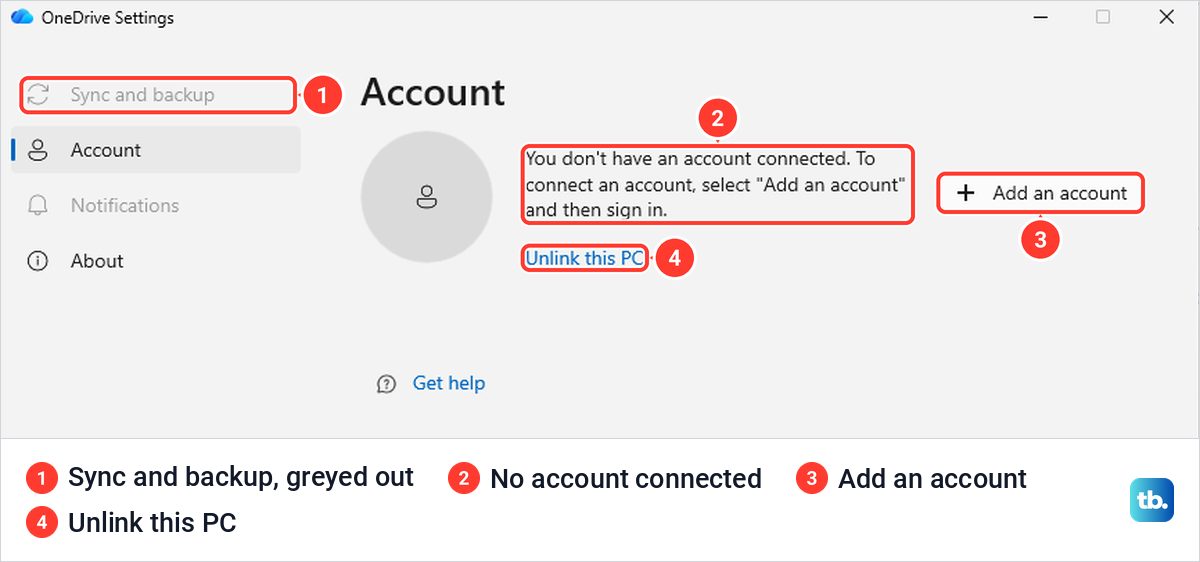
In that state OneDrive's Settings opens on Account with a message that no account is connected. Sync and backup and Notifications are greyed out, so there is no Manage backup to find, while Unlink this PC is still there.
If View online answers "You can't access this site", the browser may be signed in to a different account from the one OneDrive syncs. That was the cause on our PC, where the page said the signed-in address did not have permission and offered Sign in with a different account.
Administrators have real controls here. Microsoft says some settings may not be available with a work or school account and tells you to contact your IT admin, and one of its policies starts OneDrive at every sign-in and overrides the user's own choice. On a managed PC the startup switch may not stick, so ask your IT team rather than working around it.
How we tested this guide
We tested this in the OneDrive app, File Explorer and Word for Microsoft 365 on Windows 11, version 25H2, pausing sync, stopping folder backup, quitting OneDrive and unlinking the PC.
Frequently Asked Questions
How do I turn off OneDrive without deleting my files?
Pause or quit it, which leave every file where it is. If you unlink this PC, files on this device stay and online-only files are removed from the PC, so right-click the files or folders you need and choose Always keep on this device first. Microsoft says the files stay on OneDrive on the web.
How do I stop OneDrive from syncing without uninstalling it?
Select Unlink this PC on the Account page of OneDrive's Settings, then Unlink account. For a break of a few hours, use Pause syncing in the gear menu instead.
Does uninstalling OneDrive delete my files?
No. Microsoft says you won't lose files or data by uninstalling OneDrive, and you can reach them at any time by signing in to OneDrive.com.
How do I stop OneDrive from backing up my Documents folder?
In OneDrive's Settings, select Manage backup on Sync and backup and turn off Documents. Choose Stop backup and choose where to keep files, then Only on my PC to keep the files on the PC, after setting any online-only files to Always keep on this device.
Why did a folder disappear from my PC after I stopped syncing it?
Clearing a folder in Choose folders removes it from this PC, as the note in that window warns. OneDrive's note says the files stay on OneDrive, and ticking the folder again brings it back with its files online-only.
Why is OneDrive missing from Windows startup apps?
Turning off the Start OneDrive switch in OneDrive's own Settings removed it from Windows' startup list on our PC. Turn that switch back on and the Microsoft OneDrive row returns.
Why is OneDrive still running after I disabled it at startup?
The startup switch only affects your next sign-in. When we turned off the Windows startup switch, the OneDrive process was still running afterwards, so choose Quit OneDrive from the gear menu to close it now.