You want the OneDrive app for desktop, but search results can point you toward the wrong app, old Windows downloads, or third-party installers. The clean route is simple: use the OneDrive app already built into Windows 11, download it from Microsoft for Windows 10 or reinstall cases, or install it on Mac through Microsoft or the Mac App Store. Follow the path that matches your computer and account type.
1. Open OneDrive from Windows 11 first
Start with the copy Windows 11 already includes before downloading another installer. Select Start, search for OneDrive, then open OneDrive.
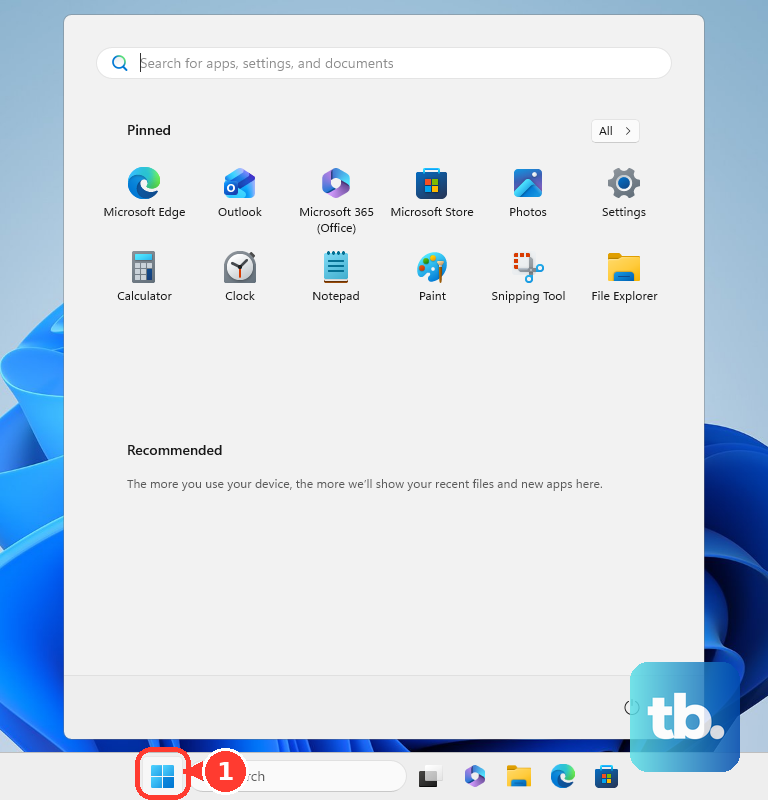
When OneDrive Setup appears, enter your personal Microsoft account or your work or school account, then select Sign in. On This is your OneDrive folder, select Next, or select Change location to pick another folder.
On All your files, ready and on-demand, select Next. If Start search does not show OneDrive, use the Microsoft download route below.
2. Download OneDrive for Windows from Microsoft
Open the Microsoft OneDrive download page, then select Download OneDrive. Open OneDriveSetup.exe, follow the setup prompts, and open OneDrive.
Enter your personal Microsoft account or your work or school account, then select Sign in. On This is your OneDrive folder, select Next or Change location, and on All your files, ready and on-demand, select Next.
For Windows 10, Windows 11, or a PC where OneDrive was removed, use Microsoft's official OneDrive download page at microsoft.com/en-us/microsoft-365/onedrive/download. Do not use third-party download portals or copied direct installer links.
Microsoft lists Windows 10, Windows 11, and Windows Server 2016 or newer for the current desktop sync app requirements. Windows 7, Windows 8, and Windows 8.1 are not a current desktop app install path.
3. Choose the right Windows app
Pick Microsoft OneDrive from the OneDrive website when you want the desktop backup and sync app. The Microsoft Store OneDrive app is for viewing your OneDrive, so it is not the same tool for syncing files and folders.
You also do not need to manually pick 32-bit, 64-bit, or ARM64 for a normal install. Microsoft says 32-bit installs automatically on Windows 10, 64-bit installs automatically with later Windows versions, and ARM64 installs automatically on Windows on ARM. You cannot have both 32-bit and 64-bit OneDrive installed at the same time.
Skip Groove.exe references in older SharePoint or Office tutorials. Microsoft's current path is the OneDrive sync app.
4. Install OneDrive on a Mac
For the standalone installer, open Microsoft's OneDrive download page and select the Mac standalone download option. Open the downloaded installer package, follow the installation prompts, then press Cmd + Space.
Type OneDrive, open OneDrive, and sign in with your Microsoft account. Keep the default folder, or select Change Location and then Choose this location.
Mac users have two current routes: Microsoft's standalone installer or the Mac App Store. Microsoft lists macOS 14.4 or later for current OneDrive for Mac support on Apple silicon and Intel Macs.
To use the App Store version instead, open Mac App Store, search for OneDrive, select OneDrive by Microsoft Corporation, then select Get or Install.
5. Reinstall OneDrive after removal
Use a reinstall when OneDrive was removed from the computer or needs a clean setup.
On Windows, select Start, type Programs, then open Add or remove programs. Current Windows 11 lists software under Installed apps, while older builds and Microsoft's OneDrive reinstall page show Apps & features. Find Microsoft OneDrive in that list, then select Uninstall. After removal, download OneDrive from Microsoft's OneDrive website, open the downloaded file, and follow the prompts to sign in and get started.
On a Mac, drag OneDrive to Trash. Then download Microsoft OneDrive from the OneDrive website, open the downloaded file, and follow the prompts. Use one OneDrive sync app at a time on macOS to avoid conflicts.
6. Install with WinGet when you use commands
Open Command Prompt or PowerShell, then run winget install --id Microsoft.OneDrive -e. After that, open OneDrive, enter your personal Microsoft account or your work or school account, and select Sign in.
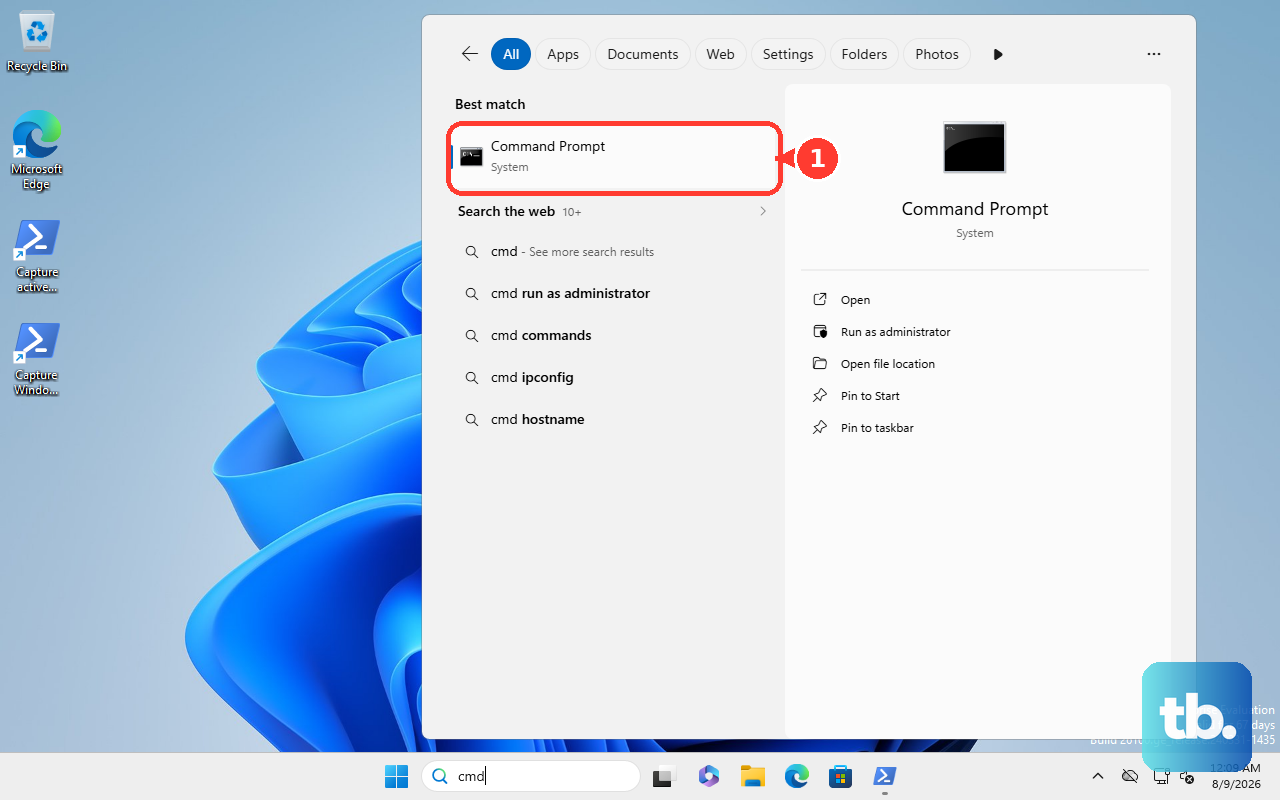
WinGet is a current Microsoft command-line option for Windows users who already install apps through Command Prompt or PowerShell. Microsoft documents WinGet install syntax, and the verified package ID is Microsoft.OneDrive.
WinGet applies to Windows 10 version 1809 build 17763 or later, Windows 11, and Windows Server 2025 when WinGet or App Installer is available.
7. Follow your organization on work or school devices
Work and school accounts use the same OneDrive sync app, but managed devices may get it from an organization instead of a manual download: on Windows, admins can install OneDrive once for all users with the per-machine installation path; on managed Macs, admins can deploy the OneDrive installer package with Microsoft Intune or other software distribution tools.
For SharePoint and Teams libraries, use the browser setup surface. Open the Microsoft 365 app launcher, choose SharePoint or Teams, open the site, go to Documents or the target folder, then select Sync. If the browser asks for permission to use Microsoft OneDrive, confirm it, then sign in to OneDrive to finish setup.
8. Keep OneDrive updated after setup
Keep OneDrive running after installation. Microsoft says the Windows sync app and the standalone Mac sync app check for updates every 24 hours while running. If the Windows sync app is stopped for more than 24 hours, it checks when it starts, and Windows also has a scheduled task that updates the sync app when it is not running.
The Mac App Store version follows the App Store update process.
Frequently Asked Questions
Can I use direct OneDrive installer links from forums?
No. Use Microsoft's official OneDrive download page or Apple's Mac App Store page. Third-party portals and copied direct binary links are deprecated routes.
Which OneDrive installer should admins use on shared Windows PCs?
Admins can use the per-machine install by running OneDriveSetup.exe /allusers so OneDrive is installed once under Program Files or Program Files (x86) for all users.
Which Mac version should I choose for Folder Backup admin configuration?
Use the Mac standalone OneDrive installer. Microsoft notes that the Mac App Store version is not currently supported for Folder Backup admin configuration.
Can a Microsoft 365 admin hide the web Sync button?
Yes. In the SharePoint admin center, go to Settings, then Sync, clear Show the Sync button on the OneDrive website, and select Save.