Messages can crash as soon as it opens, quit when you tap a thread, or freeze while loading older texts. Start with the quick fixes, then move into iOS updates, storage cleanup, account settings, and restore options.
Work from the top and stop when Messages stays open. The safer fixes come first, and the erase-and-restore steps stay at the end where they belong.
Close Messages and open it again
Begin by closing Messages from the app switcher. On iPhone X and later, go to the Home Screen, swipe up from the bottom of the screen, and pause in the middle.
Swipe right or left until you find Messages, then swipe up on the app preview. Return to the Home Screen or App Library and tap Messages.
On iPhone SE, iPhone 8, and earlier, double-click the Home button. Swipe to Messages, swipe up on its preview, and open Messages again.
Restart the iPhone
A normal restart is the next quick fix when Messages keeps closing after you reopen it. On iPhone X, 11, 12, 13, or later, press and hold either volume button and the side button until the power-off slider appears.
Drag the slider, wait 30 seconds, then press and hold the side button until the Apple logo appears. On iPhone 6, 7, 8, or SE 2nd or 3rd generation, press and hold the side button until the power-off slider appears, drag it, wait 30 seconds, and turn the iPhone back on with the side button. On iPhone SE 1st generation, iPhone 5, or earlier, press and hold the top button until the power-off slider appears, drag it, wait 30 seconds, then hold the top button again until the Apple logo appears.
When the iPhone is frozen, unresponsive, or will not restart normally, force restart it. For an iPhone with Face ID, and for iPhone 8 or iPhone SE 2nd generation and later, press and quickly release volume up, press and quickly release volume down, then hold the side button until the Apple logo appears; iPhone 7 uses side button plus volume down, and iPhone 6s or earlier, including iPhone SE 1st generation, uses Home plus side or top button.
If Messages still crashes after the restart, install the latest iOS update next.
Install the latest iOS update
Use this when Messages opens and closes even after a restart, or when the iPhone has a pending system update. Built-in Messages is updated through iOS on ordinary U.S. iPhones, not through a separate App Store update.
Open Settings > General > Software Update. When an update is available, tap Download and Install and follow the onscreen instructions.
For automatic updates, open Settings > General > Software Update > Automatic Updates. Turn on Automatically Install or Automatically Download.
When a wireless update fails or storage blocks it, update from a computer. On a Mac with macOS Catalina or later, back up the iPhone, connect it, open Finder, select the iPhone in the sidebar, click General, click Check for Update, then click Download and Update.
On Windows, install Apple’s Apple Devices app from the Microsoft Store. Connect the iPhone, open Apple Devices, select the device in the sidebar, choose General, select Check for Update, and select Update.
Free up storage and clear heavy conversations
The most common storage-related cause is a Messages library packed with large attachments.
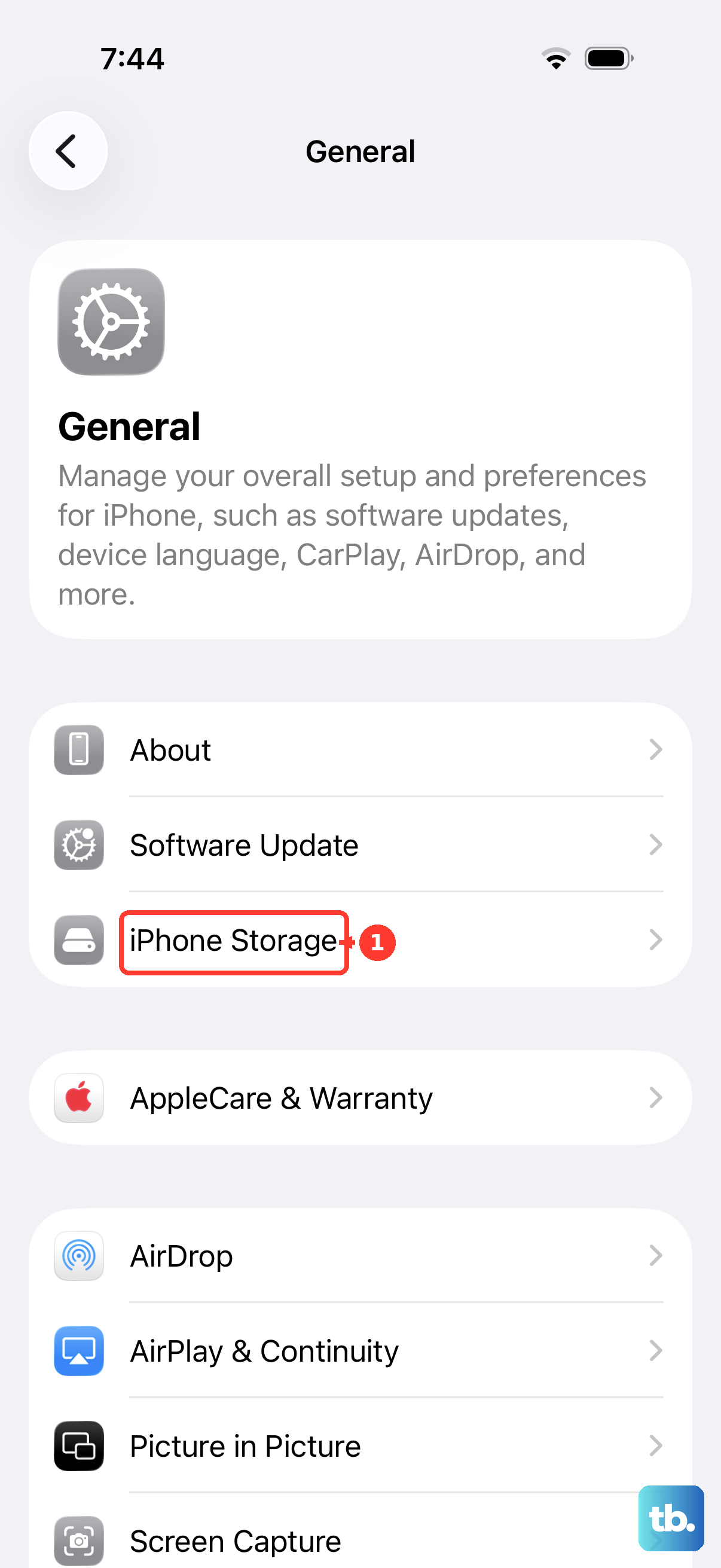
Open Settings > General > iPhone Storage and review the recommendations. Tap Show All when it appears, then tap Enable for a recommendation or open a recommendation to review content you can delete.
Inside Messages, open a conversation with large photos, videos, or files. Touch and hold a message bubble or attachment, tap More, select what you want to remove, and tap the Delete button.
To remove attachment groups from one conversation, tap the contact or group icon at the top, tap a category such as Photos, tap Edit, tap Select, choose the attachments, tap the Delete button, and confirm.
For a thread you no longer need, swipe left on it in the conversation list and tap the Delete button, or touch and hold the conversation and tap Delete. To delete several threads, tap Edit, tap Select Messages, choose the conversations, tap the Delete button, and tap Delete.
After deleting, open Messages, tap the Filter button, tap Recently Deleted, select conversations, tap the Delete button, and tap Delete. Permanent deletion cannot be undone.
Remove the conversation from another device
When one thread triggers the crash, remove that thread from another Apple device instead of fighting the iPhone screen. This works when Messages in iCloud is enabled for the same Apple Account.
On the iPhone, open Settings > [your name] > iCloud > Messages. If Messages does not appear, tap See All in the Saved to iCloud section, then turn on Use on this iPhone.
Delete the problem conversation from another device signed into the same Apple Account where Messages in iCloud is on. Deletes sync across devices where Messages in iCloud is enabled.
On a Mac, open Messages, select the conversation, and delete it. For automatic cleanup on Mac, open Messages > Settings > General, use the Keep messages pop-up menu, and choose a shorter history option.
Refresh iMessage and account settings
Open Settings > Apps > Messages and turn iMessage off. On iOS 17 and earlier, the same controls sit at Settings > Messages.
Turn iMessage back on from the same screen.
Tap Send & Receive and choose the phone number or email address you want to use with Messages.
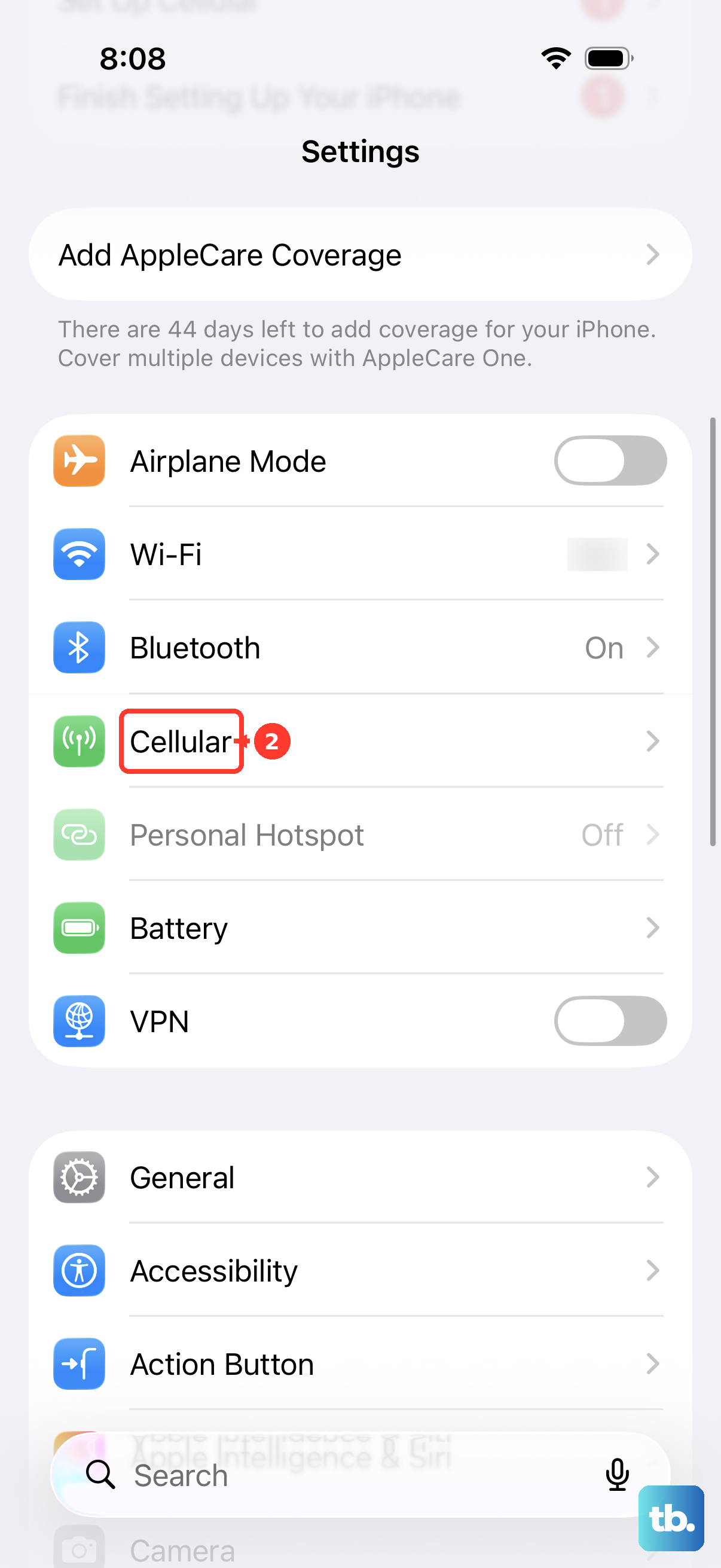
Open Settings > Cellular and make sure your phone line is turned on. If you use multiple SIMs, make sure the intended number is selected and enabled.
Open Apple’s System Status page in a browser and check iMessage.
If Apple lists an iMessage outage, wait for service recovery before changing more settings.
Use Siri to send or reply to a message while you troubleshoot: open Settings > Siri, or Apple Intelligence & Siri > Messaging with Siri, then turn on Automatically Send Messages if you want replies to send without confirmation.
Turn off iMessage apps that crash Messages
Use this when crashes started around stickers, GIFs, polls, or another third-party iMessage extension.
- 1.Open Settings > Apps > Messages, or Settings > Messages on iOS 17 and earlier.
- 2.Tap iMessage Apps.
- 3.Tap the app connected to the crash to turn it off.
- 4.Delete the related app or remove it from the Home Screen for a cleaner test.
- 5.Redownload the app later from the App Store after Messages is stable.
Check work or school restrictions
This applies when the iPhone is owned or managed by an employer, school, or other organization. Managed settings can restrict Messages or iMessage controls, which blocks normal consumer fixes.
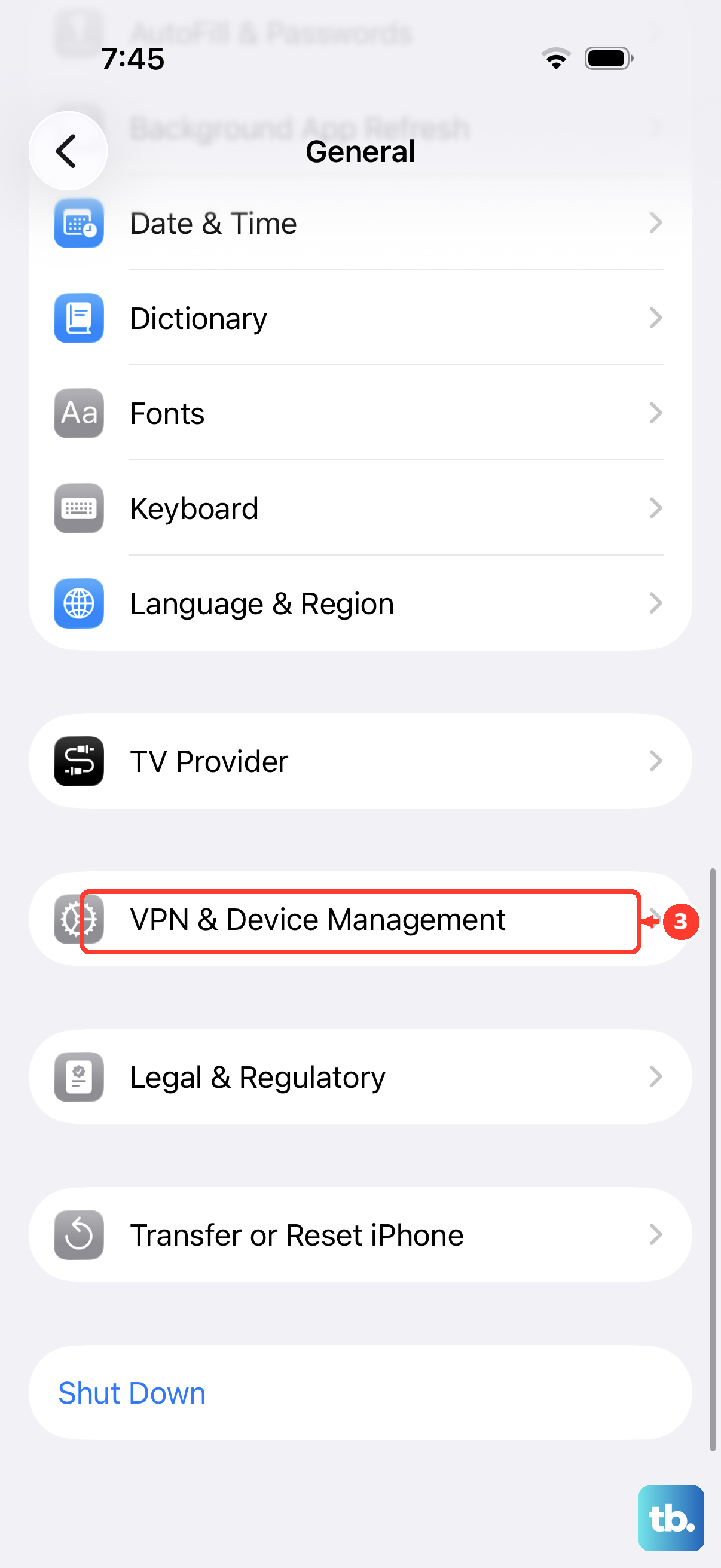
Open Settings and look for a supervision message at the top of the main page. To view installed management changes, go to Settings > General > VPN & Device Management and tap the installed profile.
If Messages or iMessage is restricted, contact the school or work administrator. Ask the organization that controls the iPhone before erasing it.
Use reset and restore only at the end
Open Settings > General > Transfer or Reset [device] > Reset > Reset Network Settings when Messages crashes or fails while activating or syncing over network services after simpler checks fail.
Reset Network Settings removes Wi-Fi networks and passwords, cellular settings, and VPN/APN settings.
Use Settings > General > Transfer or Reset [device] > Reset > Reset All Settings only after restart and basic troubleshooting.
Reset All Settings does not delete photos, messages, apps, or documents, but system settings return to defaults.
Create a backup before erasing the iPhone.
To erase from the iPhone, open Settings > General > Transfer or Reset [device] > Erase All Content and Settings. Tap Continue, choose whether to keep or delete eSIM, enter the device passcode, enter the Apple Account password, and wait for the erase to finish.
During setup, follow the screens until Transfer Your Apps & Data. Tap From iCloud Backup, sign in to your Apple Account, and choose a backup.
For a factory restore from a computer, update the Mac or PC, create a backup, and turn off Find My [device]. Connect the iPhone, open Finder on Mac or Apple Devices on Windows, select the device, click Restore [device], and click Restore to confirm.
A computer restore erases the iPhone and installs the latest iOS software, so use it only after the safer fixes above.
Frequently Asked Questions
Can I update Messages from the App Store?
For ordinary U.S. iPhones, update iOS instead. Apple limits deleting and redownloading Messages to eligible countries and regions such as the European Union.
Will deleting a conversation remove it from my other Apple devices?
Yes, when Messages in iCloud is enabled on those devices. Deletes sync across devices where Messages in iCloud is turned on.
What can I do if Messages crashes before I can delete a bad thread?
Use another Apple device signed into the same Apple Account with Messages in iCloud enabled. On a Mac, delete the conversation in Messages and let the deletion sync.
Does Reset All Settings delete my texts?
No. Reset All Settings does not delete photos, messages, apps, or documents. It returns system settings to defaults.