

To unpair an Apple Watch, keep it close to your iPhone, open the Watch app, tap All Watches on the My Watch tab, tap the info button next to the watch, then tap Unpair Apple Watch and confirm. Choose what happens to any cellular plan and enter your Apple Account password. Apple says the iPhone backs the watch up first, then erases it and removes Activation Lock, so it is ready for someone else or a fresh setup.
Two kinds of reader need something else. If you only want the same watch on a new iPhone, Apple's setup for the new phone usually moves it across with no unpairing at all. If you no longer have the iPhone, erase the watch itself, then remove it from your account at iCloud.com, because an erase on its own leaves Activation Lock on.
The short version
- To unpair: Watch app on your iPhone, then My Watch, All Watches, the info button and Unpair Apple Watch.
- It backs up first: Apple says your iPhone saves a backup of the watch, then erases it and turns off Activation Lock.
- New iPhone: you usually do not unpair. Set up the new iPhone from a backup and tap Continue when it offers the watch.
- No iPhone: erase the watch in Settings, General, Reset, then remove it at icloud.com/find.
- Lost watch: use Lost Mode, not unpair, so Activation Lock keeps protecting it.
Unpair, erase or move your watch
Unpairing, erasing and moving a watch to a new iPhone sound alike but leave the watch in different states. The difference that matters most is Activation Lock, the link between the watch and your Apple Account that stops anyone else from setting it up.
| Your situation | Where to do it | What happens to the watch | Activation Lock afterwards |
|---|---|---|---|
| You have the iPhone and the watch is leaving you | Watch app > My Watch > All Watches > info button > Unpair Apple Watch | Backed up to the iPhone, then erased and ready to set up | Off |
| Same watch, new iPhone, old iPhone still in hand | Set up the new iPhone from a backup of the old one, then tap Continue when it offers the watch | Nothing is erased, the watch moves over | Stays on, under your account |
| You only have the watch and know its passcode | On the watch, Settings > General > Reset > Erase All Content and Settings | Erased | Stays on |
| You forgot the watch passcode | Watch on its charger, hold the side button, then hold the Digital Crown, then Reset twice | Erased | Stays on |
| You want the watch wiped but kept, iPhone nearby | Watch app > My Watch > General > Reset > Erase Apple Watch Content and Settings | Erased, then set up again | Stays on |
| You already sold or gave the watch away | Any browser, icloud.com/find, erase the watch, then Remove This Device | Erased, or erased the next time it is online | Off |
| The watch is lost or stolen | Find My, Lost Mode | Locked, not erased | Stays on, and it should |
Unpair Apple Watch from your iPhone
Apple's first instruction is to keep your Apple Watch and iPhone close together. Have your Apple Account password and the watch passcode ready before you start, and if you cannot remember the password, reset your Apple Account password first, because the last step asks for it. The app is labeled Watch on the Home Screen, while Apple's support pages call it the Apple Watch app.
Open the Watch app. On iOS 26.5 it opened on the My Watch tab, with the watch's name as the large heading, your faces under My Faces and rows such as Notifications, Smart Stack and General below. The All Watches button sits at the top left.
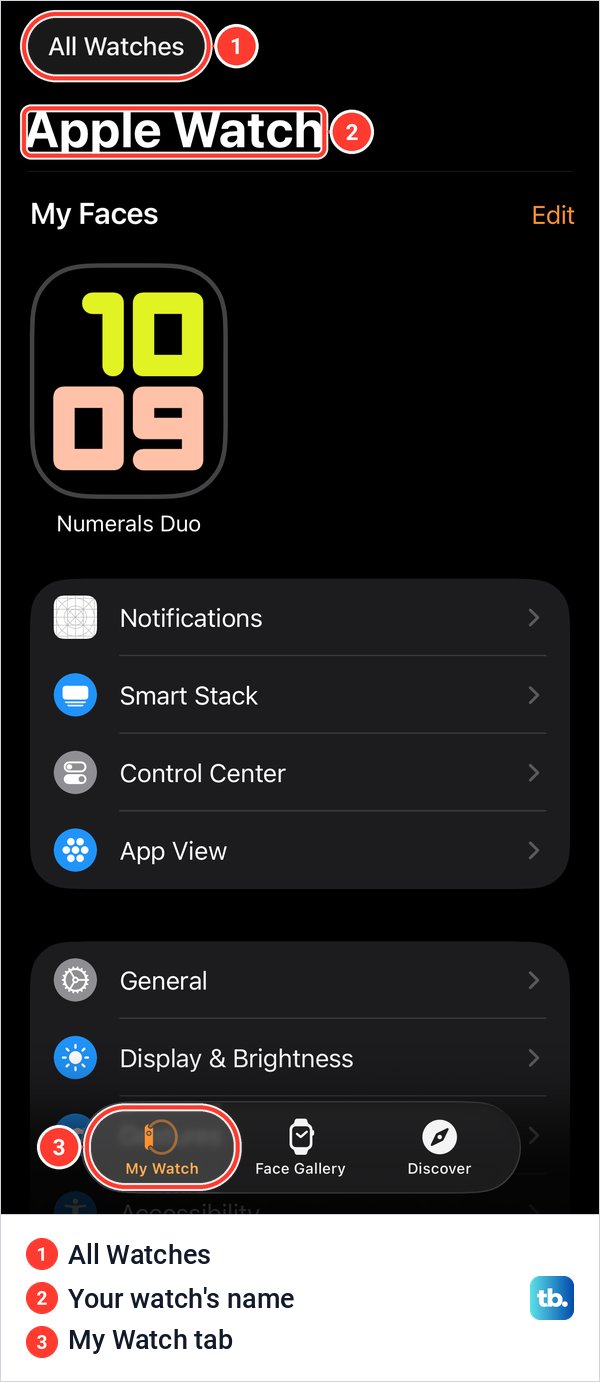
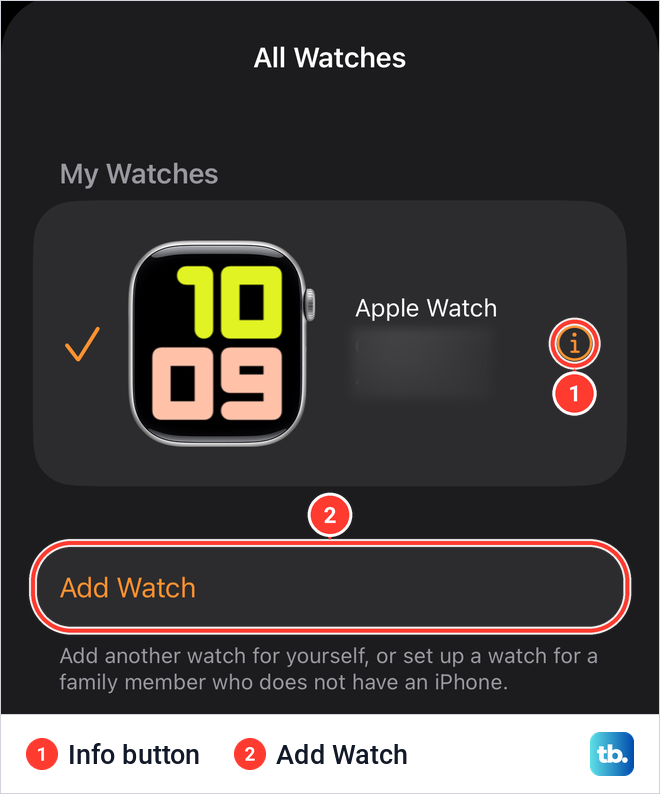
Tap All Watches. It opens as a sheet with your watches under My Watches, each with a picture, its name and the case finish and size, and a check mark next to the active one. Tap the orange info button, a small i in a circle, at the right end of the watch you want to unpair. iOS gives that button the spoken label More Info, the same name Apple's Activation Lock article uses.
The watch's own page opens under a Paired heading, with its name, watchOS version, model and network details. Scroll to the bottom and tap the red Unpair Apple Watch. That page also lists the serial number and other identifiers, so crop them out if you ever share a screenshot of it.
A confirmation appears. On iOS 26.5 it read "You will need to re-pair with this Apple Watch to use it again." above a red button that says Unpair followed by your watch's name, and a Cancel button. Apple's step at this point is to tap Unpair [your Apple Watch name].
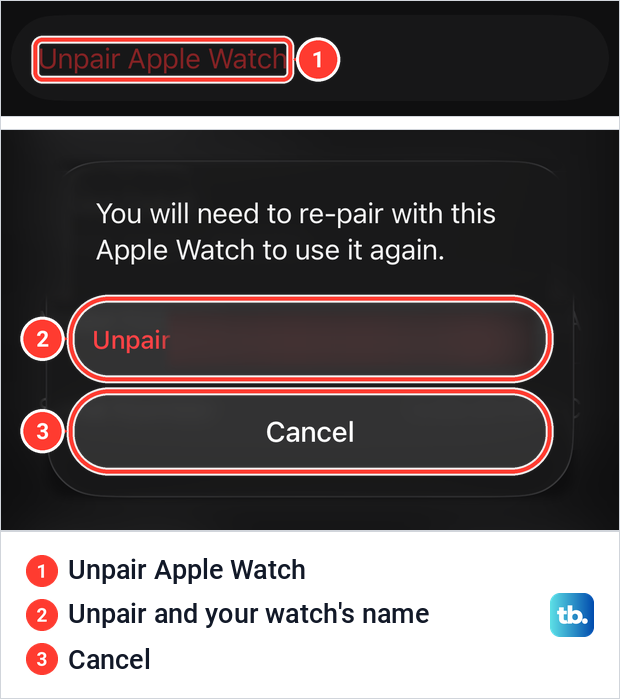
The steps from that red button on follow Apple's instructions. If the watch has a cellular plan, choose whether to keep or remove it, as the next section explains. Then type your Apple Account password to turn off Activation Lock and tap Unpair.
Apple says the watch is then erased, removed from your Apple Account and ready to be set up again, or you can turn it off if it is leaving you. Apple gives no time for the process, so keep the two devices together until the watch has finished.
Keep or remove the cellular plan
If your watch has a cellular plan, the unpair asks what to do with it. Apple's rule is to keep the plan if you will pair the same watch and iPhone again, and to remove it if you are selling or giving the watch away. Apple's User Guide adds pairing the watch with another iPhone as a reason to remove it.
Removing the plan from the watch does not end your contract. Apple says to contact your carrier to cancel the cellular subscription, and that carrier fees may apply. You can also remove a plan at any time without unpairing, in the Watch app under My Watch > Cellular, the info button next to the plan, then Remove [carrier] Plan.
What the backup keeps when you unpair
Apple says that when you unpair, the watch is backed up to your iPhone so the latest data is saved, ready to restore the watch or set up a new one. That backup reaches iCloud or your computer only inside the iPhone's own backup, which is why backing up the iPhone also backs up the watch.
Apple's list of what the watch backup keeps covers settings for built-in and third-party apps, data for some built-in apps, brightness, sound and haptic settings, notification settings, the app layout on the Home Screen and your Health and Fitness data. It also keeps synced playlists and albums, the photo album you sync and your time zone. Watch faces come back with their customizations and order when you restore the backup.
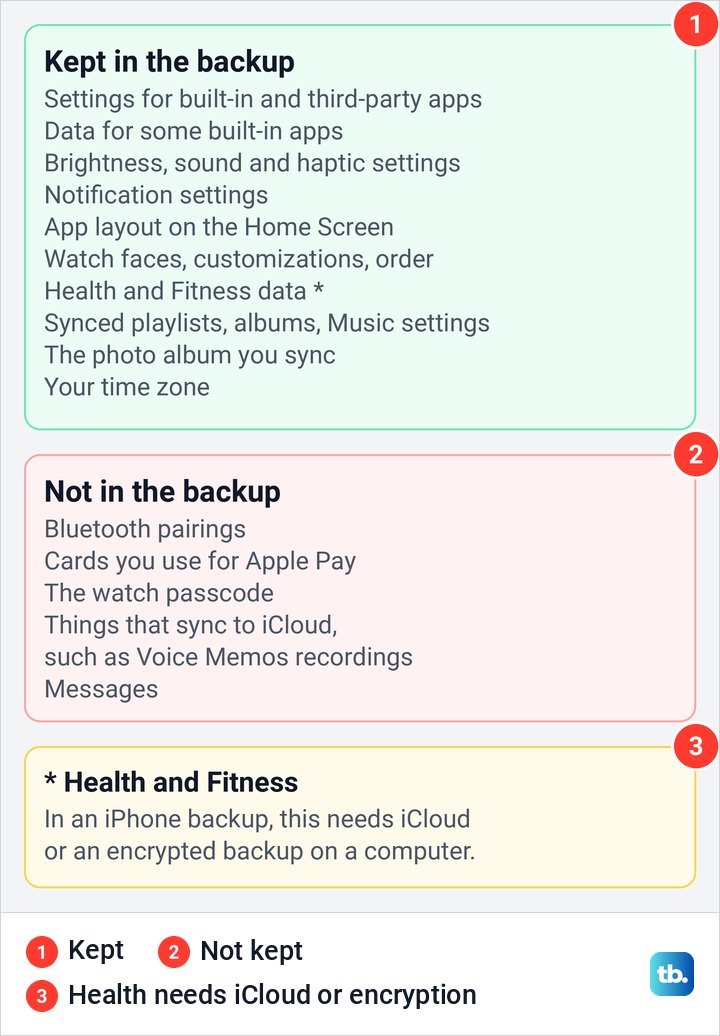
What the backup leaves out matters more when you are about to wipe the watch. Apple lists Bluetooth pairings, the cards you use for Apple Pay, the watch passcode, anything that syncs through iCloud such as Voice Memos recordings, and Messages. So after you pair a watch again, you set a new passcode and add your cards to Apple Pay again.
Health data comes with a condition. Apple says that to back up Health and Fitness data you need iCloud or an encrypted backup on your computer, and that you cannot view the contents of backups stored in iCloud. Back up the iPhone after unpairing so its latest watch backup is included in your iCloud or computer backup, and if that backup fails, sort out an iPhone that will not back up to iCloud first.
Check whether Activation Lock is on
Activation Lock turns on by itself when you set up Find My on the paired iPhone. Apple says that with it on, your Apple Account details are needed before anyone can unpair the watch, pair it with a new iPhone or turn off Find My on it.
To check, open the Watch app, tap All Watches, then the info button next to the watch. Apple's rule is that if you see Find My Apple Watch on that page, Activation Lock is on.
This is the quickest check before you sell or hand over a watch, and a buyer's own check is the pairing test in the buying section below. Unpairing turns the lock off, and so does removing the watch at iCloud.com, but erasing the watch on its own does not.
Erase Apple Watch when you don't have the iPhone
Without the paired iPhone you cannot unpair in the usual way, but you can erase the watch from its own Settings app. Apple's steps are to open Settings on the watch, tap General, then Reset, then Erase All Content and Settings. Type your passcode if asked, choose whether to keep or remove a cellular plan, and tap Erase All to confirm. General sits further down the Settings list, so scroll to reach it.
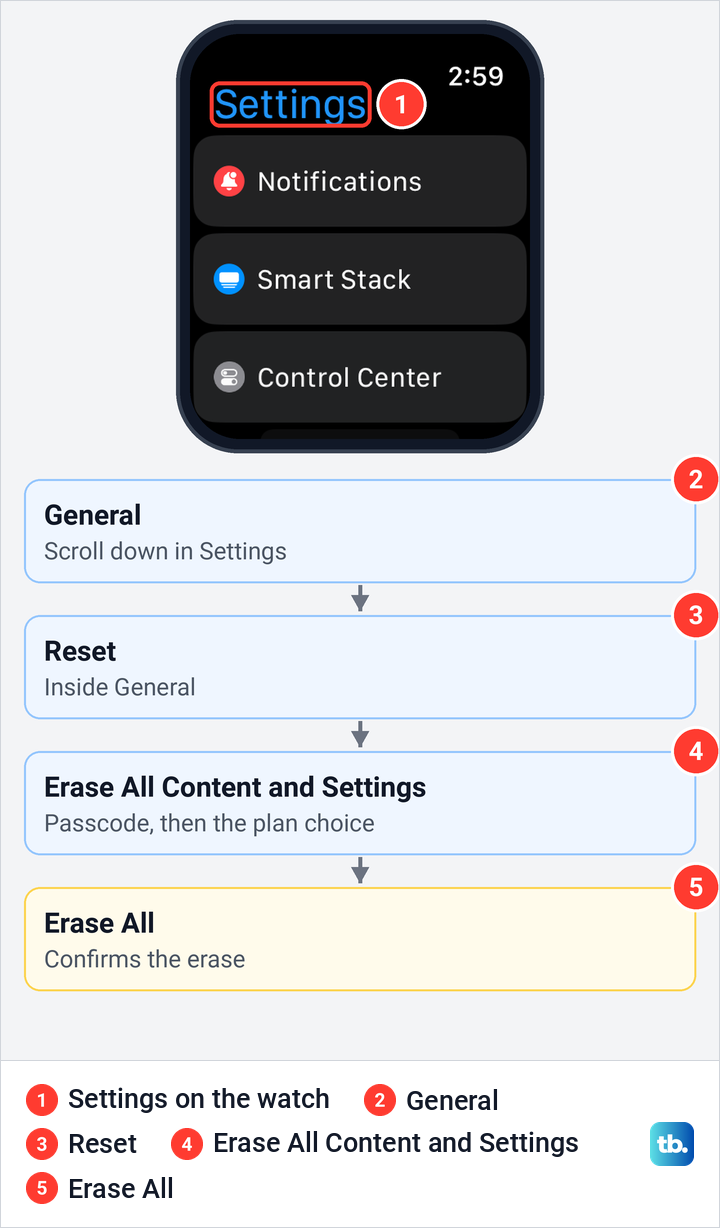
The catch is Activation Lock. Apple says this erase restores the watch to factory settings but does not remove Activation Lock, and that you need the Apple Account and password linked to the watch to set it up again. For a watch you are selling or giving away, Apple says it is best to unpair it with the iPhone, and if the iPhone is gone, finish with the iCloud.com steps below.
Erase the watch from the Watch app instead
If the watch is near your iPhone and you want it wiped but still on your account, Apple gives a route from the phone. In the Watch app, tap My Watch, then General, then Reset, then Erase Apple Watch Content and Settings, and tap it again at the bottom of the screen to confirm. Apple says you might need to enter your Apple Account password.
This route also helps when you have forgotten the watch passcode, because it runs from the iPhone. Like the erase on the watch, it leaves Activation Lock on, and Apple's advice is to unpair the watch first if you want the lock off.
Reset Apple Watch if you forgot the passcode
Apple says a forgotten Apple Watch passcode means resetting the watch and setting it up again. You can do it either from the Watch app as above or with the buttons on the watch itself.
Apple's button steps start with the charger. Put the watch on its charger and keep it there until you finish, so check that the watch is charging before you hold any button. Press and hold the side button until you see the power button in the upper-right corner of the display, then press and hold the Digital Crown until you see Erase all content and settings.
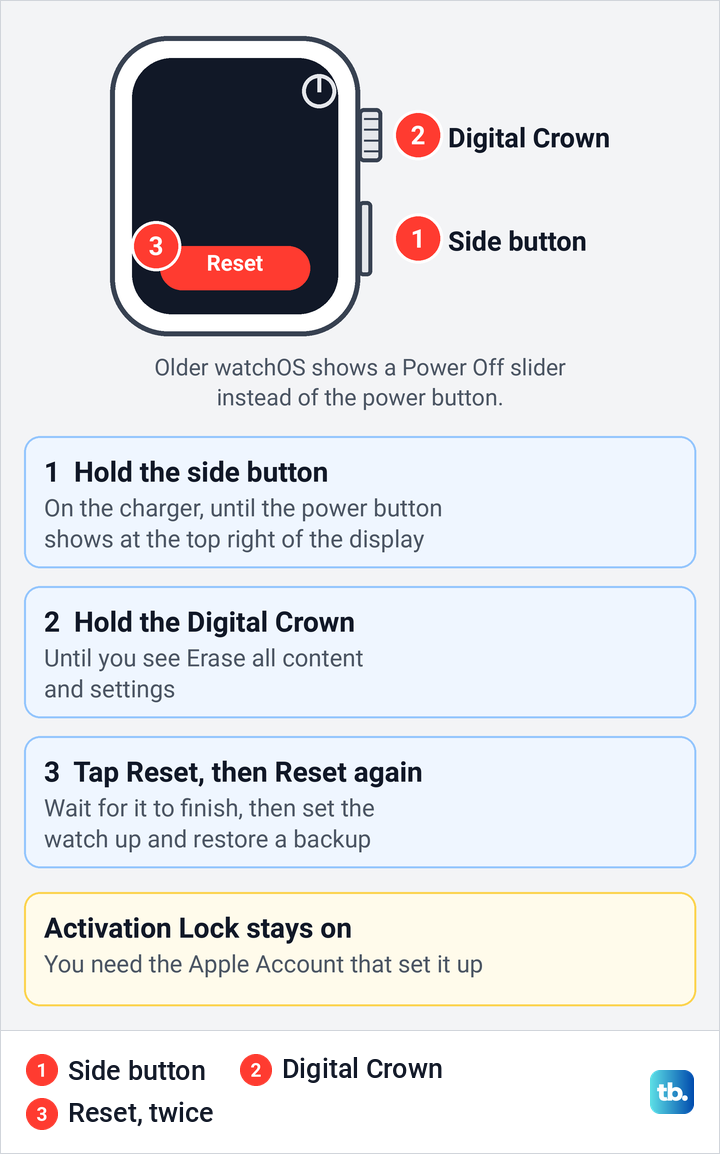
Tap Reset, then Reset again to confirm, and wait for the process to finish. Apple says a watch on an earlier version of watchOS shows a Power Off slider instead of the power button. When you set the watch up again, Apple says to restore from a backup when asked.
This reset erases all media, data and settings but does not remove Activation Lock, so you will need the Apple Account that set up the watch. Apple also warns that the watch has no reset button or SIM slot, since the holes in the case are for sound and, on Apple Watch Ultra, water-depth measurement, so never push anything into them. If the screen stays dark when you hold the side button, sort out an Apple Watch that will not turn on first.
Remove Activation Lock on iCloud.com
This is the route for a watch you already sold, gave away or can no longer reach, and it clears Activation Lock without the iPhone. Apple's iCloud User Guide gives the order: go to icloud.com/find, sign in with your Apple Account, select the watch in the list of devices and erase it.
If you cannot get a two-factor code to sign in, Apple says to select Find Devices at the bottom of the sign-in window. Because the watch is not lost, Apple says not to enter a phone number or message when you erase it. If the watch is offline, the erase begins the next time it comes online and you receive an email when it is done. When the watch is erased, select Remove This Device.
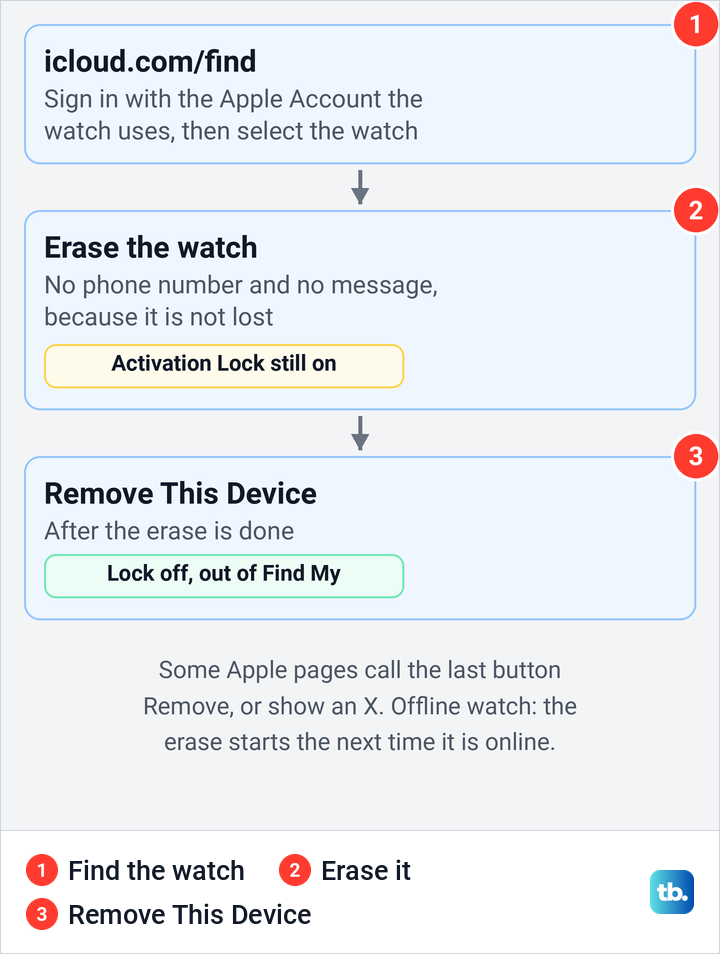
Apple says Activation Lock is then removed at once, the watch leaves Find My, and someone else can activate it. Apple's other pages name that last button differently, with the Activation Lock article saying to click Remove and then Continue, and the selling checklist showing an X button. All three put the erase first and the removal second.
Removing without erasing works differently. Apple says an online device cannot be removed, but you can mark it Ready for Repair or Trade In for the next 30 days. An offline device, such as a watch you already erased yourself, loses Activation Lock at once and leaves Find My after 30 days, but if it comes online later while still signed in to your Apple Account, Apple says it reappears and Activation Lock is turned back on.
Move your Apple Watch to a new iPhone
If you are keeping the watch and only changing iPhones, Apple's route moves it during iPhone setup with no unpairing. Update the old iPhone and the watch, make sure Health syncs to iCloud (or encrypt your computer backup), back up the old iPhone, then set up the new one from that backup. Apple wants both iPhones on Wi-Fi, the watch and new iPhone at least 50 percent charged, and your Apple Account password and watch passcode at hand.
Apple says backing up the iPhone also backs up the watch, so restore your new iPhone from a backup of the old one. If the backup will not restore, start with our fixes for a backup that will not restore on a new iPhone. When the new iPhone asks if you want to use your Apple Watch, make sure the watch is unlocked and on your wrist, then tap Continue.
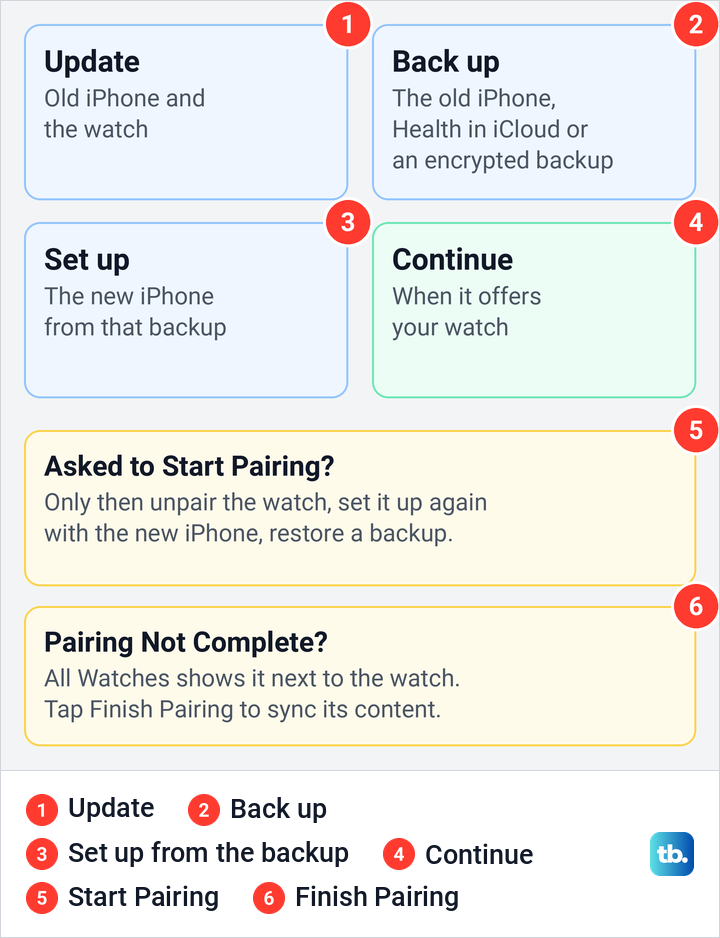
Unpair only if the Watch app on the new iPhone asks you to Start Pairing. Apple then says to unpair the watch and set it up again with the new iPhone. If All Watches shows Pairing Not Complete next to the watch, tap Finish Pairing to sync its content.
If the old iPhone is gone, Apple's order is to erase the watch, set up the new iPhone and sign in to iCloud, pair the watch, then try to restore from a backup. You lose Activity, Workouts and settings that changed since the last backup, and Apple says iCloud does not store Activity Sharing data. Apple says to make sure the iPhone and the watch are up to date first, because otherwise you might not see your backup in the list.
This page covers only the part where unpairing comes in, and every step of the move, including what to do when the prompt never appears, is in our guide to pair your Apple Watch with a new iPhone. That guide also explains how to accept the watch later if you skipped the prompt.
Pair the watch again after unpairing
To pair the watch again, Apple says to turn it on by holding the side button until the Apple logo appears, then tap Continue when the iPhone shows "Use your iPhone to set up this Apple Watch". If the message does not appear, open the Watch app, tap All Watches, then Add Watch, the button under your watches in the All Watches picture above.
Tap Set Up for Myself, then center the watch face in the iPhone's viewfinder, or tap Pair Apple Watch Manually if the camera cannot read the animation. Apple says a Make This Your New Apple Watch screen appears if you set up a watch with this iPhone before. Tap Customize Settings there to choose a backup, or Set Up as New Apple Watch to start fresh.
If the watch asks for a passcode during setup, Apple says it is still paired with another iPhone, and if you do not remember that passcode, you need to erase it first. If pairing throws an error, Apple's advice is to restart your iPhone and the watch, then try again. For a pairing that stalls, Apple says to press and hold the Digital Crown while the watch is in pairing mode and tap Reset when it appears.
Which iPhone you need depends on the watch. Apple says Apple Watch Series 12 and Apple Watch Ultra 4 need an iPhone 11 or later with iOS 27 or later, and Apple Watch SE 3 needs an iPhone 11 or later with iOS 26 or later.
Before you sell, give away or buy a used Apple Watch
Before a watch leaves you, unpair it from your iPhone, choose to remove the cellular plan if it has one, then contact your carrier to cancel the subscription. Apple says erasing removes the cards you added for Apple Pay and any photos, contacts, music or apps, and turns off iCloud, iMessage, FaceTime, Game Center and other services. Your content is not deleted from iCloud.
If the iPhone is going too, deal with the watch first. Once the watch is unpaired, you can erase the iPhone before you sell it, and turn off Find My on the iPhone as part of that.
Buying used, Apple says a passcode lock screen or the Home screen means the watch still needs to be erased. If you try to pair it and setup asks for the previous owner's Apple Account password, Activation Lock is still on, and the previous owner has to remove it, for example at iCloud.com as described above. On a cellular model, Apple also says to make sure the previous owner removed and cancelled any active plan.
If your Apple Watch is lost or stolen
Do not unpair a watch that is lost or stolen. Unpairing and Remove This Device both clear Activation Lock, which is the thing stopping someone else from using it. Apple's lost-watch page says to lock it with Lost Mode from your paired iPhone or iCloud.com/find instead.
On the iPhone, Apple's steps are to open Find My, tap Devices, select the watch, tap the More button next to its name and tap Lost Mode under Lost Apple Watch. On a computer, you reach the same device list the way you find a missing device with iCloud. Apple warns that Find My has to be on before the watch goes missing, because no other Apple service can track it.
Give an old Apple Watch to a child
Apple Watch For Your Kids, once called Family Setup, lets you set up a cellular watch from your iPhone for a family member who has no iPhone of their own. On iOS 26.5 the Add Watch button on the All Watches screen is where that kind of watch is set up. Apple says such a watch backs up directly to the family member's own iCloud account when it is on power and Wi-Fi, not to your iPhone.
To hand an old watch to a child, Apple says to erase it first. You need to be the organizer or a parent or guardian in your Family Sharing group, so set up Family Sharing first if you have not. On watchOS 27, Apple says the child needs a cellular Apple Watch SE 3 or Apple Watch Series 9 or later.
How we tested this guide
We tested this in the Watch app on iOS 26.5, paired with an Apple Watch Series 11 on watchOS 26.5, stopping at the Unpair confirmation prompt.
Frequently Asked Questions
Can you unpair an Apple Watch without the iPhone?
Not in the usual way, because unpairing runs from the iPhone's Watch app. Without the iPhone, erase the watch in Settings, General, Reset, Erase All Content and Settings, then remove it at icloud.com/find to clear Activation Lock.
Does unpairing an Apple Watch delete my health data?
The watch is wiped, but Apple says the iPhone backs it up first and the backup includes Health and Fitness data. In an iPhone backup, that data needs iCloud or an encrypted computer backup.
Do I need my Apple Account password to unpair?
Yes, if Activation Lock is on, which Apple says happens automatically when you set up Find My on the paired iPhone. Apple's last step asks for it so the lock can be turned off, and one of Apple's pages also asks for the account email address or phone number.
How do I know if Activation Lock is on?
In the Watch app, tap My Watch, All Watches and the info button next to the watch. Apple says that if you see Find My Apple Watch there, the lock is on.
Is erasing an Apple Watch the same as unpairing it?
No. Both wipe the watch, but only unpairing from the iPhone, or removing the watch at icloud.com/find, turns off Activation Lock.
Will unpairing cancel my cellular plan?
No. You choose to keep or remove the plan on the watch, and Apple says to contact your carrier to cancel the subscription.
Do I have to unpair my Apple Watch to use it with a new iPhone?
Usually not. Set up the new iPhone from a backup of the old one and tap Continue when it offers your watch, and unpair only if the Watch app on the new iPhone asks you to Start Pairing.