

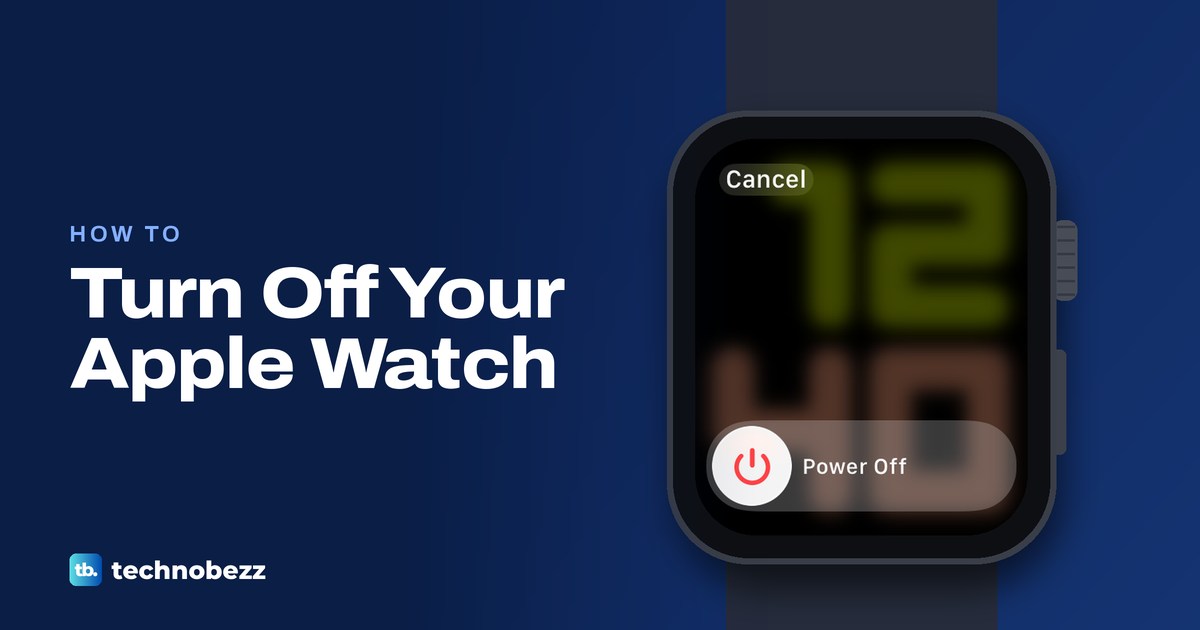
To turn off an Apple Watch, take it off its charger, press and hold the side button until the power screen appears, tap the power button in the top right, then drag the Power Off slider to the right. To turn it back on, press and hold the side button until the Apple logo appears.
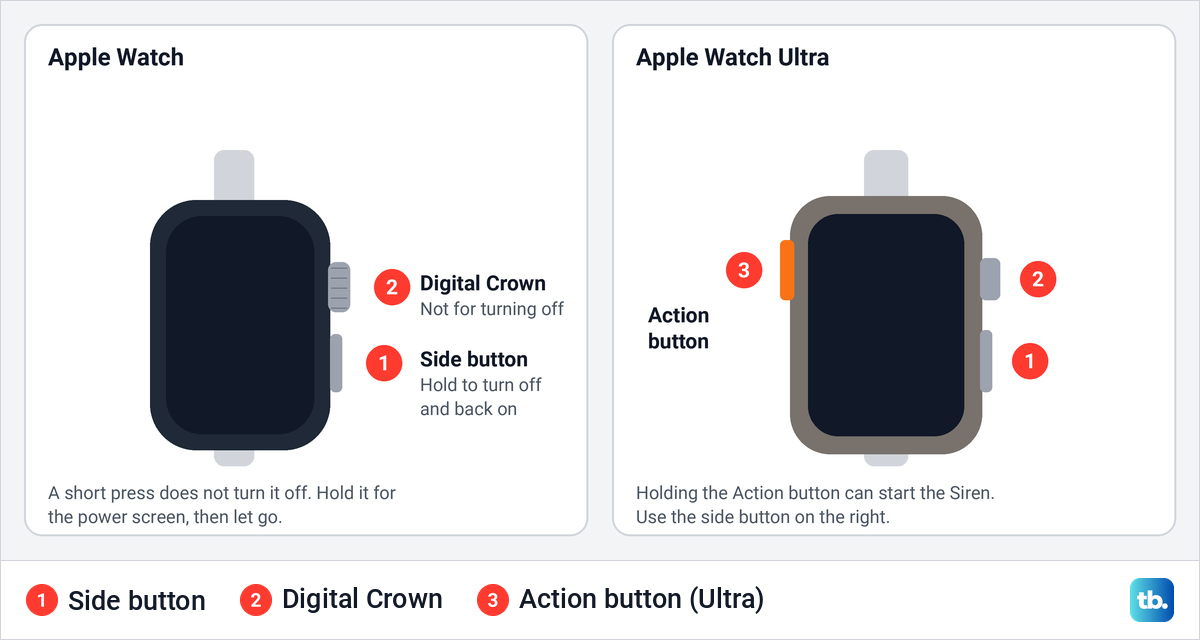
The side button is the flat button below the Digital Crown. A short press does not turn the watch off, and holding it longer than needed can start an Emergency SOS countdown, so let go as soon as the power screen shows up. On watchOS 8, the last version for the Apple Watch Series 3, the Power Off slider is on the first screen and there is no power button to tap.
If what you really want is a dark screen, a quiet watch or a longer battery, there are better tools than switching it off, and they are covered further down. We captured the power screen, the SOS countdown and the Power Off slider on an Apple Watch Series 11 with watchOS 26.5.
The short version
- Turn off: lift the watch off the charger, hold the side button, tap the power button at the top right, then drag Power Off.
- Turn on: hold the side button until the Apple logo appears.
- Let go in time: with Hold Side Button on in SOS settings, holding past the power screen starts an Emergency SOS countdown.
- watchOS 8: Power Off is on the first screen, with no power button to tap.
- Frozen watch: hold the side button and the Digital Crown for at least 10 seconds, as a last resort.
- Keep it running: Theater Mode darkens the screen and Low Power Mode stretches the battery.
Ways to turn off or quiet your Apple Watch
Only the first row switches the watch off; the others keep it running. Pick the row that matches what you are after.
| What you want | What to do | What happens |
|---|---|---|
| Turn the watch off | Off the charger, hold the side button, tap the power button, drag Power Off | The watch shuts down until you turn it on again |
| Turn it back on | Hold the side button | The Apple logo, then the watch face |
| Get out of a frozen screen | Hold the side button and Digital Crown for at least 10 seconds | A force restart, which Apple keeps for when a normal restart fails |
| A dark screen for a while | Theater Mode, the two masks in Control Center | Raising your wrist leaves the screen dark until you tap it or press the Digital Crown or side button, and Silent Mode turns on |
| No alert sounds | Silent Mode, the bell in Control Center | Alerts go quiet, wrist taps carry on, and alarms still sound on the charger |
| A longer battery | Low Power Mode, from the battery percentage in Control Center | Always On and some background readings switch off |
Apple's older user guides put it plainly: "Normally, you'll leave your Apple Watch on all of the time." Turning it off makes sense for storage, a long trip without a charger, or a restart. For a night, a film or a meeting, one of the other rows keeps the watch running.
Turn off your Apple Watch with the side button
Start by lifting the watch off its charger. Apple says you "can't turn off your Apple Watch while it's charging" and tells you to "first disconnect it from the charger", but gives no reason.
Next, find the side button. Apple places it at the lower right of the watch, below the Digital Crown, which is the round dial you turn to scroll. Apple Watch Ultra adds an Action button on the left side, which is not the one you want here.
Press and hold the side button until a new screen slides in over a blurred watch face. On our Apple Watch Series 11 it showed Cancel at the top left, a round power button at the top right and an Emergency Call slider at the bottom. Let go of the side button as soon as you see it.
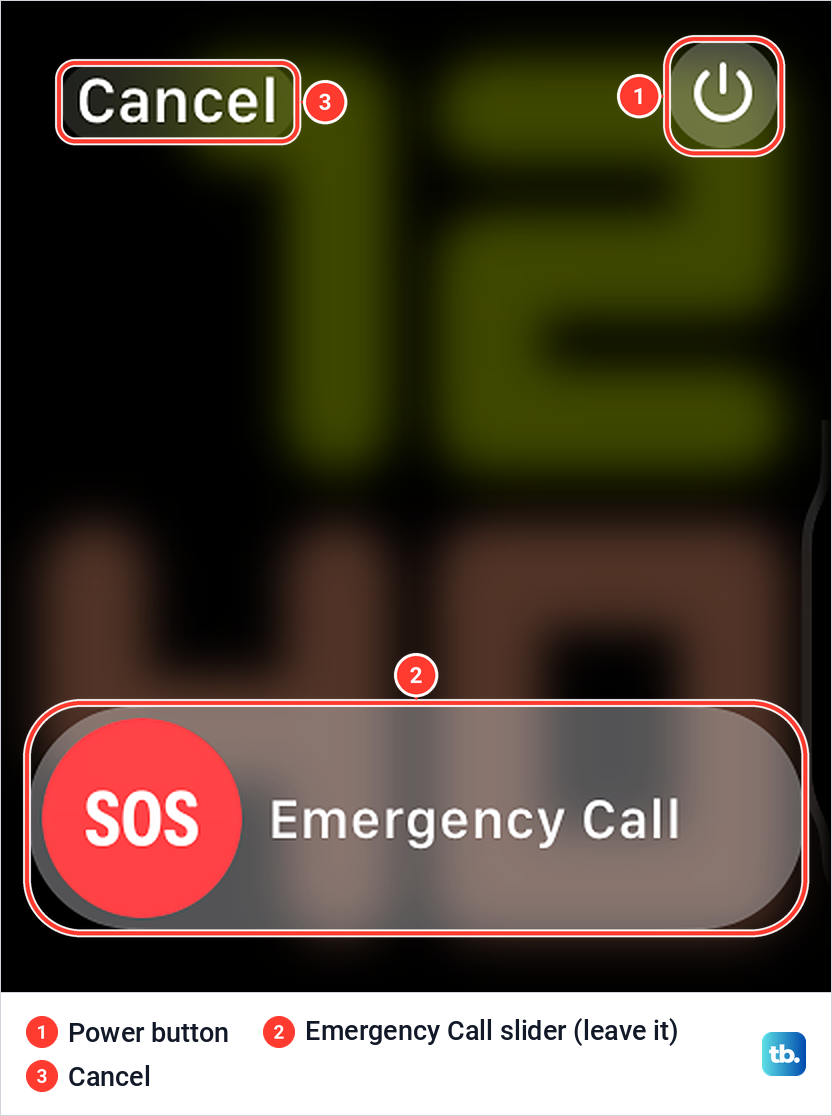
The sliders on this screen depend on your watch and how it is set up. Ours had no Medical ID set up and showed only Emergency Call, while Apple's own picture of the screen also has Medical ID and Compass Backtrack sliders. None of them turns the watch off, so leave them alone.
Tap the power button in the top right. On our watch the screen changed to a single Power Off slider with a red power symbol on its knob, and Cancel stayed at the top left.
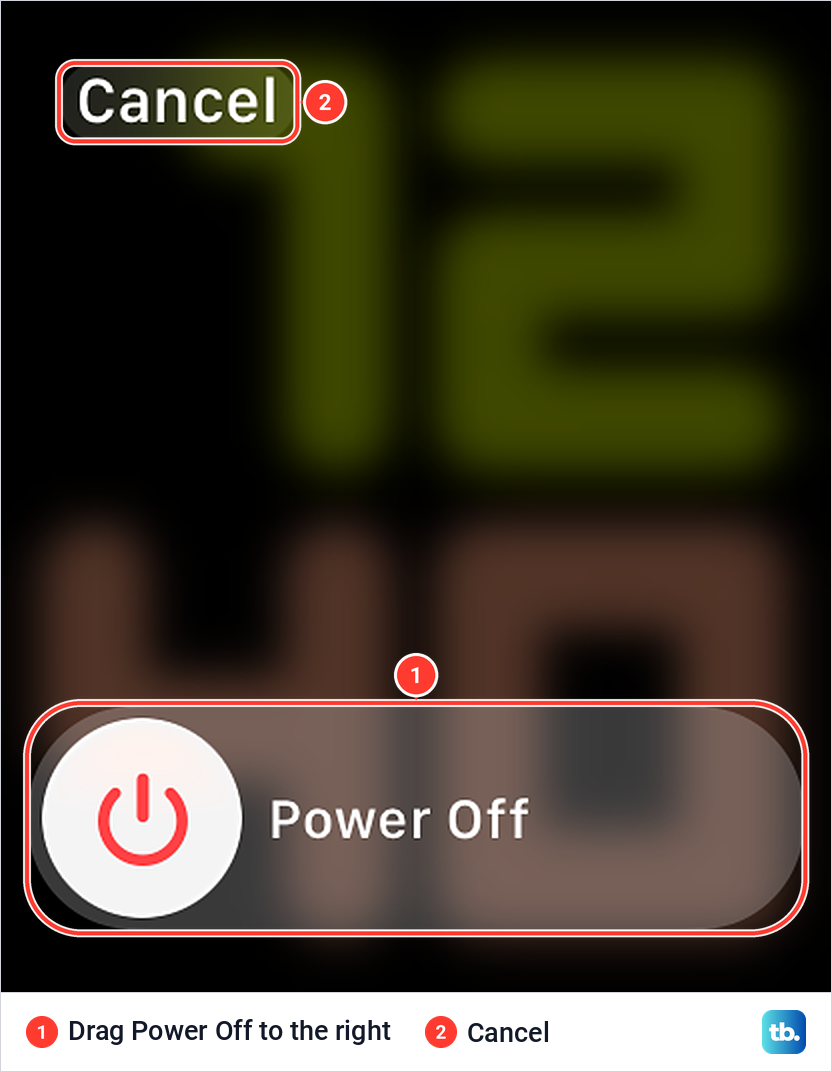
Apple's last step is to drag the Power Off slider to the right, and the watch turns off. If you change your mind, Cancel takes you back to the watch face, as it did on ours.
Let go of the side button when the screen appears
Holding the side button does two jobs. Apple's button guide lists a press and hold for turning the watch on and off and for Emergency SOS, and the power screen is where the two meet.
When we kept holding the button after the power screen appeared, the red SOS knob changed to a 5 and started to slide along the Emergency Call track. That is the Emergency SOS countdown. We let go, it stopped, and the plain screen with Cancel and the power button came back.
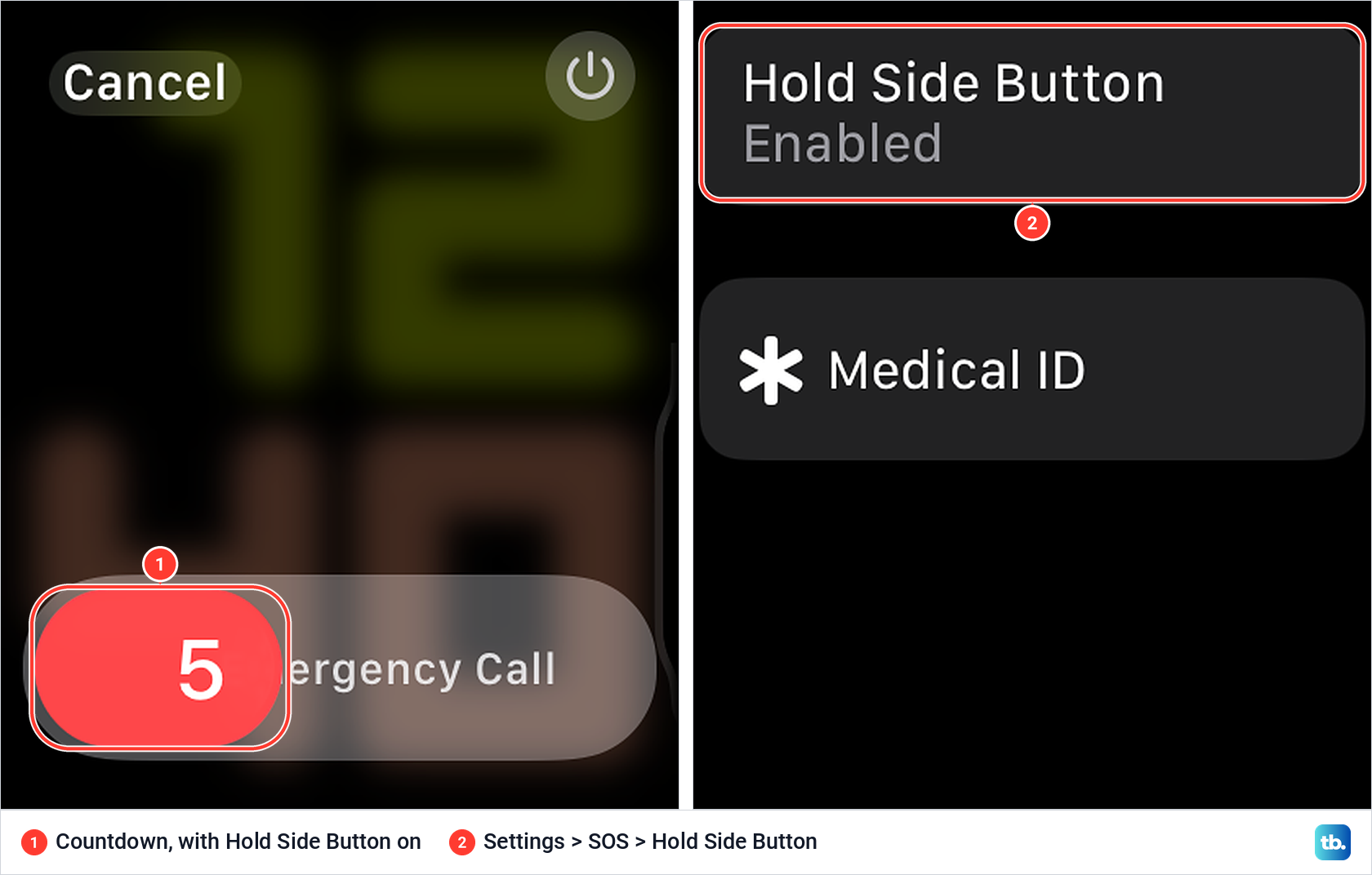
The countdown comes from Settings > SOS > Hold Side Button, which was Enabled on our watch. Apple's guides show it can be turned off there, so on some watches a long hold starts no countdown. We left it on, because letting go when the screen appears is all it takes to keep the countdown from starting.
Turn your Apple Watch back on
Press and hold the side button until the Apple logo appears, then let go. Apple says the watch face appears once the watch is on.
While the watch is off, Apple's watchOS 26 guide says you can press and hold the Digital Crown to see the time. It is a quick look at the clock, not a way to start the watch, so use the side button when you want it back.
If holding the side button brings up no Apple logo, Apple says the watch may need charging or a force restart. Our steps to fix an Apple Watch that will not turn on walk through both, starting with the charger.
Why your Apple Watch will not turn off on the charger
When the watch will not turn off, the charger is the first thing to check, since Apple's rule appears in its watchOS 26 and watchOS 27 guides alike. If you are not sure whether the watch is still taking power, check how to tell whether your Apple Watch is charging, then lift it off and try again.
There is one time not to do this. During a software update, Apple says to leave the watch on its charger until the update completes and not to restart it, and adds that the watch restarts on its own when the update is done.
Turning off an Apple Watch Ultra
Apple Watch Ultra turns off the same way, with the side button below the Digital Crown on the right. The button to avoid is the Action button on the left side. Apple says pressing and holding it, then waiting for the countdown to finish, sounds the Siren, which keeps going until you tap Stop or the battery runs out.
The side-button screen on an Ultra can also carry a Siren slider, since Apple lists dragging it as another way to start the Siren. Tap the power button in the top right instead, just as on any other model. To stop a long press of the Action button from sounding the Siren, Apple points to Settings > Action button, where you turn off Hold to Turn On below Siren.
Older Apple Watches show Power Off straight away
The power button in the top right arrived with watchOS 9. Apple's watchOS 8 guide says to hold the side button until the sliders appear, then drag the Power Off slider to the right, with no button to tap first, and its watchOS 9 guide adds the tap at the top right.
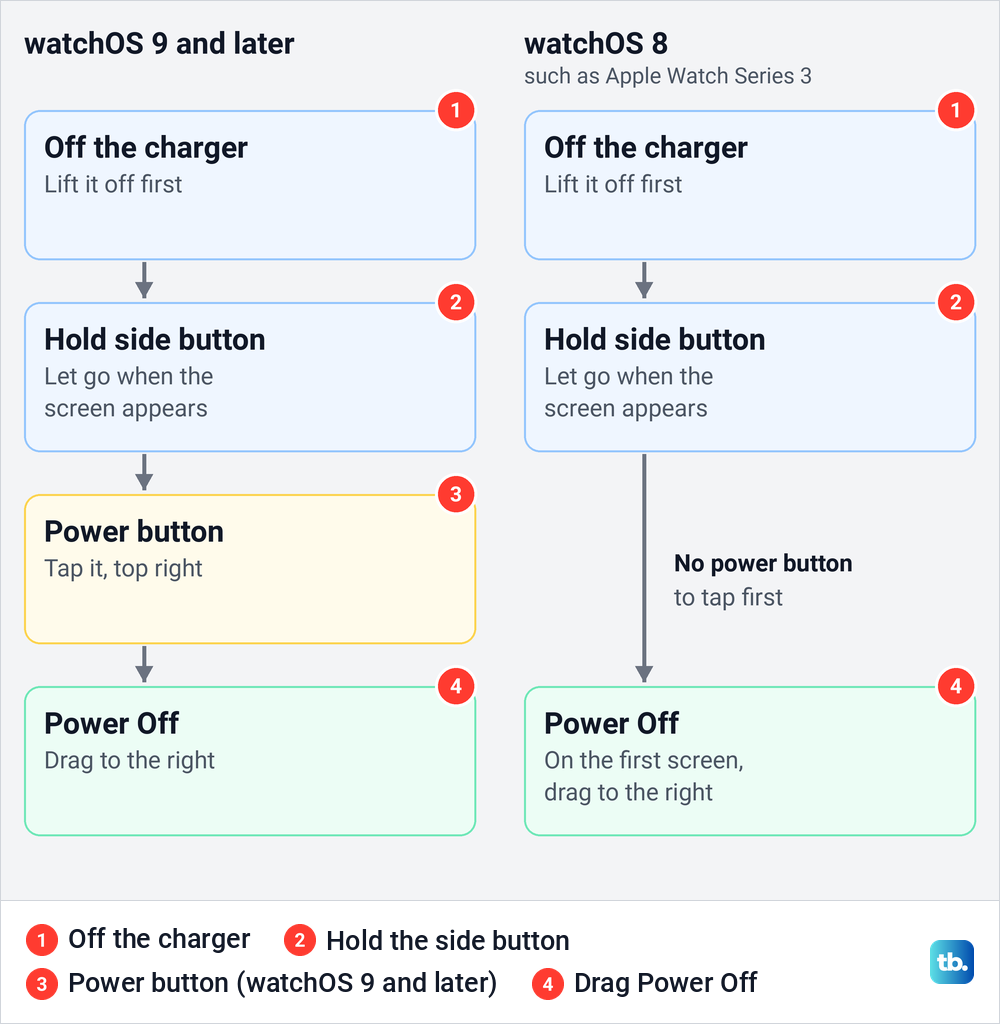
That matters for the Apple Watch Series 3, which Apple's compatibility table shows stopping at watchOS 8.8.1, so on a Series 3 the Power Off slider is on the first screen. If a Series 3 shuts down without you touching it, that is a different problem, covered in our fix for a Series 3 that keeps turning itself off.
When your Apple Watch will not turn off
If the screen is frozen and the power screen never appears, or the watch will not respond to the slider, Apple's answer is a force restart. Hold the side button and the Digital Crown together for at least 10 seconds, until the Apple logo appears.
Apple says to do this only if you are unable to restart the watch the normal way, and it brings the watch back up rather than leaving it off. Once it is running again, you can switch it off with the side button as above.
If your watch is a Series 11 and the touchscreen ignores your taps, our fixes for a Series 11 screen that does not respond go further. If the screen stays black after a force restart, charge the watch first, as described in the section on turning it back on.
Turn off the screen but keep the watch running
Many people who look this up just want a dark screen at night or in a cinema, and Theater Mode does that. Apple says it stops the display turning on when you raise your wrist and turns on Silent Mode, while haptic notifications still arrive.
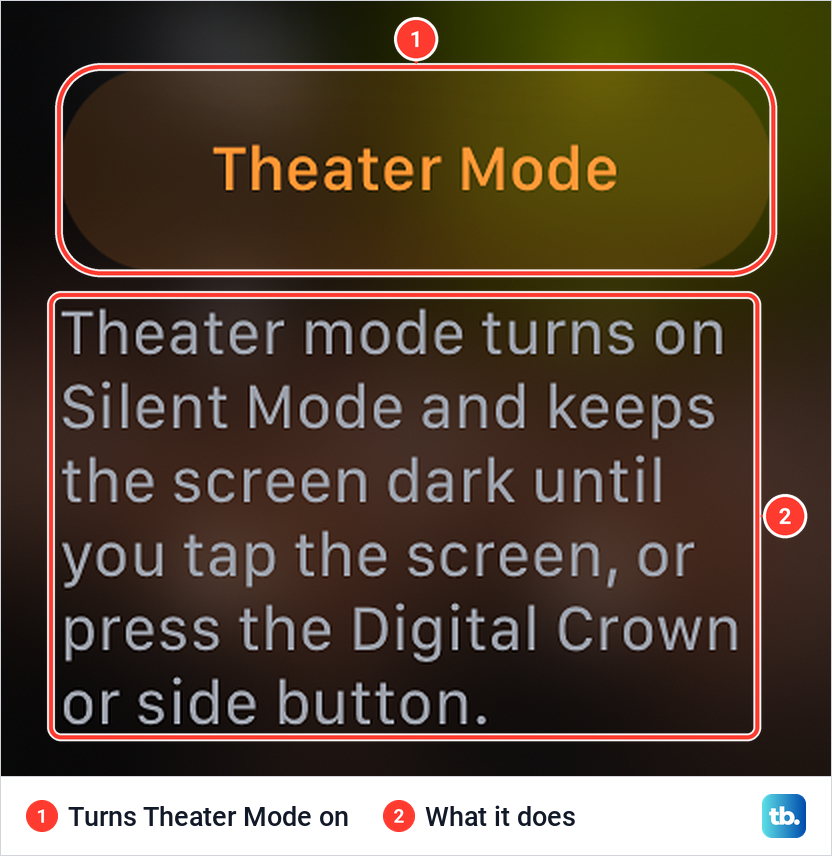
Press the side button once to open Control Center, or on watchOS 8 and 9 swipe up from the watch face, then scroll down to the two masks and tap them. On our watch the first tap showed an explanation instead of switching on at once: "Theater mode turns on Silent Mode and keeps the screen dark until you tap the screen, or press the Digital Crown or side button." If that screen appears, tap the Theater Mode button to turn it on.
For a screen that goes dark whenever your wrist is down, open Settings > Display & Brightness, scroll down, tap Always On, then turn off the Always On switch. Apple says Always On is on by default on Apple Watch Series 5 and later, Apple Watch SE 3 and Apple Watch Ultra and later, and that it is not available in Low Power Mode or Theater Mode.
If sound is the problem rather than light, the bell in the same Control Center turns on Silent Mode, and our guide to mute Apple Watch sounds and alerts covers it along with Do Not Disturb. On our watch the bell sat just below the masks.
Save battery with Low Power Mode instead
If the aim is to make the battery last, Low Power Mode keeps the watch on while switching some features off. Apple's route is to press the side button for Control Center, or swipe up from the watch face on watchOS 9, then tap the battery percentage button and turn on Low Power Mode. On our watch the battery percentage sat on the first screen of Control Center, just below Wi-Fi.
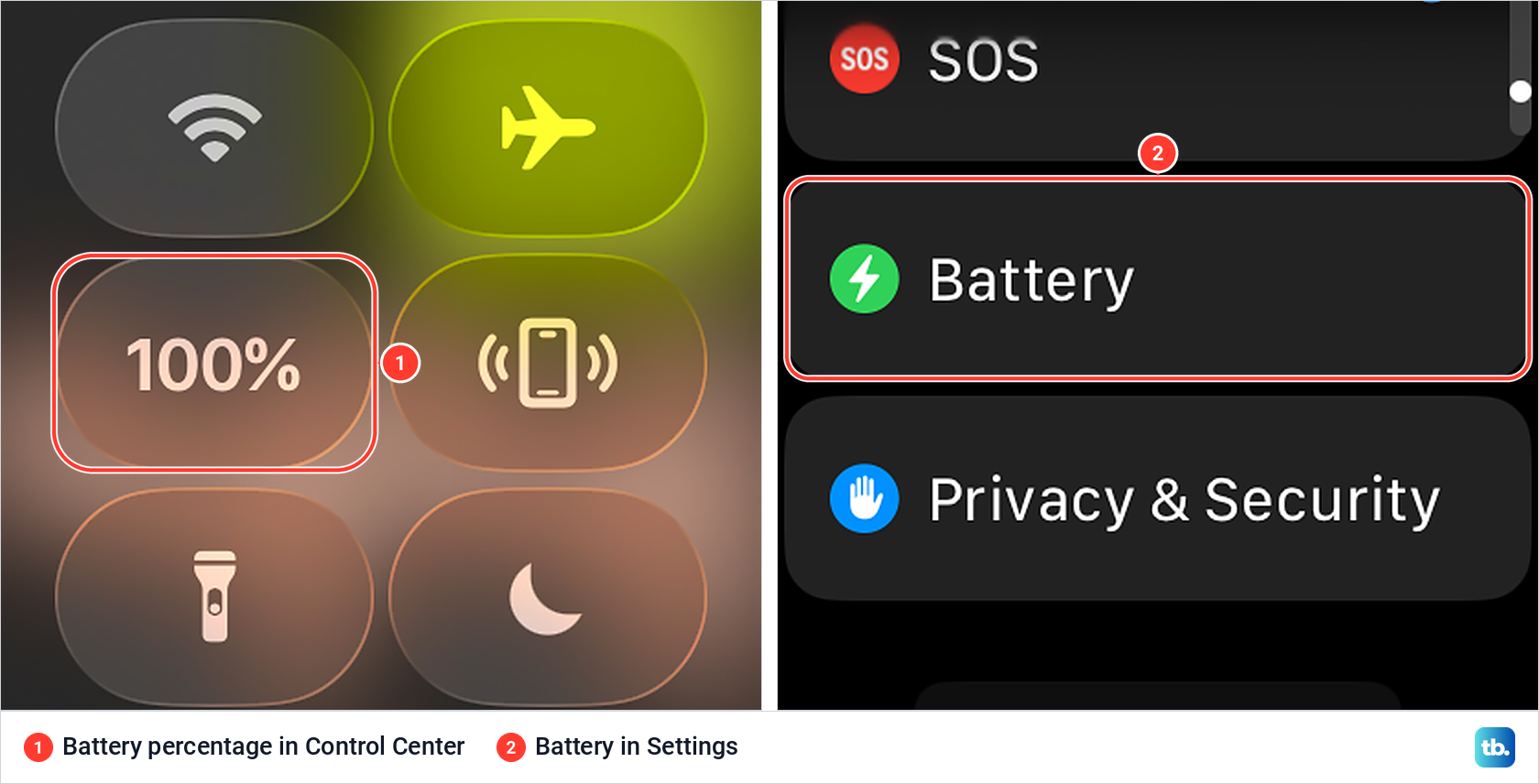
The same switch is in Settings > Battery, which sat just below SOS in our watch's Settings list. Apple says an information screen appears each time; scroll to the bottom and tap Turn On, or Turn On For to choose 1, 2 or 3 days.
Apple lists what Low Power Mode turns off, including the Always On display, background heart rate and blood oxygen readings, and the double tap and wrist flick gestures. With your iPhone out of range it also turns off Wi-Fi and cellular connections, and incoming calls and notifications. Apple says it switches itself off once the battery charges to 80%, unless you picked a number of days.
Watches on watchOS 8 have Power Reserve instead. Apple's watchOS 8 guide says the watch still shows the time in Power Reserve but you cannot use apps, and that it switches to Power Reserve on its own when the battery is almost empty.
What still works while your watch is off
Do not count on a switched-off watch to wake you. If an alarm matters, leave the watch on or set the alarm on your iPhone as well. For an alarm that taps your wrist without a sound, Apple's tip is to turn on Silent Mode rather than switching the watch off.
The same goes for overnight readings. If you want sleep data, set up sleep tracking on Apple Watch and leave the watch running, with Theater Mode if the screen bothers you.
Find My is the other worry. Apple says to check that the Find My network is turned on, both to find your watch and to find your devices even if they are powered off. To check on the watch, open Settings, tap your name, scroll to your watch and tap it, then tap Find My Watch and make sure Find My network is on.
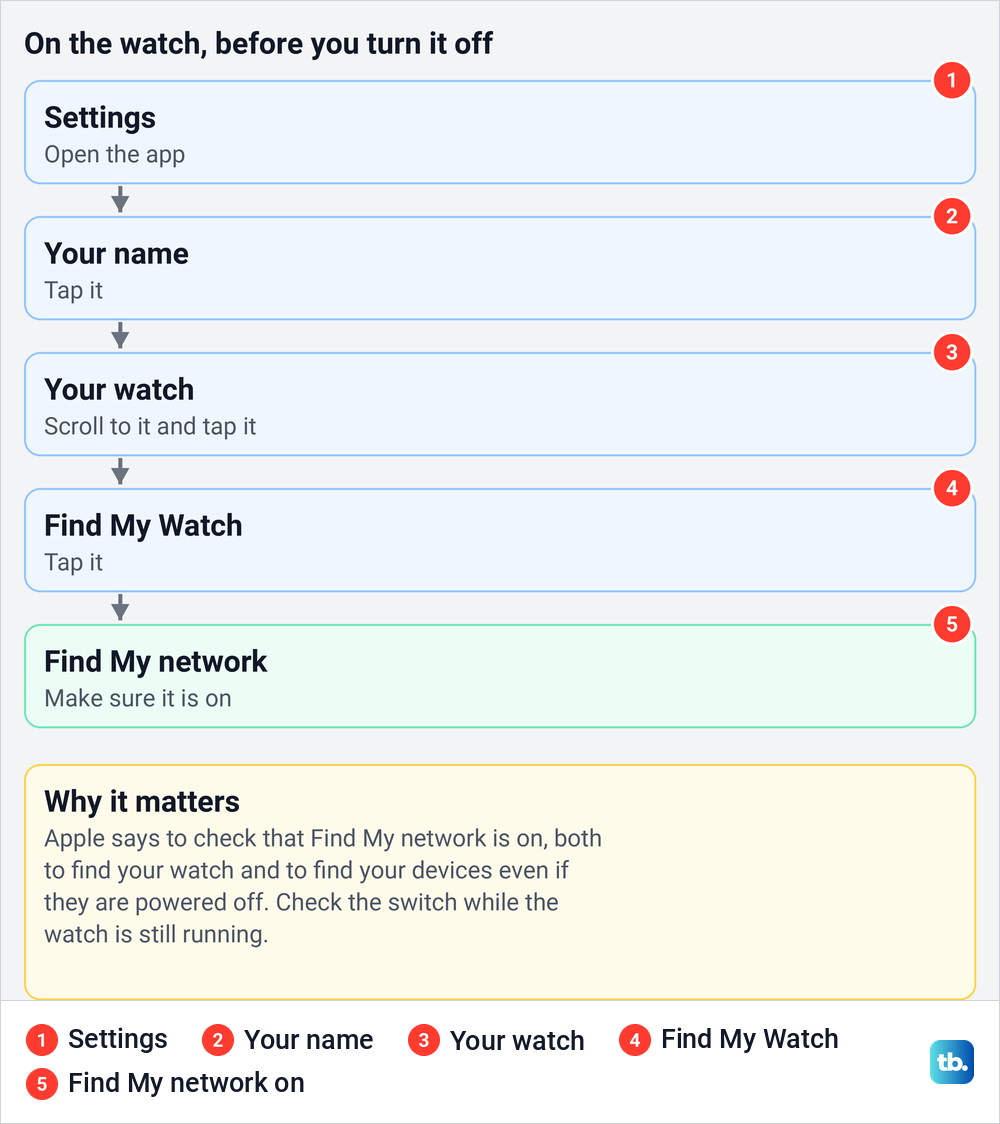
Check that switch while the watch is still running, because Apple ties finding a powered-off device to that setting. Turning the watch off is also not how you hand it on. To sell it or give it away, unpair your Apple Watch before giving it away, and if you are moving to another phone, use the steps to pair an Apple Watch with a new iPhone.
How we tested this guide
We tested this on an Apple Watch Series 11 with watchOS 26.5, opening the power screen with the side button and leaving with Cancel.
Frequently Asked Questions
Why can't I turn off my Apple Watch while it is charging?
Apple says you cannot turn off an Apple Watch while it is charging, and it does not give a reason. Lift it off the charger, then hold the side button, tap the power button and drag Power Off as usual.
How long do I hold the side button to turn off Apple Watch?
Hold it only until the power screen appears, then let go. With Hold Side Button turned on in SOS settings, holding on starts the Emergency SOS countdown.
Why do I only see Emergency Call or Medical ID when I hold the side button?
On watchOS 9 and later, those sliders are not the way to turn off. Tap the small power button in the top right first, and the Power Off slider appears.
Can I turn off my Apple Watch from my iPhone?
Apple's steps do it on the watch itself: hold the side button, tap the power button and drag Power Off. If you have seen Settings > General > Shut Down mentioned, that is the iPhone's own menu, and it turns off the phone.
Does my Apple Watch alarm go off when the watch is off?
Do not rely on it. Leave the watch on or set the alarm on your iPhone too, and for a silent alarm that taps your wrist, Apple's tip is to turn on Silent Mode instead of switching the watch off.
Can Find My locate an Apple Watch that is turned off?
Apple says that to find your devices even if they are powered off, the Find My network has to be turned on. Check it on the watch under Settings, your name, your watch and Find My Watch, before you switch the watch off.
What is the difference between turning off and a force restart?
Turning off uses the side button, the power button and the Power Off slider, and the watch stays off until you hold the side button again. A force restart, holding the side button and the Digital Crown for at least 10 seconds, brings the watch straight back to the Apple logo, and Apple says to use it only when a normal restart is not possible.