Your new iPhone is ready, but your backup refuses to restore, never appears, or stops halfway through. The right fix depends on whether you're restoring from iCloud or a computer, and whether restoration has failed or downloads are still running. Start with the connection checks, then follow the section that matches what you see.
Start with Wi-Fi and power
A missing Wi-Fi connection blocks iCloud restoration because Apple does not support restoring an iCloud backup over cellular internet.
Connect the new iPhone to Wi-Fi. After setup, select your network in Settings > Wi-Fi.
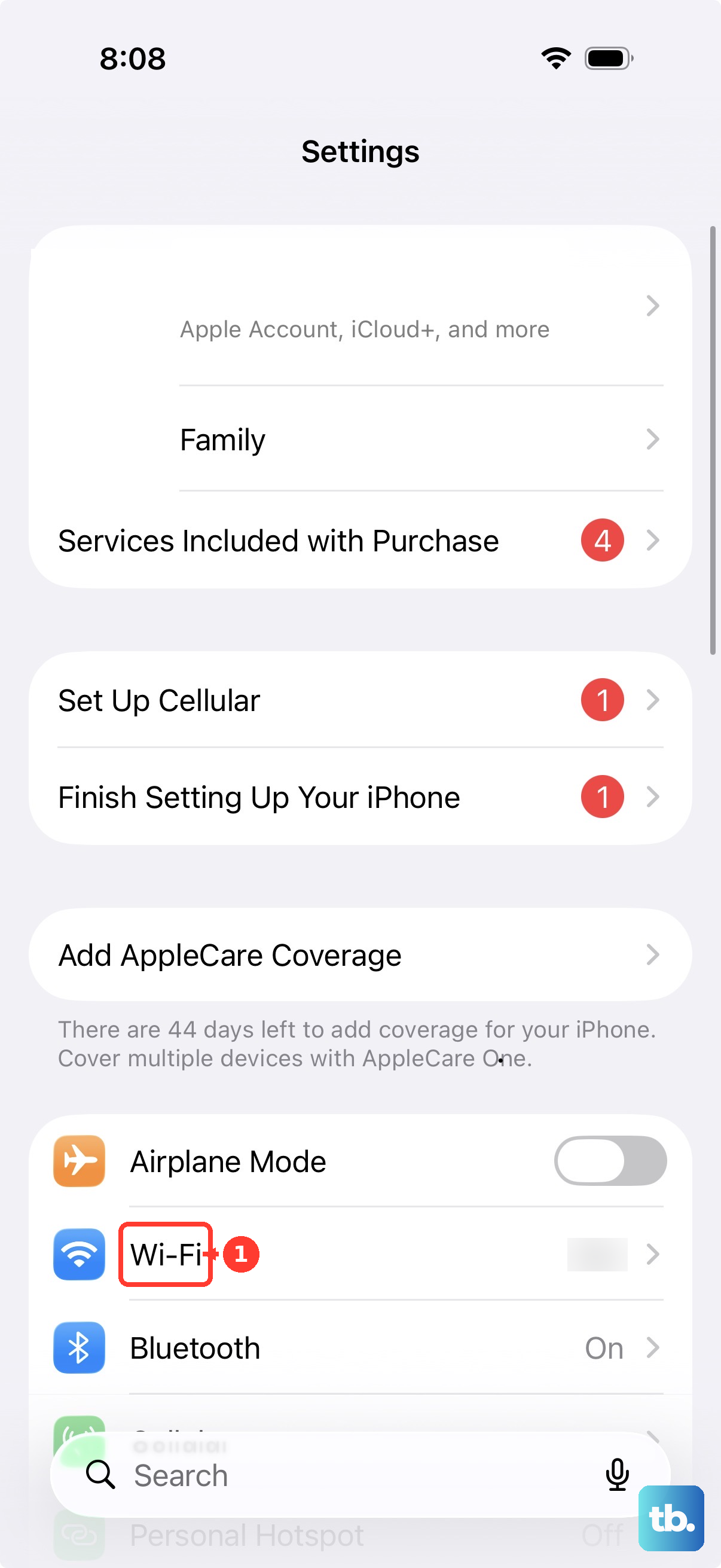
Plug the phone into power for restoration.
Try another Wi-Fi network if restoration fails or your backups do not appear.
Check Apple System Status for iCloud outages or maintenance if connection or sign-in problems continue.
If the service is unavailable, retry after it recovers.
Return to the backup option during setup
If you already finished setting up the new iPhone, preserve any new data on it before restarting setup. Erasing this destination phone removes its existing content.
On the already-configured phone, open Settings > General > Transfer or Reset iPhone > Erase All Content and Settings.
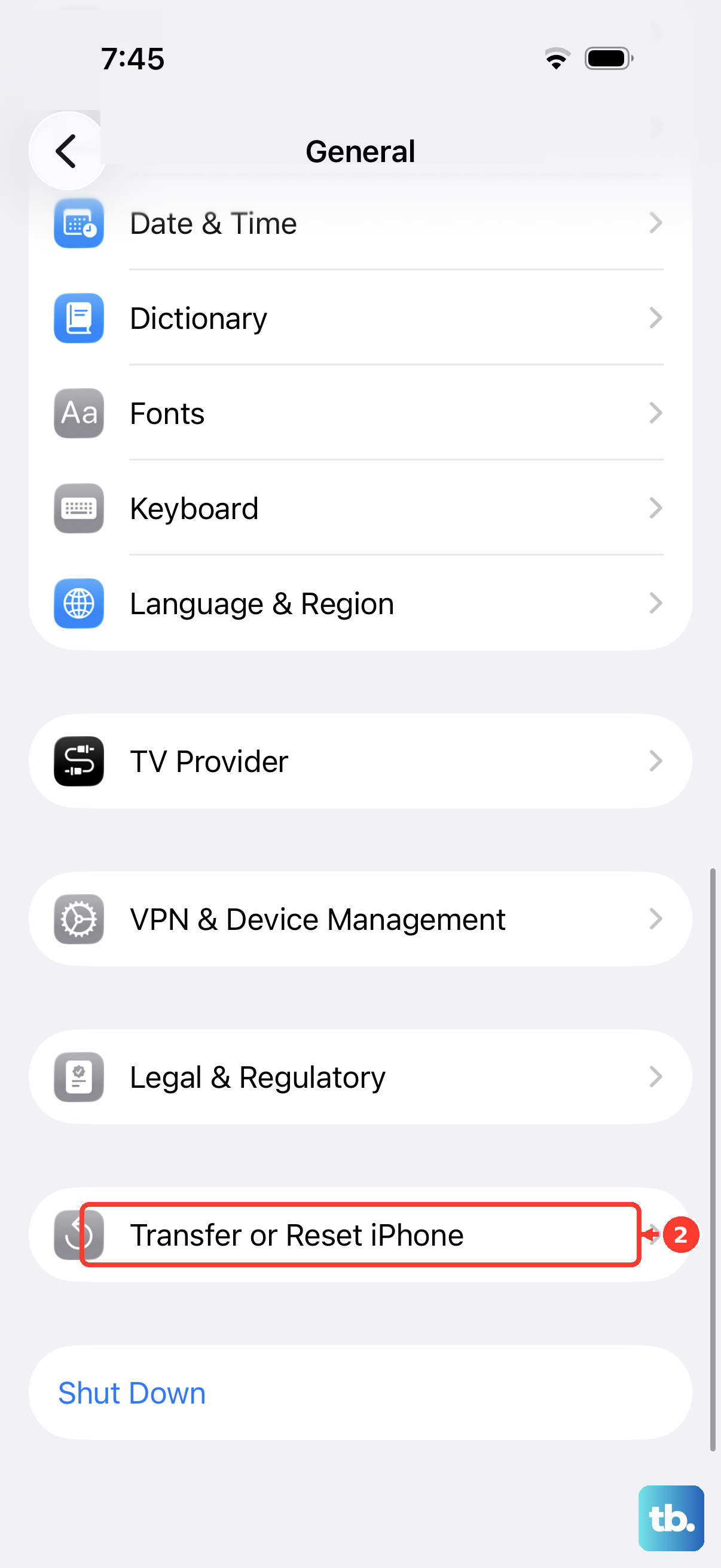
Complete the erasure prompts. Skip erasure if the phone is already at the Hello screen.
From Hello, continue through setup to Transfer Your Apps & Data.
Select From iCloud Backup. Some setup screens label this option Restore from iCloud Backup.
Sign in to the Apple Account that holds your backup.
Choose the appropriate backup using its date and size.
Complete setup with the phone connected to Wi-Fi and power while your content downloads.
Keep your old iPhone intact until the transfer succeeds.
When your iCloud backup is missing
First, confirm that you're signing in with the same Apple Account used on the old iPhone. Backups held by another account will not appear in that account's selection.
At backup selection, tap Show All or Show All Backups. If one particular backup keeps failing, select another available backup.
To inspect backups from another iPhone or iPad signed in to that account, open Settings > [your name] > iCloud > iCloud Backup. Leave the backup you need in place.
For a forgotten account password, use Forgot password or don’t have an Apple Account? during setup to start recovery. For a missing two-factor code, use Didn’t Get a Code? or Can’t get to your devices? to request a text or call to your trusted number.
Install the iOS version the backup needs
If an iCloud backup requires newer iOS software, accept the software download and installation offered during restoration. The phone updates and then restores the selected backup automatically.
If setup offers no usable update route, select Don't Transfer Apps & Data on Transfer Your Apps & Data. Use this route for a computer backup rejected because the destination's software is too old, too.
Finish temporary setup.
Connect the phone to power.
Connect it to Wi-Fi through Settings > Wi-Fi.
Open Settings > General > Software Update.
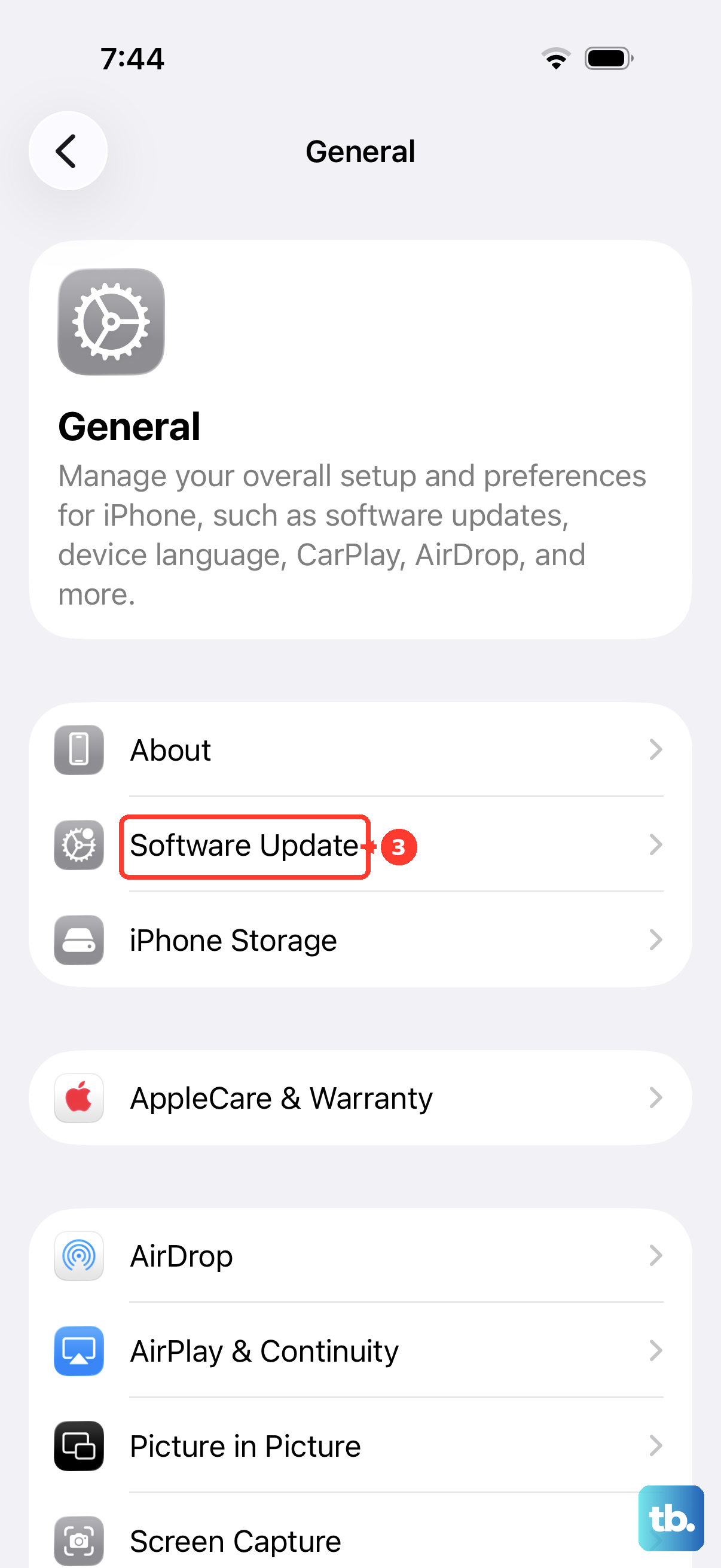
Select Download and Install when offered.
If iOS requests temporary app removal for installation space, tap Continue. It reinstalls those apps afterward.
Wait for the update and restart to finish.
Preserve anything added during temporary setup before erasing the phone.
Open Settings > General > Transfer or Reset iPhone > Erase All Content and Settings.
Complete the erasure prompts.
Select your backup during setup using the restoration steps above.
If updating does not resolve compatibility, try another compatible backup. A backup created on newer beta software will not restore to earlier iOS; when returning to public iOS, use a compatible backup made before installing the beta.
Get a computer restore working
Outdated computer software and blocked USB access are starting points for troubleshooting a failed computer restore.
Install available operating system updates on your computer.
On Windows, update Apple Devices through Microsoft Store.
Restart the computer before retrying.
Connect the iPhone with a cable that supports both charging and data.
If the phone does not appear, try another cable.
If it is still missing, try another USB port.
On a Mac, click Allow when Allow accessory to connect? appears.
If Finder's sidebar is hidden, select View > Show Sidebar.
Unlock the iPhone.
Select it in Finder on Mac or Apple Devices on Windows.
Click Trust on the computer when prompted.
Confirm Trust on the iPhone.
If the trust prompt was declined or will not appear, open Settings > General > Transfer or Reset iPhone > Reset > Reset Location & Privacy on the phone.
Reconnect the iPhone after the reset.
Approve the computer's Trust prompt again.
Confirm Trust on the phone again.
Choose Restore Backup in Finder or Apple Devices.
Select your backup.
Click Restore.
Enter the backup's encryption password if requested.
Leave the phone connected through its restart and synchronization.
If a corrupt or incompatible backup alert remains after updating, try another computer backup or an iCloud backup. Apple does not guarantee repair of a damaged backup.
If the old phone still holds your data, create a replacement backup using the fresh-backup steps below.
A forgotten encryption password needs a different approach
This resets encryption settings for a new backup from the old phone; it does not unlock an existing backup.
Ask whoever configured the encrypted backup for its password before resetting anything. An encrypted backup cannot be restored without that password.
If the old iPhone still contains your data, open Settings > General > Transfer or Reset iPhone > Reset > Reset All Settings on that phone. This resets device preferences.
Enter the old phone's passcode.
Confirm the reset.
Reconnect the old phone to Finder or Apple Devices.
Create a new encrypted backup with a password you know.
Restore that new backup to the destination iPhone using Restore Backup.
Without the old phone or the original encryption password, select another accessible backup, such as an iCloud backup.
Missing apps and photos can mean the restore is still running
Reaching the Home Screen does not mean every download has finished: apps and other content continue downloading for hours or days. Keep reconnecting the iPhone to Wi-Fi and power during that time.
Check Settings > [your name] > iCloud > iCloud Backup for an indication that restoration remains in progress. For missing photos, inspect Settings > [your name] > iCloud > Photos > Sync this iPhone; Wi-Fi synchronization needs time to finish.
For a stalled app, touch and hold its Home Screen icon to open the menu containing Prioritize Download. Select Prioritize Download. If downloads still fail, restart the iPhone using the button instructions in the FAQ.
Backups containing purchases from multiple Apple Accounts trigger password requests for those purchasing accounts. Enter the password for each requested account, or dismiss each prompt with Skip this Step or Cancel until the prompts stop. Skipped purchases require the relevant sign-in later.
Use the old iPhone for a fresh start
If the old phone still has your data, create a fresh iCloud backup for another restoration attempt.
- 1.Connect the old iPhone to Wi-Fi.
- 2.Open Settings > [your name] > iCloud > iCloud Backup.
- 3.Tap Back Up Now.
- 4.Wait for completion and check the displayed backup time.
- 5.If the destination iPhone is already configured, preserve its new data before using Settings > General > Transfer or Reset iPhone > Erase All Content and Settings.
- 6.During destination setup, choose Transfer Your Apps & Data > From iCloud Backup and select the new backup.
If the phone is frozen or shows a recovery screen
A slowly moving or restarting Apple-logo progress bar does not by itself mean restoration is frozen. Use the recovery steps here when restoration never completes, the phone is unresponsive, or the Restore screen persists.
Allow an active progress bar to finish.
Press a button to check for an updating message.
For an unresponsive phone or a restoration that never completes, begin a force restart by quickly pressing and releasing Volume Up. These button instructions apply to iPhone 8 and later, including iPhone SE models from the second and third generations.
Quickly press and release Volume Down.
Hold the side button until the Apple logo appears.
For a persistent Restore screen, connect the phone by USB to a computer.
Open Finder on Mac or Apple Devices on Windows.
When offered Update or Restore, choose Update to reinstall iOS while retaining personal data.
Keep the phone connected until updating finishes.
If updating fails and the phone still cannot start normally, preserve available backups before proceeding. Recovery-mode Restore erases the phone; reinstalling iOS does not repair corrupted backup contents.
With the phone connected to the computer, quickly press and release Volume Up.
Quickly press and release Volume Down.
Hold the side button until the Connect to computer screen appears.
Choose Restore on the computer.
If the download takes more than 15 minutes and the phone exits recovery mode, let the download finish.
Repeat the recovery-mode button sequence after the download completes.
After restoration, set up the iPhone with a compatible backup.
If recovery still fails or a required button is broken, use Get service in Apple's recovery instructions.
For a persistent backup-specific failure, give Apple Support the exact error message and whether the backup is in iCloud or on a computer.
Frequently Asked Questions
Can I transfer my data without restoring a backup?
Yes. With a compatible old iPhone available, enable its Wi-Fi and Bluetooth. Turn on the new phone nearby and follow Quick Start to choose direct transfer from the previous device. Keep both phones nearby and powered until completion. Restart both if the setup prompt disappears. Quick Start is unavailable for destination devices enrolled in Apple School Manager or Apple Business.
What if I do not have enough iCloud storage for a fresh backup?
Eligible new-iPhone purchasers qualify for temporary iCloud storage. Update the old phone first. Open Settings > General > Transfer or Reset iPhone. Under Prepare for New iPhone, tap Get Started. If offered, select Turn On Backup to Transfer, then Continue for temporary storage. Wait for the backup to finish. Restore within 21 days; if the new phone has not arrived, use Keep My Backup Longer in the old phone's Settings for another 21 days.
Does changing my Apple Account password change my computer-backup password?
No. Your Apple Account password and computer-backup encryption password are separate credentials.
Can buying more iCloud storage solve a lack of space on the new iPhone?
No. More iCloud storage provides room for a cloud backup, but it does not increase the new iPhone's physical storage capacity.
How do I restart the iPhone if app downloads still fail?
On a Face ID iPhone, hold either volume button and the side button until the power slider appears. On iPhone SE second- and third-generation models, hold only the side button to display it. Drag the slider. Wait 30 seconds. Hold the side button until the Apple logo appears.