

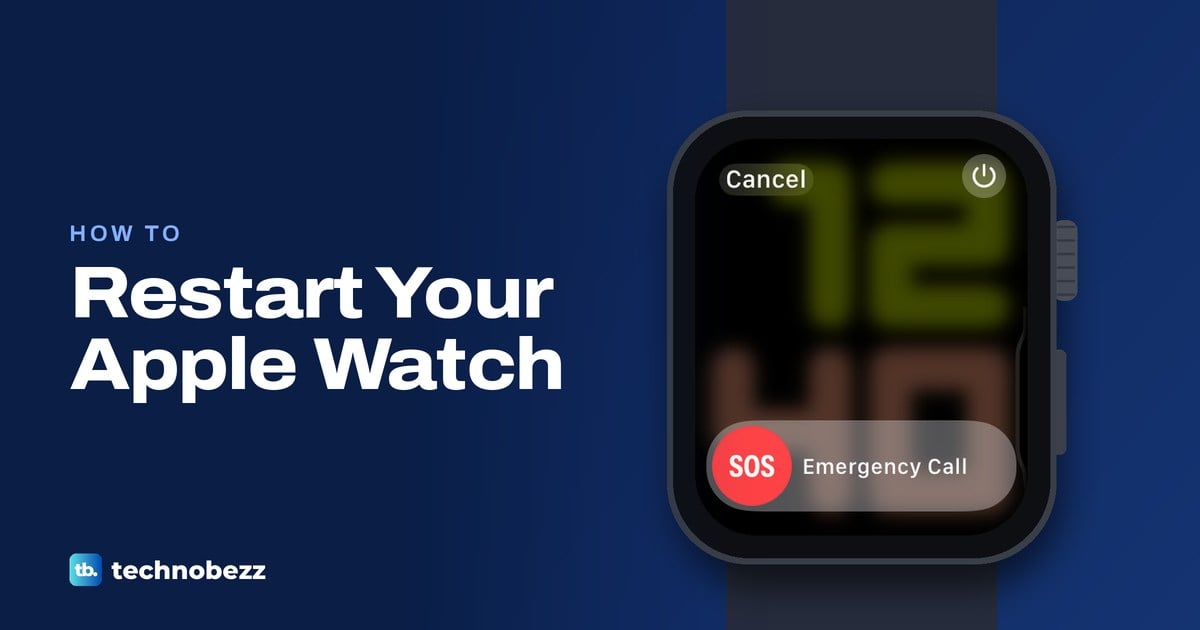
To restart Apple Watch, take it off its charger, hold the side button until the power screen appears, tap the power icon at the top right and drag the Power Off slider. Then hold the side button until the Apple logo appears. If the watch is frozen, force restart it: hold the side button and Digital Crown together for at least 10 seconds, until the Apple logo appears.
Let go of the side button as soon as the power screen appears. On our Apple Watch Series 11 with watchOS 26.5, holding it a moment longer started an Emergency SOS countdown from 5, and letting go stopped it. A force restart is a reboot, not an erase, so if by hard reset you mean wiping the watch, that is a different job covered further down.
The short version
- Restart: hold the side button, tap the power icon at the top right, drag Power Off, then hold the side button until the Apple logo appears.
- Let go early: release the side button when the power screen shows, or an Emergency SOS countdown starts.
- Frozen watch: hold the side button and Digital Crown together for at least 10 seconds, then let go at the Apple logo.
- On the charger: lift it off first, because Apple says the watch cannot be restarted while it charges.
- During an update: do not restart. Apple says the watch restarts on its own when the update finishes.
Pick the right kind of restart
Three different things go by the name restart on an Apple Watch, and they do very different jobs. Use the one that matches what the watch is doing right now, and keep the force restart for a watch that will not respond.
| What the watch is doing | What to do | What happens |
|---|---|---|
| It works, but something is off | Hold the side button, tap the power icon, drag Power Off, then hold the side button until the Apple logo | A normal restart |
| The power screen shows Power Off straight away | Drag Power Off, then hold the side button until the Apple logo | A normal restart on older watchOS |
| It is frozen, or the normal restart fails | Hold the side button and Digital Crown for at least 10 seconds | A forced restart, not an erase |
| Black screen or a red lightning bolt | Charge it for up to 30 minutes and check the charger | The watch may turn on after charging; if not, see the black screen steps below |
| Stuck on the Apple logo | Force restart, then unpair and pair again, then update | Apple's recovery order; unpairing erases the watch after the iPhone backs it up |
| You want to wipe it | Unpair it in the Watch app, or erase it in Settings | A factory reset, not a restart |
The table follows Apple's current watchOS 26 and watchOS 27 instructions and its support articles; the older-watchOS row comes from Apple's watchOS 8 guide. The power screens shown here come from our own watch.
Find the side button and Digital Crown
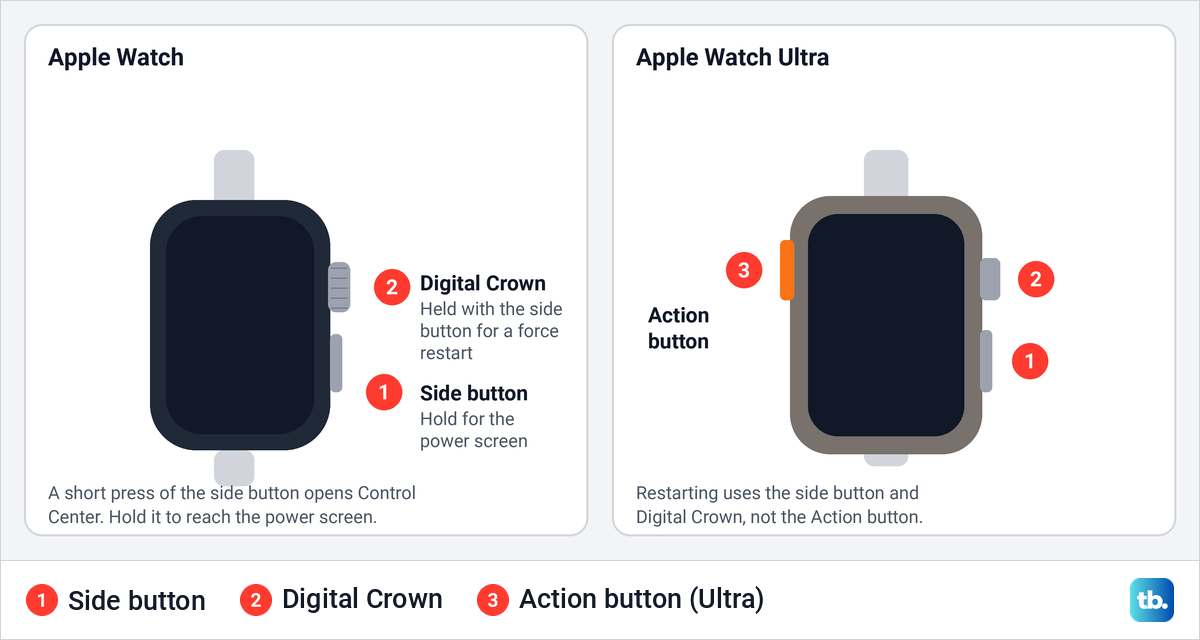
A normal restart uses the side button, the long flat button on the right side of the case, and a force restart uses it together with the Digital Crown, the dial just above it. A short press of the side button does not restart anything: when we pressed it once on our watch, Control Center opened instead. Control Center is also where you can mute Apple Watch quickly if quiet is all you need.
Restart Apple Watch with the side button
If the watch is on its charger, lift it off first. Press and hold the side button until the power screen appears, then let go.
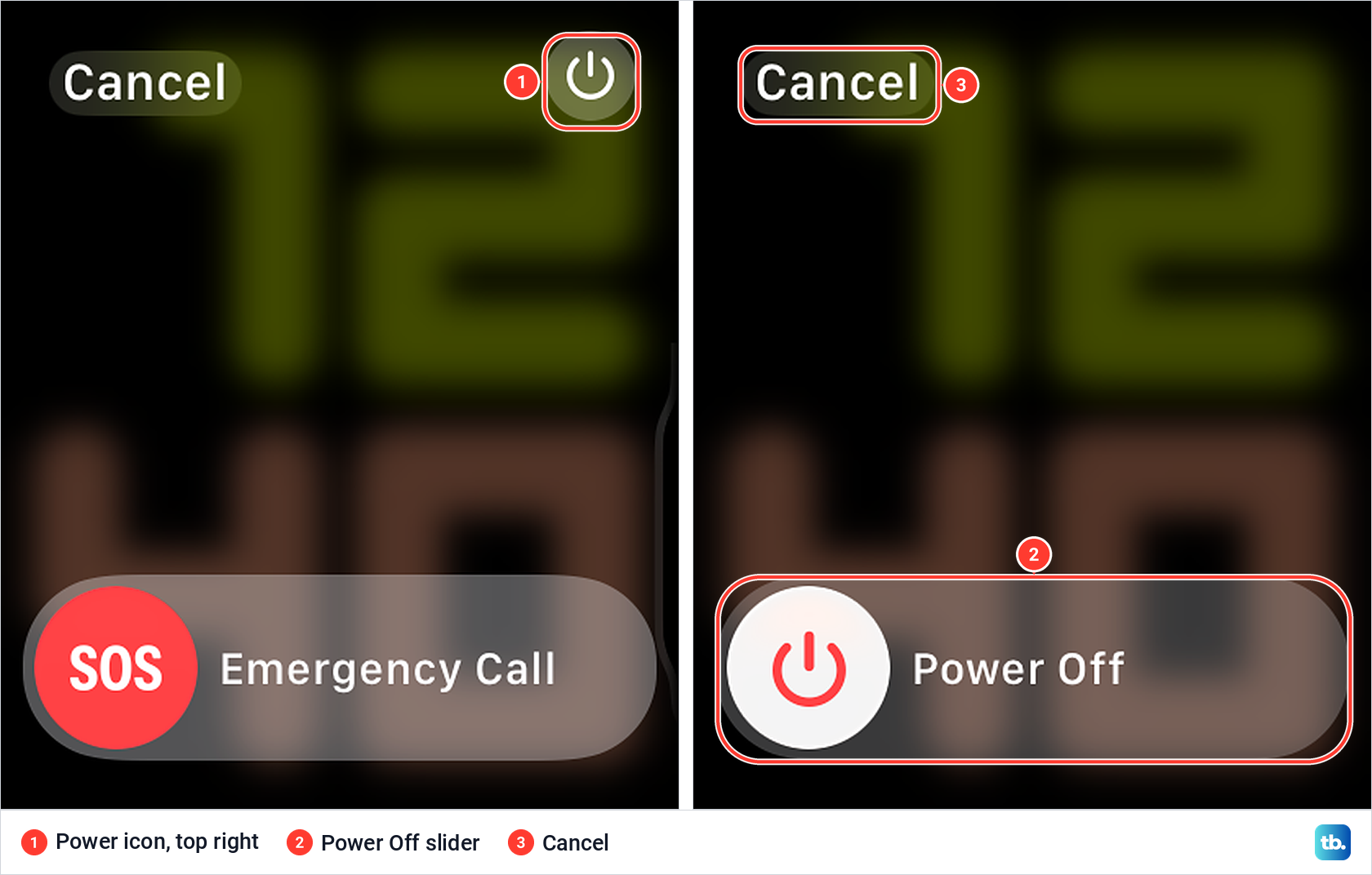
On our watch that screen showed Cancel at the top left, a round power icon at the top right and an Emergency Call slider along the bottom, with no Power Off slider yet. Apple's watchOS 9 guide also puts a Medical ID slider on this screen once Medical ID is set up, so yours may show one more slider; tap the power icon either way.
Tap the power icon. The screen changes to a single Power Off slider with Cancel still at the top left, so you can back out at this point. Drag the slider to the right to turn the watch off.
Once the watch is off, press and hold the side button again until the Apple logo appears. Apple says the watch face appears when the watch is on, so the face is your sign that the restart is done.
Older software skips the icon. Apple's watchOS 8 guide says to hold the side button until the sliders appear and drag Power Off, so if the slider is already on the first screen, drag it. That is the screen to expect on an Apple Watch Series 3, which stops at watchOS 8.
Let go when the power screen appears
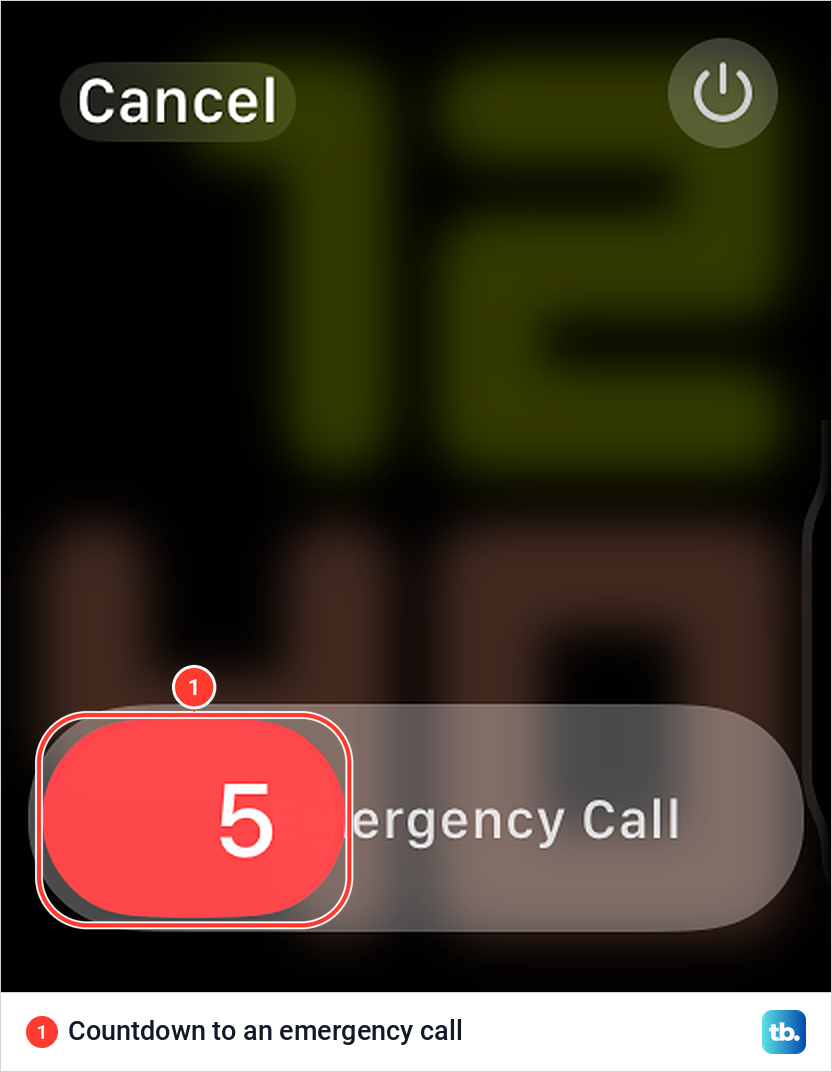
Holding the side button does two jobs. Apple lists press and hold both for turning the watch on and off and for Emergency SOS, and the button does not wait for you to choose. When we kept holding past the power screen, the red SOS knob changed to a 5 and started sliding along the Emergency Call slider.
That is the start of an Emergency SOS countdown. Apple's watchOS 9 guide says that when the countdown ends, the watch calls emergency services, and that it makes a warning sound even in silent mode. Letting go of the button stopped it on our watch, and the plain power screen came back.
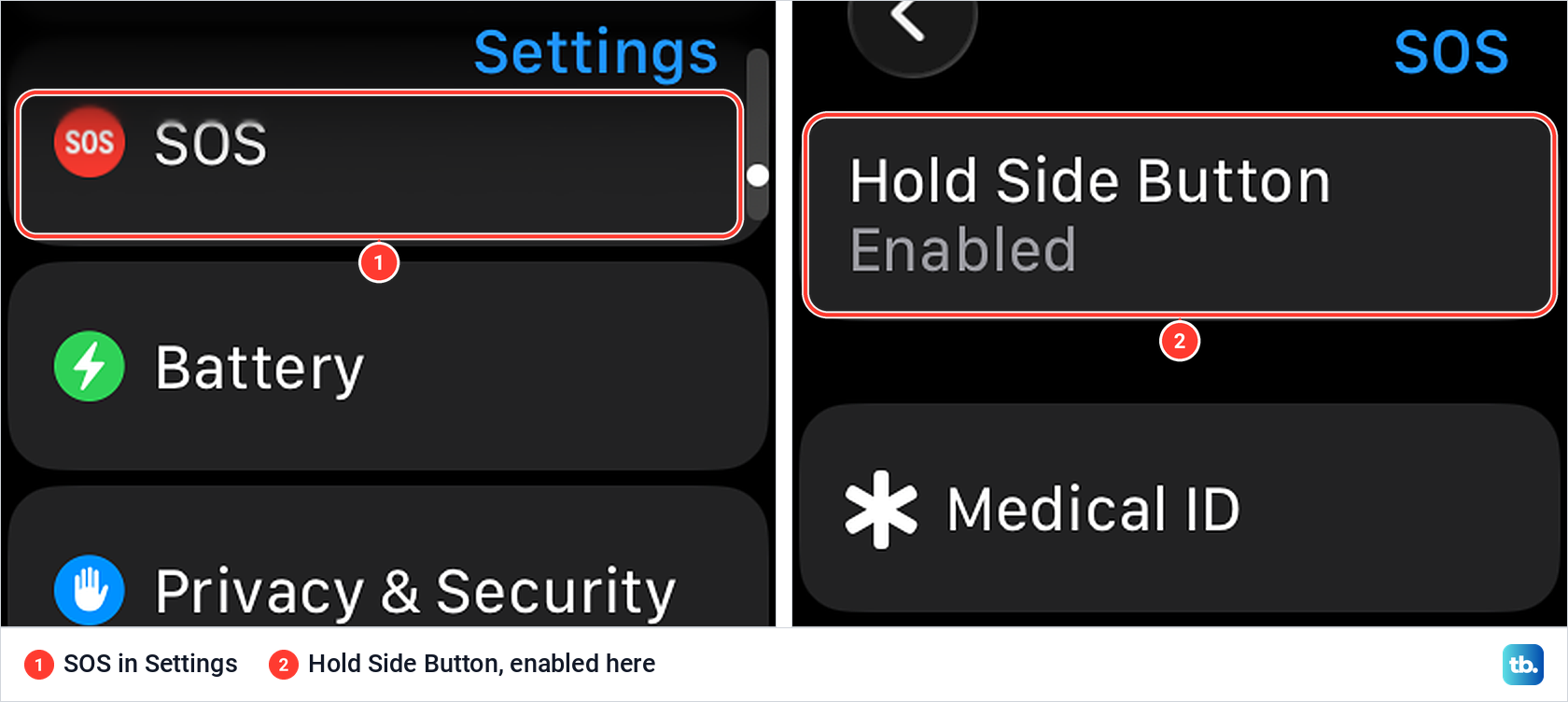
The setting behind this is Hold Side Button, under Settings > SOS on the watch, and it was enabled on ours. Apple's watchOS 9 guide says that with it turned off, holding the button no longer starts the countdown, while the Emergency Call slider still works. It is a safety feature, so letting go in time is a better fix than switching it off.
Why Apple Watch has no Restart button
Apple's restart is two steps, off and then on, so there is no one-tap Restart in the power screens. Apple's restart instructions all start at the watch's side button and give no route through the iPhone's Watch app.
The closest thing to a single action is the force restart, which reboots the watch with a two-button hold instead of the Power Off slider. Apple keeps that for a watch that cannot be restarted the normal way.
Take the watch off its charger first
Apple's restart page is blunt: "You can't restart your Apple Watch while it's charging." Its guide to turning the watch off starts with the same step, disconnecting it from the charger. So lift the watch off the charger before you hold the side button.
One exception looks like a contradiction. Apple's article for a watch that will not charge ends its charger checks with "If your watch still won't charge, force it to restart." Read the charging rule as being about the normal power-off route, while the two-button force restart is Apple's own next step for that charging fault.
Force restart a frozen Apple Watch
Use a force restart when the screen will not respond, the power screen will not open, or a normal restart did not fix the problem. Apple sets a firm limit: "Do this only if you're unable to restart your Apple Watch." It is a fallback, not a faster way to restart a watch that works.
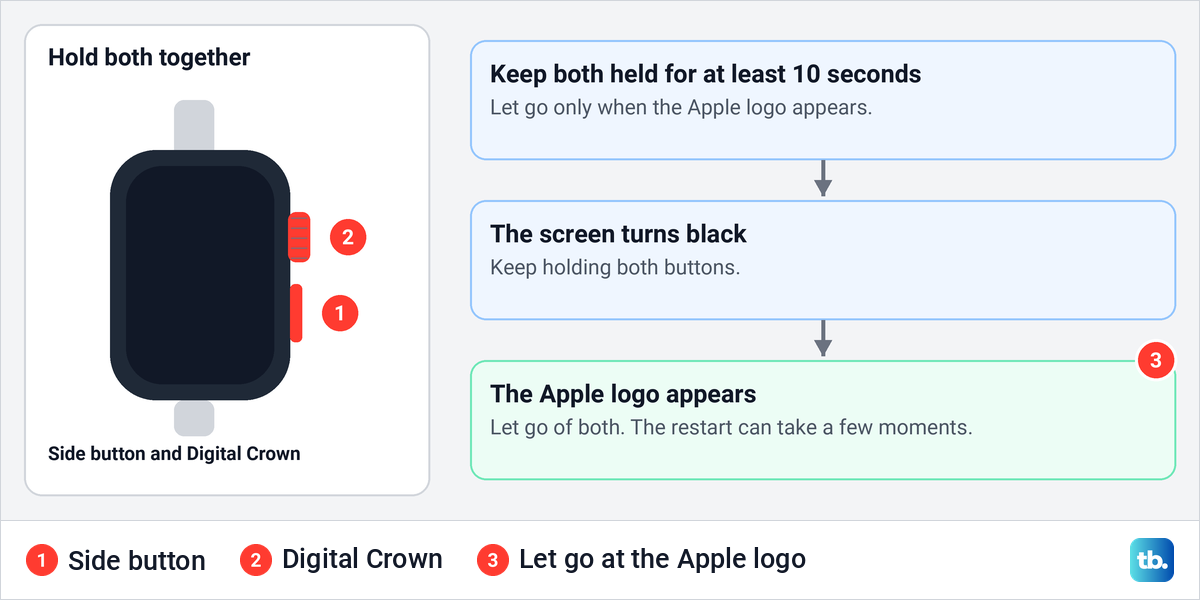
Press and hold the side button and the Digital Crown at the same time, for at least 10 seconds. Apple's support article says to keep holding until the screen turns black and the Apple logo appears, then let go of both. The watch can take a few moments to finish restarting.
Never force a restart while the watch is installing a watchOS update. Apple's update steps say to leave the watch on its charger and not to restart it, and that the watch restarts on its own when the update completes. Apple says an update can take from several minutes to an hour, so a slow progress wheel is not a reason to step in.
If the screen still ignores taps after the reboot on a Series 10, work through the checks for a Series 10 screen that is not responding. If the side button itself feels stuck or does nothing, Apple says to remove any case or protective film that might block it and clean around it, then set up a repair if it still fails.
Restart an Apple Watch Ultra
An Apple Watch Ultra restarts with the same two controls. The side button and Digital Crown sit on the right side, and Apple's restart steps, normal and forced, are the same as on any other model. The Action button on the left side is not part of either.
Keep your fingers off the Action button while you hold the others. Apple says some actions do extra things when the Action and side buttons are pressed together, and that holding the Action button switches its function or, held longer, turns on the Siren.
Hard reset and factory reset are different
People say hard reset for two opposite things. Some mean the side button and Digital Crown hold, which is a forced reboot. Others mean wiping the watch back to factory settings, which Apple calls Erase All Content and Settings, or unpairing it.
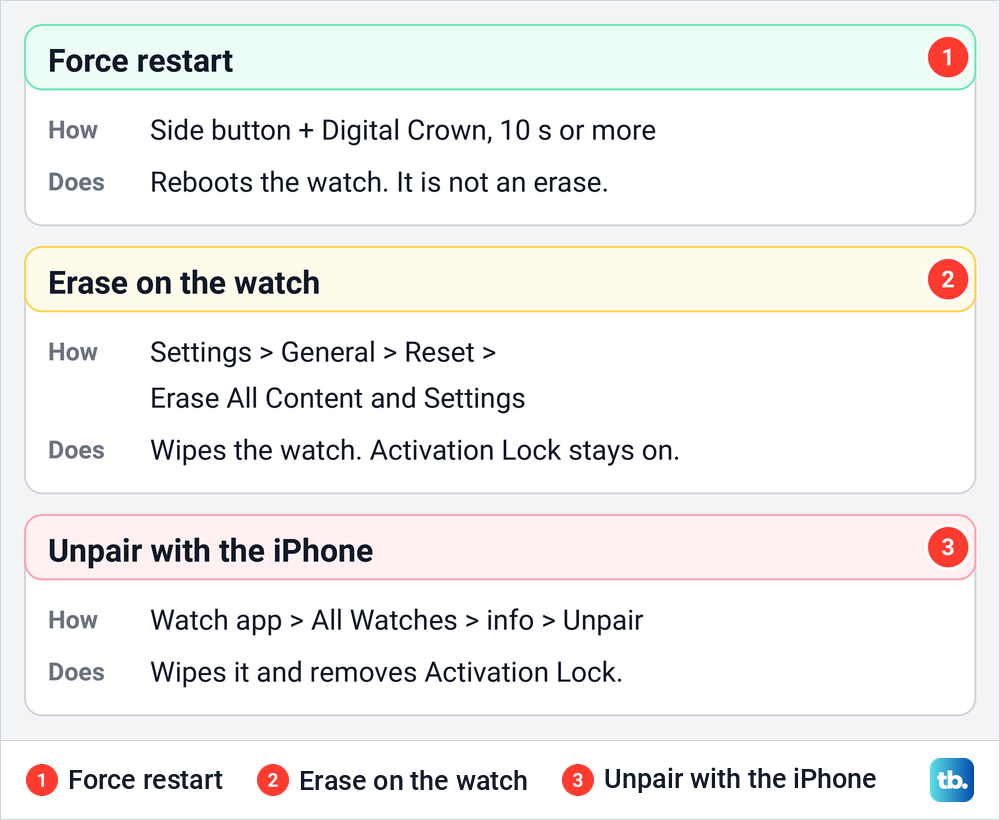
The two erase routes are not equal. Apple says erasing on the watch, in Settings > General > Reset, wipes it but leaves Activation Lock on, while unpairing from the paired iPhone erases it and removes Activation Lock. If you are selling the watch or giving it away, follow our guide on how to unpair and erase Apple Watch.
A forgotten passcode is the one case where the buttons do erase the watch. Apple's reset for it starts with the watch on its charger, the side button held until the power button shows, then the Digital Crown held until Erase all content and settings appears. That is a factory reset, so do not mistake it for a restart.
There is no reset pinhole either. Apple says Apple Watch has no SIM slot or reset button, and that the holes in the case are for sound and, on Ultra, water-depth measurement. Do not push a pin or anything else into them.
Restart the paired iPhone too
Apple's restart page opens with one line of advice: if something is not working right, restart the Apple Watch and its paired iPhone. When the watch is still misbehaving after its own restart, the phone is the other half to try.
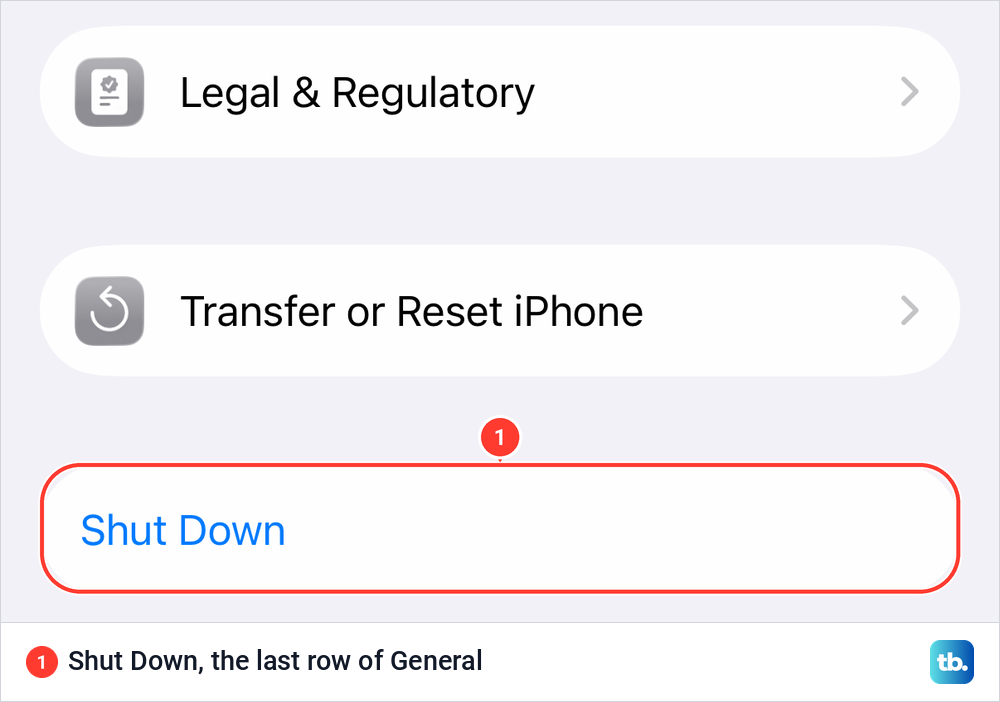
On an iPhone with Face ID, Apple says to hold the side button and either volume button until the slider appears, drag it, then hold the side button until the Apple logo appears. With any model you can also open Settings > General and tap Shut Down, the last row of that list. Our guide on how to restart your phone has the steps for other iPhone models.
If the iPhone is frozen as well, the slider will not help. Follow the steps to force restart an iPhone, which uses a different button sequence from the watch.
When a restart helps and when to wait
A restart is a sensible first step for a temporary glitch, such as an app that will not open or a watch that feels stuck. Apple promises no specific fix, so if the same problem returns soon after a restart, look for the cause instead of restarting again and again.
Apple also uses restarts in its update troubleshooting. If a watchOS update will not install, its update article says to check the charger connection, restart the Apple Watch and the paired iPhone, then try again. On a Series 11, our guide shows how to install an update on Apple Watch Series 11 from the watch or the Watch app.
If the screen stays black
A watch that shows nothing when you hold the side button may be out of power. Apple says a red lightning bolt means the battery is too low to turn on, and that a blank screen may need up to 30 minutes on the charger before the watch turns on.
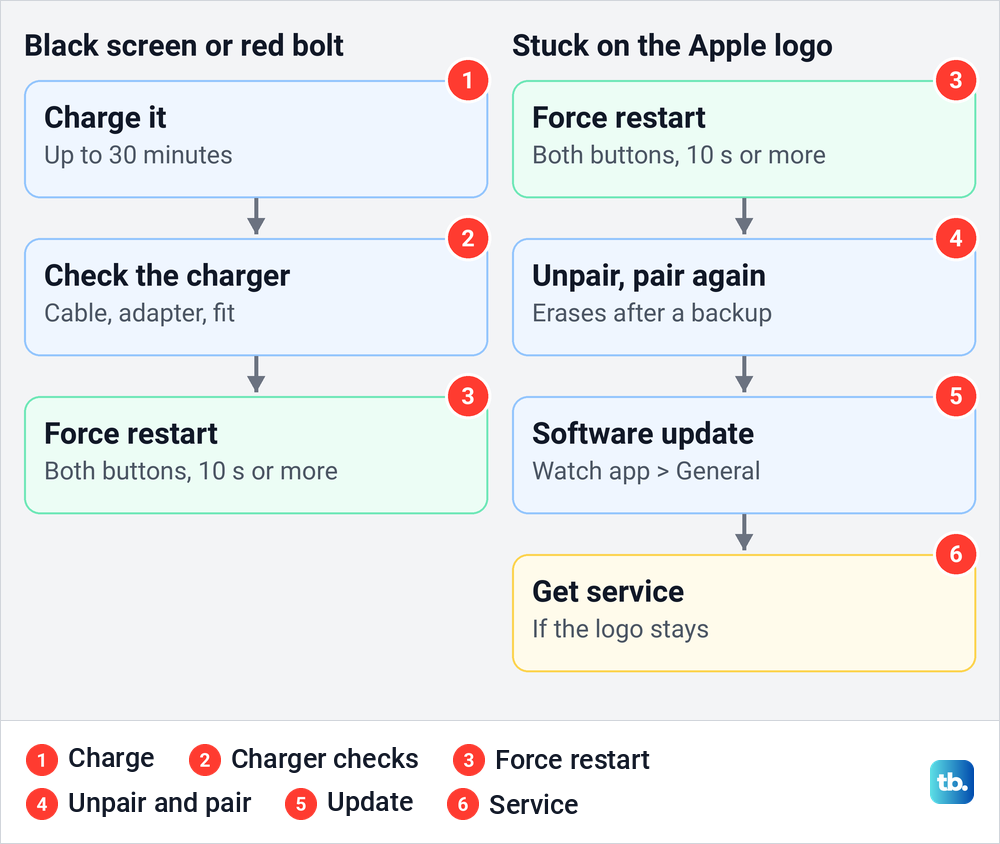
If no lightning bolt appears on the charger, Apple's checks are the cable that came with the watch, pushed all the way into the power adapter, and the adapter pushed all the way into the outlet. Then reposition the back of the watch on the charger, make sure both surfaces are clean with any plastic wrap removed, and try a different cable and adapter.
Leave the watch connected for a while, because Apple says an empty watch can take up to 30 minutes to show the lightning bolt. Only after those checks does Apple suggest a force restart. If the watch still stays dark, use our guide to fix an Apple Watch that will not turn on.
If it stays on the Apple logo
Start with one force restart. Apple says that if the Apple logo persists after that, unpair the watch and pair it again, keeping the iPhone and watch close together. Unpairing erases the watch, although Apple says the iPhone creates a backup of it first.
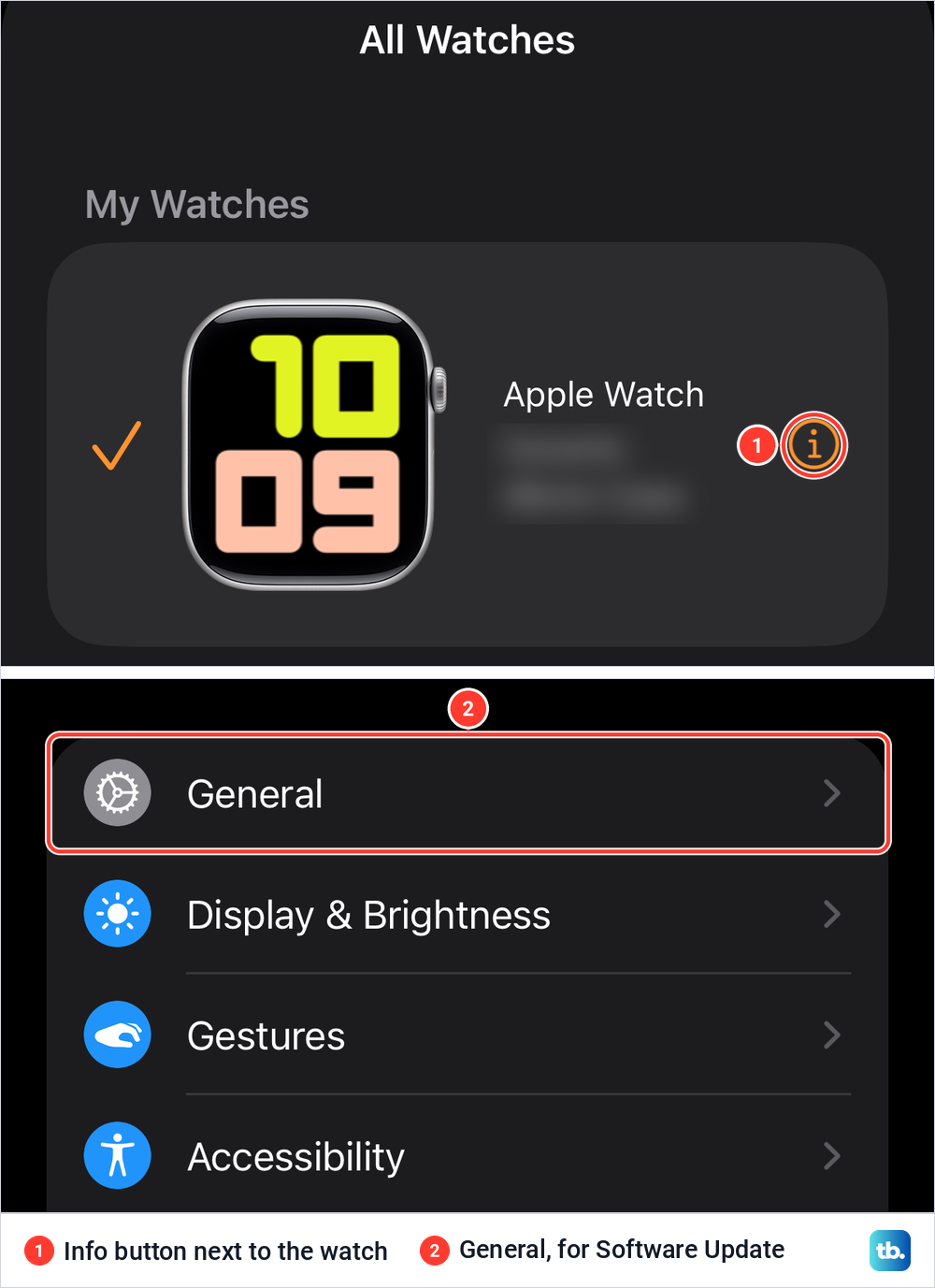
In the Watch app on the iPhone, open the My Watch tab, tap All Watches at the top, then tap the info button next to the watch and Unpair Apple Watch. On our paired iPhone with iOS 26.5, the All Watches sheet listed the watch with its info button on the right.
Tap Unpair with your watch's name to confirm. For a GPS + Cellular watch, Apple says to keep your plan, since you are pairing the same watch again, then enter your Apple Account password and tap Unpair. When it finishes, tap Start Pairing, or Add Watch if more than one watch was paired, and choose Restore from Backup during setup.
If the logo is still there after pairing again, Apple's next step is a software update. In the Watch app, open My Watch, tap General, then Software Update, and tap Download and Install if an update is offered. If the watch is still stuck after that, Apple says to get service.
Some models have their own guide for this fault. For a Series 11 stuck on the Apple logo or an Ultra 3 stuck on the Apple logo, the model pages go further than Apple's three steps. If you are moving to a different phone at the same time, pair your Apple Watch with a new iPhone instead of the old one.
How we tested this guide
We tested this on an Apple Watch Series 11 with watchOS 26.5, bringing up the Power Off slider and closing it with Cancel.
Frequently Asked Questions
How do I restart my Apple Watch without erasing it?
Hold the side button, tap the power icon at the top right, drag Power Off, then hold the side button until the Apple logo appears. A force restart with the side button and Digital Crown is also a restart, not the Erase All Content and Settings command.
How do I force restart an Apple Watch that is frozen?
Hold the side button and the Digital Crown together for at least 10 seconds. Let go of both when the Apple logo appears.
Can I restart my Apple Watch while it is charging?
Not the normal way. Apple says you can't restart the watch while it's charging, so lift it off first. The exception is Apple's fix for a watch that will not charge, which ends with a force restart.
Why does holding the side button start an emergency call?
Press and hold is also the shortcut for Emergency SOS. Let go as soon as the power screen appears: on our watch, holding on started a countdown from 5, and letting go stopped it.
Why is there no Restart button on Apple Watch?
Apple's restart is Power Off followed by turning the watch back on with the side button. The power screens on our watch offered Cancel, the power icon, Emergency Call and Power Off, but no Restart.
Does a hard reset erase my Apple Watch?
It depends on what you mean. The side button and Digital Crown hold only forces a restart, while Erase All Content and Settings or unpairing wipes the watch.
What if my Apple Watch stays on the Apple logo after a force restart?
Apple says to unpair the watch and pair it again, then check for a software update in the Watch app. If it is still stuck, get service.