
To take a screenshot on a Lenovo laptop or ThinkPad running Windows 11, press Windows + Shift + S, choose Rectangle if it is not already selected, then drag across the area you want and let go. Press Ctrl + V to paste the picture into a chat, email or document.
The short version
- No PrtSc key needed: Windows + Shift + S opens the capture bar.
- Find your Lenovo layout: PrtSc can sit beside Delete, beside the right Alt key, or on an F key.
- Save the whole screen: press Windows + PrtSc, and the file goes to Pictures > Screenshots by default.
- Watch for the scissors: that icon opens Snipping Tool, and Fn or FnLock decides which of a shared key's two jobs you get.
The hard part on a Lenovo is finding the key that sends Print Screen. Depending on the model, it sits between Insert and Delete, next to the right Alt key or on an F key. The keyboard details below follow Lenovo's user guides and product pictures for the models named, so match the labels on your keys before you add Fn to any shortcut.
Lenovo screenshot keys at a glance
| What to press | Your keyboard or task | What happens |
|---|---|---|
| Windows + Shift + S | Any Lenovo computer running Windows 11 | The capture bar opens so you can select an area |
| PrtSc, with Fn if your model needs it | IdeaPad Slim 5 14IRL8 or Yoga 7 14IRL8, between Insert and Delete | One key carries both Print Screen and a Snipping Tool shortcut |
| PrtSc | ThinkPad T14 Gen 4, on the bottom row beside right Alt | Opens the capture bar, the Windows 11 default for Print Screen |
| Fn + PrtSc | ThinkPad T14 Gen 4 | Opens Snipping Tool |
| F9, or Fn + F9 with the Esc light on | ThinkPad T14 Gen 5 | Sends Print Screen |
| F11, or Fn + F11 with the Esc light on | ThinkBook 14 G6 IRL or 14 G7 IML | Sends Print Screen |
| Windows + PrtSc | Any layout, using the key that sends Print Screen | Saves the whole screen as a PNG in Pictures > Screenshots by default |
| Alt + PrtSc | Any layout, with the window you want active | Copies that window to the clipboard |
Find PrtSc on an IdeaPad, Yoga, Legion or LOQ keyboard
On the IdeaPad Slim 5 14IRL8 and Yoga 7 14IRL8, Lenovo's product pictures put PrtSc in the top row, between Insert and Delete. The same key has a scissors icon, which Lenovo's hotkey guide says opens Snipping Tool. On other models, go by the labels printed on your keys.
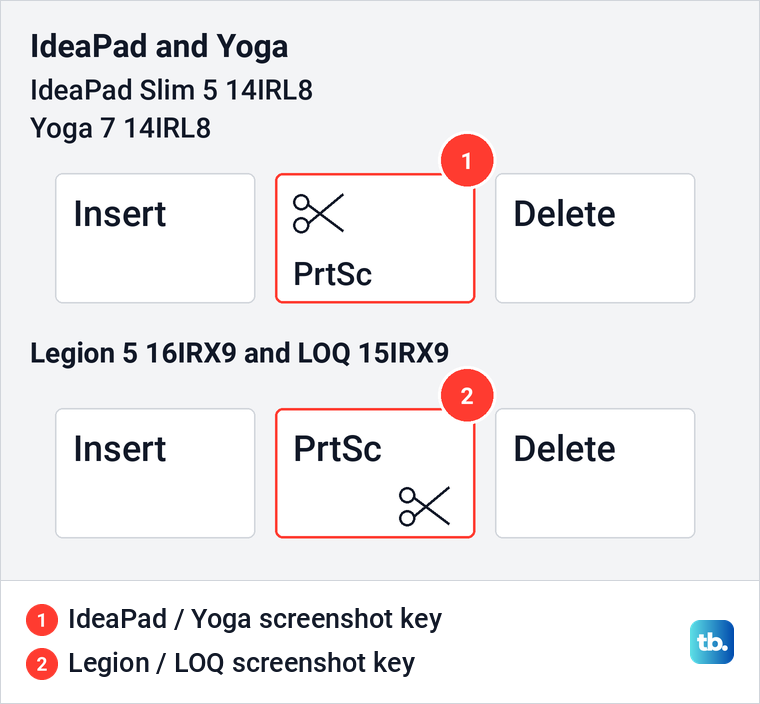
The Legion 5 16IRX9 and LOQ 15IRX9 pictures show the same order, Insert, PrtSc, Delete. On those keyboards four more keys follow above the number pad, so PrtSc is not at the far end of the row. Look for the printed letters instead of counting in from the edge.
That one key does two jobs. Print Screen is the Windows function, and the scissors is Lenovo's shortcut to open Snipping Tool. Which one you get when you press it depends on how your model handles the Fn key.
This matters for Windows + PrtSc, which saves a file straight away. To find out whether your model needs Fn, press Windows + PrtSc and look in Pictures > Screenshots. If no new file appears there, try again while holding Fn. If the shared key gets confusing, Windows + Shift + S takes a capture without changing any keyboard setting.
Find PrtSc next to right Alt on a ThinkPad
On the ThinkPad T14 Gen 4, Lenovo's keyboard drawing puts PrtSc on the bottom row, between the right Alt and Ctrl keys, with the arrow keys farther right. It is a key of its own, so you will not find it anywhere near F12.
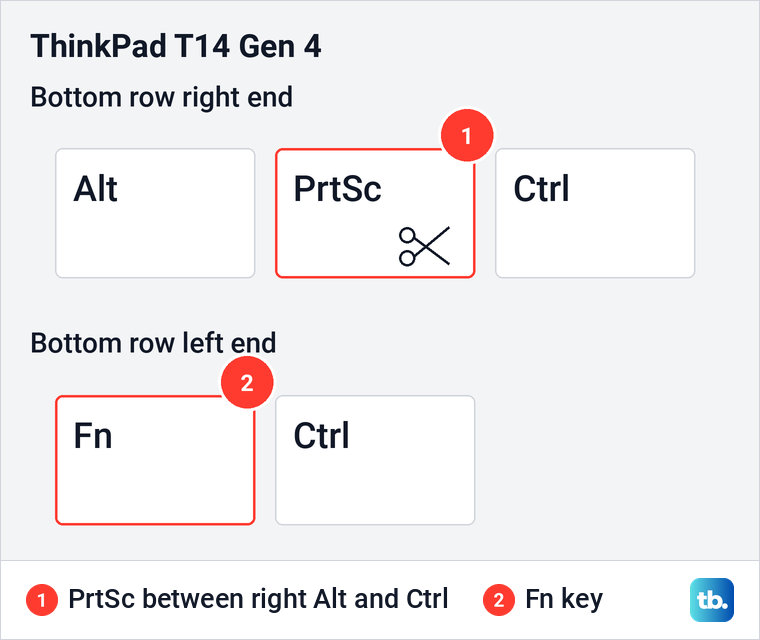
Use that key in the Windows Print Screen shortcuts. To save the whole screen, hold Windows and press the bottom-row PrtSc. You do not need Fn just because it is a laptop.
Adding Fn gives the key a different job here. Lenovo's T14 Gen 4 user guide lists Fn + PrtSc as Open Snipping Tool, so use that combination to open the tool, not to copy the whole screen.
Find PrtSc on the F9 key of a ThinkPad
The ThinkPad T14 Gen 5 moves things around. Lenovo's drawing puts PrtSc on F9 and the scissors on F10, and a Copilot key now sits where the T14 Gen 4 had PrtSc. If there is no Print Screen key beside right Alt on your ThinkPad, check the top row.
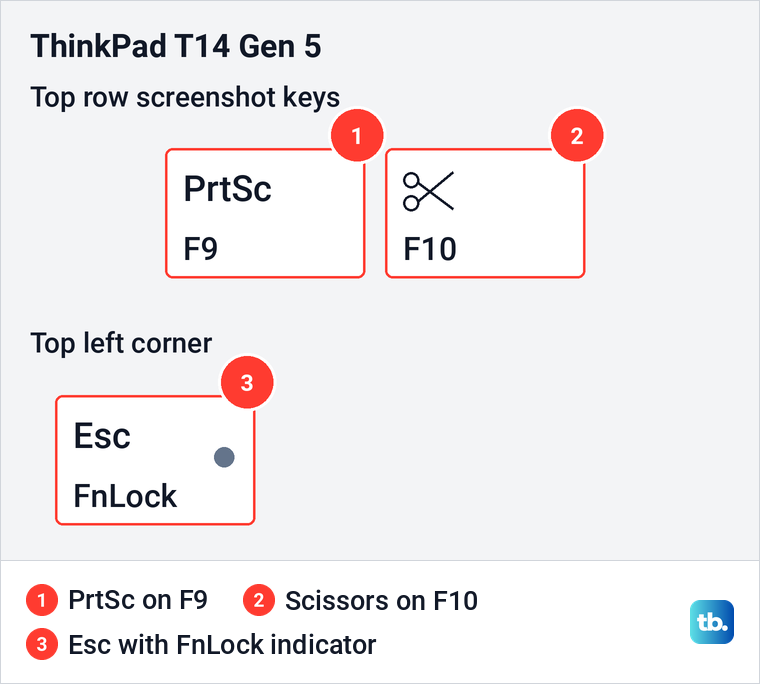
Lenovo's guide for this layout ties both keys to the light on Esc. With the light off, press F9 for Print Screen or F10 for Snipping Tool. With the light on, hold Fn while you press either one.
To save the whole screen on this layout, hold Windows and press F9 while the Esc light is off, or press Windows + Fn + F9 while it is on. Both combine Lenovo's FnLock rule with the Windows Print Screen shortcut.
What FnLock and the Esc light change
On keyboards with Lenovo's FnLock switch, Fn + Esc swaps which function a key gives you without Fn, and the light on Esc shows which one is set. On the ThinkPad T14 Gen 5, Lenovo's guide says light off gives the special functions and light on gives plain F1 to F12.
The IdeaPad Slim 5 guide explains it by where the labels sit. The upper label is the primary function, and with the Esc light off you get it by pressing the key alone. With the light on, a plain press gives the lower, secondary function, and holding Fn always gives you the other one.
No single Fn rule covers every Lenovo. The Legion 5 generation 7 guide calls the icons hidden functions that you reach by holding Fn. On a Legion, check your own model's guide, because the generation 7 guide's rule differs from the IdeaPad's.
An older IdeaPad 3 guide describes a BIOS setting called Hotkey Mode for keys shared with F1 to F12. Lenovo says it leaves alone any hotkey that does not share an F key, so changing it will not fix PrtSc on every model. To change how those keys behave instead, see our guide to changing how the Fn key works.
If you would rather change FnLock itself, follow the steps for turning off Fn Lock and check the light on Esc afterward. That changes every dual-function key, not only PrtSc, so for a single screenshot it is easier to hold Fn.
ThinkBook keys and the Fn + T shortcut
The ThinkPad's F9 position does not carry over to the ThinkBook 14 G6 IRL and 14 G7 IML. On these models, Lenovo's product pictures put PrtSc on F11, the scissors on F10 and Insert on F12.
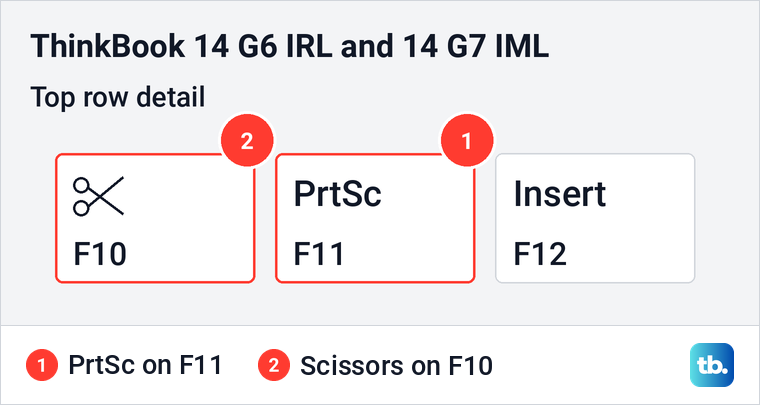
Lenovo's FnLock table for these two models gives you the label printed above F11 when the Esc light is off. So press F11 for Print Screen with the light off, or Fn + F11 with it on.
Some models add a letter shortcut. Lenovo's guides for the ThinkBook Plus Gen 6 Rollable i, Yoga Slim 7i Ultra Aura Edition and Yoga 7i 2-in-1 Aura Edition list Fn + T as PrtScr. Use it if your model's guide lists it, but do not expect it on every ThinkBook or Yoga.
If your keyboard looks like none of these, you do not need to find Print Screen at all. Press Windows + Shift + S for an area, or open Snipping Tool from Start. There are more ways to take a screenshot without Print Screen when a key is missing or hard to reach.
Take the screenshot with Windows + Shift + S
Press Windows + Shift + S and look for the capture bar at the top of the screen. If another shape is selected, open Snipping area and choose Rectangle. Click one corner of what you want, hold, drag to the opposite corner and let go.
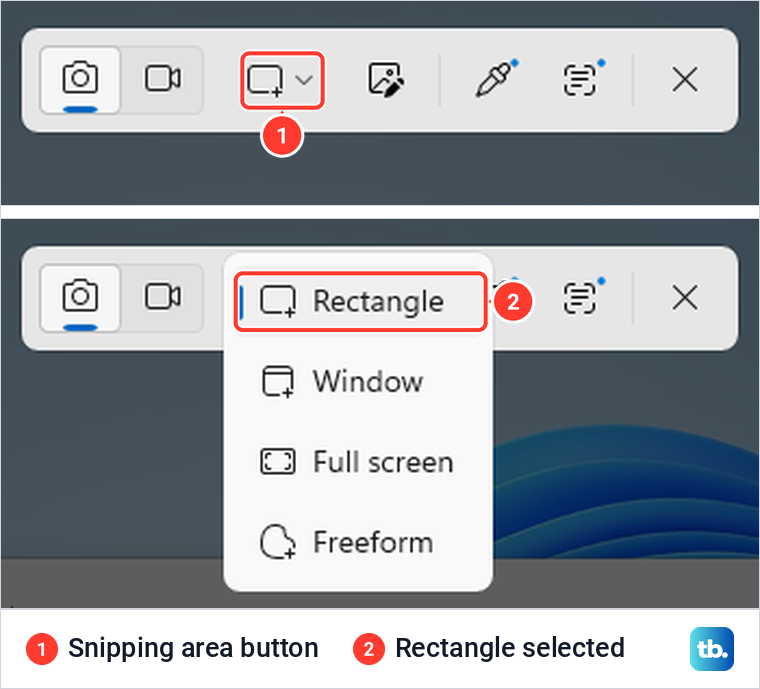
The picture is now on the clipboard, so you can paste it with Ctrl + V, and on Windows 11 Snipping Tool also saves a copy by default. Our full guide to taking a screenshot on Windows covers the other shapes and the editing tools.
What the PrtSc key does in Windows 11
On our PC running Windows 11, version 25H2, pressing PrtSc opened the capture bar by default instead of copying the whole desktop. When we selected an area, a notification said the screenshot had been copied to the clipboard and saved.
If you would rather have PrtSc copy the whole screen in one press, open Settings and search for print screen. Turn off Use the Print screen key to open screen capture, which sat under Accessibility > Keyboard on our PC.
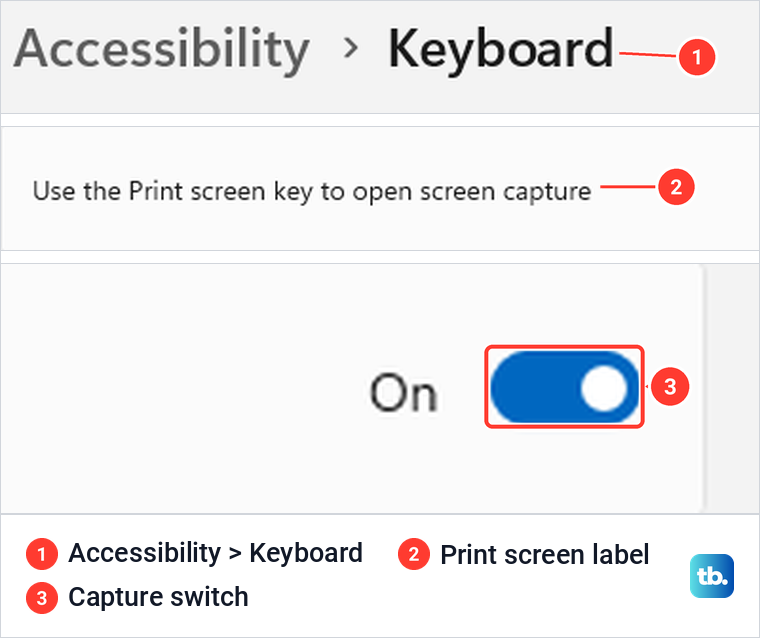
With the switch off, PrtSc copied the entire screen and saved no file, which we checked by pasting into Paint. On a shared Lenovo key, use the Print Screen side for this. The scissors side is Lenovo's shortcut to open Snipping Tool.
Save the whole screen or copy one window
Press Windows + PrtSc to save the whole screen at once, adding Fn if your keyboard needs it. On our PC, with the Print screen switch on, that saved a numbered PNG in Pictures > Screenshots and also put the image on the clipboard.
For one window, click it first, then press Alt + PrtSc. When we pasted into Paint, we got only the Notepad window we had clicked, and no new file appeared. Paste it with Ctrl + V before you copy anything else.
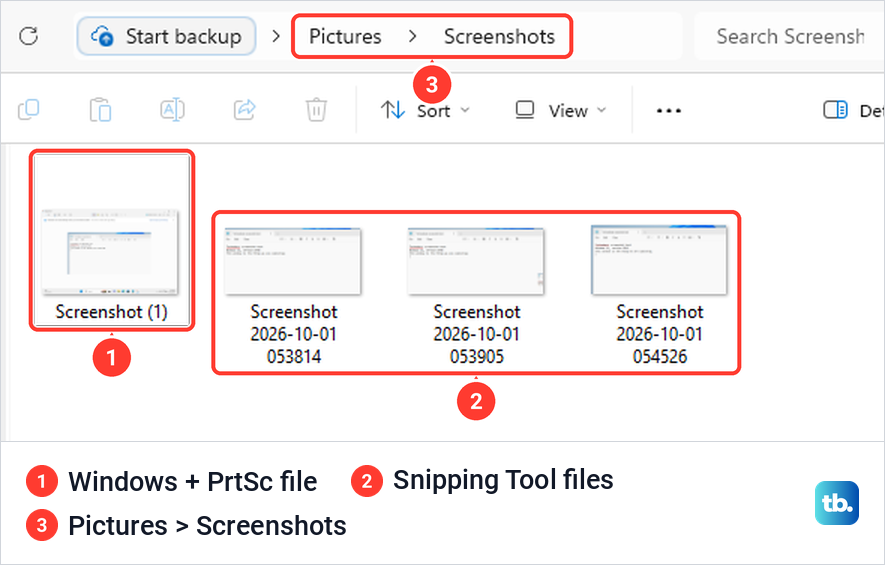
By default, Snipping Tool captures and Windows + PrtSc files both go to Pictures > Screenshots. If your snips are not there, open Snipping Tool's three-dot menu, choose Settings and look at Screenshots are saved to. The Open folder button takes you straight there.
If the screenshot is the last thing you copied, Ctrl + V pastes it. To keep several screenshots ready to paste, press Windows + V to open clipboard history in Windows 11 and select Turn on if Windows asks.
When a Lenovo screenshot key does nothing
Try Windows + Shift + S first. If the bar opens, go back over your keyboard layout, its Fn combination and the Print screen switch. If it does not, follow our fixes for Windows + Shift + S not working.
You can also press Windows + Ctrl + O to open the On-Screen Keyboard and click its PrtScn key, which opened the capture bar when we tried it. That keeps you taking screenshots while you work through our fixes for Print Screen not working in Windows.
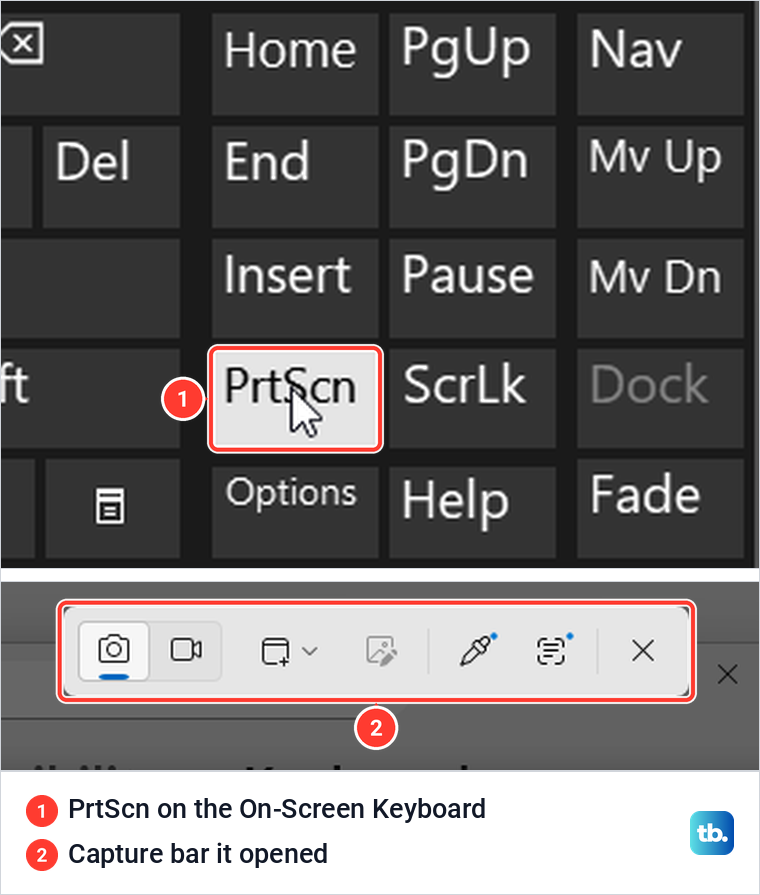
If other keys have stopped working too, you are dealing with a wider keyboard problem. See our fixes for a ThinkPad T14 keyboard that stopped working, or for a Lenovo IdeaPad keyboard that is not working.
Other ways to take a screenshot on a Lenovo
On any Lenovo running Windows, Yoga models included, you can start from the app instead of a key combination. Open Snipping Tool from Start and select New. Choose Rectangle for an area, or Full screen for the whole display.
A Lenovo Chromebook runs ChromeOS, not Windows, so the shortcuts above do not apply. Follow our guide to taking a screenshot on a Chromebook instead.
How we tested this guide
We tested this on Windows 11, version 25H2, with the built-in Snipping Tool, pressing PrtSc with its switch on and off.
Frequently Asked Questions
How do I take a screenshot on a Lenovo laptop without the Print Screen button?
Press Windows + Shift + S, choose Rectangle and drag across the area. Paste the result with Ctrl + V.
Where is the PrtSc key on a ThinkPad?
On the T14 Gen 4, it is on the bottom row between the right Alt and Ctrl keys. On the T14 Gen 5, it shares F9, with the scissors on F10. The printed labels tell you which layout you have.
Do I need to hold Fn to take a screenshot on a Lenovo?
Not for Windows + Shift + S. For Print Screen it depends on the keyboard: the T14 Gen 4 has a separate bottom-row key, while the T14 Gen 5 needs Fn + F9 when its Esc light is on.
Why is the screenshot key not working on my Lenovo laptop?
Check whether PrtSc shares a key and whether your model needs Fn to reach it. Then try Windows + Shift + S. If the bar opens, you can keep taking screenshots while you sort out the key and its settings.
Can one key press capture the whole screen on a Lenovo?
Yes. Turn off Use the Print screen key to open screen capture, and a plain Print Screen press copies the whole screen. For a saved file, press Windows + PrtSc, with Fn if your keyboard needs it.
Where do screenshots go on a Lenovo laptop?
Windows 11 snips and Windows + PrtSc captures go to Pictures > Screenshots by default. Alt + PrtSc copies the active window to the clipboard, so paste it into an app to use or save it.
How do I screenshot on a Lenovo Yoga?
Press Windows + Shift + S and select the area, as on any Lenovo running Windows. Lenovo's guides for the Yoga Slim 7i Ultra Aura Edition and Yoga 7i 2-in-1 Aura Edition also list Fn + T as PrtScr, so check your own model's guide for that shortcut.