

To reset a Lenovo laptop to factory settings, open Settings > System > Recovery, select Reset PC and choose Remove everything, then turn on Clean data if the laptop is leaving your hands. If Windows will not start or you cannot sign in, an IdeaPad or Yoga with a Novo button opens the same reset with the laptop switched off. A ThinkPad has no Novo button, so it uses the sign-in screen or the Windows recovery screen instead.
Find your BitLocker recovery key before you start. Lenovo says ThinkPads made in 2020 and later can encrypt the drive as soon as you press Enter during first setup, and that its service center does not have the key. Reset this PC reinstalls today's Windows with its updates rather than the factory image, though Microsoft says Remove everything restores the PC maker's preinstalled customizations. Lenovo's recovery USB puts back the original factory image.
On Windows 11, version 25H2, we went through Reset this PC with Remove everything and Local reinstall, with Clean data off and then on. We also ran Lenovo's two encryption checks, and our PC, signed in with a local account, was encrypting its drive anyway. The Novo button, Lenovo's keys and its recovery USB follow Lenovo's instructions.
The short version
- Selling it: Settings > System > Recovery, Reset PC, Remove everything, then Clean data set to Yes.
- IdeaPad or Yoga will not start: laptop off, press the Novo button with a paper clip, pick System Recovery (Windows startup options on newer models), then Troubleshoot > Reset this PC.
- Can't reach the hole: Fn + the power button with the laptop off, as Lenovo's IdeaPad 3 and Yoga Slim 7 Pro X guides allow, or F9 as a Legion 5 (15 inch, 7) or Legion 7a starts.
- ThinkPad: no Novo button, so hold Shift and select Power > Restart on the sign-in screen.
- No password: from the recovery screen, Remove everything needs none by default, while Keep my files asks for it.
Which Lenovo reset do you need
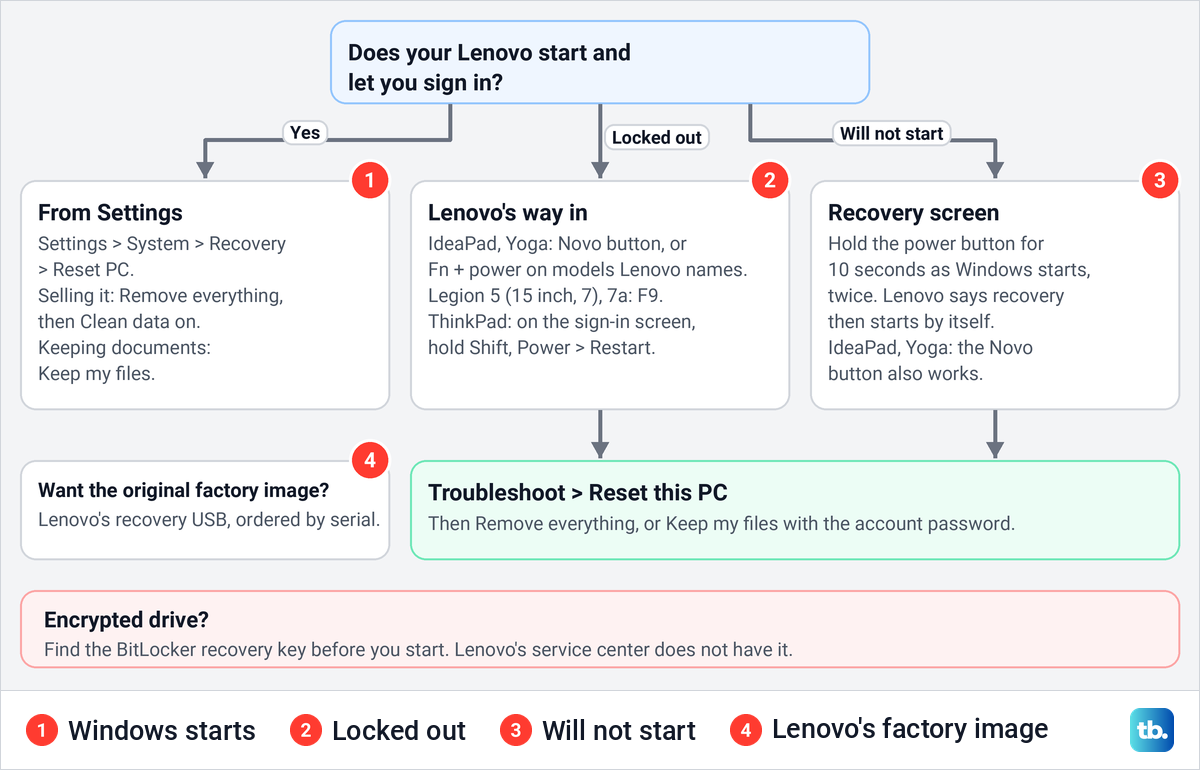
Pick the row that matches your laptop and your situation. Every route but the last ends at the same Windows reset, and the chart below sorts them by one question.
| What to press or open | Lenovo laptops | When | What you choose next |
|---|---|---|---|
| Settings > System > Recovery > Reset PC | Any Lenovo that starts | Selling it, or starting over | Remove everything with Clean data, or Keep my files |
| Novo button, laptop off | IdeaPad and Yoga models with a Novo hole | Will not start, or locked out | System Recovery or Windows startup options, then Troubleshoot > Reset this PC |
| Fn + the power button, laptop off | IdeaPad 3, Yoga Slim 7 Pro X | The same, if you cannot reach the hole | The same Novo Button menu |
| F9, repeatedly as it starts | Legion 5 (15 inch, 7), Legion 7a | The same | The same Novo Button menu |
| Shift + Power > Restart on the sign-in screen | ThinkPad, or any Lenovo | Locked out | Troubleshoot > Reset this PC |
| Power button held 10 seconds as Windows starts, twice | Any Lenovo | Will not start | Troubleshoot > Reset this PC |
| Lenovo's recovery USB, then F12 | A Lenovo whose serial number Lenovo supports | You want the original factory image | Lenovo's recovery program |
You may not need a factory reset at all. If a recent change caused the trouble, use System Restore to an earlier date, which our PC's Control Panel described as undoing recent system changes while leaving documents, pictures and music unchanged. If the laptop is not a Lenovo, our guide to factory reset any other laptop has the steps for other brands.
Before you reset your Lenovo laptop
Lenovo's first instruction is to back up important personal files to external storage, such as a USB drive or a cloud account. Our guide shows how to back up your files in Windows 11. Then plug in the charger, because Lenovo says a reset can take up to a few hours and the laptop needs power the whole time.
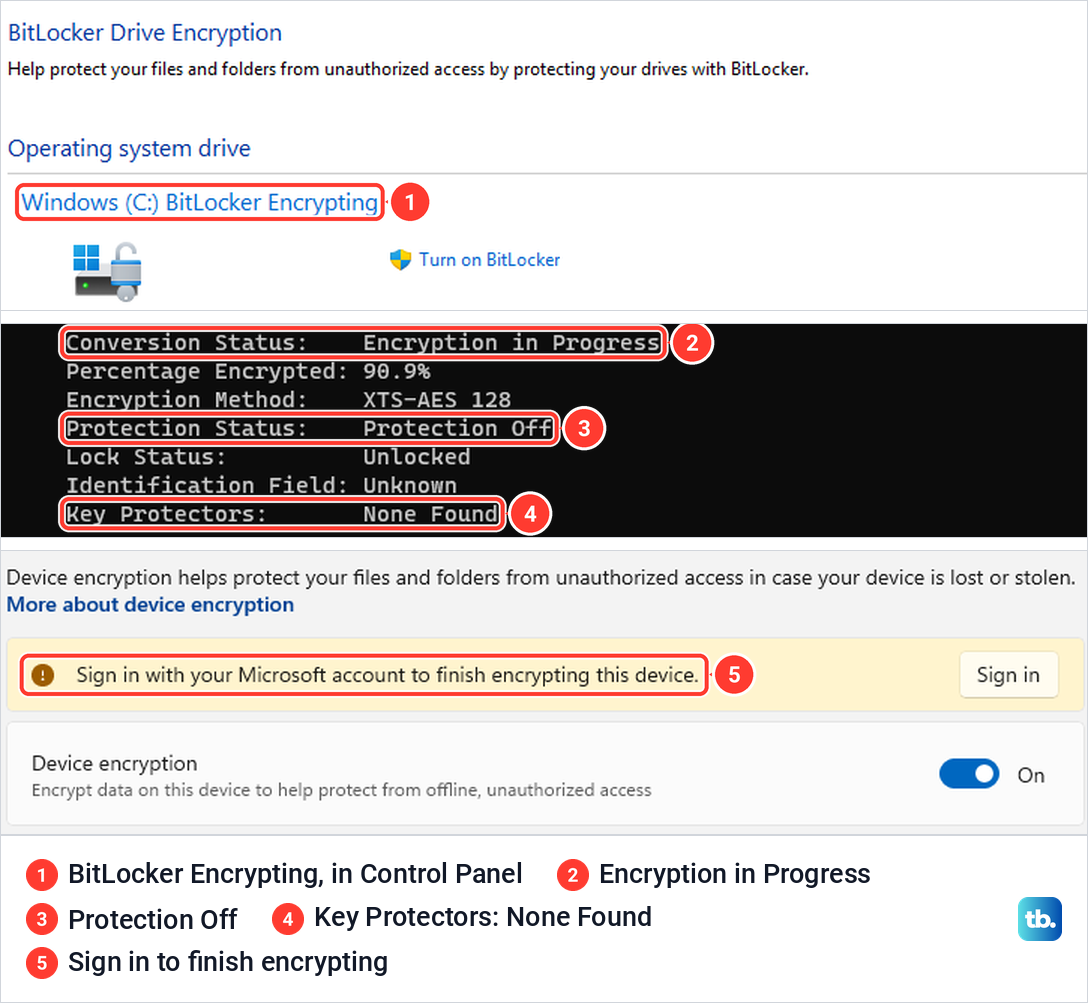
Next, check for encryption, because a reset from the recovery screen can stop and ask for the BitLocker recovery key. Lenovo says Windows turns on Device Encryption on most notebooks with the Lenovo factory preload. It gives two ways to check: the BitLocker page in Control Panel, or manage-bde -status in an administrator Terminal.
We ran both on our PC, which signs in with a local account. Typing BitLocker in Start offered Manage BitLocker, and Control Panel showed Windows (C:) BitLocker Encrypting. In Terminal (Admin), opened from Windows + X, manage-bde reported Encryption in Progress, Protection Off and Key Protectors: None Found.
Settings > Privacy & security > Device encryption explained why. The switch was On, with the banner "Sign in with your Microsoft account to finish encrypting this device". Windows was encrypting the drive, but manage-bde listed no recovery key at all, and Settings asked for a Microsoft account sign-in to finish.
So a local account is no proof that the drive is unencrypted. If yours is encrypted, Microsoft says to get the recovery key from aka.ms/myrecoverykey on another device, or from the Microsoft account of whoever set the laptop up. Microsoft cannot retrieve a lost key.
While the laptop still works, consider making a recovery drive, which Lenovo's ThinkPad guide recommends doing as early as possible. We followed Lenovo's path: Control Panel, View by Small icons, Recovery, then Create a recovery drive, which asked for administrator permission and opened with Back up system files to the recovery drive ticked by default.
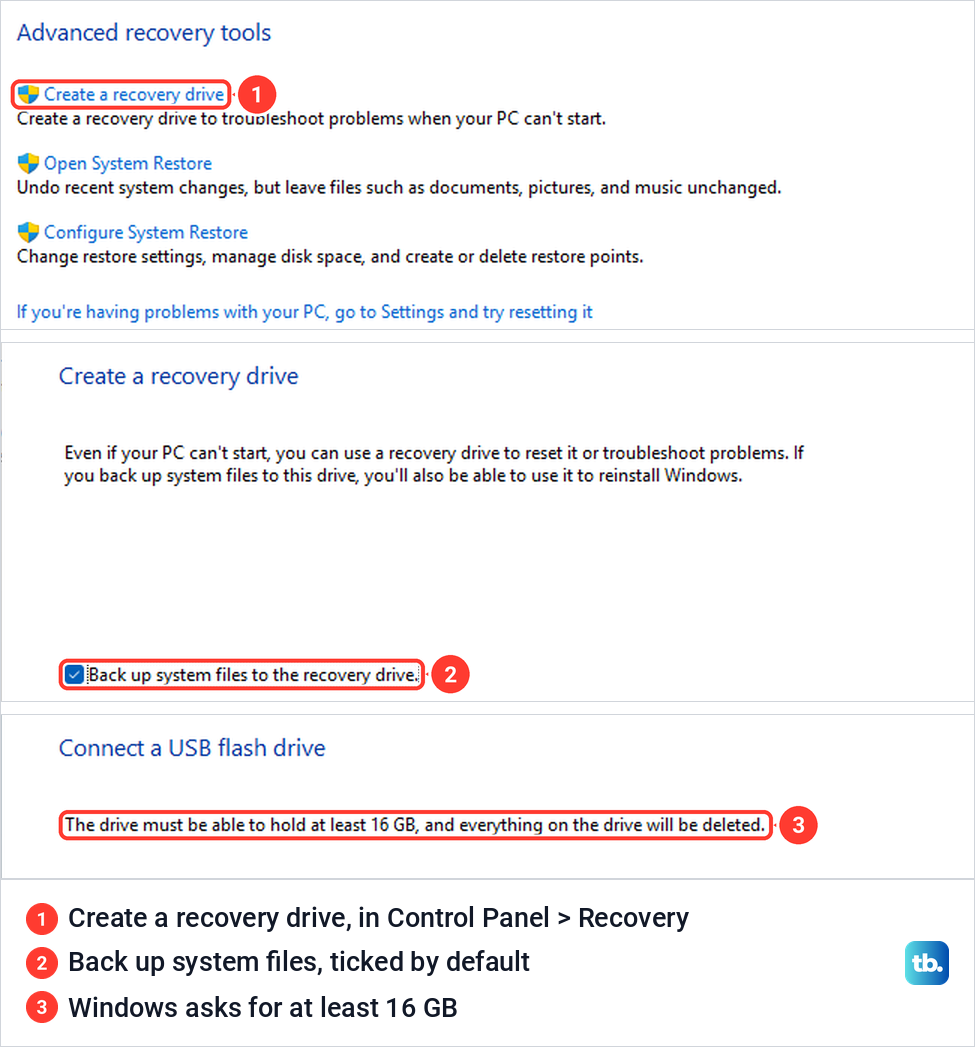
With no USB drive plugged in, Next showed Please wait for about five minutes, then asked for a drive of at least 16 GB. Lenovo's Legion 7a guide asks for 32 GB or more, so use that size.
Factory reset a Lenovo laptop from Settings
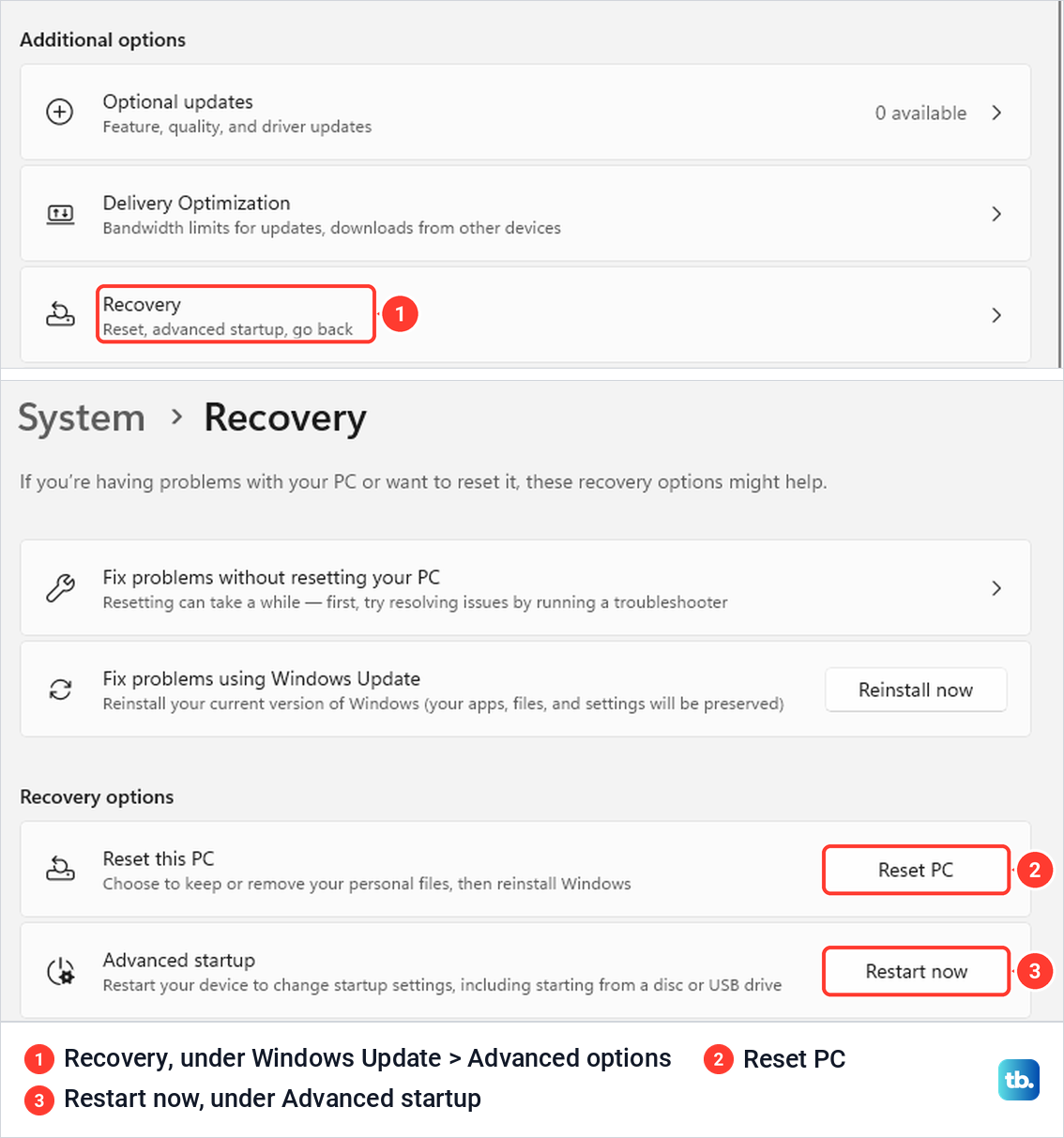
If the laptop starts and you can sign in, Settings is the simplest way. Press Windows + I to open Settings (ours opened on Home), then select System and Recovery. Next to Reset this PC, select Reset PC.
Lenovo's Windows 11 article reaches the same page through Windows Update > Advanced options > Recovery. When we tried it, Advanced options listed Recovery under Additional options, described as Reset, advanced startup, go back, and it opened the same System > Recovery page.
The first screen, Choose an option, offers two choices. Keep my files removes apps and settings but keeps your personal files, while Remove everything removes all of your personal files, apps and settings. For a factory reset, select Remove everything, which Microsoft calls ideal when you are giving away or selling your PC.
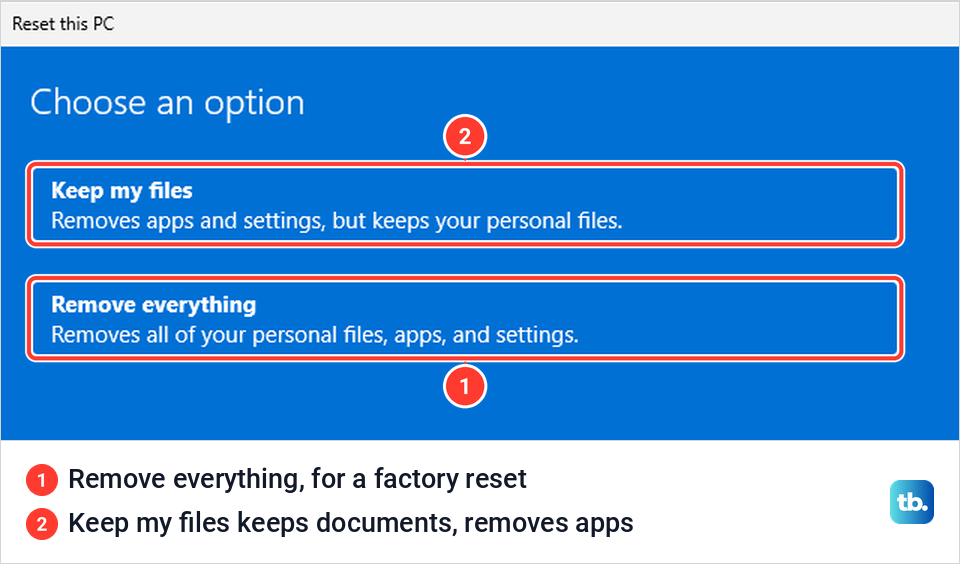
Keep my files still removes every app you installed. Its last screen on our PC offered View apps that will be removed, and the list said it would be saved to the desktop after the reset. If you want to keep your apps too, reinstall Windows 11 and keep your apps instead, which is a different job.
Our PC then showed Getting things ready for about three minutes one time and about one minute another, so leave the window open. Next it asked How would you like to reinstall Windows?
Cloud download fetches a fresh copy and, the screen warned, can use more than 4 GB of data. Microsoft says it is useful if the local files are corrupted or missing, while Local reinstall is faster on a slow connection but may lack the latest updates. So pick Cloud download if Windows has been misbehaving, and Local reinstall on a slow or metered connection.
Turn on Clean data before you sell it
The next screen decides how thoroughly the drive is wiped. After Local reinstall, Additional settings on our PC read "Remove apps and files. Do not clean the drive". Select Change settings to change that.
Choose settings shows two switches, Clean data and Download Windows, both at No on our PC. With Clean data at No, its text reads "Just remove your files. This is quicker, but less secure".
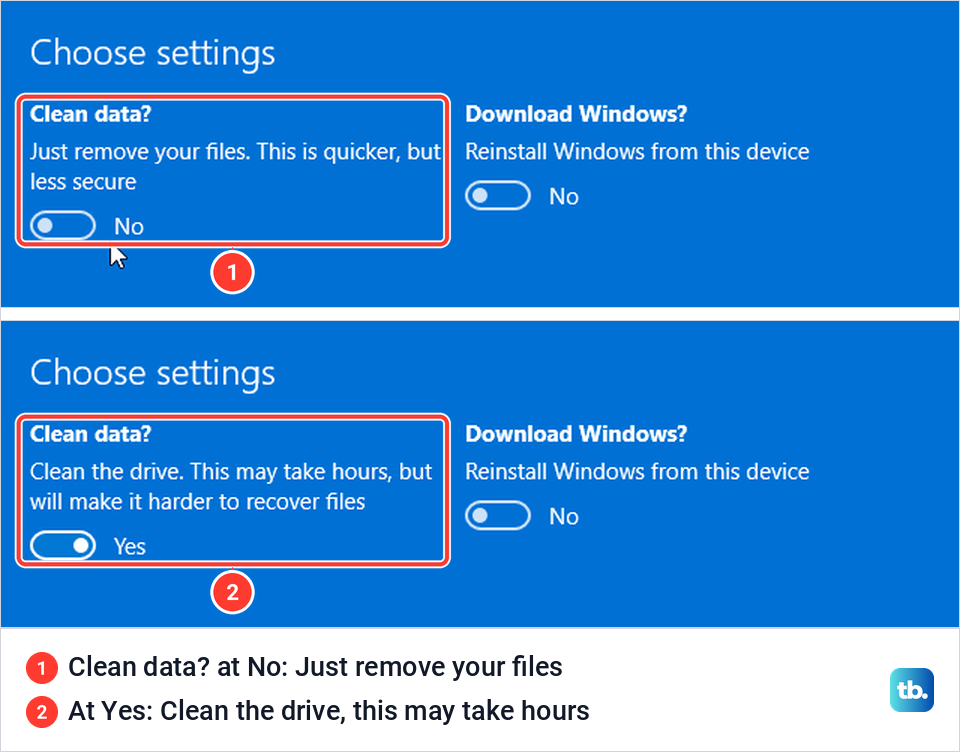
One click turned it to Yes, and the text changed to "Clean the drive. This may take hours, but will make it harder to recover files". After Confirm, Additional settings read "Remove apps and files. Clean the drive".
Microsoft says Clean data makes removed files harder to recover, but that this consumer erasure does not meet government and industry standards. Check the switch every time, because when we opened the wizard again it was back to "Do not clean the drive". Microsoft says a PC with more than one drive also lets you remove data from all drives or only the Windows drive, so pick all drives if the laptop is leaving your hands.
Then select Next once and read Ready to reset this PC. Ours listed "Remove all the personal files and user accounts on this PC", "Remove any changes made to settings", "Remove all apps and programs" and "Reinstall Windows from this device". With Clean data on, that list was word for word the same as with it off, so this screen does not confirm the cleaning.
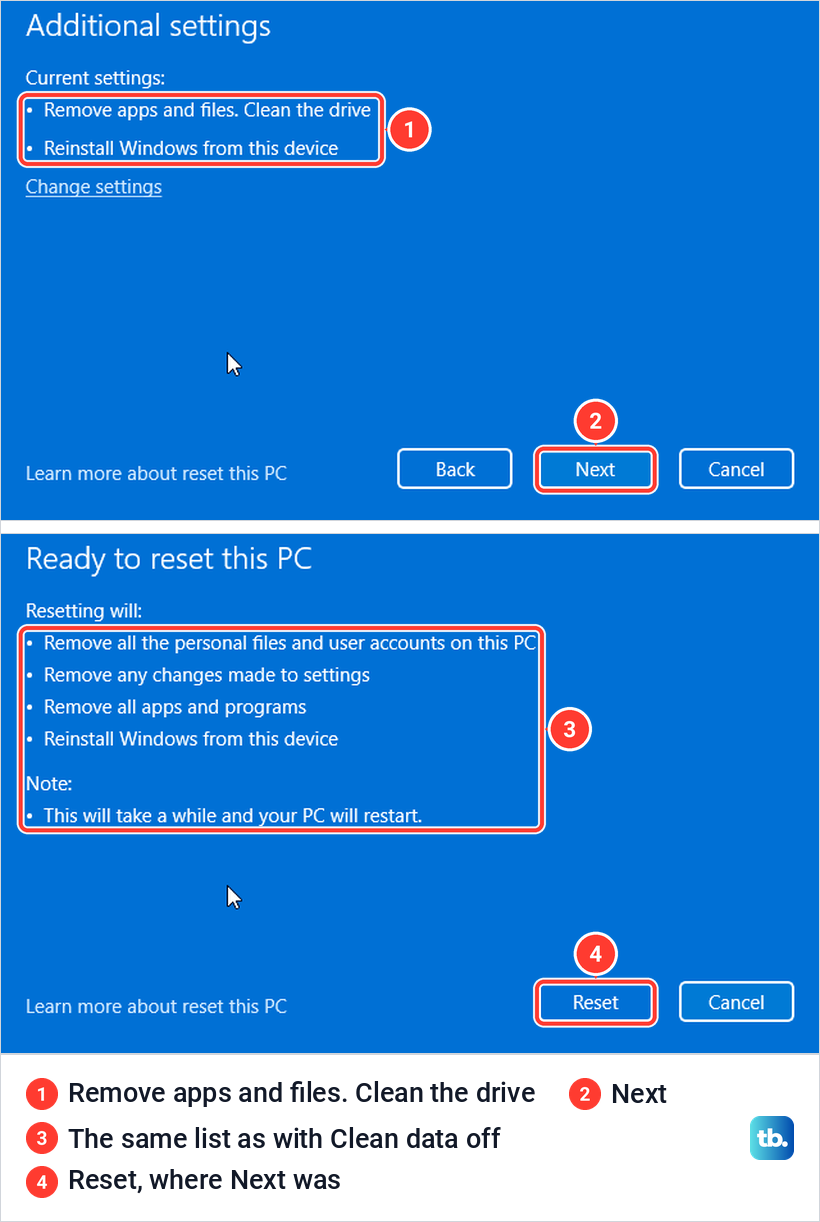
Watch where you click. The Reset button sat exactly where Next had been, so a quick second click on Next would land on Reset, while Cancel took us back with nothing changed.
The steps after you select Reset follow Microsoft's instructions. Microsoft says the screen can go black for upwards of 15 minutes and the laptop might restart itself, and that restarting it yourself could make the reset fail. If it stops with an error, see our fix for There was a problem resetting your PC.
Use the Novo button on an IdeaPad, Yoga or Legion
The Novo button opens a small Lenovo menu before Windows starts, which is how you reach the reset when Windows will not load or you cannot sign in. Lenovo describes it as a small button or pinhole with a backwards arrow icon next to it, shaped like an upside down U. Lenovo says it is usually on the side or near the power button, and on the IdeaPad Slim 5 it is a hole on the right side.
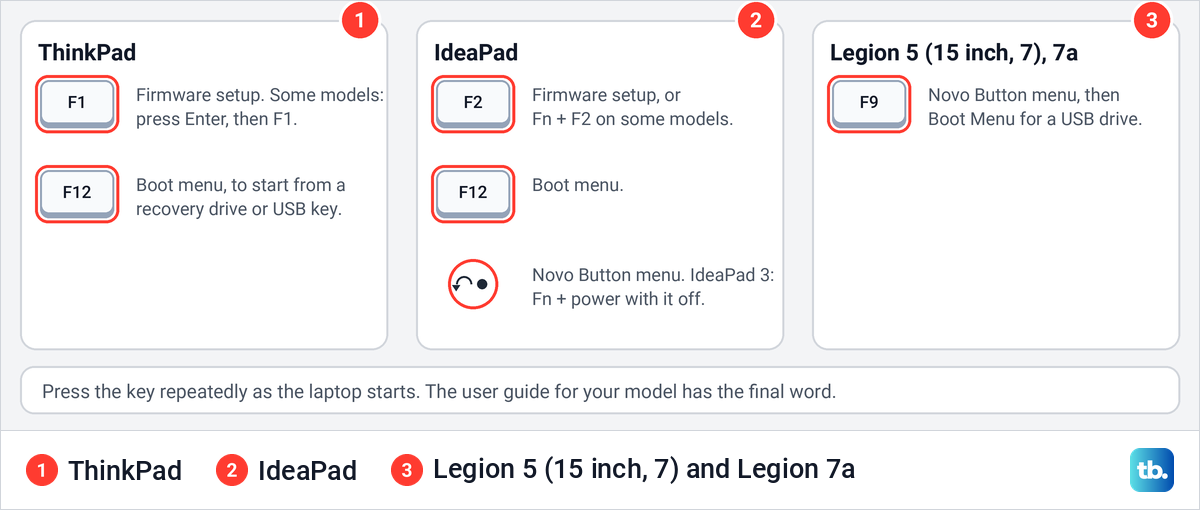
If you cannot find one, Lenovo says to check your model's user guide. Its guides for the IdeaPad 3 and Yoga Slim 7 Pro X also give an alternative to the button: turn the laptop off and press Fn and the power button. Its Legion 5 (15 inch, 7) and Legion 7a guides say to press F9 repeatedly as the laptop starts.
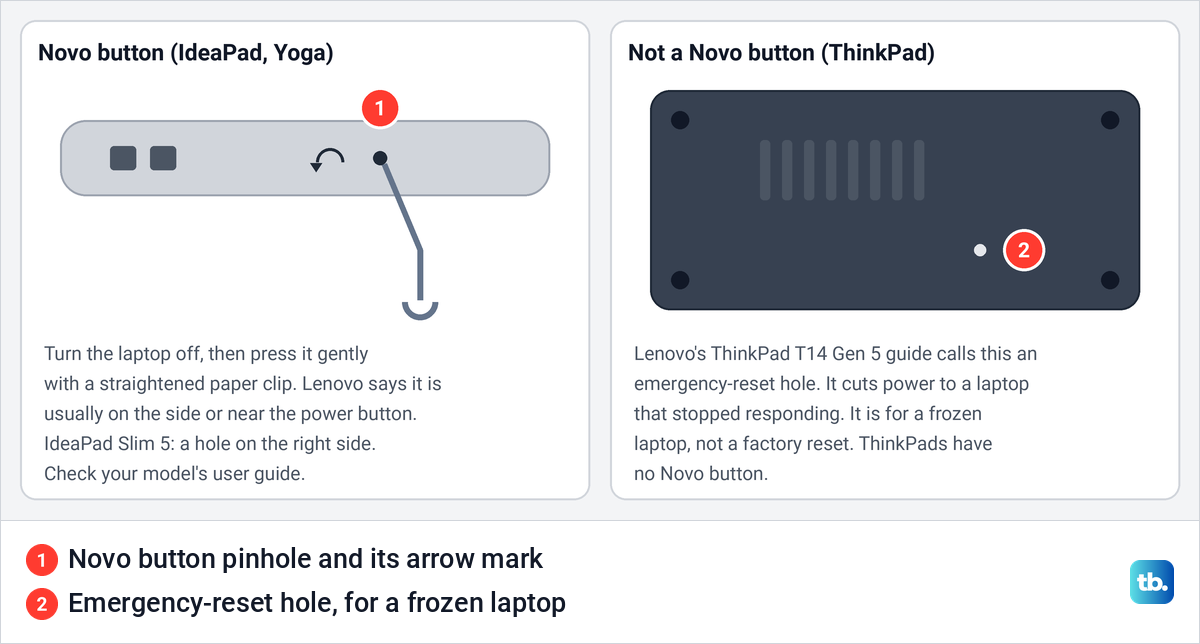
With the laptop off, Lenovo says to gently press the button with the tip of an unfolded paper clip, then use the arrow keys and Enter in the Novo Button menu. Its support article says to choose System Recovery, then Troubleshoot > Reset this PC.
Newer guides name that entry differently, and Lenovo notes the menu varies with the software version. The IdeaPad 3 guide lists Open the Windows startup options screen, which offers Reset your computer, and the IdeaPad Slim 5 guide calls it Display the Windows advanced startup options page.
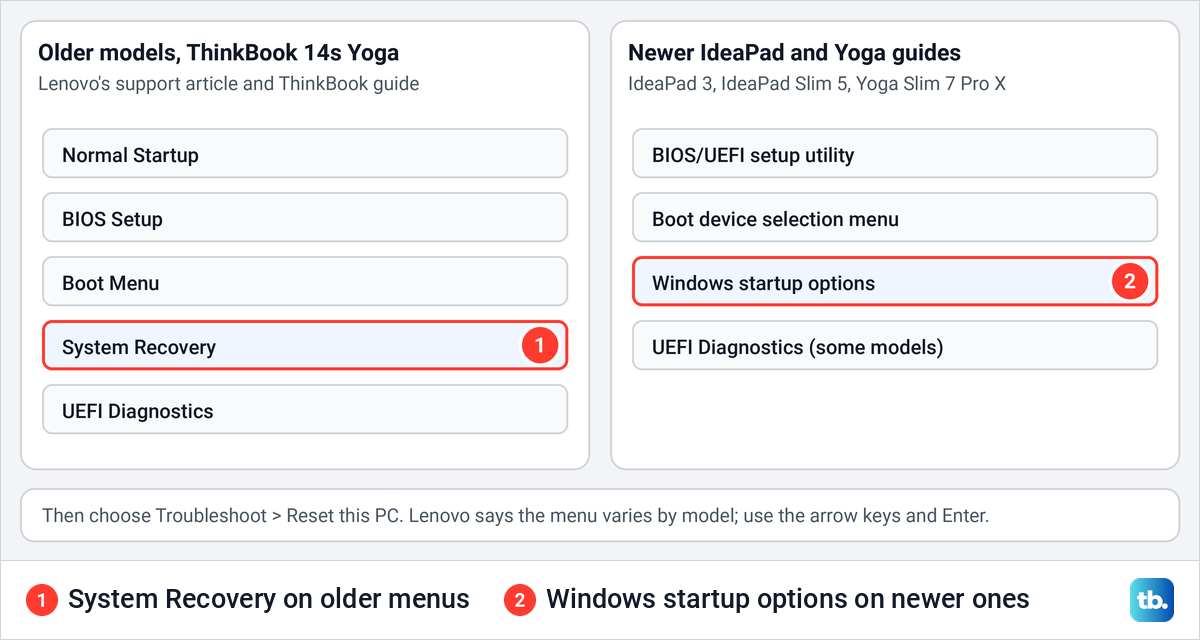
Choose Remove everything to wipe the laptop. Lenovo says Keep my files asks you to choose the user and type the password, and to select Reset with the AC adapter plugged in. On a laptop with more than one drive, Lenovo's article offers Only the drive where Windows is installed, which covers drive C, or All drives.
Some older IdeaPads have Lenovo OneKey Recovery preloaded instead. On those, Lenovo says System Recovery restores the system from the initial backup made at the factory, kept on a hidden partition, and warns that the process is irreversible.
Factory reset a ThinkPad, which has no Novo button
Lenovo says the Novo button is not available on ThinkPad or ThinkCentre models, and OneKey Recovery does not apply to Think brands. The small hole under a ThinkPad T14 Gen 5 is what Lenovo calls an emergency-reset hole: with the laptop off AC power, a straightened paper clip in it cuts power to a laptop that stopped responding. It is for a frozen laptop, not a factory reset.
So a ThinkPad uses Settings if it starts, the sign-in screen if you are locked out, and two interrupted starts if Windows will not load. For a recovery drive or USB key, Lenovo's ThinkPad guides say to press F12 at the logo for the Boot Menu, and F1 for the firmware setup, with Enter first on some models.
Lenovo's ThinkPad T14 Gen 5 guide offers two recovery choices: a previous restore point, and Lenovo's recovery USB for factory defaults. Have the BitLocker key at hand on any ThinkPad made in 2020 or later.
Factory reset a Lenovo laptop without the password
Try to get back in first, because Remove everything deletes every file. Work through the fixes for a Windows login that won't accept your password, and if you sign in with a Microsoft account, reset your Microsoft account password and keep everything.
A local account is different. Microsoft says you can answer the security questions set up with the account, and Lenovo says a password reset disk only works if it was made beforehand. With no other administrator account, Microsoft says you will need to reset the device.
The sign-in screen route follows Lenovo's and Microsoft's instructions. Hold Shift, select the Power icon in the lower-right corner, keep holding Shift and select Restart, then choose Troubleshoot > Reset this PC on the recovery screen.
By default, Remove everything goes ahead from there without a password, while Keep my files asks for an administrator's. A laptop managed by a work or school can be set to ask for both. If the drive is encrypted, Microsoft says you need the BitLocker recovery key for most options on that screen.
Reset a Lenovo laptop that will not start
Lenovo's steps are to hold the power button for 10 seconds to turn the laptop off, turn it on, and hold it for 10 seconds again at the first sign of Windows. Repeat that, and Lenovo says the recovery environment starts automatically after two failed boot attempts. Choose Troubleshoot > Reset this PC, selecting Advanced options first if the Automatic Repair screen appears.
There are more ways to open Advanced startup when Windows won't boot. If the laptop keeps returning to the same screen, it may be stuck in an Automatic Repair loop, and for one that stops at the logo, try the fixes for a Lenovo stuck on the loading screen before any reset.
If you made a recovery drive while the laptop still worked, start from it. Lenovo says to plug it in and press F12 as the laptop starts, or F9 and Boot Menu on the Legion 7a.
Microsoft says to select Recover from a drive, then Just remove my files or Fully clean the drive. A recovery drive holds no personal files, and Microsoft says Keep my files is not offered when the laptop starts from recovery media.
Get Lenovo's factory software back with a recovery USB
Lenovo's factory recovery USB key restores the factory-installed Windows with Lenovo's applications and drivers, and deletes all files and settings. You order it by serial number at Lenovo's recovery site, signed in with a Lenovo ID, then run the Lenovo USB Recovery Creator tool on a working PC to download the files and write the key. Lenovo says the order expires if you do not start the download within 72 hours.
To make the key you need a Windows 11 or 10 PC with 20 GB free and a USB drive of at least 32 GB, formatted NTFS or FAT32 with an MBR partition table. Lenovo says the download can take several hours and writing the key 20 to 40 minutes. Keep the downloaded files, because the key cannot be made again without them.
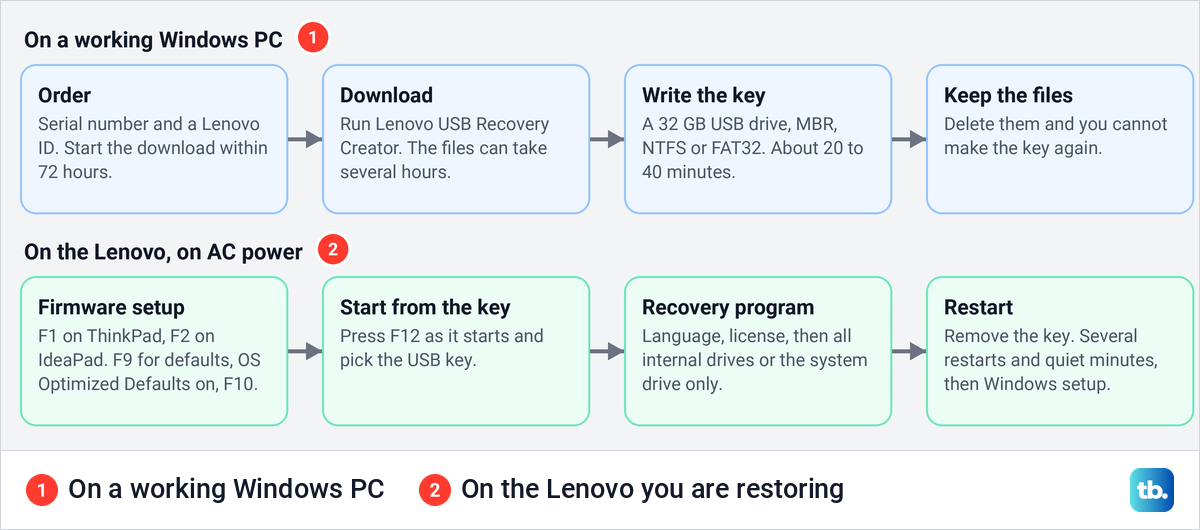
On the Lenovo, plug in the charger and open the firmware setup with F1 on a ThinkPad or F2 on an IdeaPad. Lenovo says to make sure OS Optimized Defaults is set to Enabled, press F9 to load defaults and F10 to save, then press F12 repeatedly at power on and select the USB key.
The recovery program asks for your language, the license and, with several internal drives, whether to format all of them or only the system drive. Lenovo says Think-branded devices such as ThinkPads let you pick the installation drive from a list. On its Lenovo-branded devices there is no such choice and all connected drives may be erased, so if you are not sure which kind yours is, back up and temporarily remove any secondary drive first, as Lenovo advises.
Lenovo then says to remove the USB key and select Yes to restart. Expect several restarts and minutes with nothing on screen, which Lenovo calls normal. When the Windows setup screen appears, follow it to finish.
If Lenovo has no image for your serial number, for example on a device past end of service or one built with a custom software image, a Windows 11 bootable USB drive reinstalls Windows without Lenovo's apps. Lenovo's own FAQ suggests the same, with drivers from Lenovo's site.
What a factory reset brings back on a Lenovo
Microsoft says Reset this PC restores Windows to an updated state rather than the factory-preinstalled state, keeping the drivers that were already installed, and that Remove everything restores preinstalled customizations to their factory state. Lenovo's recovery USB brings back the original factory image instead, and Lenovo warns the image may lack the latest drivers, so update Lenovo drivers afterwards with System Update in Lenovo Vantage.
Microsoft says a digital license lets the same edition of Windows 11 reinstall without a product key and activate online. If it does not, see our guide to Windows 11 activation problems.
After the reset, before you hand it over
Microsoft says to remove the laptop from your Microsoft account once it is reset. Sign in at account.microsoft.com/devices, select Show details for the laptop, then More actions > Remove, tick the confirmation box and select Remove.
How we tested this guide
We tested this on Windows 11, version 25H2, going through Remove everything with Clean data off and on, up to the Reset button.
Frequently Asked Questions
Where is the Novo button on a Lenovo laptop?
Lenovo says it is a small button or pinhole with a backwards arrow beside it, usually on the side or near the power button. On the IdeaPad Slim 5 it is on the right side, and your user guide shows the spot.
Does a ThinkPad have a Novo button?
No. Lenovo says ThinkPad and ThinkCentre models do not have one, and the hole under a ThinkPad T14 Gen 5 is an emergency-reset hole for a frozen laptop.
How do I factory reset a Lenovo laptop without the Novo button?
Use Settings if it starts. Otherwise Lenovo's guides allow Fn + the power button on the IdeaPad 3 and Yoga Slim 7 Pro X and F9 on the Legion 5 (15 inch, 7) and Legion 7a, and any Lenovo can use the sign-in screen with Shift or two interrupted starts.
Can I factory reset a Lenovo laptop without the password?
Yes. By default Remove everything goes ahead from the recovery screen without a password, while Keep my files asks for an administrator's. An encrypted drive can still ask for the BitLocker key.
Why does my Lenovo ask for a recovery key when I reset it?
The drive is encrypted with BitLocker. Microsoft says the key may be at aka.ms/myrecoverykey or in the account of whoever set the laptop up, and neither Lenovo's service center nor Microsoft can recover it. If you cannot find it, Microsoft says you will have to reset the device with one of the Windows recovery options, which removes all of your files.
Will a factory reset put back the Windows my Lenovo came with?
Not exactly. Reset this PC gives you current Windows with its updates rather than the factory image, though Microsoft says Remove everything restores the PC maker's preinstalled customizations. Lenovo's recovery USB puts back the factory-installed Windows, apps and drivers, if Lenovo has an image for your serial number.
How long does a Lenovo factory reset take?
Lenovo says up to a few hours, so keep the charger in, and on our PC the Clean data switch warned that cleaning may take hours. Lenovo's recovery USB adds a download of several hours and 20 to 40 minutes to write the key.
Do I need a product key after the reset?
Not with a digital license. Microsoft says the same edition of Windows 11 reinstalls without a key and activates online.