
If the red light on your Samsung TV keeps blinking and the TV will not turn on, unplug it for 30 seconds and plug it straight into a wall outlet you know works, with no surge protector. If it still blinks and will not start, Samsung says the TV needs service.
First make sure the blinking light is on the TV, not on the remote, and that it keeps blinking on its own. On some Samsung models, a brief blink as you press Power on the remote shows the TV has received its signal, and it is not a fault. A steady red light and no light at all lead to different checks, and the table below sorts them out.
The short version
- Find the light: the TV's standby light sits at the bottom edge, where you aim the remote. A light on a SolarCell remote means something else.
- Keeps blinking: unplug the TV for 30 seconds, then plug it straight into a wall outlet that works, with no surge protector.
- Turns steady red: the old outlet or surge protector was the problem. Press Power on the remote, then the TV's own Power button.
- Still blinking and still off: Samsung's next step is service. Samsung's troubleshooting page for this light does not assign a fault to a number of blinks.
- Starts again: check Anynet+ if an HDMI device keeps waking it, then update the software.
What the red light on a Samsung TV means
Samsung calls it the red standby light, and on a TV it is the small light at the edge of the screen that you aim the remote at. In normal use it is on while the TV is off and plugged in, and it goes out when the TV is in use. Samsung's printed manual for its 2023 QLED and OLED models calls the same spot the remote control sensor.
| What you see | What it can mean | What to do |
|---|---|---|
| Steady red light, dark screen | Normal standby. The TV has power | Press Power on the remote, then the Power button on the TV |
| A brief blink as you press Power on the remote, on some models | The TV received the remote's signal | Nothing if the TV starts. If it does not, try the TV's own button |
| No light and a black screen | The TV is on with a black picture, or it has no power | Press a button on the TV other than Power and watch for a menu |
| Keeps blinking and the TV will not start | A problem with the outlet or surge protector, or a TV fault that needs Samsung service | Unplug for 30 seconds, plug straight into a working wall outlet with no surge protector, and request service if it still blinks |
| A SolarCell remote's light blinks twice after a press, or stays on for 5 seconds or more | Two blinks: the remote has lost its Bluetooth link. Staying on: its battery needs charging | Two blinks: pair the remote again. Staying on: charge it |
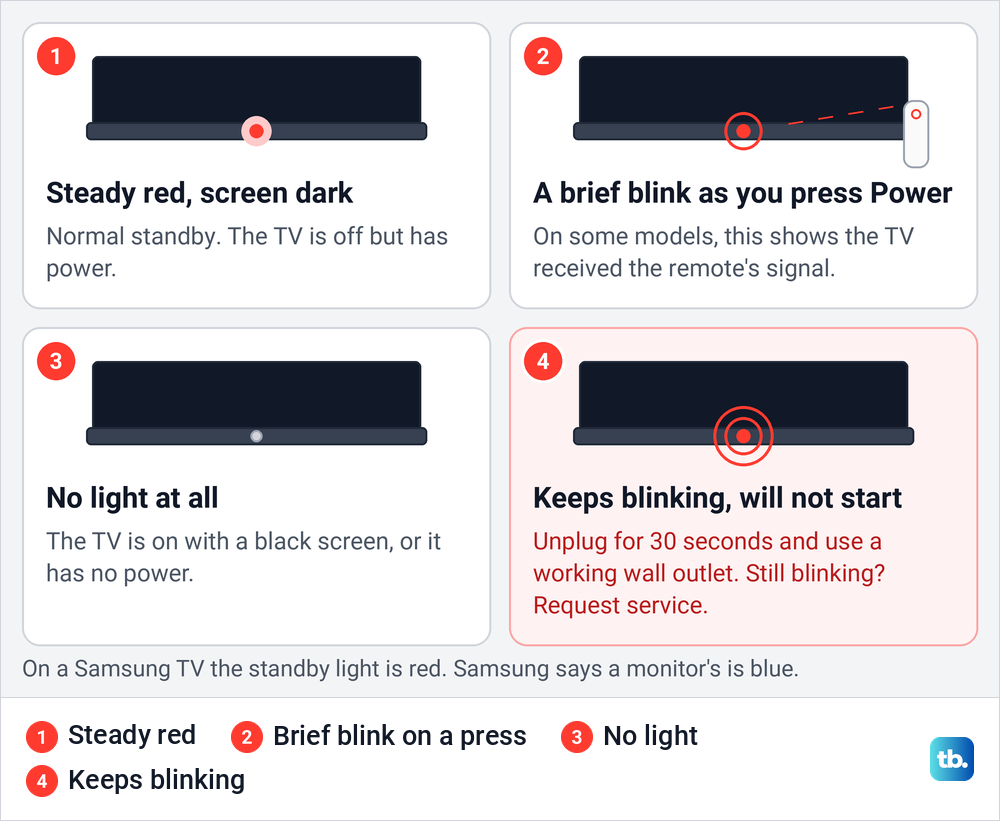
What this table leaves out on purpose is a blink-count chart. Samsung's troubleshooting page for this light treats blinking as one case and does not assign a fault to two, five or any other number of flashes. The charts that circulate online disagree with each other, blaming the same two-blink pattern on the power board in one place and on the panel cable or software in another.
Owners describe the light flashing every few seconds while the TV is off, or a repeating pattern of two or five blinks. Samsung's route for all of them is the same power test, then service. Write the pattern down for the repair team, but do not order parts from it.
Check whether the TV or the remote is blinking
Samsung's SolarCell remotes have a small light of their own, at the top of the remote just above the round direction pad. It is easy to mistake for the TV's light when the remote sits in front of the screen, and it means something different.
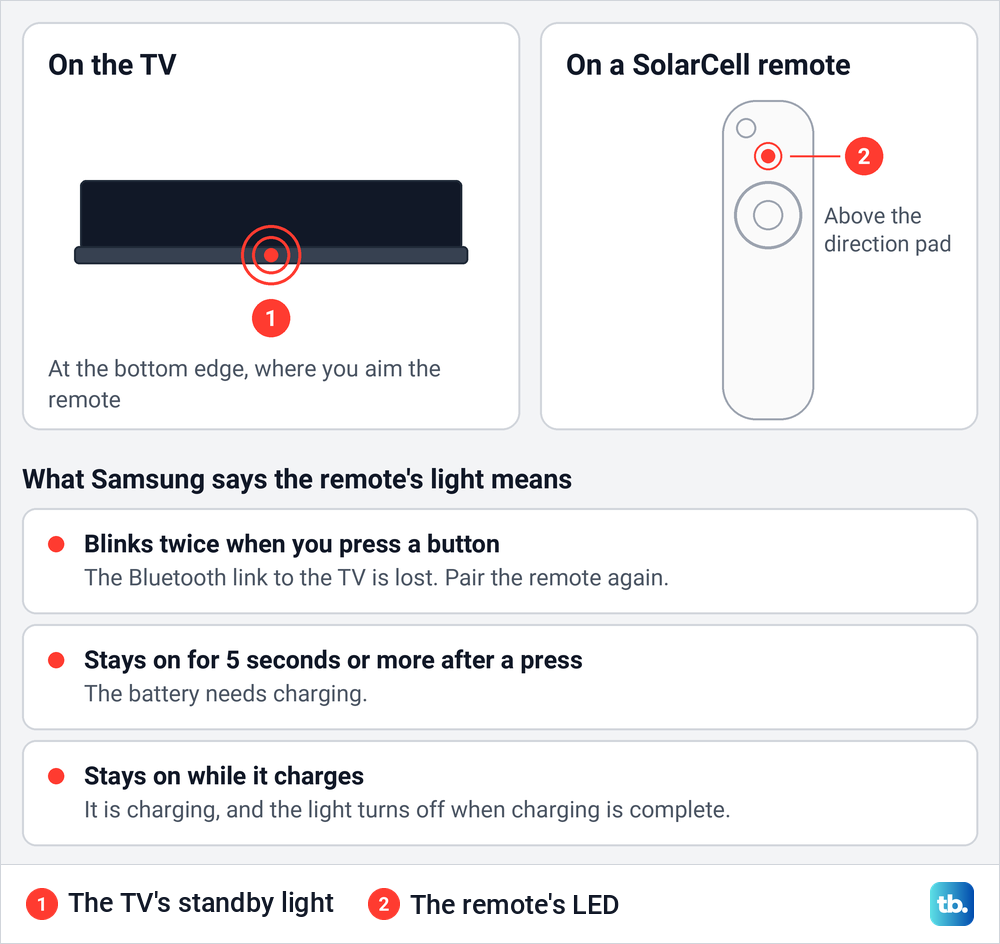
Samsung says no light on the remote means it is connected to the TV over Bluetooth. Two blinks when you press a button mean that connection has been lost, although the remote's infrared still changes channels and volume. A light that stays on for at least 5 seconds after a press means the battery needs charging, and a light that stays on during charging means it is charging properly.
If it is the remote that blinks, follow our steps to fix a remote that blinks red instead of the TV power steps below. If the TV's own light is the one blinking, carry on here.
Unplug the TV for 30 seconds
Samsung's first step for a blinking light is to cut the power completely. Unplug the TV's power cord from the wall and leave it unplugged for 30 seconds before you plug it back in. Samsung's page for this light gives no other step, such as holding a button while it is unplugged.
While the cord is out, look along it for visible damage. Samsung's page on a TV that turns itself on or off says to replace a damaged cord. If the TV still responds and you only want a fresh start, our guide to restart a Samsung TV covers both the remote and the unplug methods.
Plug it straight into a wall outlet you know works
When you plug the TV back in, use an outlet you are sure of. Samsung suggests testing it first with another device, such as a lamp, and then plugging the TV straight into it. If the TV was on a surge protector or power strip, leave that out for this test.
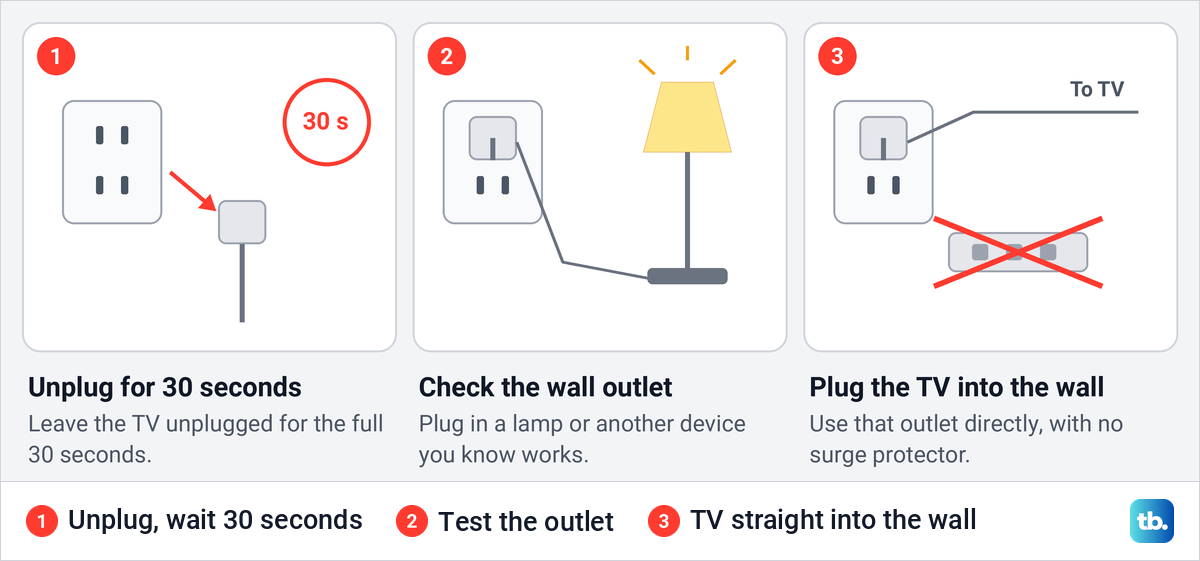
Samsung's reason is specific. It says surge protectors "may eventually wear out and stop providing the necessary voltage for your TV", so an old strip whose own switch still lights up can be the problem. Plenty of advice says to keep a TV on a surge protector at all times, but for this test Samsung's instruction is the opposite.
Read the light after the outlet test
Now look at the light again. If it comes on steady, without flashing, Samsung says the TV is receiving power and will probably turn on, and that the original outlet or the surge protector was at fault. Press Power on the remote and see whether the picture comes back.
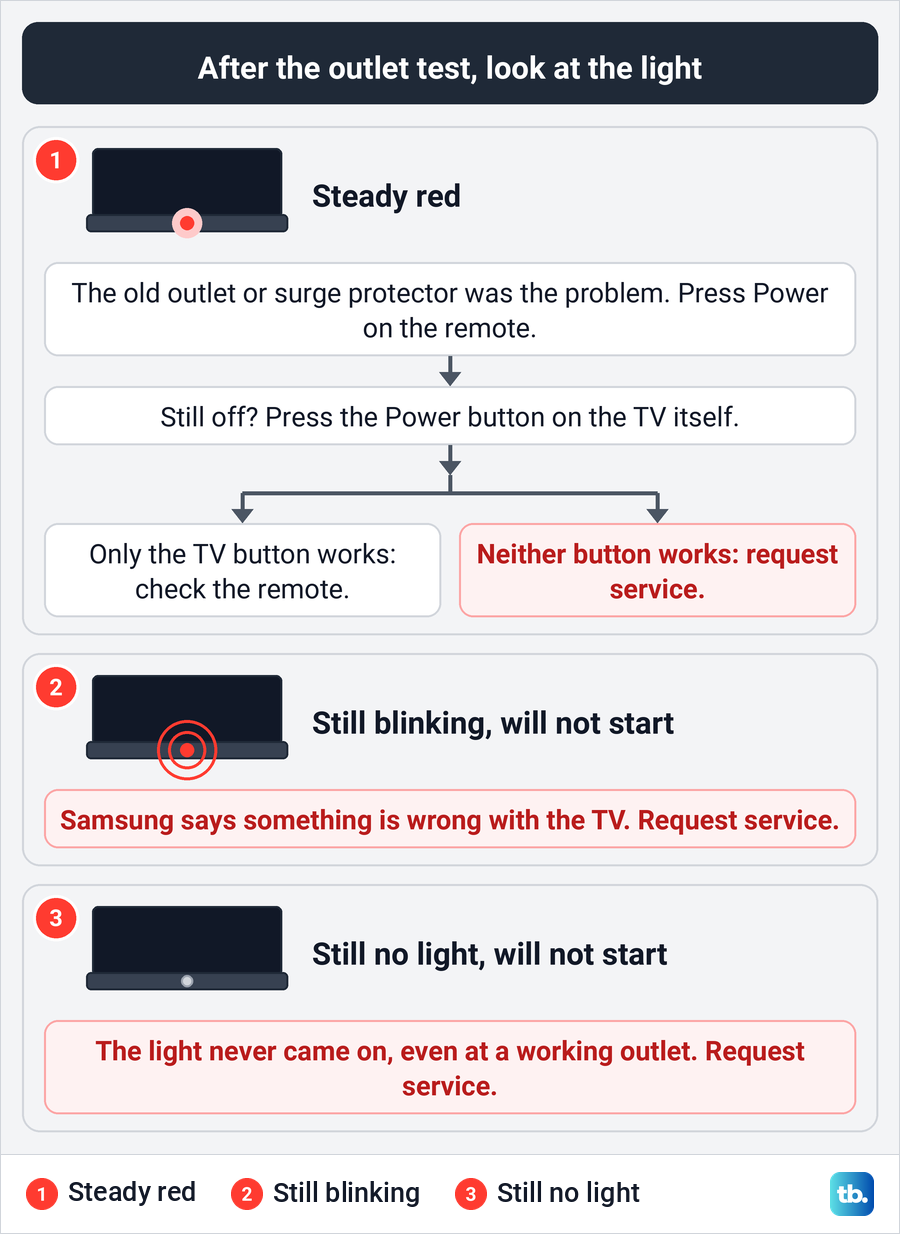
If the light is steady but the screen stays dark, the next checks are the TV's own Power button and the remote, below. If the light keeps blinking and the TV will not turn on, stop there, because Samsung calls that a sign that something is wrong with the TV and asks you to request service. If no light comes on at all at a working outlet and the TV will not start, Samsung's advice is the same.
Press the Power button on the TV itself
A steady red light means the TV has power, so the question is whether it is ignoring the remote. Press the Power button on the TV itself. Samsung says its position varies by model, that most newer TVs have their buttons on the back right side, and that some models have a single control button. Samsung's 2023 QLED and OLED manual puts the TV Controller button at the bottom of the TV.
Our guide shows where to find the power button on your Samsung TV if you have never needed it. If the TV starts from its own button, Samsung says the remote is the problem. If neither the remote nor the button starts a TV whose light is on, Samsung says service is needed.
Check the remote and its signal
A brief blink from the TV's light is a good sign here. Samsung's manuals for The Frame and for its 2023 QLED and OLED models tell you to check that the light at the bottom of the TV blinks when you press Power on the remote. If it does not blink, those manuals say to replace the batteries in a remote that takes them, or to charge a rechargeable one.
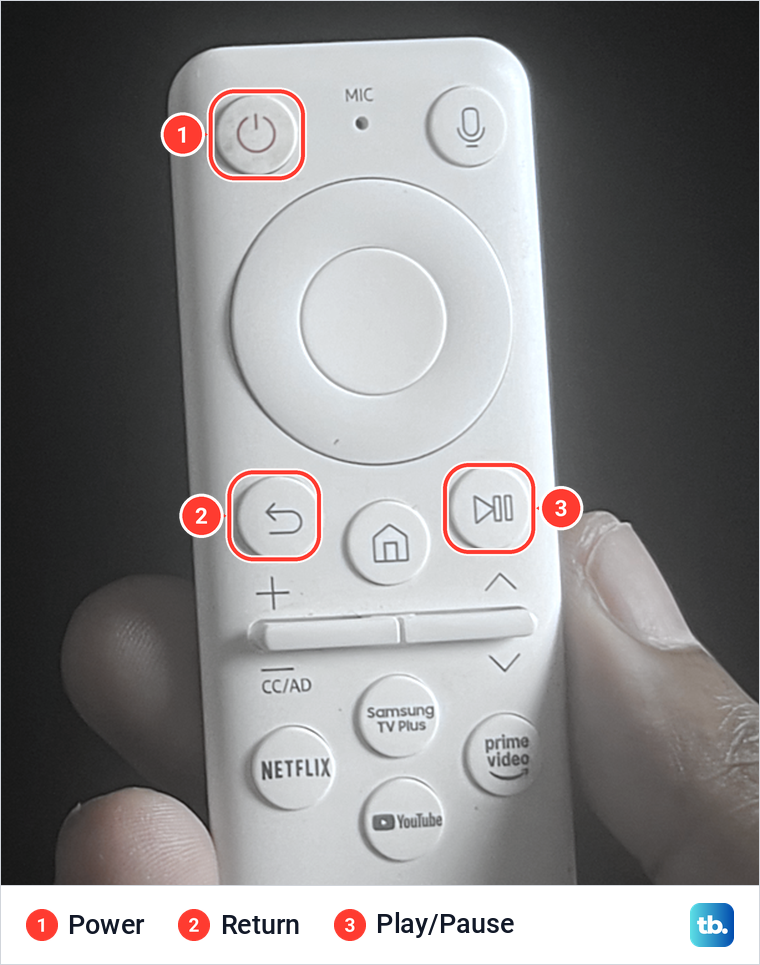
Our photos come from our Samsung Odyssey OLED G9, a smart monitor that runs the same Tizen software as Samsung's smart TVs, and its white Samsung remote. On that remote, Power is the round button at the top left, and Return and Play/Pause sit either side of Home below the ring.
Samsung's camera test shows whether a remote sends infrared at all. Point the remote at a phone or tablet camera, hold Power and watch the camera's screen, where a colored light means the remote is sending. With no light, Samsung says to fit fresh batteries and try again, then replace the remote if there is still nothing.
Samsung's reset depends on the remote. For one that takes batteries, remove them and hold Power for eight seconds before putting them back. For a solar remote on a 2021 or newer TV, hold Return and Enter, the center of the navigation pad, for 10 seconds, then pair it again.
To pair, stand within a foot of the TV and hold Return and Play/Pause together for at least 5 seconds, or until the TV says the remote is connected. Some Samsung manuals give three seconds, so the on-screen message is the better signal. Our guide to pair a Samsung Smart Remote has the model-by-model steps.
A SolarCell remote can also simply be flat. Samsung's page lists its charge under Power and Energy Saving, as Available Remote Battery. Our monitor shows the same information in a different place: under General & Privacy > Remote Control it reported our remote at 39% and printed Samsung's charging advice.
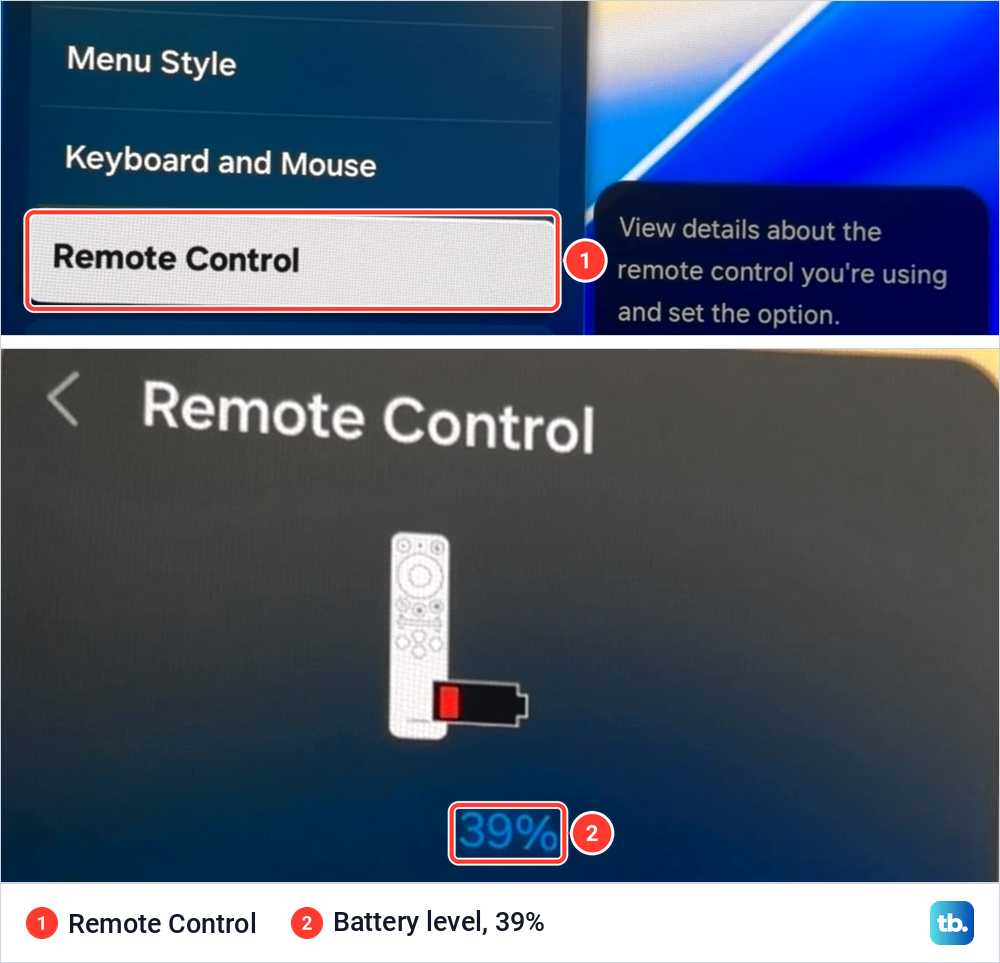
That note says to charge through the cable port at the bottom of the remote, or to lay the remote on its front with its back facing up to indoor light. Samsung adds that a charging reminder appears on the TV when the battery reaches 50%, and again at 10% or less.
If the light is off and the screen stays black
No light at all does not always mean no power. Samsung says the red light goes out whenever the TV is on, so a TV showing a black picture looks just like one with no power. Samsung's manual for The Frame adds that the light stays off in Art Mode.
To tell the two apart, press any button on the TV except Power, without using the remote. Samsung says some models have a single control button and points you to the user manual to find it. If a menu or anything else appears, the TV is on, and our guide to fix a Samsung TV with no picture picks up from there. If nothing appears, run the same 30-second unplug and working-outlet test as for a blinking light.
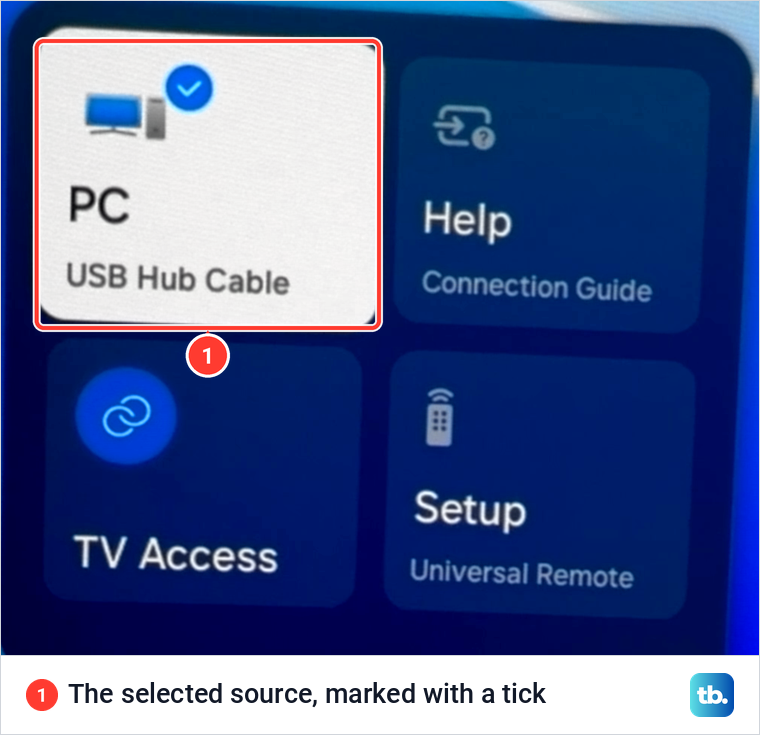
A TV that is on can also be set to an input with nothing playing on it. On our monitor, the source panel marks the selected input with a tick, which is the quickest way to see where the screen is pointed. To move to another input, follow the steps to select the correct HDMI input.
If an HDMI device keeps turning the TV on
Some TVs do start, then switch themselves on again later, and that is a different problem from a blinking light. Samsung says some HDMI devices are set by default to turn the TV on when they turn on, through Anynet+, its name for HDMI-CEC. Input switching is a separate case, which Samsung covers on its own page: some devices send a signal in error that switches the TV to their input, and Samsung says the device's maker typically fixes that with a firmware update.
Turning Anynet+ off stops HDMI devices from waking the TV, but Samsung warns you will no longer be able to use your TV remote for both devices. Depending on the model year, Samsung lists External Device Manager, where Anynet+ lives, under General, Connection or General & Privacy in Settings. On our monitor it sits in General & Privacy, with Anynet+ (HDMI-CEC) switched on.
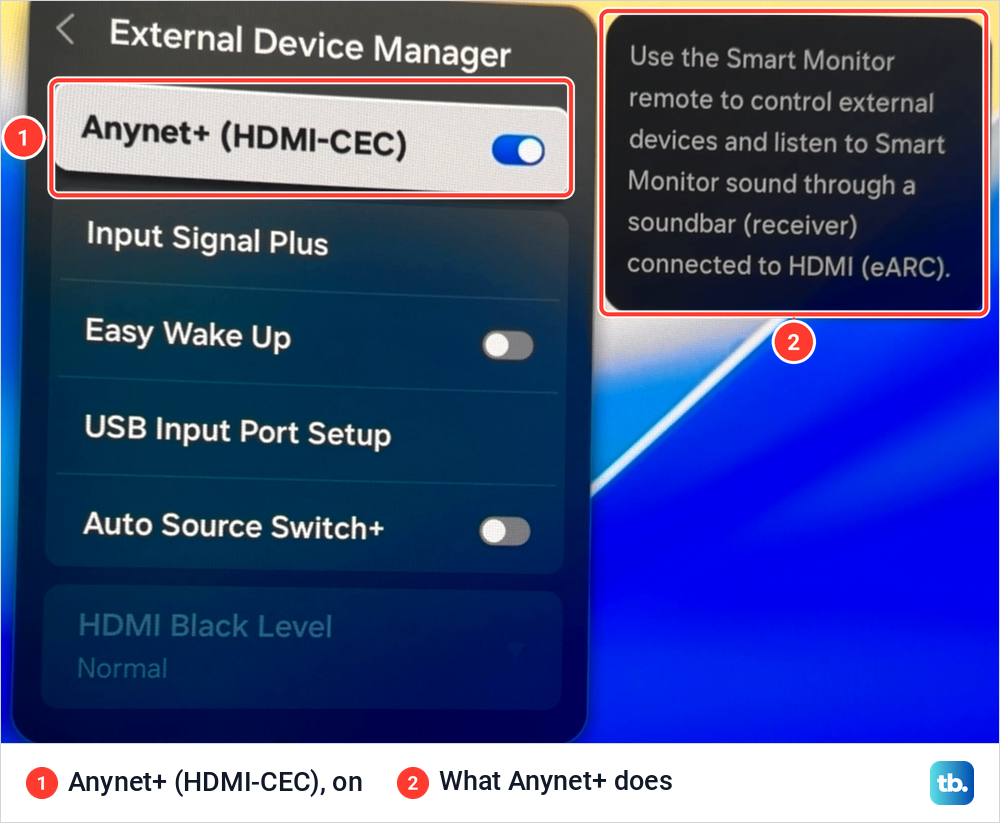
If your TV starts and then wakes or loops, our guide to diagnose a Samsung TV that turns itself on covers Anynet+, timers and the other causes. When one connected device will not show up after the TV starts, check the Samsung TV HDMI connection instead.
Update the software once the TV starts
A software update cannot fix a TV that will not start, because it needs working menus. Once the TV is back on, Samsung's path is Settings > All Settings > Support > Software Update, then Update Now. On our monitor, Software Update sits in Support just below Remote Management.
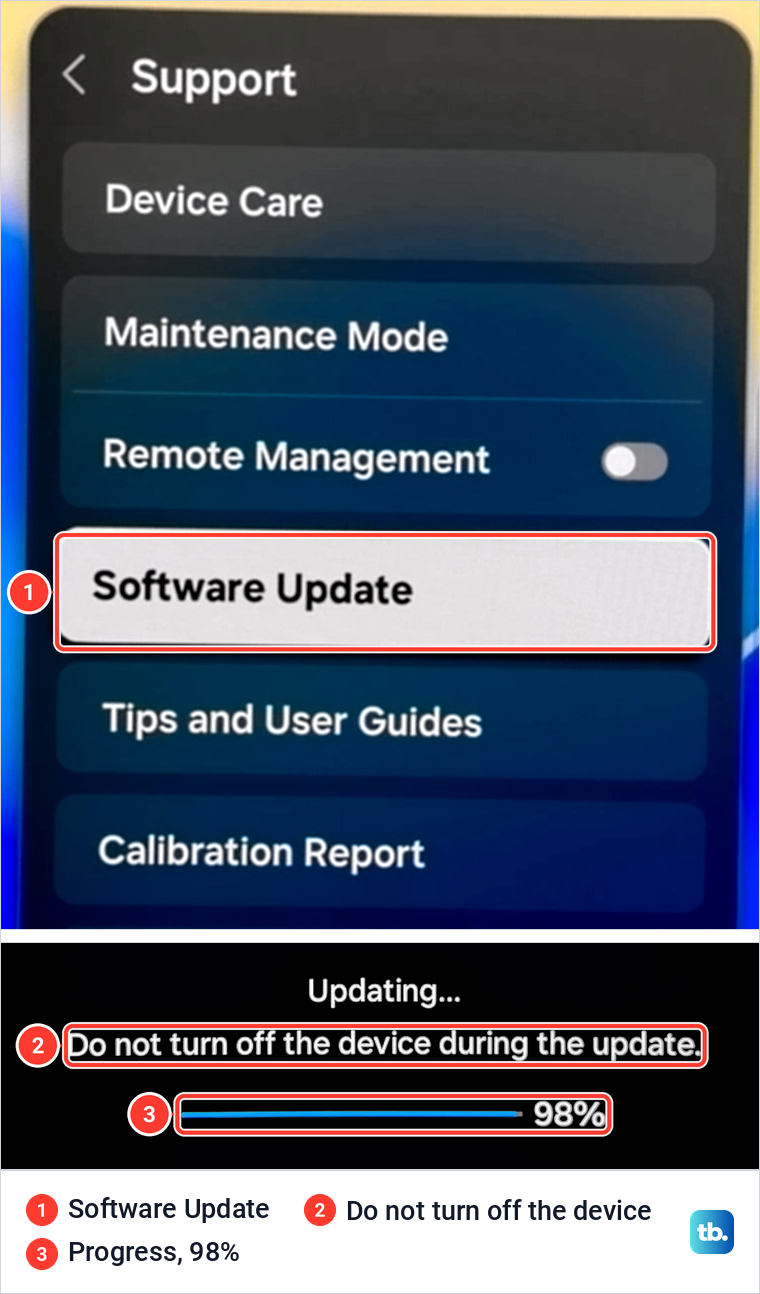
Samsung says updates usually take a few minutes, that you should not turn the device off until it is finished, and that it restarts by itself afterwards. Our monitor's update screen gave the same warning, "Do not turn off the device during the update", next to its progress bar. If Software Update is grayed out, Samsung says a streaming app is running in the background, so switch to the TV source or press Samsung TV Plus on the remote first.
When a blinking red light means service
The outlet test and the Power buttons above are where Samsung's route ends in service. Nothing in that route asks you to open the back panel or swap a board, and a factory reset is not part of it either, because it needs menus you cannot reach and it returns every setting to its factory default.
Before you contact Samsung, note your model number, which our guide to check the model of your Samsung TV helps you find, and describe what the light does, including any pattern of blinks. Then request a repair through Samsung's US support and service page, or the support section of Samsung's site for your country.
How we tested this guide
Our photos come from our Samsung Odyssey OLED G9, a smart monitor that runs the same Tizen software as Samsung's smart TVs, and its white Samsung remote. On it we photographed the remote's buttons, read the remote's battery level under General & Privacy, opened the source panel and External Device Manager, and found Software Update in Support, along with an update in progress.
A monitor's standby light is blue, so everything about the TV's red light, the outlet test, the TV's own buttons, the remote checks and the service route follows Samsung's support pages and its printed TV manuals. Where Samsung's TV menus are named differently from ours, we give Samsung's wording first.
Frequently Asked Questions
Why is my Samsung TV flashing red but not turning on?
Unplug it for 30 seconds, then plug it straight into a wall outlet you know works, without a surge protector. If the light turns steady, the old outlet or protector was the cause. If it keeps blinking and the TV still will not start, Samsung says to request service.
What do two or five red blinks mean on a Samsung TV?
Samsung's troubleshooting page for this light does not assign a fault to a number of blinks. It treats a blinking light as one case, with the unplug and outlet test first and service if nothing changes. Note the pattern and your model number for the repair team.
Why does the red light blink when I press the remote?
On some Samsung models, a brief blink as you press Power is the expected response. Samsung's manuals for The Frame and its 2023 QLED and OLED models tell you to check that the light at the bottom of the TV blinks when you press Power, as a sign the signal arrived. If the light blinks but the TV does not start, try the Power button on the TV itself.
Is the blinking light on my TV or my remote?
The TV's light is at the bottom edge of the screen, where you aim the remote. A SolarCell remote has its own light above the direction pad. Two blinks after a press mean it has lost its Bluetooth link, and a light that stays on for 5 seconds means it needs charging.
Can a surge protector cause a flashing red light?
It can be part of the problem. Samsung says surge protectors may wear out and stop providing the voltage a TV needs, so test with the TV plugged straight into a working wall outlet. If the light turns steady there, the protector or the old outlet was at fault.
Can an HDMI device make my Samsung TV turn on by itself?
Yes. Samsung says some HDMI devices turn the TV on with them through Anynet+ (HDMI-CEC). That only applies to a TV that starts normally, and turning Anynet+ off means your TV remote no longer controls both devices.