Outlook messages stop arriving, webmail loops at sign-in, the desktop app says it is offline, or mail sits in the Outbox. Start with Microsoft’s service status, because an outage changes what you should do next. Then move through the account, browser, sync, and app fixes that match the symptom in front of you.
1. Check whether Outlook is down today
This fixes wasted troubleshooting when Microsoft 365, Office Online Services, Outlook.com, or Exchange Online is having a service problem.
Go to https://status.cloud.microsoft/ and check Microsoft 365, Office Online Services, and Outlook-related status.
When a Microsoft 365 tenant sign-in is blocked, use the same public status page for known sign-in-blocking issues.
Open Microsoft Support’s recent-issues page for Outlook.com. Use the matching recent-issues page for classic Outlook for Windows or Outlook for Mac when the failure is in the desktop app.
For a work or school mailbox, ask an admin to check Microsoft 365 admin center > Health > Service health, then open Overview, Issue history, or Reported issues.
2. Rule out connection and browser trouble
Open http://www.microsoft.com and http://www.bing.com in Edge or Chrome. When both fail, fix the connection before changing Outlook.
Reconnect Wi-Fi from the Windows taskbar by selecting the Network, Sound, or Battery icon, opening Manage Wi-Fi connections, choosing the network, then selecting Connect. Enter the password and choose Next; use Refresh network list when the network is missing.
Restart the home network by unplugging the router, unplugging the modem, removing the backup battery when the lights stay on, waiting at least 10 seconds, reconnecting the modem, waiting for the lights to stop blinking, then reconnecting the router.
On Windows 11, reset networking through Start > Settings > Network & internet > Advanced network settings > Network reset > Reset now > Yes. On Windows 10, use Start > Settings > Network & internet > Status > Network reset > Reset now > Yes.
For Outlook.com display problems or sign-in loops in Edge, clear browser data through Settings and more > Settings > Privacy, search, and services > Clear browsing data > Choose what to clear. Choose a Time range, select Cookies and other site data or Cached images and files, then choose Clear now. The shortcut is Ctrl + Shift + Delete.
When Outlook.com has problems with AdBlock, uBlock, or a pop-up blocker enabled, manage browser extensions and exclude Outlook.com from the blocker.
Once Microsoft.com and Bing.com load, reopen Outlook and test mail again.
3. Force Outlook to check for mail
In new Outlook for Windows, Outlook.com, and Outlook on the web, use Mail > View > Sync, or press F9. In web Outlook, refresh the browser to check for new mail. In classic Outlook, use Send / Receive > Send/Receive All Folders; for one account, use Send / Receive > Send/Receive Groups, point to the account, then choose Inbox.
4. Recover mail stuck or hidden in Outlook.com
Open Outbox, then open the oldest stuck message.
When it has an attachment over the provider limit, delete the attachment and attach a smaller file or a link. Outlook.com has a 25 MB attachment-send limit.
Send the message again.
In Outlook.com, check the Other tab.
Check Junk Email settings and the Junk Email folder. When a valid message is there, right-click it and choose Mark as not junk.
Restore chronological order with Filter > Sort > Date.
Check forwarding and rules when expected mail keeps going somewhere else.
5. Clear Outlook.com storage and sign-in blocks
This fixes Outlook.com send and receive failures caused by full storage, a blocked account, or stale sign-in credentials.
Open Microsoft storage at https://go.microsoft.com/fwlink/?linkid=2219856 or Outlook.com storage settings.
When storage is full, delete files or messages, or buy more storage.
Treat mail sent to you while storage was full as unavailable. Microsoft says those messages are bounced and unrecoverable.
When you cannot sign in, use the Microsoft account sign-in helper from the Outlook.com support page.
When the account is blocked, follow the unblock flow.
After a recent password change, update the password where Outlook asks you to sign in again.
For a non-Microsoft mail app connected to Outlook.com, open Settings > Mail > Forwarding and IMAP. Turn POP or IMAP off when a connected app is causing sync problems, or turn on the protocol your current OAuth2/Modern Auth app uses and select Save.
For supported non-Microsoft apps, use Microsoft’s current settings: IMAP outlook.office365.com port 993 SSL/TLS, POP outlook.office365.com port 995 SSL/TLS, and SMTP smtp-mail.outlook.com port 587 STARTTLS.
When you can sign in but still need Outlook.com support, open Outlook.com, choose Help from the top menu, then Help. Search the issue, press Return, then use Still need help? > Yes.
6. Repair classic Outlook on Windows
Look at Outlook’s status bar for Disconnected, Working Offline, or Trying to connect. Use Send/Receive > Work Offline to toggle back online, then send/receive or resend the message.
Repair the email profile through File > Account Settings > Account Settings > Email, select the account, choose Repair, follow the wizard, then restart Outlook. Microsoft notes Repair is not available when Outlook 2016 connects to an Exchange account.
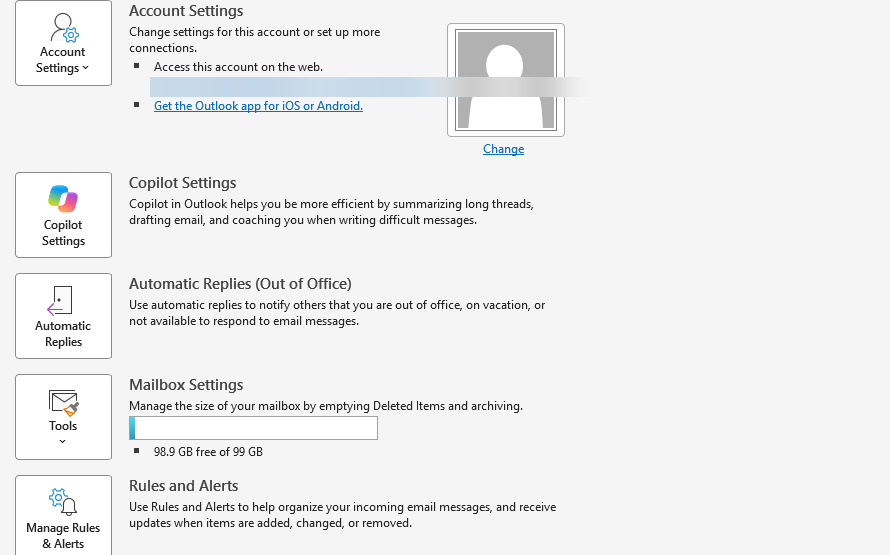
For POP or IMAP accounts, update settings at File > Account Settings > Account Settings, select the account, then Change. Check incoming and outgoing mail servers, username, password, ports, and encryption type under More Settings > Advanced, then run Test Account Settings.
When Outlook will not start, press Windows key + R, type Outlook /safe, choose the profile, and select OK. Go to File > Options > Add-ins > Manage > COM Add-ins > Go, clear add-in checkboxes, select OK, exit Outlook, then restart normally and re-enable add-ins one at a time.
When a .pst data file is the issue, exit Outlook, open SCANPST.EXE from the Office folder, browse to the .pst file, choose Start, then choose Repair when errors are found.
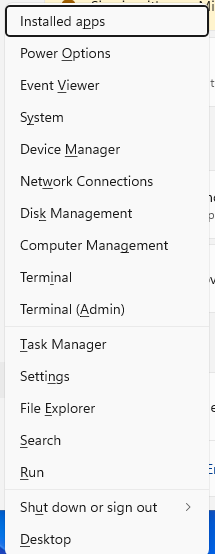
Create a new profile by right-clicking Start, choosing Run, typing Outlook.exe /profiles, pressing Enter, choosing Options, selecting New, naming the profile, selecting OK, then adding the email account. The alternate path is File > Account Settings > Change Profile.
For Exchange or Microsoft 365 accounts, turn on Cached Exchange Mode through File > Account Settings > Account Settings, select the account, choose Change, check Use Cached Exchange Mode, then exit and restart Outlook. This setting is not available for POP, IMAP, or new Outlook for Windows.
Update Office from classic Outlook through File > Account or Office Account > Update Options > Update Now. When updates are disabled, select Enable Updates first.
Repair Office in Windows 11 by right-clicking Start > Installed apps, choosing your Microsoft 365 or Office product, opening the ellipses menu, then Modify > Online Repair > Repair. In Windows 10, right-click Start > Apps and Features, choose your Office product, then Modify > Online Repair > Repair.
Skip old Basic Authentication fixes, Windows Mail/Calendar, Outlook Lite, and legacy Outlook for Mac; use Modern Authentication/OAuth2, new Outlook or Outlook.com, Outlook Mobile, and current Outlook for Mac.
7. Refresh Outlook on Mac and mobile
This fixes stale, incomplete, incorrect, or crashing Outlook data in Microsoft’s current Mac and mobile apps.
On Outlook for Mac, reset the account cache from Tools > Accounts, select the account, then Manage > Reset Account. Microsoft warns unsynced information may be deleted.
Update Outlook for Mac from Help > Check For Updates. When Microsoft AutoUpdate opens, choose Update or Update All, then restart Outlook.
Remove and add a Mac account from Tools > Accounts > account > Manage > Remove Account > Continue, then Outlook > Settings > Accounts > Add Account, enter the email address, select Continue, follow the prompts, and choose Done.
When profile corruption is suspected on Mac, open Finder > Applications, Ctrl-click or right-click Microsoft Outlook, then Show Package Contents > Contents > SharedSupport > Outlook Profile Manager and add, change, or delete the profile.
In Outlook for iOS or Android, force close and reopen the app first when data is incomplete or incorrect, then go to Settings, select the email account, and choose Reset Account.
For mobile sync issues, remove the device partnership from Outlook.com or Outlook on the web through Settings > General > Mobile devices > device > Delete > Save, then power off the mobile device, restart it, and sync again. In new Outlook, use Settings > Accounts > Mobile devices instead.
When Outlook mobile crashes on open, clear the browser cache on the device, remove the Outlook app, and reinstall it from the official app store.
On Outlook for Android, change the password at the email provider’s website or account settings; the app detects a sync error and asks for the new password.
For Apple Mail with Microsoft 365 or Exchange accounts, reconnect the account through iPhone or iPad Settings > Apps > Mail > Mail Accounts > Exchange > Delete Account, then Mail Accounts > Add Account > Microsoft Exchange.
8. Hand work account issues to an admin
Work and school Microsoft 365 mailboxes have tenant-specific Exchange Online or Outlook service health details that regular users do not see. An admin checks them at Microsoft 365 admin center > Health > Service health, then opens Overview, Issue history, or Reported issues. For unlisted problems, the admin selects Report an issue; for managed devices, use your help desk before changing server, authentication, or profile settings.
Frequently Asked Questions
How do I know whether Outlook is down or broken on my device?
Check https://status.cloud.microsoft/ first for Microsoft 365, Office Online Services, and Outlook-related status. Then compare it with Microsoft’s recent-issues pages for Outlook.com, classic Outlook for Windows, or Outlook for Mac.
Why did messages never arrive after Outlook.com storage was full?
Microsoft says mail sent while Outlook.com storage was full is bounced and unrecoverable. Free storage or buy more storage, then ask the sender to send the message again.
Why does Outlook.com work in the browser but not in another mail app?
Check Outlook.com Settings > Mail > Forwarding and IMAP. Use a mail app that supports OAuth2/Modern Auth, and use Microsoft’s current IMAP, POP, and SMTP settings when that app requires manual setup.
Can Windows Mail or Outlook Lite fix Outlook email problems now?
No. Microsoft says Windows Mail, Calendar, and People support ended December 31, 2024, and Outlook Lite stopped providing mailbox functionality starting May 25, 2026. Use new Outlook, Outlook.com, or Outlook Mobile instead.